> ## Documentation Index
> Fetch the complete documentation index at: https://docs.rdrive.io/llms.txt
> Use this file to discover all available pages before exploring further.
# How to generate the GF527 via the Dashboard?
> RDrive has introduced a dedicated dashboard to generate the GF527 report, which is essential for complying with the Digital Works Supervision System (DWSS) requ
## **How to Use RDrive's Dashboard to Generate the GF527 Report for DWSS Compliance**
RDrive has introduced a dedicated dashboard to generate the GF527 report, which is essential for complying with the **Digital Works Supervision System (DWSS)** requirements. This guide will walk you through the steps to effectively use this feature, ensuring your project data aligns with the standards expected for DWSS reporting.
* [Step 1: Access the Dashboard](#step-1%3a-access-the-dashboard)
* [Step 2: Select Report Options](#step-2%3a-select-report-options)
* [Step 3: Trigger Report Generation](#step-3%3a-trigger-report-generation)
* [Step 4: Wait for the Email](#step-4%3a-wait-for-the-email)
* [Step 5: Download the GF527 Report](#step-5%3a-download-the-gf527-report)
***
### **What is GF527?**
The **GF527** is a form used in the construction industry in Hong Kong to report work supervision data. Compliance with this form is a requirement for projects using DWSS, as it ensures accurate and consistent recording of on-site activities. RDrive simplifies this process by providing a built-in dashboard to generate the GF527 report directly.
***
## **Step-by-Step Guide to Generate the GF527 Report**
### **Step 1: Access the Dashboard**
* Log in to your RDrive account.
* Navigate to the Dashboard, select our **GF527** / **Labour Return** Dashboard. This is where you can manage and generate your reports.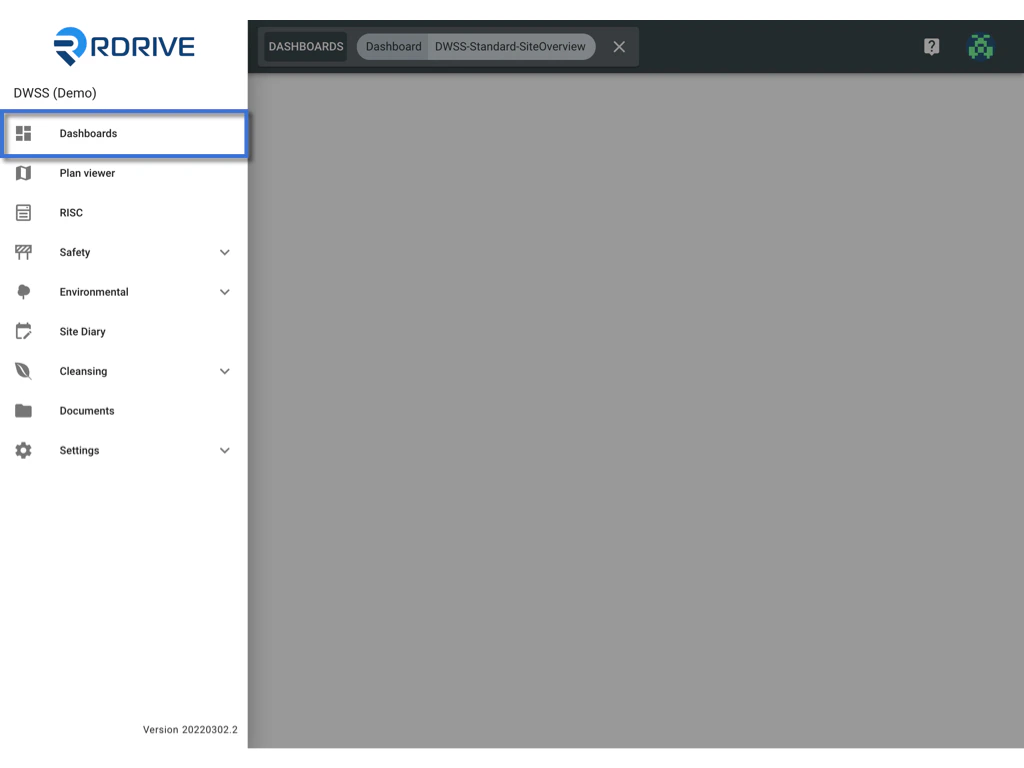 ### **Step 2: Select Report Options**
* Choose the **GF527 type**: Select between **2017** or **2003** depending on your project's requirement.
* Select the **month** and **year** for which you want to generate the report. Note that you can only select **one month and one year** at a time.
* Choose the **report type**:
* **PDF** for easy viewing and printing.
* **Excel** for data analysis and further modifications.
* Enter the **email address** of the user who should receive the generated report.
### **Step 2: Select Report Options**
* Choose the **GF527 type**: Select between **2017** or **2003** depending on your project's requirement.
* Select the **month** and **year** for which you want to generate the report. Note that you can only select **one month and one year** at a time.
* Choose the **report type**:
* **PDF** for easy viewing and printing.
* **Excel** for data analysis and further modifications.
* Enter the **email address** of the user who should receive the generated report.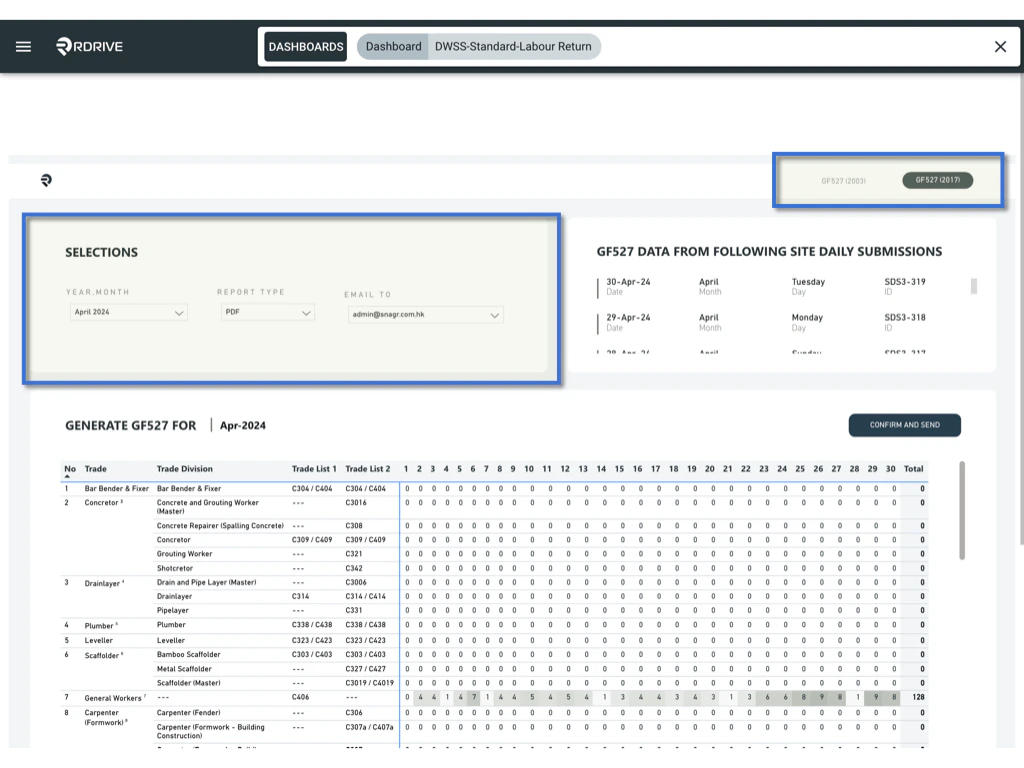 ### **Step 3: Trigger Report Generation**
* After making your selections, click the **CONFIRM AND SEND** button.
### **Step 3: Trigger Report Generation**
* After making your selections, click the **CONFIRM AND SEND** button. * The report generation process will start in the background, allowing you to **close this page** and continue other tasks on RDrive.
 ### **Step 4: Wait for the Email**
* Once the report is ready, RDrive will automatically send a notification email to the provided recipient.
* The generation time may vary depending on the data size, so please be patient while the system processes the request.
### **Step 5: Download the GF527 Report**
* The **GF527 report** will be attached as a file in the email, either in **PDF** or **Excel** format as you selected.
* Open the email and download the attached report—you now have everything you need to fulfill the DWSS requirements.
### **Step 4: Wait for the Email**
* Once the report is ready, RDrive will automatically send a notification email to the provided recipient.
* The generation time may vary depending on the data size, so please be patient while the system processes the request.
### **Step 5: Download the GF527 Report**
* The **GF527 report** will be attached as a file in the email, either in **PDF** or **Excel** format as you selected.
* Open the email and download the attached report—you now have everything you need to fulfill the DWSS requirements.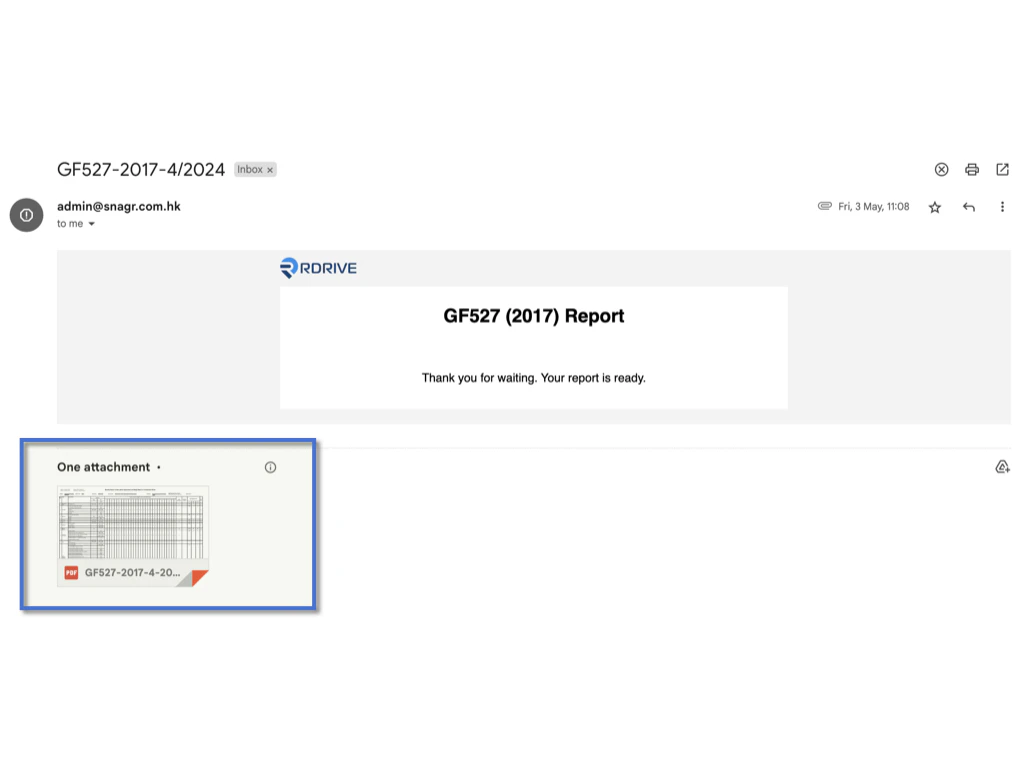 ## ***Important Tip: Data Refresh on the Dashboard***
*The data displayed on the RDrive dashboard is **not real-time**. It refreshes based on a schedule. You can view the last refresh time at the bottom right of the dashboard. Only data entered **before** this time will appear. For urgent updates, please contact **RDrive Support** for help.*
## **Conclusion**
RDrive’s GF527 dashboard is a powerful tool for streamlining the reporting process and ensuring compliance with DWSS requirements. By following this guide, you can efficiently generate accurate GF527 reports, saving time and ensuring that your project meets all necessary standards. Utilize RDrive’s robust digital capabilities to simplify your site supervision and reporting tasks, making your workflow more efficient and effective.
## ***Important Tip: Data Refresh on the Dashboard***
*The data displayed on the RDrive dashboard is **not real-time**. It refreshes based on a schedule. You can view the last refresh time at the bottom right of the dashboard. Only data entered **before** this time will appear. For urgent updates, please contact **RDrive Support** for help.*
## **Conclusion**
RDrive’s GF527 dashboard is a powerful tool for streamlining the reporting process and ensuring compliance with DWSS requirements. By following this guide, you can efficiently generate accurate GF527 reports, saving time and ensuring that your project meets all necessary standards. Utilize RDrive’s robust digital capabilities to simplify your site supervision and reporting tasks, making your workflow more efficient and effective.