> ## Documentation Index
> Fetch the complete documentation index at: https://docs.rdrive.io/llms.txt
> Use this file to discover all available pages before exploring further.
# How to Check the Email Log
> This guide explains how to access and review the email log in the system.
### **Email Log**
*This guide explains how to access and review the email log in the system.*
* **Purpose: This guide helps users track sent emails, including their details and statuses.**
* \*\*Who It’s For: General users, admins, or anyone needing to check email logs.
\*\*
Prerequisites: Proper access permissions to view the email log.
***
## **Step-by-Step Instructions**
✅ **Step 1: Access the Email Log**\
Navigate to the side menu and go to **Logs > Email logs**. ✅ **Step 2: View Filtered Emails**\
The system will automatically filter emails sent from the previous day. You will see yesterday's date set in the **unified search bar.**
✅ **Step 3: Review the Displayed Emails**\
The email log page will display emails sorted by the **receiver (user)**.
✅ **Step 2: View Filtered Emails**\
The system will automatically filter emails sent from the previous day. You will see yesterday's date set in the **unified search bar.**
✅ **Step 3: Review the Displayed Emails**\
The email log page will display emails sorted by the **receiver (user)**. ✅ **Step 4: Check Email Details**\
Click on an email entry to expand its details. The following information will be available:
* **Type**: Notification type
* **Email Type**: Specifies the category of email
* **Email Title**: Same as the email subject
* **Status**: Indicates the item status (for status notification emails)
* **Sent Date**: The date the email was sent
* **Acknowledged Date**: The date the receiver clicked the link in the email
✅ **Step 4: Check Email Details**\
Click on an email entry to expand its details. The following information will be available:
* **Type**: Notification type
* **Email Type**: Specifies the category of email
* **Email Title**: Same as the email subject
* **Status**: Indicates the item status (for status notification emails)
* **Sent Date**: The date the email was sent
* **Acknowledged Date**: The date the receiver clicked the link in the email
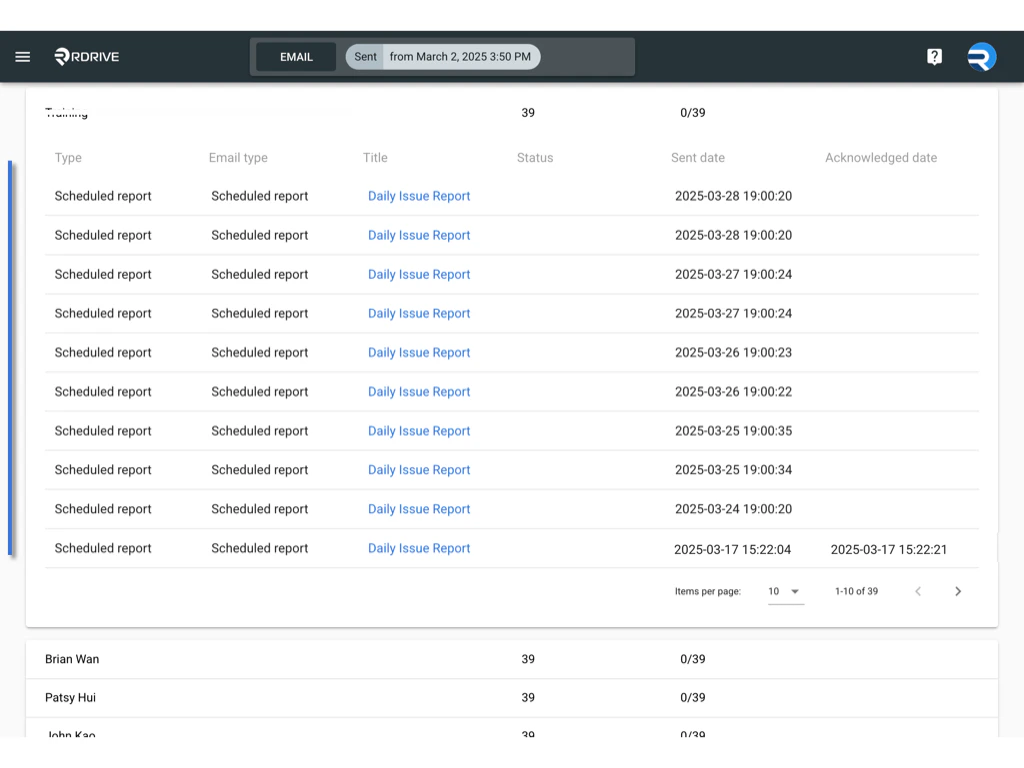 Clicking into the email allows you to view more detailed information about the message.
 ✅ **Step 5: Use Additional Search Criteria**\
The **unified search bar** allows filtering emails based on different criteria. Here are the available search options:
✅ **Step 5: Use Additional Search Criteria**\
The **unified search bar** allows filtering emails based on different criteria. Here are the available search options: ***
## **FAQs & Troubleshooting**
Q: **Why don’t I see any emails?**\
A: Ensure the correct date filter is applied in the search bar.
Q: **Why can’t I see the acknowledgment date?**\
A: The acknowledgment date only appears if the receiver has clicked the link in the email.
Q: **How do I filter emails by a specific user?**\
A: Use the unified search bar to enter the user’s details and refine the results.
***
***
## **FAQs & Troubleshooting**
Q: **Why don’t I see any emails?**\
A: Ensure the correct date filter is applied in the search bar.
Q: **Why can’t I see the acknowledgment date?**\
A: The acknowledgment date only appears if the receiver has clicked the link in the email.
Q: **How do I filter emails by a specific user?**\
A: Use the unified search bar to enter the user’s details and refine the results.
***