> ## Documentation Index
> Fetch the complete documentation index at: https://docs.rdrive.io/llms.txt
> Use this file to discover all available pages before exploring further.
# How to View an Issue or Record
> A brief introduction explaining the purpose of this guide.
### **Overview**
*A brief introduction explaining the purpose of this guide.*
* **Purpose:** To locate and review previously raised issues or records
* **Who It’s For:** Any user with ready only access and above
Prerequisites: Existing issues raised on the project
***
## **Step-by-Step Instructions**
### **✅ Step 1: Accessing the Finder**
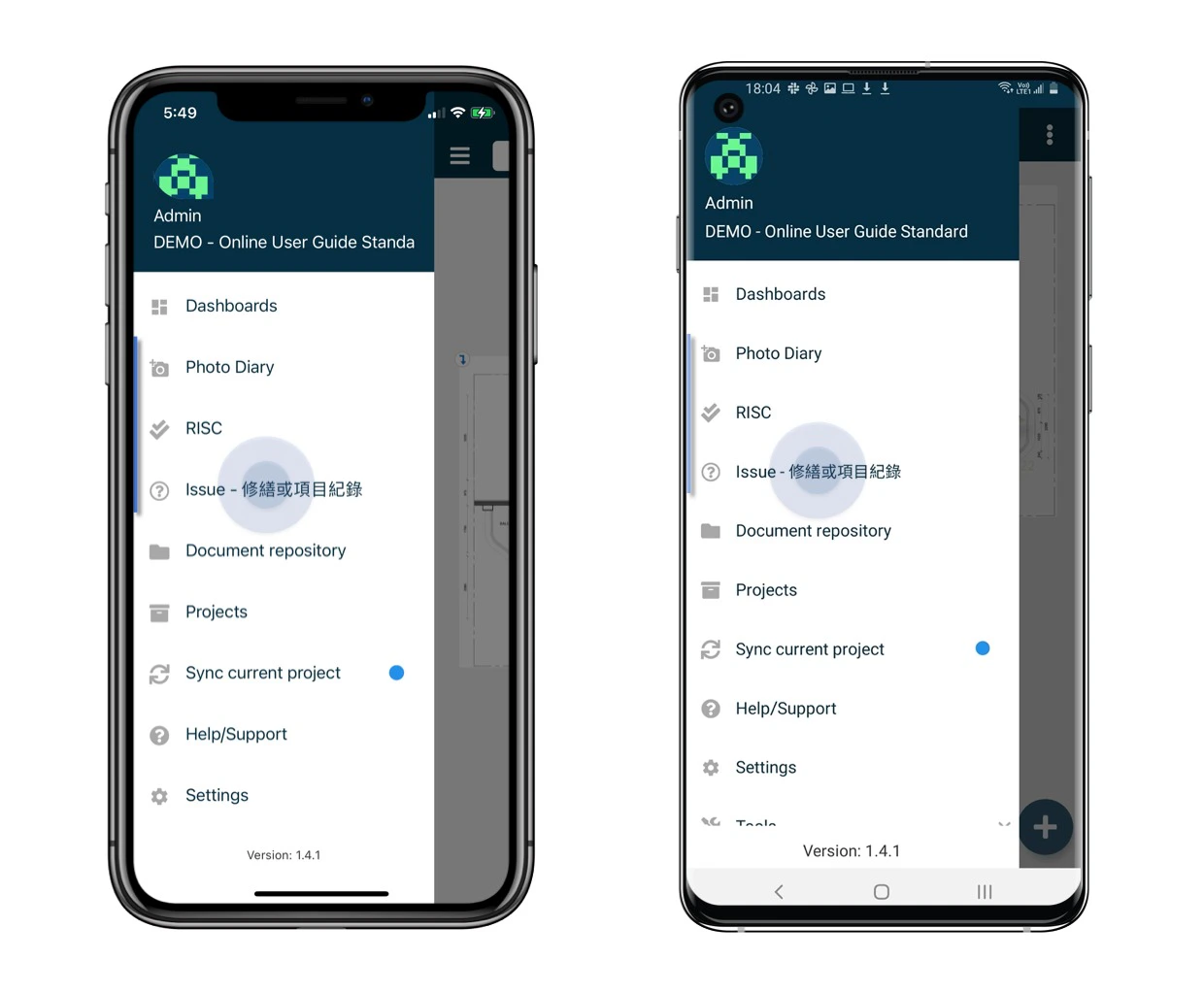
1. From the main menu, tap the menu icon (≡) in the top left corner.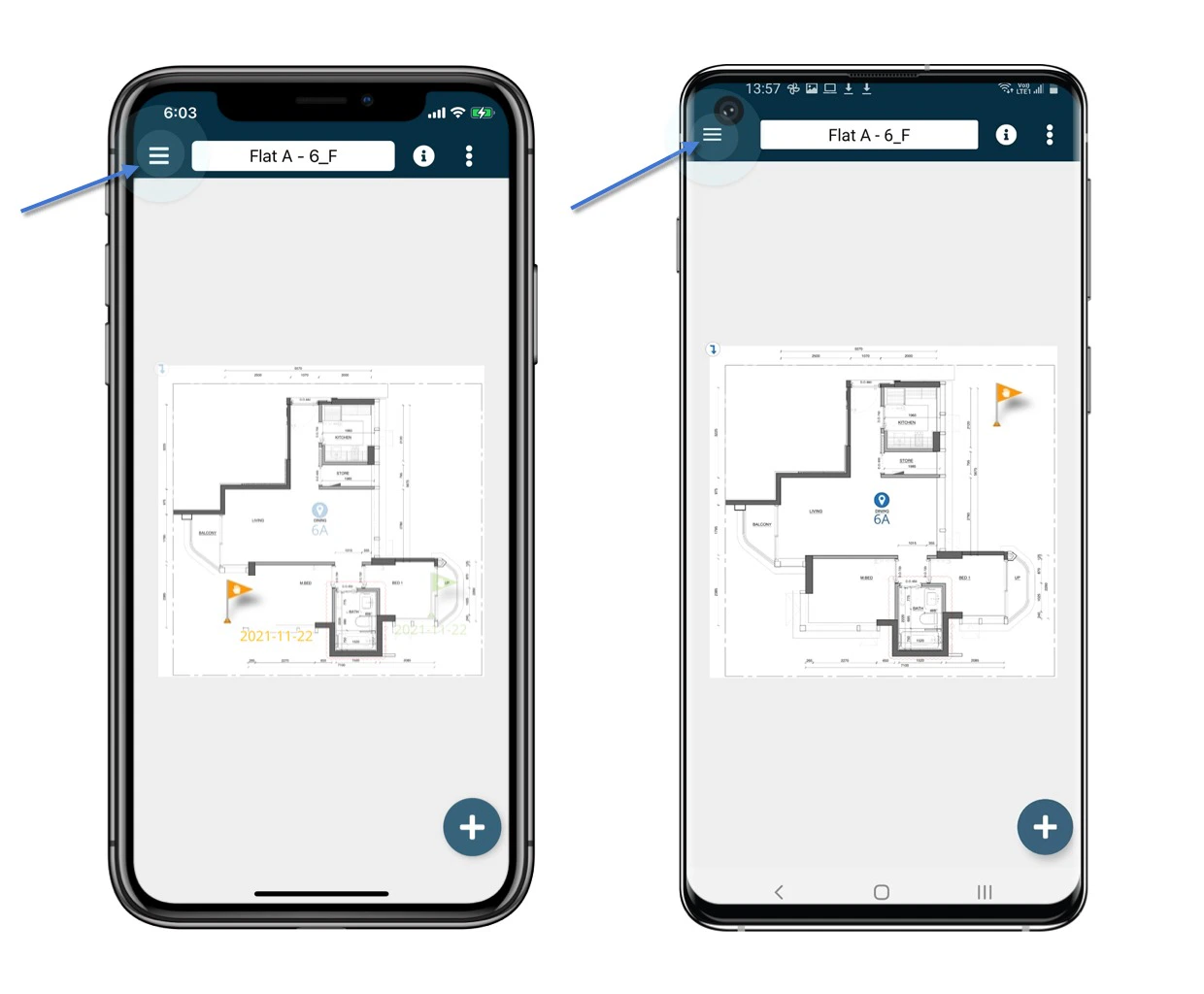 2. Select the relevant Subcategory Finder for the type of item you're trying to locate.
 ### **✅ Step 2: Searching for a Specific Issue or Record**
1. Tap the magnifier icon in the top right corner to open the search panel.
### **✅ Step 2: Searching for a Specific Issue or Record**
1. Tap the magnifier icon in the top right corner to open the search panel. 2. Apply search filters such as location, status, or assigned user to narrow results.
 3. Select the magnifying glass to apply the search. Results matching your criteria will appear in the list.
 ## **Step-by-Step Instructions - Using the Plan Viewer**
### **✅ Step 1: Accessing the Plan Viewer**
1. From the main menu, select Plan Viewer.
2. Navigate to the relevant drawing or floor using the drilldown navigation.
## **Step-by-Step Instructions - Using the Plan Viewer**
### **✅ Step 1: Accessing the Plan Viewer**
1. From the main menu, select Plan Viewer.
2. Navigate to the relevant drawing or floor using the drilldown navigation.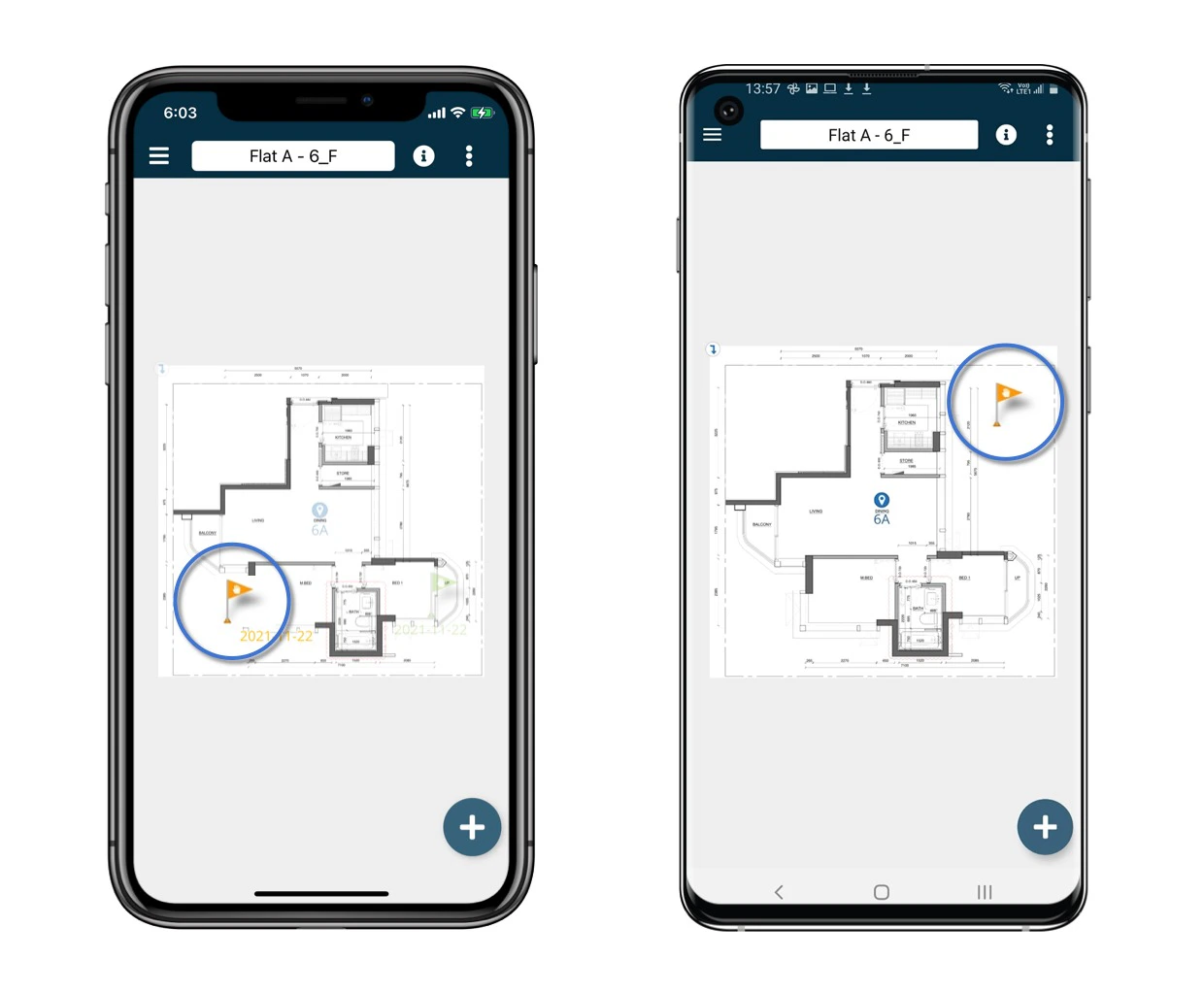 ### **✅ Step 2: Viewing a Record on the Drawing**
1. Locate the blue pins on the drawing; these indicate placed issues or records.
2. Tap on a pin to view full details of the record or issue placed at that location.
3. You can view descriptions, photos, status, and other associated metadata.
### **✅ Step 2: Viewing a Record on the Drawing**
1. Locate the blue pins on the drawing; these indicate placed issues or records.
2. Tap on a pin to view full details of the record or issue placed at that location.
3. You can view descriptions, photos, status, and other associated metadata. ### **✅ Step 3: Saving Filters as a Bookmark (optional)**
1. After applying filters, you can save this selection for future access.
### **✅ Step 3: Saving Filters as a Bookmark (optional)**
1. After applying filters, you can save this selection for future access. 2. Tap “Bookmark” to name and store your filter configuration.
 3. Click the "+" to add a new bookmark.
 4. Add a title for the bookmark and select "Save".
 5. This will now show in the bookmarks section and will apply the set filters for quick access to this information again.
***
## Best Practices & Tips
* Use Finder for a structured, searchable view when managing a large volume of items.
* Use the Plan Viewer for a spatial overview of where issues are located.
* Always apply filters for faster access to relevant records.
* Bookmark frequently used searches for efficiency.
***
## FAQs & Troubleshooting
**Q: Can I search for issues based on specific fields like assignee or status?**
**A**: Yes. Use the magnifier icon in the Finder to apply various filters.
**Q: How do I know where a record is located on the plan?**
**A**: Use the Plan Viewer to navigate to the drawing and tap the pin to view location-based records.
**Q: What's the benefit of using bookmarks in the Finder?**
**A**: Bookmarks save your filter selections so you can quickly repeat searches without reapplying filters.
5. This will now show in the bookmarks section and will apply the set filters for quick access to this information again.
***
## Best Practices & Tips
* Use Finder for a structured, searchable view when managing a large volume of items.
* Use the Plan Viewer for a spatial overview of where issues are located.
* Always apply filters for faster access to relevant records.
* Bookmark frequently used searches for efficiency.
***
## FAQs & Troubleshooting
**Q: Can I search for issues based on specific fields like assignee or status?**
**A**: Yes. Use the magnifier icon in the Finder to apply various filters.
**Q: How do I know where a record is located on the plan?**
**A**: Use the Plan Viewer to navigate to the drawing and tap the pin to view location-based records.
**Q: What's the benefit of using bookmarks in the Finder?**
**A**: Bookmarks save your filter selections so you can quickly repeat searches without reapplying filters.