> ## Documentation Index
> Fetch the complete documentation index at: https://docs.rdrive.io/llms.txt
> Use this file to discover all available pages before exploring further.
# Personalize Your Finder Display Settings
> This guide explains how to customize the display settings of the Finder, allowing users to choose which information to display.
### **Overview**
*This guide explains how to customize the display settings of the Finder, allowing users to choose which information to display.*
* **Purpose:** This guide provides instructions for setting up the Finder card view to suit personal preferences.
* **Who It’s For:** General users
Prerequisites: Ensure that you have an active account and proper access rights.
***
**TABLE OF CONTENTS**
* [Step-by-Step Instructions](#step-by-step-instructions)
* [✅ Step 1: Access Finder](#%e2%9c%85-step-1%3a-access-findernavigate-to-the-finder-interface.)
* [✅ Step 2: Open Display Settings](#%e2%9c%85-step-2%3a-open-display-settingsclick-the-three-dots-\(%ef%b8%99\)-located-at-the-top-right-corner.)
* [✅ Step 3: Customize Process Finder Settings](#%e2%9c%85-step-3%3a-customize-process-finder-settingsfor-the-process-finder,-you-can-edit-the-display-settings-for-the-process-and-form.)
* [✅ Step 4: Customize Issue Finder Settings](#%e2%9c%85-step-4%3a-customize-issue-finder-settingsfor-the-issue-finder,-you-can-edit-the-display-settings-for-the-issue.)
* [FAQs & Troubleshooting](#faqs-&-troubleshooting)
* [Q: I updated the display settings, but nothing seems to have changed. Why?](#q%3a-i-updated-the-display-settings,-but-nothing-seems-to-have-changed.-why?a%3a-make-sure-you-clicked-ok-after-selecting-your-options.-if-the-issue-persists,-try-refreshing-the-page-or-logging-out-and-back-in.)
* [Q: Will my display settings affect other users?](#q%3a-will-my-display-settings-affect-other-users?a%3a-no.-these-settings-apply-only-to-your-own-account-and-will-not-affect-other-users.-similarly,-the-account-language-setting-only-applies-to-your-own-account.)
* [Q: Unable to display all content in the Finder. Showing "..." at the end. Why](#q%3a-unable-to-display-all-content-in-the-finder.-showing-)?
***
## **Step-by-Step Instructions**
## **✅ Step 1: Access Finder**
Navigate to the Finder interface.
* Click on the Finder icon to open the view.
## **✅ Step 2: Open Display Settings**
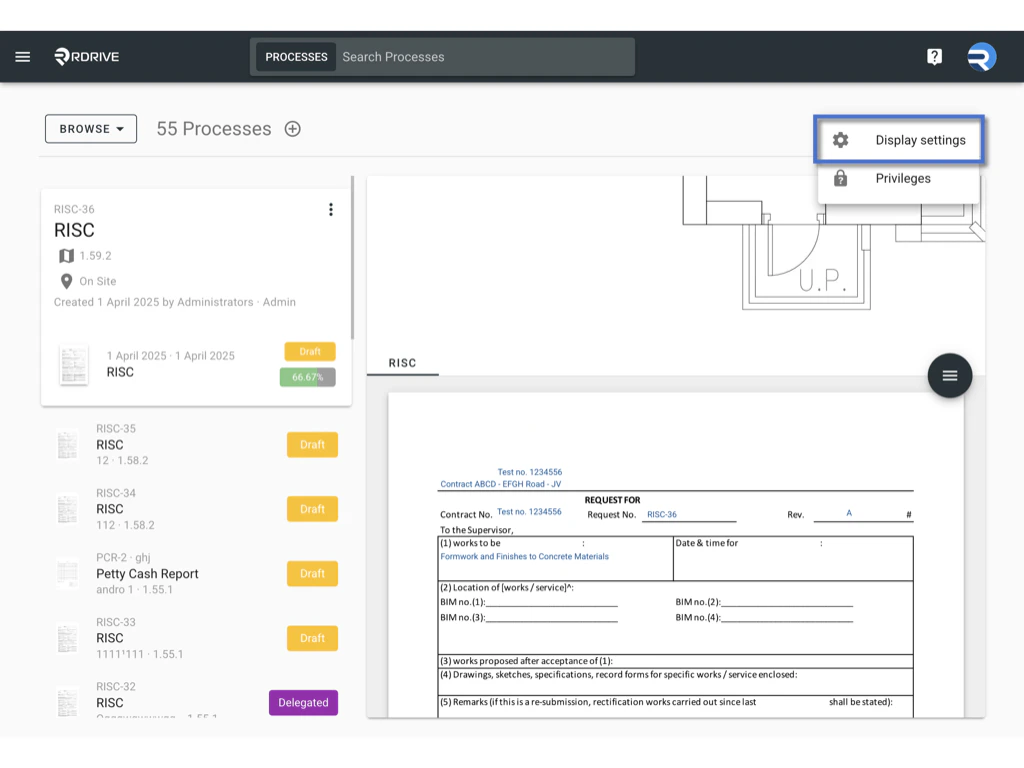
Click the three dots (**︙**) located at the top right corner.
* From the dropdown menu, select **Display Setting**.\
This will open the Display Setting options. \\
\\
 ##
**✅ Step 3: Customize Process Finder Settings**\
For the Process Finder, you can edit the display settings for the process and form.
* Check the box next to the options you would like to view on the Finder of process. If you do not wish to display an option, simply uncheck the box.\\
##
**✅ Step 3: Customize Process Finder Settings**\
For the Process Finder, you can edit the display settings for the process and form.
* Check the box next to the options you would like to view on the Finder of process. If you do not wish to display an option, simply uncheck the box.\\
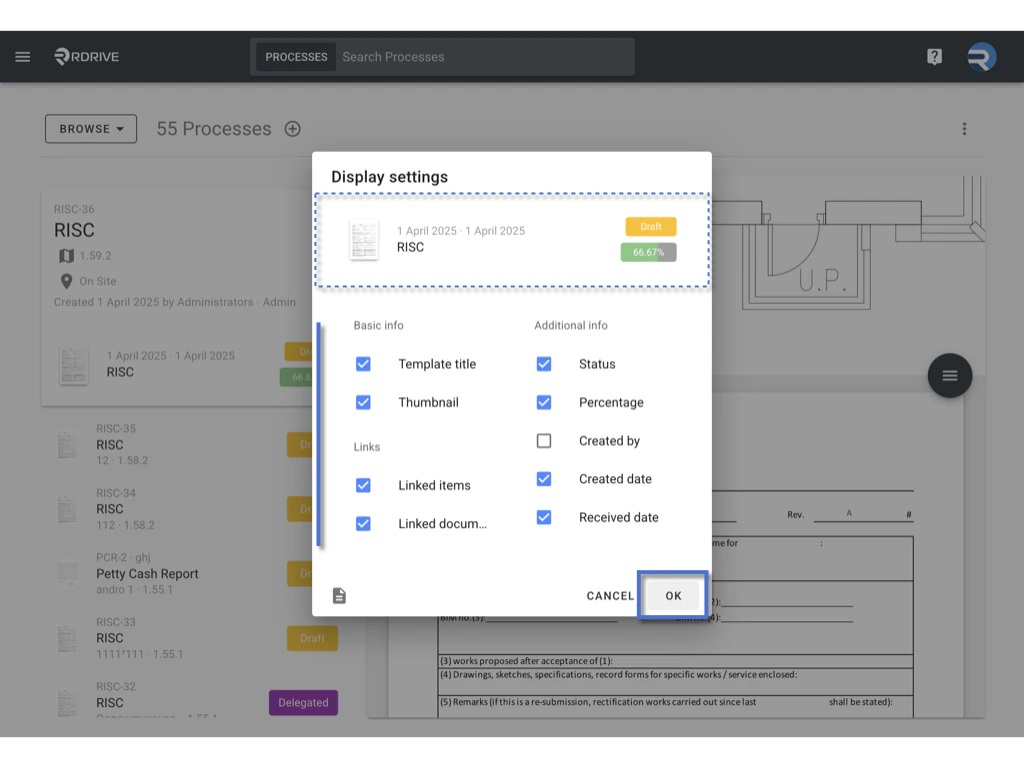
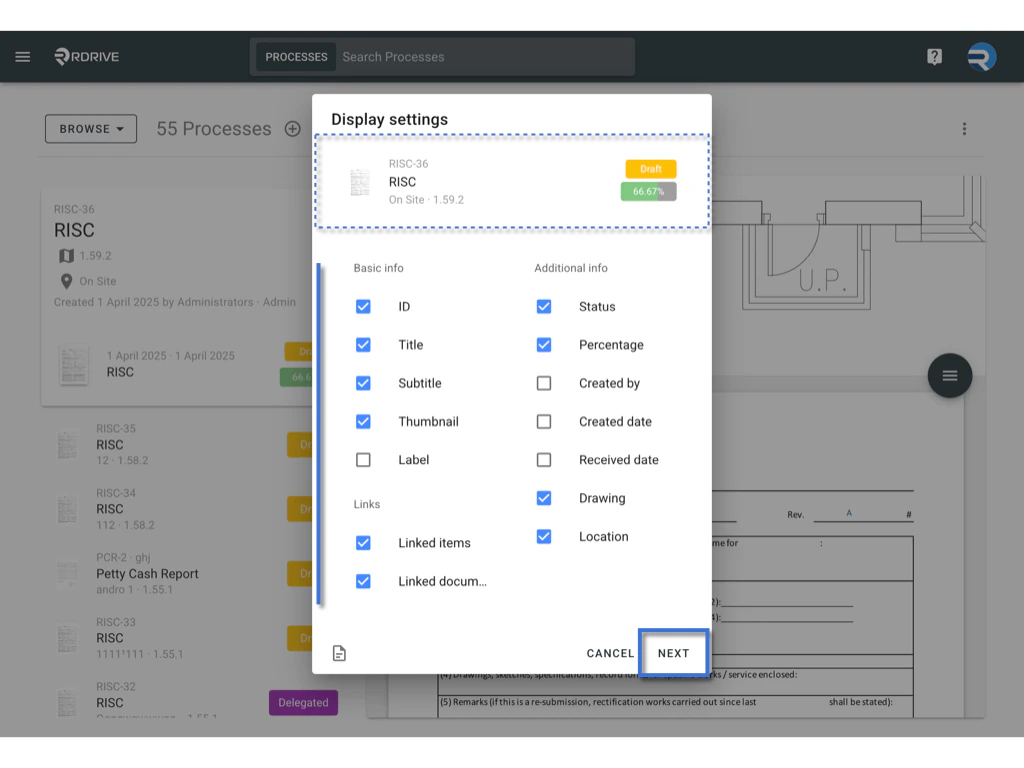 * Click **Next** to proceed to the form options.
* The dialog box will show a preview of your settings.
* Once you've made your selection, click **OK** to confirm.\\
* Click **Next** to proceed to the form options.
* The dialog box will show a preview of your settings.
* Once you've made your selection, click **OK** to confirm.\\
 ##
**✅ Step 4: Customize Issue Finder Settings**\
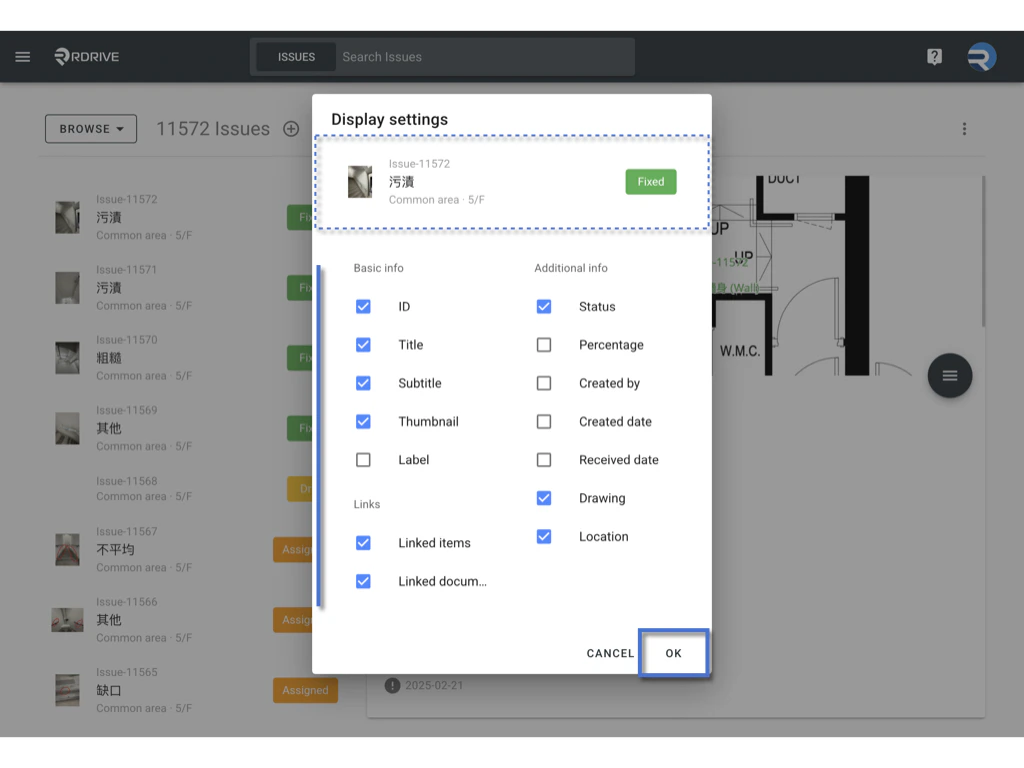
For the Issue Finder, you can edit the display settings for the issue.
* Similarly, check the boxes for the options you would like to display and uncheck for those you wish to hide.
* A preview of the selected settings will appear in the dialog box.
* Click **OK** to confirm your settings.\\
##
**✅ Step 4: Customize Issue Finder Settings**\
For the Issue Finder, you can edit the display settings for the issue.
* Similarly, check the boxes for the options you would like to display and uncheck for those you wish to hide.
* A preview of the selected settings will appear in the dialog box.
* Click **OK** to confirm your settings.\\
 ***
## **FAQs & Troubleshooting**
###
**Q: I updated the display settings, but nothing seems to have changed. Why?**\
**A:** Make sure you clicked **OK** after selecting your options. If the issue persists, try refreshing the page or logging out and back in.
### **Q: Will my display settings affect other users?**
**A:** No. These settings apply only to your own account and will not affect other users. Similarly, the account language setting only applies to your own account.
### **Q: Unable to display all content in the Finder. Showing "..." at the end. Why?**
**A:** The display area is determined by your browser window’s dimensions. Since different monitors have different screen sizes and resolutions, the amount of visible content may vary. Please take this into consideration when customizing your display settings.
***
## **FAQs & Troubleshooting**
###
**Q: I updated the display settings, but nothing seems to have changed. Why?**\
**A:** Make sure you clicked **OK** after selecting your options. If the issue persists, try refreshing the page or logging out and back in.
### **Q: Will my display settings affect other users?**
**A:** No. These settings apply only to your own account and will not affect other users. Similarly, the account language setting only applies to your own account.
### **Q: Unable to display all content in the Finder. Showing "..." at the end. Why?**
**A:** The display area is determined by your browser window’s dimensions. Since different monitors have different screen sizes and resolutions, the amount of visible content may vary. Please take this into consideration when customizing your display settings.