> ## Documentation Index
> Fetch the complete documentation index at: https://docs.rdrive.io/llms.txt
> Use this file to discover all available pages before exploring further.
# How to add a reusable signature to your account on the website
> How to add a reusable signature to your account to apply in RDrive
### **Overview**
*How to add a reusable signature to your account to apply in RDrive*
* **Purpose:** Save time adding your signature with pre-saved signatures
* **Who It’s For:** General users
Prerequisites: RDrive access
***
## \*\*From the Website/desktop
\*\*\
**Step-by-Step Instructions**
### **✅ Step 1: Access account settings**
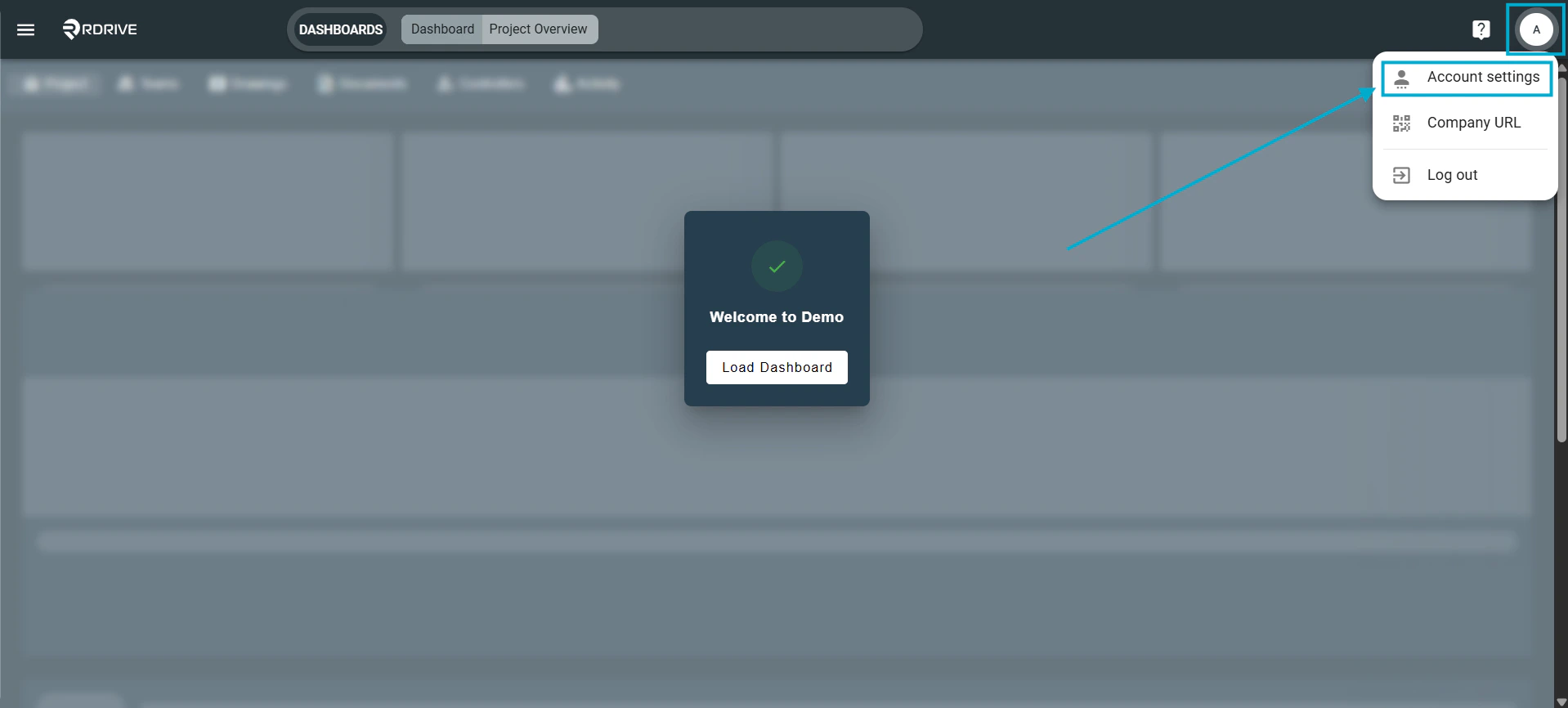
1\. Clicking your account profile in the top right corner to open the dropdown menu, then select "**Account settings**".
 ### **✅ Step 2: Navigate to Preferences**
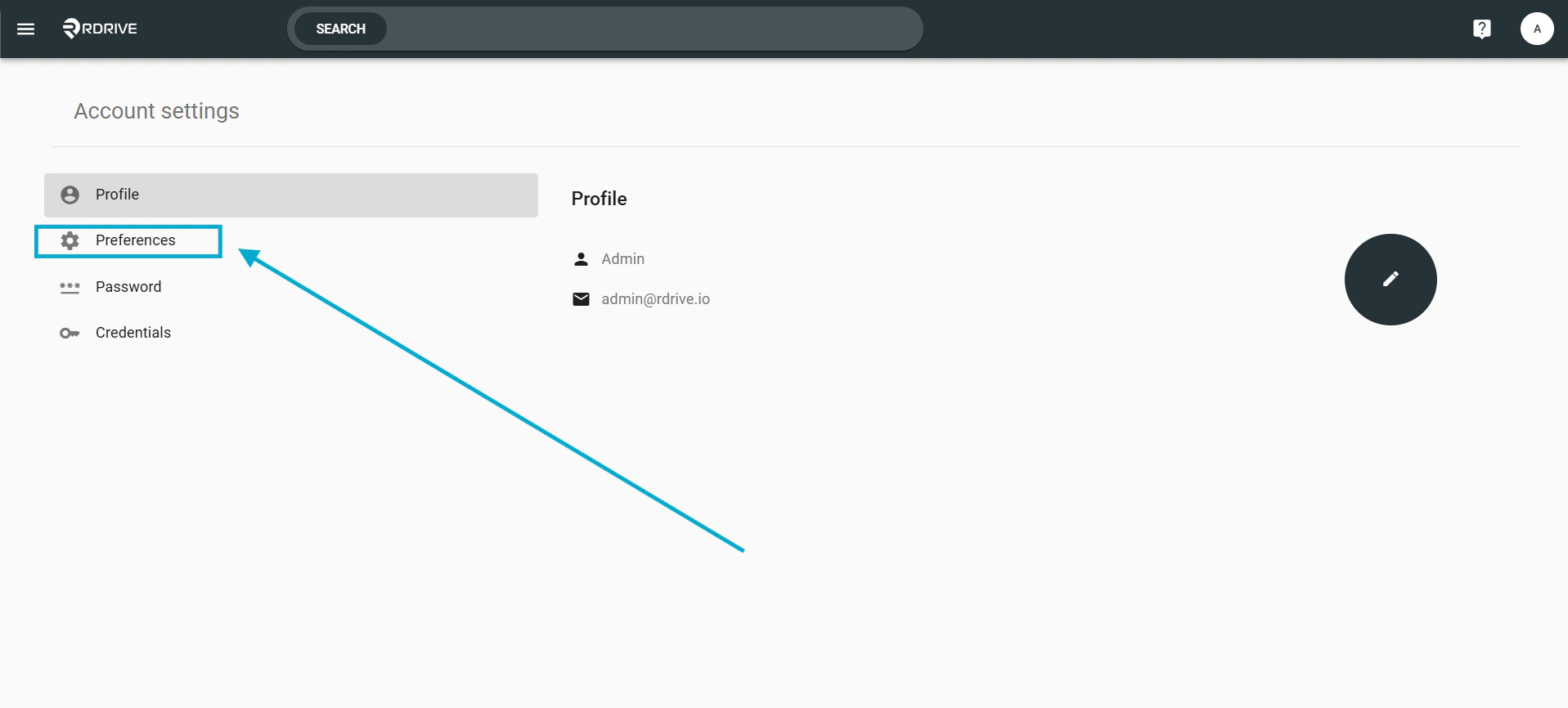
1\. From the account Settings menu, select "**Preferences**" in from the left panel menu.
### **✅ Step 2: Navigate to Preferences**
1\. From the account Settings menu, select "**Preferences**" in from the left panel menu.
 ### **✅ Step 3: Adding your signature**
1\. From the preference screen, select the signature box highlighted below:
### **✅ Step 3: Adding your signature**
1\. From the preference screen, select the signature box highlighted below:
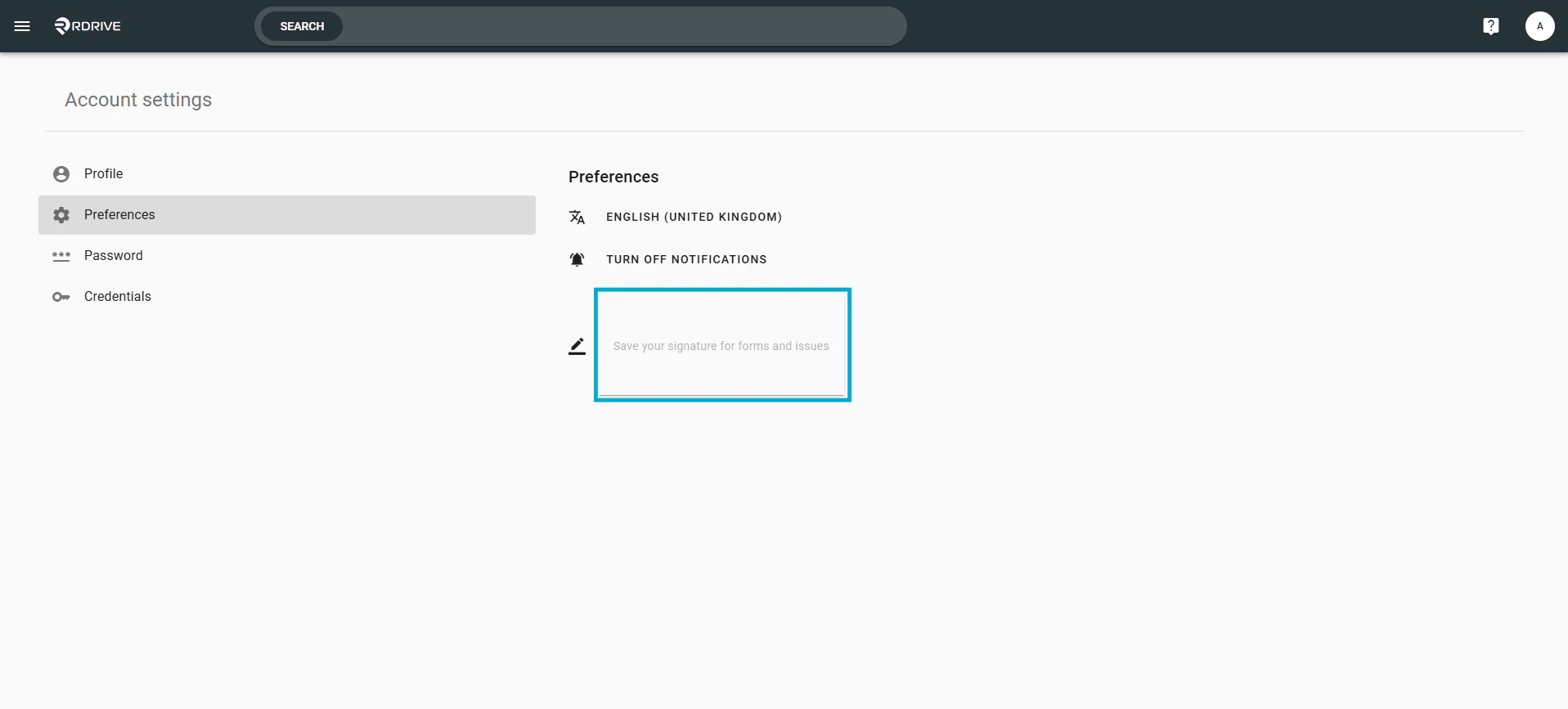 2. Click, hold and drag on the signature box to draw your signature then select "OK" in the bottom right when happy, you can remove and lines one by one using the forward and back arrows in the bottom left if you make a mistake.
 3\. This will then show in the signature field and once you sync your app will appear for use there also and from app to desktop.
**Adding an image as your signature**
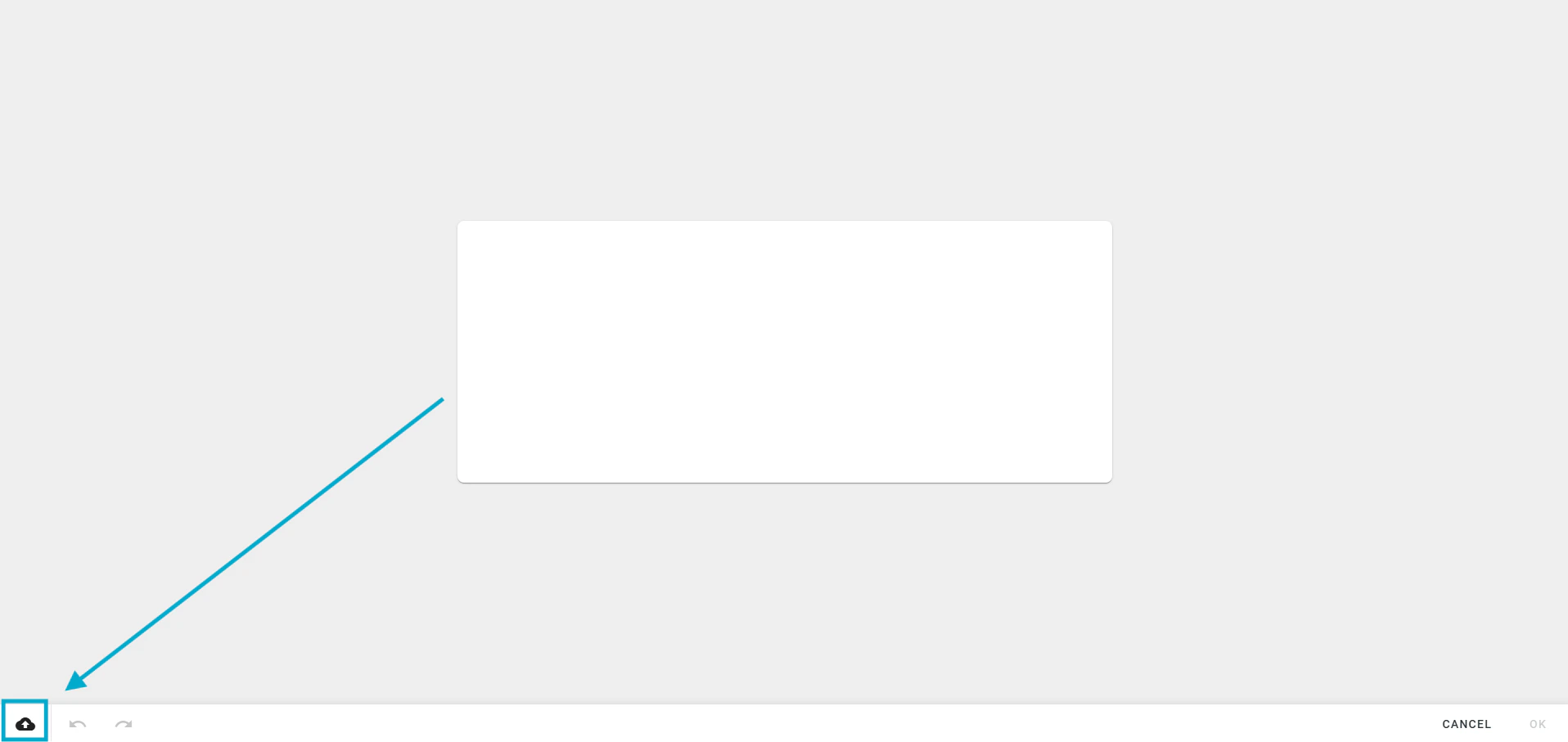
1\. From the same page click the upload button highlighted below, from here select the image you wish to use as your signature and select upload:
3\. This will then show in the signature field and once you sync your app will appear for use there also and from app to desktop.
**Adding an image as your signature**
1\. From the same page click the upload button highlighted below, from here select the image you wish to use as your signature and select upload: