> ## Documentation Index
> Fetch the complete documentation index at: https://docs.rdrive.io/llms.txt
> Use this file to discover all available pages before exploring further.
# How to Add Additional Projects to the RDrive App
> A brief introduction explaining the purpose of this guide.
### **Overview**
*A brief introduction explaining the purpose of this guide.*
* **Purpose:** How to download and access additional projects in RDrive
* **Who It’s For:** All RDrive app users with access to multiple projects
Prerequisites: RDrive app installed and user access to multiple projects
***
## **Step-by-Step Instructions**
### ✅ Step 1: Navigate to the project management page
1. From the main menu page within the app, select the "Back" arrow button in the top left corner to access the project management screen.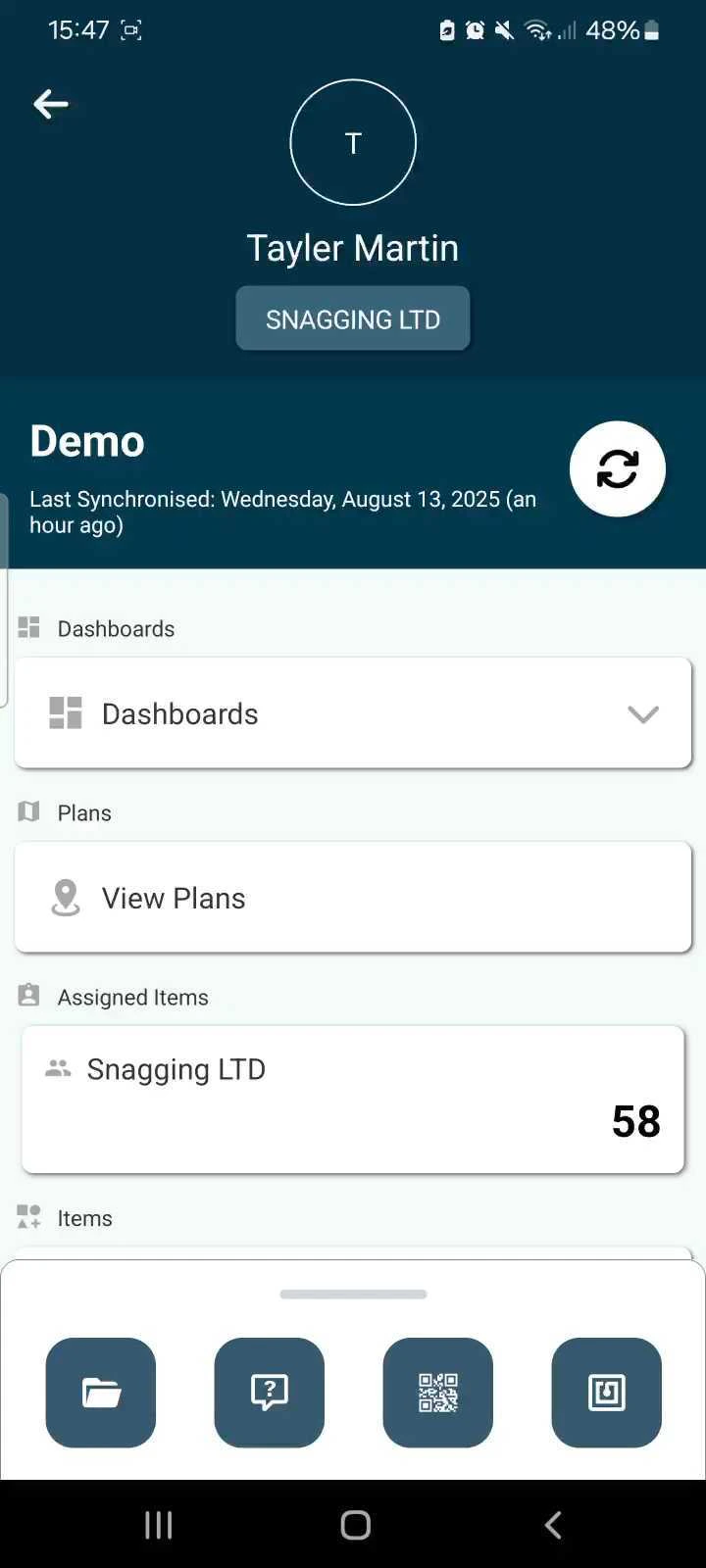 ### ✅ Step 2: Select the project to download to your device
1. Tap the “+” button in the top right corner of the screen.
### ✅ Step 2: Select the project to download to your device
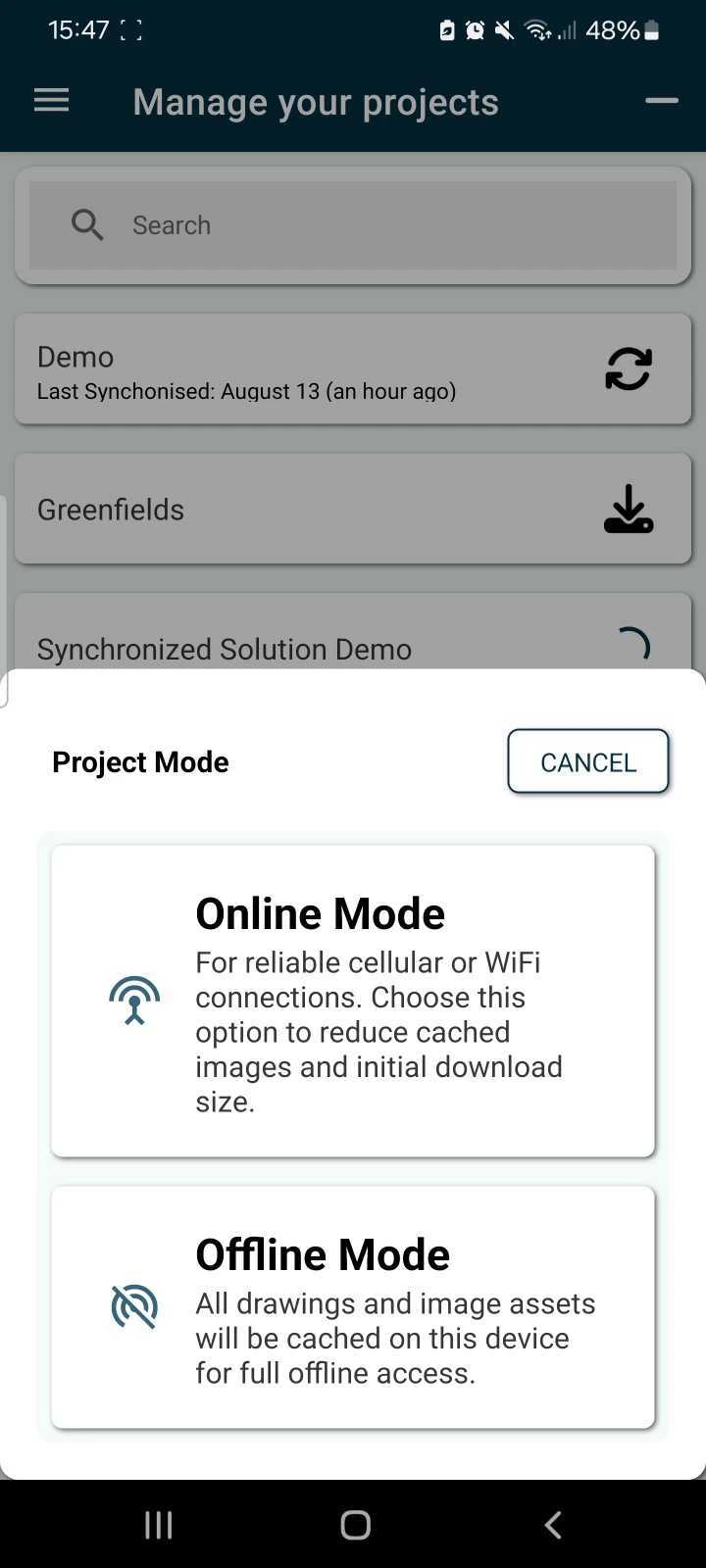
1. Tap the “+” button in the top right corner of the screen. 2. This opens a list of all projects available for you to download, Browse or search for the project you wish to access.
 3. Tap the download arrow and select your project mode (Online/Offline) to begin the download process.
 \
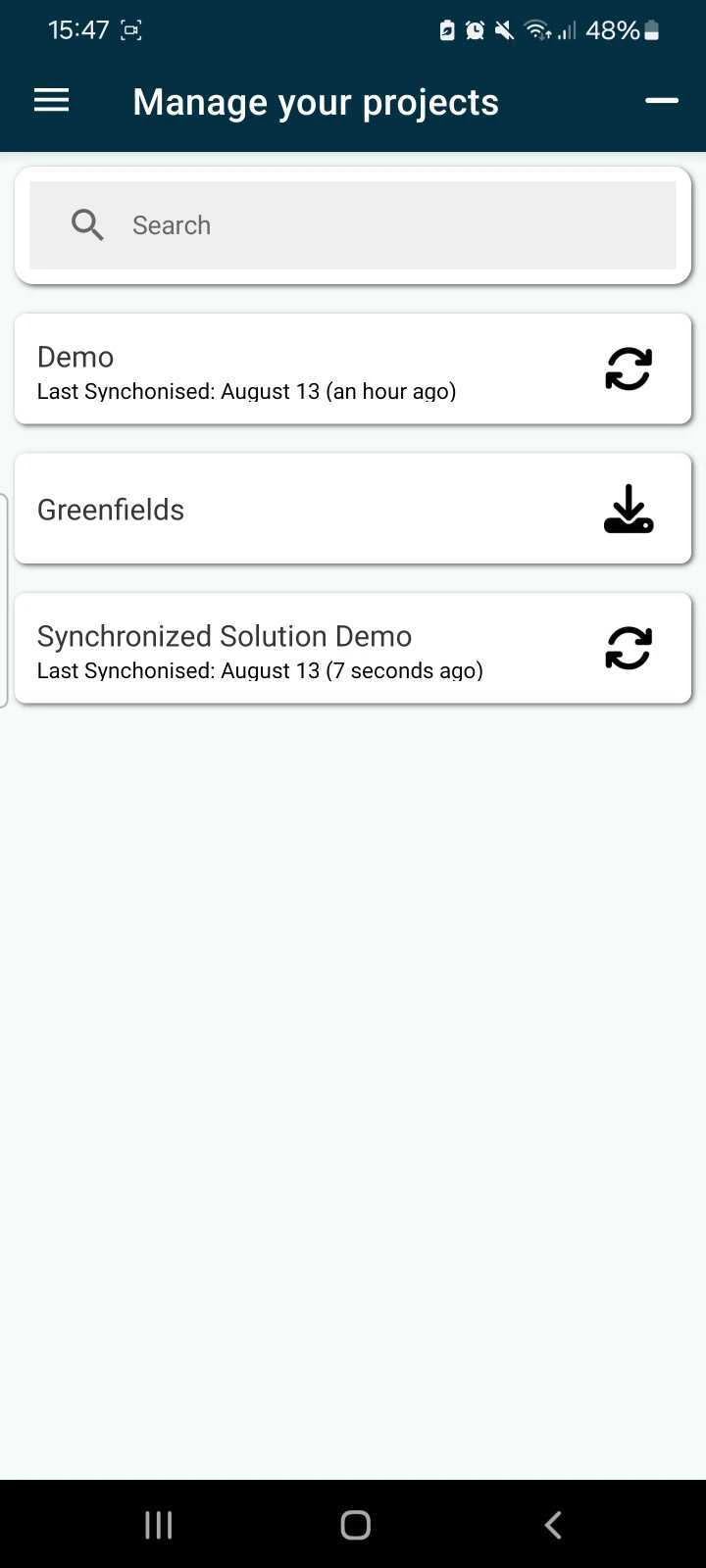
Once downloaded, the project will appear in your main project list and be available for offline access.
\
Once downloaded, the project will appear in your main project list and be available for offline access.
 ***
## Best Practices & Tips
* Sync First\
Before switching or adding new projects, ensure your current project is fully synced to avoid data loss.
* Wi-Fi Recommended\
Use a Wi-Fi connection when downloading new projects, especially if they include high-resolution plans or attachments.
* Storage Check\
Ensure your device has sufficient storage space for downloading large project files.
* Offline Access\
Once a project is downloaded, it can be accessed and updated even without an internet connection.
***
## FAQs & Troubleshooting
Q: I don’t see the project I need. What should I do?\
A: Make sure you have been granted access to the project by your administrator. If not, contact your project lead or system admin.\
Q: Can I switch between multiple projects?\
A: Yes, you can freely switch between downloaded projects in the “Projects” section. Ensure you sync each project before switching to keep your data up to date.\
Q: How do I remove a project from my device?\
A: Dragging the project name to the side will allow you to delete the project from your app and device, you can add this back using the same steps above.
***
## Best Practices & Tips
* Sync First\
Before switching or adding new projects, ensure your current project is fully synced to avoid data loss.
* Wi-Fi Recommended\
Use a Wi-Fi connection when downloading new projects, especially if they include high-resolution plans or attachments.
* Storage Check\
Ensure your device has sufficient storage space for downloading large project files.
* Offline Access\
Once a project is downloaded, it can be accessed and updated even without an internet connection.
***
## FAQs & Troubleshooting
Q: I don’t see the project I need. What should I do?\
A: Make sure you have been granted access to the project by your administrator. If not, contact your project lead or system admin.\
Q: Can I switch between multiple projects?\
A: Yes, you can freely switch between downloaded projects in the “Projects” section. Ensure you sync each project before switching to keep your data up to date.\
Q: How do I remove a project from my device?\
A: Dragging the project name to the side will allow you to delete the project from your app and device, you can add this back using the same steps above.