> ## Documentation Index
> Fetch the complete documentation index at: https://docs.rdrive.io/llms.txt
> Use this file to discover all available pages before exploring further.
# How to reply to a comment on an issue/defect/record?
> How to respond to comments on issues or forms within RDrive.
### **Overview**
*How to respond to comments on issues or forms within RDrive.*
* **Purpose:** How to access and reply to comments using RDrive.
* **Who It’s For:** All user types
Prerequisites: RDrive account access
***
## **Step-by-Step Instructions**
### **✅ Step 1: Navigate to the issue/form with the comment**
1. From the app main menu, click the "View Plans" Tab.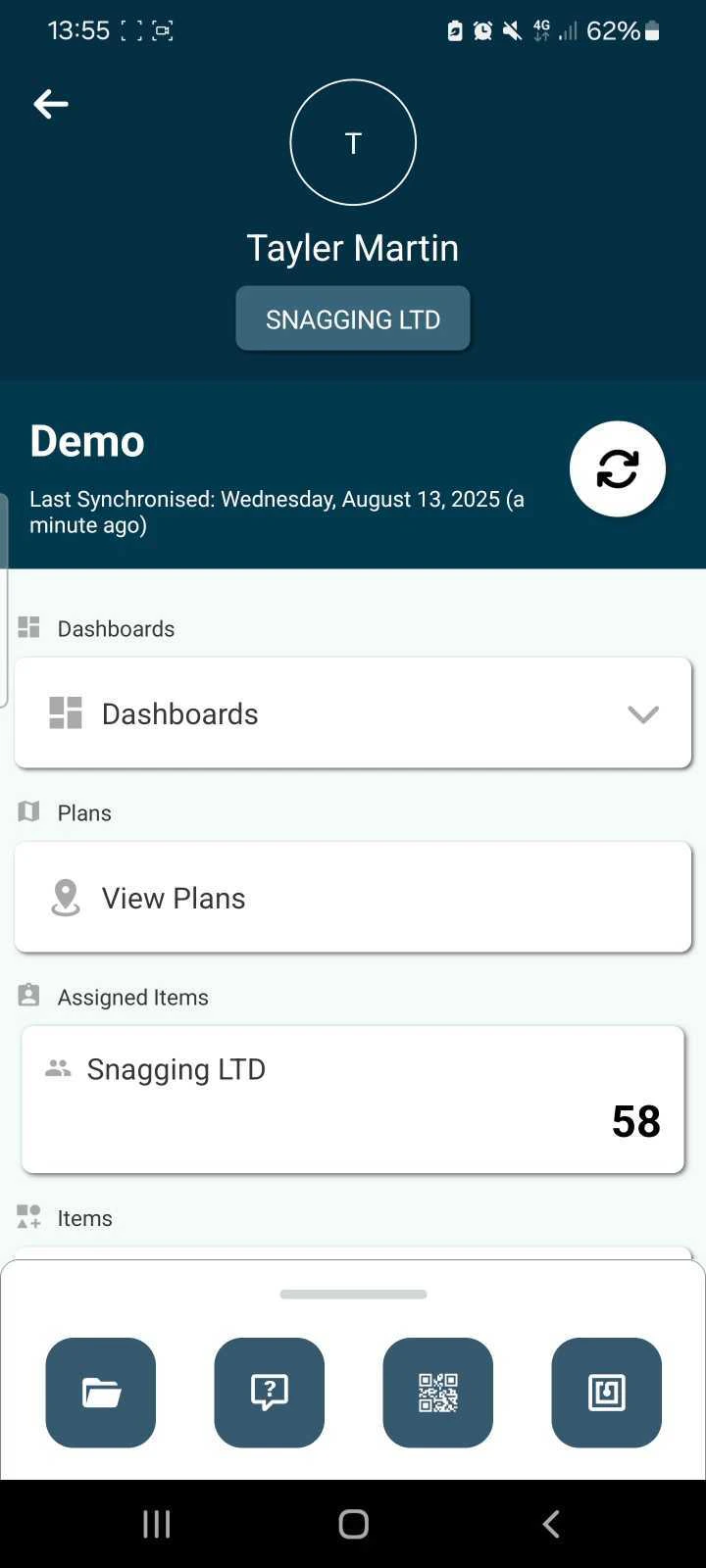 2. Navigate through the drill downs to the location the comment appears.
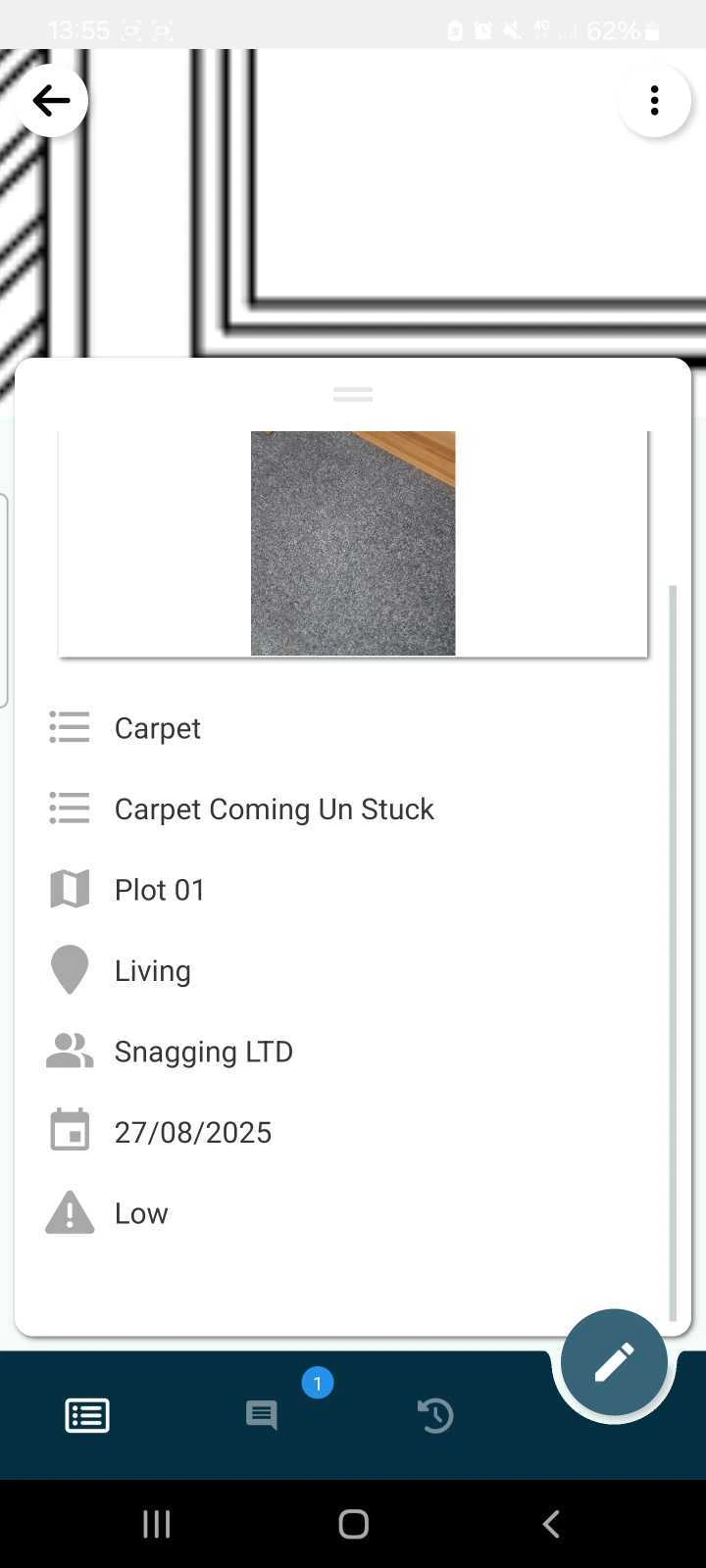
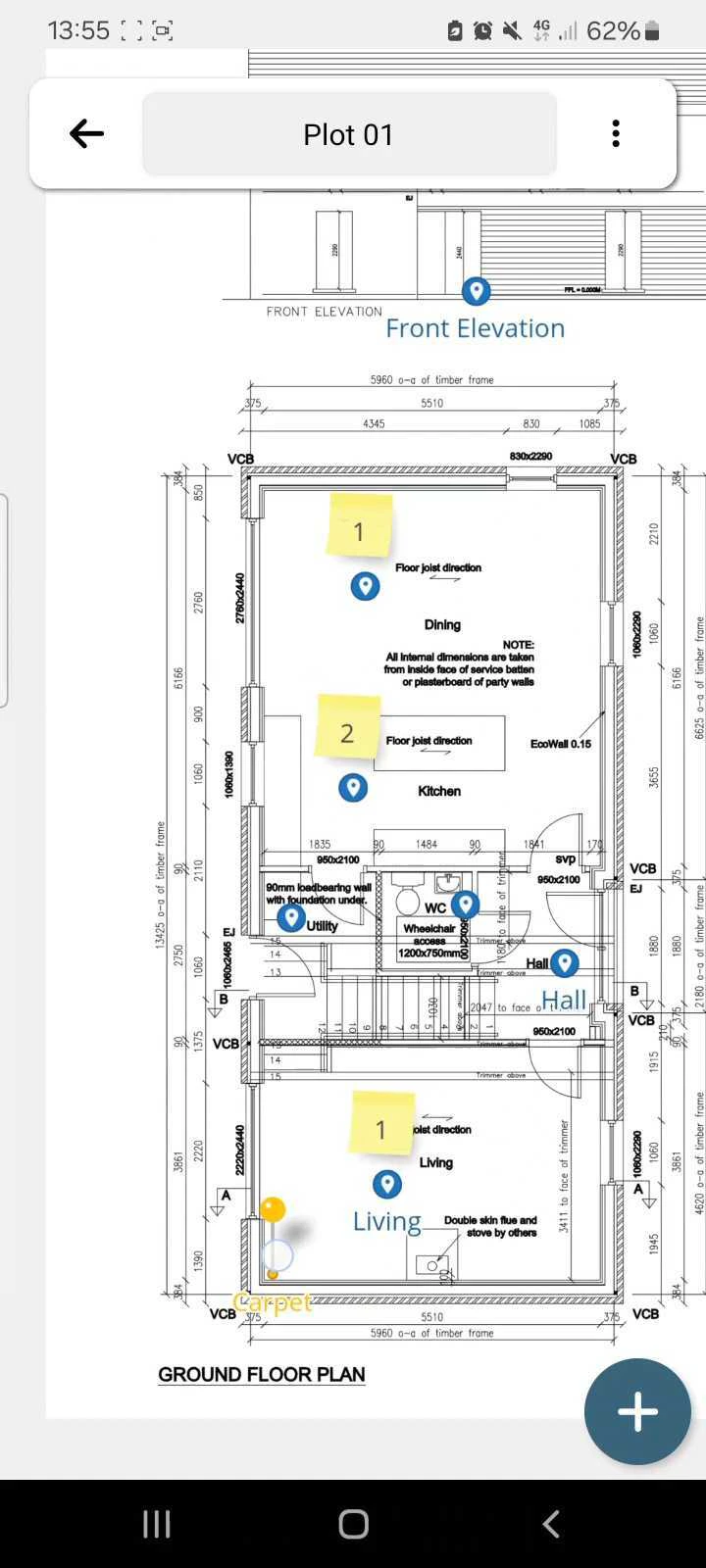 3. Select the pin with the comment to open the issue information.
 ### **✅ Step 2: Viewing the comments tab**
1. Once viewing the issue or record, either swipe left to bring up the "Comments" tab or select the text icon from the bottom, a blue number will show how many comments currently are on the issue/record.
### **✅ Step 2: Viewing the comments tab**
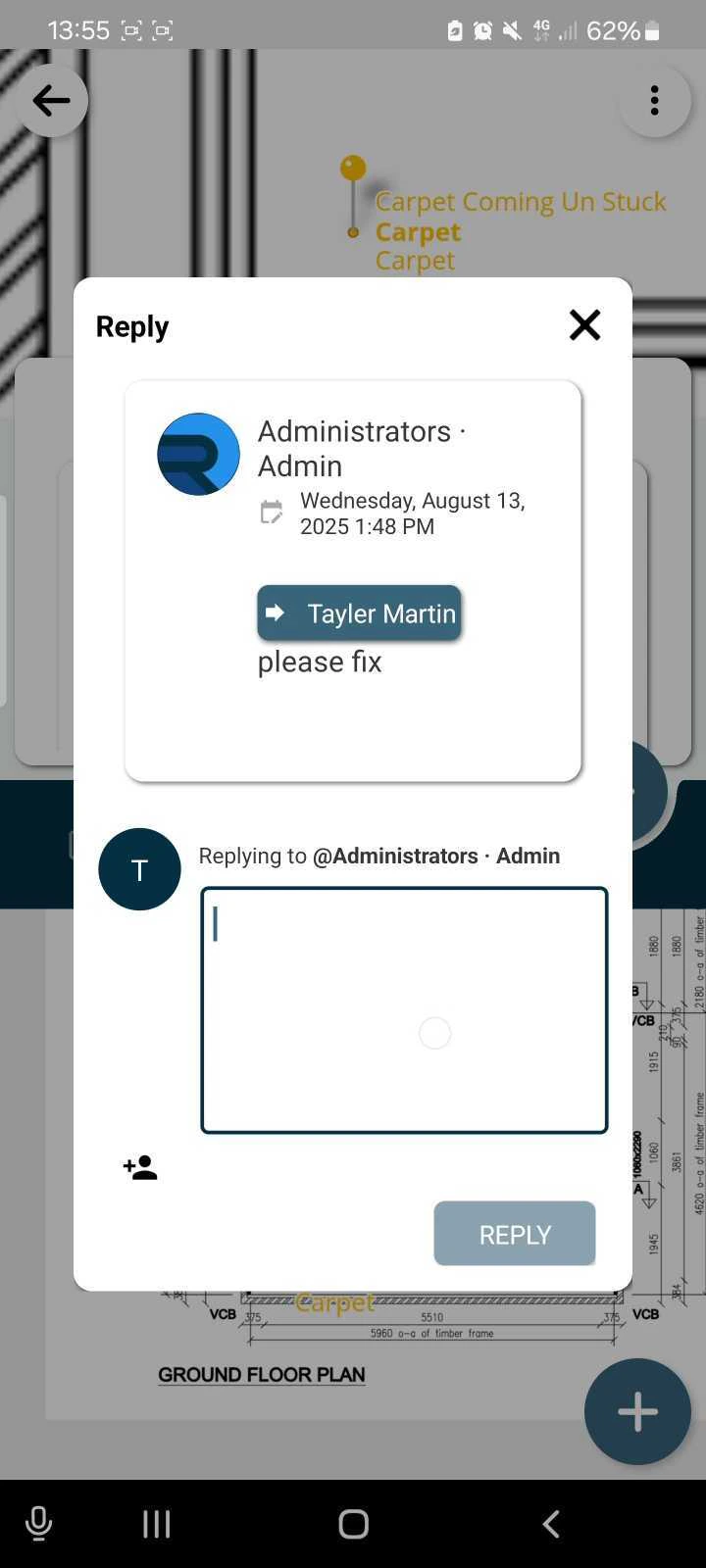
1. Once viewing the issue or record, either swipe left to bring up the "Comments" tab or select the text icon from the bottom, a blue number will show how many comments currently are on the issue/record.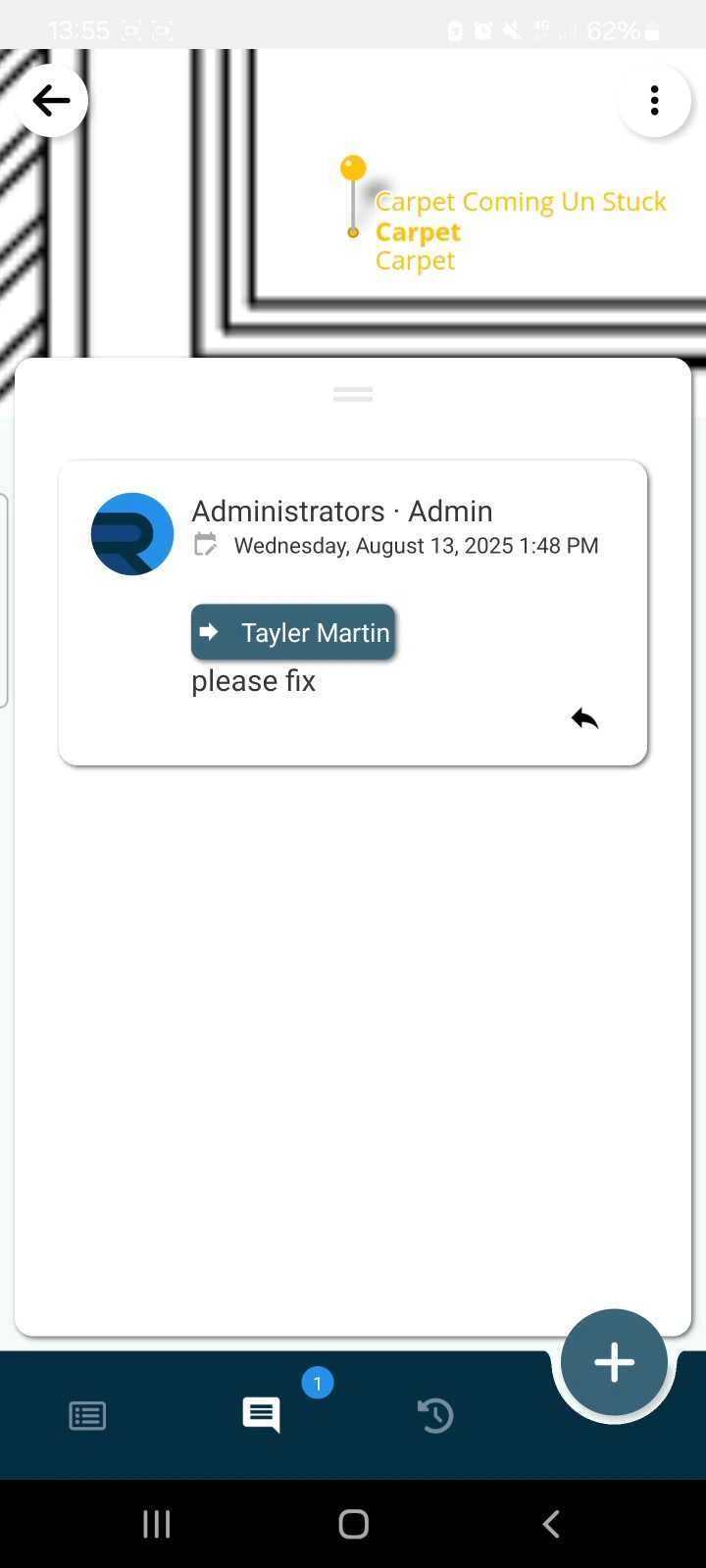 2. Select the arrow icon to reply to the comment, add your text and select "Reply" to add the comment.
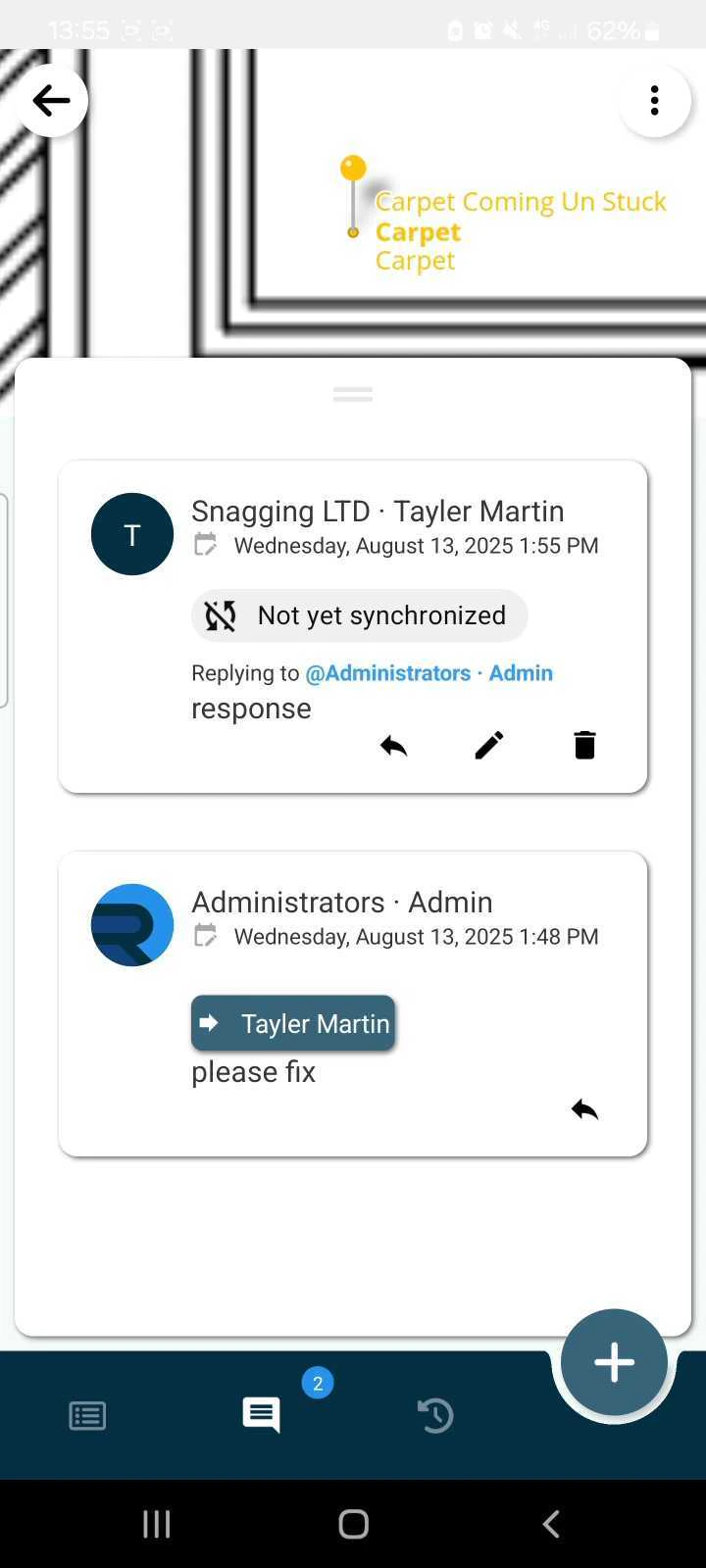
 3. You comment will then appear above the original comment. Please note the "Not yet synchronised" tag indicating you need to sync for other users to see these changes.
 ### **✅ Step 3: Syncing your changes**
1. Once you have then completed any work, coming back to the main menu will then show the sync icon in blue, this indicates a change has been made offline and requires syncing, click the blue sync icon to send these changes to the server.
### **✅ Step 3: Syncing your changes**
1. Once you have then completed any work, coming back to the main menu will then show the sync icon in blue, this indicates a change has been made offline and requires syncing, click the blue sync icon to send these changes to the server.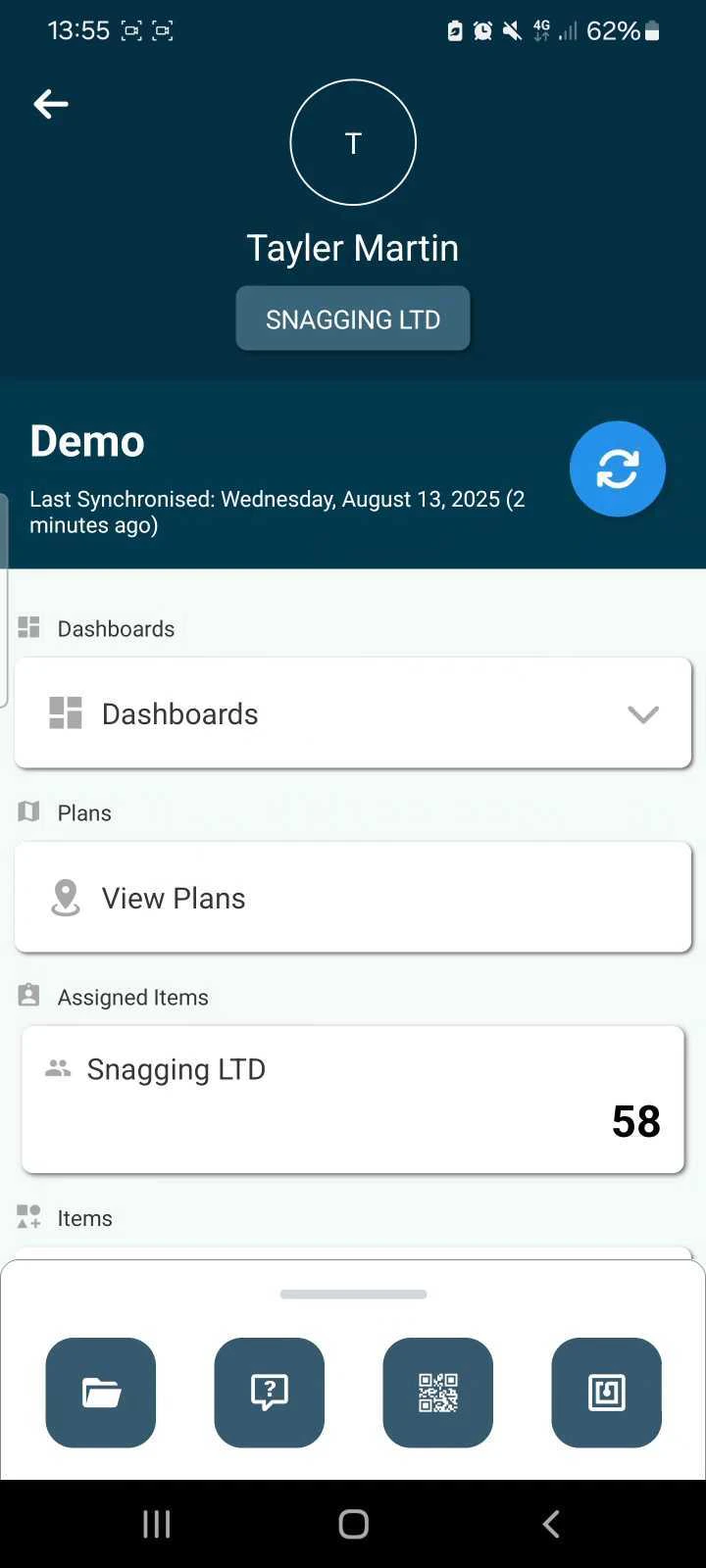 \*\*Please note: While working offline it is best practice to sync at the beginning of the work day and at the end once the work is complete, any un-synced data will not be shown online unless synced first.\
\*\*
***
## **FAQs & Troubleshooting**
**Q: Can I reply to comments on issues or forms in RDrive?**\
**A:** Yes. You can open any issue or form with an existing comment and add your reply directly in the app.
**Q: How do I reply to a comment?**\
**A:** In the app, go to **View Plans**, navigate to the pin containing the comment, and open the issue or record. Swipe left to the **Comments** tab or tap the text icon. Select the arrow icon next to the comment, type your reply, and tap **Reply**. Your comment will appear above the original with a “Not yet synchronised” label until you sync.
**Q: How do I make sure my replies are visible to others?**\
**A:** From the main menu, tap the blue **sync** icon to upload your changes. It’s best practice to sync at the start and end of each workday when working offline so all updates are available to the team.
\*\*Please note: While working offline it is best practice to sync at the beginning of the work day and at the end once the work is complete, any un-synced data will not be shown online unless synced first.\
\*\*
***
## **FAQs & Troubleshooting**
**Q: Can I reply to comments on issues or forms in RDrive?**\
**A:** Yes. You can open any issue or form with an existing comment and add your reply directly in the app.
**Q: How do I reply to a comment?**\
**A:** In the app, go to **View Plans**, navigate to the pin containing the comment, and open the issue or record. Swipe left to the **Comments** tab or tap the text icon. Select the arrow icon next to the comment, type your reply, and tap **Reply**. Your comment will appear above the original with a “Not yet synchronised” label until you sync.
**Q: How do I make sure my replies are visible to others?**\
**A:** From the main menu, tap the blue **sync** icon to upload your changes. It’s best practice to sync at the start and end of each workday when working offline so all updates are available to the team.