> ## Documentation Index
> Fetch the complete documentation index at: https://docs.rdrive.io/llms.txt
> Use this file to discover all available pages before exploring further.
# Downloading Projects in RDrive Mobile App
> How to add and download projects to your mobile application
### **Overview**
*How to add and download projects to your mobile application*
* **Purpose:** How to download and install a project using the RDrive mobile app.
* **Who It’s For:** All users with access to RDrive mobile projects.
Prerequisites: Activate RDrive account, Internet access, project access
***
## **Step-by-Step Instructions**
### **✅ Step 1:** Install the RDrive App
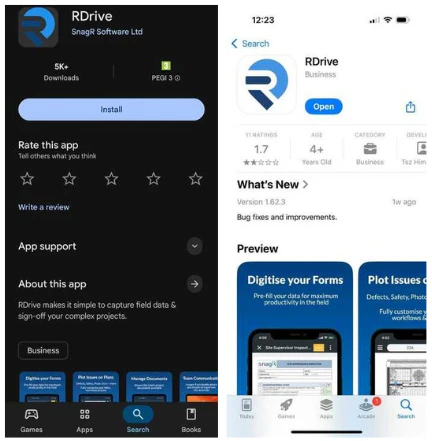
1. Go to the App Store (iOS) or Play Store (Android)
2. Search for and install the “RDrive” app
 ### **✅ Step 2:** Logging Into the App
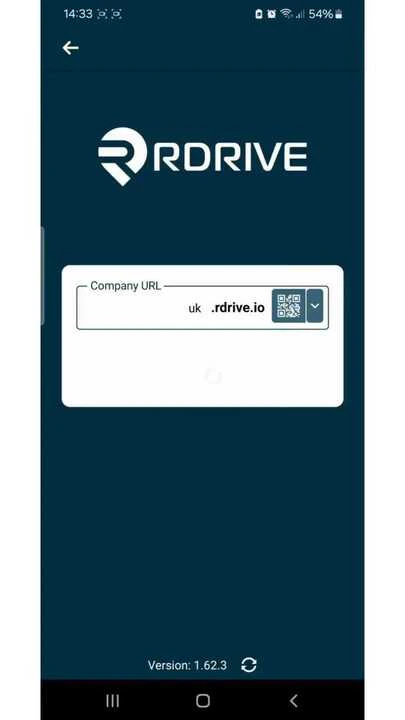
1. Open the app and enter your Company URL
* This is the first part of your web URL
* Example: If your full URL is [https://snagr.rdrive.io/123](https://snagr.rdrive.io/123), your Company URL is “snagr”
2. Tap NEXT
3. Enter your registered email address and password and select NEXT again
### **✅ Step 2:** Logging Into the App
1. Open the app and enter your Company URL
* This is the first part of your web URL
* Example: If your full URL is [https://snagr.rdrive.io/123](https://snagr.rdrive.io/123), your Company URL is “snagr”
2. Tap NEXT
3. Enter your registered email address and password and select NEXT again
 ### **✅ Step 3:** Downloading Your Project
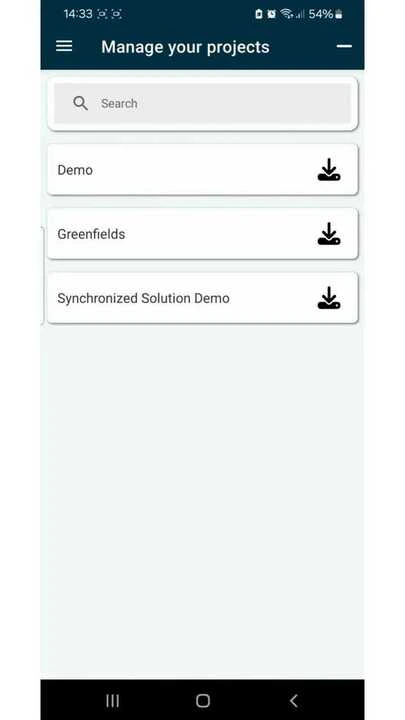
1. After logging in, you will see a list of all available projects
2. Tap the Download button next to the project you wish to download
### **✅ Step 3:** Downloading Your Project
1. After logging in, you will see a list of all available projects
2. Tap the Download button next to the project you wish to download
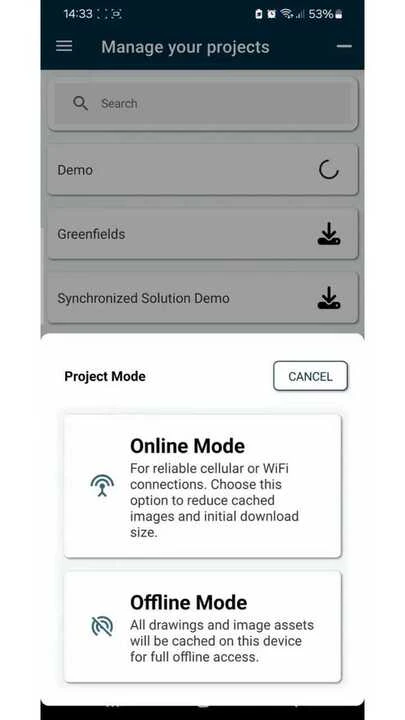
 3. Select the download mode - we suggest working "Offline" as default
4. Wait for the download to complete
3. Select the download mode - we suggest working "Offline" as default
4. Wait for the download to complete
 You now have offline access to the project!
### **✅ Step 4:** Using the QR Code (Optional)
Scan the QR code from your welcome email
This will auto-fill your project’s URL
Enter your username and password to log in
***
### FAQs & Troubleshooting
Q: What if I don't know my Company URL?\
A: It’s the prefix of the full project URL. Ask your administrator if unsure.\
Q: What if the QR code doesn’t work?\
A: Double-check your camera permissions and try again. You can also manually enter the URL.\
Q: What’s the difference between download modes?\
A: See the detailed guide here: [Difference Between Download Modes](https://docs.rdrive.io/mobile/getting-started/what-is-the-difference-between-the-download-project-modes)
You now have offline access to the project!
### **✅ Step 4:** Using the QR Code (Optional)
Scan the QR code from your welcome email
This will auto-fill your project’s URL
Enter your username and password to log in
***
### FAQs & Troubleshooting
Q: What if I don't know my Company URL?\
A: It’s the prefix of the full project URL. Ask your administrator if unsure.\
Q: What if the QR code doesn’t work?\
A: Double-check your camera permissions and try again. You can also manually enter the URL.\
Q: What’s the difference between download modes?\
A: See the detailed guide here: [Difference Between Download Modes](https://docs.rdrive.io/mobile/getting-started/what-is-the-difference-between-the-download-project-modes)