> ## Documentation Index
> Fetch the complete documentation index at: https://docs.rdrive.io/llms.txt
> Use this file to discover all available pages before exploring further.
# How to update issues? (APP)
> Once an issue is created, various parties may participate in the follow-up process, involving tasks like editing and updating the status. The platform is optima
Once an issue is created, various parties may participate in the follow-up process, involving tasks like [editing](#%e2%80%8bto-edit--) and [updating the status](#%e2%80%8bto-change-status--). The platform is optimally utilized for transparency and efficiency when different parties engage in the entire issue rectification process.
Editing an issue encompasses tasks such as:
1. Re-assigning the issue to another team
2. Changing issue descriptions
3. Updating due dates, and more
***
## To **Edit** -
1\. Open the issue/record details from the Plan Viewer or Finder.
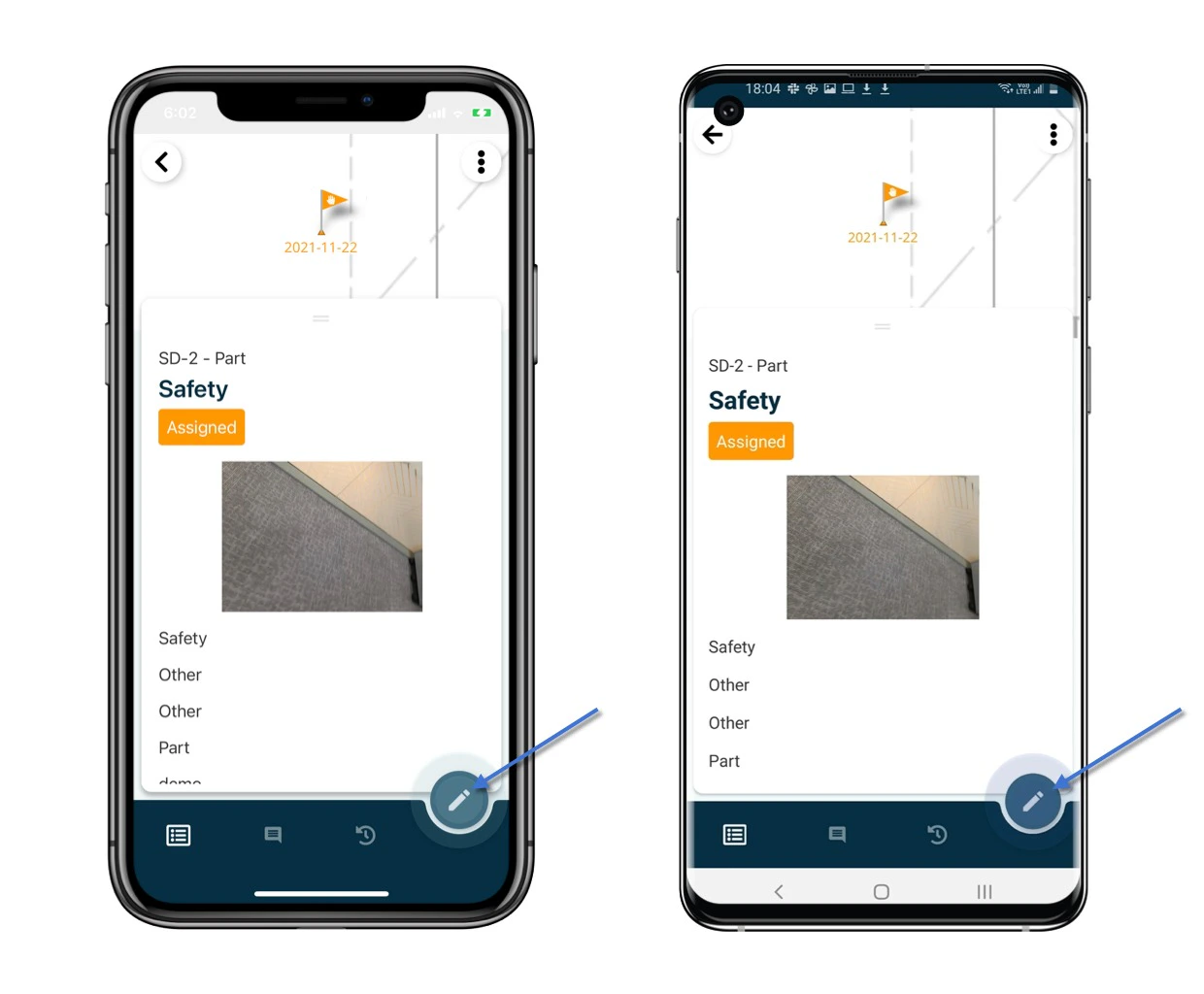
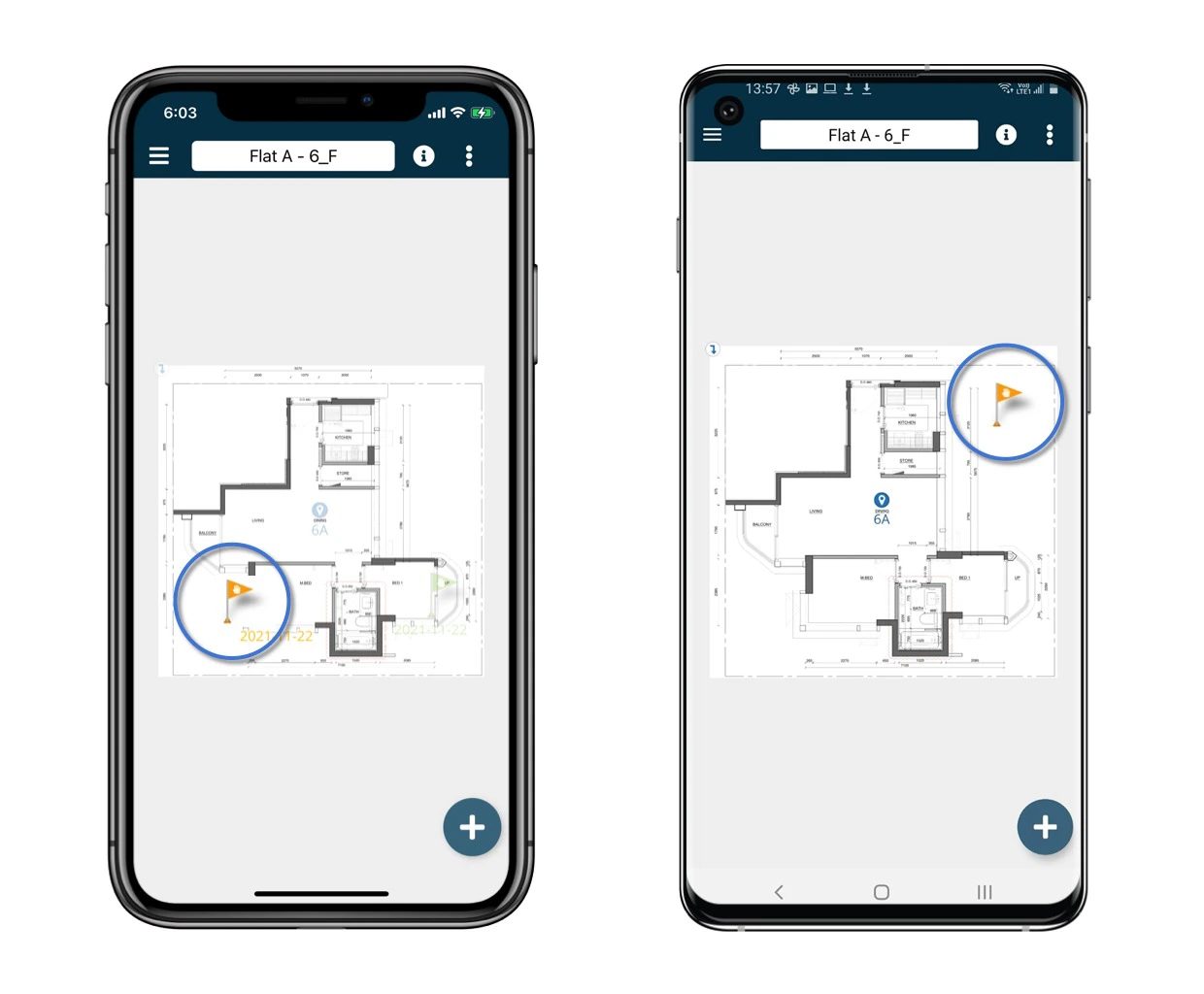 2. Click on the Edit icon to make changes.
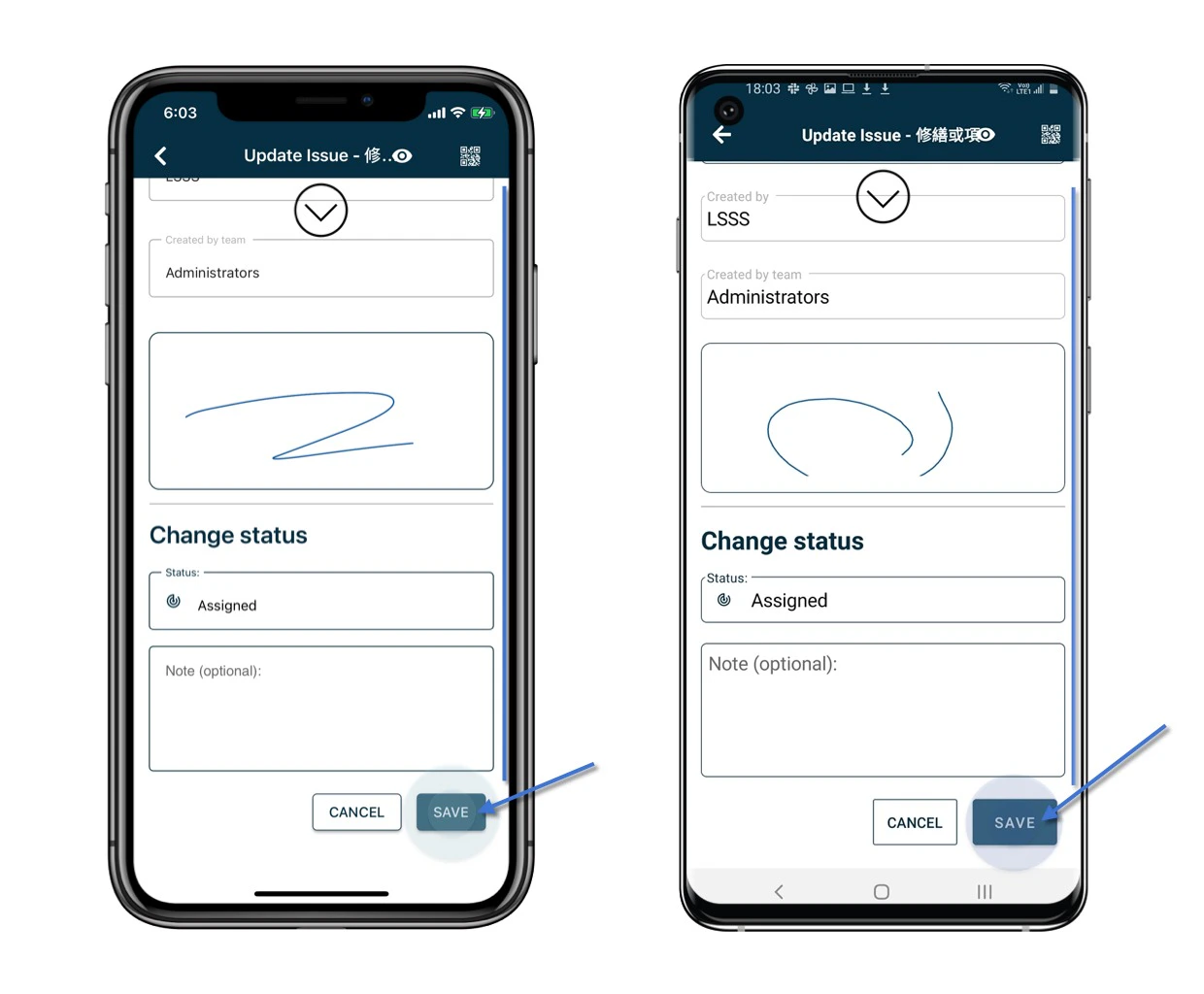
 3. Scroll down and click Save to confirm the modifications.
 ## To **Change Status** -
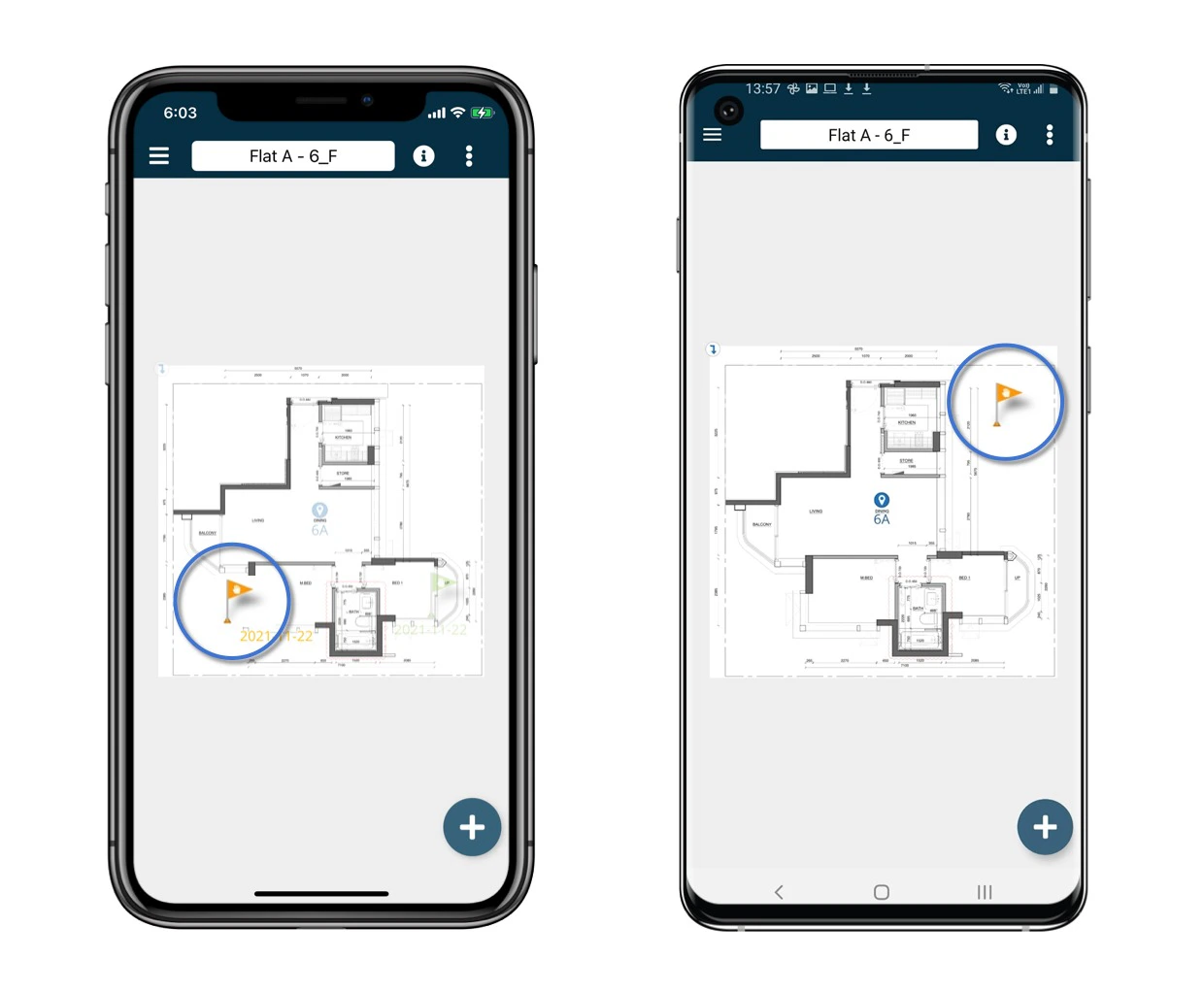
1\. Open the issue/record details from the Plan Viewer or Finder.
## To **Change Status** -
1\. Open the issue/record details from the Plan Viewer or Finder.
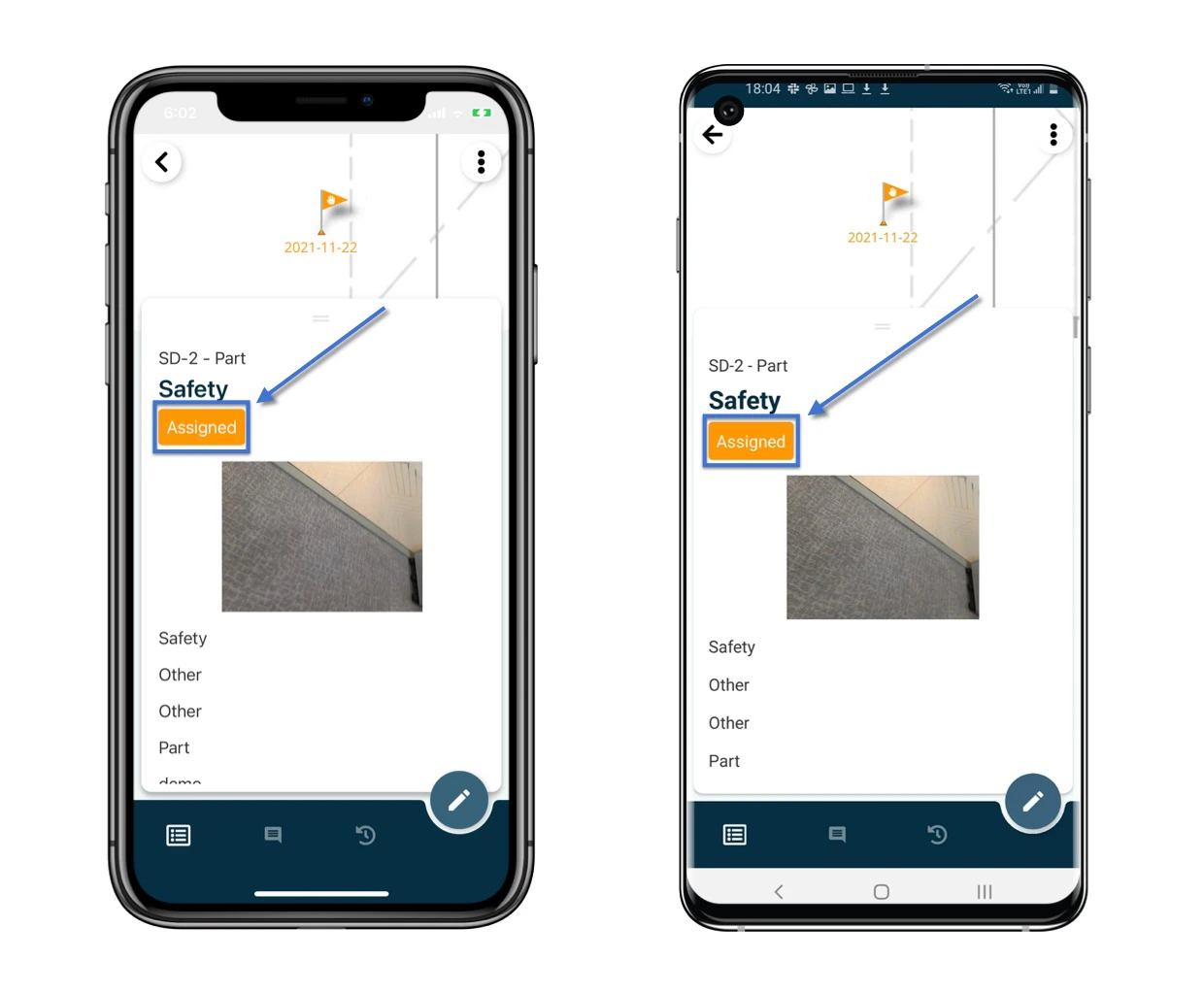
 2\. Click on the current status label to initiate the status change.
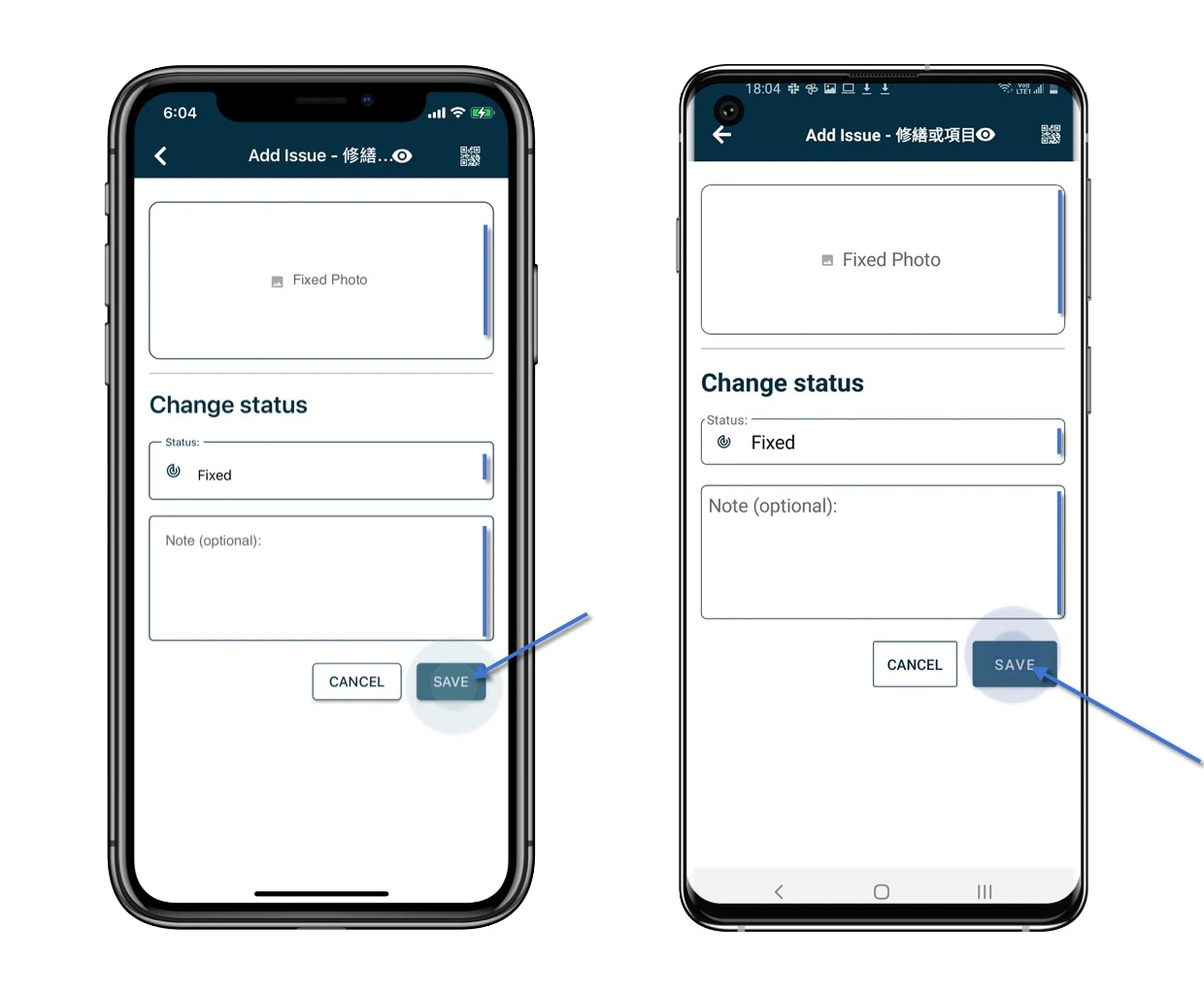
 3\. Update the status, add a note if necessary, and click **Save** to complete the process.
 ⚠️ After completing your onsite work, don't forget to synchronize. This action ensures data backup and updates for your project team.