> ## Documentation Index
> Fetch the complete documentation index at: https://docs.rdrive.io/llms.txt
> Use this file to discover all available pages before exploring further.
# Computation - Issue
> Computation - is a field module to assist you in designing your template with 'computed fields'. It can bring the ability to define fields on an object whose va
# What is Computation?
Computation - is a field module to assist you in designing your template with "computed fields". It can bring the ability to define fields on an object whose value is computed from the values of other fields.
Most of the formulas in Excel apply to Computation in RDrive.
E.g.: SUM, VLOOKUP, AVERAGE, LEN, IF, etc.
***
## How to set up the computation to an issue template?
First, you have to [edit](https://docs.rdrive.io/setup/company/categories/categories-issue-record-template/edit-an-issue-record-template) /[create fields](https://docs.rdrive.io/setup/company/categories/categories-issue-record-template/create-an-issue-record-template) and [assign field types](https://docs.rdrive.io/setup/company/categories/categories-template-setup-knowledge-base/what-can-field-properties-do) to design the template layout in the issue wizard.
*✨* [Edit an issue/record template](https://docs.rdrive.io/setup/company/categories/categories-issue-record-template/edit-an-issue-record-template)
*Tips: [If you want the Output field uneditable manually, you may set the field type as "Read Only".](https://docs.rdrive.io/setup/company/categories/categories-template-setup-knowledge-base/what-can-field-properties-do)*
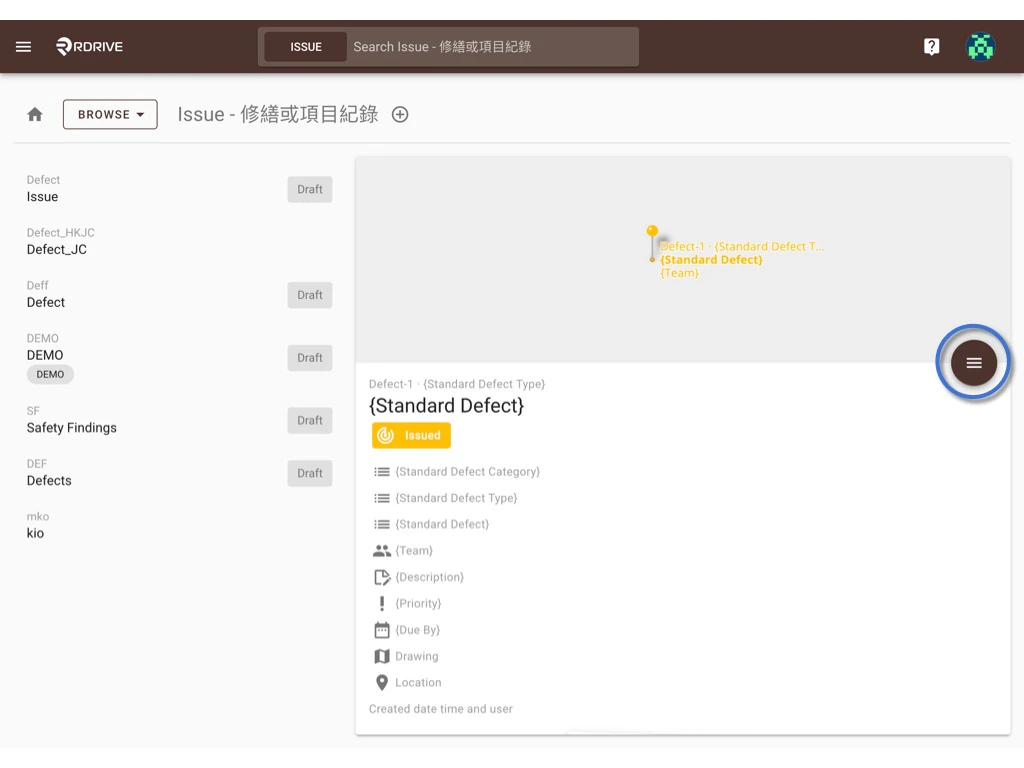
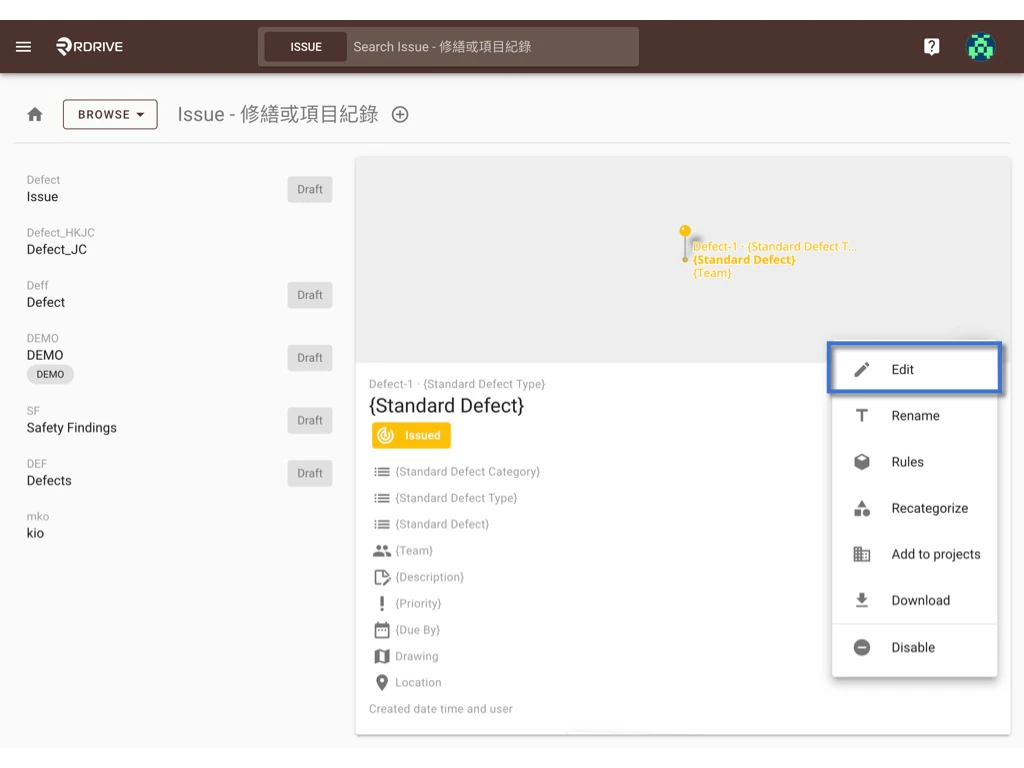
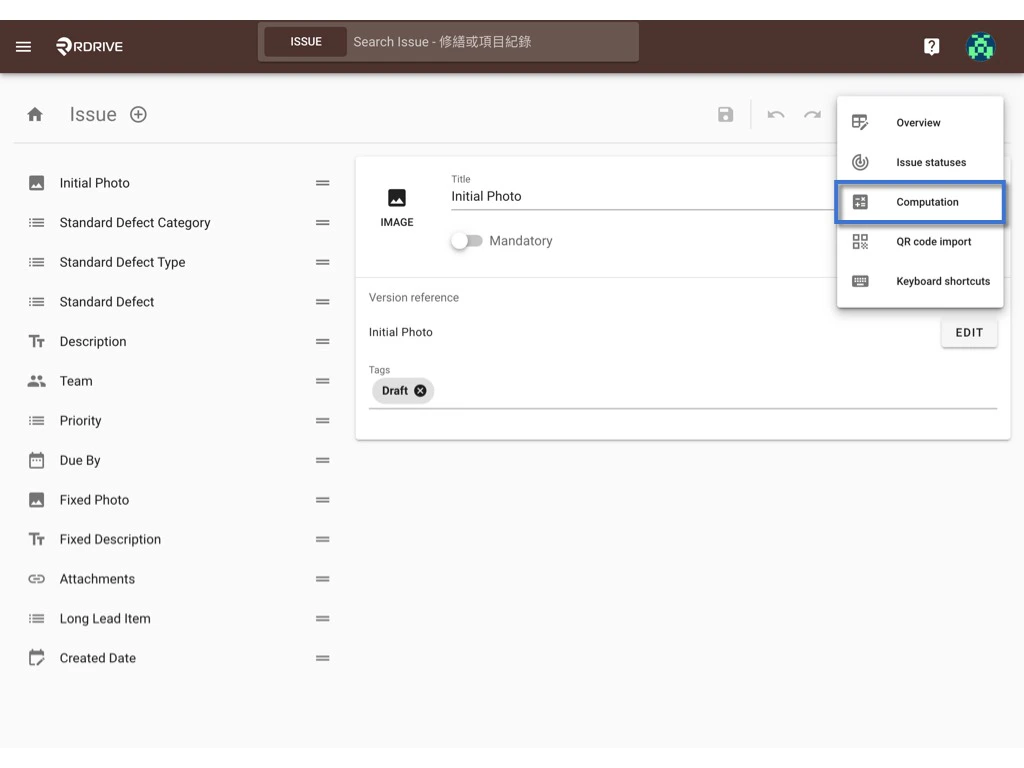
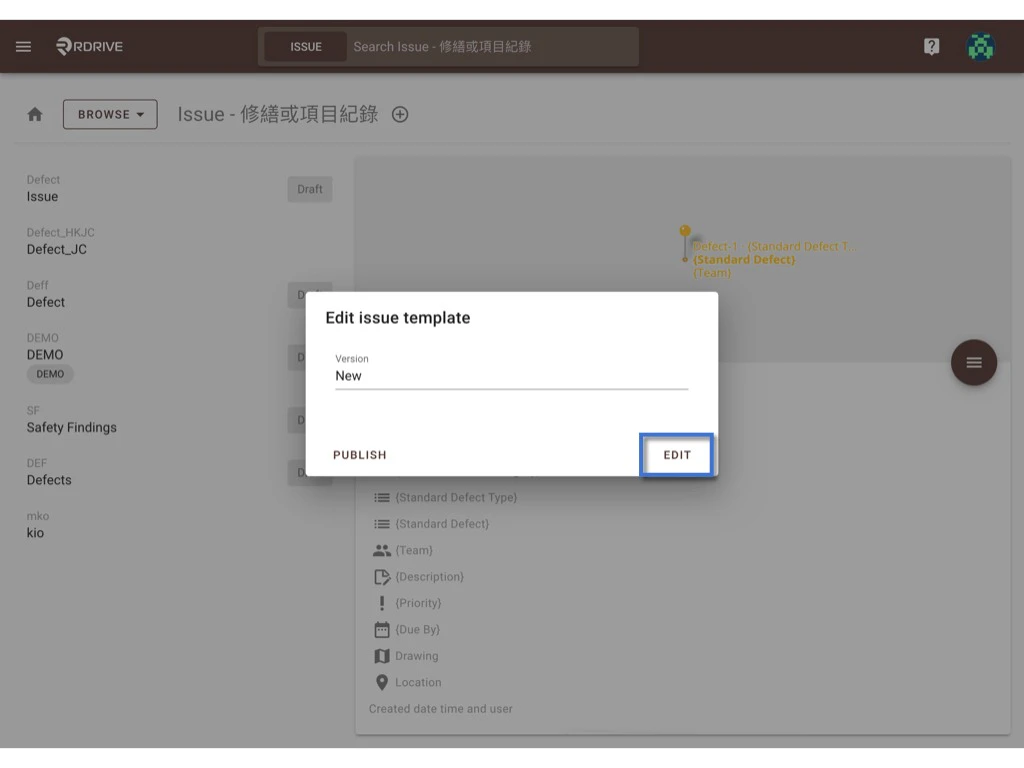 Click the **Computation** option (or ⌘/Ctrl 6) in the more tools list to bring up the Computation dialogue.
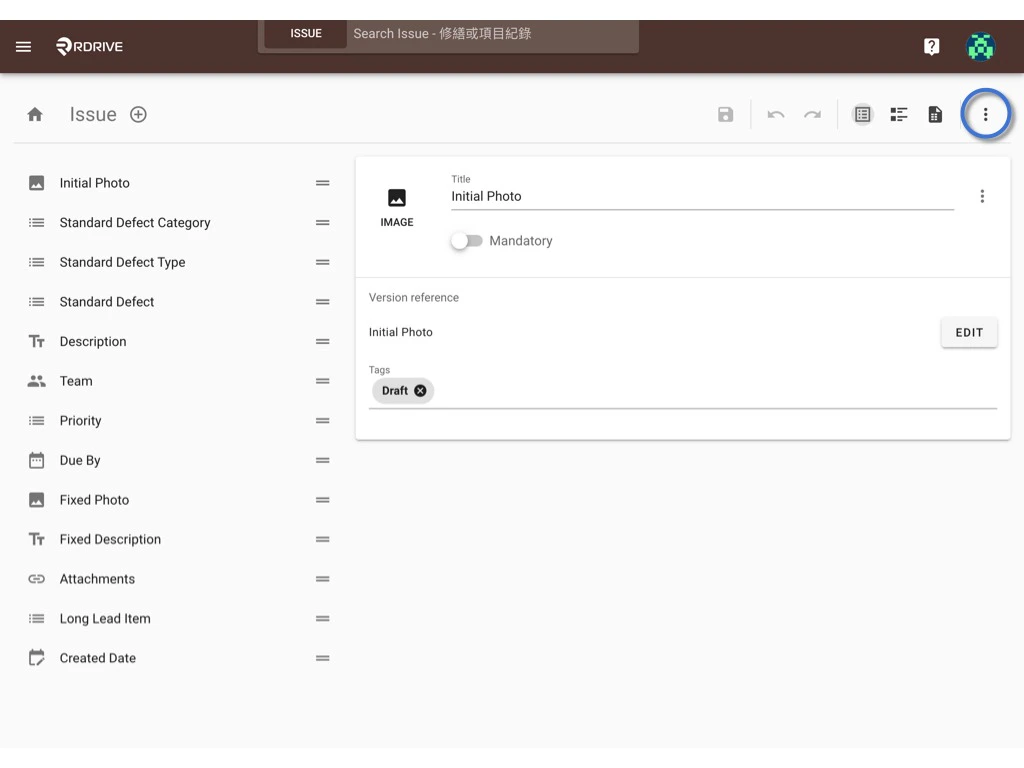
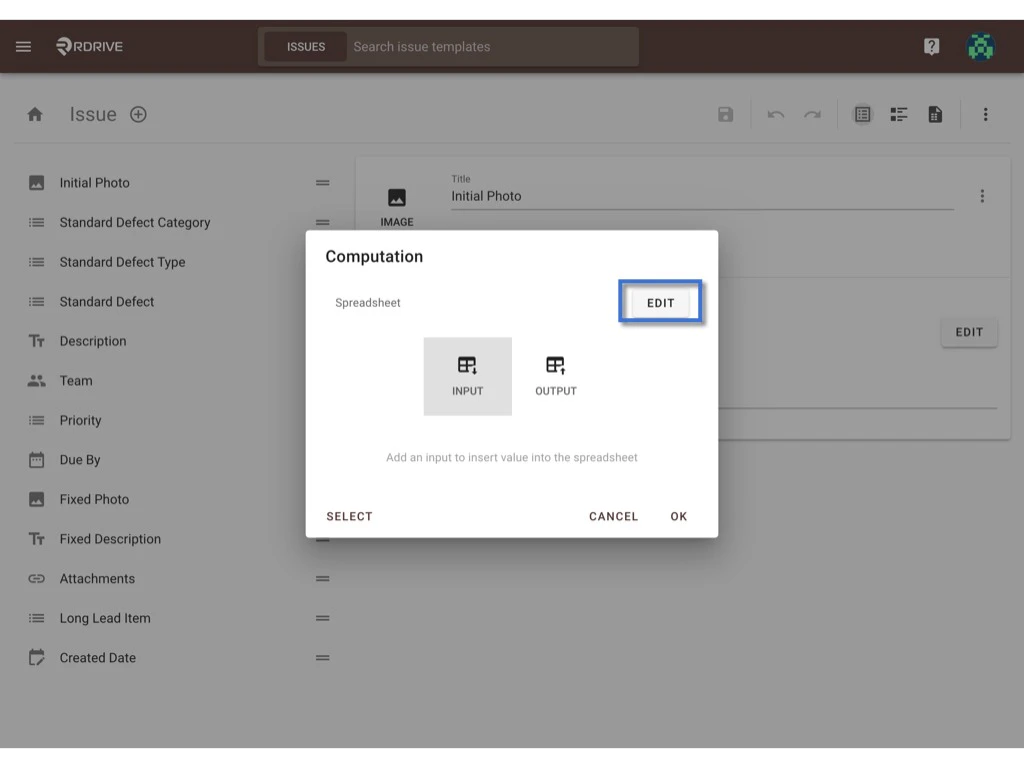
 Click **EDIT** to open the spreadsheet.
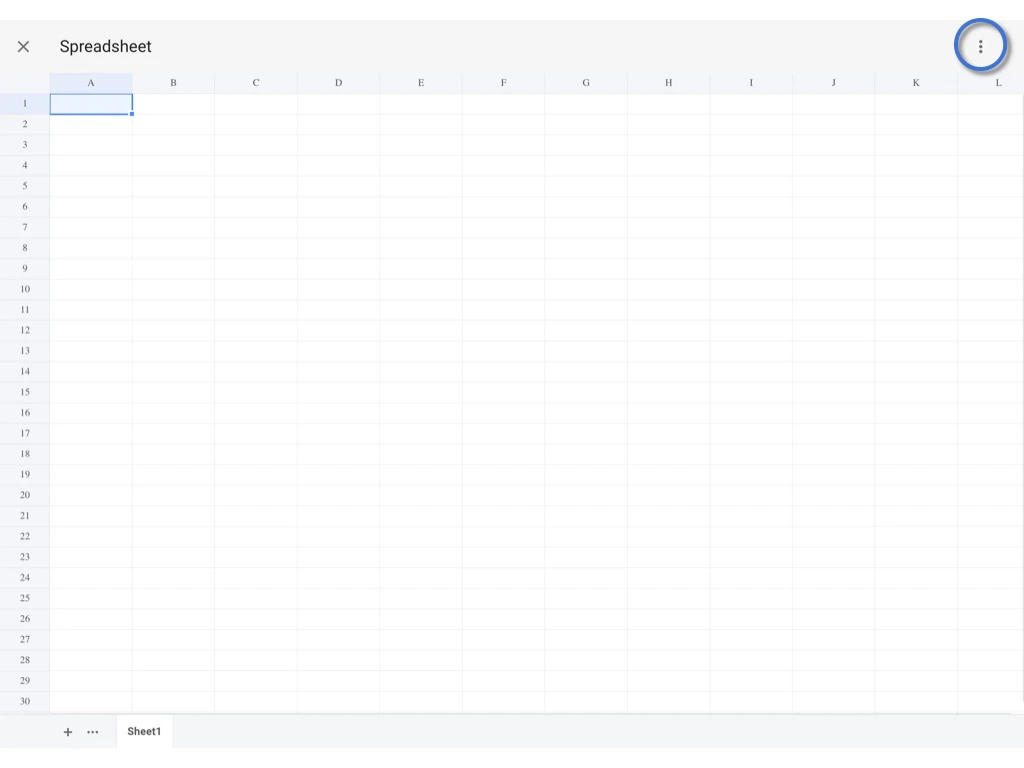
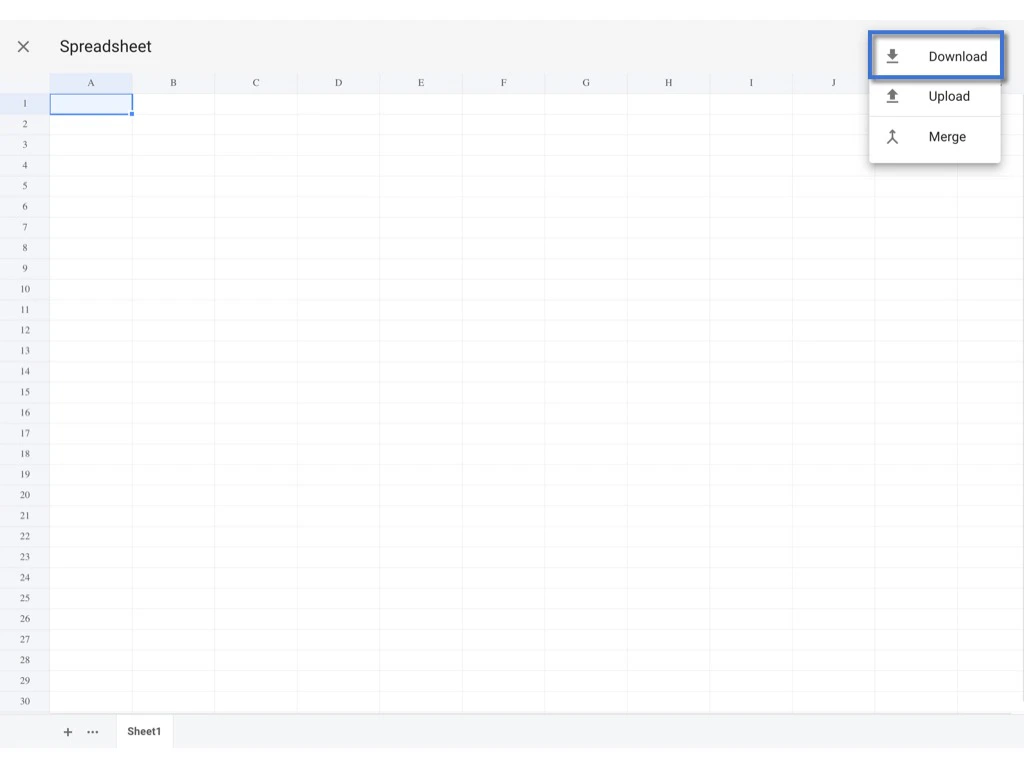
 At the very beginning, the spreadsheet should be blank. Please click the **⋮** and Download the Excel file for edit.
*⚠️ Warning:*
*Please do not attempt to create the spreadsheet from the web. Do it in the downloaded Excel and import it. The whole purpose of the spreadsheet is to check if the system supports the formulas you inputted.*
At the very beginning, the spreadsheet should be blank. Please click the **⋮** and Download the Excel file for edit.
*⚠️ Warning:*
*Please do not attempt to create the spreadsheet from the web. Do it in the downloaded Excel and import it. The whole purpose of the spreadsheet is to check if the system supports the formulas you inputted.*
 ## -
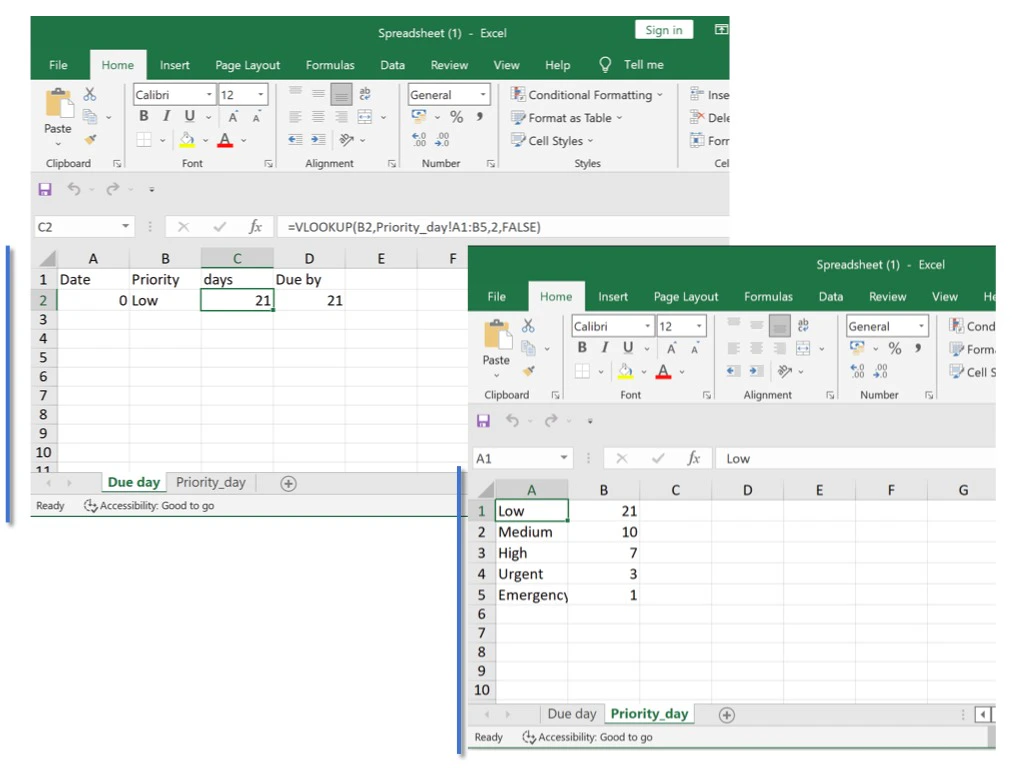
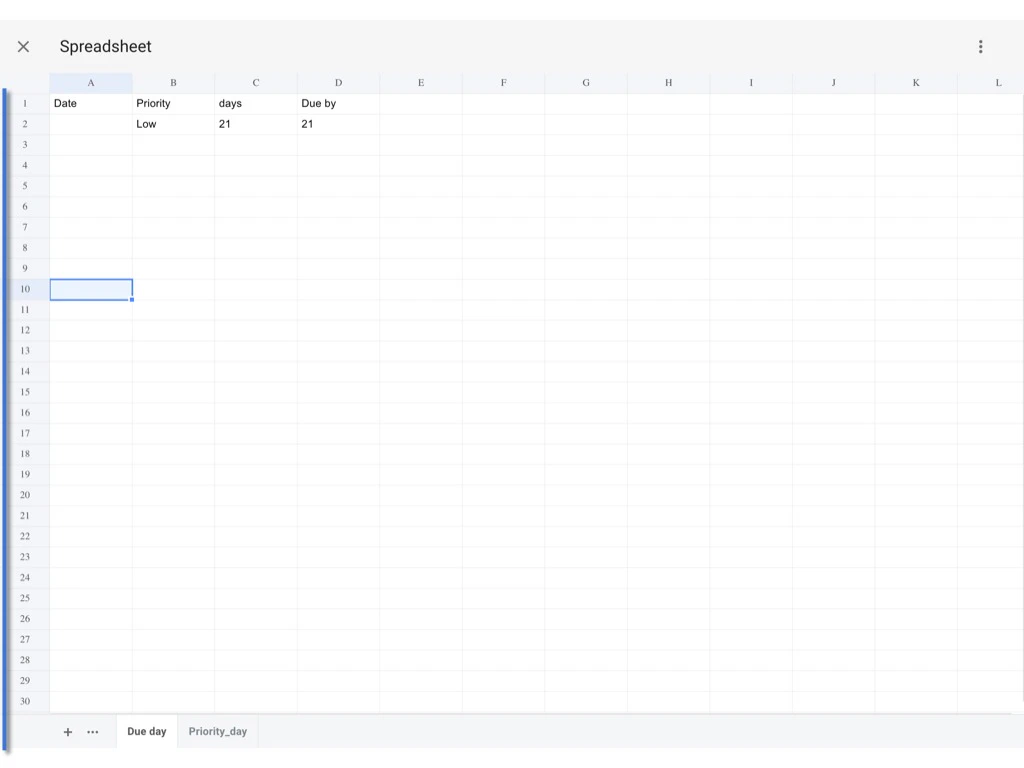
Open excel, design the input and output cell and enter the formula.
*Click [here ?](https://docs.google.com/spreadsheets/d/1TO1LBKvAHctbn0dvIizYnKNO_uNjlWmJ/edit?usp=sharing\&ouid=104843957967887312407\&rtpof=true\&sd=true) to download the excel for reference.*
***Spreadsheets Size Limit:** 100KB*
## -
Open excel, design the input and output cell and enter the formula.
*Click [here ?](https://docs.google.com/spreadsheets/d/1TO1LBKvAHctbn0dvIizYnKNO_uNjlWmJ/edit?usp=sharing\&ouid=104843957967887312407\&rtpof=true\&sd=true) to download the excel for reference.*
***Spreadsheets Size Limit:** 100KB*
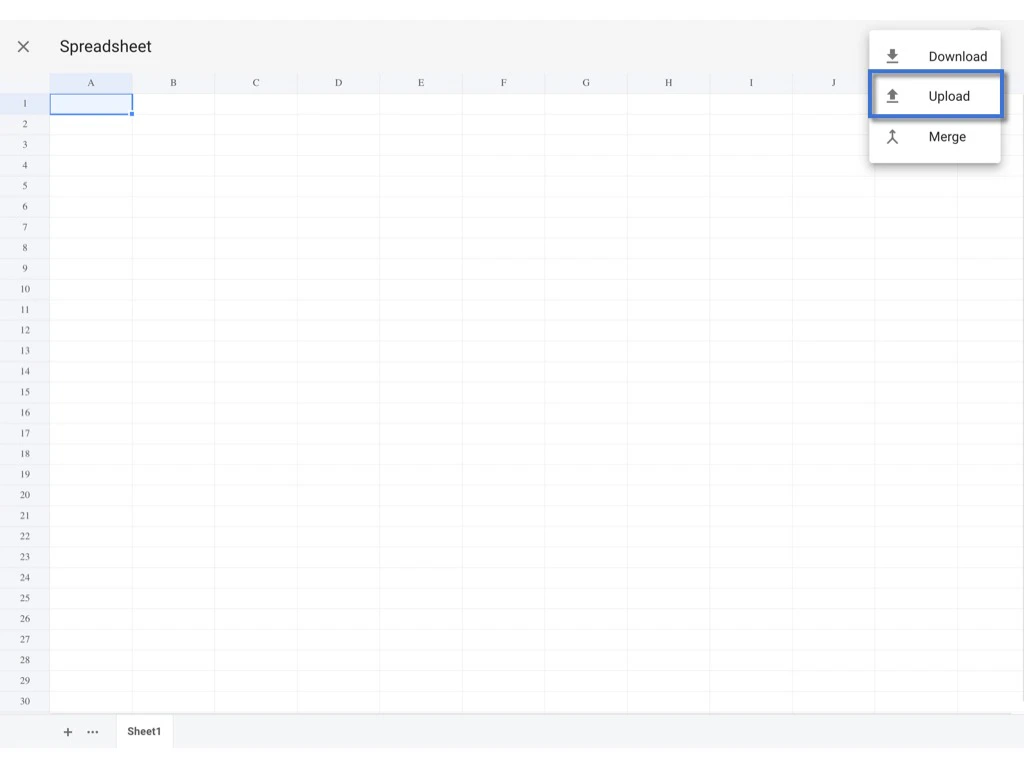
 Upload the excel file.
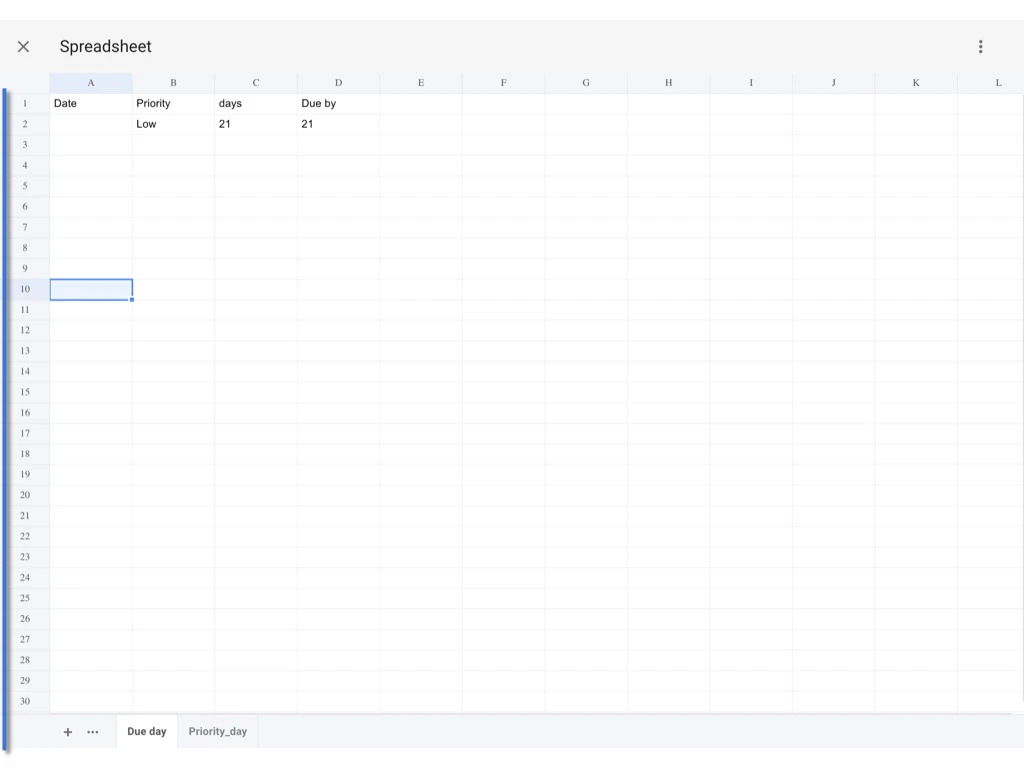
 Excel uploaded. Have a look at the spreadsheet. If there have any not applicable functions, it will pop Error.
The spreadsheet will automatically save. Click ? to go back to the computation dialogue.
Excel uploaded. Have a look at the spreadsheet. If there have any not applicable functions, it will pop Error.
The spreadsheet will automatically save. Click ? to go back to the computation dialogue.
 ## Assign value
INPUT & OUTPUT
An input field can be any field type.\
An output field can be any field type except image, signature, team list, user list and dropdown list.
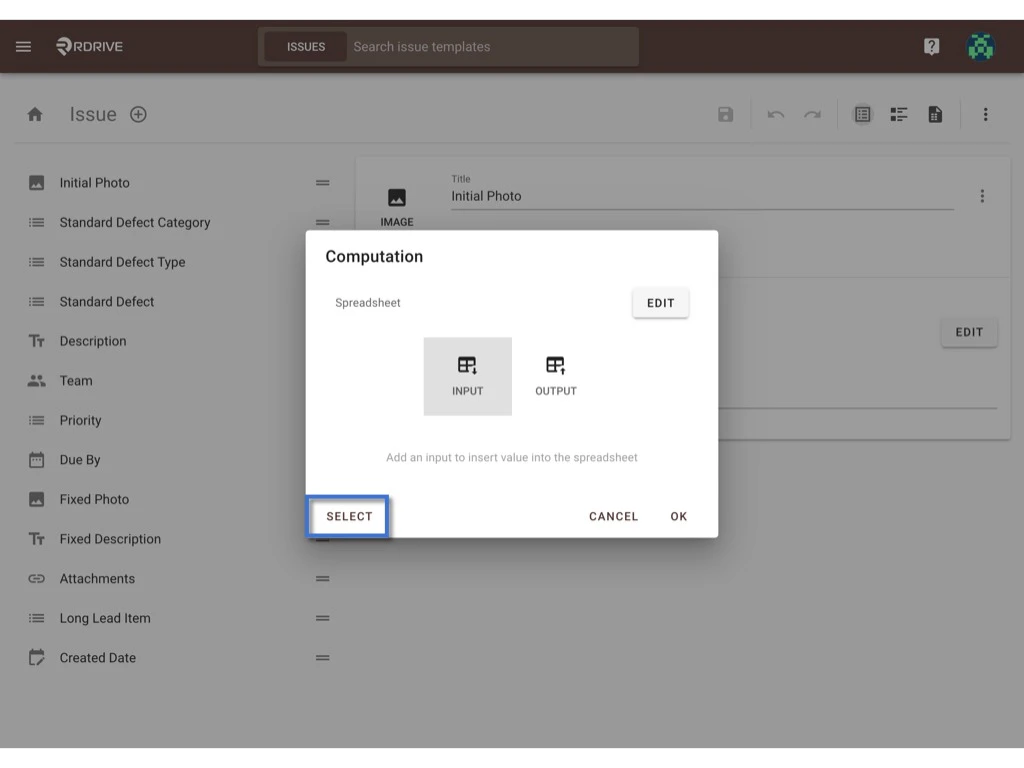
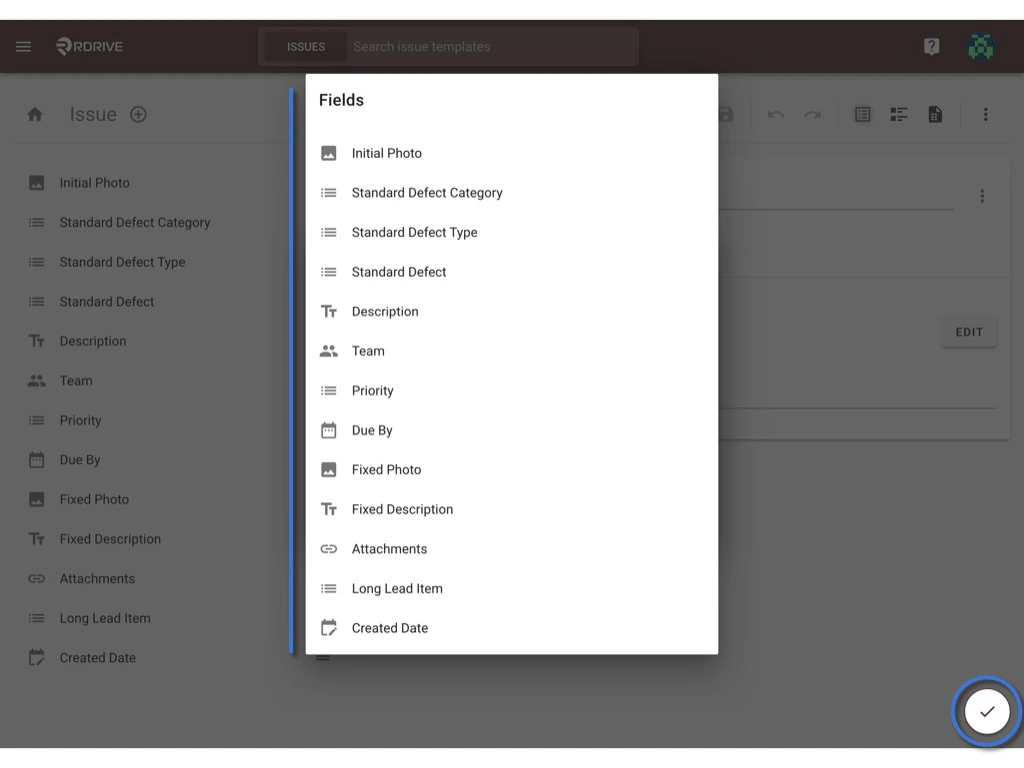
Click **SELECT** to select fields from the form to assign the spreadsheet cells for the input value.
## Assign value
INPUT & OUTPUT
An input field can be any field type.\
An output field can be any field type except image, signature, team list, user list and dropdown list.
Click **SELECT** to select fields from the form to assign the spreadsheet cells for the input value.
 Click on the field to choose, the selected field will highlight in blue.
Press the ✔️ on the bottom right to confirm;
or clicking outside of the dialogue to cancel.
Click on the field to choose, the selected field will highlight in blue.
Press the ✔️ on the bottom right to confirm;
or clicking outside of the dialogue to cancel.
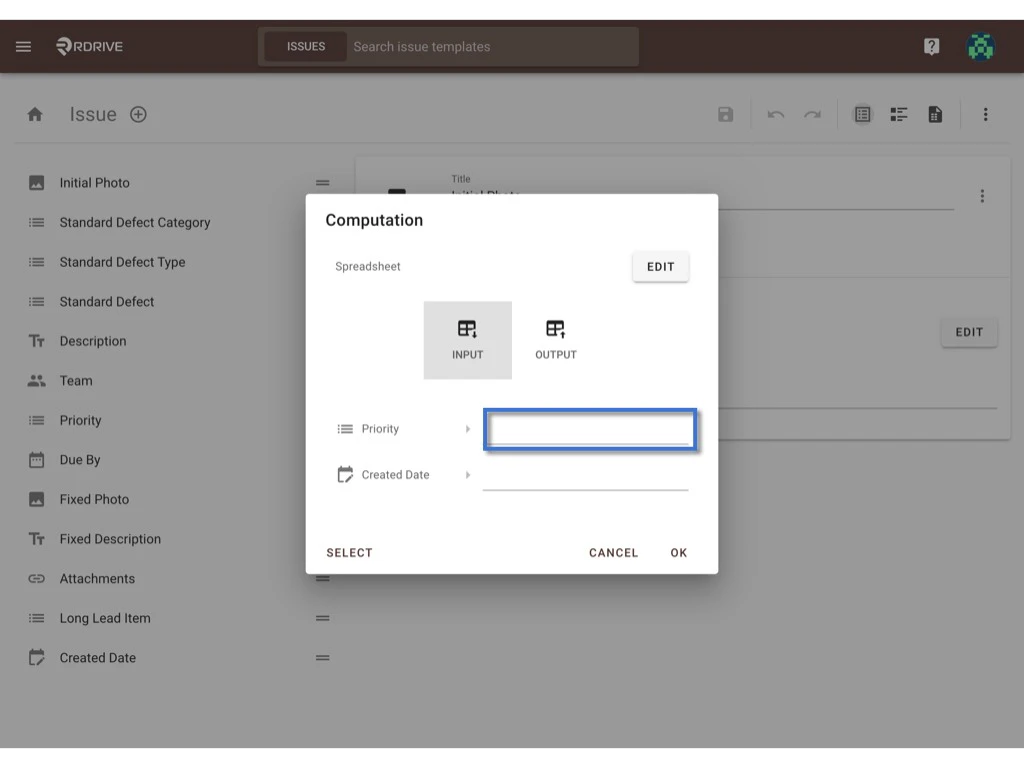
 Click to select the cell for mapping.
 May proceed as follows.
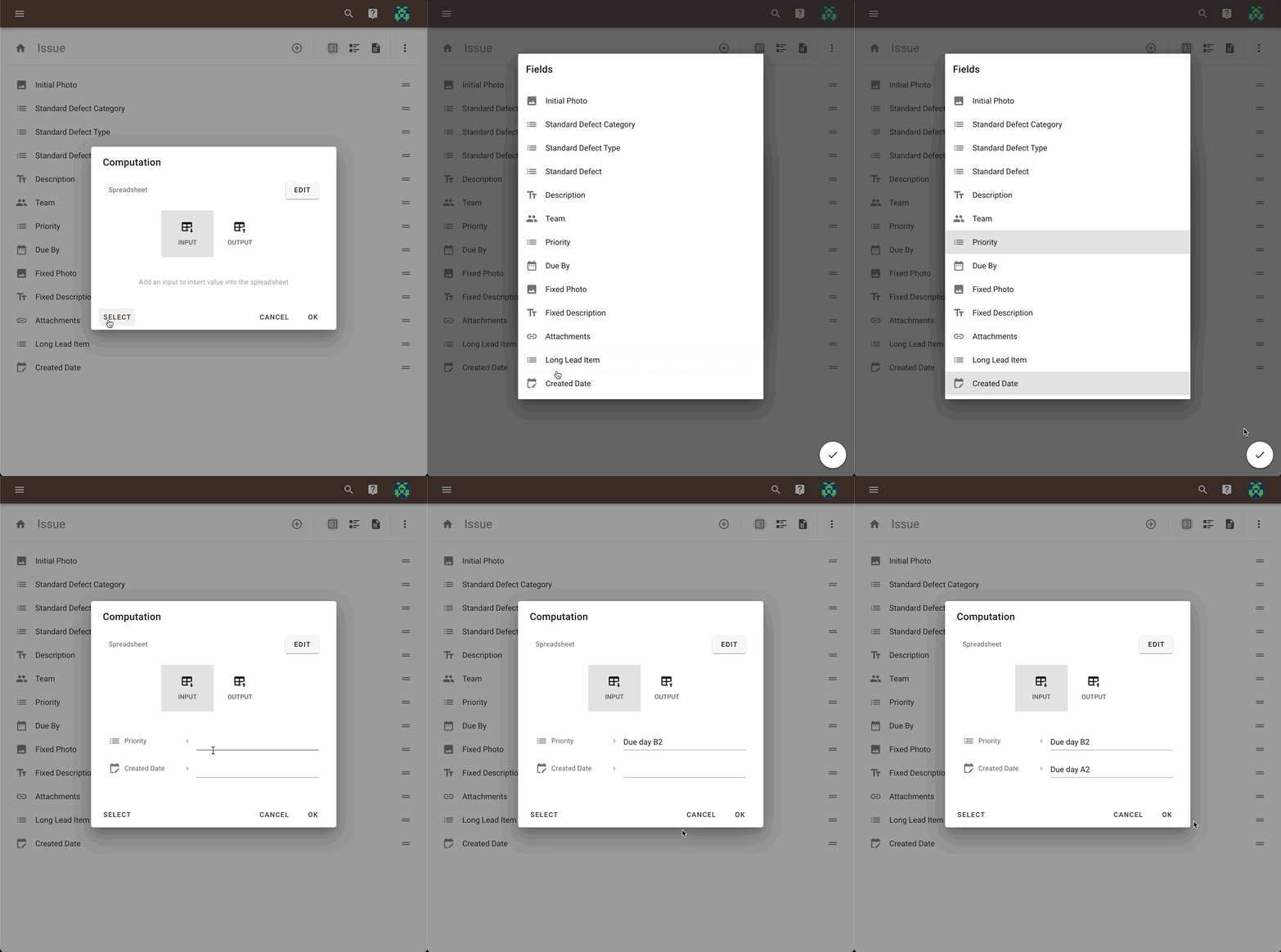 Done for **INPUT.**
Please repeat the above actions for the **OUTPUT** to assign value.
Done for **INPUT.**
Please repeat the above actions for the **OUTPUT** to assign value.
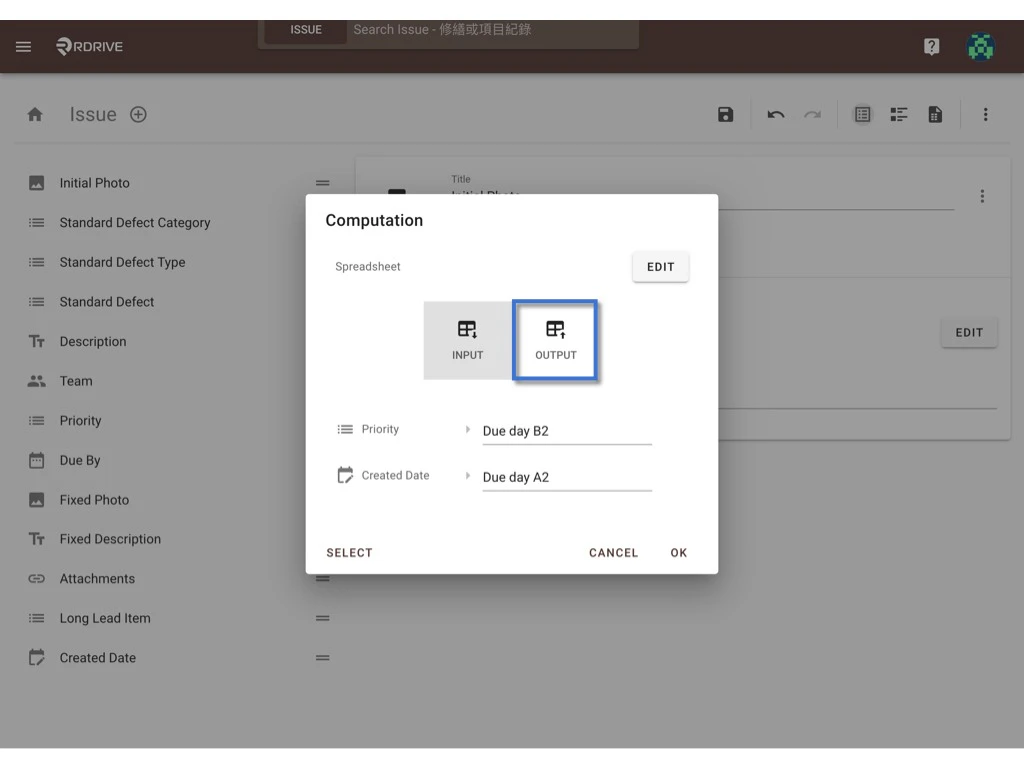 **OK** to complete.
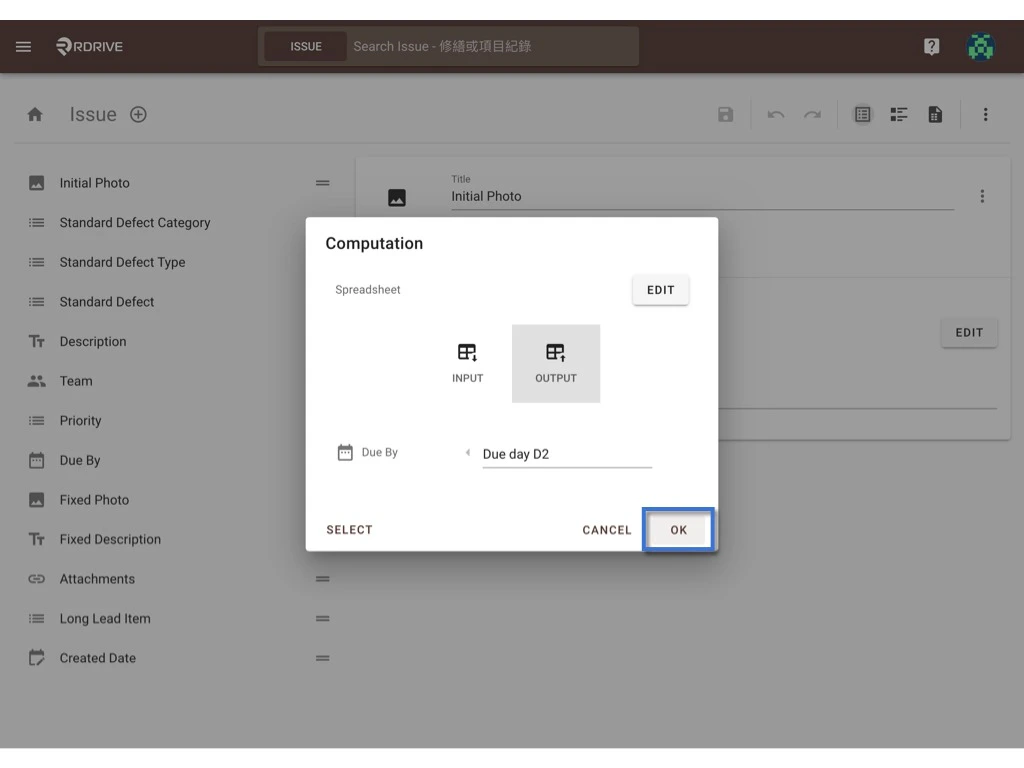 **SAVE.**
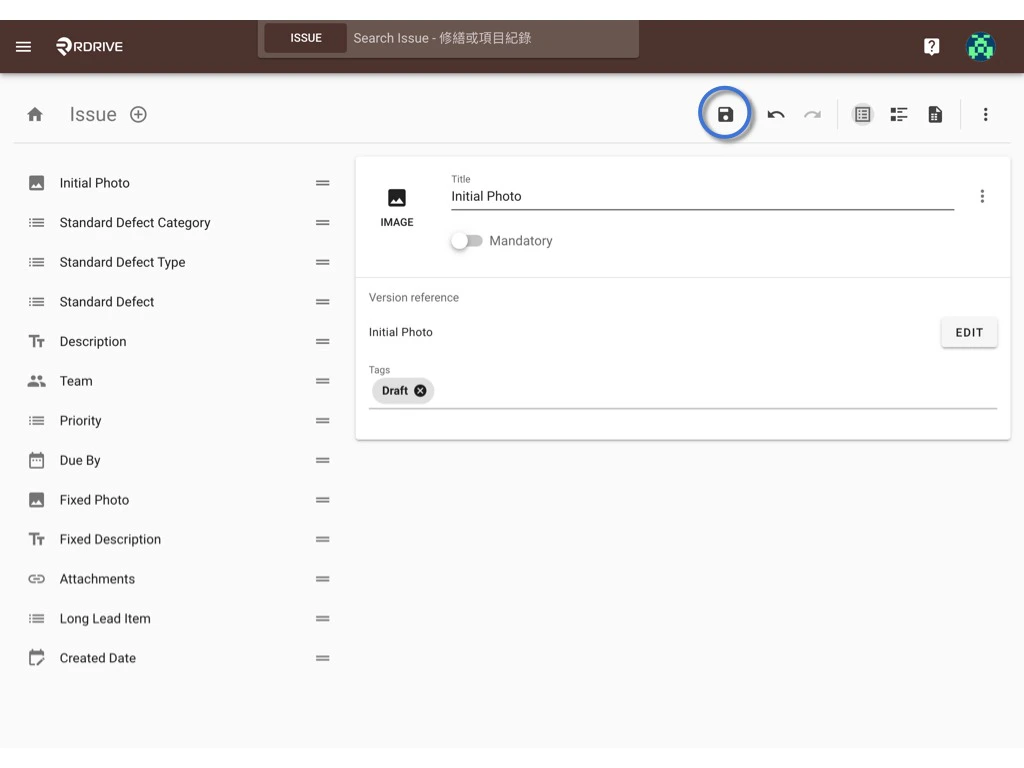 # [⭐️ Remember to **PUBLISH** the template after changed!!](https://docs.rdrive.io/setup/company/categories/categories-issue-record-template/create-an-issue-record-template#h_5f03d6a78d)
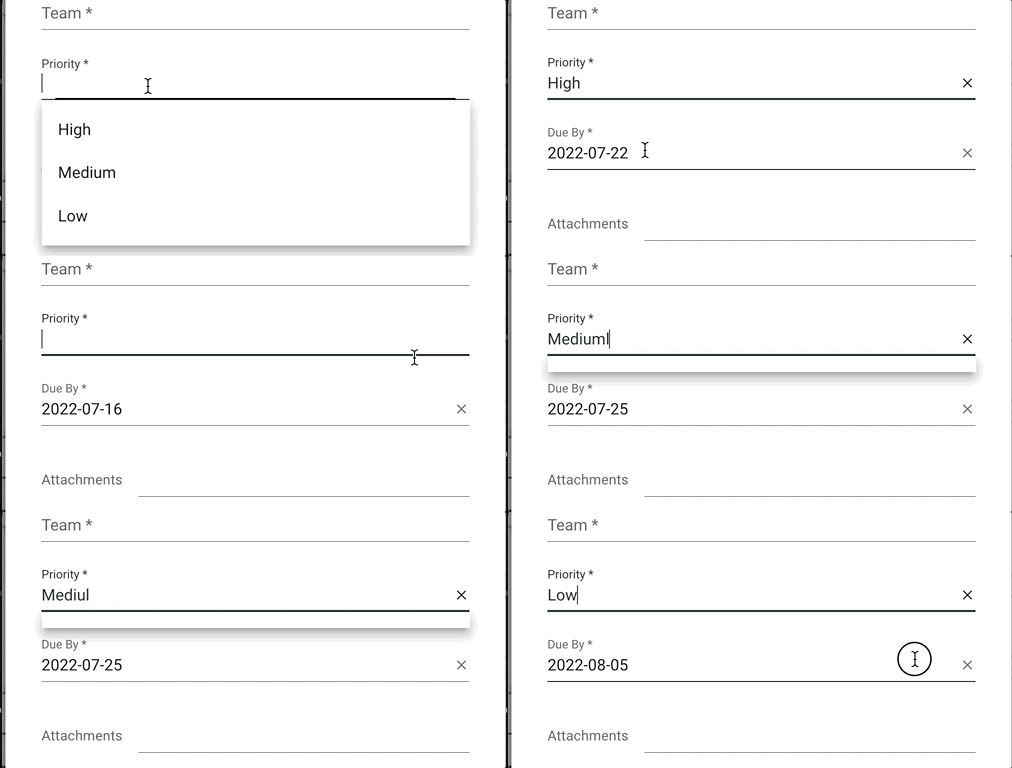
Below is an example of the computed field behaviour for your information.
The value of the "**Due By**" date is updated by the selection of "**Priority**".
# [⭐️ Remember to **PUBLISH** the template after changed!!](https://docs.rdrive.io/setup/company/categories/categories-issue-record-template/create-an-issue-record-template#h_5f03d6a78d)
Below is an example of the computed field behaviour for your information.
The value of the "**Due By**" date is updated by the selection of "**Priority**".
 ## *? What if the priority day needs to be project specific?*
The spreadsheet is able to edit on the project level!!
[Click here to continue to see how.](https://docs.rdrive.io/setup/company/presets/preset-spreadsheet-add-and-merge-with-the-template-company-level)
***
If you are interested in how to setup up computation on the process template, click [here](https://docs.rdrive.io/setup/company/categories/categories-process-template/computation-how-to-set-up-in-a-form).
## *? What if the priority day needs to be project specific?*
The spreadsheet is able to edit on the project level!!
[Click here to continue to see how.](https://docs.rdrive.io/setup/company/presets/preset-spreadsheet-add-and-merge-with-the-template-company-level)
***
If you are interested in how to setup up computation on the process template, click [here](https://docs.rdrive.io/setup/company/categories/categories-process-template/computation-how-to-set-up-in-a-form).