> ## Documentation Index
> Fetch the complete documentation index at: https://docs.rdrive.io/llms.txt
> Use this file to discover all available pages before exploring further.
# Computation: How to Set Up in a Form
> Computation is a module designed to assist you in creating forms with 'computed fields.' These fields calculate their values based on other fields’ inputs, simi
# **What is Computation?**
**Computation** is a module designed to assist you in creating forms with "computed fields." These fields calculate their values based on other fields’ inputs, similar to Excel formulas.
### Supported Formulas
Most Excel formulas can be applied in Computation on RDrive, including:
* `SUM`
* `VLOOKUP`
* `AVERAGE`
* `LEN`
* `IF`
***
***Important Notes for Efficient Use of Computation Functions***
* ***Avoid Referencing Entire Columns**: Do **NOT** use references like A:A or B:C (referencing entire columns) in your formulas. This practice can significantly degrade performance, especially in large datasets. Always specify a defined range that contains meaningful data (e.g., A1:A100) to ensure your computations run efficiently.*
* ***Merged Preset Spreadsheets**: Be aware that if you have a spreadsheet with a merged preset, any data added to a sheet with the same title will override the existing content.*
* ***Triggered Calculations**: Computed values in RDrive only update when the input value they depend on is edited. This means that if a source value changes, the computed field will reflect this change automatically, ensuring that outputs remain current without manual updates.*
* ***Avoid Using the Same Field for Input and Output**: Do not configure a field to act as both input and output simultaneously. This can lead to circular references and unexpected behavior in computations.*
* ***Output Fields and Conditional Editing**: Output fields function based on the conditional editing rules set up. If a field is not editable in its current status, the output will not display. Ensure conditional editing rules are correctly configured for the desired behavior.*
* ***Template's Spreadsheets Size Limit:** 100KB*
***
# **Setting Up Computation for** **a Form** - (Using a Petty Cash Report as an Example)
### **Step 1: [Design the Form Layout](https://docs.rdrive.io/setup/company/categories/categories-process-template/how-to-update-the-process-template-form)**
1. Edit or create fields and [assign field types](https://docs.rdrive.io/setup/company/categories/categories-template-setup-knowledge-base/what-can-field-properties-do) using the **Form Wizard**. 2. Design the form layout in the [Form Wizard](https://docs.rdrive.io/setup/company/categories/categories-process-template/what-can-i-do-at-the-form-wizard).
**Tips:** To make the *Output* field uneditable manually, [you may set the field type to Read Only](https://docs.rdrive.io/setup/company/categories/categories-template-setup-knowledge-base/what-can-field-properties-do).\
*The following field types are NOT supported as output values:*
* *Image*
* *Signature*
* *List (team, user, list)*
* *Checkbox*
* *Pass/Fail/NA*\\
2. Design the form layout in the [Form Wizard](https://docs.rdrive.io/setup/company/categories/categories-process-template/what-can-i-do-at-the-form-wizard).
**Tips:** To make the *Output* field uneditable manually, [you may set the field type to Read Only](https://docs.rdrive.io/setup/company/categories/categories-template-setup-knowledge-base/what-can-field-properties-do).\
*The following field types are NOT supported as output values:*
* *Image*
* *Signature*
* *List (team, user, list)*
* *Checkbox*
* *Pass/Fail/NA*\\
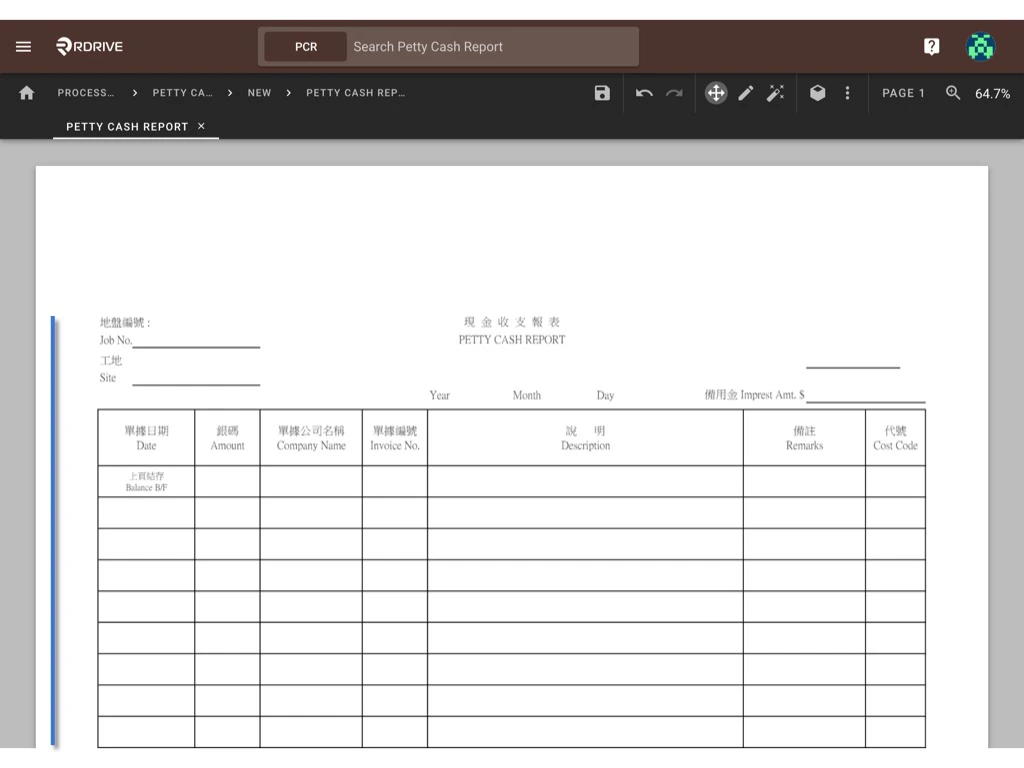 ### **Step 2: Access the Computation Dialogue**
* Use **⌘/Ctrl + 6** or select **Computation** from the ⋮ (More Tools) menu to open the dialogue.
### **Step 2: Access the Computation Dialogue**
* Use **⌘/Ctrl + 6** or select **Computation** from the ⋮ (More Tools) menu to open the dialogue.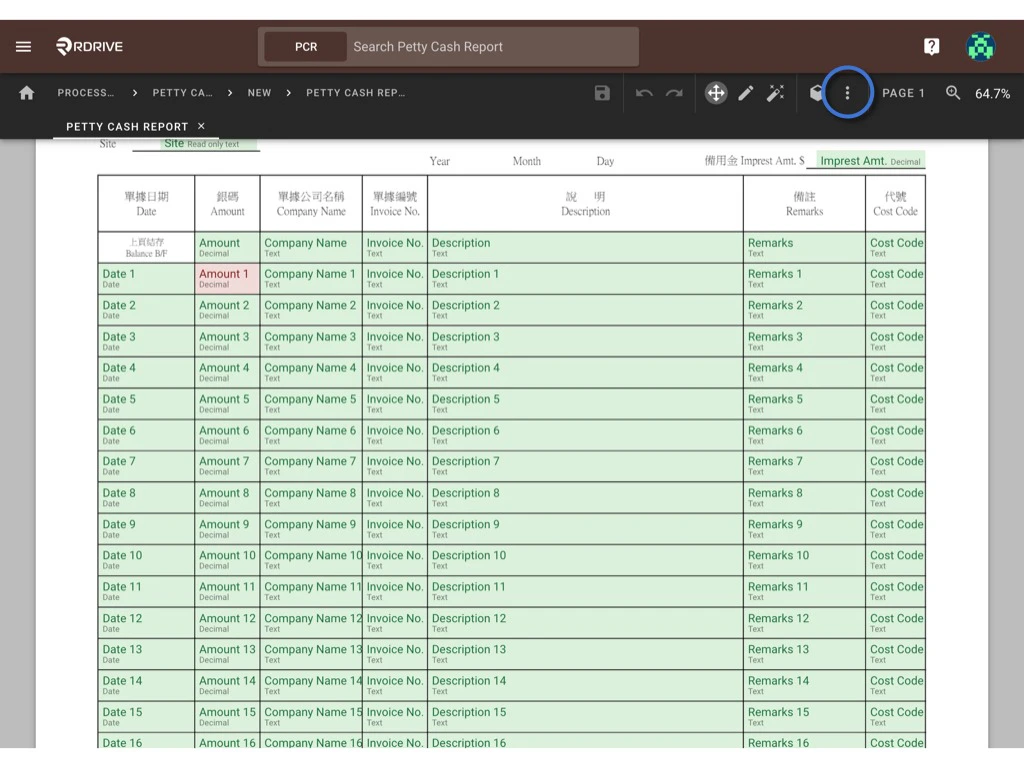
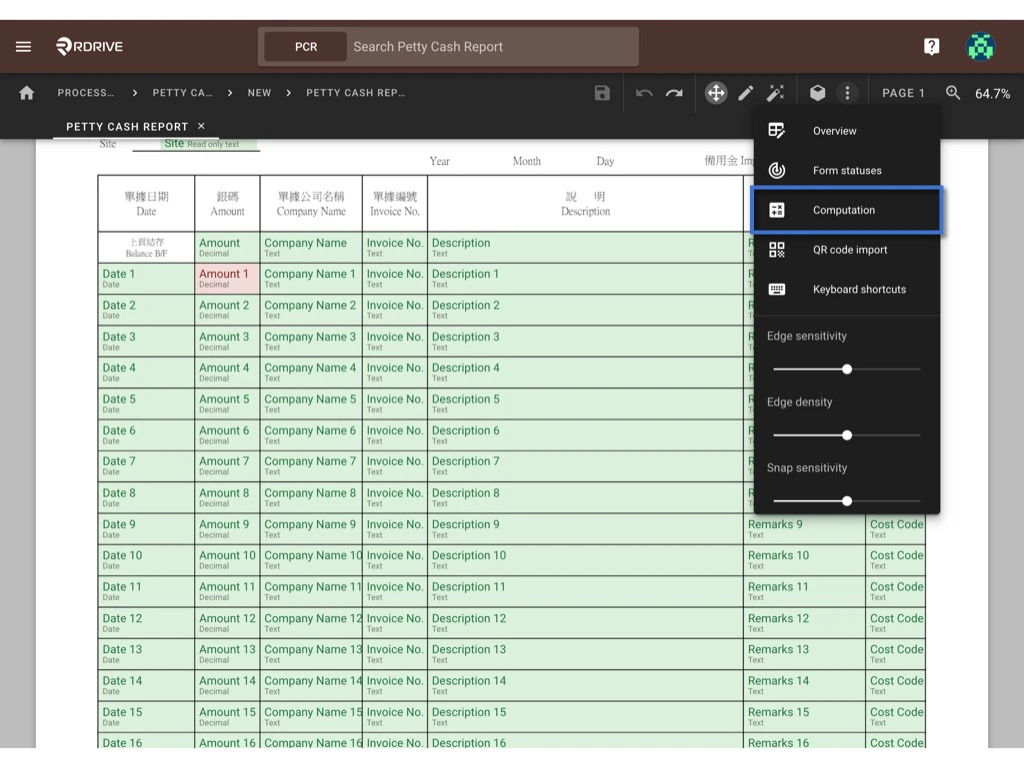 ### **Step 3: Edit the Spreadsheet**
1. Click **EDIT** to open the spreadsheet.
### **Step 3: Edit the Spreadsheet**
1. Click **EDIT** to open the spreadsheet. 2. Download the Excel template via the ⋮ menu in the Computation dialogue.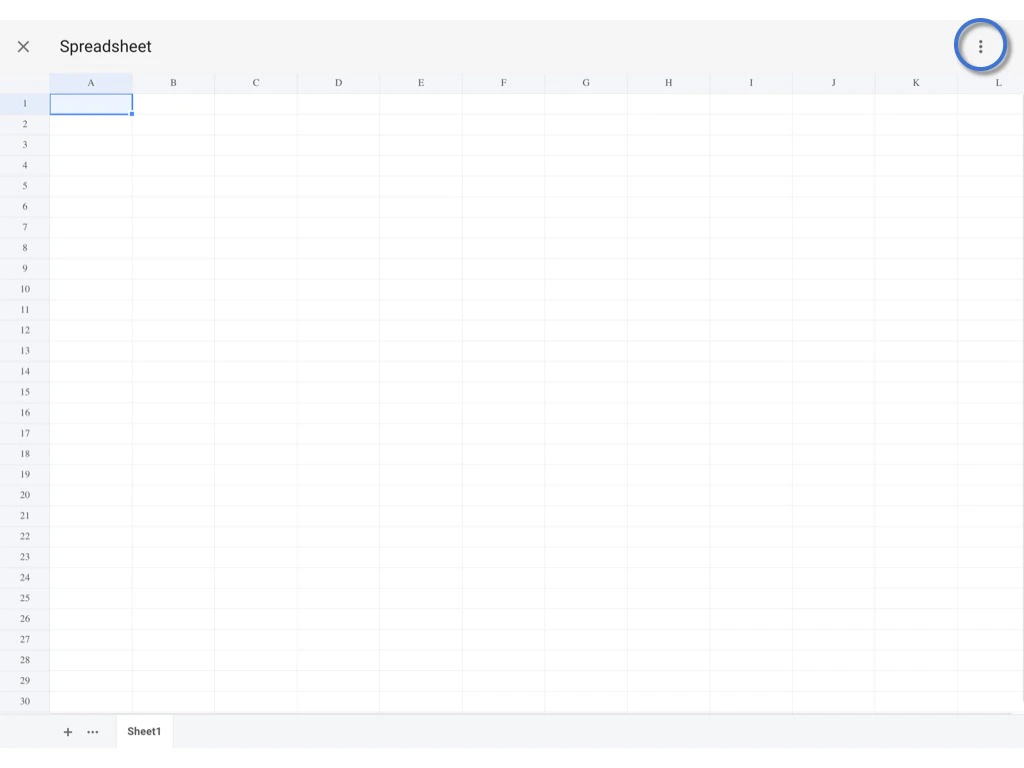
 3. Open the downloaded Excel file.
4. Design the input and output cells, and enter the desired formulas. \
*Template's Spreadsheets Size Limit: 100KB*\
[](https://docs.google.com/spreadsheets/d/1SZNsOQgeplDtkI145yIQ3XVC9qsXWnWp/edit?usp=sharing\&ouid=104843957967887312407\&rtpof=true\&sd=true)[*(Click here to download the practice Excel file.)*](https://docs.google.com/spreadsheets/d/1SZNsOQgeplDtkI145yIQ3XVC9qsXWnWp/edit?usp=sharing\&ouid=104843957967887312407\&rtpof=true\&sd=true)
3. Open the downloaded Excel file.
4. Design the input and output cells, and enter the desired formulas. \
*Template's Spreadsheets Size Limit: 100KB*\
[](https://docs.google.com/spreadsheets/d/1SZNsOQgeplDtkI145yIQ3XVC9qsXWnWp/edit?usp=sharing\&ouid=104843957967887312407\&rtpof=true\&sd=true)[*(Click here to download the practice Excel file.)*](https://docs.google.com/spreadsheets/d/1SZNsOQgeplDtkI145yIQ3XVC9qsXWnWp/edit?usp=sharing\&ouid=104843957967887312407\&rtpof=true\&sd=true) 5. Save your edits in Excel and upload the file back into RDrive.
 6. The Excel file has been uploaded. Please review the spreadsheet. If any functions are not applicable, an error message will appear.
The spreadsheet will save automatically. Click the **X** icon to return to the computation dialogue.
6. The Excel file has been uploaded. Please review the spreadsheet. If any functions are not applicable, an error message will appear.
The spreadsheet will save automatically. Click the **X** icon to return to the computation dialogue. ⚠️ **Warning:** Avoid creating or edit the spreadsheet directly on the web. Always use the downloaded Excel file to ensure formula compatibility.
### **Step 4: Map Fields to Spreadsheet Cells**
1. Assign input and output values:
* **Input Fields:** Any field type.
* **Output Fields:** Any field type except image, signature, team list, user list, or dropdown list.
2. Click **Select** in the Computation dialogue to map form fields to spreadsheet cells.
⚠️ **Warning:** Avoid creating or edit the spreadsheet directly on the web. Always use the downloaded Excel file to ensure formula compatibility.
### **Step 4: Map Fields to Spreadsheet Cells**
1. Assign input and output values:
* **Input Fields:** Any field type.
* **Output Fields:** Any field type except image, signature, team list, user list, or dropdown list.
2. Click **Select** in the Computation dialogue to map form fields to spreadsheet cells. 3. Highlight fields in blue by clicking on them.
4. Press **✔** (bottom-right corner) to confirm, or click outside the dialogue to cancel.
3. Highlight fields in blue by clicking on them.
4. Press **✔** (bottom-right corner) to confirm, or click outside the dialogue to cancel. ### **Step 5: Finalize the Setup**
1. Complete input and output mapping.
### **Step 5: Finalize the Setup**
1. Complete input and output mapping.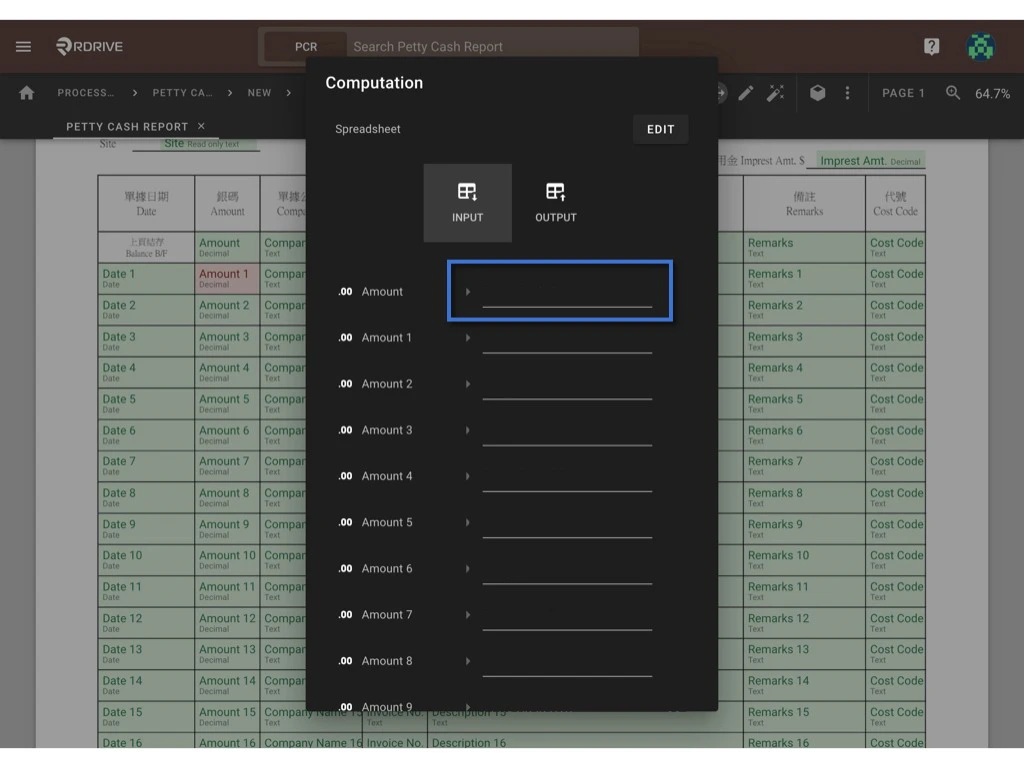
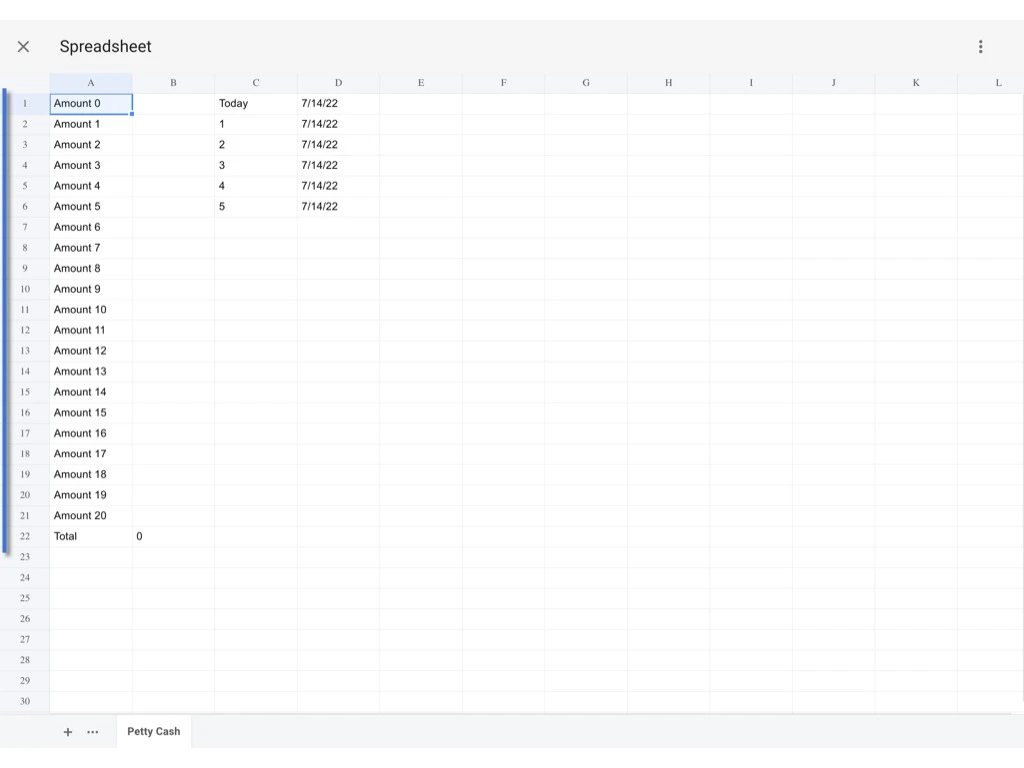
 2. Input Completed.
Please repeat the above steps for the Output to assign values. Click OK to finish.
2. Input Completed.
Please repeat the above steps for the Output to assign values. Click OK to finish.
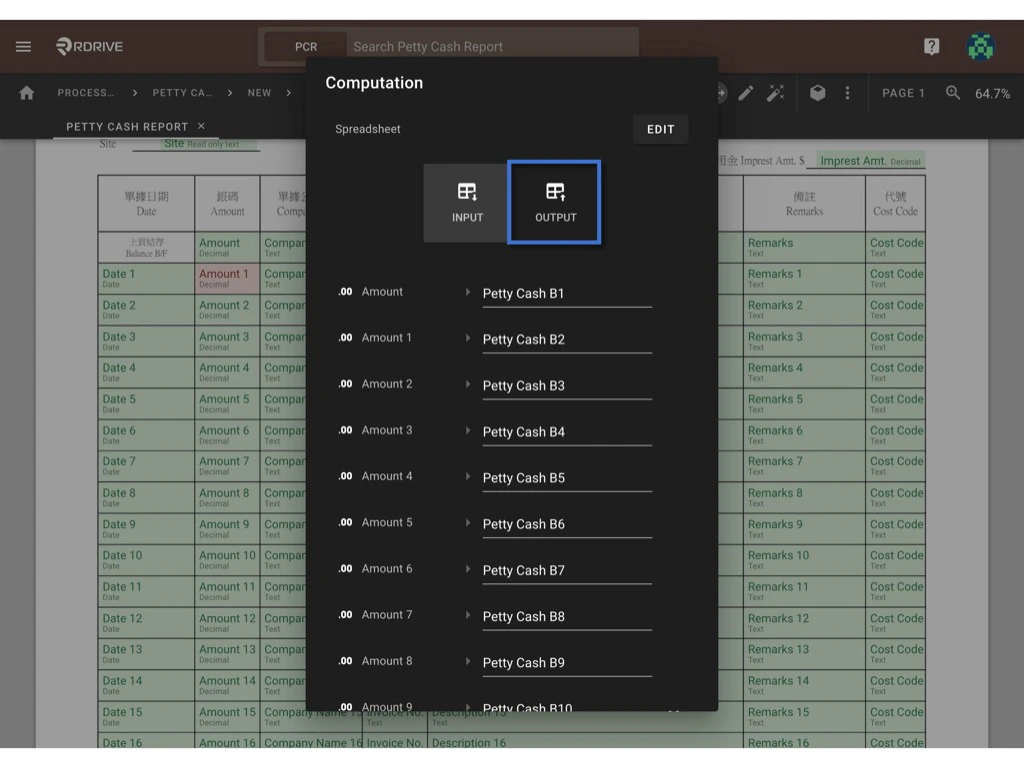
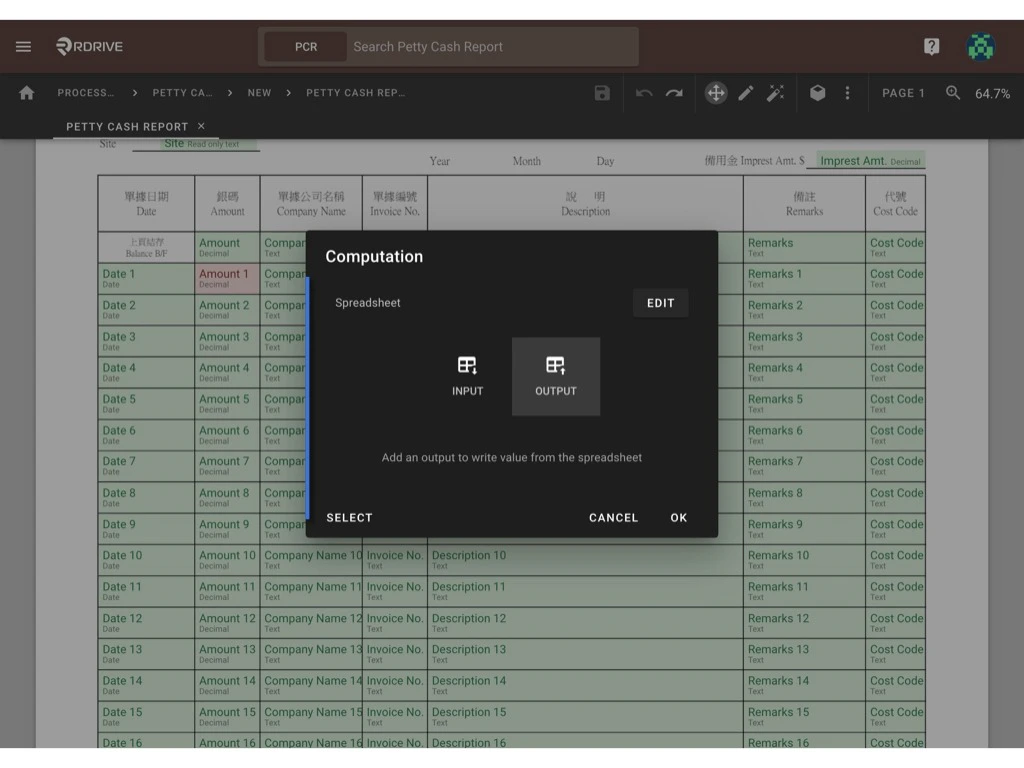
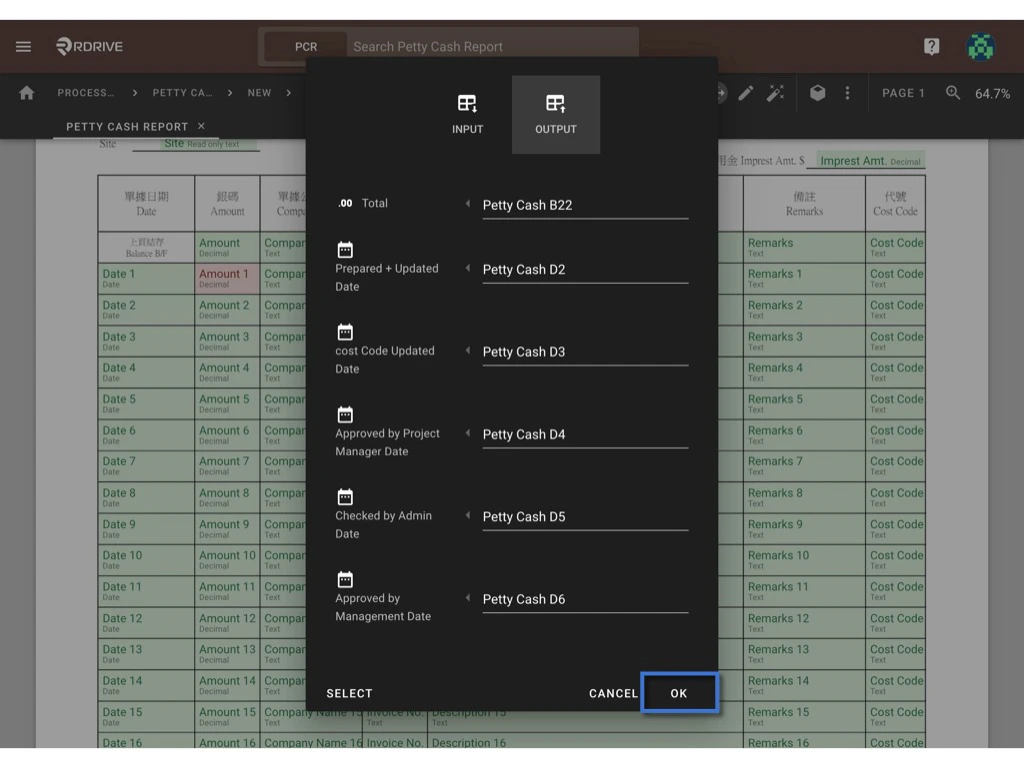 3. Save the configuration.
 4. [Don't forget to click Publish to apply the updates to the form.](https://docs.rdrive.io/setup/company/categories/categories-process-template/create-a-process-template-with-form#h_acd539a98d)
The GIF below demonstrates the mapping steps for your reference.
4. [Don't forget to click Publish to apply the updates to the form.](https://docs.rdrive.io/setup/company/categories/categories-process-template/create-a-process-template-with-form#h_acd539a98d)
The GIF below demonstrates the mapping steps for your reference.
 ***
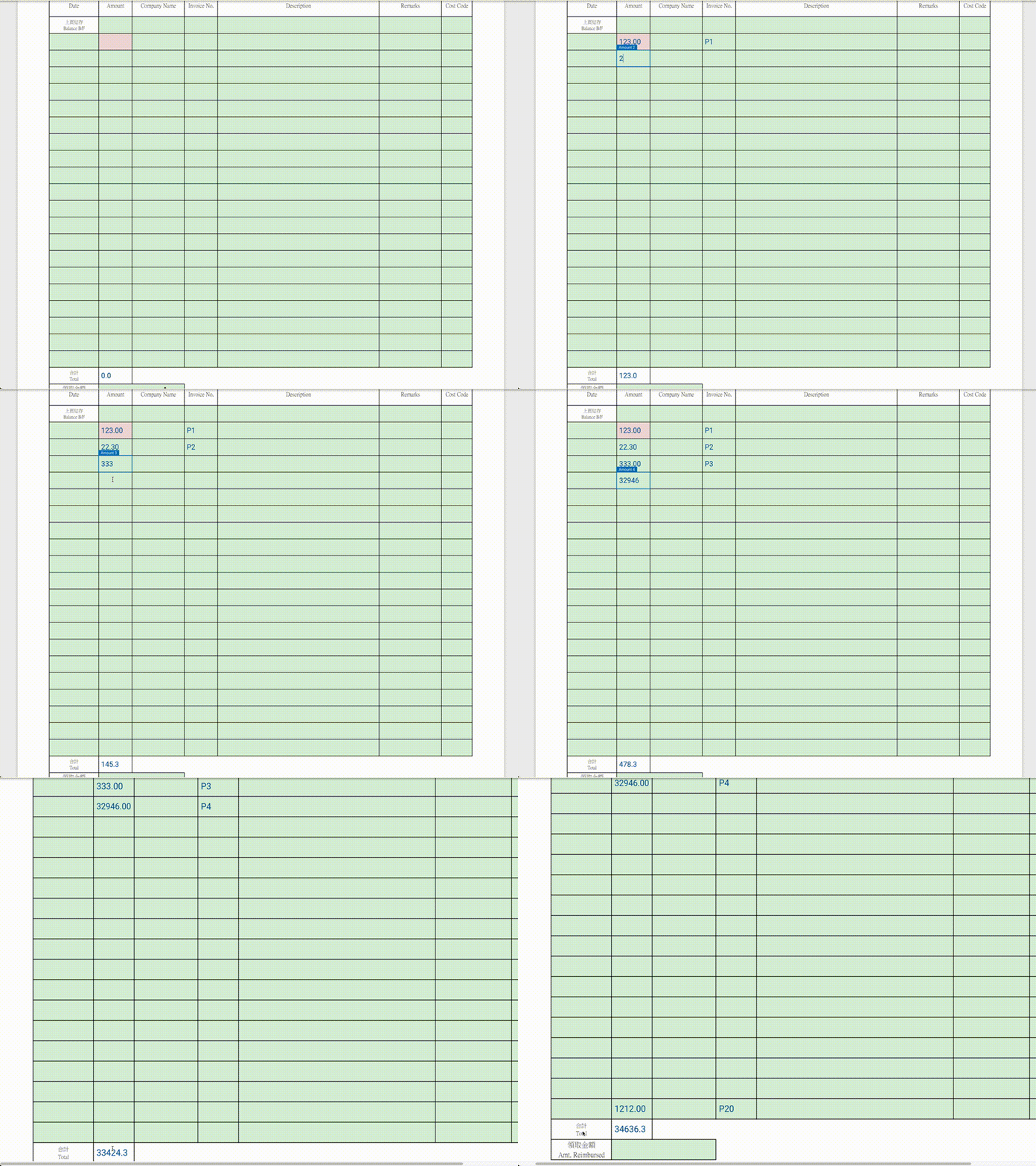
## **Example of Computed Field Behavior**
**Scenario:**
* Field: `Total`
* Formula: `SUM` of values entered in the `Amount` field.
The value in the `Total` field automatically updates whenever the `Amount` values change.
***
## **Example of Computed Field Behavior**
**Scenario:**
* Field: `Total`
* Formula: `SUM` of values entered in the `Amount` field.
The value in the `Total` field automatically updates whenever the `Amount` values change.
 ***
## **Additional Resources**
* [Set up computation for the issue template](https://docs.rdrive.io/setup/company/categories/categories-issue-record-template/computation-issue)
* [Edit spreadsheets at the project level](https://docs.rdrive.io/setup/company/presets/preset-spreadsheet-add-and-merge-with-the-template-company-level)
If you have further questions, contact support for assistance.
***
## **Additional Resources**
* [Set up computation for the issue template](https://docs.rdrive.io/setup/company/categories/categories-issue-record-template/computation-issue)
* [Edit spreadsheets at the project level](https://docs.rdrive.io/setup/company/presets/preset-spreadsheet-add-and-merge-with-the-template-company-level)
If you have further questions, contact support for assistance.