> ## Documentation Index
> Fetch the complete documentation index at: https://docs.rdrive.io/llms.txt
> Use this file to discover all available pages before exploring further.
# What can I do at the form wizard?
> Once you have added a new form template and uploaded the form image, you will be directed to the page below, known as the 'Form Wizard'.
# **Form Wizard Setup Guide**
Once you have [added a new form template](https://docs.rdrive.io/setup/company/categories/categories-process-template/create-a-process-template-with-form) and uploaded the form image, you will be directed to the page below, known as the "**Form Wizard**".
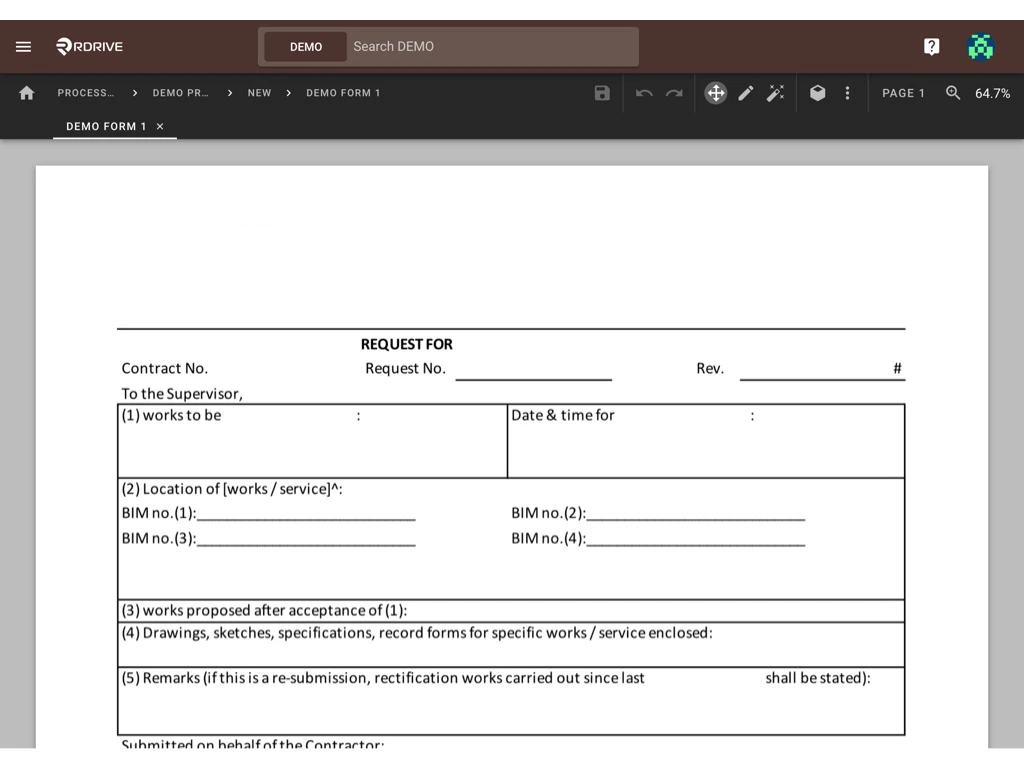 To configure the form, you will need to:
* [1. Creating Fields](#1.-creating-fields)
* [2. Naming Fields and Assigning Data Types](#2.-naming-fields-and-assigning-data-types-)
* [3. Setting the Form Status](#3.-setting-the-form-status)
* [- Add](#-%c2%a0add)[](#--deleteif-necessary,-you-can-delete-an-existing-status-by-selecting-it-and-clicking-delete.)
* [- Delete](#--deleteif-necessary,-you-can-delete-an-existing-status-by-selecting-it-and-clicking-delete.)[](#--edit)
* [- Edit](#--edit)[](#--exit)
* [- Exit](#--exit)
* [4. Saving Changes](#4.-saving-changes)
***
## **Overview of the Form Wizard Interface**
At the top of the form page, from left to right, you will find the process list, version list, form list, and the current form title. These sections allow you to easily navigate between forms and open the desired one within the Form Wizard.
* **Process list
To configure the form, you will need to:
* [1. Creating Fields](#1.-creating-fields)
* [2. Naming Fields and Assigning Data Types](#2.-naming-fields-and-assigning-data-types-)
* [3. Setting the Form Status](#3.-setting-the-form-status)
* [- Add](#-%c2%a0add)[](#--deleteif-necessary,-you-can-delete-an-existing-status-by-selecting-it-and-clicking-delete.)
* [- Delete](#--deleteif-necessary,-you-can-delete-an-existing-status-by-selecting-it-and-clicking-delete.)[](#--edit)
* [- Edit](#--edit)[](#--exit)
* [- Exit](#--exit)
* [4. Saving Changes](#4.-saving-changes)
***
## **Overview of the Form Wizard Interface**
At the top of the form page, from left to right, you will find the process list, version list, form list, and the current form title. These sections allow you to easily navigate between forms and open the desired one within the Form Wizard.
* **Process list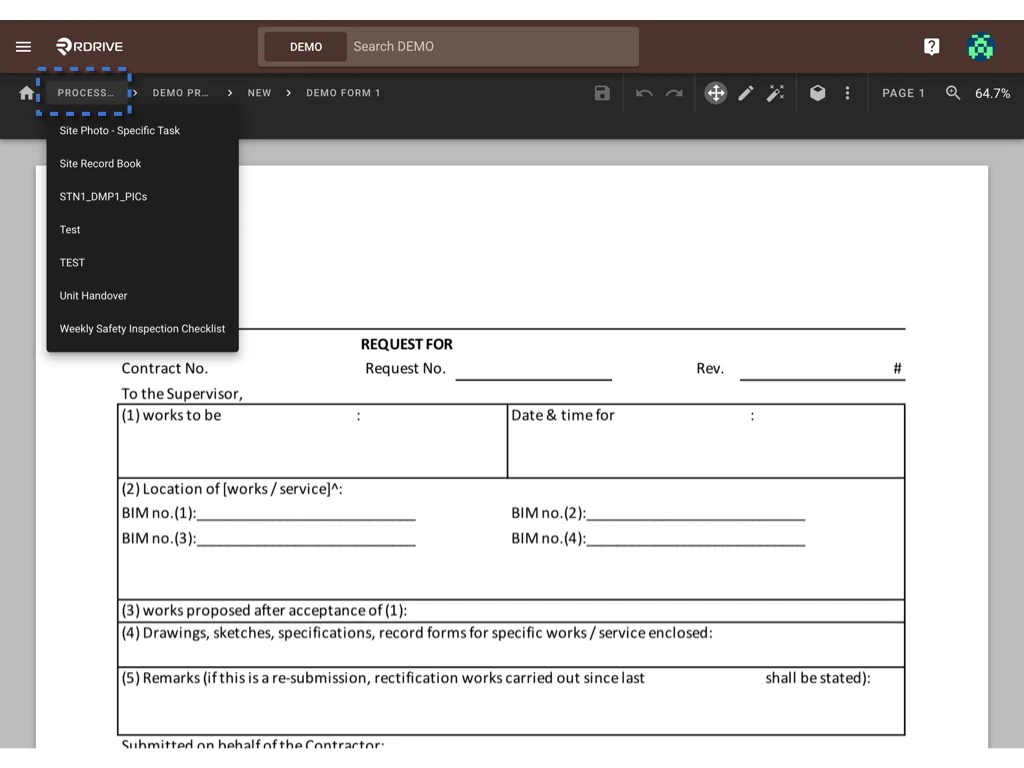 **
* **Version list
**
* **Version list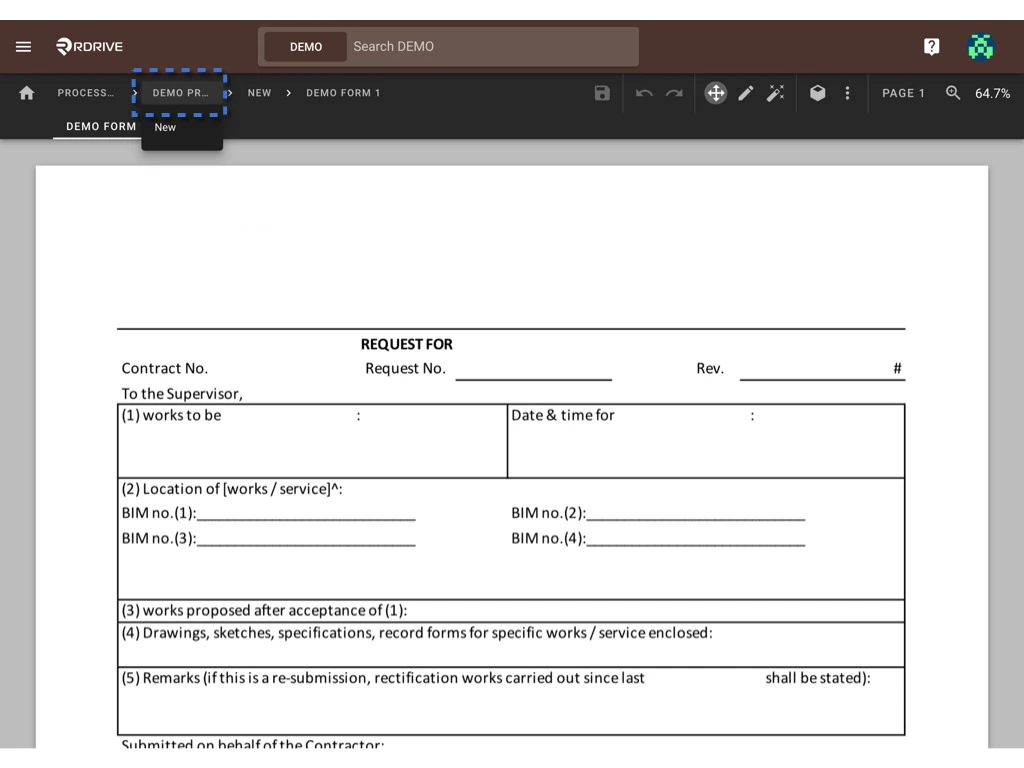 **
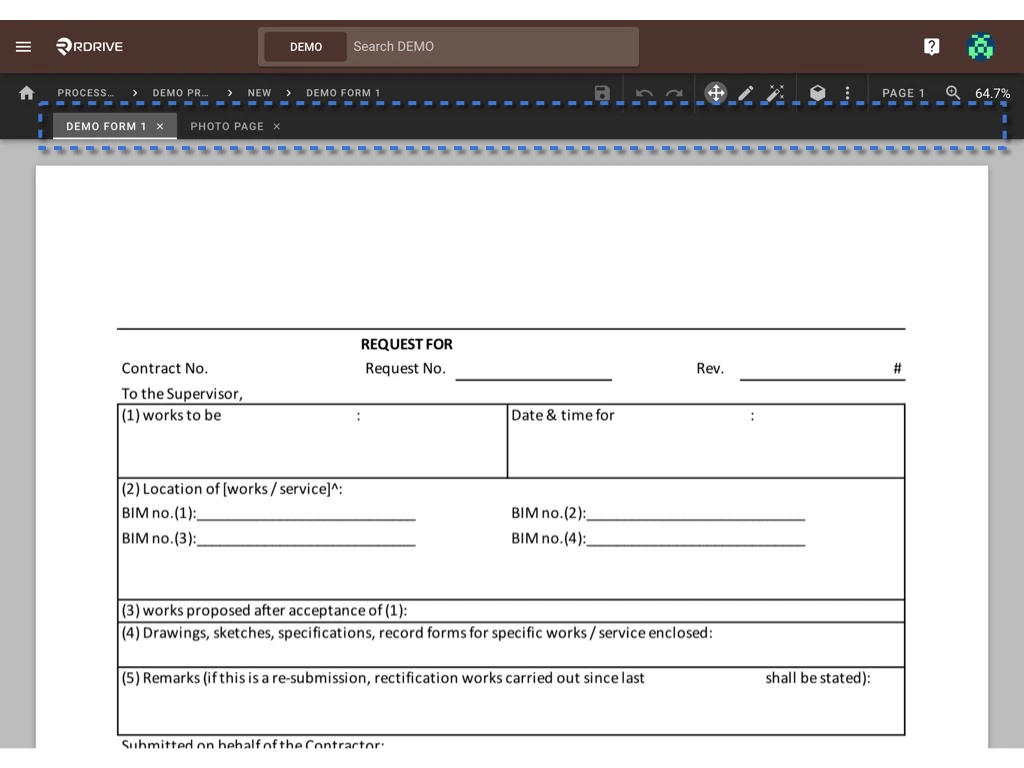
* **Form list** (Opened forms will be displayed as tabs for easy access.)
**
* **Form list** (Opened forms will be displayed as tabs for easy access.)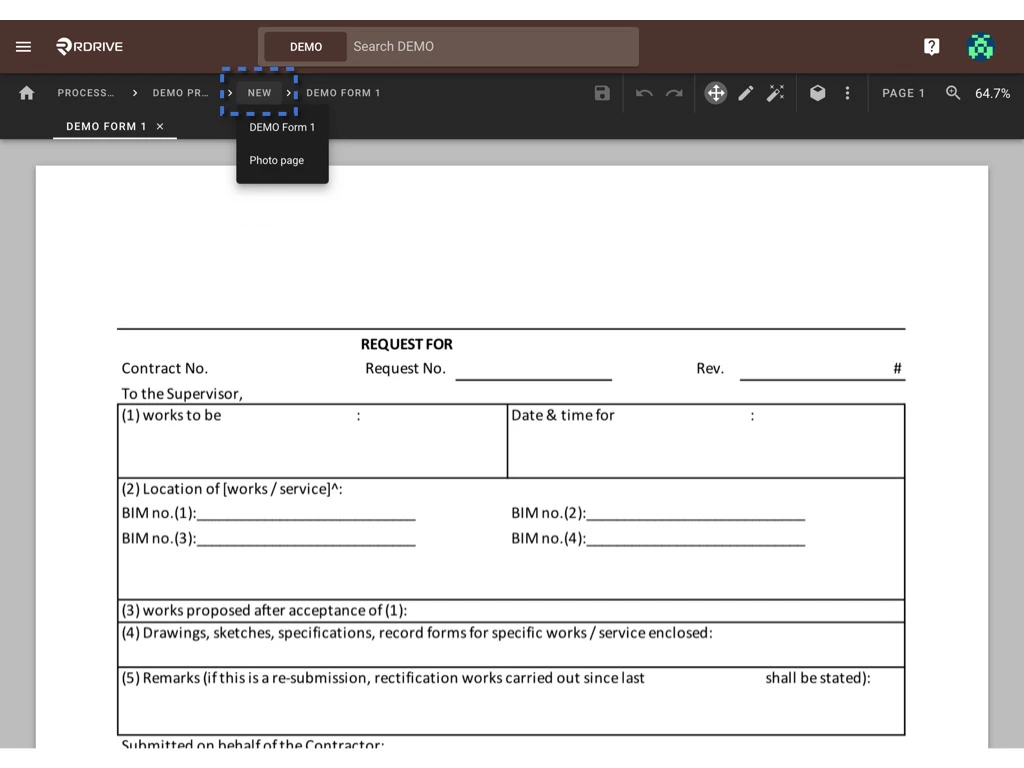
 ***
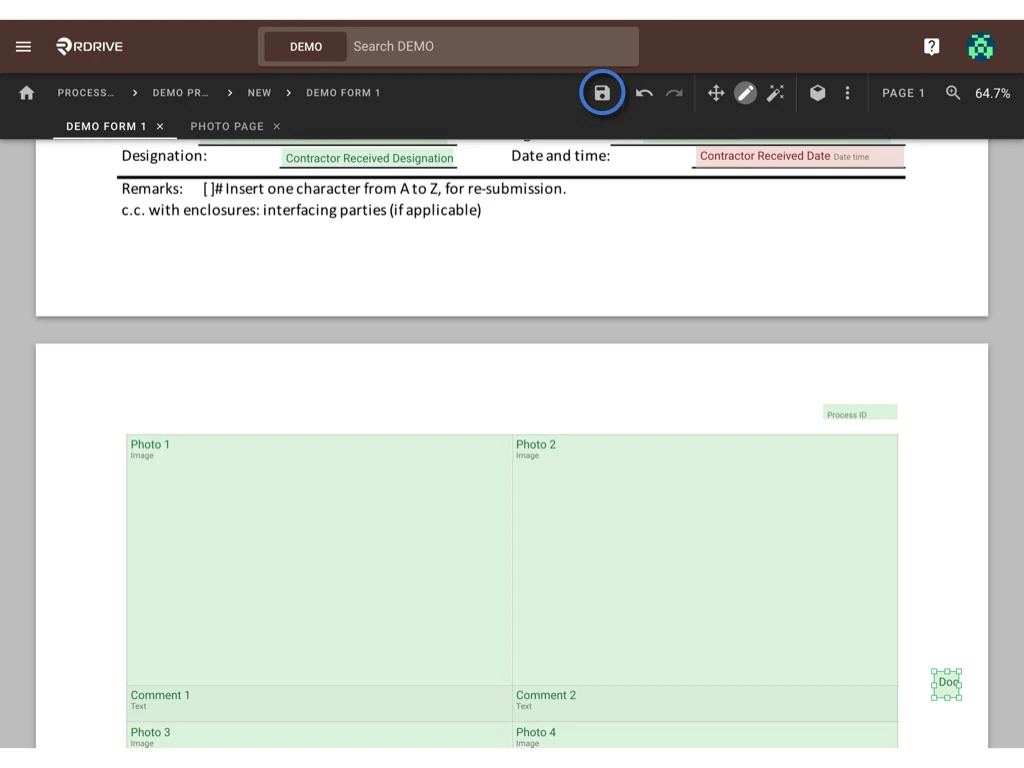
Below the tabs, you will see several buttons representing different functionalities, including:
***
Below the tabs, you will see several buttons representing different functionalities, including: * Save
* Undo, Redo
* Move tool, Pencil tool, Magic tool
* [Field Properties](https://docs.rdrive.io/setup/company/categories/categories-template-setup-knowledge-base/what-can-field-properties-do)
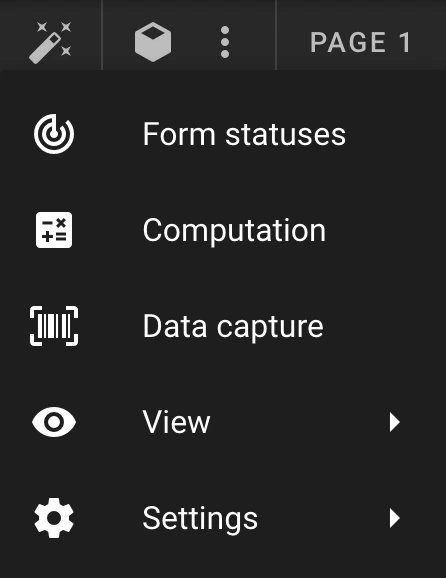
* 3 dots **⋮** icon for More tools (Form Status, Computation, Data capture, View option, and Setting of the Sensitivity panel)[\
* Save
* Undo, Redo
* Move tool, Pencil tool, Magic tool
* [Field Properties](https://docs.rdrive.io/setup/company/categories/categories-template-setup-knowledge-base/what-can-field-properties-do)
* 3 dots **⋮** icon for More tools (Form Status, Computation, Data capture, View option, and Setting of the Sensitivity panel)[\
 ](https://docs.rdrive.io/setup/company/categories/categories-template-setup-knowledge-base/what-can-field-properties-do)
* Page list and Zoom options
***
##
**1. Creating Fields
](https://docs.rdrive.io/setup/company/categories/categories-template-setup-knowledge-base/what-can-field-properties-do)
* Page list and Zoom options
***
##
**1. Creating Fields **
* **Select Fields**: Click the corresponding icon (or use ⌘/Ctrl 1) to select fields. ( **☩ )**
* **Create Fields (Manual)**: Click this icon (or use ⌘/Ctrl 2) to manually create fields.
* **Create Fields (Edge Detection)**: Click this icon (or use ⌘/Ctrl 3) to create fields based on edge detection.
**Example Use Cases:
**
* **Select Fields**: Click the corresponding icon (or use ⌘/Ctrl 1) to select fields. ( **☩ )**
* **Create Fields (Manual)**: Click this icon (or use ⌘/Ctrl 2) to manually create fields.
* **Create Fields (Edge Detection)**: Click this icon (or use ⌘/Ctrl 3) to create fields based on edge detection.
**Example Use Cases: **
* **Select Hotspots**: Click this icon to multi-select fields and make batch changes.
Examples:
* Copy (⌘/Ctrl C) and paste (⌘/Ctrl V) fields from one page/form to another.
* Update the data type of fields.
* Modify field titles.
* Link checkboxes.
***Note***\*: Edge detection may fail if lines are not clear or well-defined. Use the Move tool (⌘/Ctrl 7) to adjust edge sensitivity as needed.\
**
* **Select Hotspots**: Click this icon to multi-select fields and make batch changes.
Examples:
* Copy (⌘/Ctrl C) and paste (⌘/Ctrl V) fields from one page/form to another.
* Update the data type of fields.
* Modify field titles.
* Link checkboxes.
***Note***\*: Edge detection may fail if lines are not clear or well-defined. Use the Move tool (⌘/Ctrl 7) to adjust edge sensitivity as needed.\
 \*
*You can also use the page list and zoom options to adjust the viewer while setting up the fields.\_\_
\*
*You can also use the page list and zoom options to adjust the viewer while setting up the fields.\_\_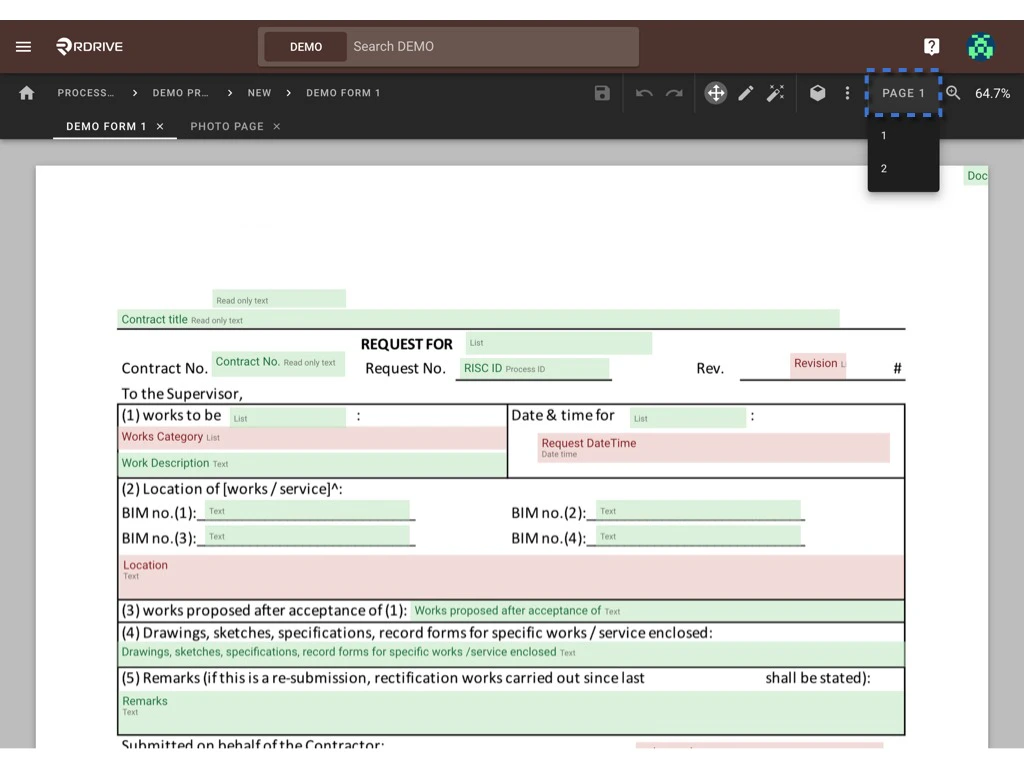
 *
***
## **2. Naming Fields and Assigning Data Types
*
***
## **2. Naming Fields and Assigning Data Types  **
Click the icon (or use ⌘/Ctrl 4) to open the field properties.[
**
Click the icon (or use ⌘/Ctrl 4) to open the field properties.[ ](https://intercom.help/rdrive/en/articles/5938354-field-properties)
In the **[Field Properties](https://docs.rdrive.io/setup/company/categories/categories-template-setup-knowledge-base/what-can-field-properties-do)** panel, you can:
](https://intercom.help/rdrive/en/articles/5938354-field-properties)
In the **[Field Properties](https://docs.rdrive.io/setup/company/categories/categories-template-setup-knowledge-base/what-can-field-properties-do)** panel, you can:
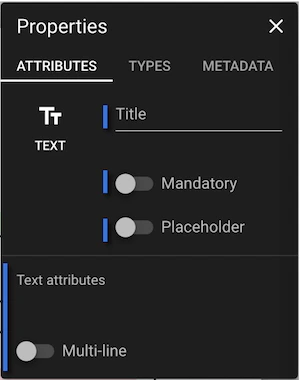 * Name the fields in the **Attribute** section.
* Assign the appropriate data type in the **Types** section.
* [Toggle the placeholder option.](https://docs.rdrive.io/setup/company/categories/categories-process-template/what-is-a-placeholder)
* Set fields as mandatory.
* Edit metadata.
For more detailed information, please refer to the **[Field Properties](https://docs.rdrive.io/setup/company/categories/categories-template-setup-knowledge-base/what-can-field-properties-do)** documentation.
***
## **3. Setting the Form Status**
To manage the form status, click the **Form Statuses** option (⌘/Ctrl 6) in the more tools list. This will open the form status dialogue, allowing company administrators to manage statuses for the form.
* Name the fields in the **Attribute** section.
* Assign the appropriate data type in the **Types** section.
* [Toggle the placeholder option.](https://docs.rdrive.io/setup/company/categories/categories-process-template/what-is-a-placeholder)
* Set fields as mandatory.
* Edit metadata.
For more detailed information, please refer to the **[Field Properties](https://docs.rdrive.io/setup/company/categories/categories-template-setup-knowledge-base/what-can-field-properties-do)** documentation.
***
## **3. Setting the Form Status**
To manage the form status, click the **Form Statuses** option (⌘/Ctrl 6) in the more tools list. This will open the form status dialogue, allowing company administrators to manage statuses for the form. By default, three statuses are provided:
* Draft
* Open
* Closed
#### **-** **Add**
To add a new status, click the **ADD** button in the bottom right corner. You can then:
By default, three statuses are provided:
* Draft
* Open
* Closed
#### **-** **Add**
To add a new status, click the **ADD** button in the bottom right corner. You can then: * Select the status stage.
* Choose a color to represent the status.
* Enter a title and [add status tags.](https://docs.rdrive.io/faq/setup/how-are-tags-used)
* Adjust [conditional editing settings.](https://docs.rdrive.io/faq/setup/how-are-tags-used)
Click **OK** to confirm.
#### **- Delete**
If necessary, you can delete an existing status by selecting it and clicking **DELETE**.
* Select the status stage.
* Choose a color to represent the status.
* Enter a title and [add status tags.](https://docs.rdrive.io/faq/setup/how-are-tags-used)
* Adjust [conditional editing settings.](https://docs.rdrive.io/faq/setup/how-are-tags-used)
Click **OK** to confirm.
#### **- Delete**
If necessary, you can delete an existing status by selecting it and clicking **DELETE**.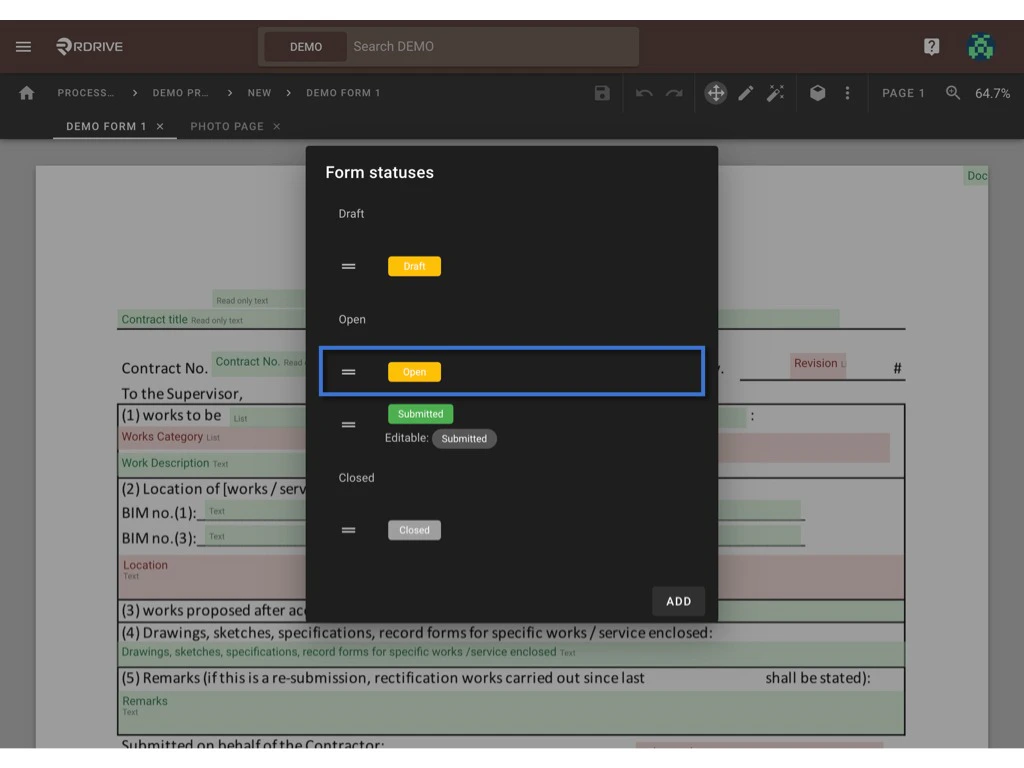
 #### **- Edit**
Additionally, you can edit any status as required by clicking into it, making changes, and saving.
#### **- Edit**
Additionally, you can edit any status as required by clicking into it, making changes, and saving.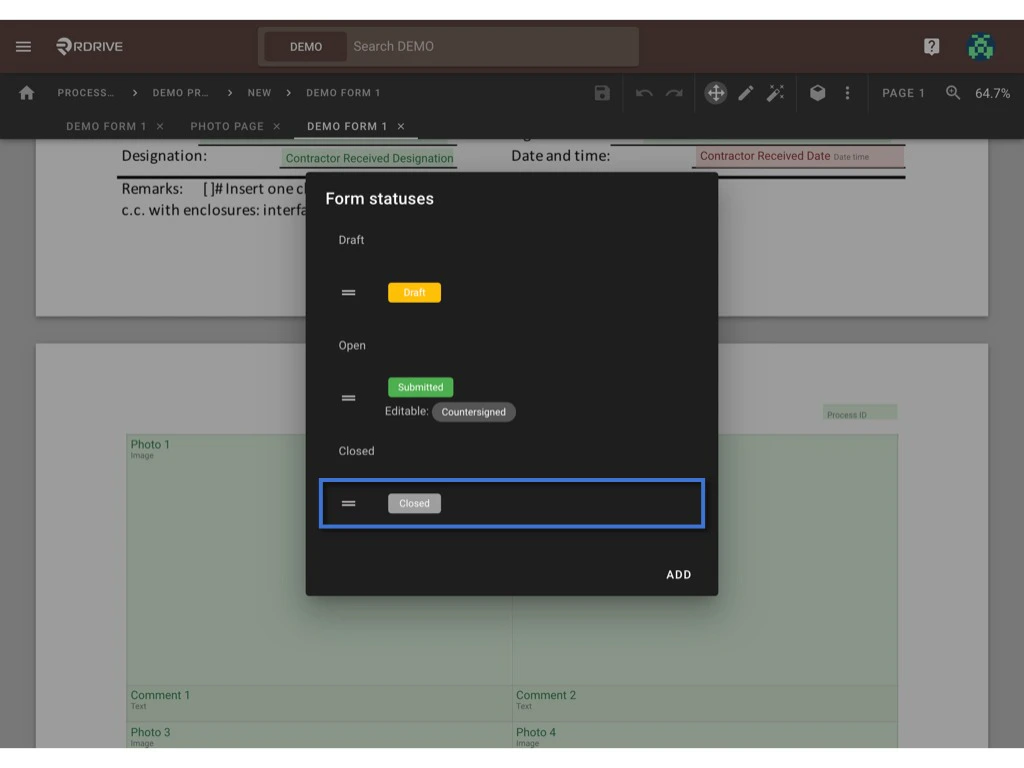
 #### **- Exit**
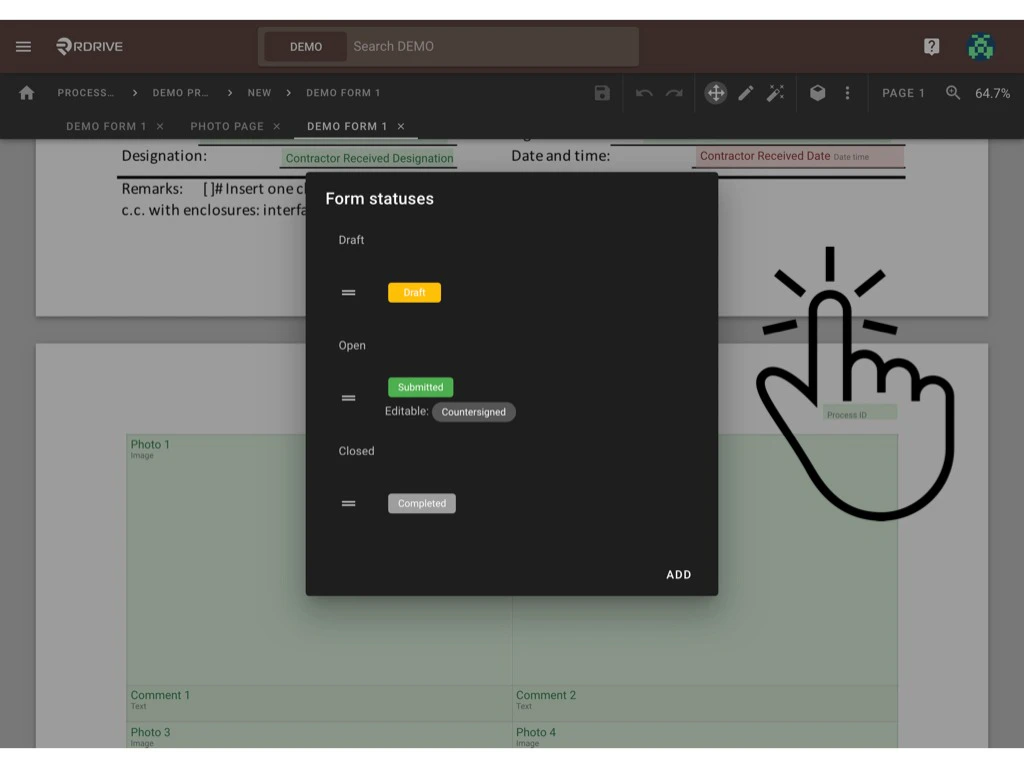
To exit the dialogue, click outside the box.\\
#### **- Exit**
To exit the dialogue, click outside the box.\\
 ***
## **4. Saving Changes**
Always remember to save your changes by clicking the **SAVE** button.
Once all changes are finalized, you can return to the template page to [publish](https://docs.rdrive.io/setup/company/categories/categories-process-template/create-a-process-template-with-form) the form as a new version.
***
## **4. Saving Changes**
Always remember to save your changes by clicking the **SAVE** button.
Once all changes are finalized, you can return to the template page to [publish](https://docs.rdrive.io/setup/company/categories/categories-process-template/create-a-process-template-with-form) the form as a new version.