> ## Documentation Index
> Fetch the complete documentation index at: https://docs.rdrive.io/llms.txt
> Use this file to discover all available pages before exploring further.
# Computation - Best Practices in Finance/Accounting
> RDrive’s computation capabilities offer an effective way to automate calculations and validations in purchase orders (POs). This guide will walk you through the
# **Computation - Best Practices in Finance/Accounting: Setting Up a Purchase Order (PO) with RDrive**
RDrive’s computation capabilities offer an effective way to automate calculations and validations in purchase orders (POs). This guide will walk you through the process of setting up a PO, where item numbers are dynamically indexed (e.g., "Item 1," "Item 2") and the total amount is calculated automatically using RDrive’s Input and Output configurations.
***
**TABLE OF CONTENTS**
* [Step 1: Designing the PO Template](#step-1%3a-designing-the-po-template)
* [Step 2: Configuring RDrive Computation](#step-2%3a-configuring-rdrive-computation)
* [Step 3: Implementation](#step-3%3a-implementation)
* [Step 4: Testing the PO](#step-4%3a-testing-the-po)
* [Best Practices](#best-practices)
***
## **Step 1: Designing the PO Template**
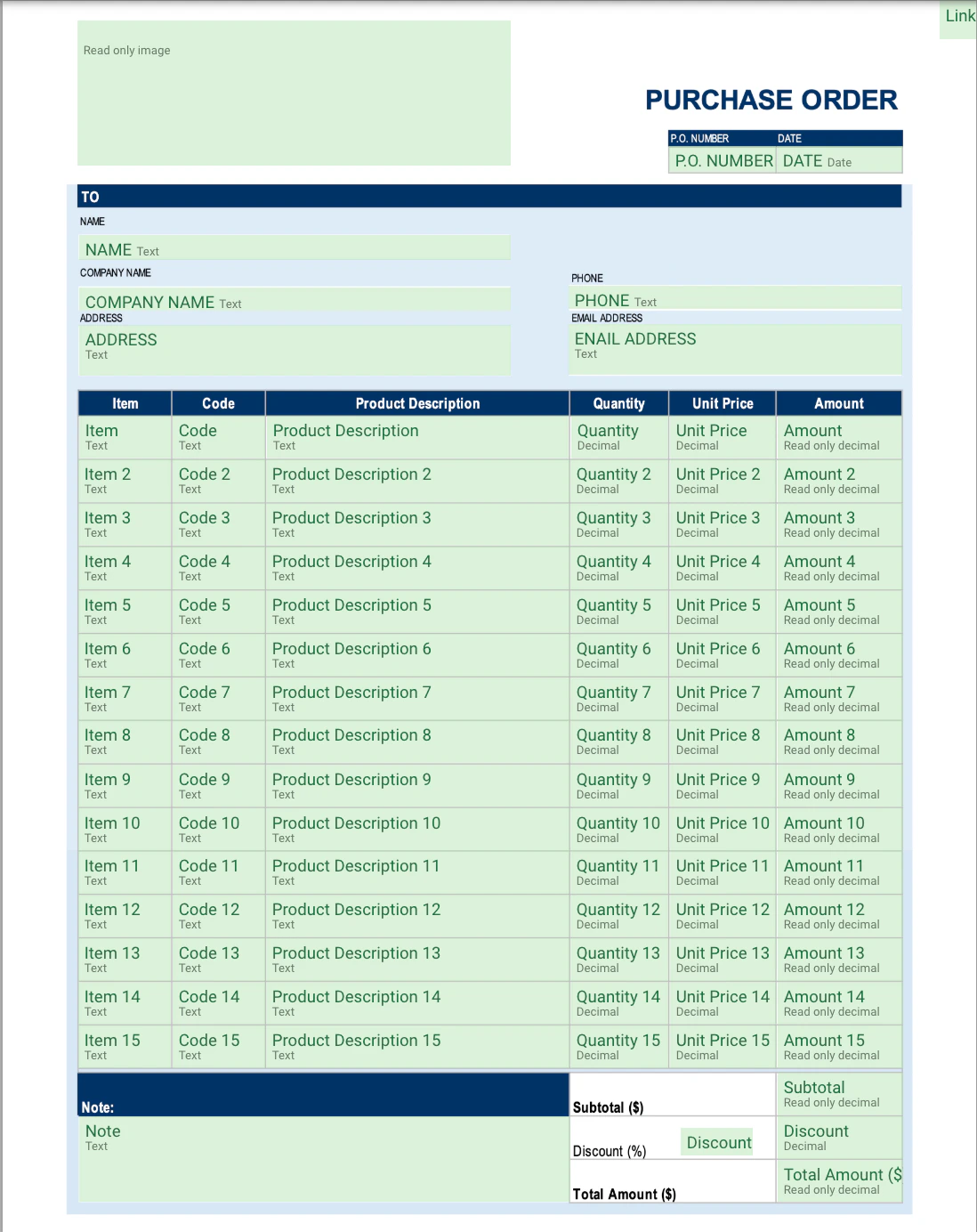
Load the PO Template in RDrive.
**Input Fields**\
Your PO should include:
* **Qty**: A numeric field for the quantity of items.
* **Unit Price**: A numeric field for the price per unit.
* **Discount (%)**: A numeric field for the discount percentage applied to the entire PO.
**Computed Fields**\
Include the following **outputs**:
* **Item Index**: Automatically generated item numbers (e.g., "Item 1").
* **Item Total**: Calculates the total for each item, which is the product of `Qty` and `Unit Price`.
* **Subtotal**: Calculates the sum of all item totals.
* **Discount Amount**: Calculates the total discount amount based on the subtotal and discount percentage.
* **Total**: Calculates the overall total for the PO after applying the discount.
## **Step 2: Configuring RDrive Computation**
**Input Setup**
* **Qty Input**:
* **Field Type**: Decimal
* **Description**: Enter the quantity of the item.
* **Unit Price Input**:
* **Field Type**: Decimal
* **Description**: Enter the price per unit.
* **Discount (%) Input**:
* **Field Type**: Decimal
* **Description**: Enter the discount percentage applied to the total PO.
**Output Setup**
* **Item Index**:
* **Type**: Text
* **Formula**: `IF(ISBLANK({Qty}), "", "Item " & ROW()``)`
* **Logic**: Automatically assigns an incremental index to each row when the quantity is filled, generating item numbers such as "Item 1," "Item 2," etc.
* **Item Total Amount**:
* **Type:** Read Only Decimal
* **Formula**: `IF(ISBLANK({Unit Price}),"",{Qty} * {Unit Price})`
* **Logic**: Calculates the total for each item by multiplying the quantity (`Qty`) by the unit price (`Unit Price`). Displays blank if the quantity field is empty.
* **Subtotal**:
* **Type**: Read Only Decimal
* **Formula**: `SUM(Item Total Amount)`
* **Logic**: Calculates the sum of all item totals to provide a subtotal for the PO.
* **Discount Amount**:
* **Type**: Decimal
* **Formula**: `Subtotal * ({Discount} / 100)`
* **Logic**: Calculates the discount amount as a percentage of the subtotal.
* **Total**:
* **Type:** Read Only Decimal
* **Formula**: `Subtotal - Discount Amount`
* **Logic**: Calculates the overall total for the PO after subtracting the discount amount.
> ***Tips:*** *To make the *Output* field uneditable manually, [set the field type to Read Only](https://docs.rdrive.io/setup/company/categories/categories-template-setup-knowledge-base/what-can-field-properties-do).*
##  ## **Step 3: Implementation**
* **Select Fields**:
* **Input**: Map the `Qty`, `Unit Price`, and `Discount (%)` fields to their respective columns.
## **Step 3: Implementation**
* **Select Fields**:
* **Input**: Map the `Qty`, `Unit Price`, and `Discount (%)` fields to their respective columns.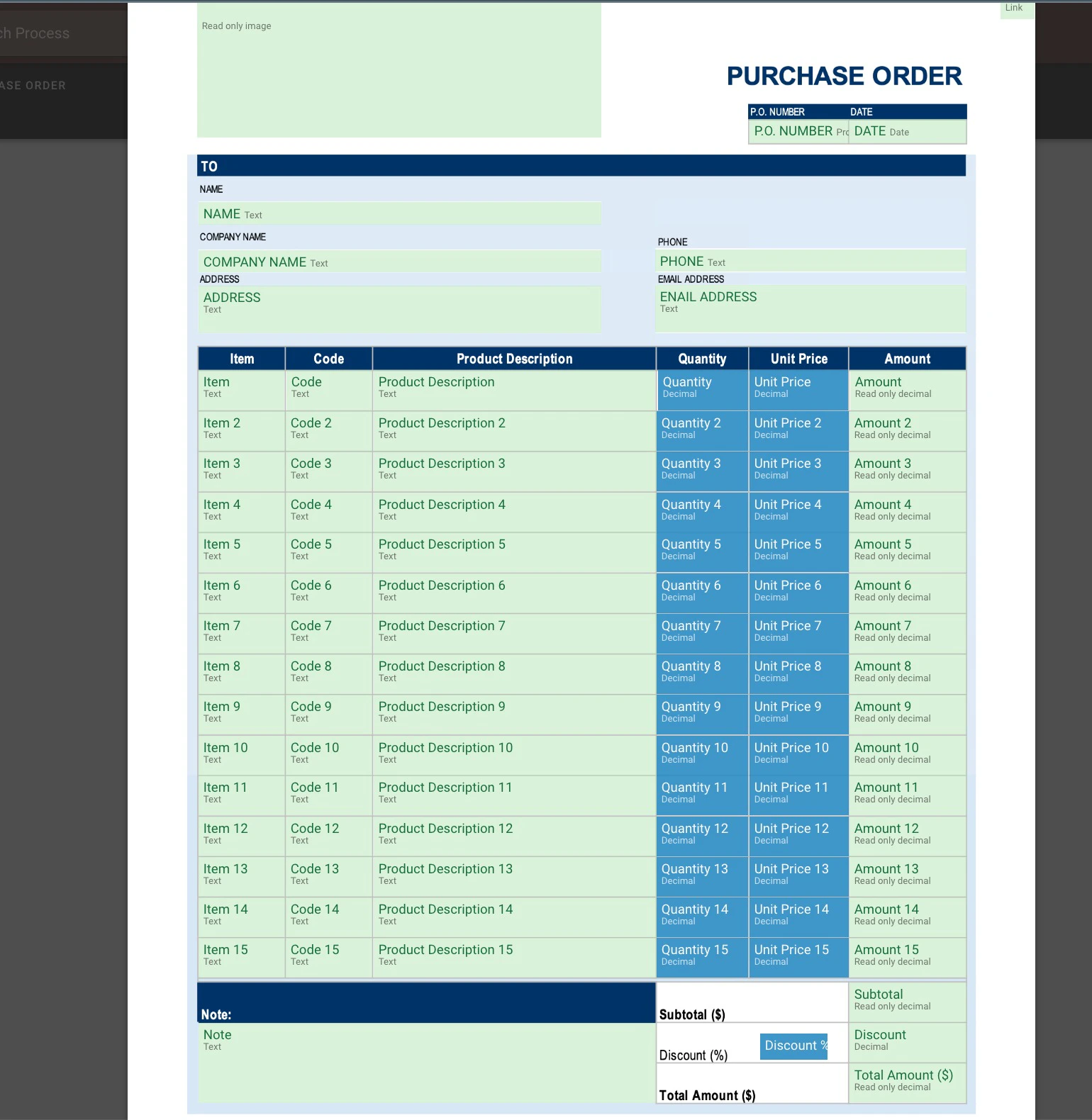 * **Output**: Map the `Item Index` to the "Item" column.
* **Output**: Map the `Item Total` field to the respective column.
* **Output**: Map the `Subtotal` field to the respective column.
* **Output**: Map the `Discount Amount` field to the respective column.
* **Output**: Map the `Total` field to the respective column.\*\*\
* **Output**: Map the `Item Index` to the "Item" column.
* **Output**: Map the `Item Total` field to the respective column.
* **Output**: Map the `Subtotal` field to the respective column.
* **Output**: Map the `Discount Amount` field to the respective column.
* **Output**: Map the `Total` field to the respective column.\*\*\
 \*\*
* **Map Computations**:
1. **Upload the prepared Excel spreadsheet containing the formulas.**\
*You can start building the spreadsheet from scratch. Alternatively, if you already have a form template in Excel format, you can use it to insert fields and map computations directly. Leveraging an existing template can streamline the process and make it more intuitive.*
> \*\*Important Note:\*\*When you upload an Excel template to RDrive, the page layout and styles (e.g., font formatting, colors, and borders) will not be preserved. Only the data structure, fields, and formulas will be retained for mapping and computation. Make sure to focus on the accuracy of your fields and computations when preparing the template.This approach ensures that the essential functionality of your form works seamlessly in RDrive.
2.
\*\*
* **Map Computations**:
1. **Upload the prepared Excel spreadsheet containing the formulas.**\
*You can start building the spreadsheet from scratch. Alternatively, if you already have a form template in Excel format, you can use it to insert fields and map computations directly. Leveraging an existing template can streamline the process and make it more intuitive.*
> \*\*Important Note:\*\*When you upload an Excel template to RDrive, the page layout and styles (e.g., font formatting, colors, and borders) will not be preserved. Only the data structure, fields, and formulas will be retained for mapping and computation. Make sure to focus on the accuracy of your fields and computations when preparing the template.This approach ensures that the essential functionality of your form works seamlessly in RDrive.
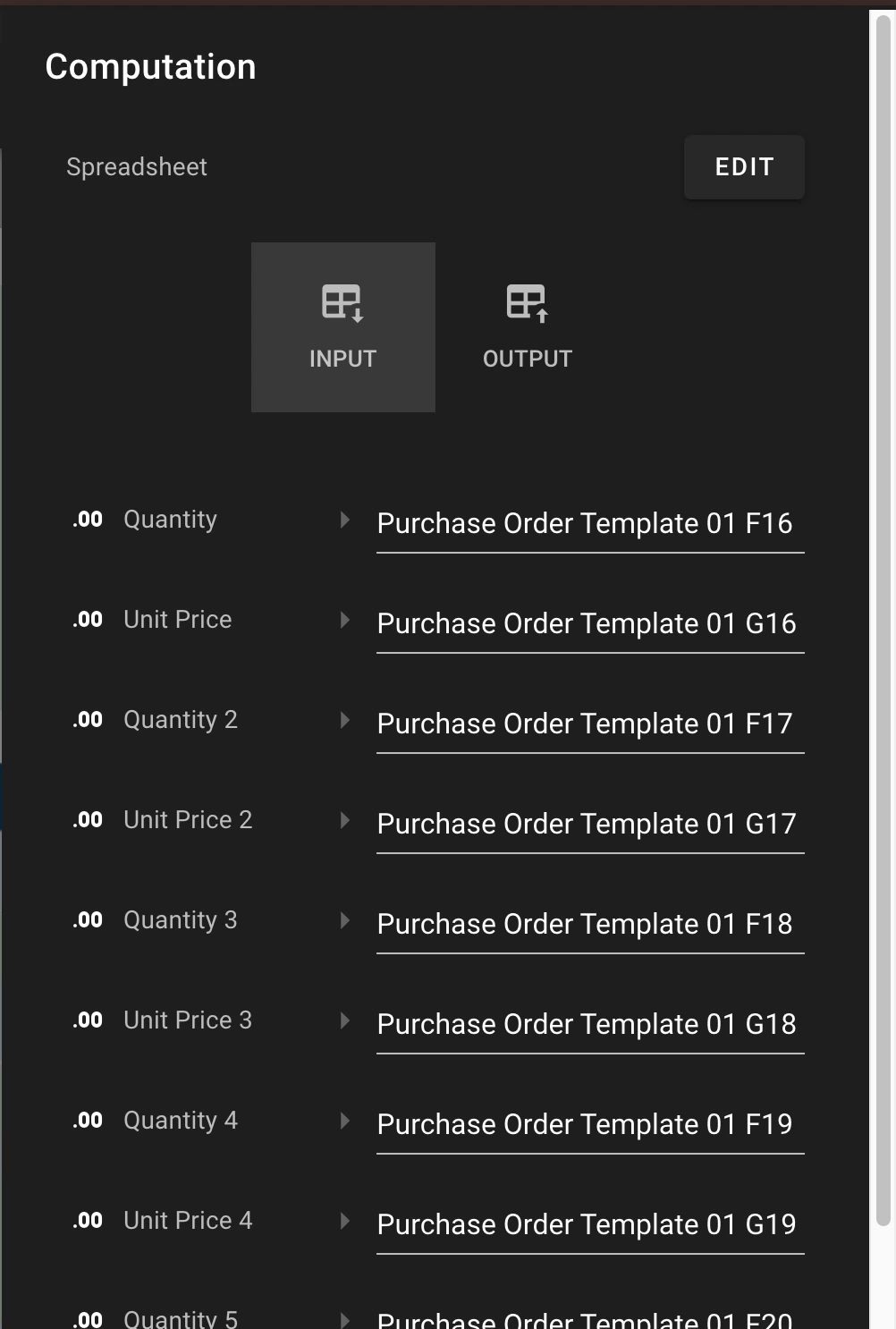
2.  **Mapping**
* Map the `Qty` fields.
* Map the `Unit Price` fields.
* Map the `Discount (%)` field.\\
**Mapping**
* Map the `Qty` fields.
* Map the `Unit Price` fields.
* Map the `Discount (%)` field.\\
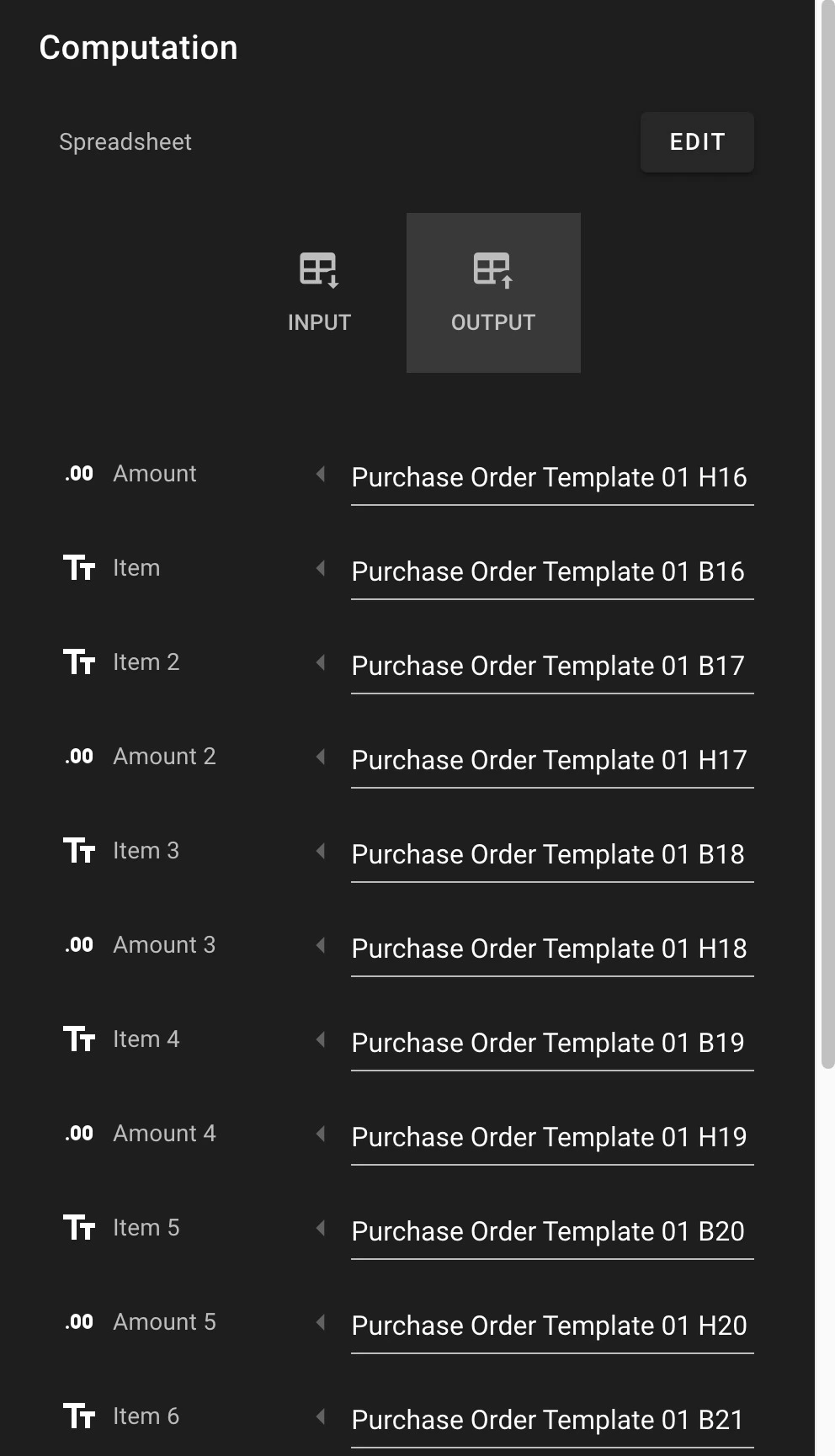
 * Map the `Item Index` fields.
* Map the `Item Total` fields.
* Map the `Subtotal` field.
* Map the `Discount Amount` field.
* Map the `Total` field.\\
* Map the `Item Index` fields.
* Map the `Item Total` fields.
* Map the `Subtotal` field.
* Map the `Discount Amount` field.
* Map the `Total` field.\\
 3. **Save and Publish the PO**.
## **Step 4: Testing the PO**
**Input Sample Data**:
* **Row 1**: Qty = 5, Unit Price = 20, Discount (%) = 10
* **Row 2**: Qty = 3, Unit Price = 15,
* **Discount** **(%)**: 10
**Verify Outputs**:
* The `Item Index` should be populated automatically as "Item 1," "Item 2," etc.
* The `Item Total` for Row 1 should calculate as `5 * 20 = 100`.
* The `Item Total` for Row 2 should calculate as `3 * 15 = 45`.
* The `Subtotal` should be the sum of `Item Total` values: `100 + 45 = 145`.
* The `Discount Amount` should calculate as `145 * (10 / 100) = 14.5`.
* The `Total` field should calculate as `145 - 14.5 = 130.5`.
3. **Save and Publish the PO**.
## **Step 4: Testing the PO**
**Input Sample Data**:
* **Row 1**: Qty = 5, Unit Price = 20, Discount (%) = 10
* **Row 2**: Qty = 3, Unit Price = 15,
* **Discount** **(%)**: 10
**Verify Outputs**:
* The `Item Index` should be populated automatically as "Item 1," "Item 2," etc.
* The `Item Total` for Row 1 should calculate as `5 * 20 = 100`.
* The `Item Total` for Row 2 should calculate as `3 * 15 = 45`.
* The `Subtotal` should be the sum of `Item Total` values: `100 + 45 = 145`.
* The `Discount Amount` should calculate as `145 * (10 / 100) = 14.5`.
* The `Total` field should calculate as `145 - 14.5 = 130.5`.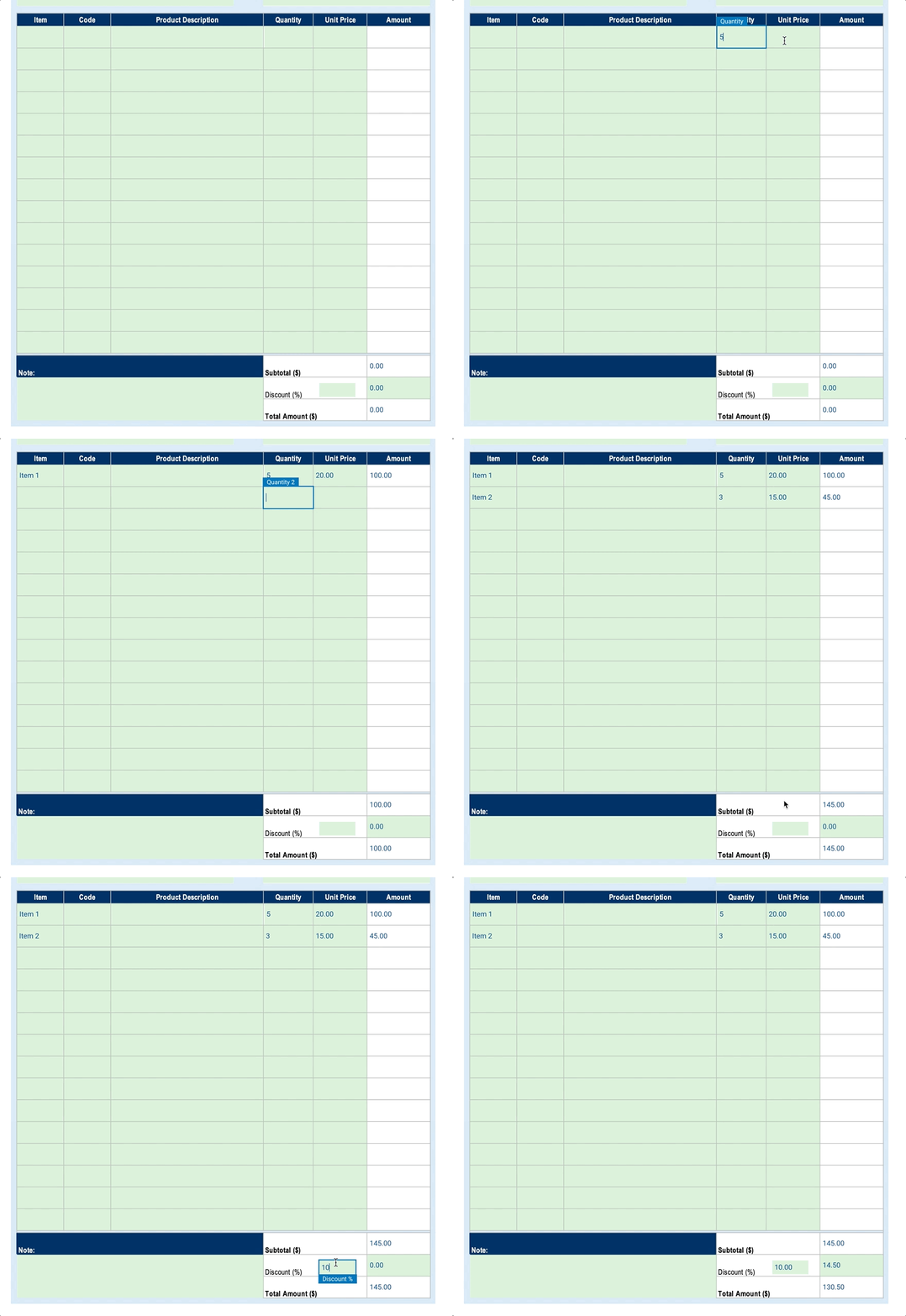 ***
## **Best Practices**
* **Ensure Dynamic Indexing**: Use `ROW()` to generate item numbers dynamically.
* **Lock Computed Fields**: Protect fields with formulas to prevent accidental overwriting.
* **Simplify User Experience**: Use clear labels and provide real-time validation feedback.
* **Test for Edge Cases**: Validate functionality with empty fields and invalid inputs.
By leveraging RDrive's computation features, you can create a dynamic and automated PO that enhances tracking and ensures data integrity. This methodology can be applied to other financial processes, improving efficiency across your organization.
*Attached is the exported template file for your reference. Feel free to upload it at your company level to give it a try.*
Attachments (1)
\[
zip
Purchase Order.zip\
254 KB
]\(/helpdesk/attachments/103169999109)
***
## **Best Practices**
* **Ensure Dynamic Indexing**: Use `ROW()` to generate item numbers dynamically.
* **Lock Computed Fields**: Protect fields with formulas to prevent accidental overwriting.
* **Simplify User Experience**: Use clear labels and provide real-time validation feedback.
* **Test for Edge Cases**: Validate functionality with empty fields and invalid inputs.
By leveraging RDrive's computation features, you can create a dynamic and automated PO that enhances tracking and ensures data integrity. This methodology can be applied to other financial processes, improving efficiency across your organization.
*Attached is the exported template file for your reference. Feel free to upload it at your company level to give it a try.*
Attachments (1)
\[
zip
Purchase Order.zip\
254 KB
]\(/helpdesk/attachments/103169999109)