> ## Documentation Index
> Fetch the complete documentation index at: https://docs.rdrive.io/llms.txt
> Use this file to discover all available pages before exploring further.
# How to set up / edit a preset image? (Company level)
> The preset image allows you to set up a repeatedly used image so that it can be automatically filled in in issue record fields/form fields. The preset image box
The preset image allows you to set up a repeatedly used image so that it can be automatically filled in in issue record fields/form fields. The preset image box is set on the company level and the image itself can be changed at the project level to fit the project needs.
It saves your time to upload the same image every time you are entering an issue record/ a particular form field e.g. the company logo.
***
## Changing the preset value at the company level
## This will affects the preset value which is in default and the new projects that will be created in the future.
## New projects will adopt these values for their presets.
## This does not affect any preset values in any existing projects if have a project-specify value.
## If, the preset value has been changed as the project specified - Project specify values will retain;
## If, the preset value wasn't edited by the project specify - Values will change with the company level.
***
## **How**
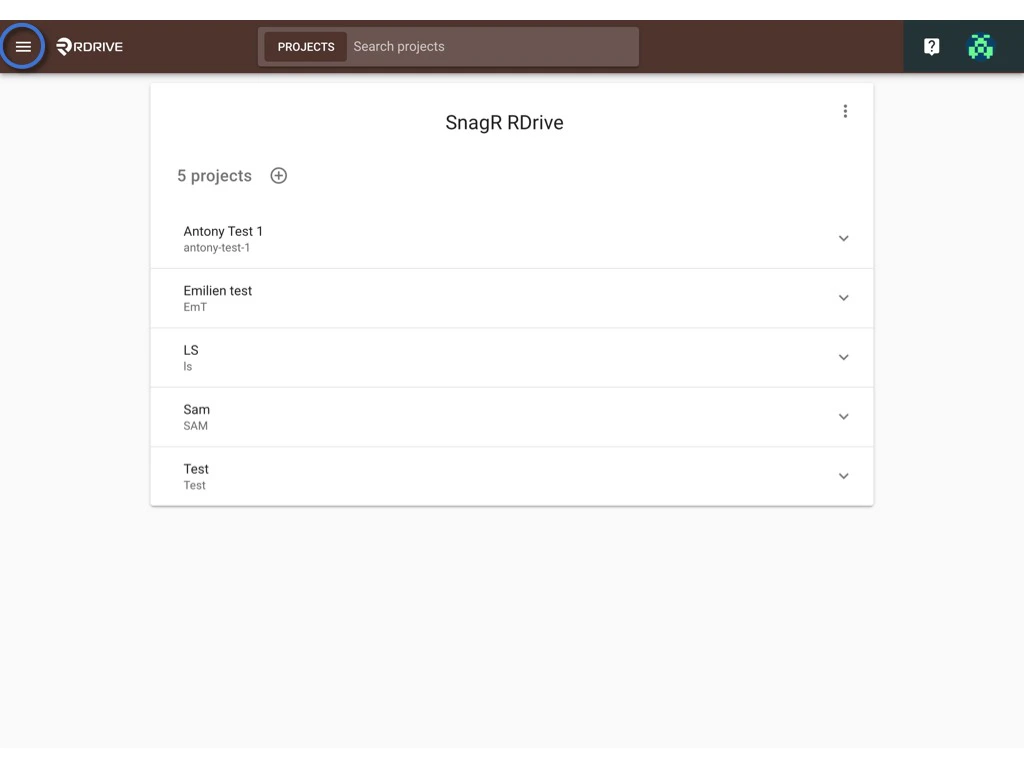
First, log in to the **Company Area**. Only the company admin can access this page.
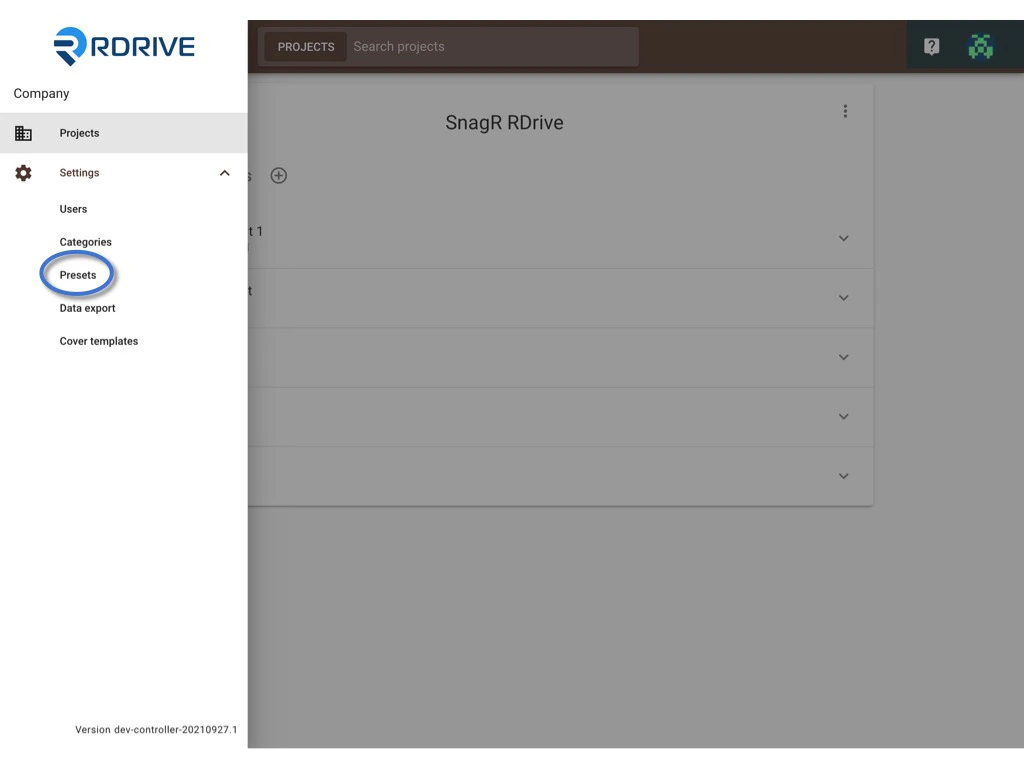
Click **Settings** and select **Presets**.
From here, you can [✚](https://intercom.help/rdrive/en/articles/4666706-how-to-set-up-edit-preset-lists-company-level#h_6a15a7d576) **[add new](#add)** or [✏️ **edit preset image**.](#edit)
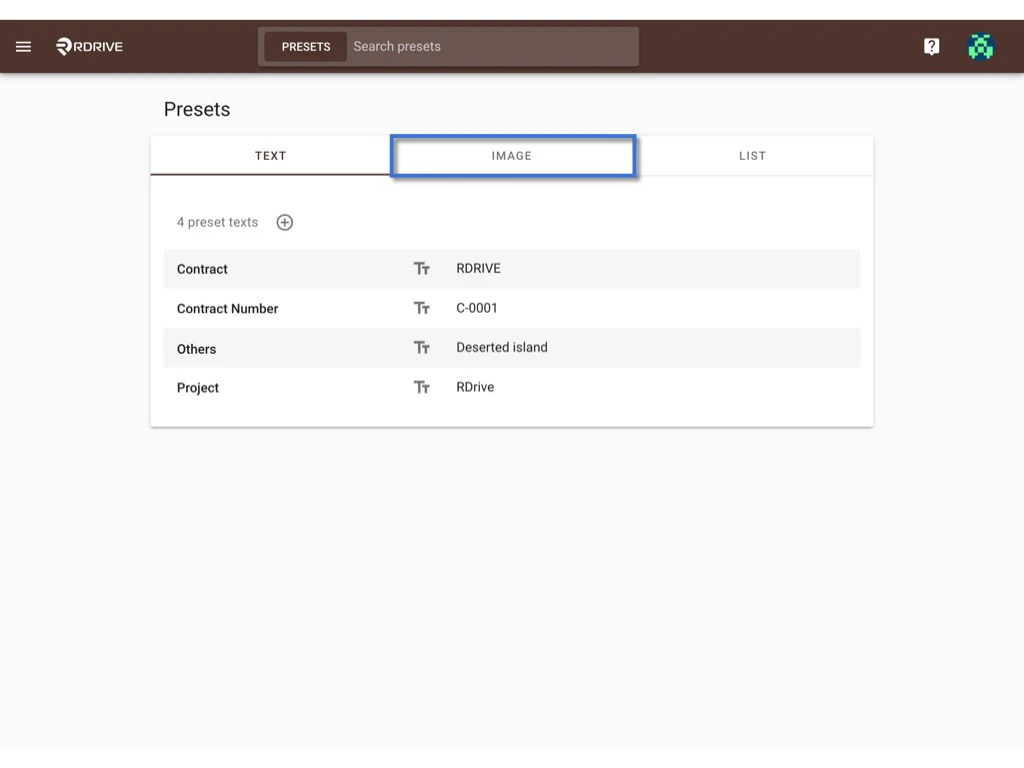
 Click **IMAGE**
 ***
# ADD
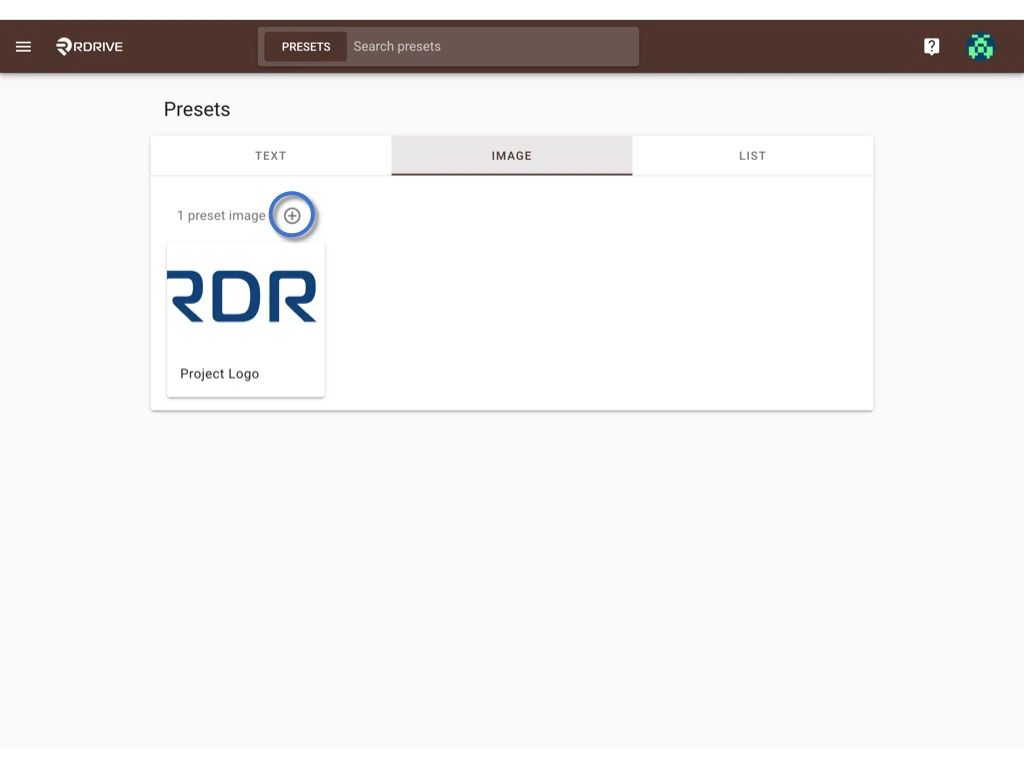
You can create a new preset image box by clicking **+** button.
***
# ADD
You can create a new preset image box by clicking **+** button.
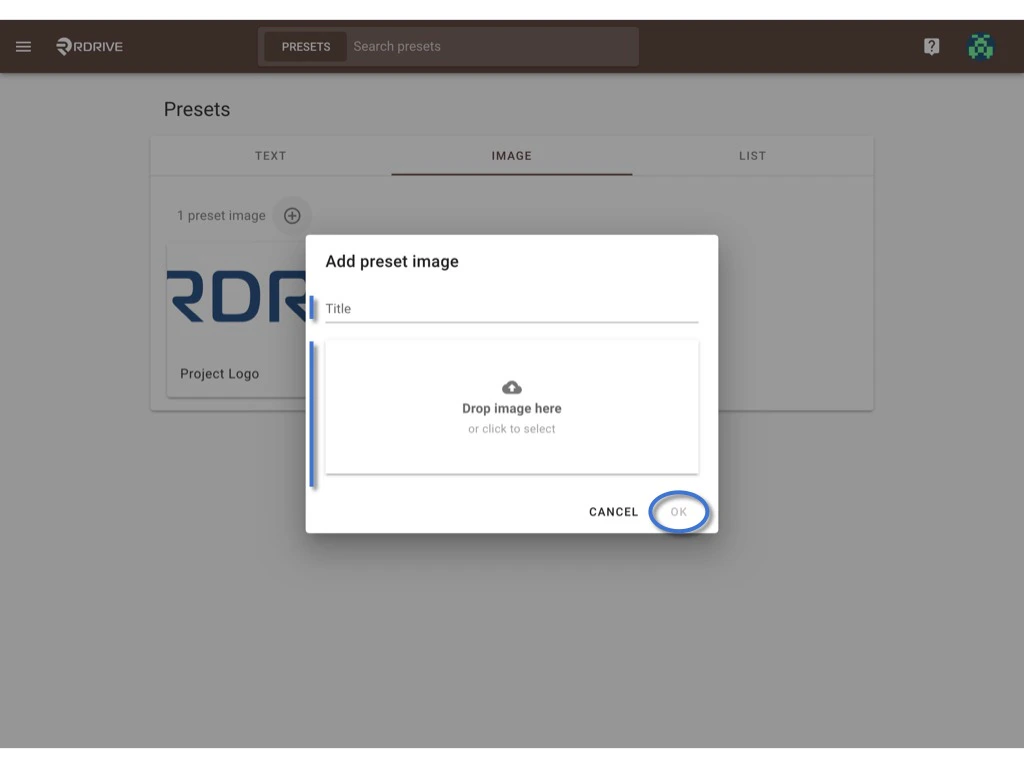
 Enter the Preset image title and upload the image.\
Click **OK** to save.
Enter the Preset image title and upload the image.\
Click **OK** to save.
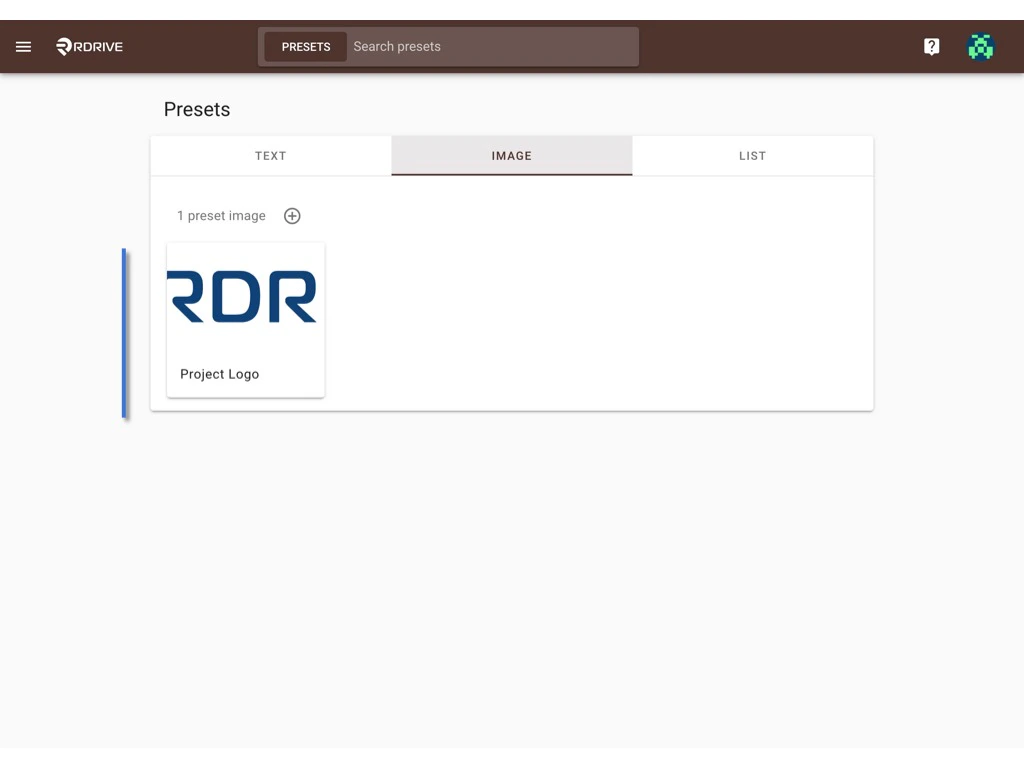
 Done.
***How to include this preset image in the issue template or process template?***\
*Select **Read Only Image** field and you will see the preset image box you just set up will be available for selection.*
*The preset images become default values to all projects of the company. However, the preset images are available on the project level for editing according to the project needs.*
***
# EDIT
If you are a company admin, you can edit the preset images at the company level to place the changes to all the projects in one go.
If you are a project admin/a user who is given the edit permission to edit preset items, on the project level, [you can edit the preset image which is set on the company level according to your project needs.](https://docs.rdrive.io/setup/project/preset/how-to-edit-a-preset-image)
**Editing the preset image on company level**\
⚠️ Be careful that if you edit the list items at a company level, the changes will automatically apply to the same custom list on the project level.
*However, if the preset image is already changed to a project-specific image on the project level, any change made at the company level **will not affect** the current preset image on the project level.*
Select the image that you would like to edit.
Done.
***How to include this preset image in the issue template or process template?***\
*Select **Read Only Image** field and you will see the preset image box you just set up will be available for selection.*
*The preset images become default values to all projects of the company. However, the preset images are available on the project level for editing according to the project needs.*
***
# EDIT
If you are a company admin, you can edit the preset images at the company level to place the changes to all the projects in one go.
If you are a project admin/a user who is given the edit permission to edit preset items, on the project level, [you can edit the preset image which is set on the company level according to your project needs.](https://docs.rdrive.io/setup/project/preset/how-to-edit-a-preset-image)
**Editing the preset image on company level**\
⚠️ Be careful that if you edit the list items at a company level, the changes will automatically apply to the same custom list on the project level.
*However, if the preset image is already changed to a project-specific image on the project level, any change made at the company level **will not affect** the current preset image on the project level.*
Select the image that you would like to edit.
 Upload a new image and click **OK** to save