> ## Documentation Index
> Fetch the complete documentation index at: https://docs.rdrive.io/llms.txt
> Use this file to discover all available pages before exploring further.
# Creating and Managing a Navigation Plan in RDrive
> Add Navigation Plan Layer
**TABLE OF CONTENTS**
* [Navigation Plan in RDrive](#%e2%80%8b%e2%80%8bnavigation-plan-in-rdrive)[](#how-to-add-a-navigation-plan)[](#how-to-add-a-navigation-plan)
* [How to Add a Navigation Plan](#how-to-add-a-navigation-plan)[](#design-the-navigation-plan)
* [Design the Navigation Plan](#design-the-navigation-plan)
* [Add Location](#add-location%3aplace-location-pins-on-the-navigation-plan-page-instead-of-on-the-actual-drawing.-this-is-useful-for-projects-that-do-not-require-a-floor-plan-or-site-plan.-project-administrators-can-easily-add-locations-for-storing-items.)[](#add-navigation-plan-layer%3aadd-layers-for-the-drawings-to-control-the-visibility-of-various-components,-enabling-users-to-focus-on-specific-elements-without-distractions.%c2%a0to-add-a-new-navigation-plan,-follow-these-steps%3a)
* [Add Navigation Plan Layer](#add-navigation-plan-layer%3aadd-layers-for-the-drawings-to-control-the-visibility-of-various-components,-enabling-users-to-focus-on-specific-elements-without-distractions.%c2%a0to-add-a-new-navigation-plan,-follow-these-steps%3a)
* [](#remove-a-navigation-plan-or-location%3ato-remove-a-selected-option-from-your-navigation-plan%3a)[Remove](#remove-a-navigation-plan-or-location%3ato-remove-a-selected-option-from-your-navigation-plan%3a)
***
# **Navigation Plan in RDrive**
A **Navigation Plan** in RDrive is designed to enhance user experience and streamline project management within the platform. Below are the key benefits of utilizing a Navigation Plan:
* **Simplified Navigation:**\
Provides an organized method for easily locating project drawings and elements.
* **Adaptability:**\
Can be easily updated to reflect changing project requirements, ensuring users always have the most current information.
* **Visual Clarity:**\
Clearly outlines paths and key components, improving understanding in complex projects.
* **User-Friendly Interface:**\
Facilitates interaction for users of all skill levels with drawings and information.
***
# **How to Add a Navigation Plan**
Creating a Navigation Plan is a straightforward process that can enhance your workflow. Follow these steps to add a Navigation Plan:
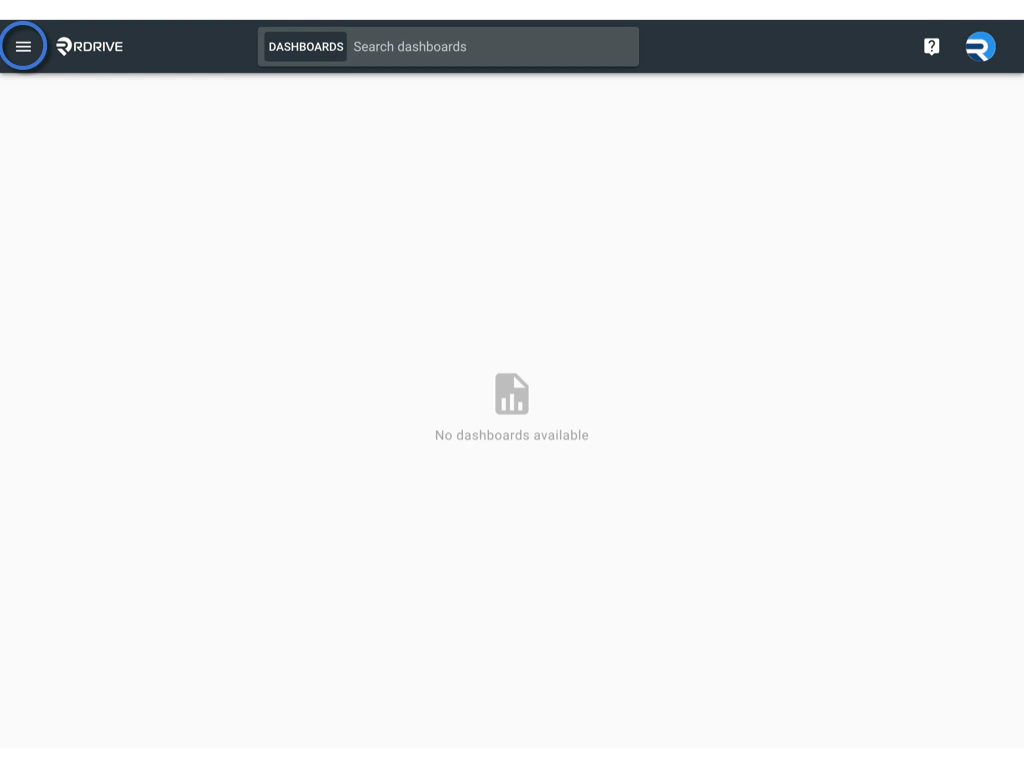
1. **Access the Main Menu:**\
Click the **Menu icon (≡)** in the top left corner of your screen to open the main menu.\\
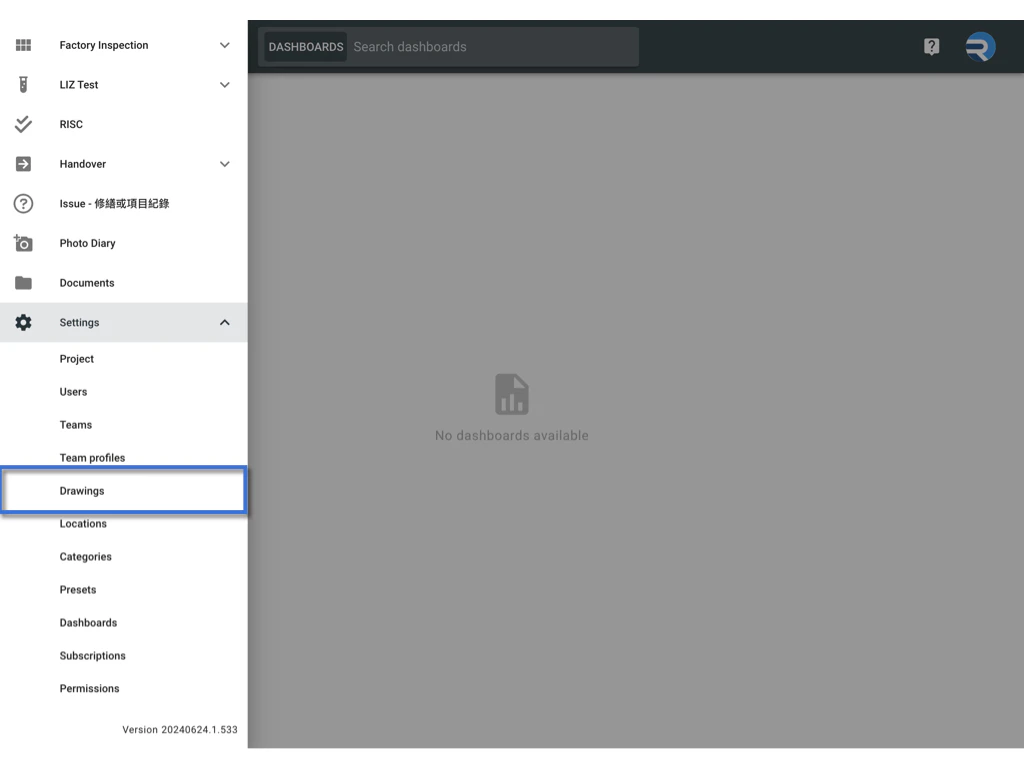
 2. **Navigate to Drawings:**\
From the main menu, go to **Settings**, then select **Drawings**.\\
2. **Navigate to Drawings:**\
From the main menu, go to **Settings**, then select **Drawings**.\\
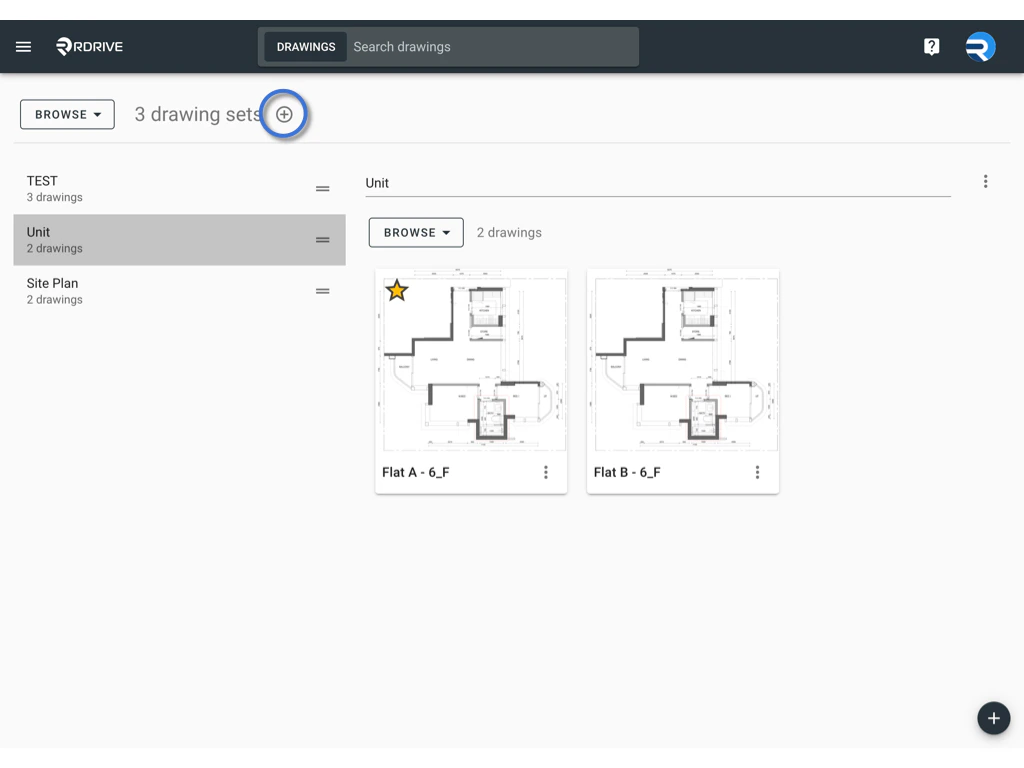
 3. **Add a Navigation Plan:**\
Press the **+** button to start the process of adding a new Navigation Plan.\\
3. **Add a Navigation Plan:**\
Press the **+** button to start the process of adding a new Navigation Plan.\\
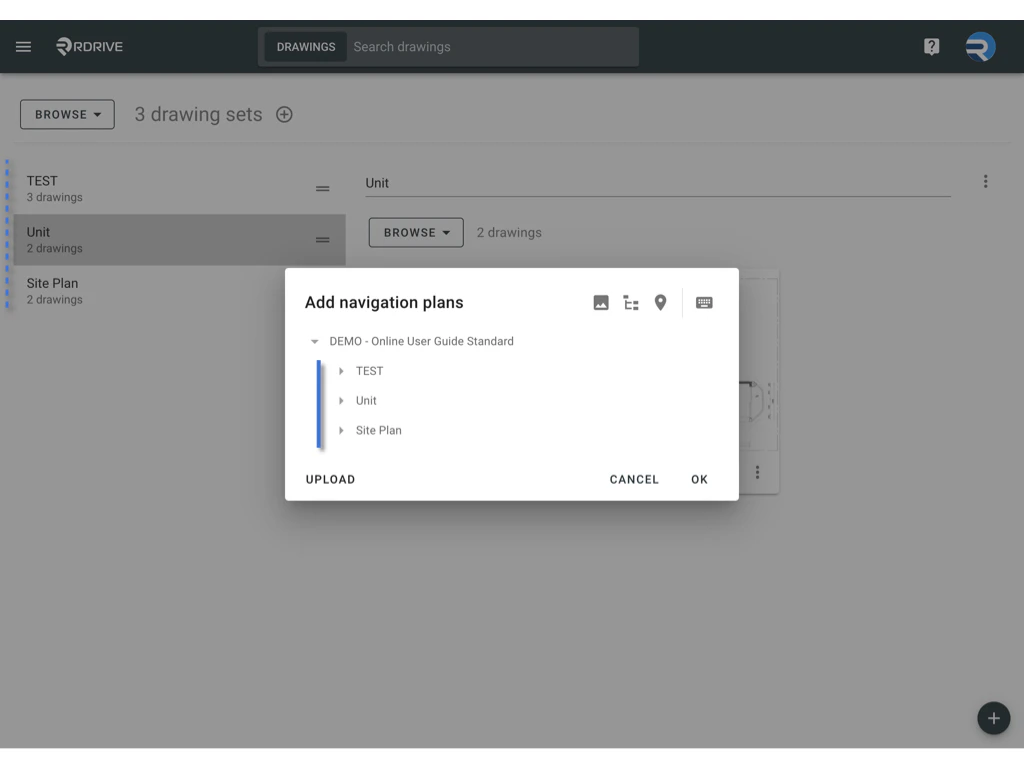
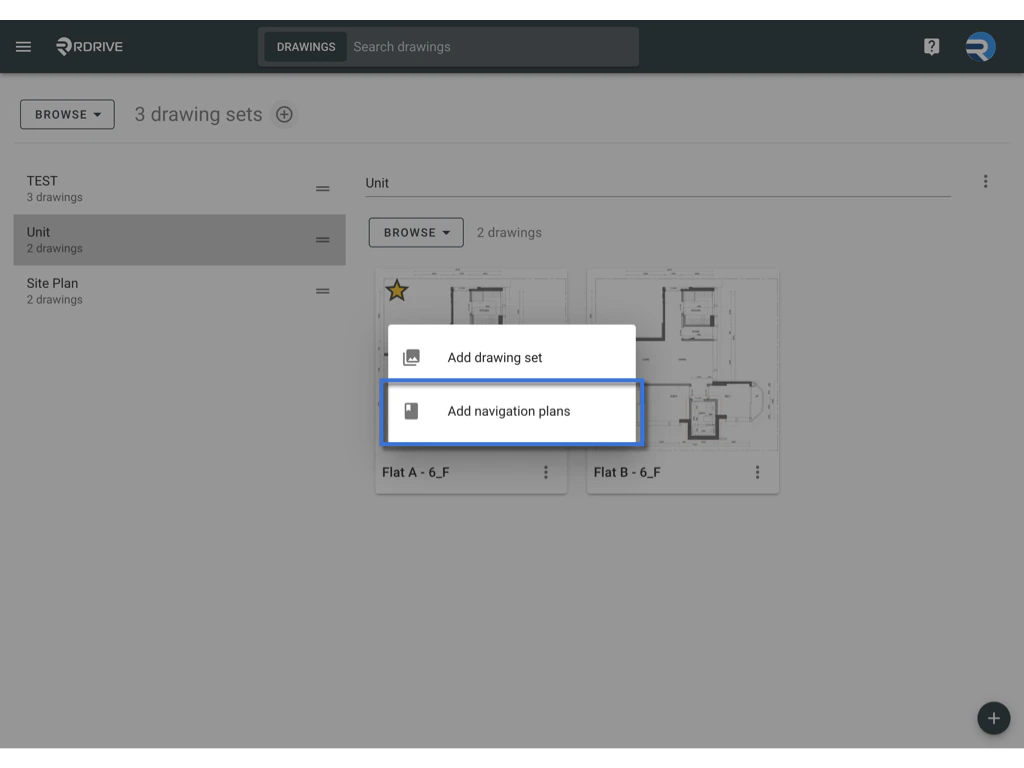 4. **Edit and Confirm:**\
All drawing set titles will be listed here. Click **OK** if no adjustments are needed, or use the available functions to design the Navigation Plan.\\
4. **Edit and Confirm:**\
All drawing set titles will be listed here. Click **OK** if no adjustments are needed, or use the available functions to design the Navigation Plan.\\
 ***
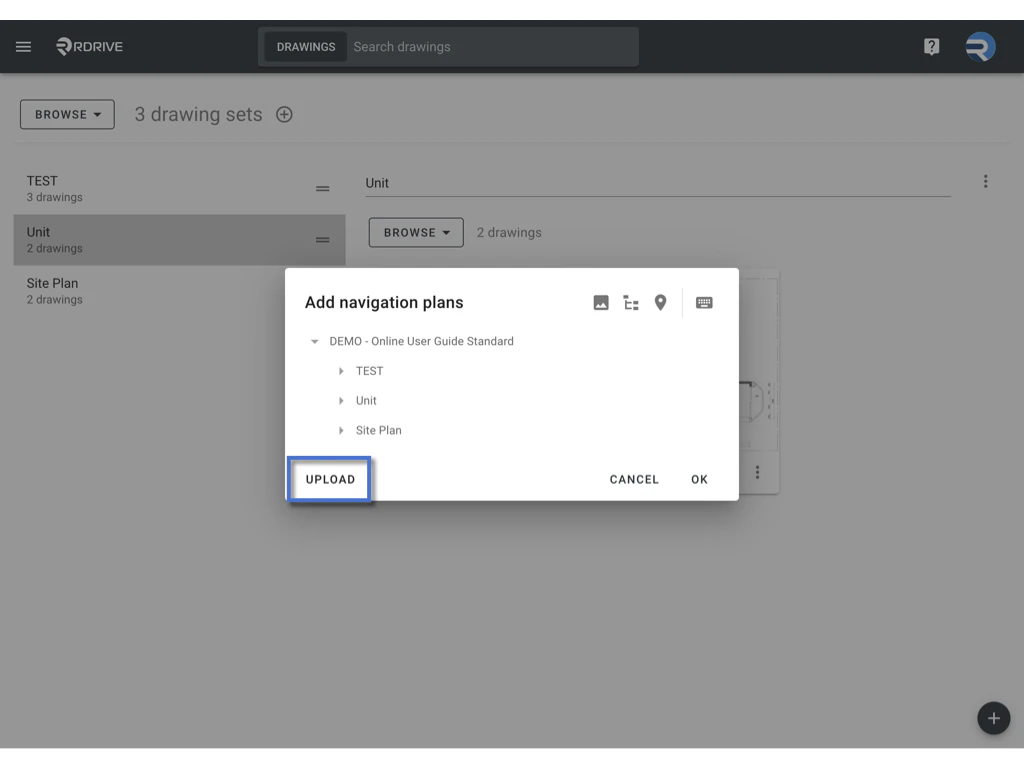
### **Upload Navigation Plan**
If you already have a Navigation Plan downloaded from another source, you can upload the ZIP file here.
***
### **Upload Navigation Plan**
If you already have a Navigation Plan downloaded from another source, you can upload the ZIP file here.
 ***
# **Design the Navigation Plan**
To edit the Navigation Plan, you can use the functions to add locations or add navigation plan layers for storing drawings.
***
# **Design the Navigation Plan**
To edit the Navigation Plan, you can use the functions to add locations or add navigation plan layers for storing drawings. * **Add Location:**\
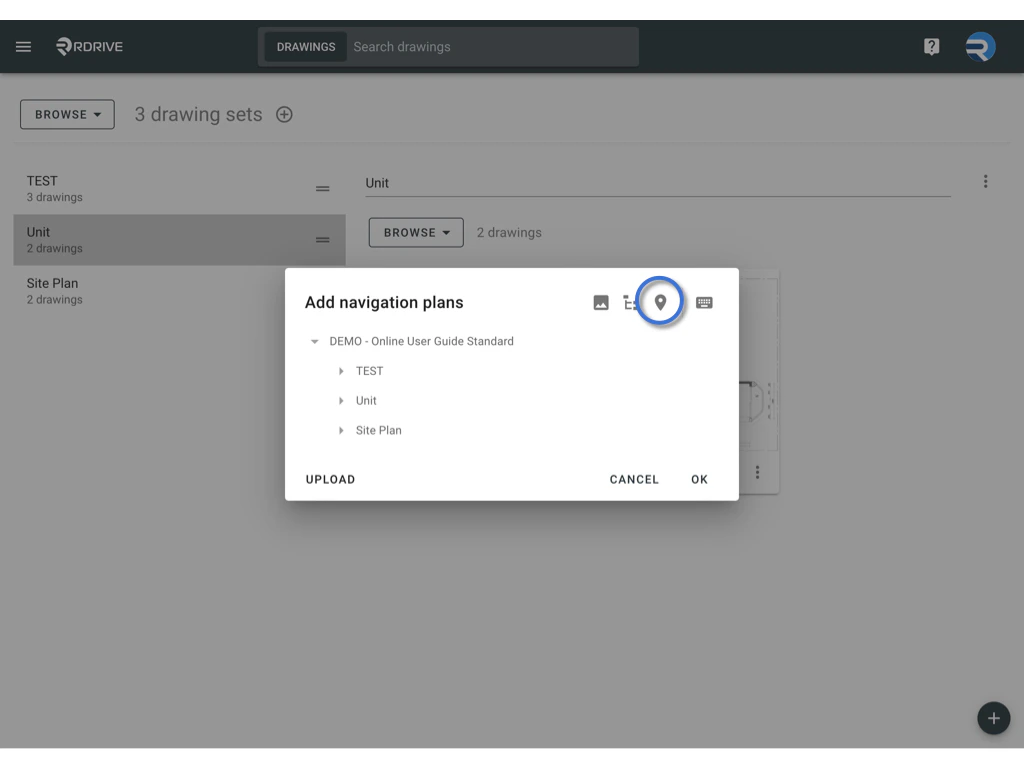
Place location pins on the Navigation Plan page instead of on the actual drawing. This is useful for projects that do not require a floor plan or site plan. Project administrators can easily add locations for storing items.
1. Click on the **Add Location** button.
* **Add Location:**\
Place location pins on the Navigation Plan page instead of on the actual drawing. This is useful for projects that do not require a floor plan or site plan. Project administrators can easily add locations for storing items.
1. Click on the **Add Location** button.
 2. Input the location's title.\\
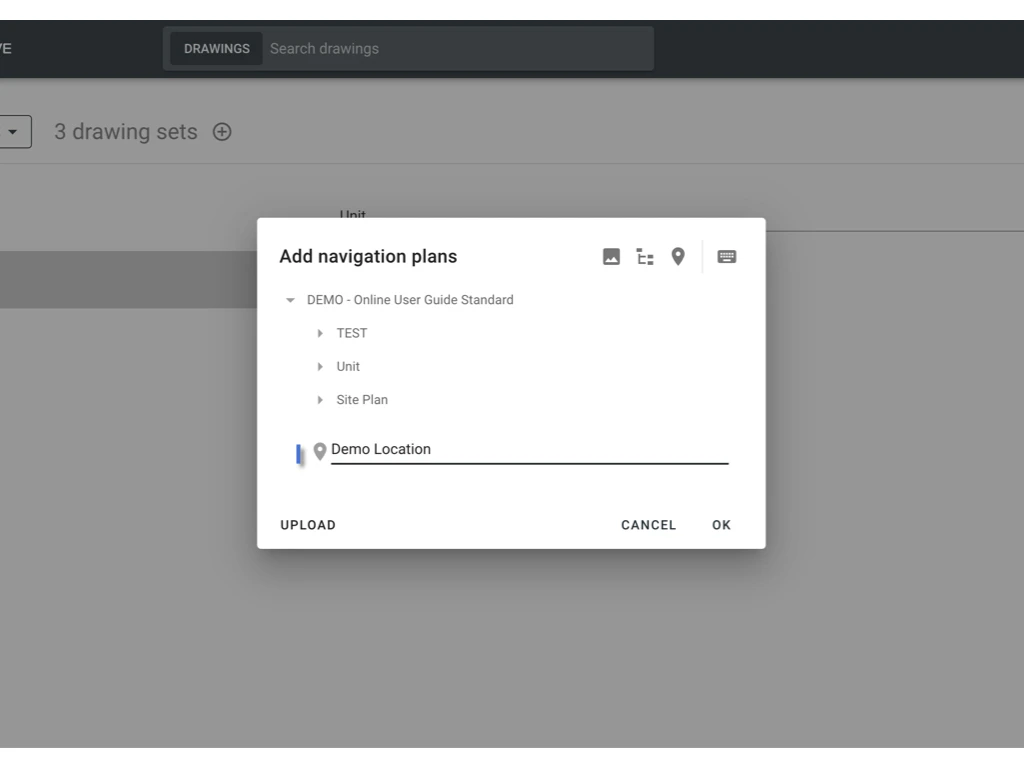 3. Click on any blank space to confirm, and click **OK** to confirm the edit.
 * **Add Navigation Plan Layer:**\
Add layers for the drawings to control the visibility of various components, enabling users to focus on specific elements without distractions.
To add a new navigation plan, follow these steps:
1. Click on the **Add Navigation Plan** button.
* **Add Navigation Plan Layer:**\
Add layers for the drawings to control the visibility of various components, enabling users to focus on specific elements without distractions.
To add a new navigation plan, follow these steps:
1. Click on the **Add Navigation Plan** button. 2. Input the navigation plan's title.
 3. Click on any blank space to confirm.
 4. Click on the **Add Drawing** button.
 5. Select the drawing set or drawing(s), then drag and drop them onto the navigation plan title to assign them.
 6. Click **OK** to confirm the edit.\
*Here is an example:* \
6. Click **OK** to confirm the edit.\
*Here is an example:* \
 * **Remove a Navigation Plan or Location:**\
To remove a selected option from your Navigation Plan:
1. Click on the selected option (Text in blue).
2. Click the **Remove** button to delete the selected item.
* **Remove a Navigation Plan or Location:**\
To remove a selected option from your Navigation Plan:
1. Click on the selected option (Text in blue).
2. Click the **Remove** button to delete the selected item.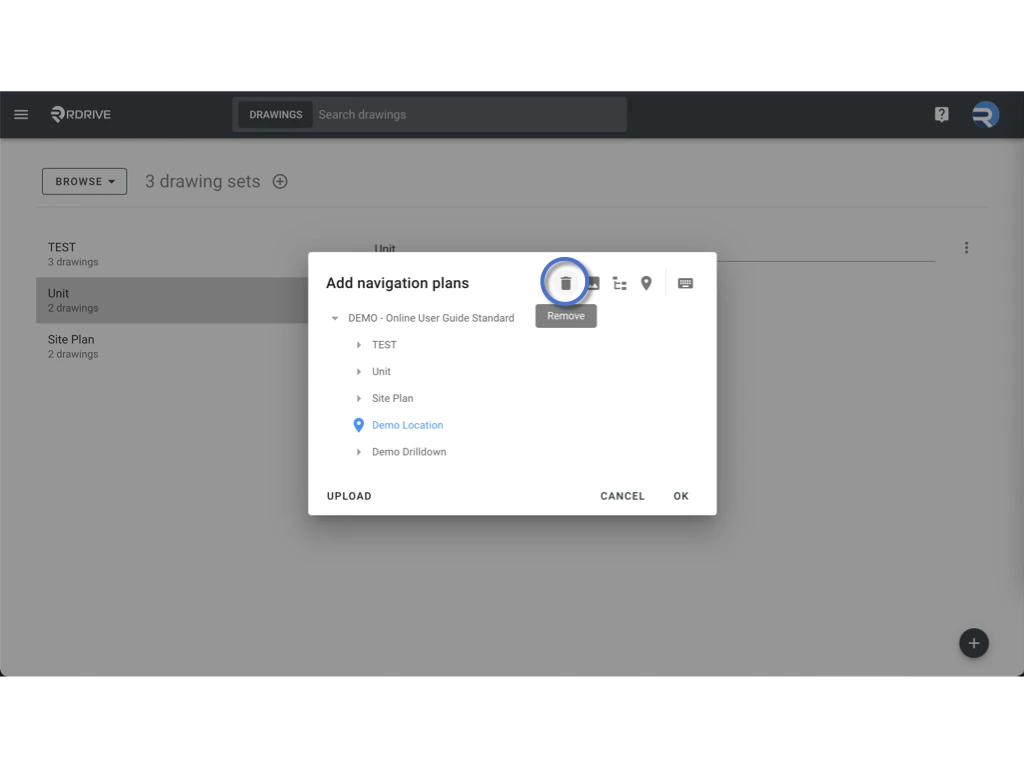 ***
### By following these steps, you can effectively create a Navigation Plan that enhances project management and improves accessibility within the plan viewer.
***
### By following these steps, you can effectively create a Navigation Plan that enhances project management and improves accessibility within the plan viewer.