> ## Documentation Index
> Fetch the complete documentation index at: https://docs.rdrive.io/llms.txt
> Use this file to discover all available pages before exploring further.
# Managing Drilldown on Drawings
> This guide explains how to manage Drilldown buttons on drawings in RDrive. Drilldowns allow you to create interactive links between drawings, helping users navi
### **Overview**
*This guide explains how to manage Drilldown buttons on drawings in RDrive. Drilldowns allow you to create interactive links between drawings, helping users navigate from a high-level overview to more detailed layouts.*
* **Purpose:** To enable users to link drawings together using Drilldown buttons
* **Who It’s For:** Project admin
Prerequisites: Access to the Plan Viewer and sufficient permissions to manage Drilldown links
***
**TABLE OF CONTENTS**
* * [1. What is a Drilldown Button?](#1.-what-is-a-drilldown-button?)
* [2. How to Add a Drilldown](#2.-how-to-add-a-drilldown)
* [3. CHOOSE to Add Drilldowns in One Go](#3.-choose-to-add-drilldowns-in-one-go)
* [4. How to Edit a Drilldown](#4.-how-to-edit-a-drilldown)
* [Edit: Change the linked drawing.](#edit%3a-change-the-linked-drawing.%e2%80%8b%e2%80%8b)
* [Move: Reposition the button on the drawing.](#move%3a-reposition-the-button-on-the-drawing.%e2%80%8b%e2%80%8b)
* [Delete: Remove the Drilldown from the drawing.](#delete%3a-remove-the-drilldown-from-the-drawing.)
* [5. Tips & Reminders](#5.-tips-&-reminders)
* [6. FAQs & Troubleshooting](#6.-faqs-&-troubleshooting)
* [Q: I don’t see the Drilldown option in the Add (+) menu. Why?](#q%3a-i-don%e2%80%99t-see-the-drilldown-option-in-the-add-\(+\)-menu.-Why?)
* [Q: Can I link a drawing to multiple Drilldowns?](#q%3a-can-i-link-a-drawing-to-multiple-drilldowns?)
* [Q: Can I adjust the icon or appearance of the Drilldown button?](#q%3a-can-i-adjust-the-icon-or-appearance-of-the-drilldown-button?)
***
### **1. What is a Drilldown Button?**
A Drilldown is an interactive icon placed on a drawing that links to another drawing. It allows you to “drill down” from one layout or section to a more detailed or related drawing, such as linking a floor plan to a room layout.
***
### **2. How to Add a Drilldown**
1. Open the drawing in **Plan Viewer**. 2. Click the **Add (+)** button at the bottom right corner.
 3. Select **Drilldown** (this option only appears if you have permission).
4. Drag the drilldown to change its position, **OK** to confirm.
3. Select **Drilldown** (this option only appears if you have permission).
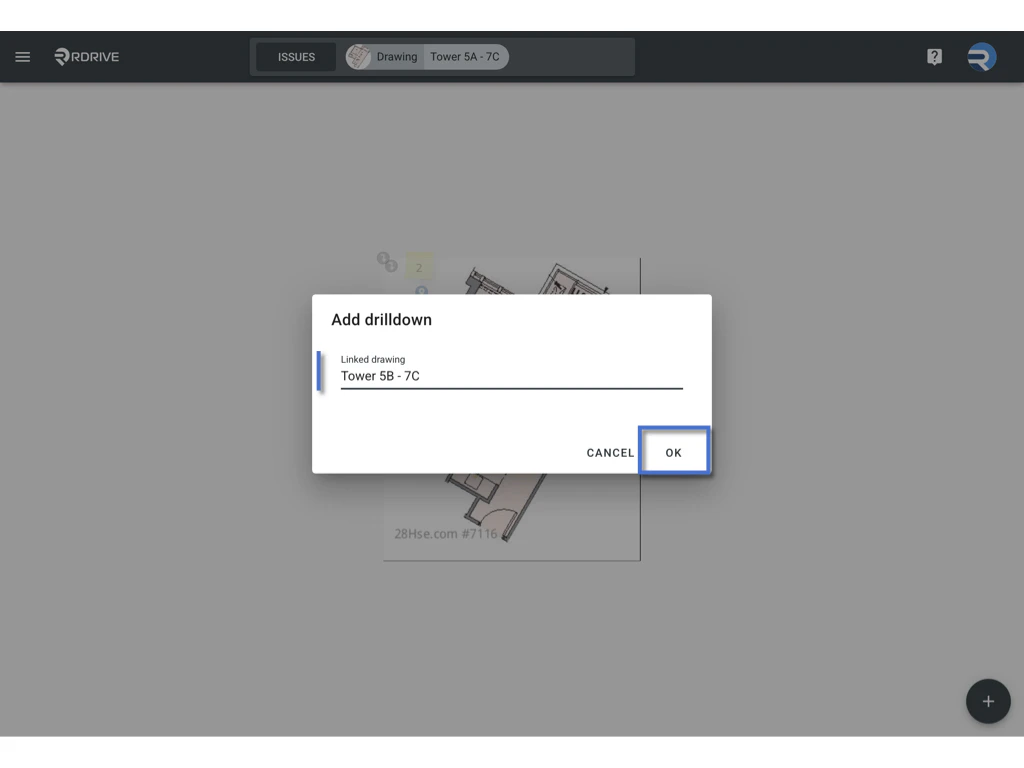
4. Drag the drilldown to change its position, **OK** to confirm. 5. Select the **Linked Drawing** you want to associate.
6. Click **OK** to confirm.\\
5. Select the **Linked Drawing** you want to associate.
6. Click **OK** to confirm.\\
 ***
### **3. CHOOSE to Add Drilldowns in One Go**
If you want to add multiple Drilldowns quickly:
1. After opening the drawing, click the **Add (+)** button and select **Drilldown**.
2. In the dialog, click **CHOOSE**.
***
### **3. CHOOSE to Add Drilldowns in One Go**
If you want to add multiple Drilldowns quickly:
1. After opening the drawing, click the **Add (+)** button and select **Drilldown**.
2. In the dialog, click **CHOOSE**. 3. A list of all drawings in the project will be displayed.\\
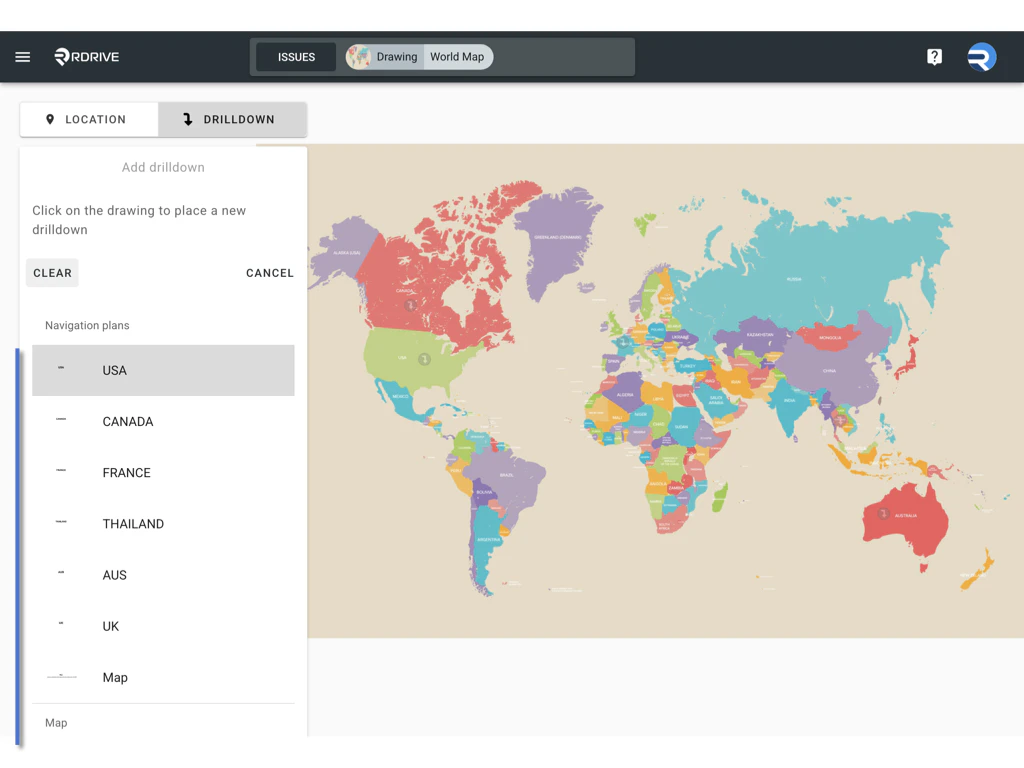 4. Select a drawing and place the Drilldown on the current drawing.
5. The next drawing in the list will appear — continue placing Drilldowns as needed.
6. Click **Cancel** to finish the process.
4. Select a drawing and place the Drilldown on the current drawing.
5. The next drawing in the list will appear — continue placing Drilldowns as needed.
6. Click **Cancel** to finish the process.
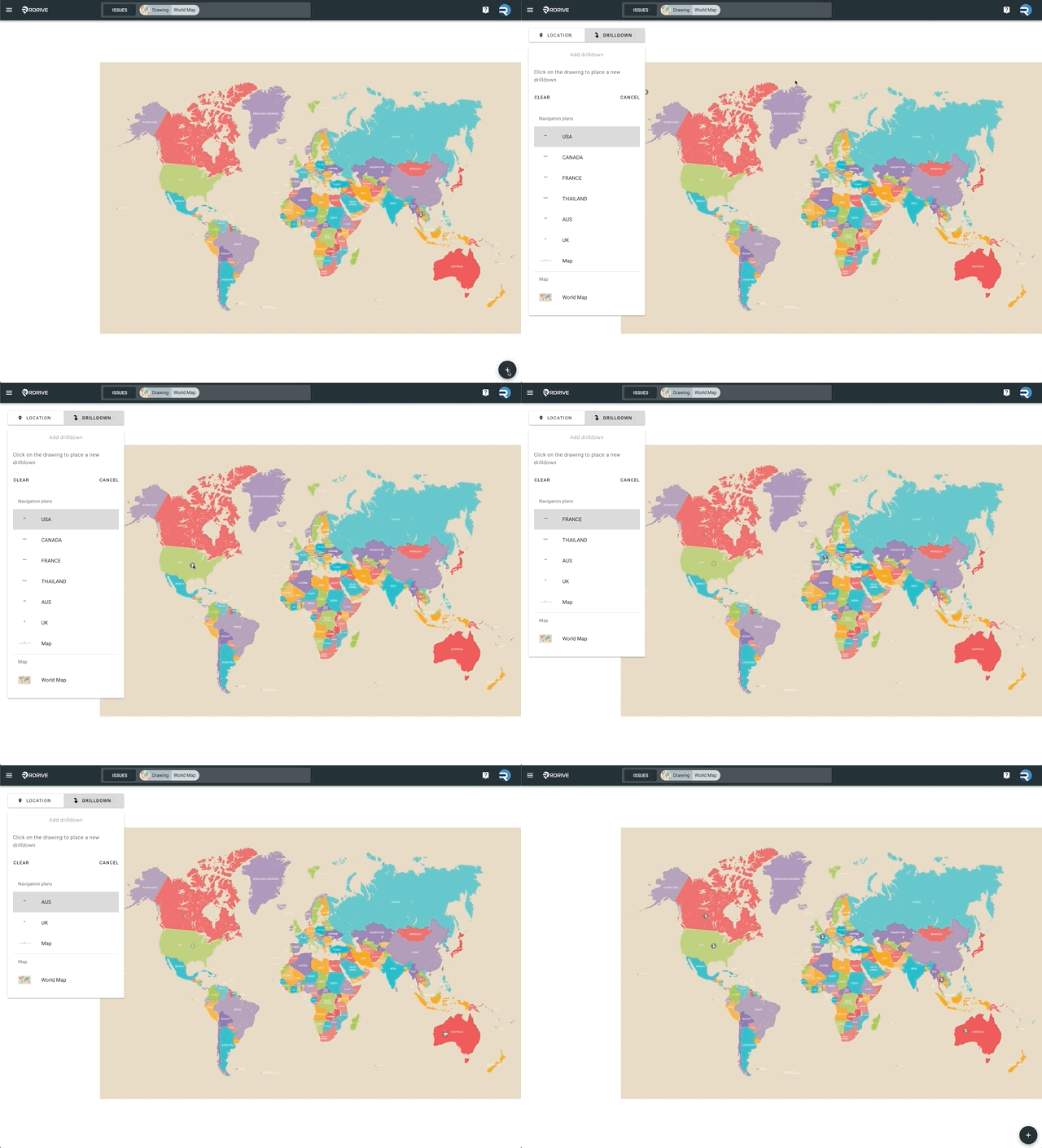 This feature allows you to add multiple Drilldowns in a single flow, improving efficiency when linking multiple drawings.
***
### **4. How to Edit a Drilldown**
1. Long press on the existing Drilldown button.
This feature allows you to add multiple Drilldowns in a single flow, improving efficiency when linking multiple drawings.
***
### **4. How to Edit a Drilldown**
1. Long press on the existing Drilldown button. 2. A dialog box will appear in the top left corner.
3. Click the **three-dot icon (︙)** in the dialog.
2. A dialog box will appear in the top left corner.
3. Click the **three-dot icon (︙)** in the dialog. 4. A menu will appear with options:
* **Edit**: Change the linked drawing.
4. A menu will appear with options:
* **Edit**: Change the linked drawing.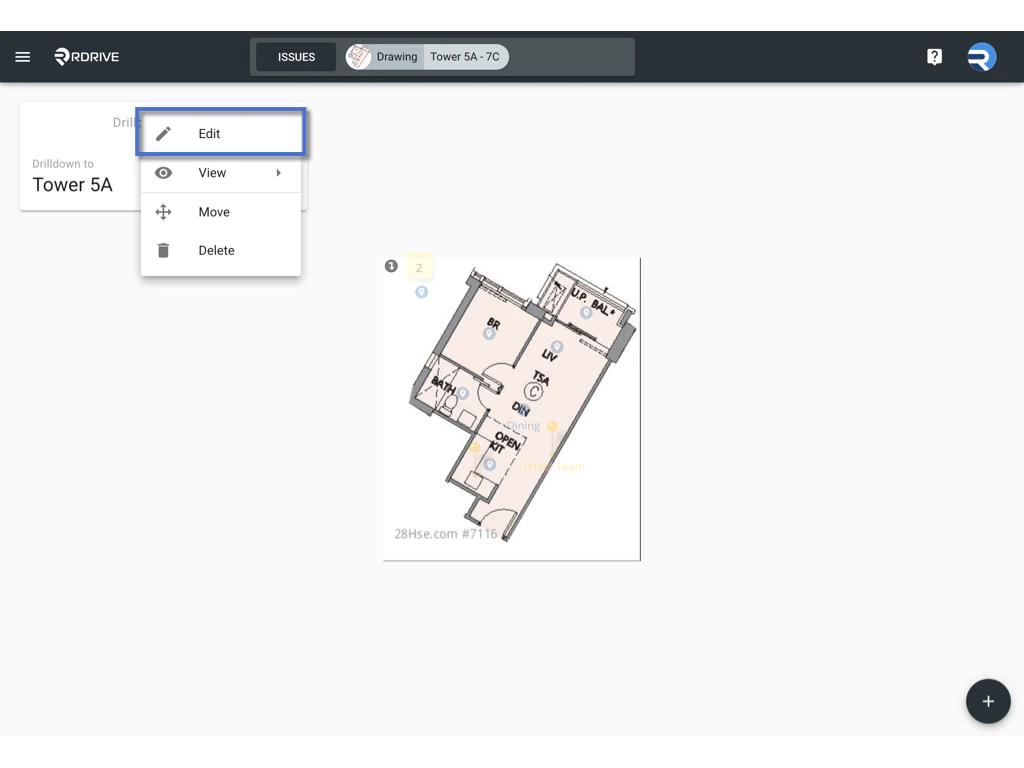
 * **Move**: Reposition the button on the drawing.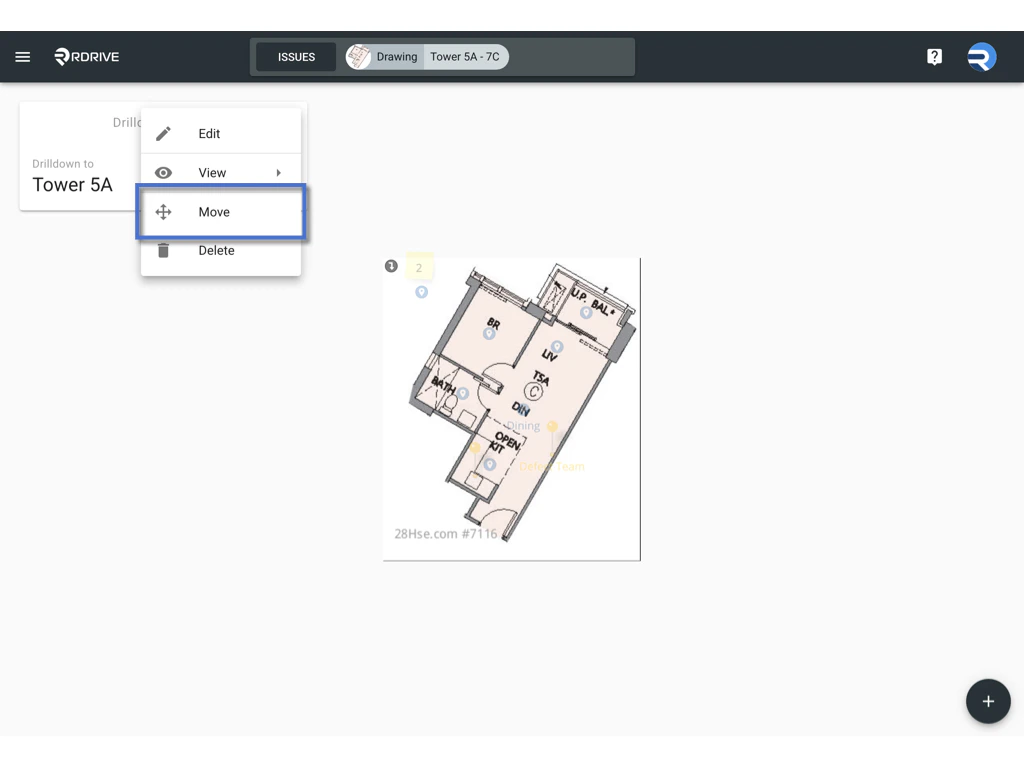
 * **Delete**: Remove the Drilldown from the drawing.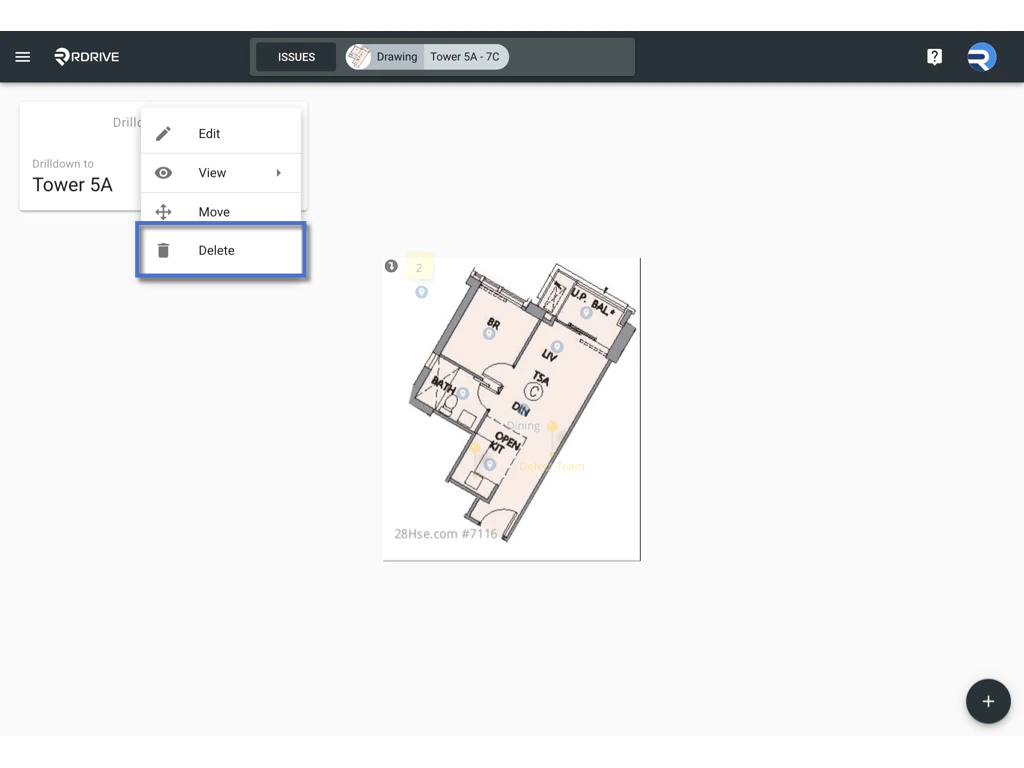
 ***
### **5. Tips & Reminders**
* Drilldown options only appear for users with edit permissions.
* Be mindful of the placement to avoid overlapping with important drawing content.
* Use meaningful linkages to improve navigation efficiency for your team.
***
### **6. FAQs & Troubleshooting**
### **Q: I don’t see the Drilldown option in the Add (+) menu. Why?**
A: You likely don’t have permission to add Drilldowns. Please contact your project or company admin.
***
## **Q: Can I link a drawing to multiple Drilldowns?**
A: Yes. One drawing can be linked from multiple other drawings via separate Drilldowns.
***
### **Q: Can I adjust the icon or appearance of the Drilldown button?**
A: No, the Drilldown button style is fixed and cannot be customized. Its size and icon are standardized to ensure consistent user experience across all drawings.
***
### **5. Tips & Reminders**
* Drilldown options only appear for users with edit permissions.
* Be mindful of the placement to avoid overlapping with important drawing content.
* Use meaningful linkages to improve navigation efficiency for your team.
***
### **6. FAQs & Troubleshooting**
### **Q: I don’t see the Drilldown option in the Add (+) menu. Why?**
A: You likely don’t have permission to add Drilldowns. Please contact your project or company admin.
***
## **Q: Can I link a drawing to multiple Drilldowns?**
A: Yes. One drawing can be linked from multiple other drawings via separate Drilldowns.
***
### **Q: Can I adjust the icon or appearance of the Drilldown button?**
A: No, the Drilldown button style is fixed and cannot be customized. Its size and icon are standardized to ensure consistent user experience across all drawings.