> ## Documentation Index
> Fetch the complete documentation index at: https://docs.rdrive.io/llms.txt
> Use this file to discover all available pages before exploring further.
# Update Navigation Plan Guide
> This guide explains how to update an existing Navigation Plan in RDrive. A Navigation Plan helps users easily navigate between drawings by setting up structured
### **Overview**
*This guide explains how to update an existing Navigation Plan in RDrive. A Navigation Plan helps users easily navigate between drawings by setting up structured locations and drill-down links. Keeping it updated ensures smooth access and reflects any project changes.*
* **Purpose:** To guide users through updating the Navigation Plan, including updating locations, layers, and drill-down titles.
* **Who It’s For:** Project Admins with permission to manage Drawings.
Prerequisites: Access to the Plan Viewer, Settings > Drawings, and edit rights for Navigation Plans.
***
**TABLE OF CONTENTS**
* [Step-by-Step Instructions](#%f0%9f%93%8b-step-by-step-instructions)
* [✅ Step 1: Access the Navigation Plan](#%e2%9c%85-step-1%3a-access-the-navigation-plan%e2%80%8b)
* [✅ Step 2: Update the Navigation Plan](#%e2%9c%85-step-2%3a-update-the-navigation-plan)
* [Automatic Update:](#%f0%9f%94%b9-automatic-update%3a)
* [Edit Locations or Layers](#%f0%9f%94%b9-edit-locations-or-layers%3a)
* [✅ Step 3: Remove a Navigation Plan or Location](#%e2%9c%85-step-3%3a-remove-a-navigation-plan-or-location%e2%80%8b)
* [✅ Step 4: Review and Confirm Changes](#%e2%9c%85-step-4%3a-review-and-confirm-changes%e2%80%8b)
* [Important Note](#%e2%9d%97-important-note)
* [FAQs & Troubleshooting](#%f0%9f%94%a7-faqs-&-troubleshooting)
* [Q: What happens if I update the Navigation Plan?](#q%3a-what-happens-if-i-update-the-navigation-plan?)
* [Q: Can I undo the update after clicking OK?](#q%3a-can-i-undo-the-update-after-clicking-ok?)
* [Q: Why can’t I see the Update Navigation Plan option?](#q%3a-why-can%e2%80%99t-i-see-the-update-navigation-plan-option?)
***
# **Step-by-Step Instructions**
## ✅ **Step 1: Access the Navigation Plan**
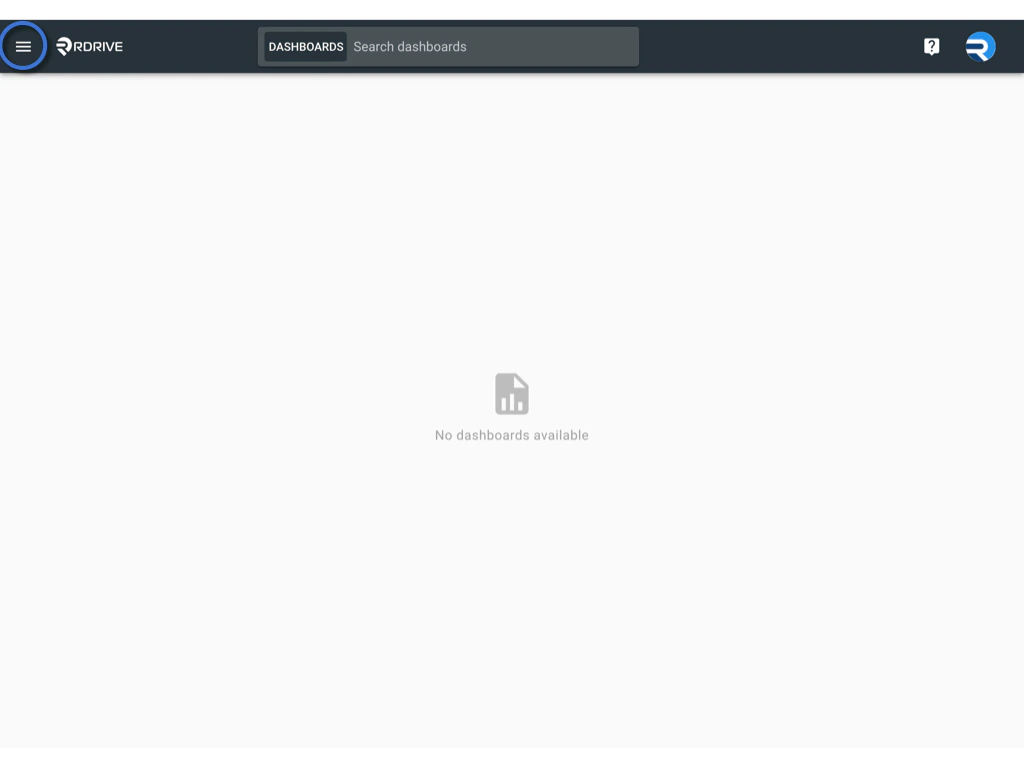
* Click the **Menu** icon (≡) at the top left of your screen to open the main menu.
* Navigate to Settings and select Drawings.
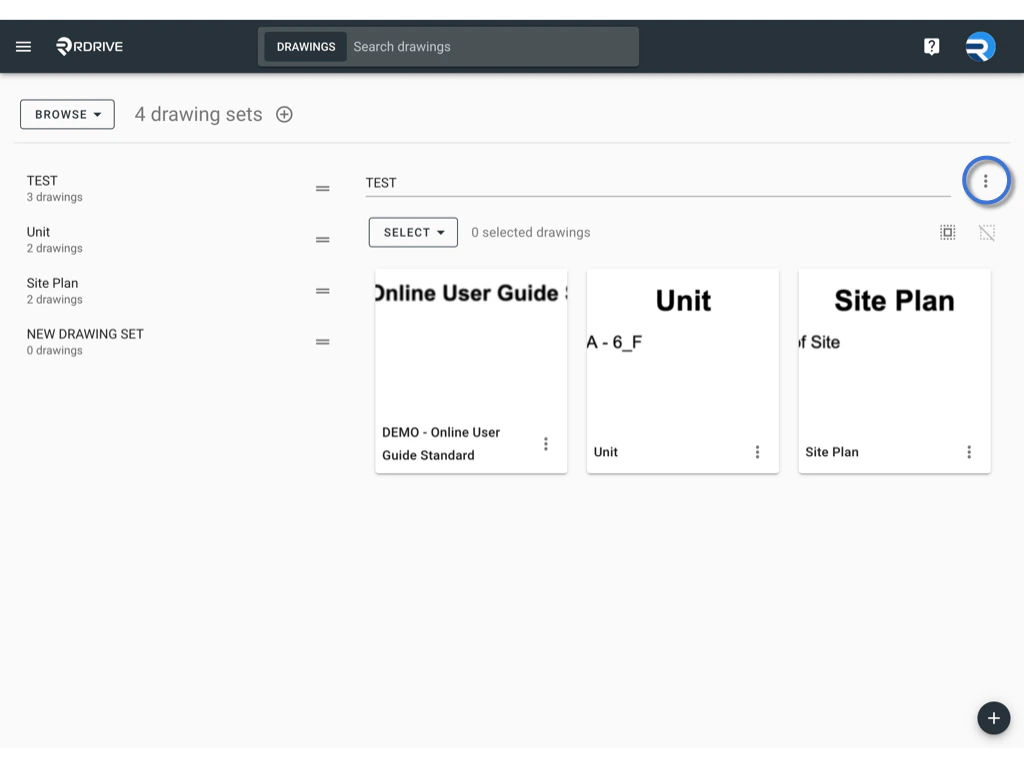
* Locate your Navigation Plan in the Drawing Sets list.
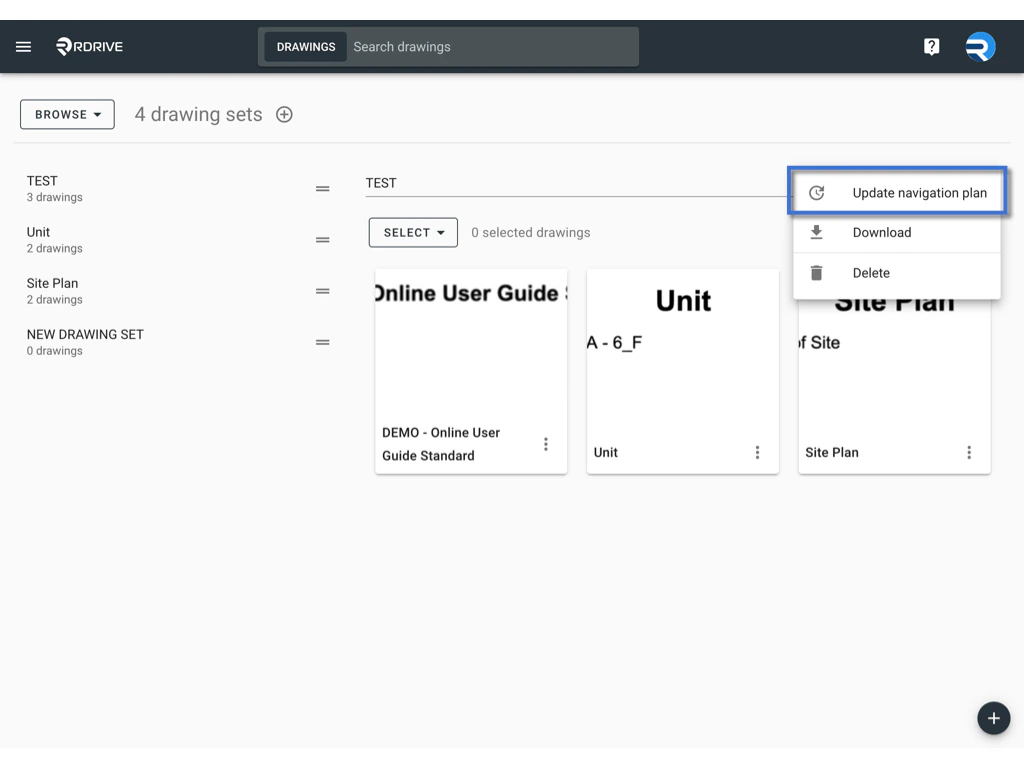
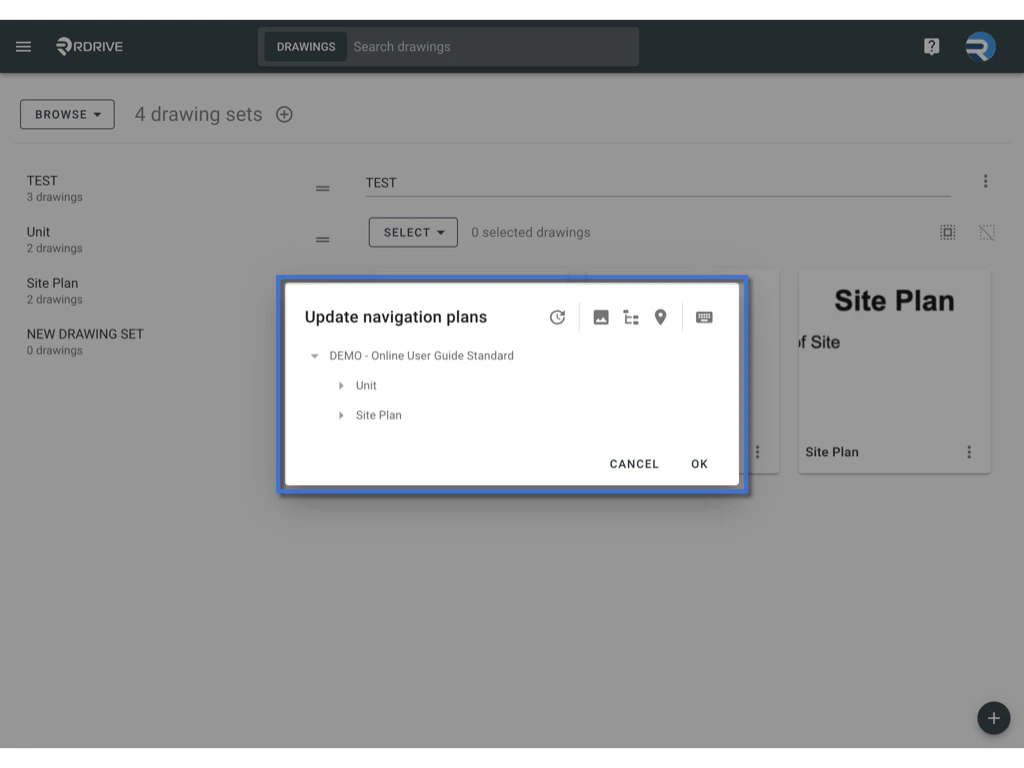
* Click the **⋮** (three dots) next to it and select **Update Navigation Plan** to enter editing mode.
*
 *\\
*\\
 ***
## ✅ **Step 2: Update the Navigation Plan**
###
**Automatic Update:**
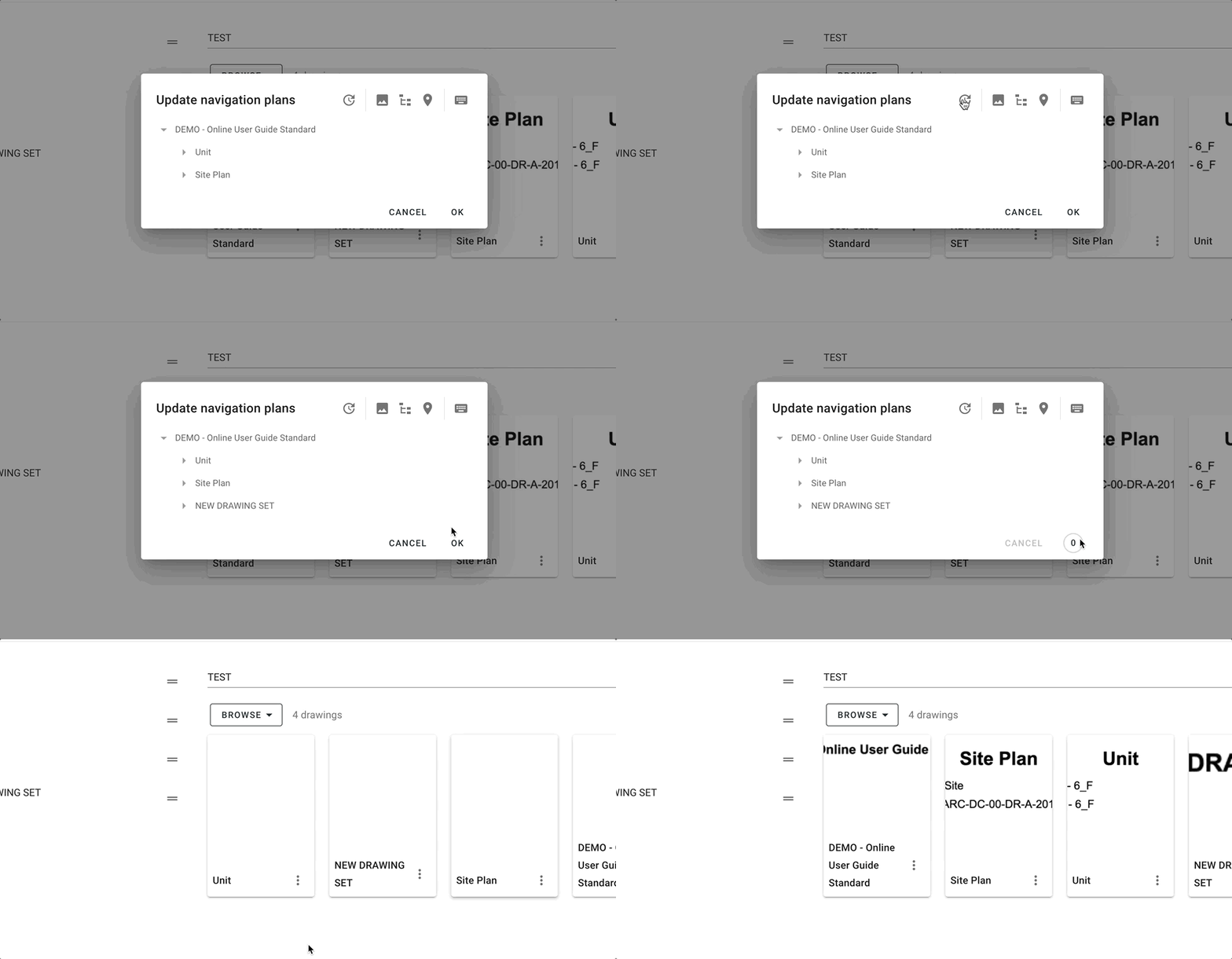
* If you just need to refresh the Navigation Plan with any newly added Drawing Sets, click the **UPDATE** button.
* The system will automatically update and generate a new version of the Navigation Plan.
***
## ✅ **Step 2: Update the Navigation Plan**
###
**Automatic Update:**
* If you just need to refresh the Navigation Plan with any newly added Drawing Sets, click the **UPDATE** button.
* The system will automatically update and generate a new version of the Navigation Plan.
 ### **Edit Locations or Layers:**
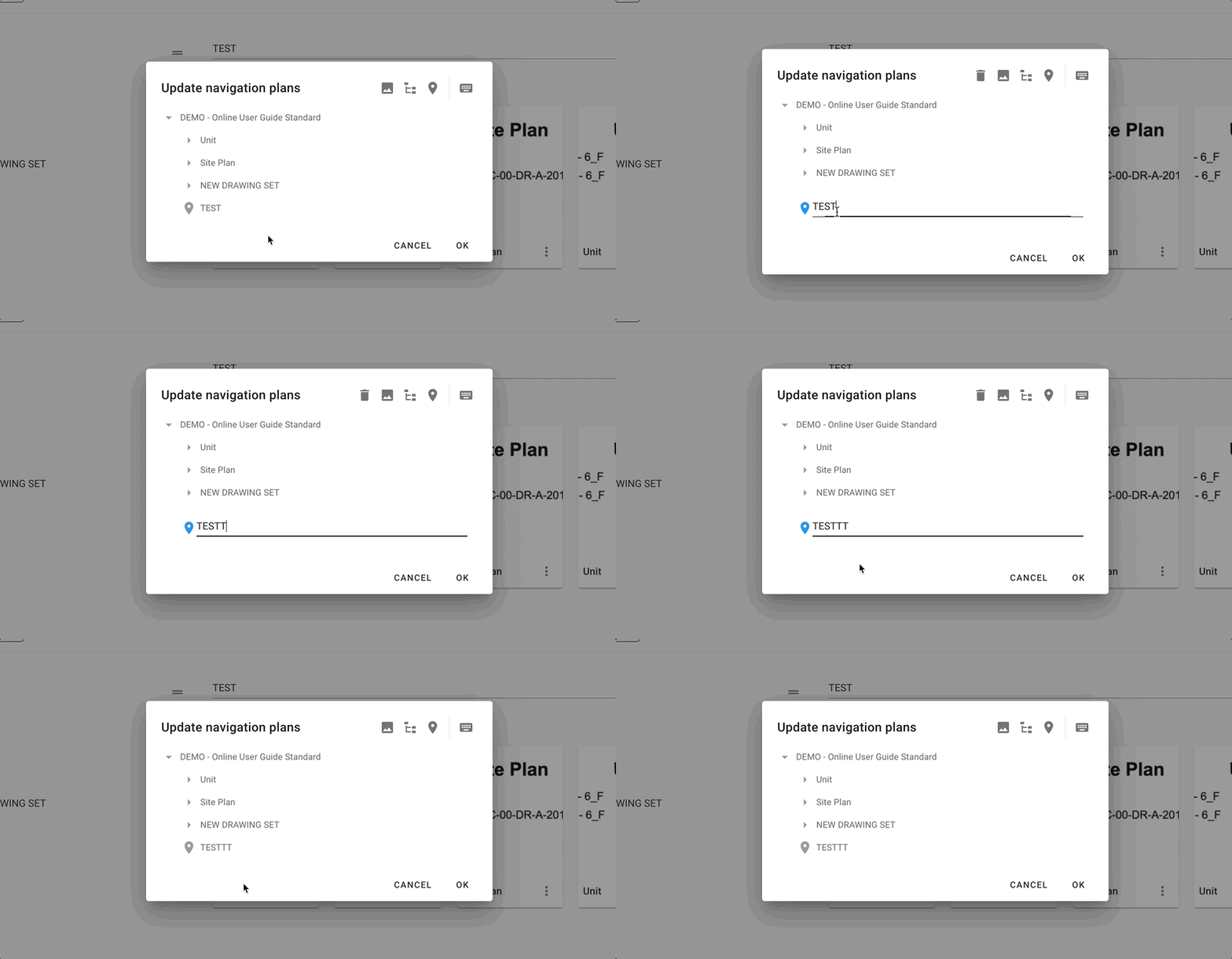
* **To update locations:**\
Double-click on a location pin in the plan, make the necessary edits, then click on a blank space to save.
### **Edit Locations or Layers:**
* **To update locations:**\
Double-click on a location pin in the plan, make the necessary edits, then click on a blank space to save.
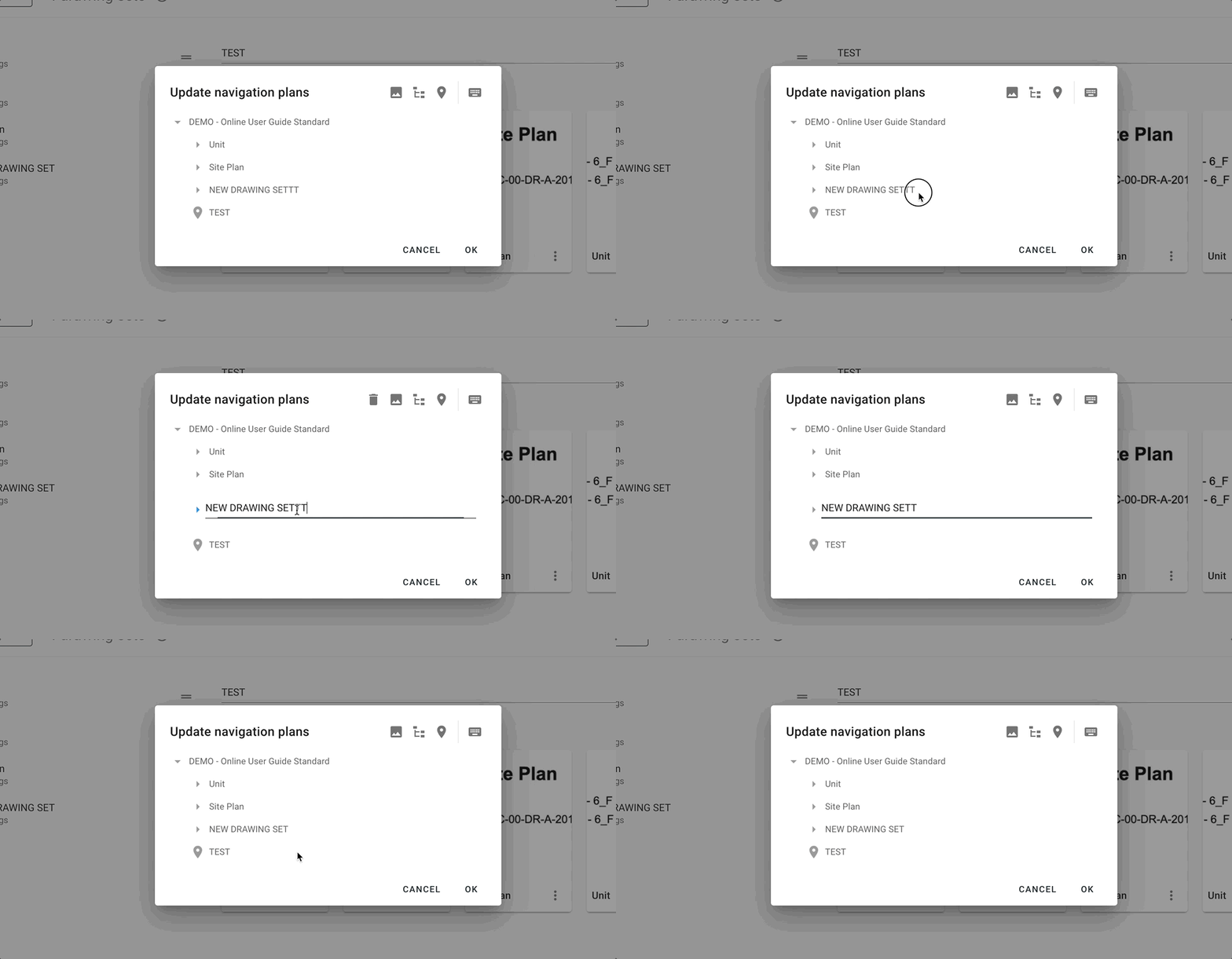
 * **To update the drill-down title:**\
Double-click on the drill-down title text, edit it, then click any blank area to confirm.
* **To update the drill-down title:**\
Double-click on the drill-down title text, edit it, then click any blank area to confirm.
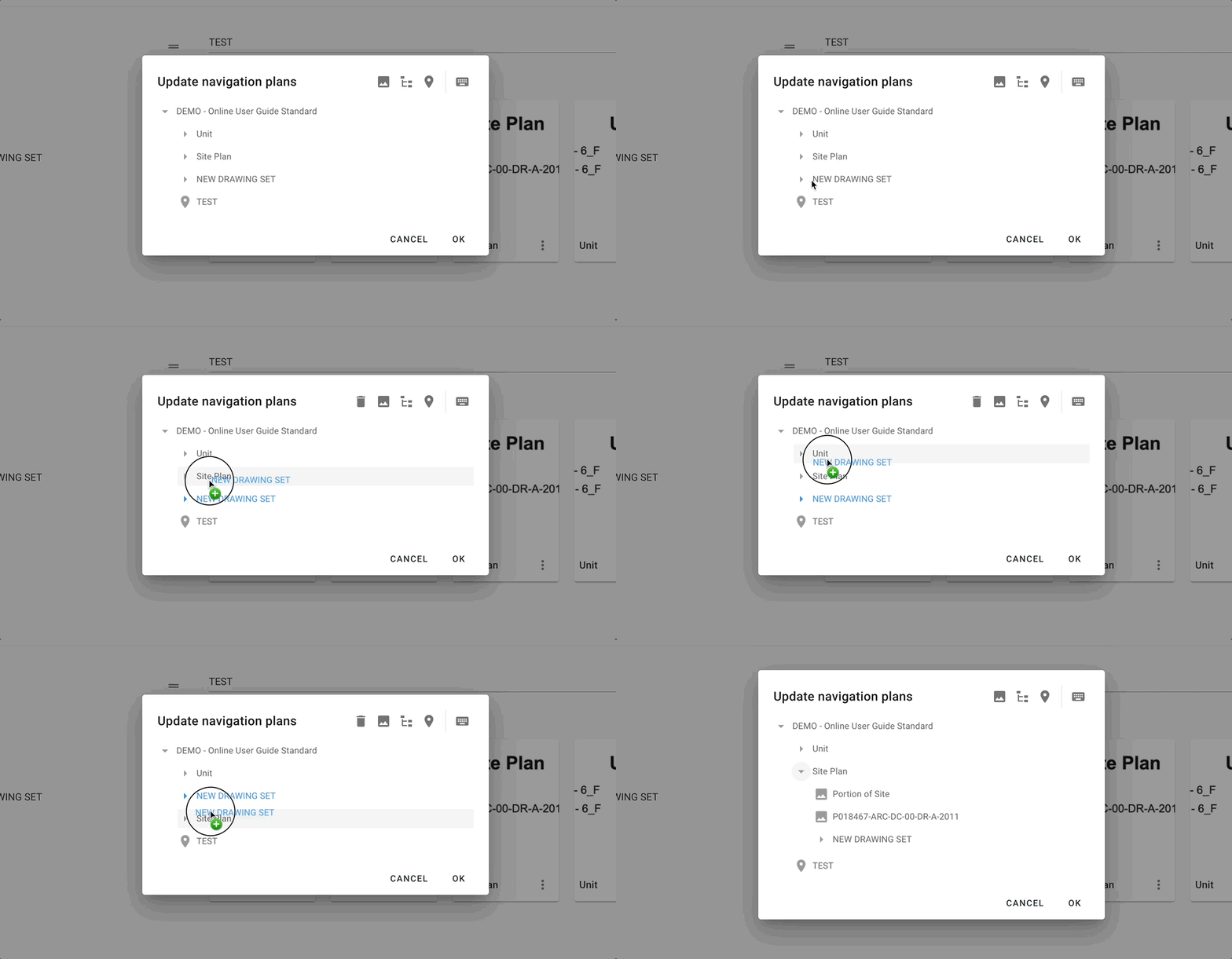
 * **To update layers:**\
Long-press the layer title and drag it up or down to reorder layers.\
Alternatively, click to add a new layer.
* **To update layers:**\
Long-press the layer title and drag it up or down to reorder layers.\
Alternatively, click to add a new layer.
 ***
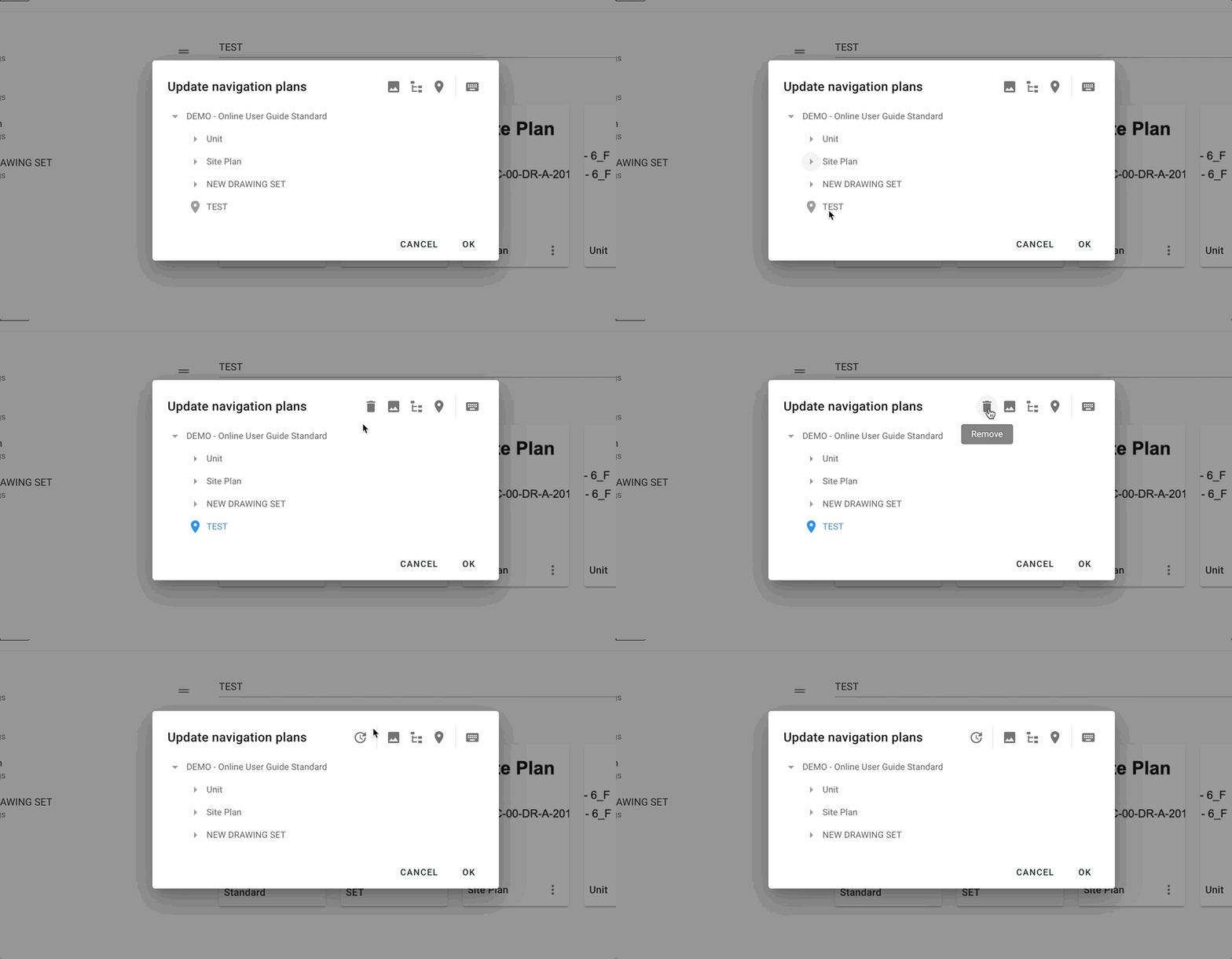
## ✅ **Step 3: Remove a Navigation Plan or Location**
* Select the item you want to remove (highlighted in blue).
* Click the **Remove** button to delete it from the Navigation Plan.
***
## ✅ **Step 3: Remove a Navigation Plan or Location**
* Select the item you want to remove (highlighted in blue).
* Click the **Remove** button to delete it from the Navigation Plan.
 ***
## ✅ **Step 4: Review and Confirm Changes**
* After making your edits, carefully review all changes.
* Click **OK** to save and confirm the updated Navigation Plan.
* Your modifications will now reflect in the project navigation.\
\*\*\
***
## ✅ **Step 4: Review and Confirm Changes**
* After making your edits, carefully review all changes.
* Click **OK** to save and confirm the updated Navigation Plan.
* Your modifications will now reflect in the project navigation.\
\*\*\
 \*\*
***
# ***Important Note***
Updating the Navigation Plan will **override all custom adjustments** and **reset it back to the default structure**.\
Make sure to double-check before confirming updates.
***
# **FAQs & Troubleshooting**
### **Q: What happens if I update the Navigation Plan?**
A: The system will regenerate the Navigation Plan, reflecting new drawing sets and structural changes. All manual customizations will be lost.
***
### **Q: Can I undo the update after clicking OK?**
A: No. Once confirmed, the update is final. Please review carefully before saving.
***
### **Q: Why can’t I see the Update Navigation Plan option?**
A: You may not have the required permission. Please contact your Project Admin or Company Admin for access.
\*\*
***
# ***Important Note***
Updating the Navigation Plan will **override all custom adjustments** and **reset it back to the default structure**.\
Make sure to double-check before confirming updates.
***
# **FAQs & Troubleshooting**
### **Q: What happens if I update the Navigation Plan?**
A: The system will regenerate the Navigation Plan, reflecting new drawing sets and structural changes. All manual customizations will be lost.
***
### **Q: Can I undo the update after clicking OK?**
A: No. Once confirmed, the update is final. Please review carefully before saving.
***
### **Q: Why can’t I see the Update Navigation Plan option?**
A: You may not have the required permission. Please contact your Project Admin or Company Admin for access.