> ## Documentation Index
> Fetch the complete documentation index at: https://docs.rdrive.io/llms.txt
> Use this file to discover all available pages before exploring further.
# Managing Scheduled Report Policies in RDrive
> This guide explains how to create, edit, and manage scheduled report policies in RDrive. These reports are automatically sent based on the rules and schedules y
### **Overview**
*This guide explains how to create, edit, and manage scheduled report policies in RDrive. These reports are automatically sent based on the rules and schedules you define.*
* **Purpose:** To automate the distribution of project data through scheduled reports.
* **Who It’s For:** Project admin with report management permissions.
Prerequisites: Ensure you have access to the Scheduled Report page and permission to manage scheduled reports.
***
A **Scheduled Report** allows you to email reports automatically using conditions across both **Issues** and **Processes**.\
Each rule in the policy can be configured with different conditions and filter options.\
Feel free to choose any combination of rules and filters that best fit your project needs. ?
***
**TABLE OF CONTENTS**
* [✅ Add a Scheduled Report Policy](#%e2%9c%85%c2%a0add-a-scheduled-report-policy)
* [✅ Edit a Scheduled Report Policy](#%e2%9c%85-edit-a-scheduled-report-policy)
* [✅ Edit a Schedule](#%e2%9c%85-edit-a-schedule)
* [✅ Email Layout Options](#%e2%9c%85-email-layout-options)
* [✅ Download Options](#%e2%9c%85-download-options)
* [✅ Try](#%e2%9c%85-try)
* [✅ Recipients](#%e2%9c%85%c2%a0recipients)
* [✅ Download](#%e2%9c%85-download)
* [✅ Batch Download](#%e2%9c%85-batch-download)
* [✅ Set Rules for Scheduled Reports](#%e2%9c%85-set-rules-for-scheduled-reports)[](#%e2%9c%85-upload%e2%80%8b-a-scheduled-report-policy-\(.json-file\))
* [✅ Upload a Scheduled Report Policy (.json file)](#%e2%9c%85-upload%e2%80%8b-a-scheduled-report-policy-\(.json-file\))
* [✅ Delete a Scheduled Report Policy](#%e2%9c%85-delete-a-scheduled-report-policy)
* [FAQs & Troubleshooting](#faqs-&-troubleshooting)
* [Q: Why didn’t I receive the scheduled report?](#q%3a-why-didn%e2%80%99t-i-receive-the-scheduled-report?a%3a-please-check-the-following%3a)
* [Q: Can I schedule multiple reports?](#q%3a-can-i-schedule-multiple-reports?)
* [Q: Can I edit or stop a report after it has been scheduled?](#q%3a-can-i-edit-or-stop-a-report-after-it-has-been-scheduled?)
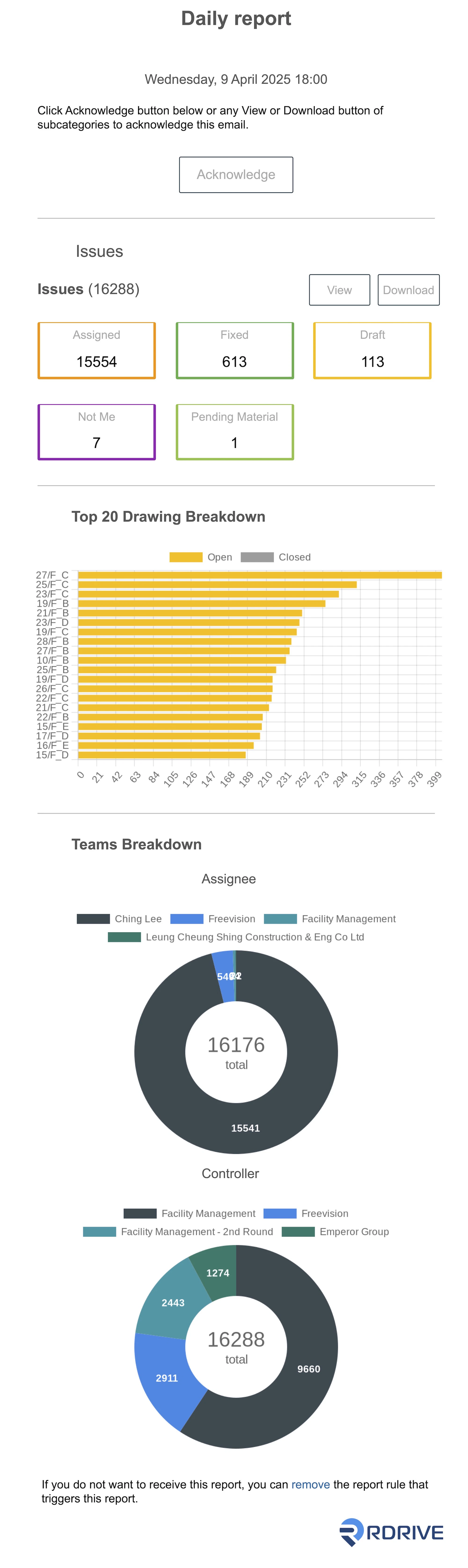
* [Email sample](#email-sample%3a)
***
## ✅ **Add a Scheduled Report Policy**
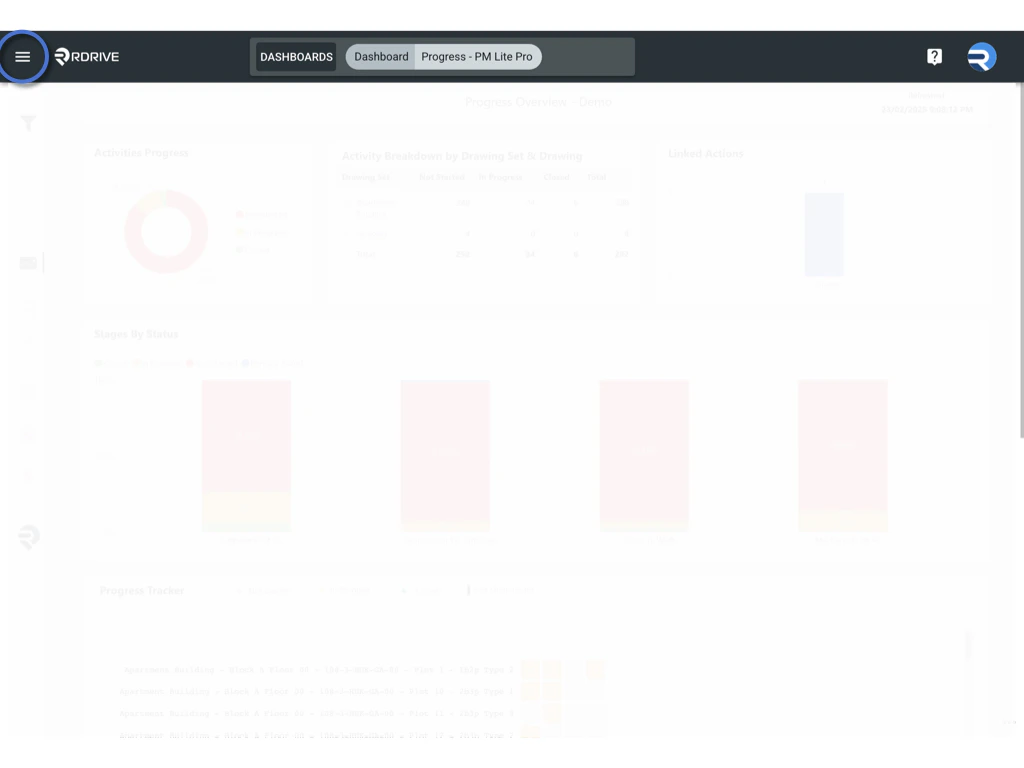
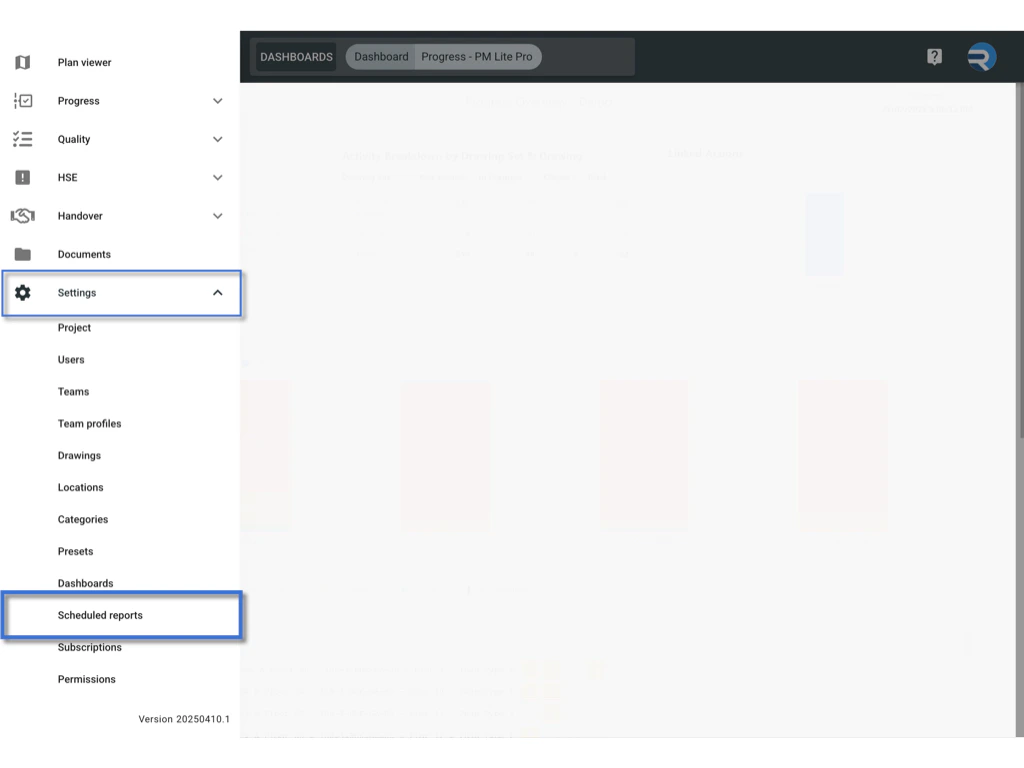
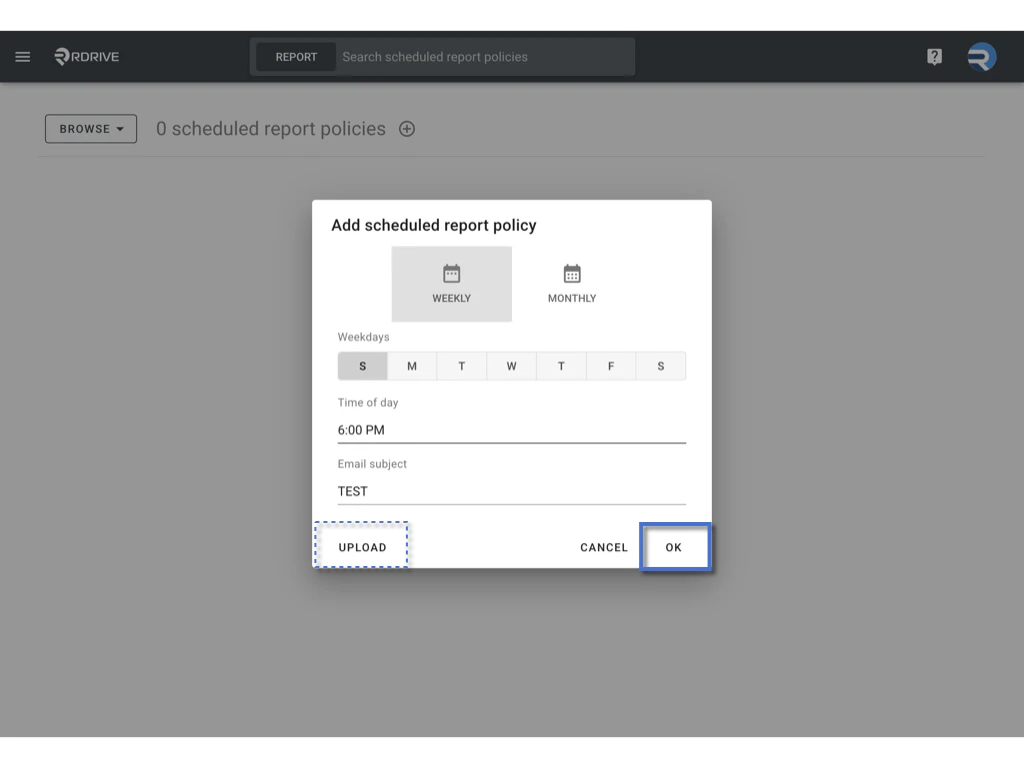
1. Go to the **Scheduled Reports** page from the side menu **≡** .\\
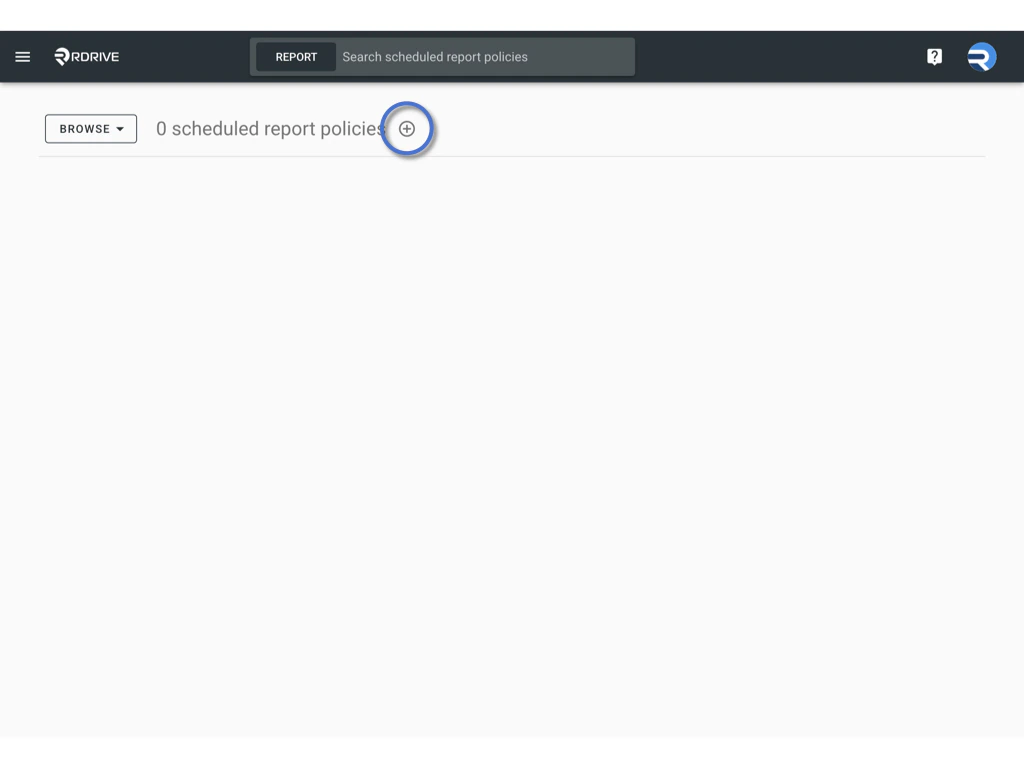
 2. Click the **Add (+)** button to create a new policy.\\
 3. Define the report **frequency**:
* **Daily**: Select the day(s) and set the delivery time.
* **Weekly**: Select one or more weekdays and the time.
* **Monthly**: Choose the time. Reports are sent on the 1st day of each month.
3. Define the report **frequency**:
* **Daily**: Select the day(s) and set the delivery time.
* **Weekly**: Select one or more weekdays and the time.
* **Monthly**: Choose the time. Reports are sent on the 1st day of each month. 4. Enter a **Report Title** (e.g., “Weekly Progress Summary”).
5. Click **OK** to confirm.
4. Enter a **Report Title** (e.g., “Weekly Progress Summary”).
5. Click **OK** to confirm.
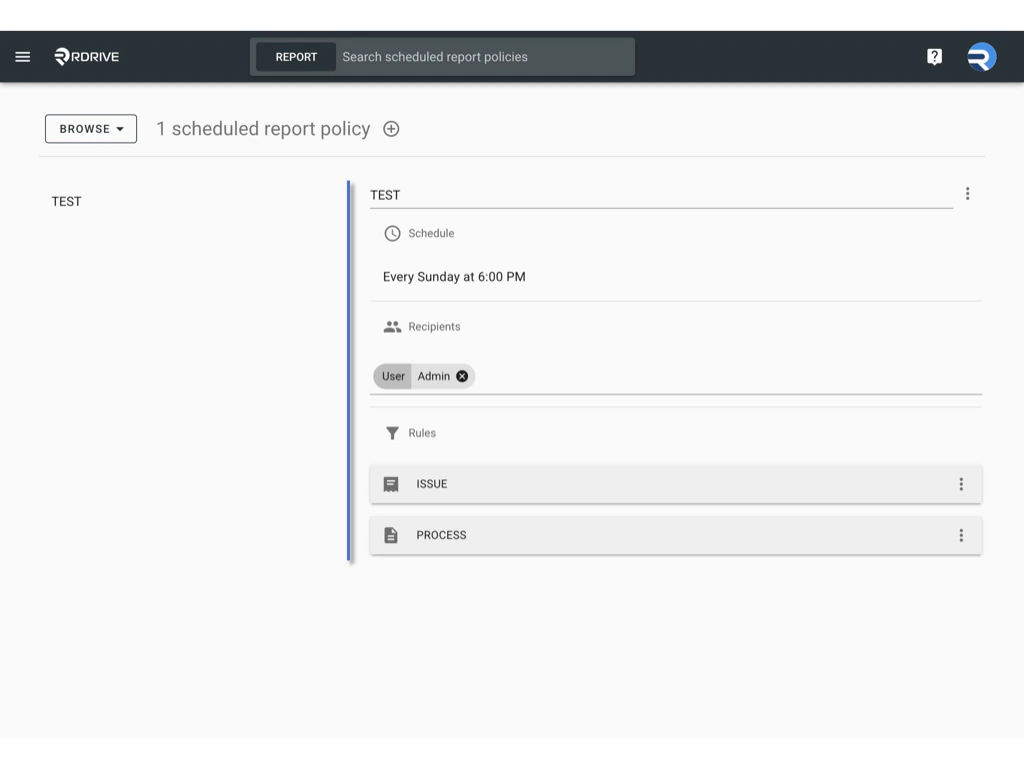
 6. Add **Recipients** by selecting user names, team names, or team tags.
7. Unfold **ISSUE** or **PROCESS** to define rules (see below).\\
6. Add **Recipients** by selecting user names, team names, or team tags.
7. Unfold **ISSUE** or **PROCESS** to define rules (see below).\\
 ***
## ✅ **Edit a Scheduled Report Policy**
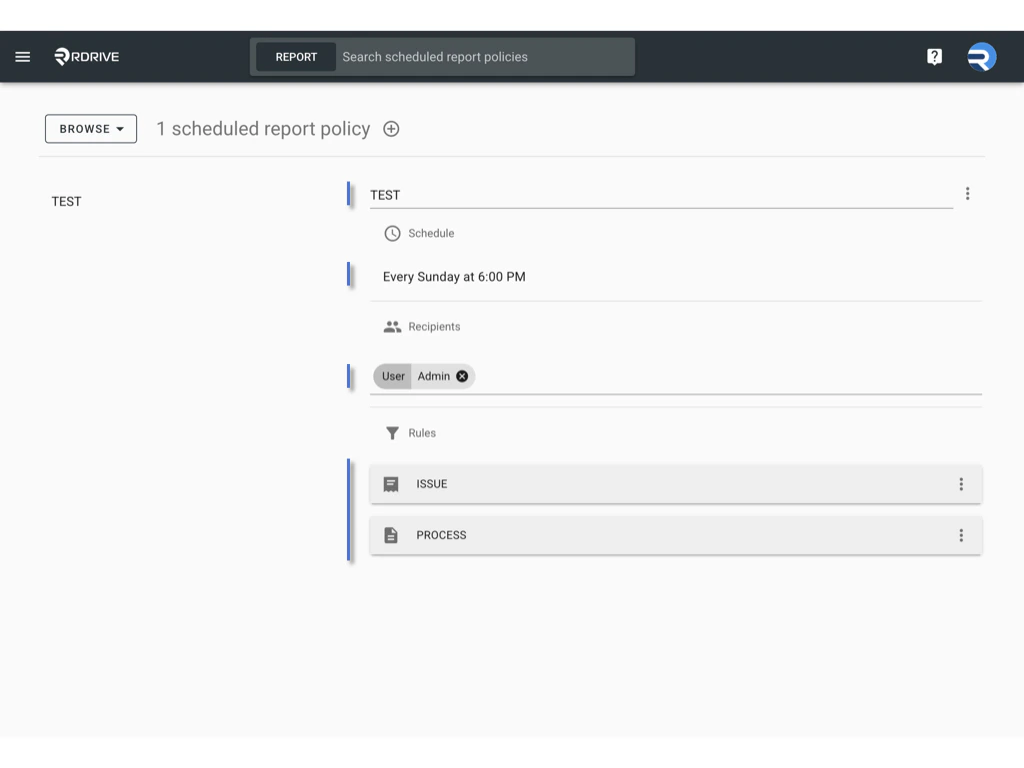
1. Select the policy you want to edit.
2. You can update:
* Report title
* Schedule
* Recipients
* Email layout and download options
* Issue and Process rules
***
## ✅ **Edit a Scheduled Report Policy**
1. Select the policy you want to edit.
2. You can update:
* Report title
* Schedule
* Recipients
* Email layout and download options
* Issue and Process rules
 ***
## ✅ **Edit a Schedule**
To edit the schedule of an existing report policy:
1. Click the **three-dot menu (****︙****)** next to the policy.\\
***
## ✅ **Edit a Schedule**
To edit the schedule of an existing report policy:
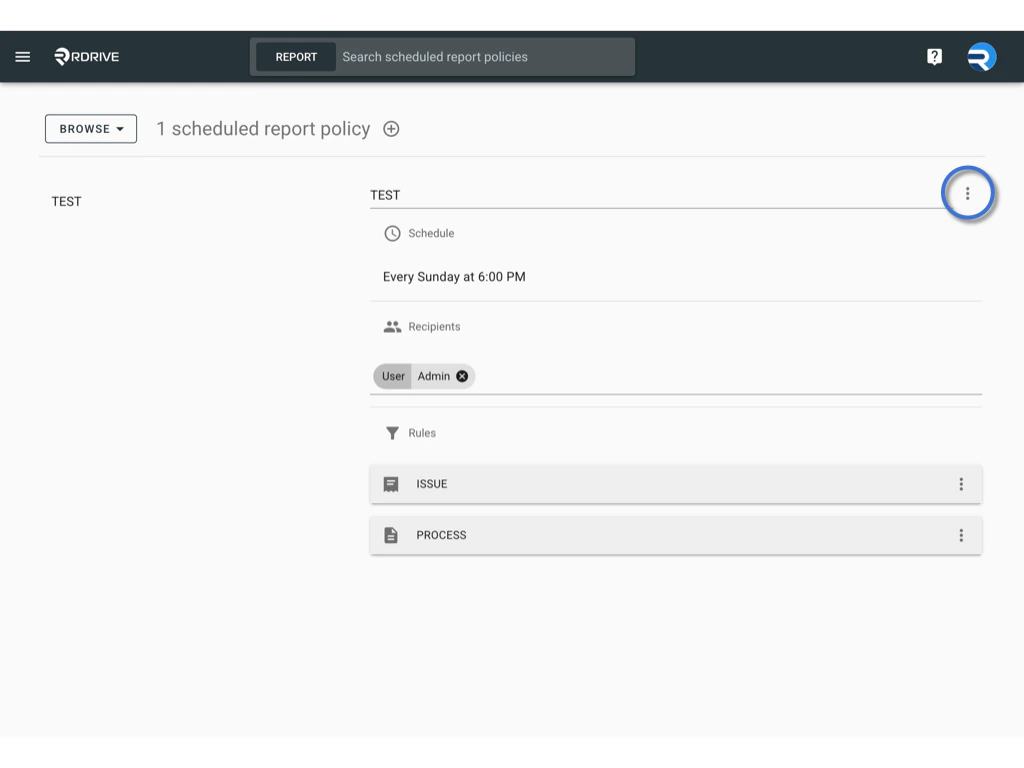
1. Click the **three-dot menu (****︙****)** next to the policy.\\
 2. Select **Schedule**
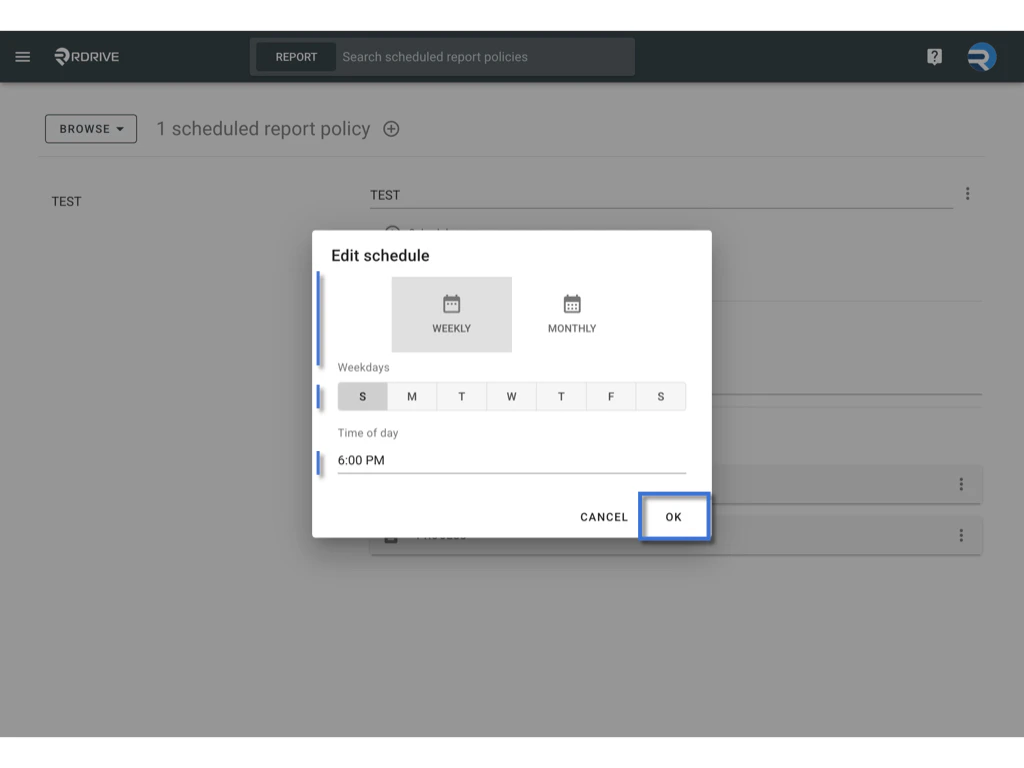
 3. Update the report frequency:
* **Daily**: Select the day(s) and set the delivery time.
* **Weekly**: Choose one or more weekdays and specify the time.
* **Monthly**: Set the time. Reports will be sent on the 1st day of each month.
Click **OK** to save your changes.\\
3. Update the report frequency:
* **Daily**: Select the day(s) and set the delivery time.
* **Weekly**: Choose one or more weekdays and specify the time.
* **Monthly**: Set the time. Reports will be sent on the 1st day of each month.
Click **OK** to save your changes.\\
 ***
## ✅ **Email Layout Options**
To customize how data is grouped in the email report:
1. Click the **three-dot menu** **(****︙****)** of the policy.
***
## ✅ **Email Layout Options**
To customize how data is grouped in the email report:
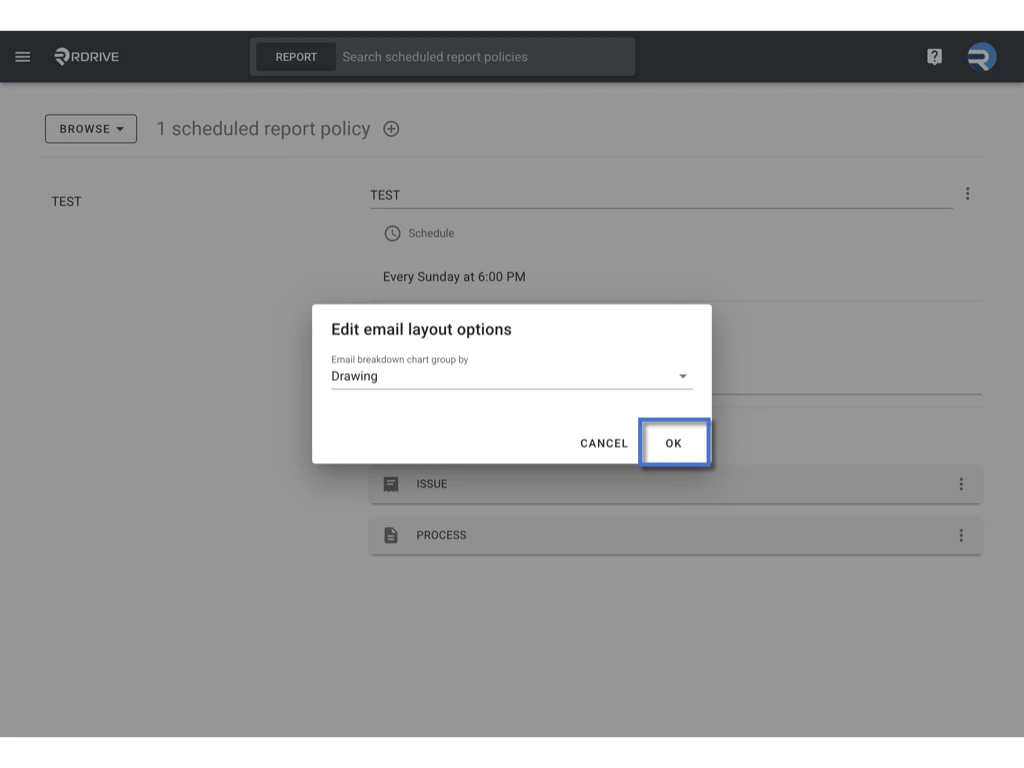
1. Click the **three-dot menu** **(****︙****)** of the policy.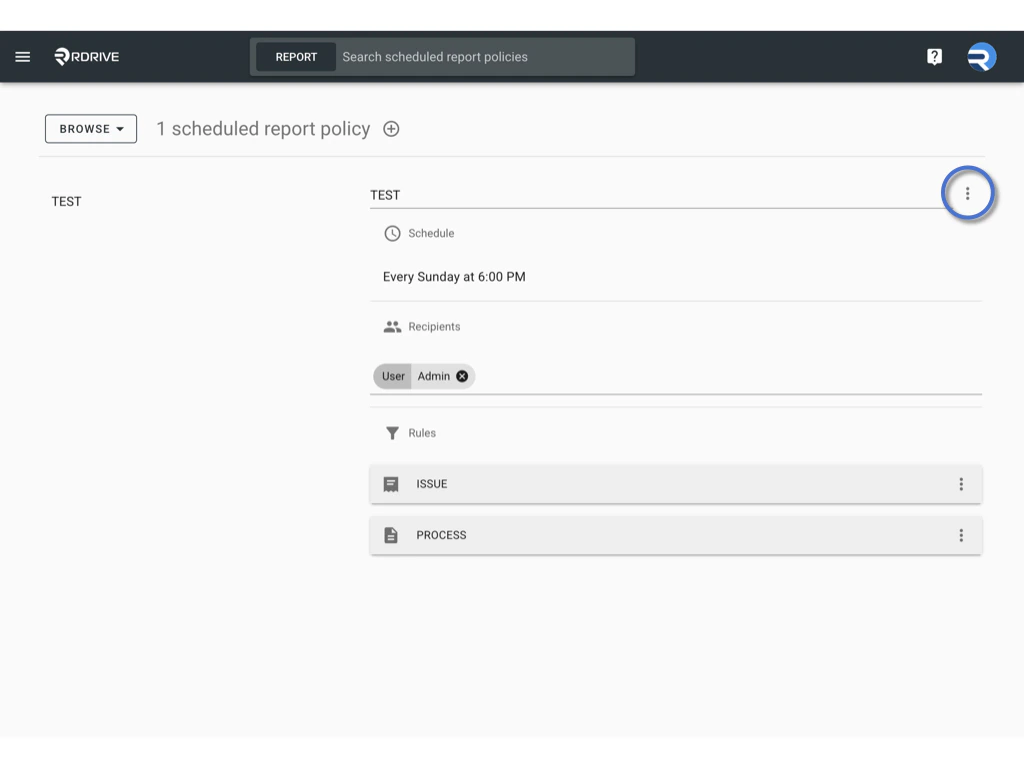 2. Select **Email Layout Options**.\\
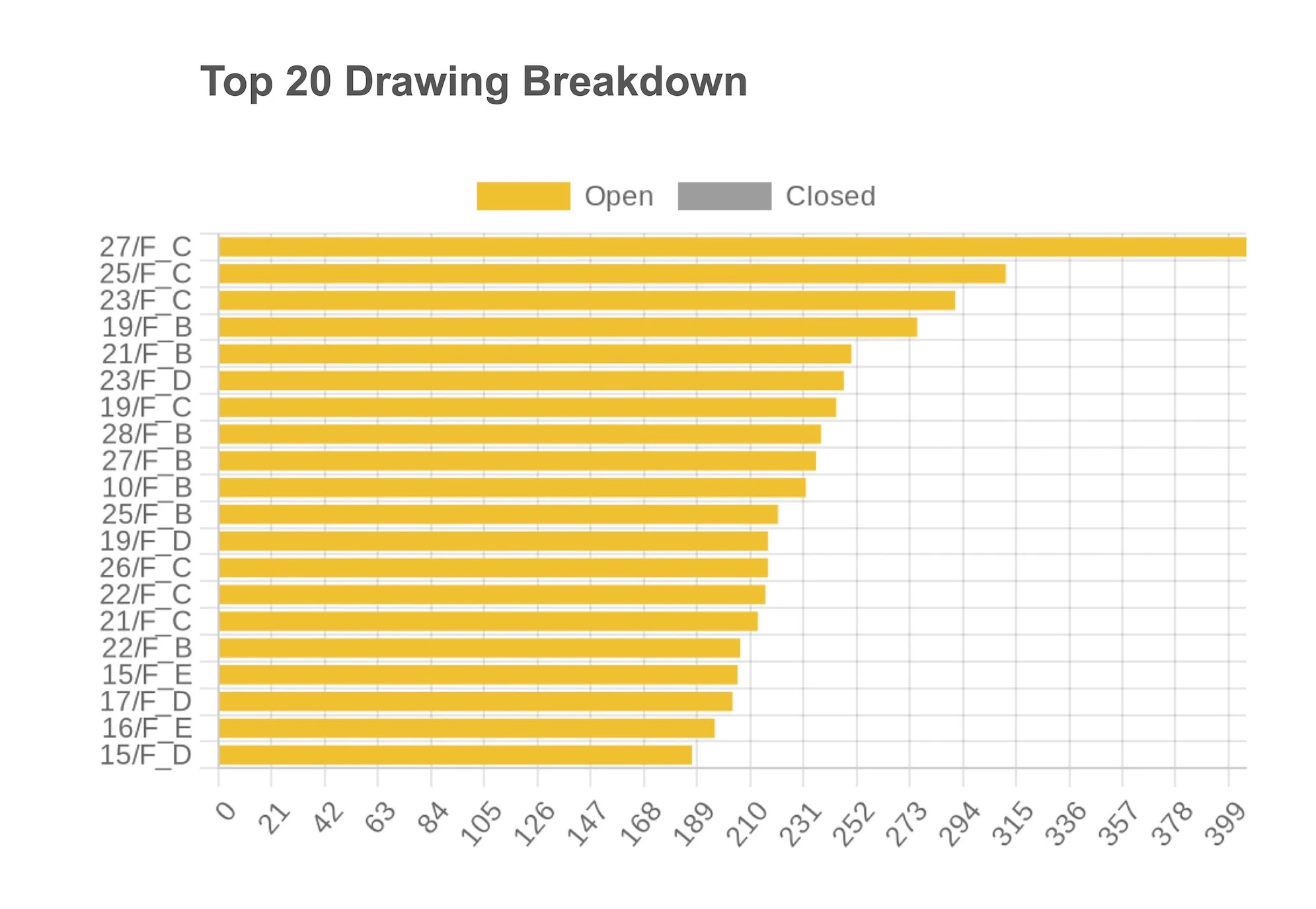
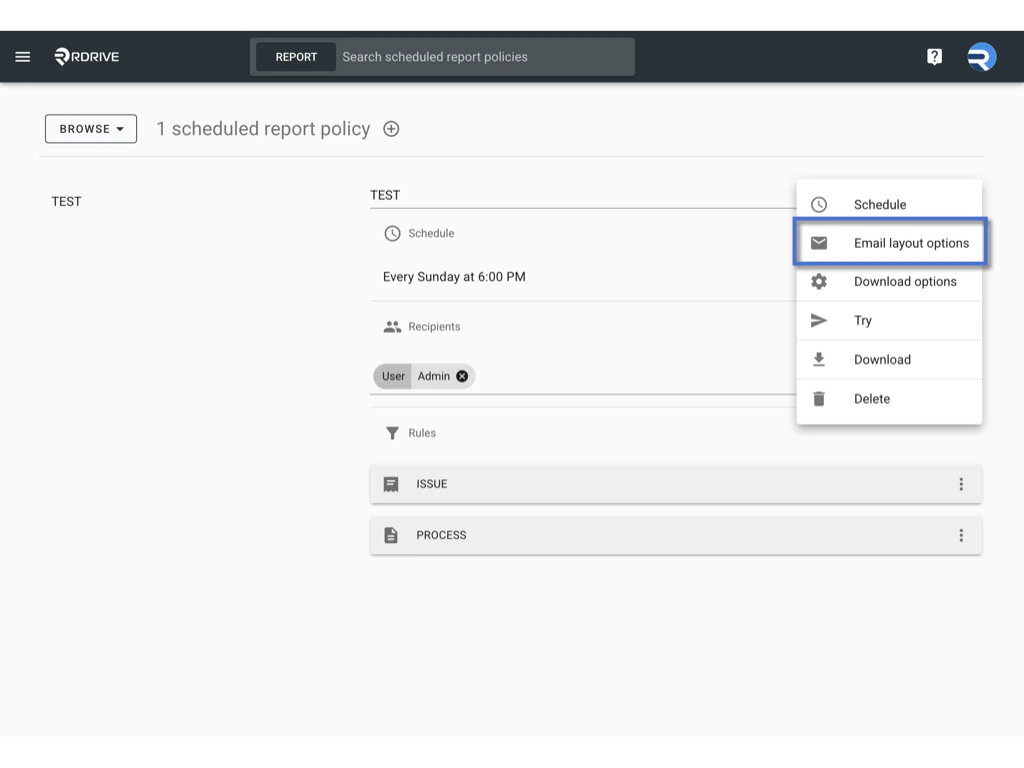 3. Choose how to group the breakdown chart (e.g., by Drawing Set, Drawing, or Location).\\
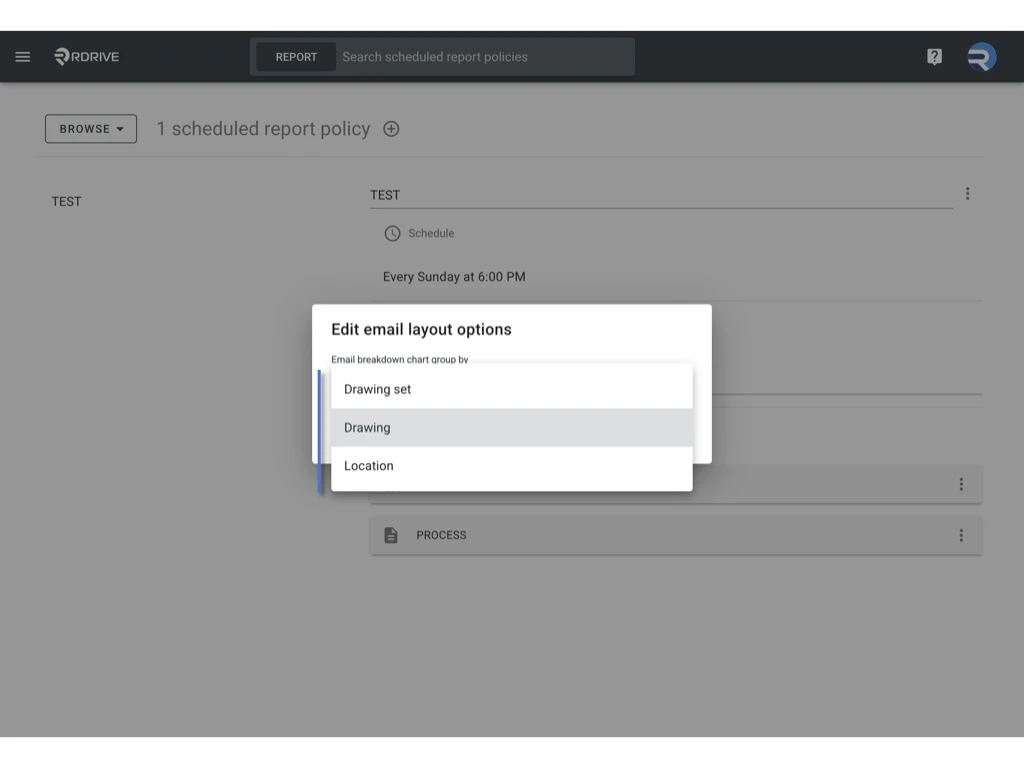 4. Click **OK** to confirm.\\
 Example of the Breakdown Chart:\\
 ***
##
✅ **Download Options**
You can define how the report is downloaded:
1. Click the ****three-dot menu** **(****︙****)**** of the policy.
2. Select **Download options**\\
***
##
✅ **Download Options**
You can define how the report is downloaded:
1. Click the ****three-dot menu** **(****︙****)**** of the policy.
2. Select **Download options**\\
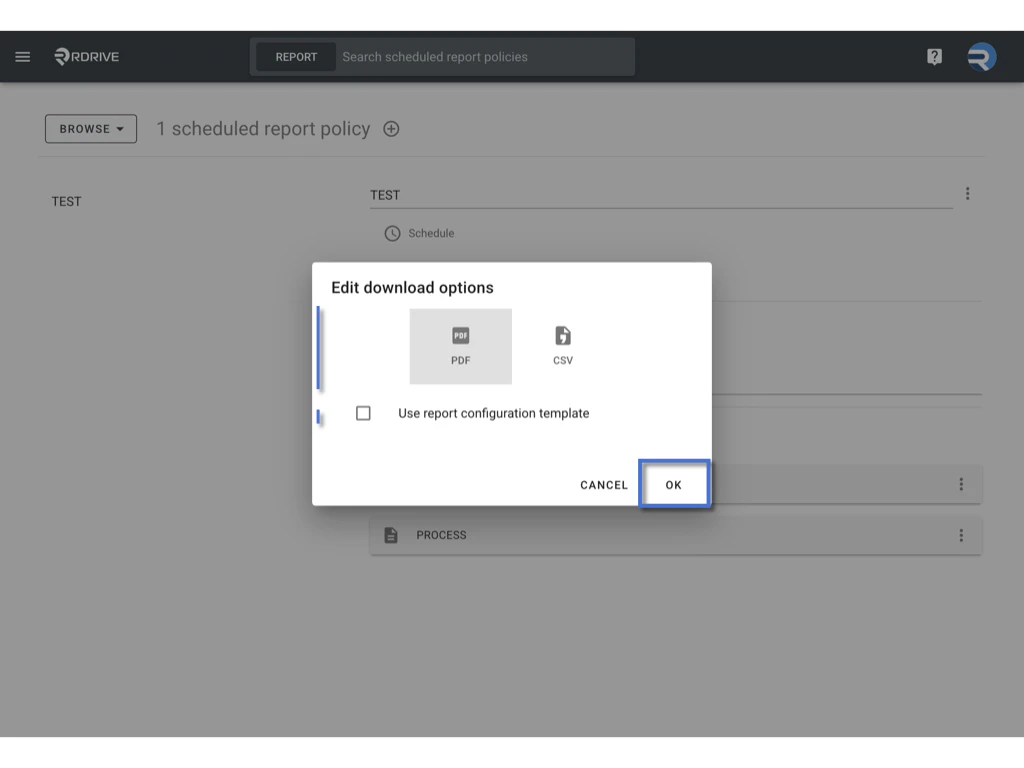
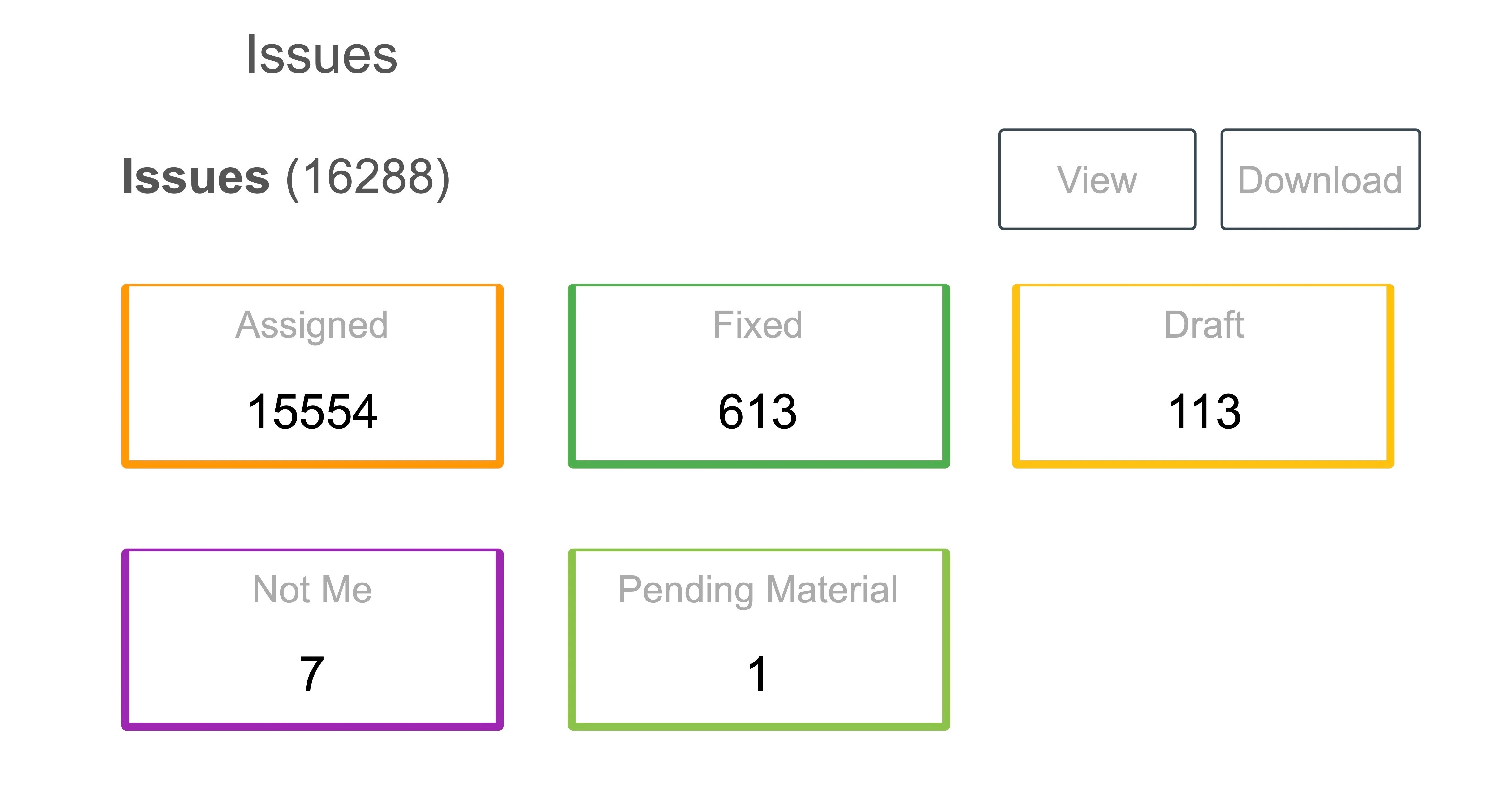
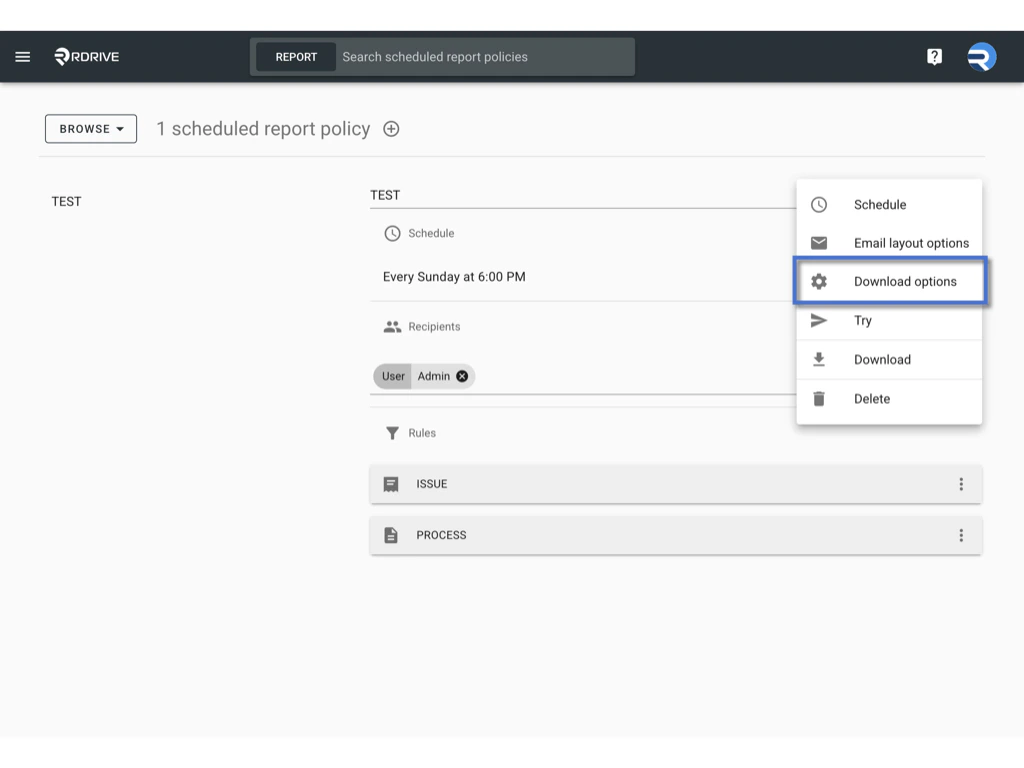 3. Choose to download as **PDF** (with or without a report configuration template), or as a **CSV** (using the data export template).\\
 4. The download link will be included in the email.\\
 5. Recipients can click the link to log in and start generating the report.
***
## ✅ **Try**
1. Click the ****three-dot menu** **(****︙****)**** of the policy.\\
5. Recipients can click the link to log in and start generating the report.
***
## ✅ **Try**
1. Click the ****three-dot menu** **(****︙****)**** of the policy.\\
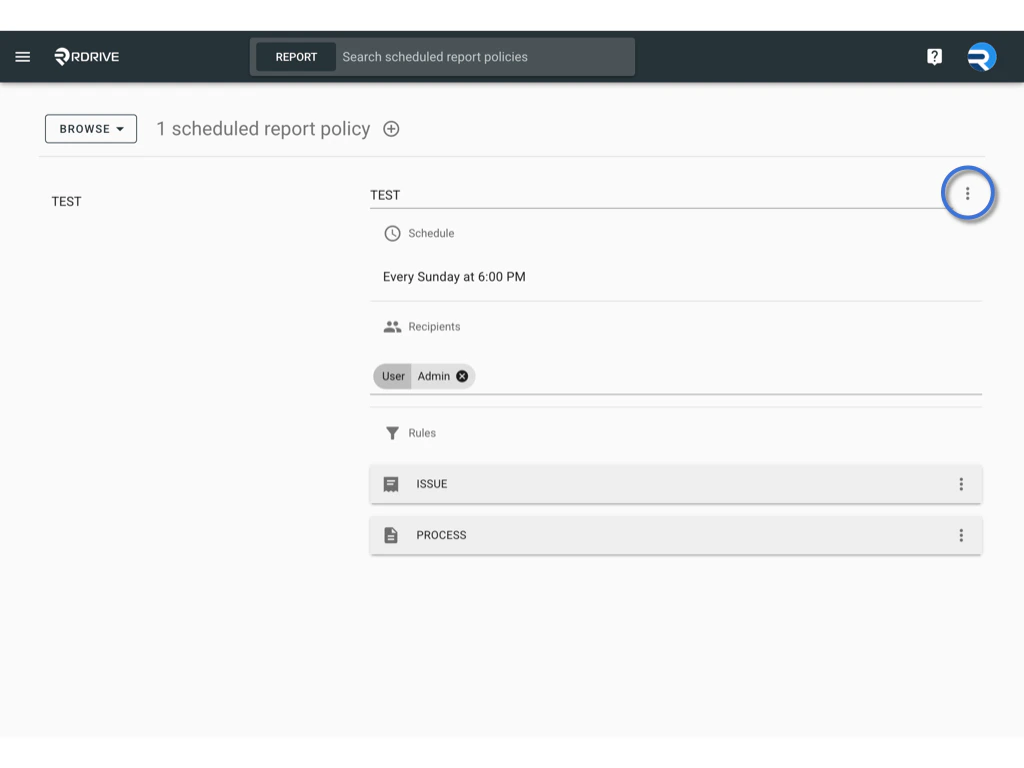 2. Use **Try** to preview the report before the schedule triggers.\\
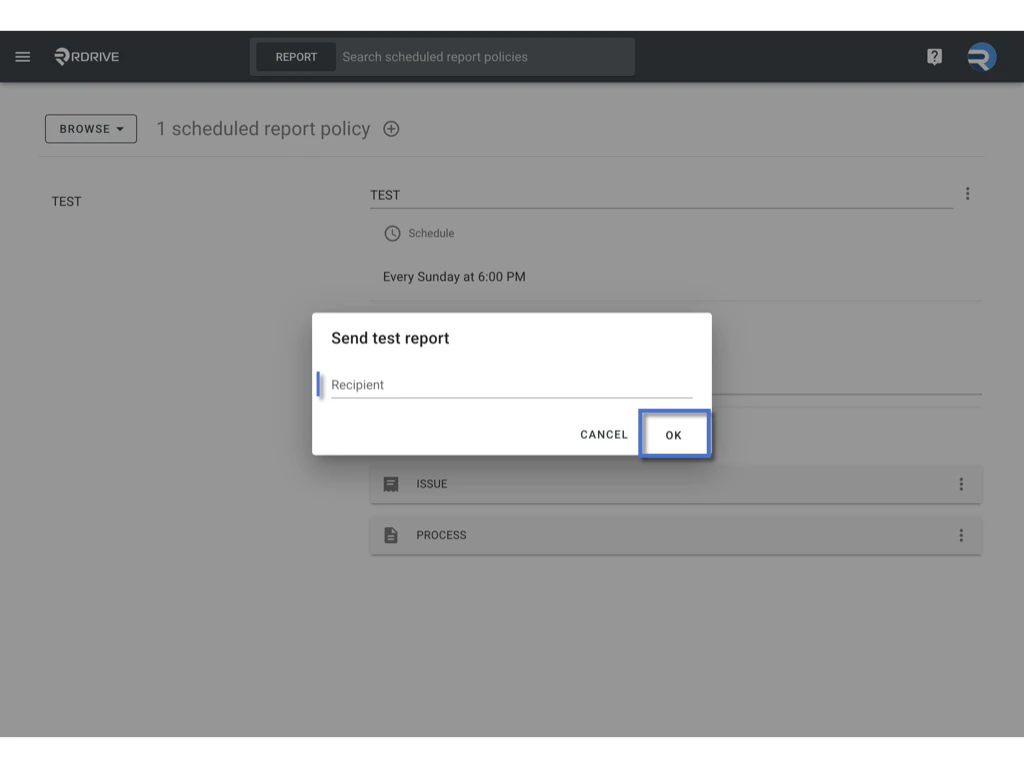 3. Send a test report to yourself or selected users.
***
## ✅ **Recipients**
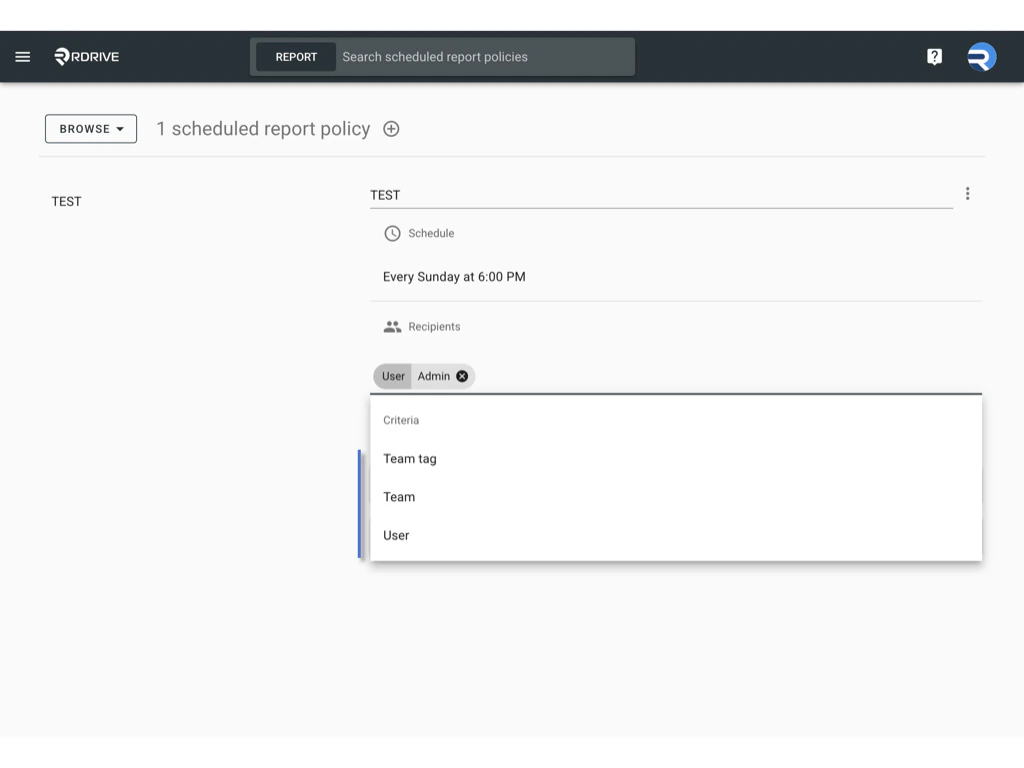
1. Edit recipients by selecting user names, team names, or team tags.\
3. Send a test report to yourself or selected users.
***
## ✅ **Recipients**
1. Edit recipients by selecting user names, team names, or team tags.\
 \\
\\
 ***
## ✅ **Download**
1. Click the ****three-dot menu** **(****︙****)**** of the policy.
2. Click **Download** to export the policy as a `.json` file.\\
***
## ✅ **Download**
1. Click the ****three-dot menu** **(****︙****)**** of the policy.
2. Click **Download** to export the policy as a `.json` file.\\
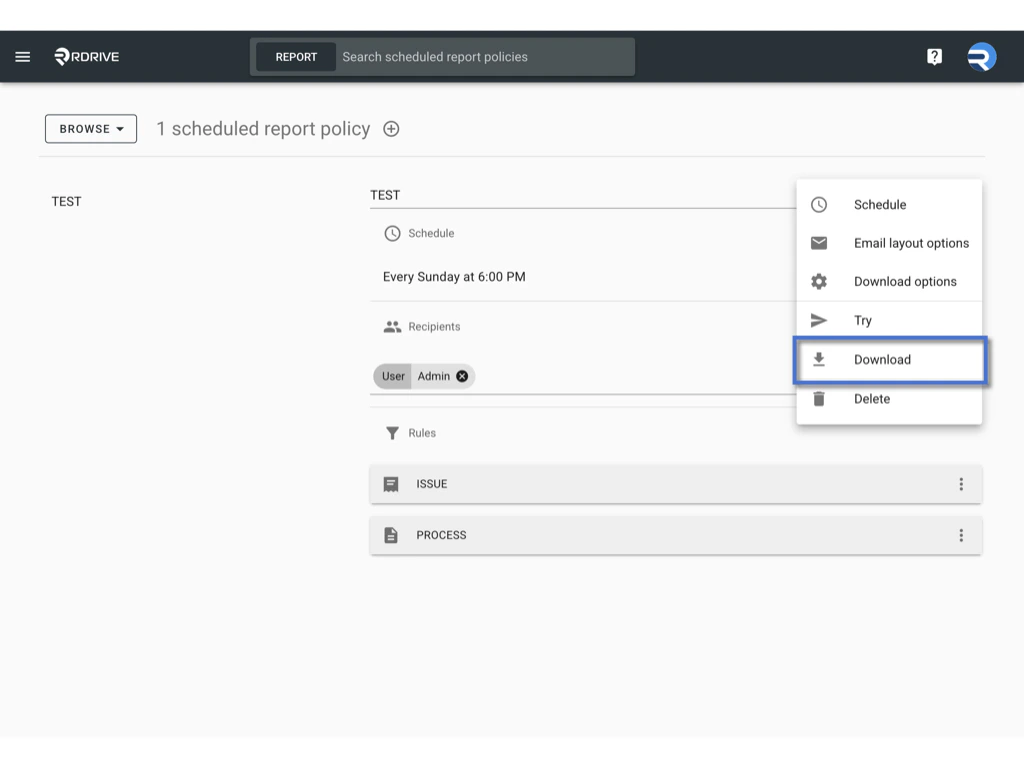 Useful for backup or importing into another project.
***
## ✅ **Batch Download**
1. Change the viewer to **Select Mode**.\
Useful for backup or importing into another project.
***
## ✅ **Batch Download**
1. Change the viewer to **Select Mode**.\
 \\
\\
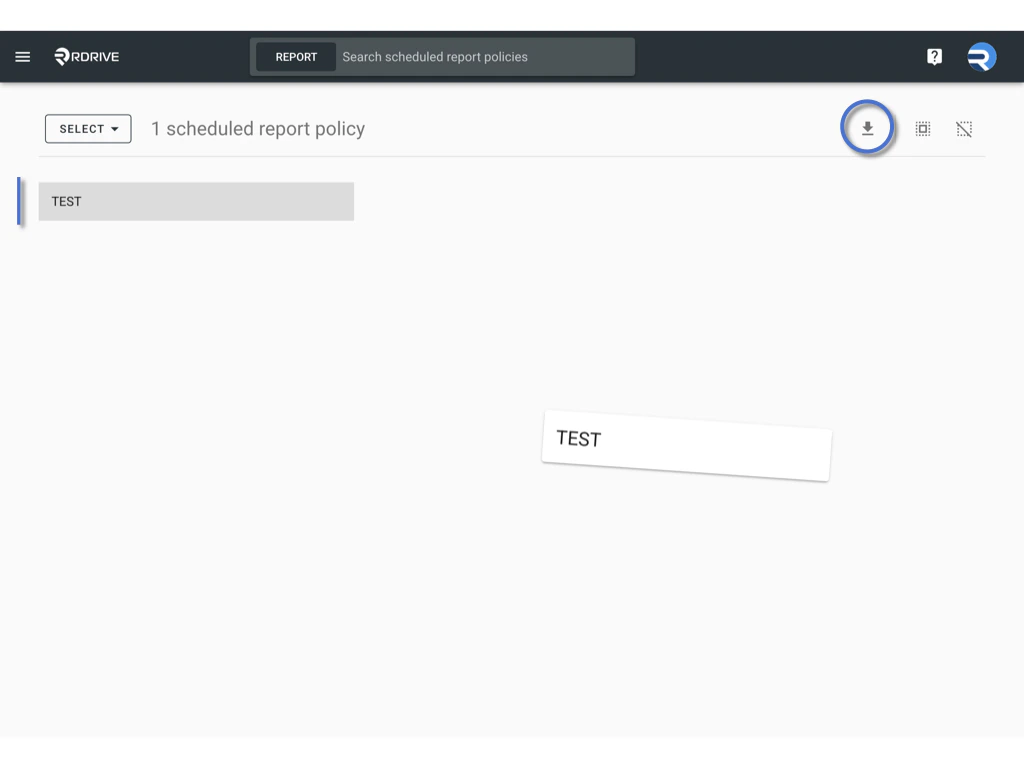
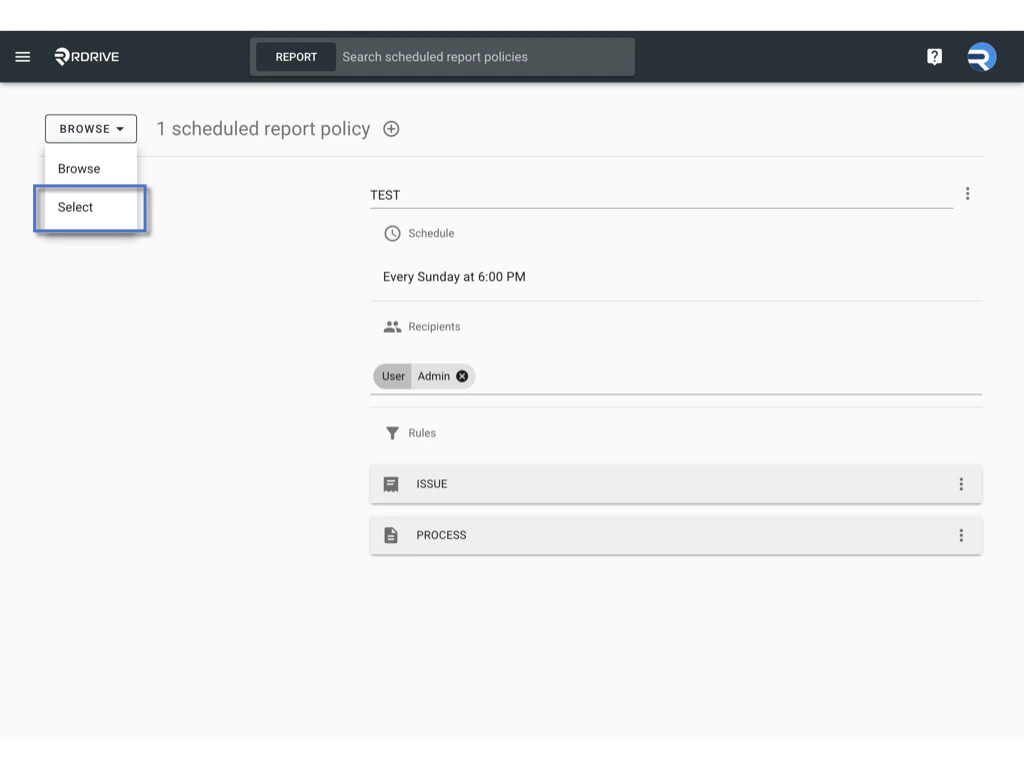 2. Select multiple policies.
3. Click Batch **Download** icon to export them all at once.\\
2. Select multiple policies.
3. Click Batch **Download** icon to export them all at once.\\
 ***
## ✅ **Set Rules for Scheduled Reports**
Each policy can be filtered using conditions to control what content is included.
1. Under **Rules**, click **ISSUE** or **PROCESS**.\\
***
## ✅ **Set Rules for Scheduled Reports**
Each policy can be filtered using conditions to control what content is included.
1. Under **Rules**, click **ISSUE** or **PROCESS**.\\
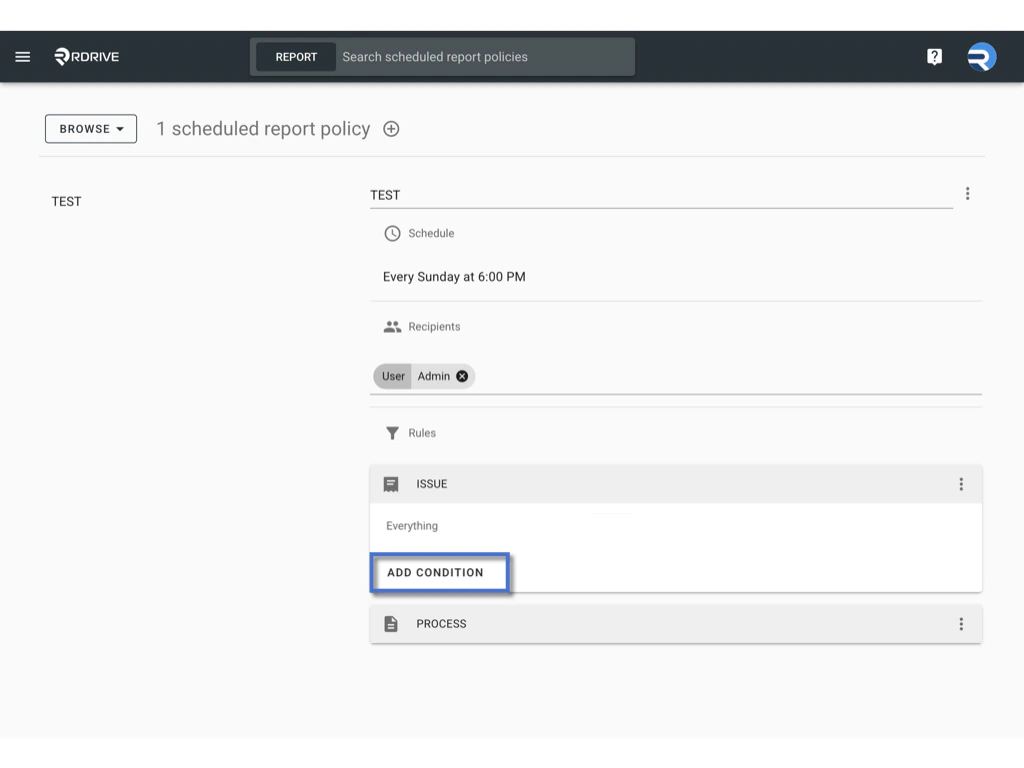 2. Click to add filters such as:
* Status
* Template
* Drawing set
* Location tag
* Assigned team
* Controlled team
* Created / Updated / Closed within report period
* And more\
2. Click to add filters such as:
* Status
* Template
* Drawing set
* Location tag
* Assigned team
* Controlled team
* Created / Updated / Closed within report period
* And more\
 \\
\\
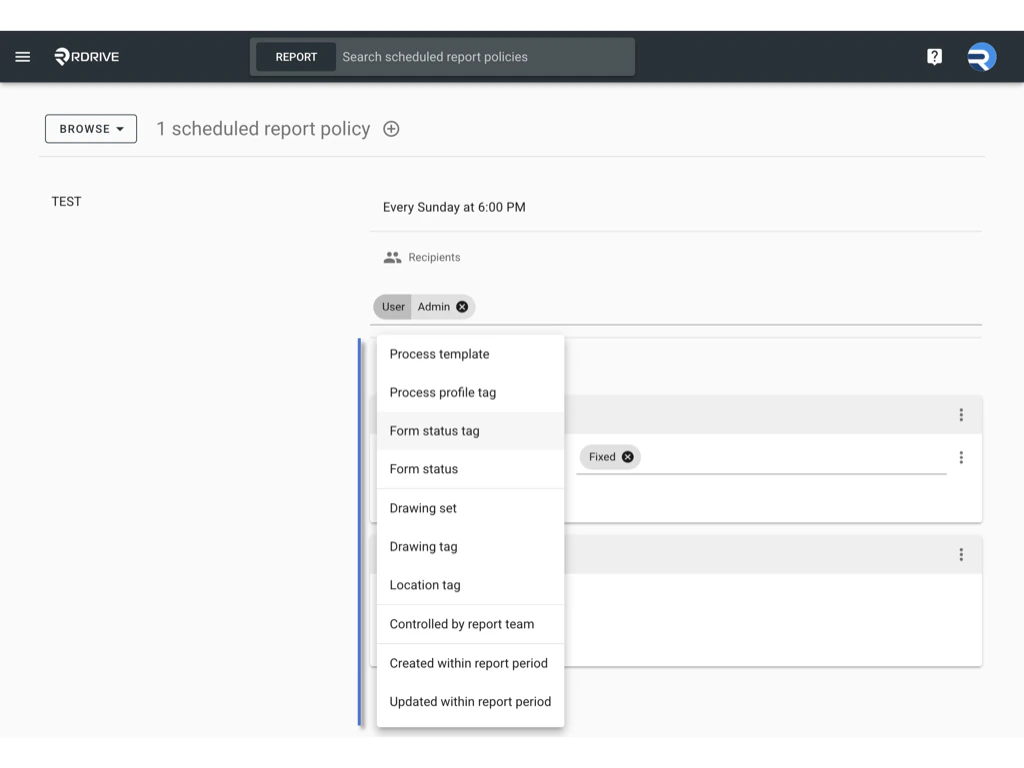 3. Use dropdown lists to select values.\\
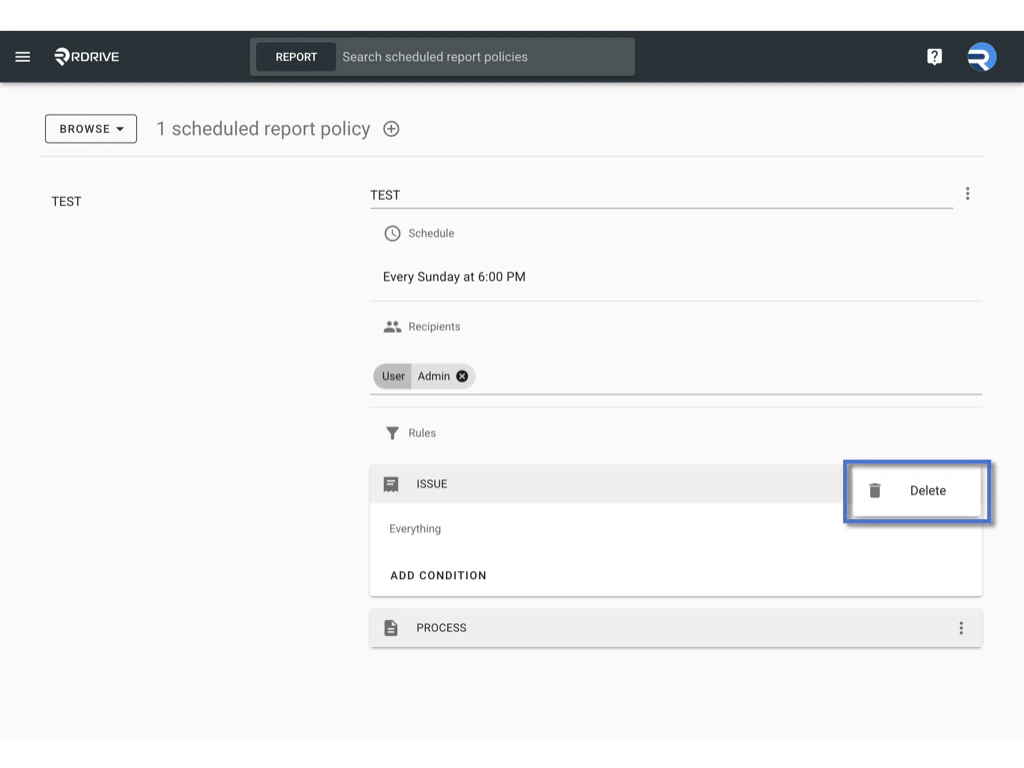
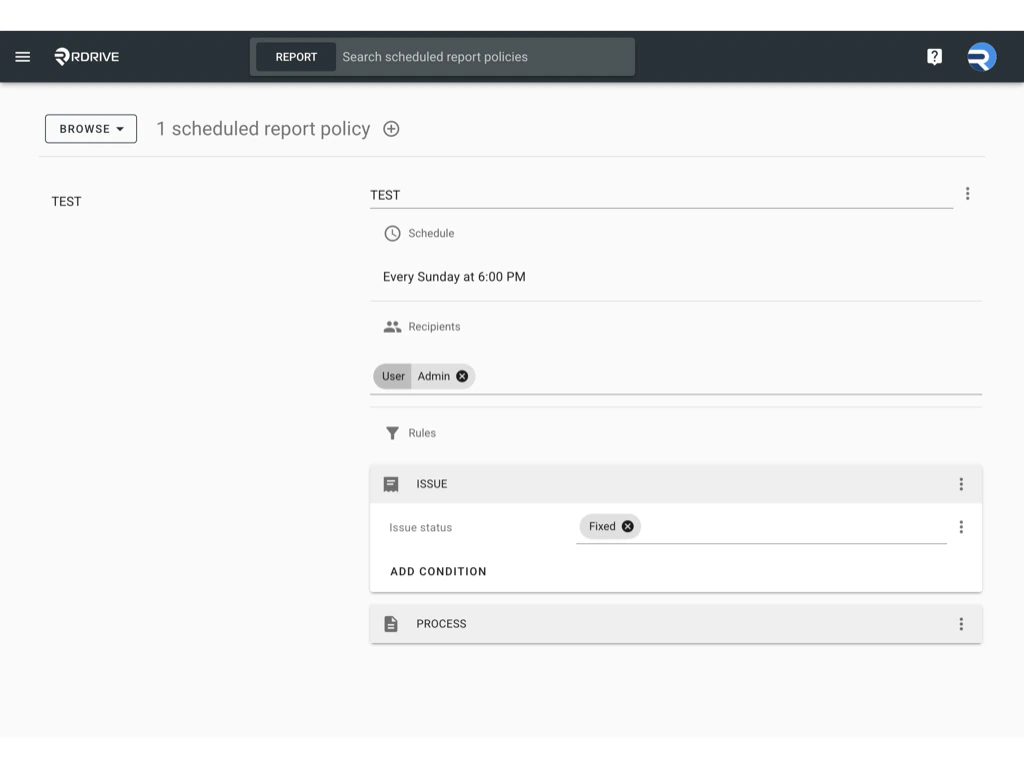 4. To remove conditions, click the ****three-dot menu** **(****︙****)**** next to the rule.\
 \\
\\
 ***
## **✅ Upload a Scheduled Report Policy (.json file)**
If you have previously downloaded a `.json` file of a scheduled report policy (e.g., for backup or sharing across projects), you can upload it to restore or reuse the settings:
1. Click the **Add (+)** button to start creating a new policy.
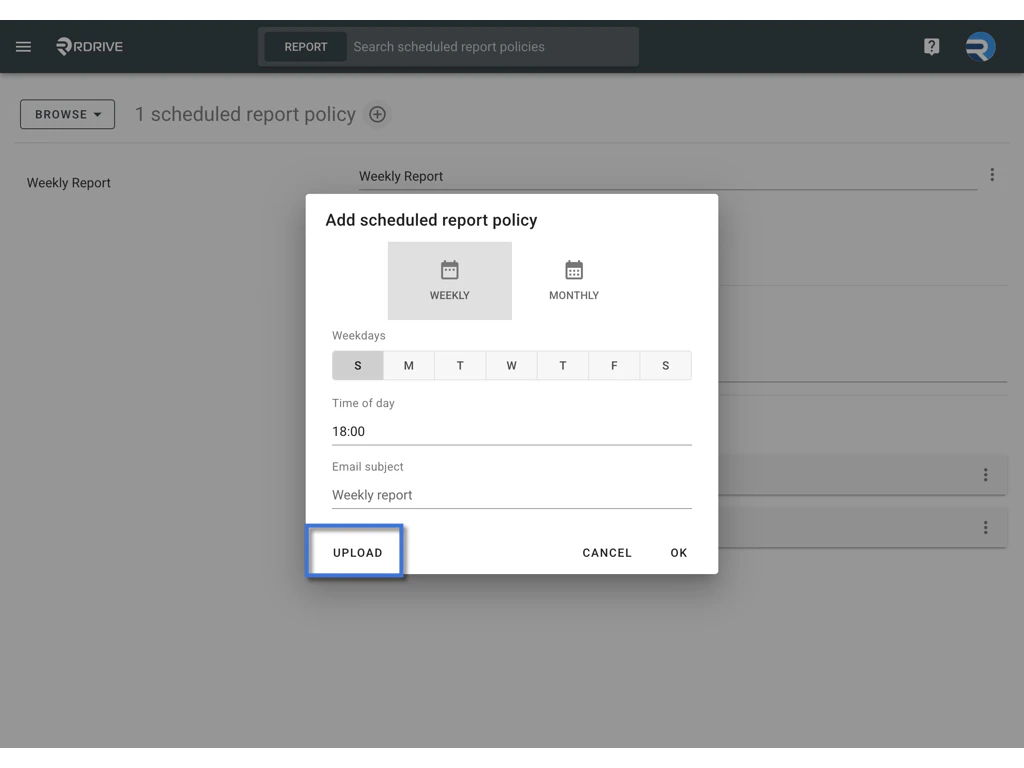
2. At the bottom-right corner of the popup, click the **UPLOAD** button.\\
***
## **✅ Upload a Scheduled Report Policy (.json file)**
If you have previously downloaded a `.json` file of a scheduled report policy (e.g., for backup or sharing across projects), you can upload it to restore or reuse the settings:
1. Click the **Add (+)** button to start creating a new policy.
2. At the bottom-right corner of the popup, click the **UPLOAD** button.\\
 3. Select the `.json` file from your device.
The policy will be uploaded and appear in your policy list.
***
## ✅ **Delete a Scheduled Report Policy**
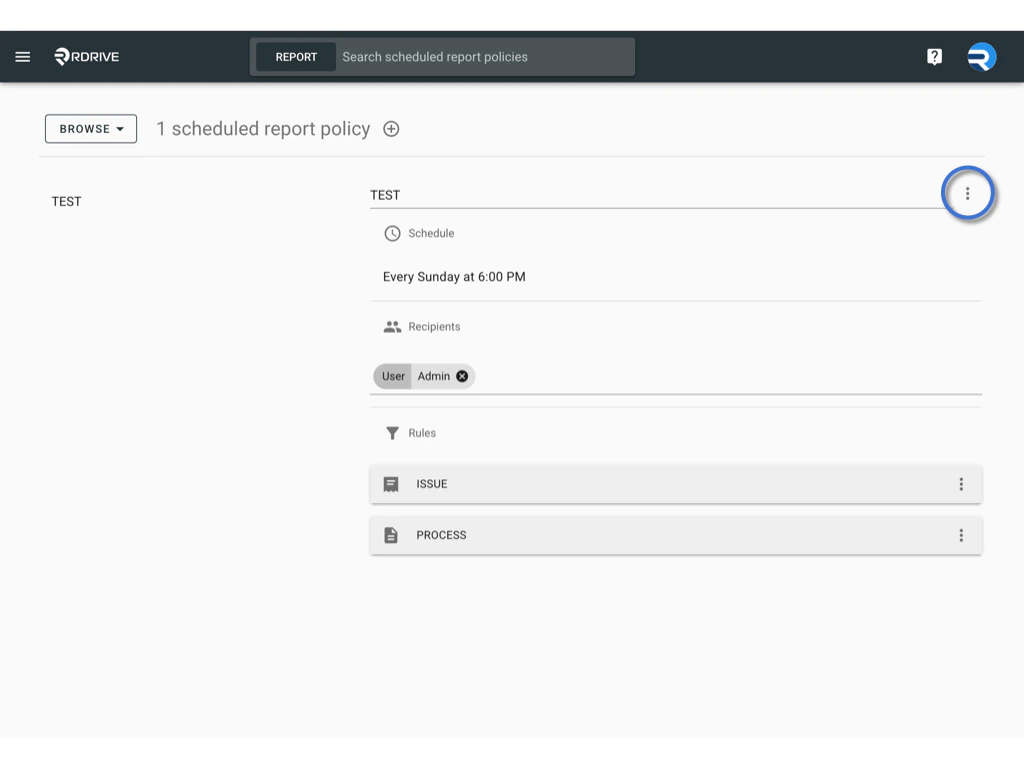
1. Open the ****three-dot menu** **(****︙****)**** of the policy.\\
3. Select the `.json` file from your device.
The policy will be uploaded and appear in your policy list.
***
## ✅ **Delete a Scheduled Report Policy**
1. Open the ****three-dot menu** **(****︙****)**** of the policy.\\
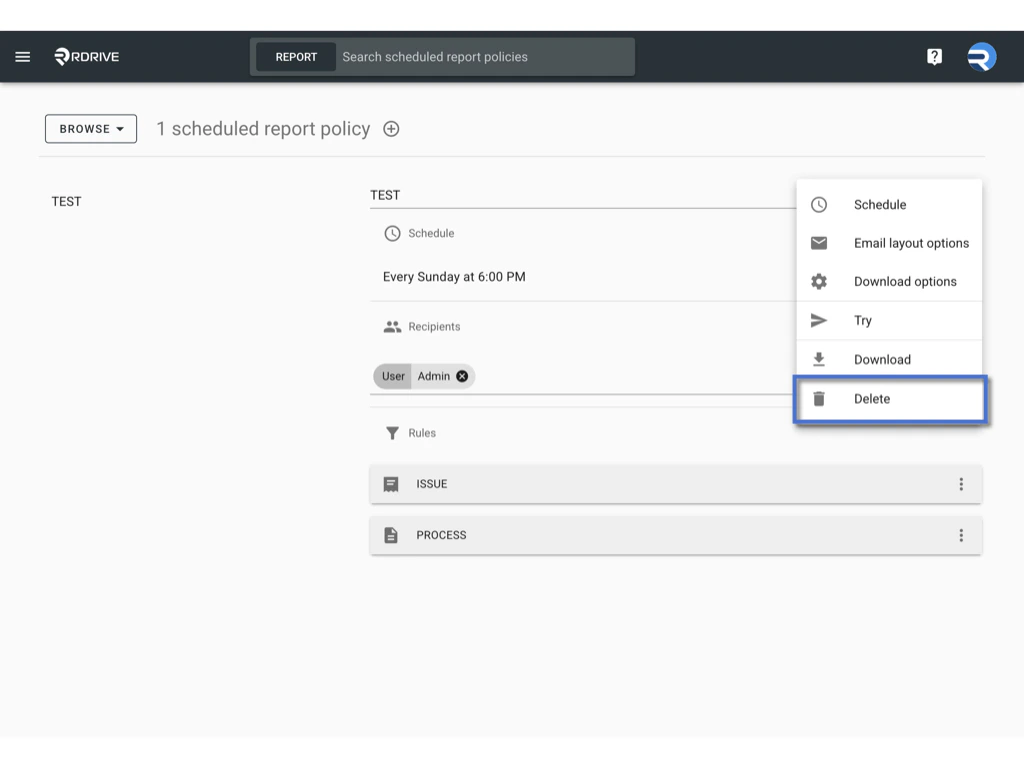
 2. Click **Delete**.\\
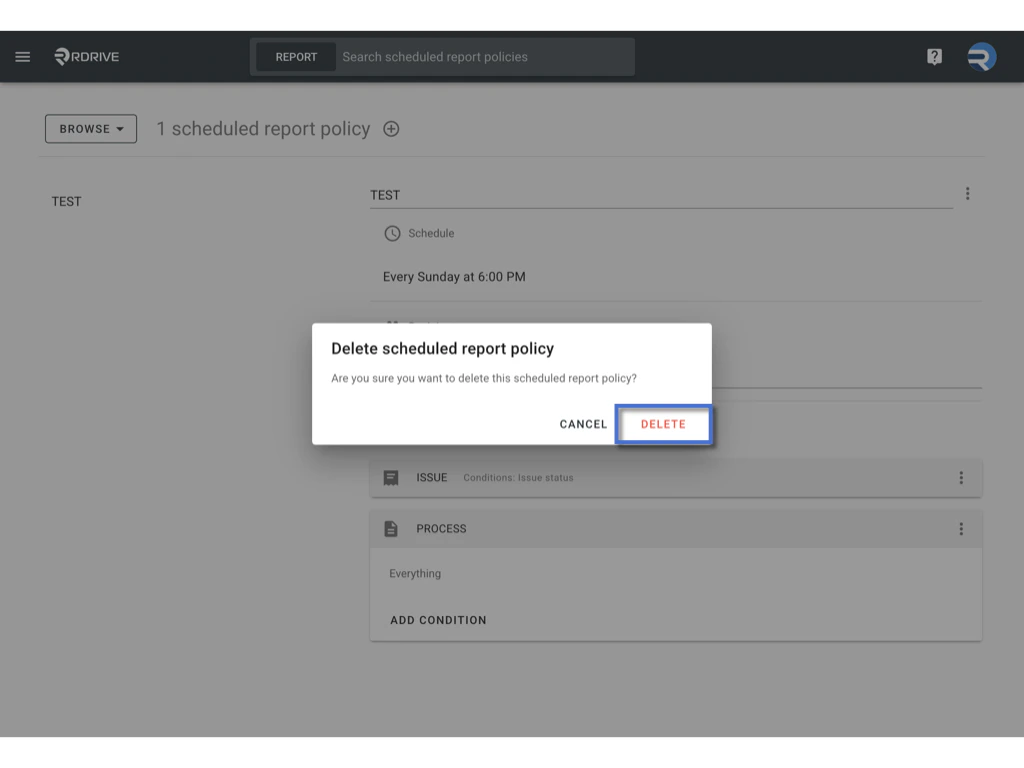
 3. Confirm the deletion when prompted.\\
 ***
## **FAQs & Troubleshooting**
### **Q: Why didn’t I receive the scheduled report?**
A: Please check the following:
* The scheduled time has passed.
* You were correctly added as a recipient.
* Email settings are configured properly.
* Additionally, check the Email Log to verify if the report was sent.
***
### **Q: Can I schedule multiple reports?**
A: Yes, you can create as many report policies as needed, each with its own title, filters, and schedule.
***
### **Q: Can I edit or stop a report after it has been scheduled?**
A: Yes. You can open the report policy anytime to edit the title, schedule, recipients, rules, or layout. If you wish to stop the report, you can either delete the policy or remove all recipients to prevent it from being sent.
***
### Email sample:
***
## **FAQs & Troubleshooting**
### **Q: Why didn’t I receive the scheduled report?**
A: Please check the following:
* The scheduled time has passed.
* You were correctly added as a recipient.
* Email settings are configured properly.
* Additionally, check the Email Log to verify if the report was sent.
***
### **Q: Can I schedule multiple reports?**
A: Yes, you can create as many report policies as needed, each with its own title, filters, and schedule.
***
### **Q: Can I edit or stop a report after it has been scheduled?**
A: Yes. You can open the report policy anytime to edit the title, schedule, recipients, rules, or layout. If you wish to stop the report, you can either delete the policy or remove all recipients to prevent it from being sent.
***
### Email sample: