> ## Documentation Index
> Fetch the complete documentation index at: https://docs.rdrive.io/llms.txt
> Use this file to discover all available pages before exploring further.
# How to add a Process/Checklist from the Plan Viewer?
> RDrive is a location based system. You have to access a drawing and look for a location pin to add a new process/checklist record.
**RDrive** is a location based system. You have to access a drawing and look for a location pin to add a new process/checklist record.
Simply press the Menu icon ≡ in the top left corner of your screen to unfold the Menu and choose Plan Viewer. Then you select the correct drawing.
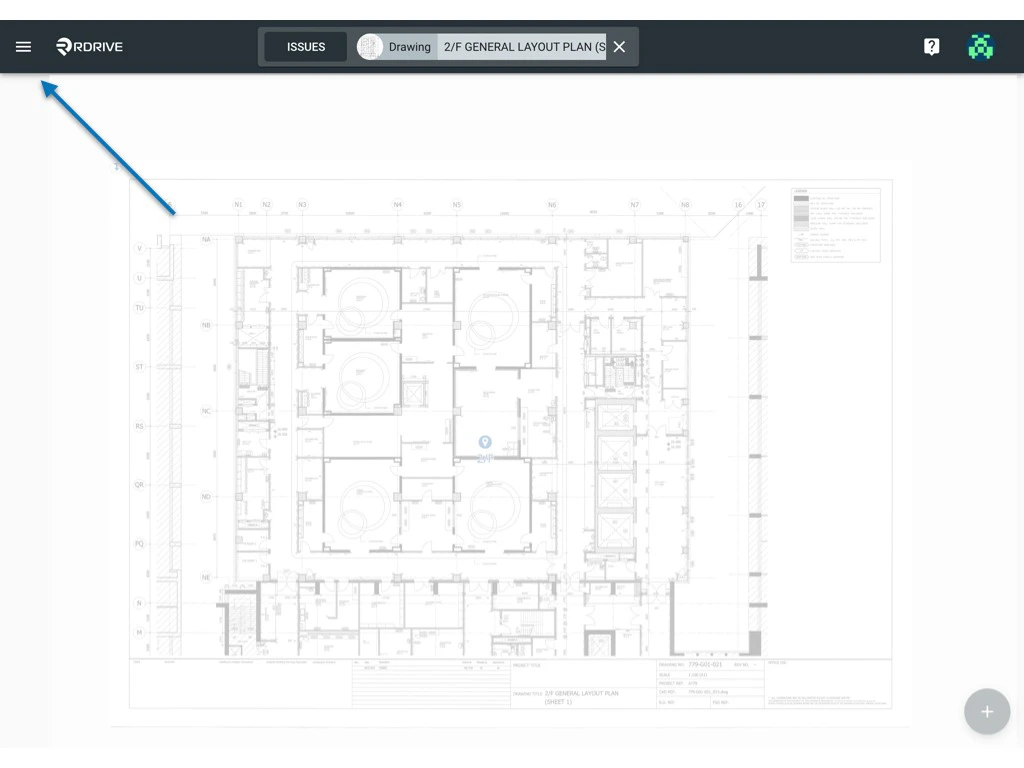
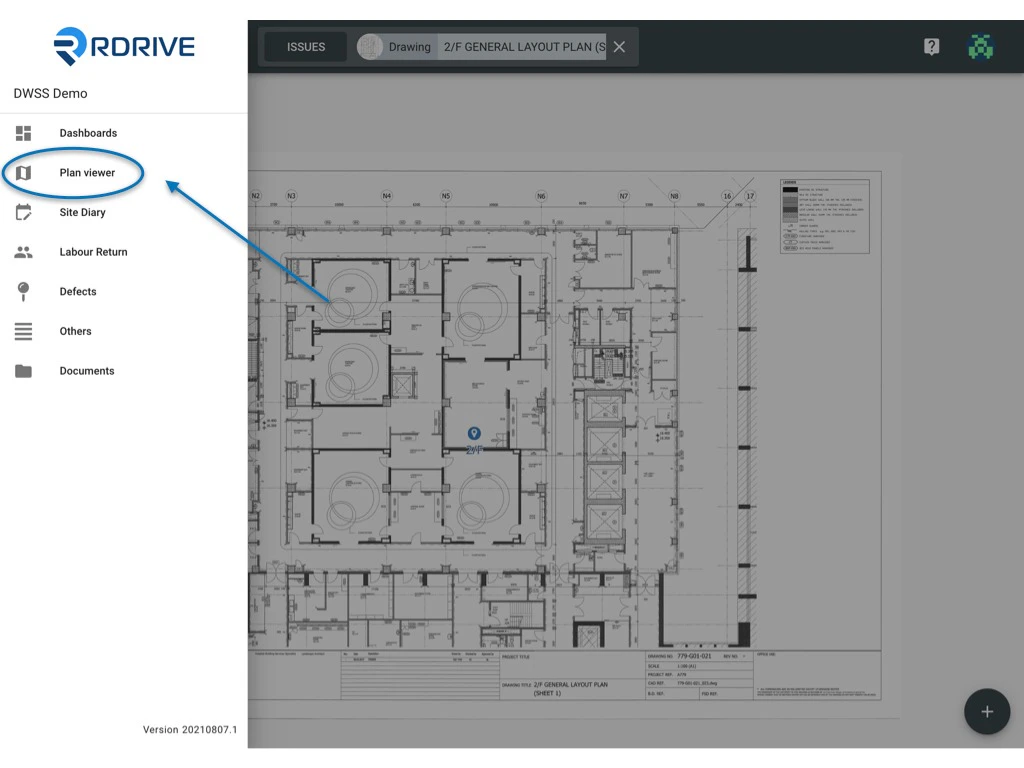 Once you have selected your drawing, you can then create a new process/checklist.
## **Raising a process/checklist from a location**
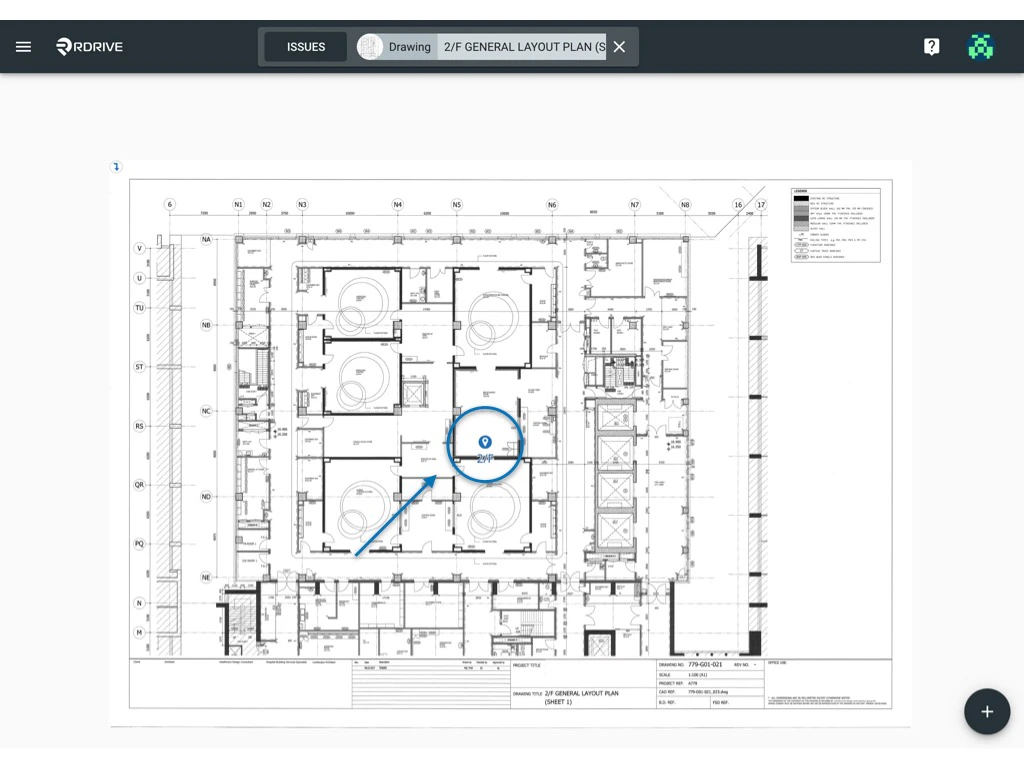
Click on the blue location pin as shown below.
Once you have selected your drawing, you can then create a new process/checklist.
## **Raising a process/checklist from a location**
Click on the blue location pin as shown below.
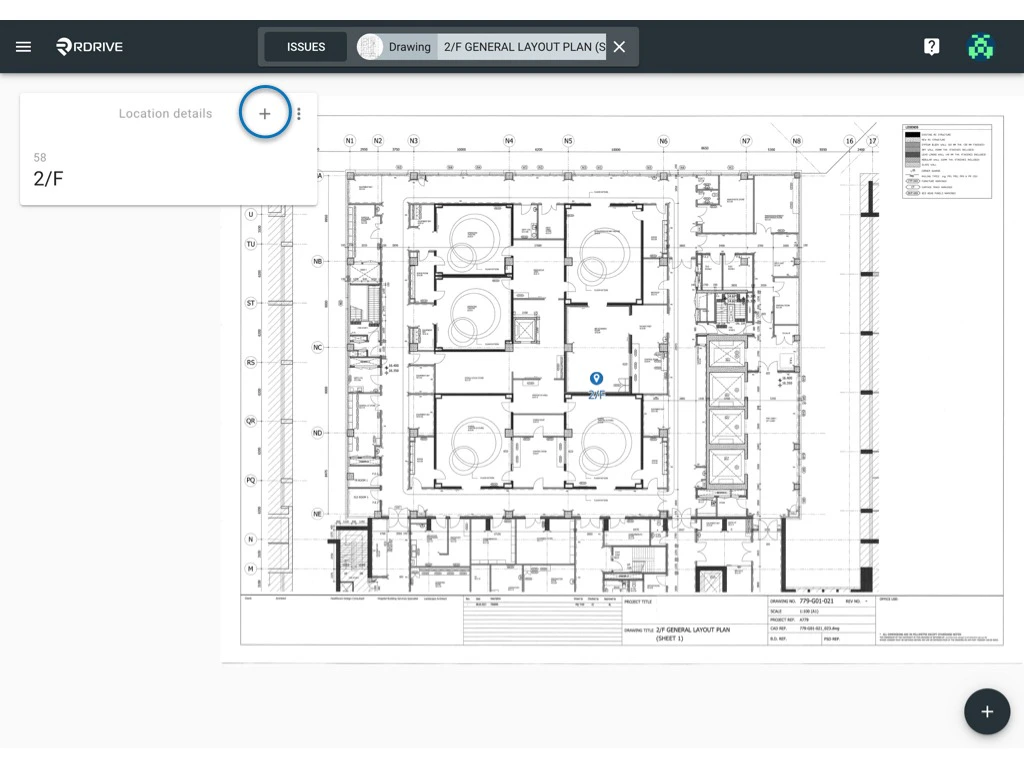
 Click the ✚ button in the top left corner for the categories list to unfold and select the subcategory which you want to create as below\...
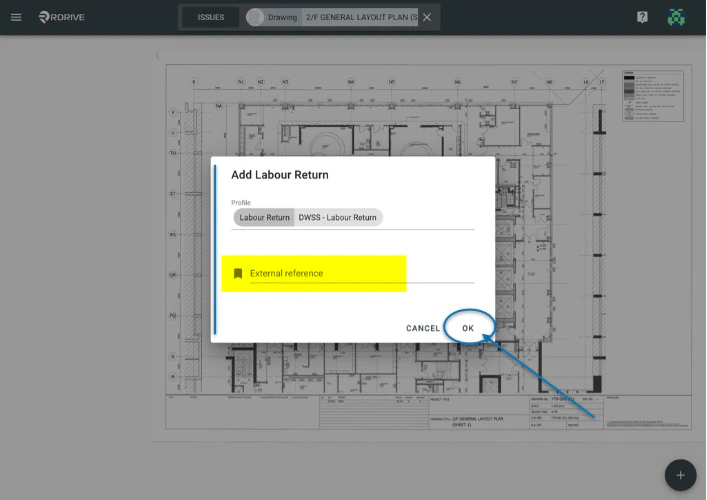
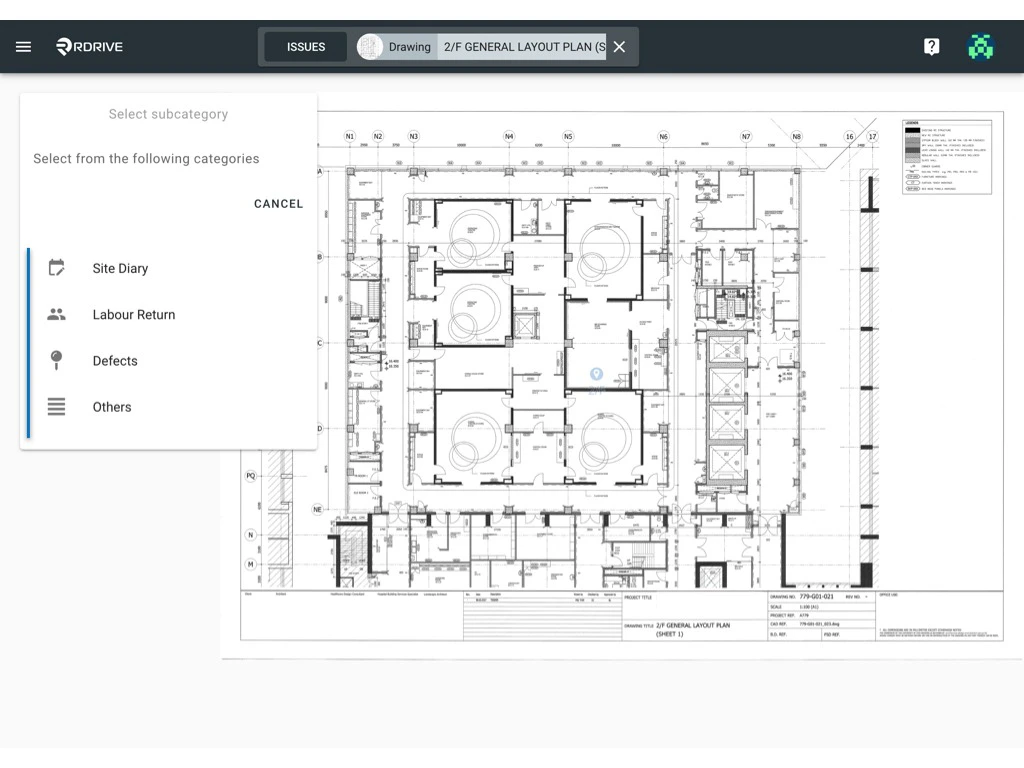 Choose the relevant process/checklist from the subcategory and enter External Reference (highlighted) information if necessary in the detail window as shown below.
Once completed, press "**OK**" to confirm.
Choose the relevant process/checklist from the subcategory and enter External Reference (highlighted) information if necessary in the detail window as shown below.
Once completed, press "**OK**" to confirm.
 ***
## **Raising a process/checklist from the "add item" option**
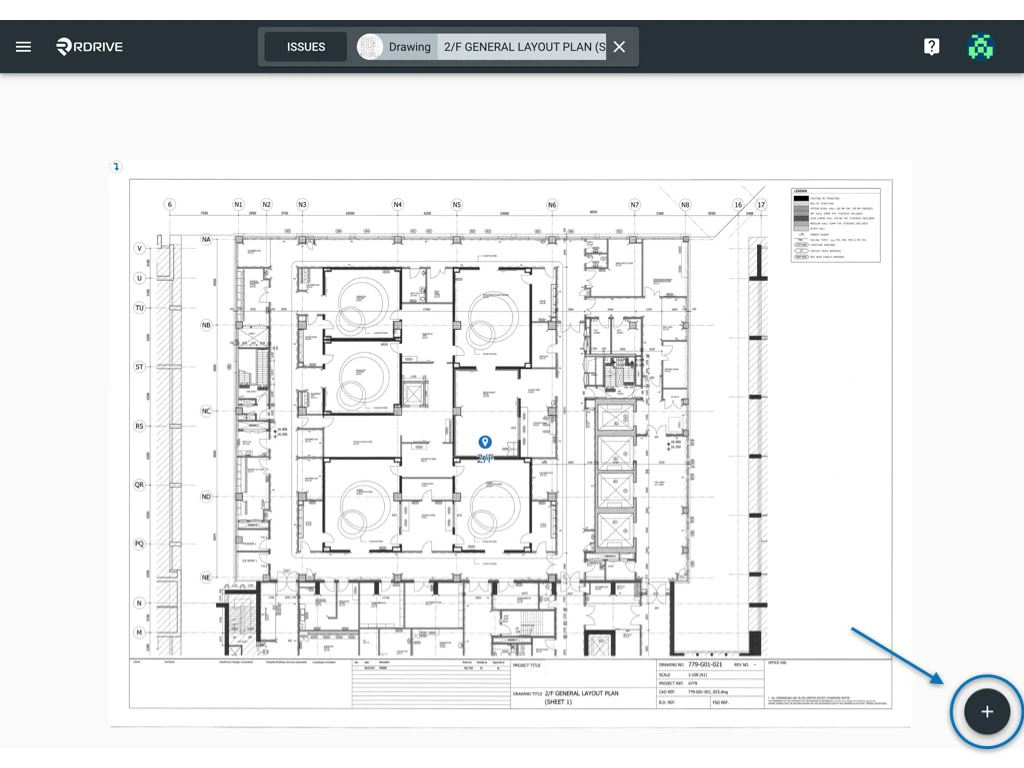
Press the ✚ button at the bottom right corner.
***
## **Raising a process/checklist from the "add item" option**
Press the ✚ button at the bottom right corner.
 Under the Item section, select a subcategory from the categories list as shown below.
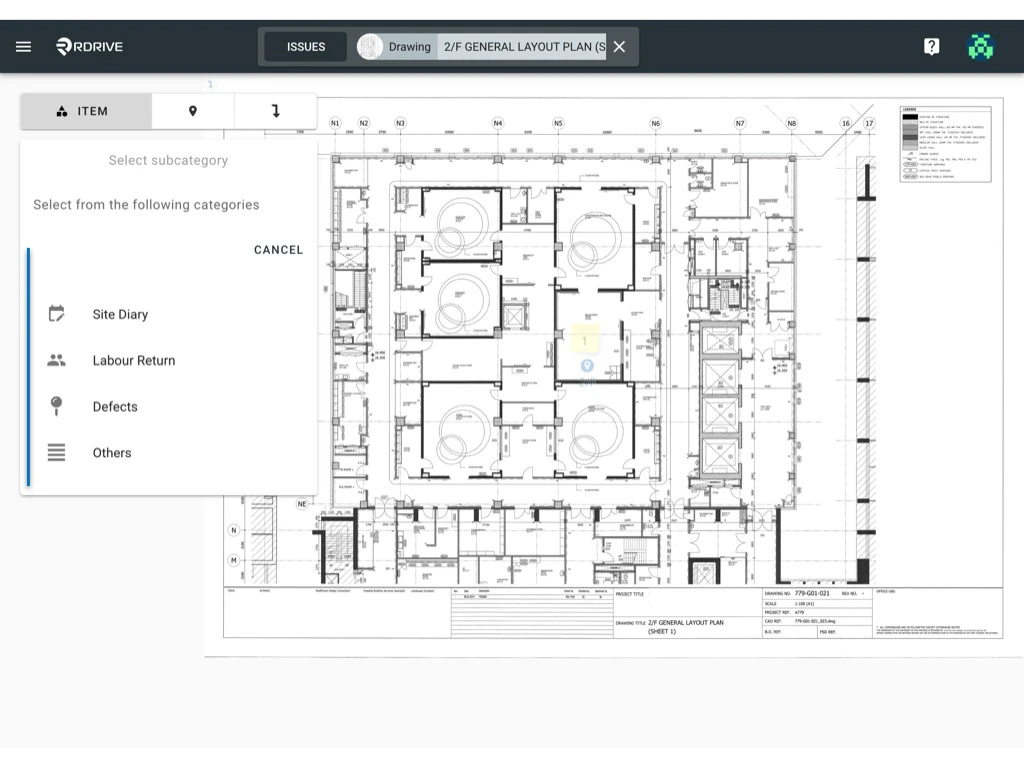 You will then need to pick the blue location pin in the area you wish to raise your process/checklist.
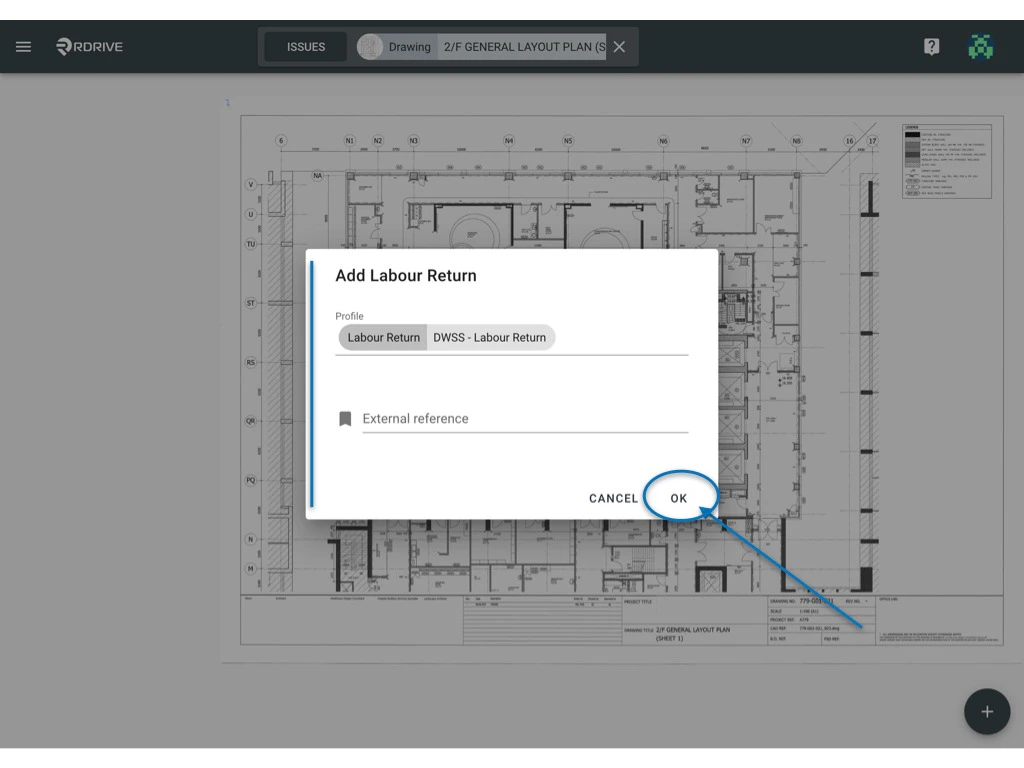
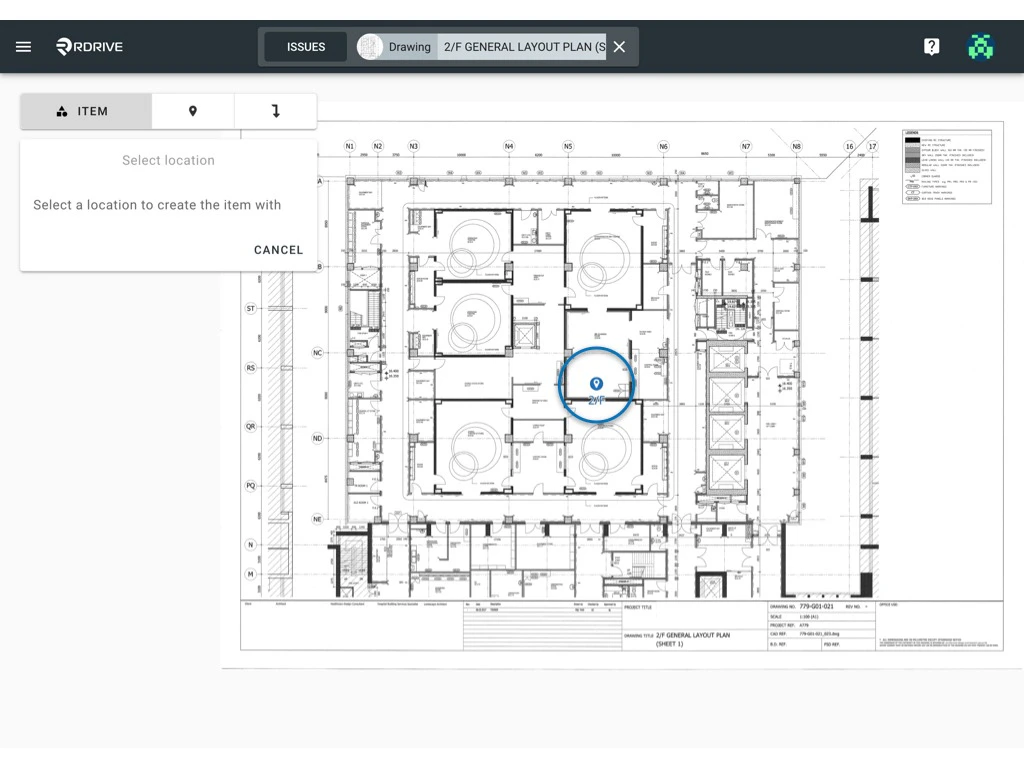 Choose Profile from the subcategory, enter External reference information if necessary and press "**OK"** to confirm.
 ***
**Can't see the process you want to add?**
It may be the case that you do not have the permission to create that process/checklist. Please reach out to your Project Administrator for more details.
***
**Can't see the process you want to add?**
It may be the case that you do not have the permission to create that process/checklist. Please reach out to your Project Administrator for more details.