> ## Documentation Index
> Fetch the complete documentation index at: https://docs.rdrive.io/llms.txt
> Use this file to discover all available pages before exploring further.
# How to batch move items?
> ✅ Step 1: Access FinderNavigate to the system and open the Finder tool. Ensure you have the appropriate access permissions.
### **Moving non-custom positioning items by batch?**
* **Purpose:** This guide explains how to batch move items within the system while considering limitations related to custom positioning and read-only content.
* **Who It’s For:** General users who need to relocate multiple items efficiently.
Prerequisites: own the MOVE permission
***
## **Step-by-Step Instructions**
✅ **Step 1: Access Finder**\
Navigate to the system and open the **Finder** tool. Ensure you have the appropriate access permissions.
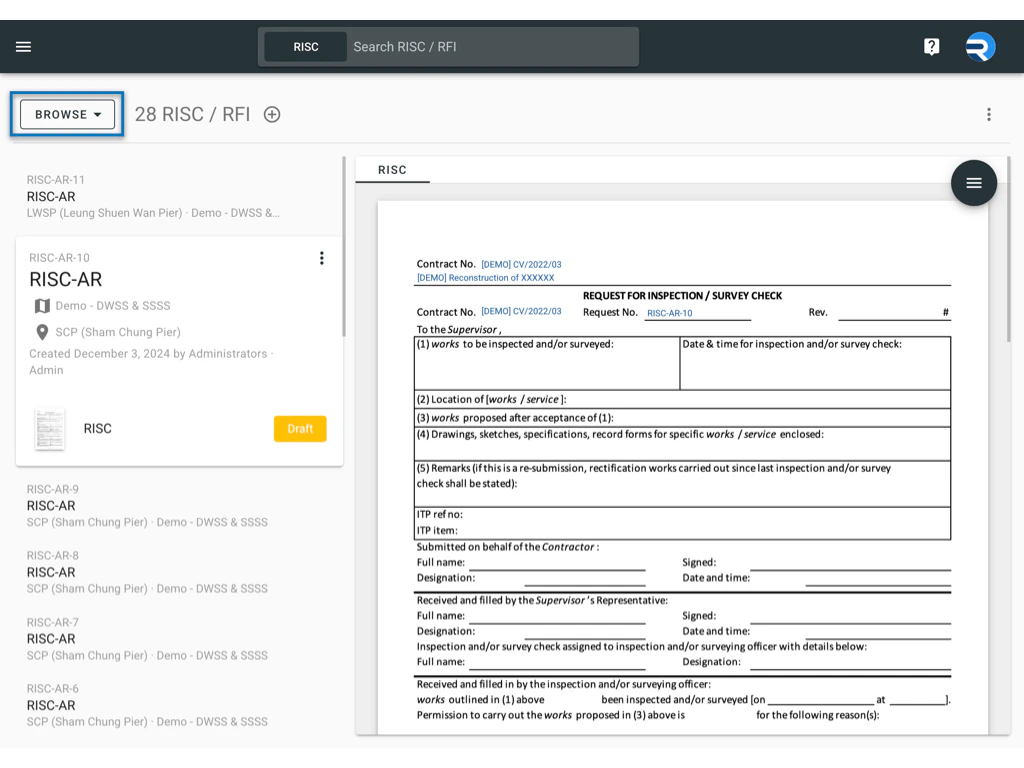
✅ **Step 2: Switch Mode to "SELECT"**\
Locate the mode selection option and switch it to **"SELECT"** to enable multiple item selection.\\
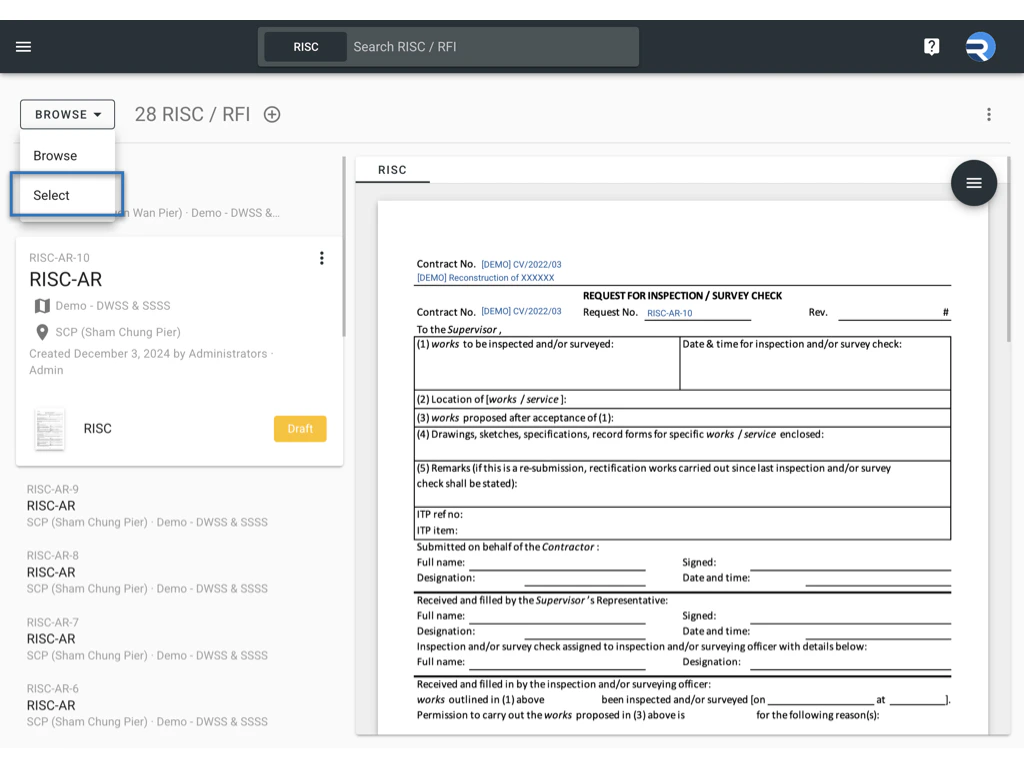 ✅ **Step 3: Select Items**\
Click on the items you wish to move. Selected items will be highlighted.
✅ **Step 3: Select Items**\
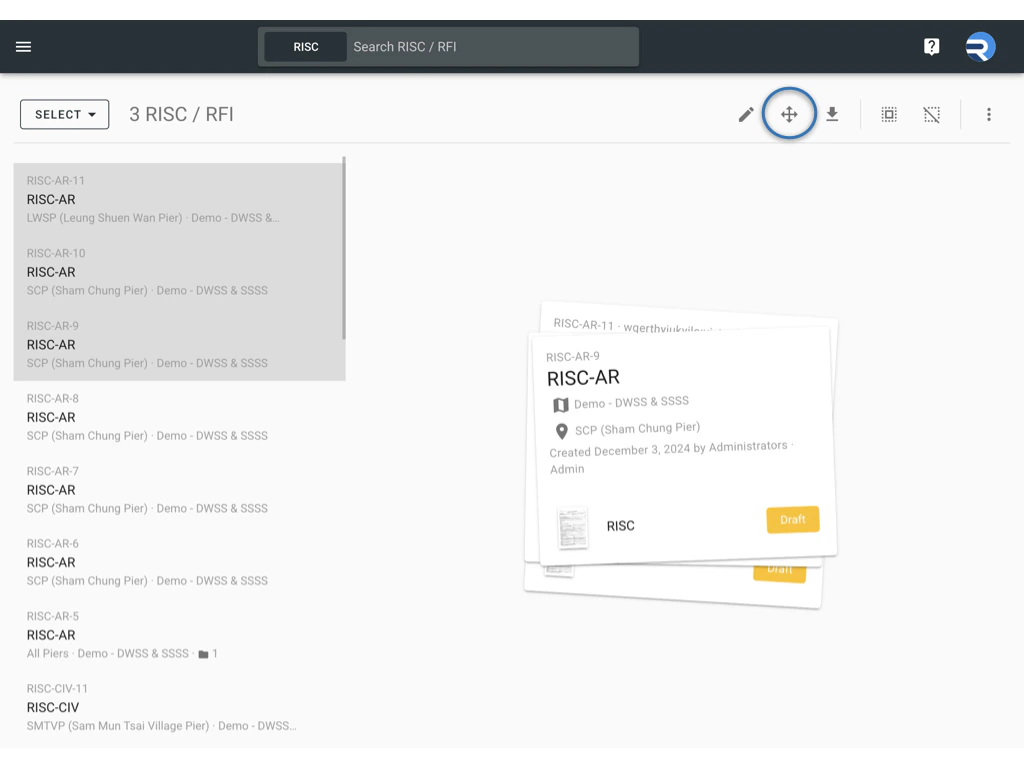
Click on the items you wish to move. Selected items will be highlighted. ✅ **Step 4: Click the Move Button**\
Once items are selected, the "**Batch m\*\*\*\*ove"** button will appear. Click on it to proceed.
✅ **Step 4: Click the Move Button**\
Once items are selected, the "**Batch m\*\*\*\*ove"** button will appear. Click on it to proceed.

 ✅ **Step 5: Choose Destination**
* A prompt will appear asking you to select a **drawing** and **location** for the move.
* Choose the appropriate destination for the items.
✅ **Step 6: Confirm the Move**\
Click **OK** to complete the process. Items will be relocated to the new location.
✅ **Step 5: Choose Destination**
* A prompt will appear asking you to select a **drawing** and **location** for the move.
* Choose the appropriate destination for the items.
✅ **Step 6: Confirm the Move**\
Click **OK** to complete the process. Items will be relocated to the new location. Note: If the item content, drawing, or location title is read-only, this information will not change during the move. It will remain as originally created.
***
## **FAQs & Troubleshooting**
**Q:** \*\*Why can’t I move certain items?\*\***A:** Items with custom positioning (Pin) are restricted from being moved. Ensure the selected items do not have custom positioning.
**Q: What happens if the destination content has read-only attributes fields?**\
**A**: If the destination contains read-only fields related to the drawing or location on the item, the item will move to the new location. However, the fields marked as read-only will retain their original values and will not be updated or modified during the move process.
**Q: The Move button is not appearing. What should I do?**\
**A**: Ensure that you have switched to **"SELECT"** mode and that at least one item is selected. If the issue persists, check your permissions.
***
Note: If the item content, drawing, or location title is read-only, this information will not change during the move. It will remain as originally created.
***
## **FAQs & Troubleshooting**
**Q:** \*\*Why can’t I move certain items?\*\***A:** Items with custom positioning (Pin) are restricted from being moved. Ensure the selected items do not have custom positioning.
**Q: What happens if the destination content has read-only attributes fields?**\
**A**: If the destination contains read-only fields related to the drawing or location on the item, the item will move to the new location. However, the fields marked as read-only will retain their original values and will not be updated or modified during the move process.
**Q: The Move button is not appearing. What should I do?**\
**A**: Ensure that you have switched to **"SELECT"** mode and that at least one item is selected. If the issue persists, check your permissions.
***