> ## Documentation Index
> Fetch the complete documentation index at: https://docs.rdrive.io/llms.txt
> Use this file to discover all available pages before exploring further.
# How to Edit/Update a Form
> To move the form to the next stage in the workflow, click the current status at the top of the screen.
### **Overview**
* **Purpose:** This guide explains how to edit or update an existing form in the system, including how to adjust form details, update mandatory fields, and change the form’s status to progress it through the workflow.
* **Who It’s For:** Team members responsible for reviewing and progressing forms
Prerequisites: Access to the relevant category and subcategory containing the form
Permissions to edit forms and update their status
***
## **Step-by-Step Instructions**
### **✅ Step 1: Locate and Open the Form**
1. Navigate to the appropriate Category and Subcategory to find your form.
2. double-click the form to open it in the form viewer.
3. Alternatively, click on the Hamburger symbol and select edit.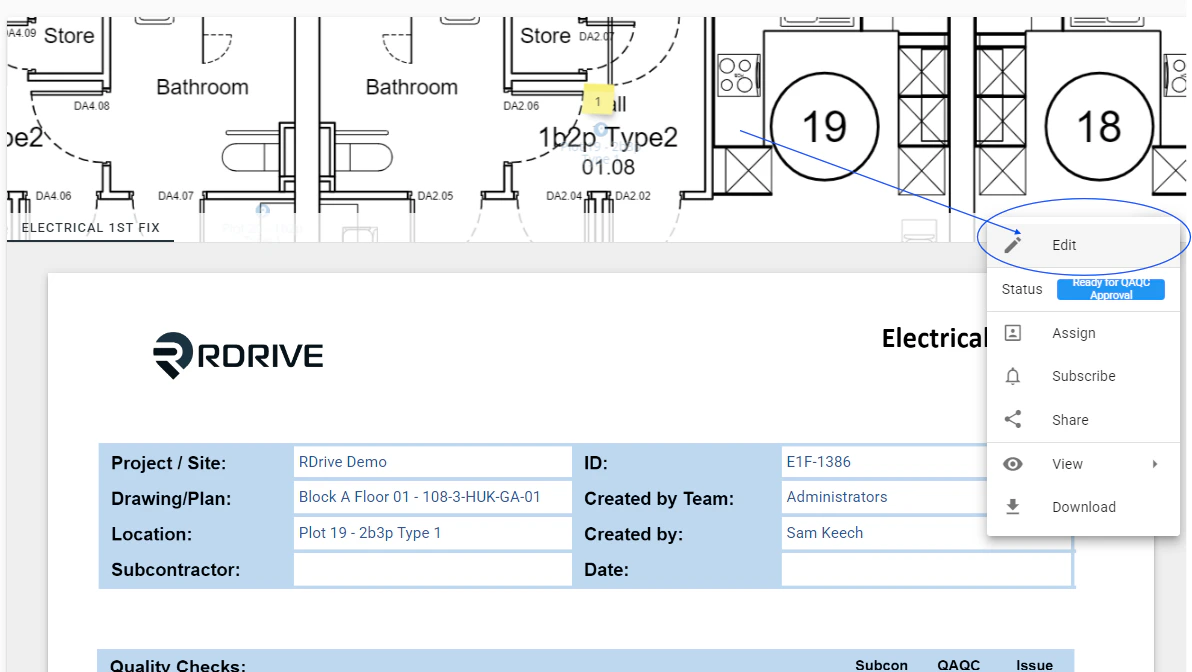 ### **✅ Step 2: Review and Edit Fields**
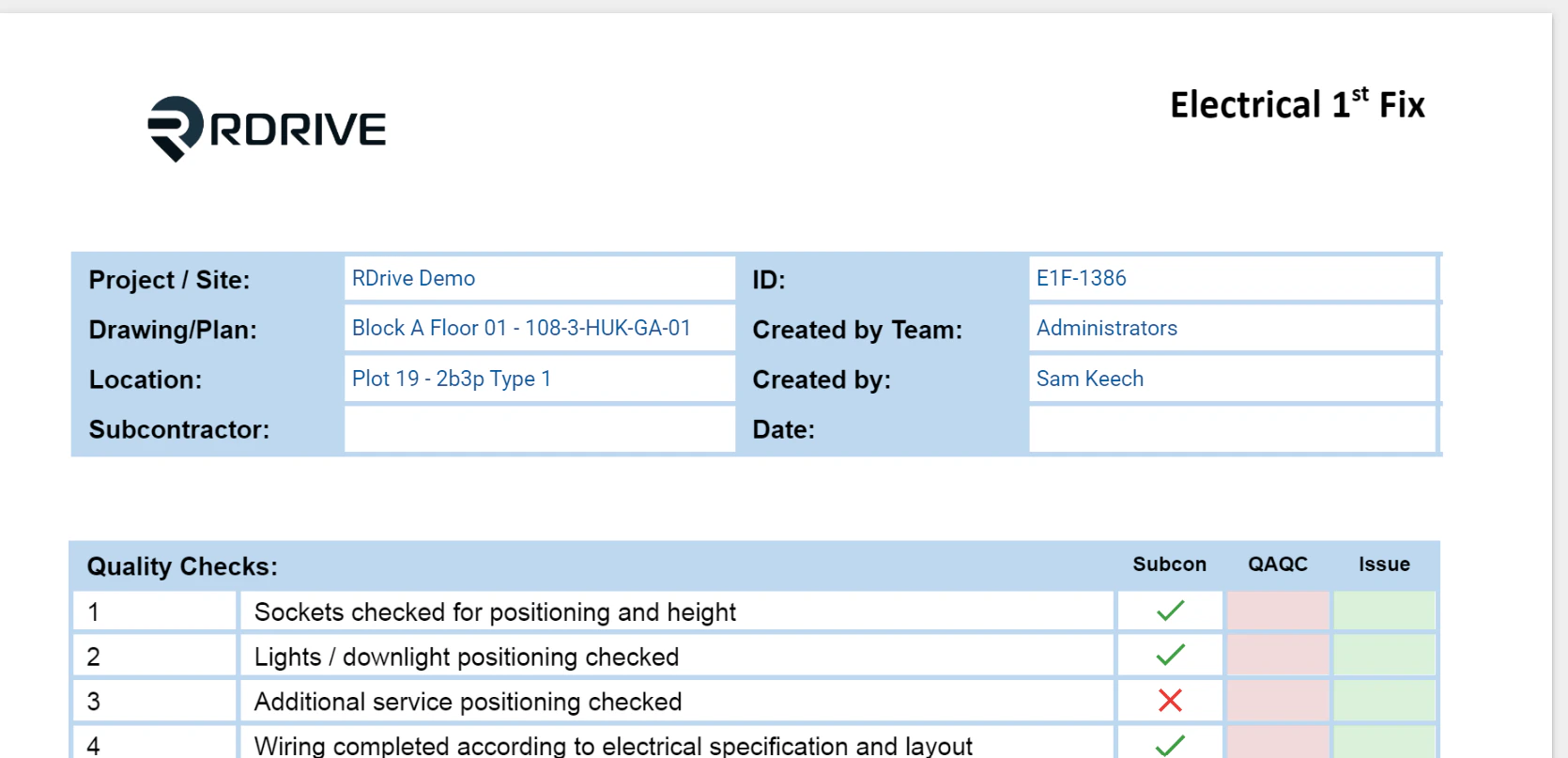
1. Once in the Form Viewer, you'll see all editable fields based on the form’s current status.
2. Fields marked in red are mandatory and must be filled out before progressing.
### **✅ Step 2: Review and Edit Fields**
1. Once in the Form Viewer, you'll see all editable fields based on the form’s current status.
2. Fields marked in red are mandatory and must be filled out before progressing.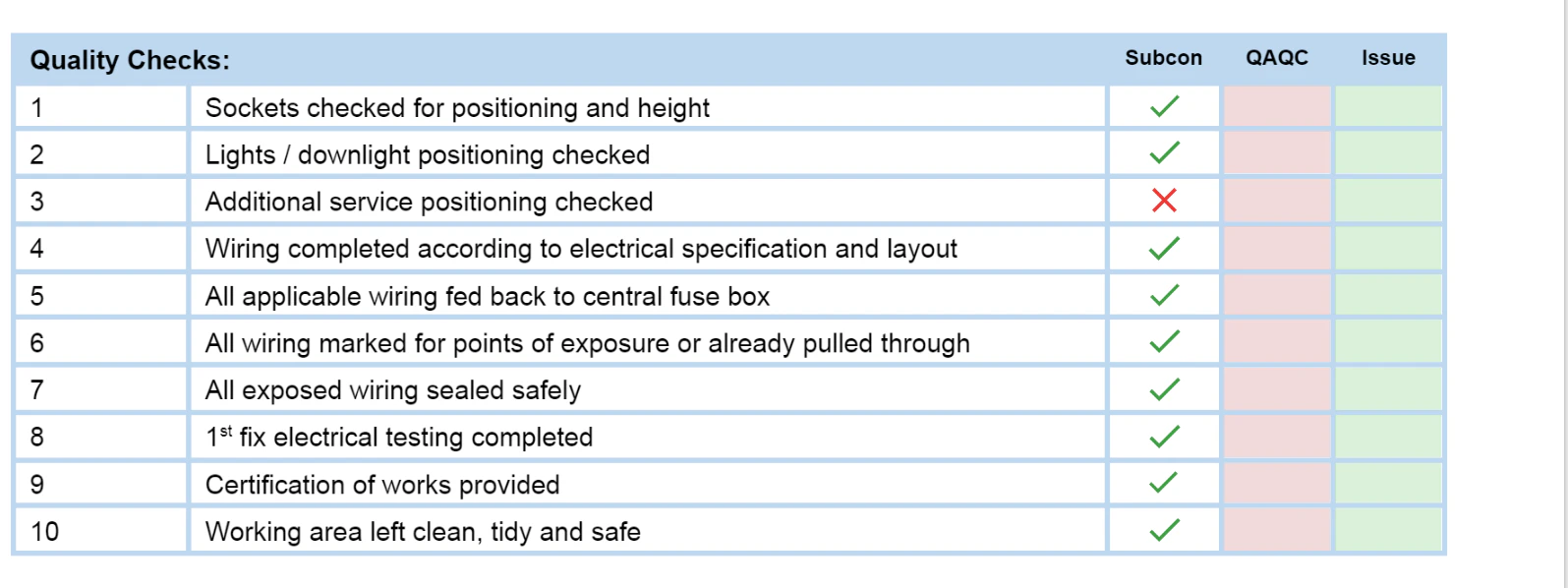 ### **✅ Step 3: Understand Auto-Save and Status Workflow**
1. Edits are auto-saved — there is no manual save button.
2. To send the form to the next person/team, you must change its status.
3. If the status is not changed, the form will not move forward in the workflow.
### **✅ Step 4: Change the Form Status**
1. To move the form to the next stage in the workflow, click the **current status** at the top of the screen.
2. The **Status Window** will appear, showing the form’s history and available status options.
3. Click **"CHANGE"** and select the appropriate status.
### **✅ Step 3: Understand Auto-Save and Status Workflow**
1. Edits are auto-saved — there is no manual save button.
2. To send the form to the next person/team, you must change its status.
3. If the status is not changed, the form will not move forward in the workflow.
### **✅ Step 4: Change the Form Status**
1. To move the form to the next stage in the workflow, click the **current status** at the top of the screen.
2. The **Status Window** will appear, showing the form’s history and available status options.
3. Click **"CHANGE"** and select the appropriate status.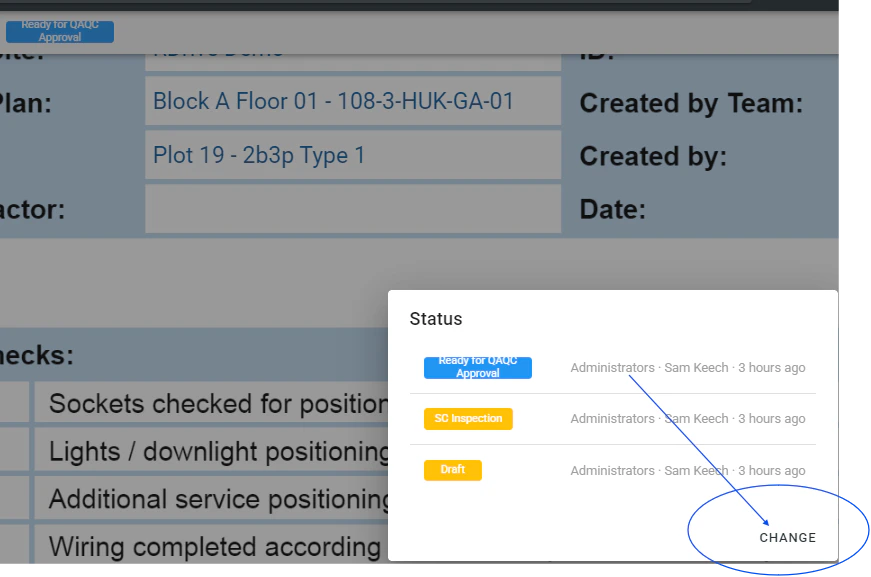
 ### **✅ Step 5: Edit via Plan Viewer (Alternative Method)**
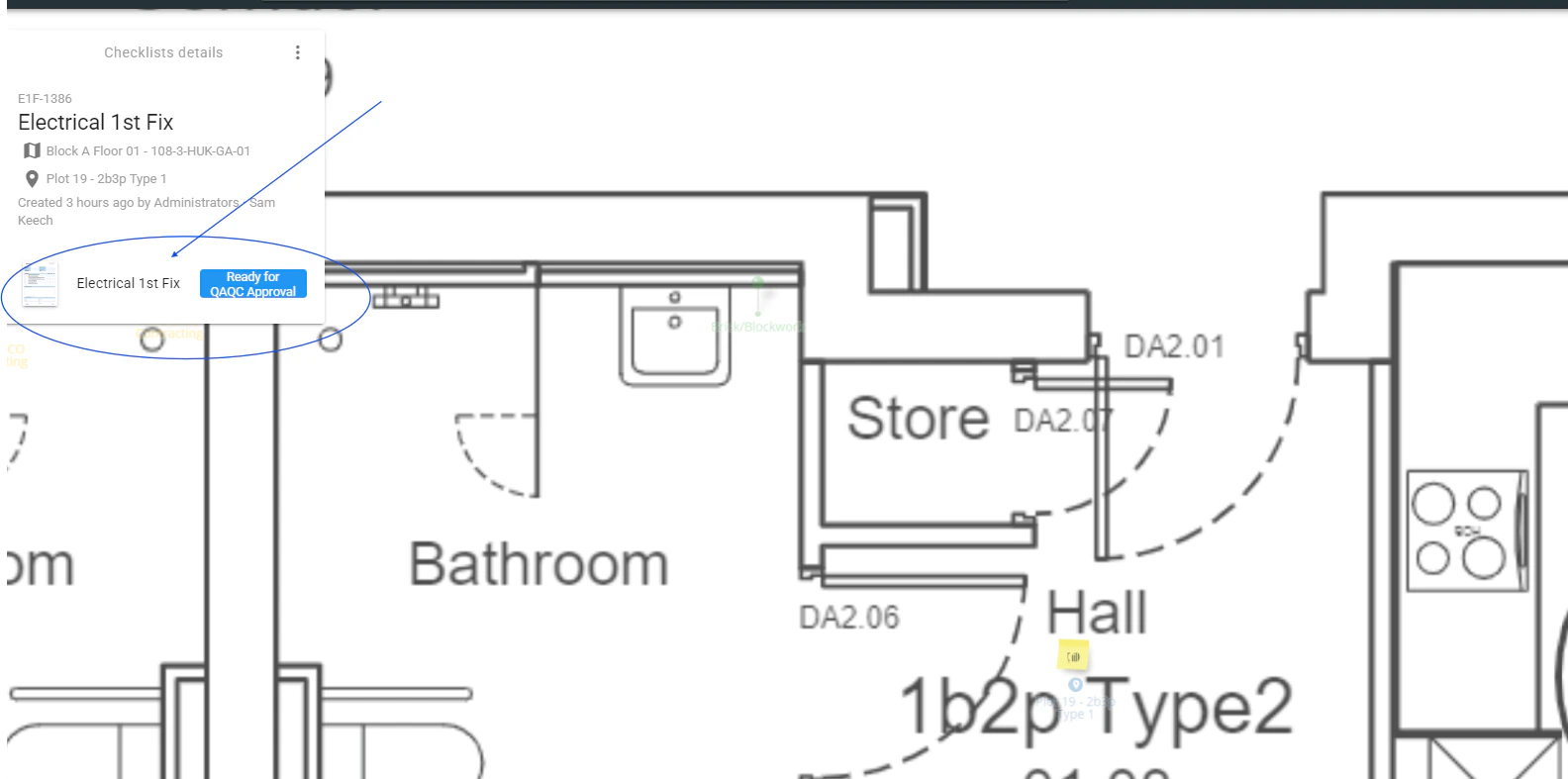
1. From the Plan Viewer, select the Post-it icon to locate a specific form.
2. On the left-hand side, click the form in the Process Detail box to open the viewer.
3. Make your edits as needed, following the same steps above.
### **✅ Step 5: Edit via Plan Viewer (Alternative Method)**
1. From the Plan Viewer, select the Post-it icon to locate a specific form.
2. On the left-hand side, click the form in the Process Detail box to open the viewer.
3. Make your edits as needed, following the same steps above.
 ***
## **FAQs & Troubleshooting**
**Q: Do I need to click save after editing a form?**\
A: No, changes are automatically saved as you edit.
**Q: Why can’t I see certain status options?**\
A: Status options depend on your role permissions. Contact your **Project Admin** for access clarification.
**Q: What happens if I forget to update the form’s status?**\
A: The form will remain in its current stage and will not move forward in the workflow.
***
***
## **FAQs & Troubleshooting**
**Q: Do I need to click save after editing a form?**\
A: No, changes are automatically saved as you edit.
**Q: Why can’t I see certain status options?**\
A: Status options depend on your role permissions. Contact your **Project Admin** for access clarification.
**Q: What happens if I forget to update the form’s status?**\
A: The form will remain in its current stage and will not move forward in the workflow.
***