> ## Documentation Index
> Fetch the complete documentation index at: https://docs.rdrive.io/llms.txt
> Use this file to discover all available pages before exploring further.
# How to batch change issue status?
> How to mass change the status of issues using the desktop/website
### **Overview**
*How to mass change the status of issues using the desktop/website*
* **Purpose:** How to change the status of multiple items at the same time
* **Who It’s For:** General users
Prerequisites: Able to change the status of the issues in the selection to batch change.
***
## **Please note: batch changing the status is a one way action and cannot be undone or reversed. If mistakes are made when changing statuses on batch would need to be corrected manually.**
##
**From the Issue finder**
Press the Menu icon ≡ on the top left corner to unfold the Menu and gain access to the Issue page by selecting the category and subcategory as shown below. \\
 All issues/defects/records belonging to the subcategory will be listed on the left-hand side of your screen as shown below, select the category required, we will select **Defects** in this example.
 ## To filter your data and refine your search results, there are a number of filter options available to help display the items you need, this can be the unique Issue ID as used in the example below, status, location and more.
 From the Issue finder, select "**Browse**" in the top left and choose "**Select**" from the drop down menu.
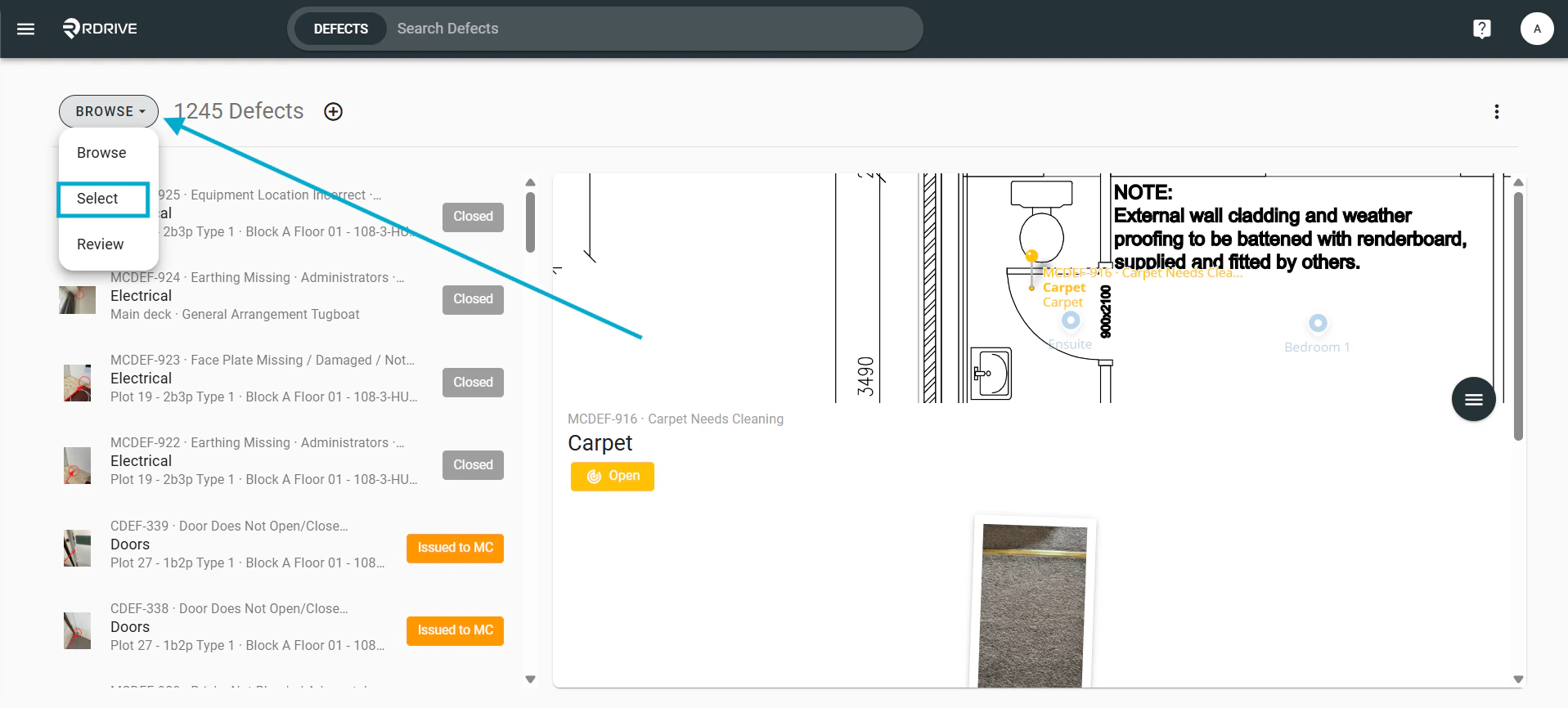 \
You can now select any and all issues you wish to change the status of by clicking from the panel on the left side.
\
You can now select any and all issues you wish to change the status of by clicking from the panel on the left side.
 From the control bar at the top left you have the option to select all, de-select all to quickly select all items displayed:
 Once you have the selected items highlighted you can then select "**Batch change status**".
 This will then open the "**Batch change status**" window, select the issue type you wish to change from the window.\\
 From here select "**Unchanged**" to select which status you want to change these issues too.
 From the dropdown select the status you wish to change this too:
 Once you have selected the status you wish to change to select "**Done**".
 .
From here select "**Next**".
.
From here select "**Next**".
 Add any notes about the batch change as needed and select "**OK**".
 This will then initiate the batch change moving all items selected to the chosen status, you can review the progress from the batch change button in the top right.
 Clicking here will then show the percentage change of the issues.
 ***
***