> ## Documentation Index
> Fetch the complete documentation index at: https://docs.rdrive.io/llms.txt
> Use this file to discover all available pages before exploring further.

# How do I update the status of an issue/defect/record?

> A brief introduction explaining the purpose of this guide.

### **Overview**

*A brief introduction explaining the purpose of this guide.*

* **Purpose:** This guide explains how to update the status of an issue, defect, or record in RDrive. It includes methods for making edits, changing status only, and using Review mode for quick updates. 
* **Who It’s For:** General users, project team members, inspectors, and coordinators involved in managing issues and                          defects.

<Note>
  Prerequisites:
  Access to RDrive (app or desktop) Appropriate permissions to edit or update statuses Knowledge of the category/subcategory where the record exists
  Understanding of your team’s status flow process
</Note>

## ✅ Step-by-Step Instructions

### **Updating via Plan Viewer**

#### ✅ Step 1: Open Plan Viewer

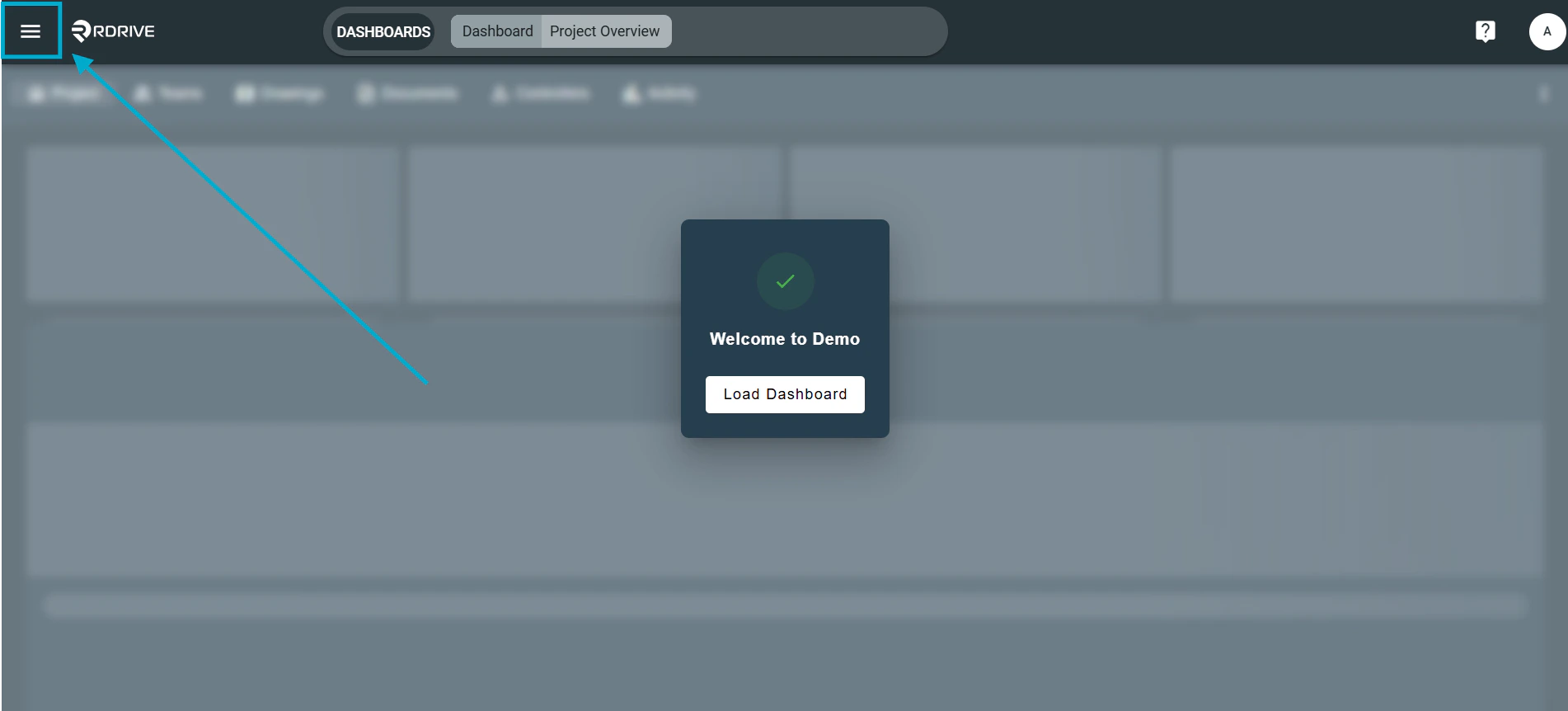
Click the **Menu (≡)** in the top-left corner.
<img src="https://mintcdn.com/rdrive/c88nBjkJUIQI3pkj/images/kb/103000035220/PRUmQpNLH5ejhMHWn1D7Y7f5KjjKJueOUw.png?fit=max&auto=format&n=c88nBjkJUIQI3pkj&q=85&s=6dccafcd4cb54c0004048cb827bb5a2b" alt="How do I update the status of an issue/defect/record?" width="1902" height="862" data-path="images/kb/103000035220/PRUmQpNLH5ejhMHWn1D7Y7f5KjjKJueOUw.png" />

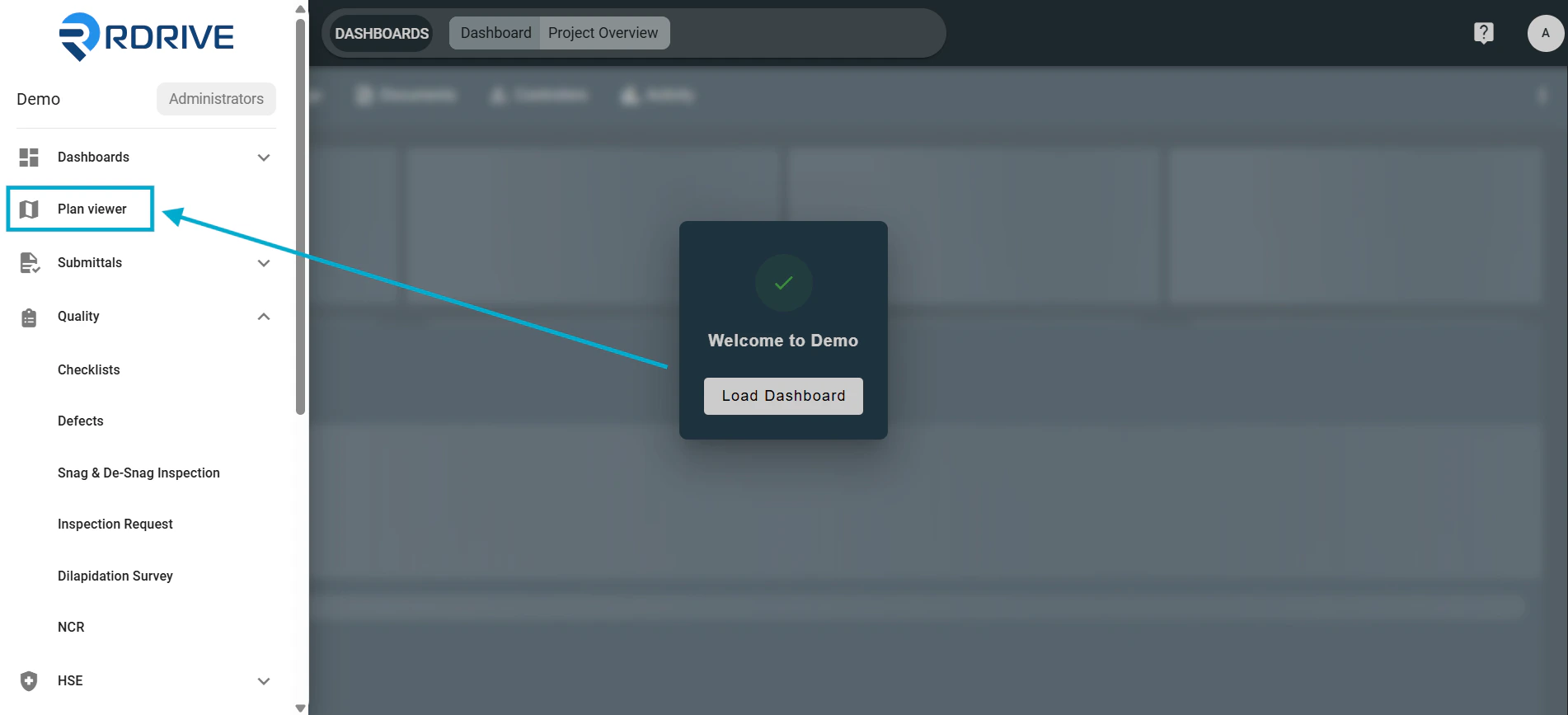
Select the relevant **drawing**to access the Plan Viewer.
<img src="https://mintcdn.com/rdrive/c88nBjkJUIQI3pkj/images/kb/103000035220/ZRApALTkKe7pBUG7ARyZTji4o-X2_GCCIQ.png?fit=max&auto=format&n=c88nBjkJUIQI3pkj&q=85&s=21e1f2496e2965056981f08a5529f977" alt="How do I update the status of an issue/defect/record?" width="1902" height="867" data-path="images/kb/103000035220/ZRApALTkKe7pBUG7ARyZTji4o-X2_GCCIQ.png" />

### ✅Step 2: Select the Issue/Defect/Record

Locate the **pin** for the item on the drawing.

Click the pin — the details will appear on the left-hand side.<img src="https://mintcdn.com/rdrive/c88nBjkJUIQI3pkj/images/kb/103000035220/ZhwTeCOB0roOemLS7jG1D4oC1OKXxjYzpw.png?fit=max&auto=format&n=c88nBjkJUIQI3pkj&q=85&s=ae574c3da8a0879e1c53071038975784" alt="How do I update the status of an issue/defect/record?" width="1915" height="862" data-path="images/kb/103000035220/ZhwTeCOB0roOemLS7jG1D4oC1OKXxjYzpw.png" />

Click it — the issue details will appear on the **left-hand side**.

Click the **three-dot menu (⋮)** in the top-right of the details panel.<img src="https://mintcdn.com/rdrive/c88nBjkJUIQI3pkj/images/kb/103000035220/LO9u57X5uAt18uIGvI9-Nox-VGp34ZSwow.png?fit=max&auto=format&n=c88nBjkJUIQI3pkj&q=85&s=164223e7cf86cdc01749ecf5d6f2c706" alt="How do I update the status of an issue/defect/record?" width="1897" height="860" data-path="images/kb/103000035220/LO9u57X5uAt18uIGvI9-Nox-VGp34ZSwow.png" />

### ✅ Step 3: Edit the Record (Optional)

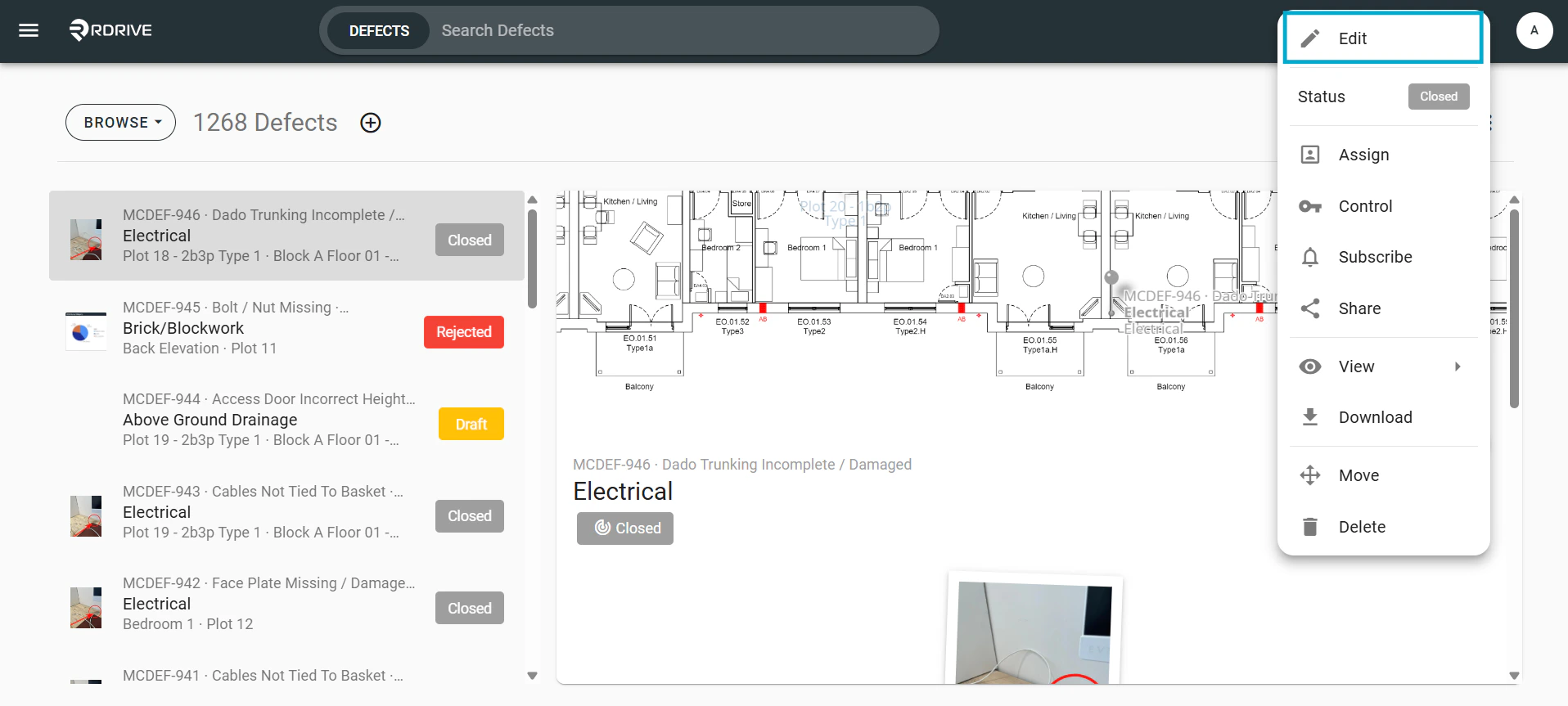
From the menu, select **Edit**.<img src="https://mintcdn.com/rdrive/c88nBjkJUIQI3pkj/images/kb/103000035220/nUmQGbx94geLQje2ReZtM73LJtAWwjcESw.png?fit=max&auto=format&n=c88nBjkJUIQI3pkj&q=85&s=4412fe690aa5ebbc64c3bea44dfedad1" alt="How do I update the status of an issue/defect/record?" width="1898" height="861" data-path="images/kb/103000035220/nUmQGbx94geLQje2ReZtM73LJtAWwjcESw.png" />

Make any required changes.

Click **OK** to save and close.<img src="https://mintcdn.com/rdrive/c88nBjkJUIQI3pkj/images/kb/103000035220/PPwgh2MDPv8GUDYOlz5DHIXpaaPQ4Ftwbg.png?fit=max&auto=format&n=c88nBjkJUIQI3pkj&q=85&s=2883bb1ce137fe22d2e0d9da6fe41b9c" alt="How do I update the status of an issue/defect/record?" width="1916" height="862" data-path="images/kb/103000035220/PPwgh2MDPv8GUDYOlz5DHIXpaaPQ4Ftwbg.png" />

### ✅ Step 4: Update the Status Only

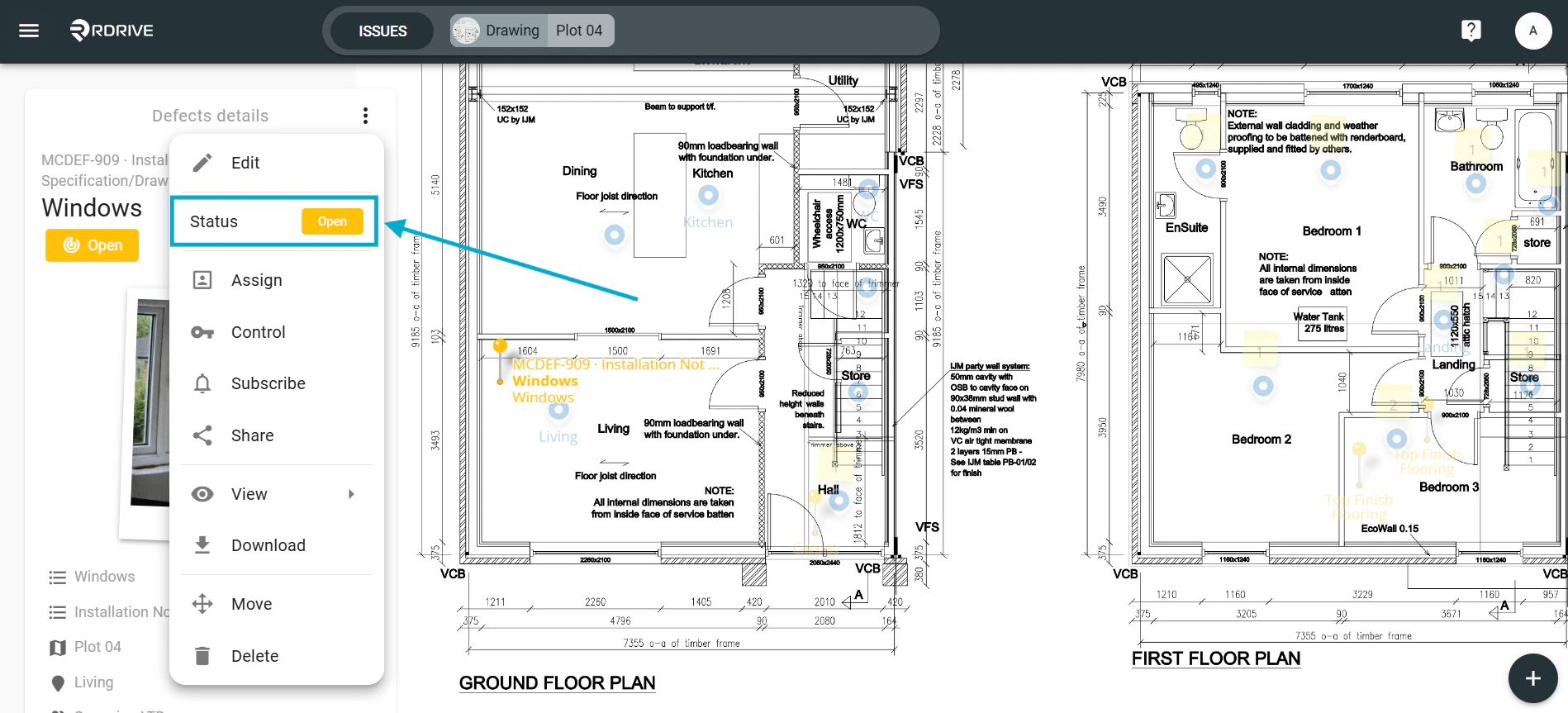
From the **three-dot menu (⋮)**<img src="https://mintcdn.com/rdrive/c88nBjkJUIQI3pkj/images/kb/103000035220/qZSB0tsqFGVE4E-aloKt58t57RlqiY1uqA.png?fit=max&auto=format&n=c88nBjkJUIQI3pkj&q=85&s=2a2e026937e595d578cec553eb465cc7" alt="How do I update the status of an issue/defect/record?" width="1897" height="866" data-path="images/kb/103000035220/qZSB0tsqFGVE4E-aloKt58t57RlqiY1uqA.png" />

 \
Select **Status**.

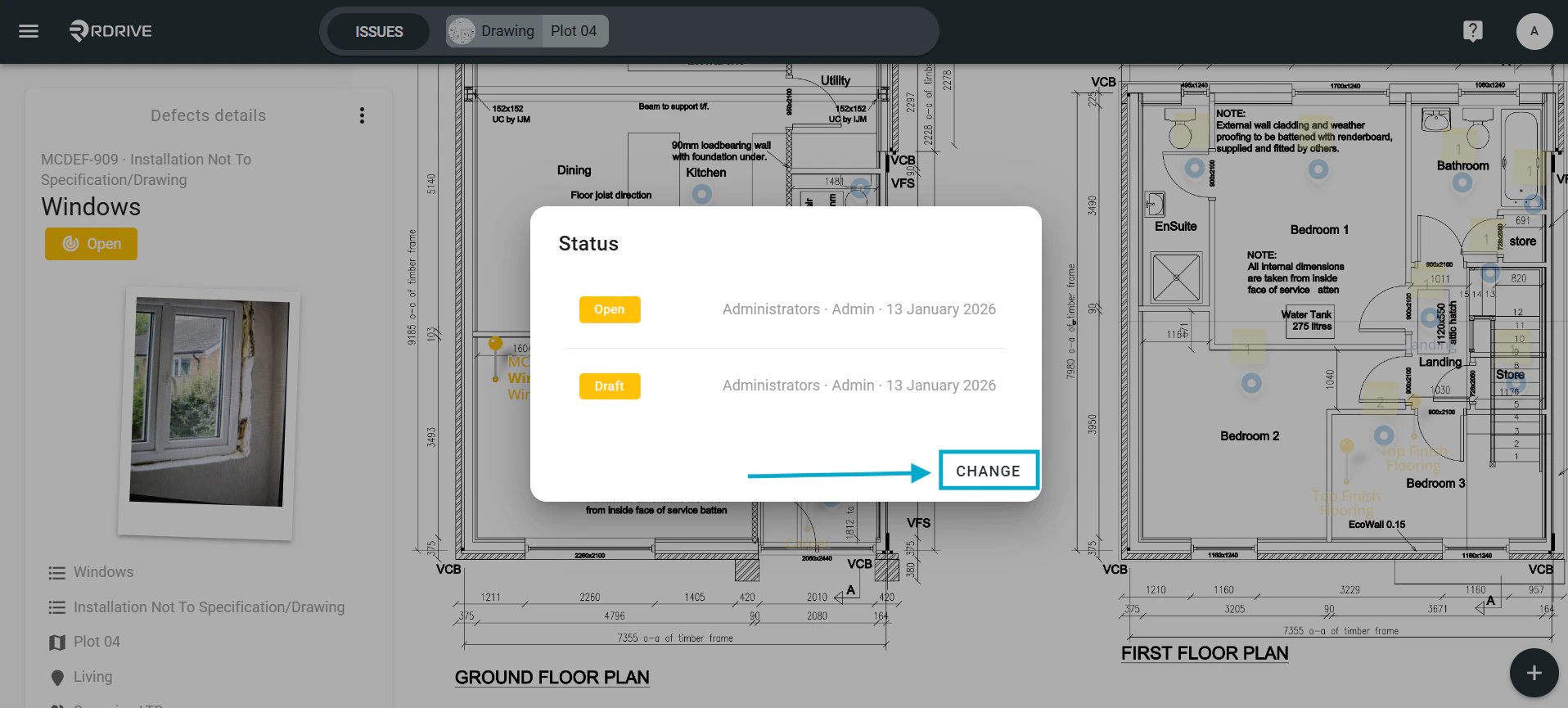
<img src="https://mintcdn.com/rdrive/c88nBjkJUIQI3pkj/images/kb/103000035220/vJSCaXSZEdqfpj7T7-9xwVtaMTMK8fmsdg.png?fit=max&auto=format&n=c88nBjkJUIQI3pkj&q=85&s=1478ea2f7abc87fb73bad984d7456bba" alt="How do I update the status of an issue/defect/record?" width="1898" height="863" data-path="images/kb/103000035220/vJSCaXSZEdqfpj7T7-9xwVtaMTMK8fmsdg.png" />

Click the **CHANGE** button.

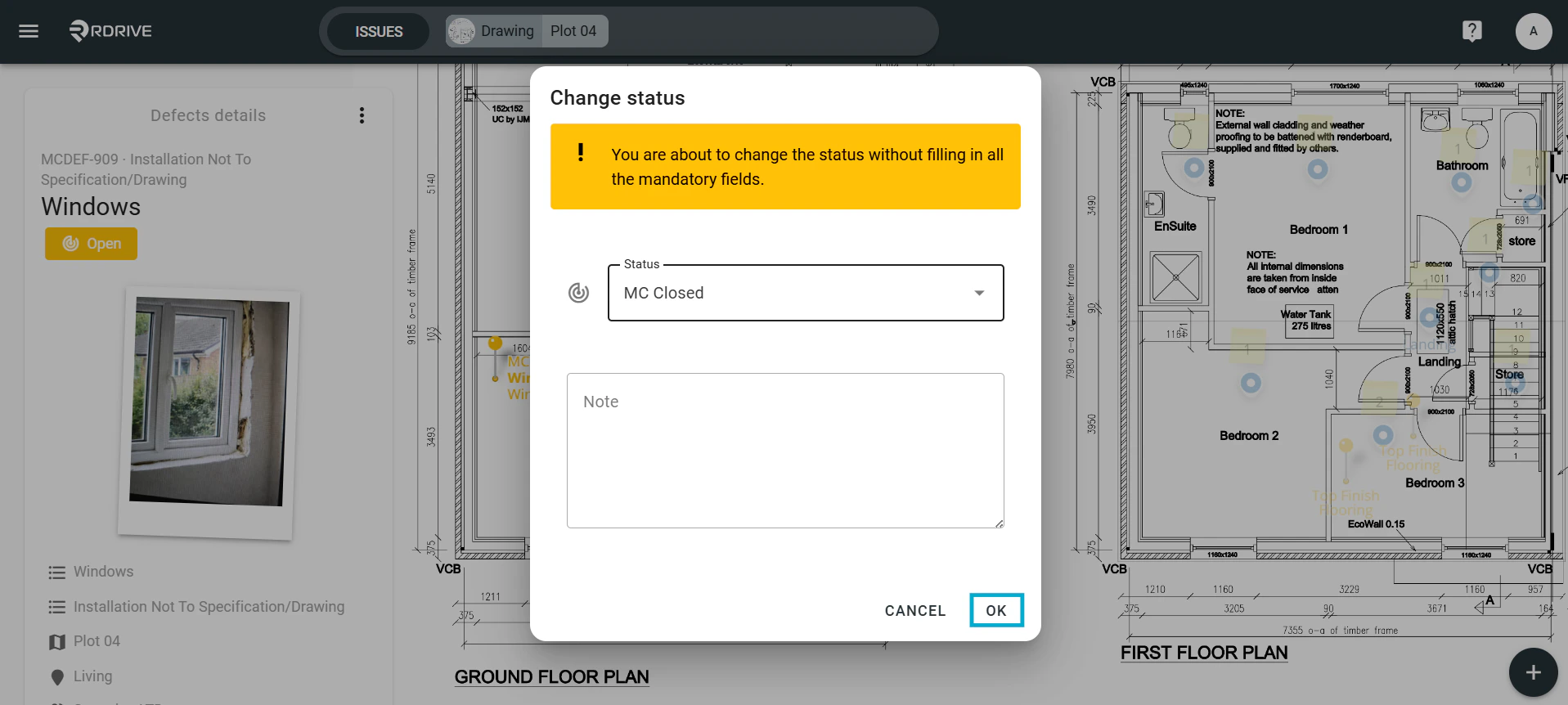
<img src="https://mintcdn.com/rdrive/c88nBjkJUIQI3pkj/images/kb/103000035220/_dyTRDLIaahxGYvM94LxjUoQ_TWyxgumJA.png?fit=max&auto=format&n=c88nBjkJUIQI3pkj&q=85&s=4470e080b4341e3da7f4e8c5d414d8a6" alt="How do I update the status of an issue/defect/record?" width="1916" height="865" data-path="images/kb/103000035220/_dyTRDLIaahxGYvM94LxjUoQ_TWyxgumJA.png" />

Add any notes (optional), then click **OK** to confirm and save the new status.<img src="https://mintcdn.com/rdrive/c88nBjkJUIQI3pkj/images/kb/103000035220/752utD5LwBPrpXb0Y2VSdg5lCPXrqbuusw.png?fit=max&auto=format&n=c88nBjkJUIQI3pkj&q=85&s=b54f0ce1c7eddaf2168448abbd73324d" alt="How do I update the status of an issue/defect/record?" width="1915" height="865" data-path="images/kb/103000035220/752utD5LwBPrpXb0Y2VSdg5lCPXrqbuusw.png" />

<img src="https://mintcdn.com/rdrive/c88nBjkJUIQI3pkj/images/kb/103000035220/0HJ5V3K7x5OoDVhYGztOX-LHPpQvhcCSdg.png?fit=max&auto=format&n=c88nBjkJUIQI3pkj&q=85&s=c0b2004caaff3cab60a79b6539ed5f07" alt="How do I update the status of an issue/defect/record?" width="1917" height="862" data-path="images/kb/103000035220/0HJ5V3K7x5OoDVhYGztOX-LHPpQvhcCSdg.png" />

### ✅ Step 5: Use Issue Finder (Alternative Method)

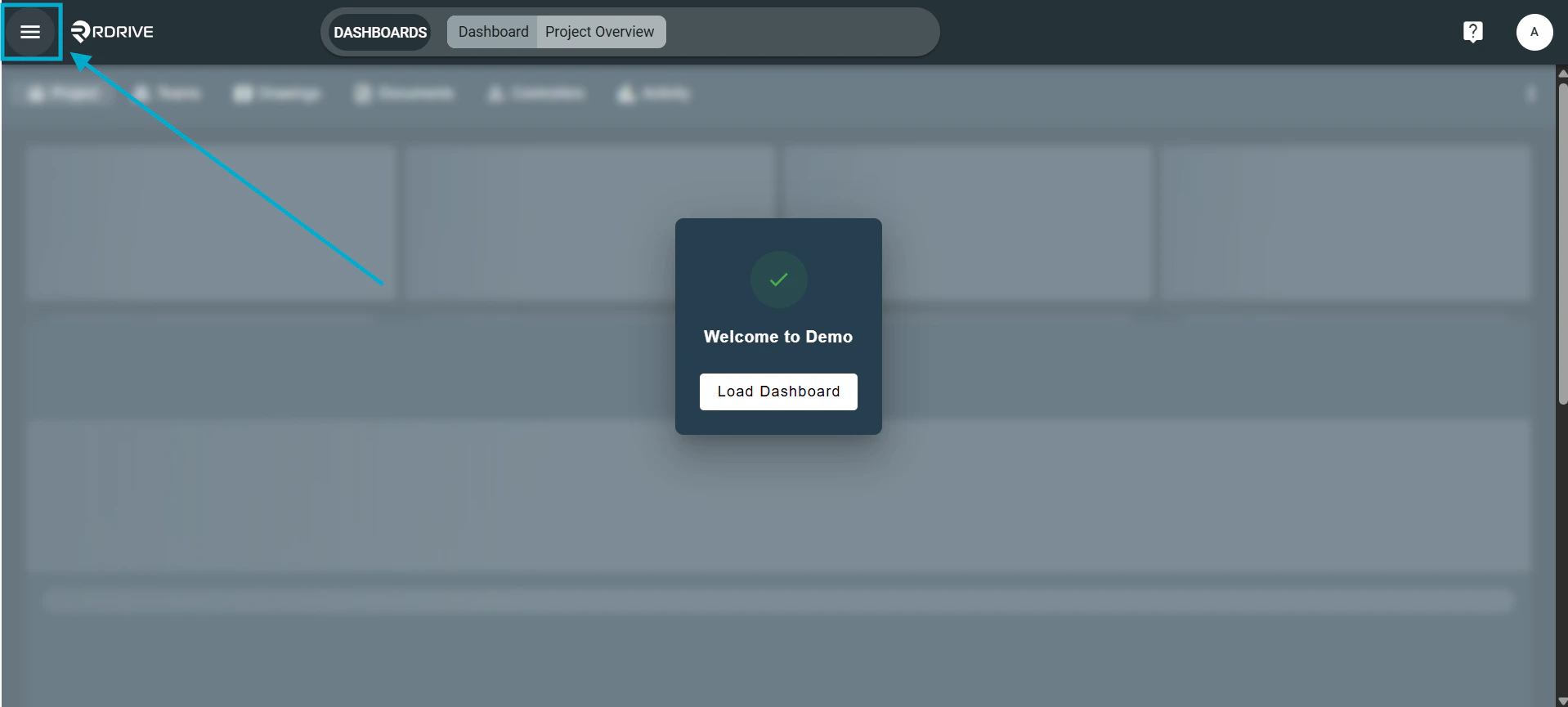
Open the **Menu (≡)** again.\\
<img src="https://mintcdn.com/rdrive/c88nBjkJUIQI3pkj/images/kb/103000035220/V5v9cMYNCjs2Zn5qutvOOlvFWGf2JHXNdA.png?fit=max&auto=format&n=c88nBjkJUIQI3pkj&q=85&s=246f7e1233aed5fade574db595d41232" alt="How do I update the status of an issue/defect/record?" width="1918" height="865" data-path="images/kb/103000035220/V5v9cMYNCjs2Zn5qutvOOlvFWGf2JHXNdA.png" />

Navigate to the **category and subcategory** where the issue is listed.

Select the issue from the list.<img src="https://mintcdn.com/rdrive/c88nBjkJUIQI3pkj/images/kb/103000035220/qFCE5Efi05JyJshLQXFO72N0xEWdlrvnjA.png?fit=max&auto=format&n=c88nBjkJUIQI3pkj&q=85&s=510b9b61e68ac92e63f1f506a33cf875" alt="How do I update the status of an issue/defect/record?" width="1901" height="866" data-path="images/kb/103000035220/qFCE5Efi05JyJshLQXFO72N0xEWdlrvnjA.png" /> 

Use the **Menu icon (≡)** on the right to choose **Edit**, apply updates, and click **OK**.

### ✅ Step 6: Update Status via Issue Finder

After selecting the issue, click the **three-dot menu (⋮)**.<img src="https://mintcdn.com/rdrive/c88nBjkJUIQI3pkj/images/kb/103000035220/-KlP0lXnQB41-Vz9vFwefHOsXVrC0XQiGQ.png?fit=max&auto=format&n=c88nBjkJUIQI3pkj&q=85&s=df9d1bb8957bee63779e4f817bc90ab3" alt="How do I update the status of an issue/defect/record?" width="1916" height="861" data-path="images/kb/103000035220/-KlP0lXnQB41-Vz9vFwefHOsXVrC0XQiGQ.png" />

Select the **Status**.

<img src="https://mintcdn.com/rdrive/c88nBjkJUIQI3pkj/images/kb/103000035220/k7rVzj7jpQ1ZeYqJL9K60SlldQ409-U87w.png?fit=max&auto=format&n=c88nBjkJUIQI3pkj&q=85&s=50b3c84637fc59bd3f532aa2006edb13" alt="How do I update the status of an issue/defect/record?" width="1916" height="863" data-path="images/kb/103000035220/k7rVzj7jpQ1ZeYqJL9K60SlldQ409-U87w.png" />

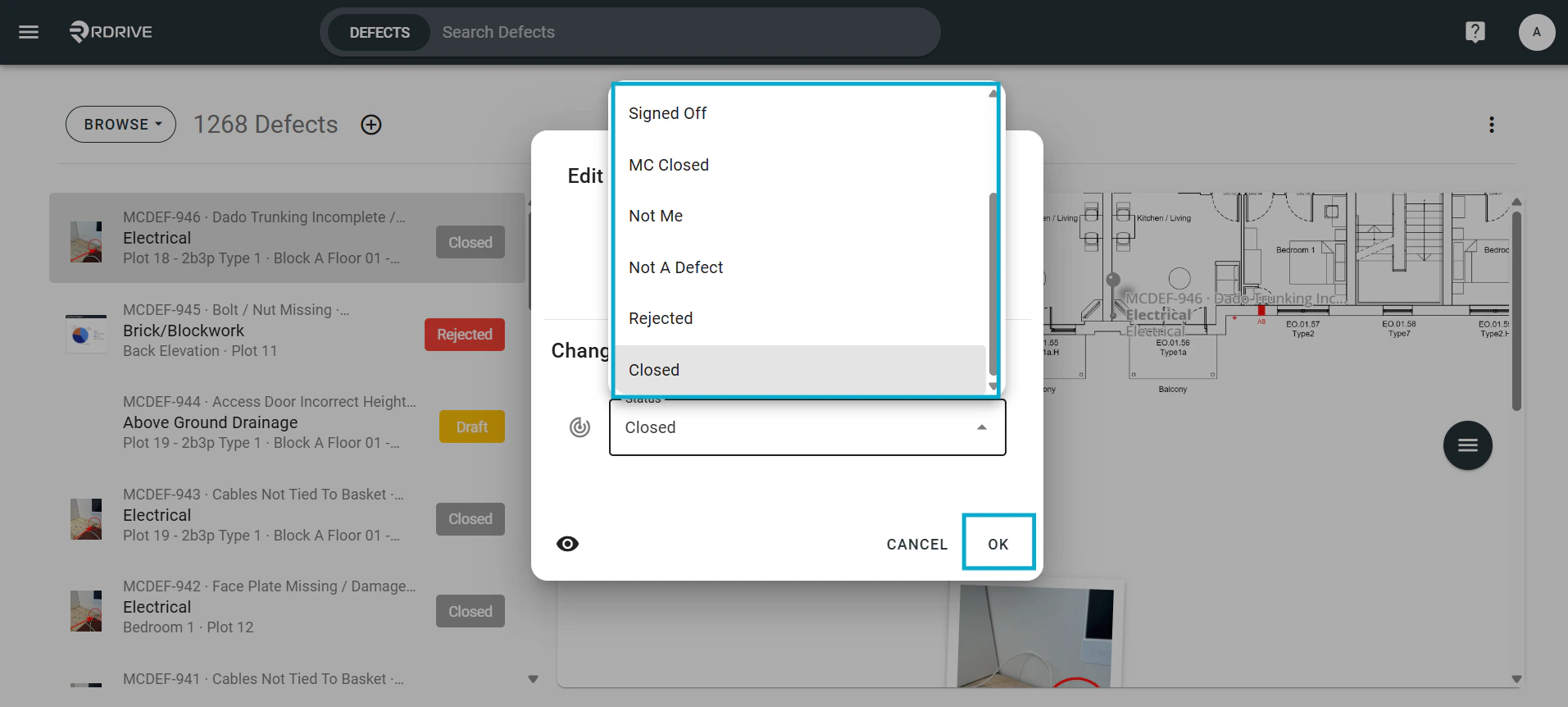
Click **CHANGE**, add notes if needed, and confirm with **OK**.
<img src="https://mintcdn.com/rdrive/c88nBjkJUIQI3pkj/images/kb/103000035220/vWjOqWXljYMYkU1qWZbioNSHlVPjQ0y6cA.png?fit=max&auto=format&n=c88nBjkJUIQI3pkj&q=85&s=26c41a111afe5a30af56eb476578f8de" alt="How do I update the status of an issue/defect/record?" width="1913" height="862" data-path="images/kb/103000035220/vWjOqWXljYMYkU1qWZbioNSHlVPjQ0y6cA.png" />

### ✅ Step 7: Quickly Change Status (Using Display Mode)

In the left-side details panel, switch from **Browse** to **Review** mode.<img src="https://mintcdn.com/rdrive/c88nBjkJUIQI3pkj/images/kb/103000035220/fGZtAhc3uJrj5234xv0yIElpZW9BgC4p6Q.png?fit=max&auto=format&n=c88nBjkJUIQI3pkj&q=85&s=4d9c4c839be5b6a20f74b8050aa50b68" alt="How do I update the status of an issue/defect/record?" width="1915" height="861" data-path="images/kb/103000035220/fGZtAhc3uJrj5234xv0yIElpZW9BgC4p6Q.png" />

Once in Review mode, status update options appear.<img src="https://mintcdn.com/rdrive/c88nBjkJUIQI3pkj/images/kb/103000035220/FFJI698ypMAW9nKF2q2-975oehN6mUw72Q.png?fit=max&auto=format&n=c88nBjkJUIQI3pkj&q=85&s=07ab27c875cbf3e025b3c6c7388fa06b" alt="How do I update the status of an issue/defect/record?" width="1916" height="861" data-path="images/kb/103000035220/FFJI698ypMAW9nKF2q2-975oehN6mUw72Q.png" />

Choose the new status — the change will **auto-save**.<img src="https://mintcdn.com/rdrive/c88nBjkJUIQI3pkj/images/kb/103000035220/NgU_USF9nQnuOu-7A-DxuVKjQVarxQYY0Q.png?fit=max&auto=format&n=c88nBjkJUIQI3pkj&q=85&s=a56b6e60eccf0cc6a32517dc2af6f358" alt="How do I update the status of an issue/defect/record?" width="1915" height="866" data-path="images/kb/103000035220/NgU_USF9nQnuOu-7A-DxuVKjQVarxQYY0Q.png" />

## FAQs & Troubleshooting

**Q: Why can’t I change the status of a record?**\
**A:** Check that you have the appropriate permissions. If not, contact your Project Admin.

**Q: What happens if I forget to change the status?**\
**A:** The issue/defect won’t move forward in the workflow. This can delay the process. Always update the status when editing.

**Q: Can I change the status without editing the issue?**\
**A:** Yes — use the **Status** option directly from the **three-dot menu (⋮)**.