> ## Documentation Index
> Fetch the complete documentation index at: https://docs.rdrive.io/llms.txt
> Use this file to discover all available pages before exploring further.
# How to use RKive
> This guide explains how RKive works when generating project archives, what to expect during the process, and how to handle common scenarios.
### **Overview**
*This guide explains how RKive works when generating project archives, what to expect during the process, and how to handle common scenarios.*
* **Purpose:** To help you understand how RKive creates archives, what normal behaviour looks like, and how to manage or troubleshoot the process if needed.
* **Who It’s For:** Users responsible for exporting or archiving project data
Prerequisites: Active RKive License
***
## **What to expect**
**RKive generates files in the background and downloads them as they are ready. You should see continuous progress — if this stops, you can pause and resume or contact Support.**
## **Step-by-Step Instructions**
### ✅ **Step 1: Open RKive and Connect**
1. Open the **RKive application**
2. Enter your **RDrive URL** (e.g. yourcompany.rdrive.io)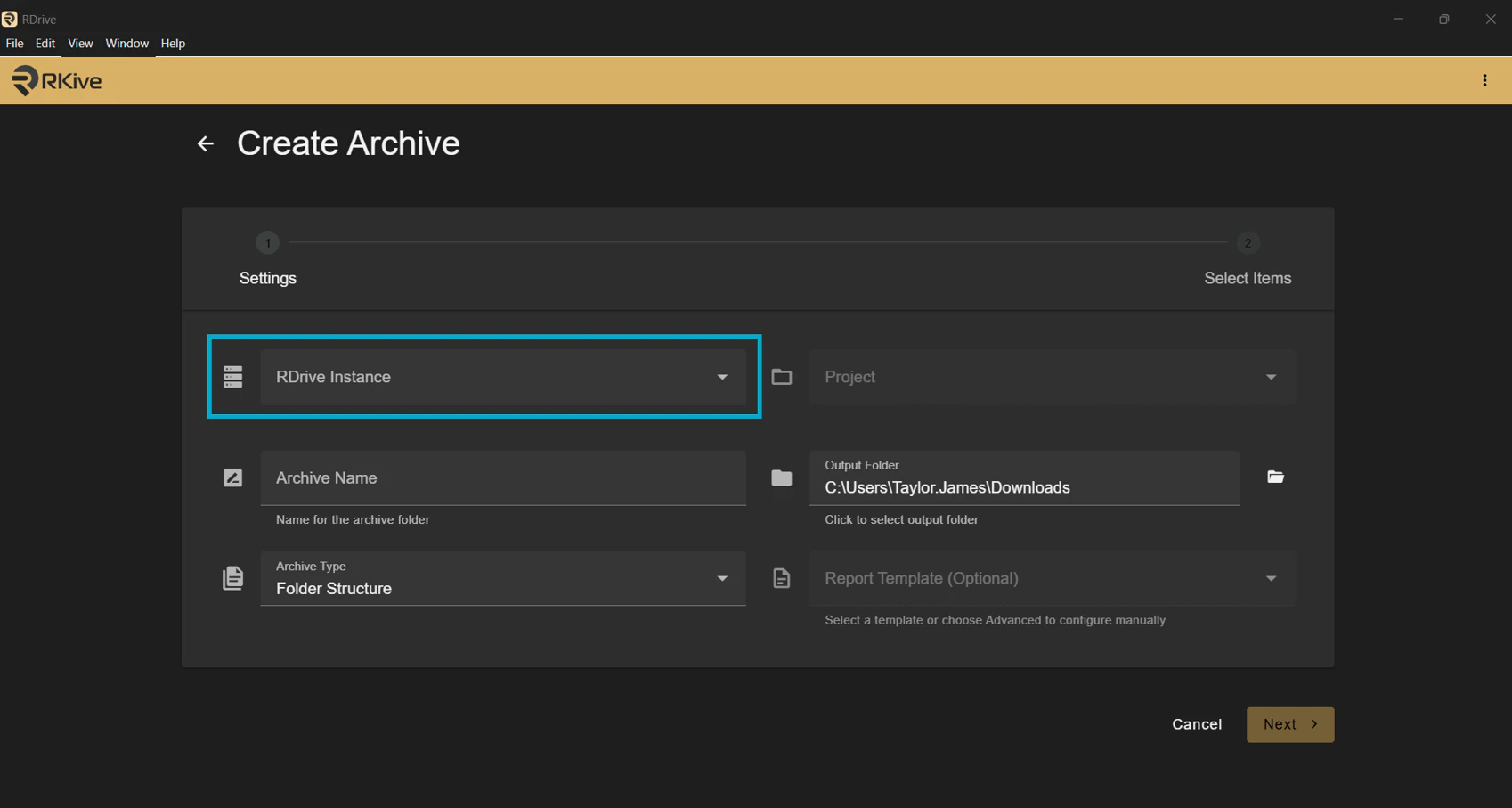 3. Enter your **API Key**
4. Click **Connect**
Once connected, you will see your available projects
### ✅ **Step 2: Create a New Archive**
1. Click **Create Archive**
2. Select the **project** you want to archive
You will now see the archive configuration screen
### ✅ **Step 3: Configure Archive Settings**
1. Enter an **Archive Name**
2. Choose a **save location** (local drive or external drive)
3. Select your options:
* Include drawings (optional)
* Select a report template
4. (Optional) Open **Advanced Configuration** to:
3. Enter your **API Key**
4. Click **Connect**
Once connected, you will see your available projects
### ✅ **Step 2: Create a New Archive**
1. Click **Create Archive**
2. Select the **project** you want to archive
You will now see the archive configuration screen
### ✅ **Step 3: Configure Archive Settings**
1. Enter an **Archive Name**
2. Choose a **save location** (local drive or external drive)
3. Select your options:
* Include drawings (optional)
* Select a report template
4. (Optional) Open **Advanced Configuration** to: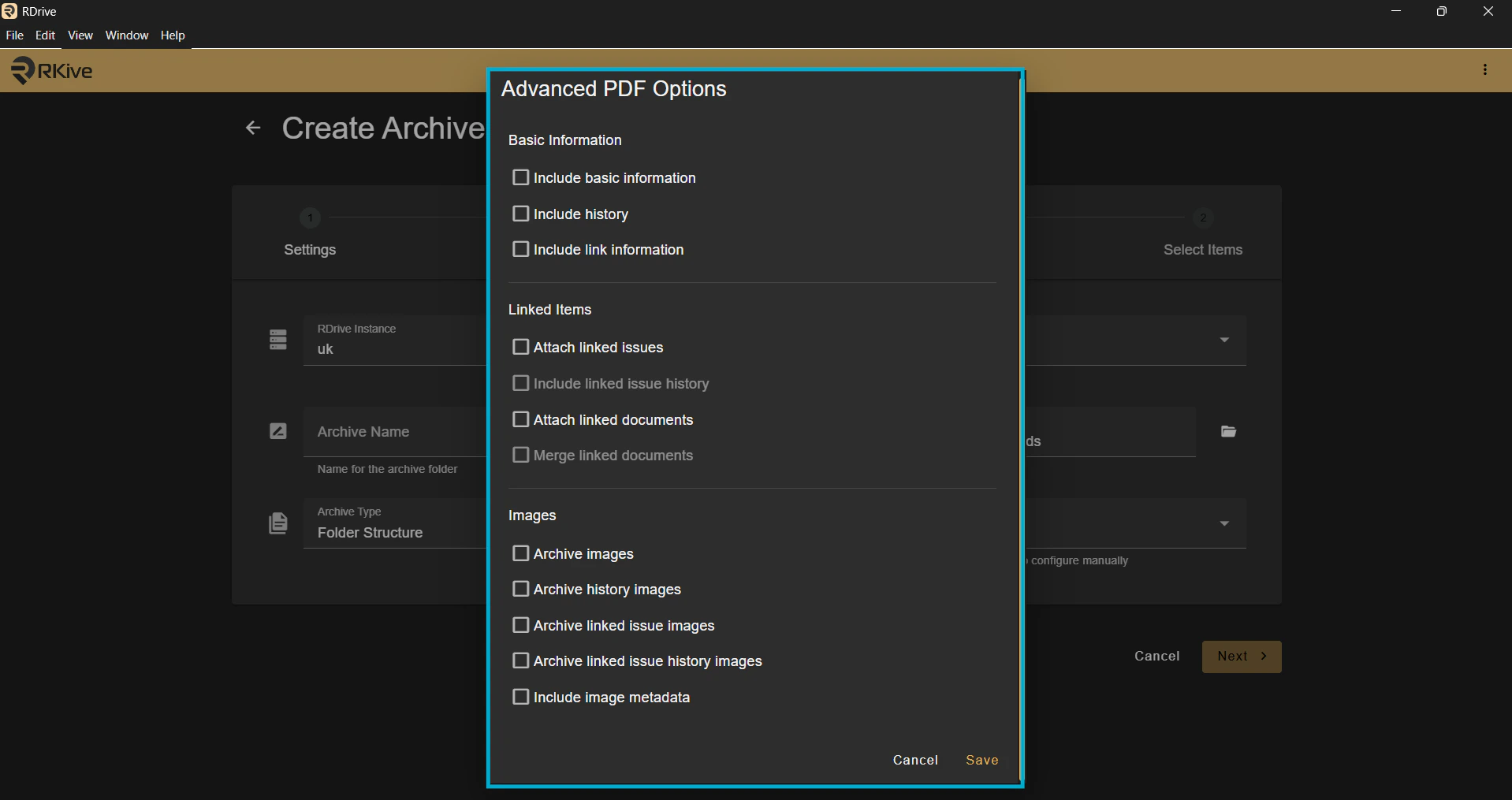 * Include linked issues
* Include linked documents
* Merge attachments into PDFs
Click **Save and Load**
### ✅ **Step 4: Select What to Archive**
Choose how much data to include:
* **Archive All** → full project archiveor
* Apply filters (e.g. Closed items only, date range, category)
* Include linked issues
* Include linked documents
* Merge attachments into PDFs
Click **Save and Load**
### ✅ **Step 4: Select What to Archive**
Choose how much data to include:
* **Archive All** → full project archiveor
* Apply filters (e.g. Closed items only, date range, category)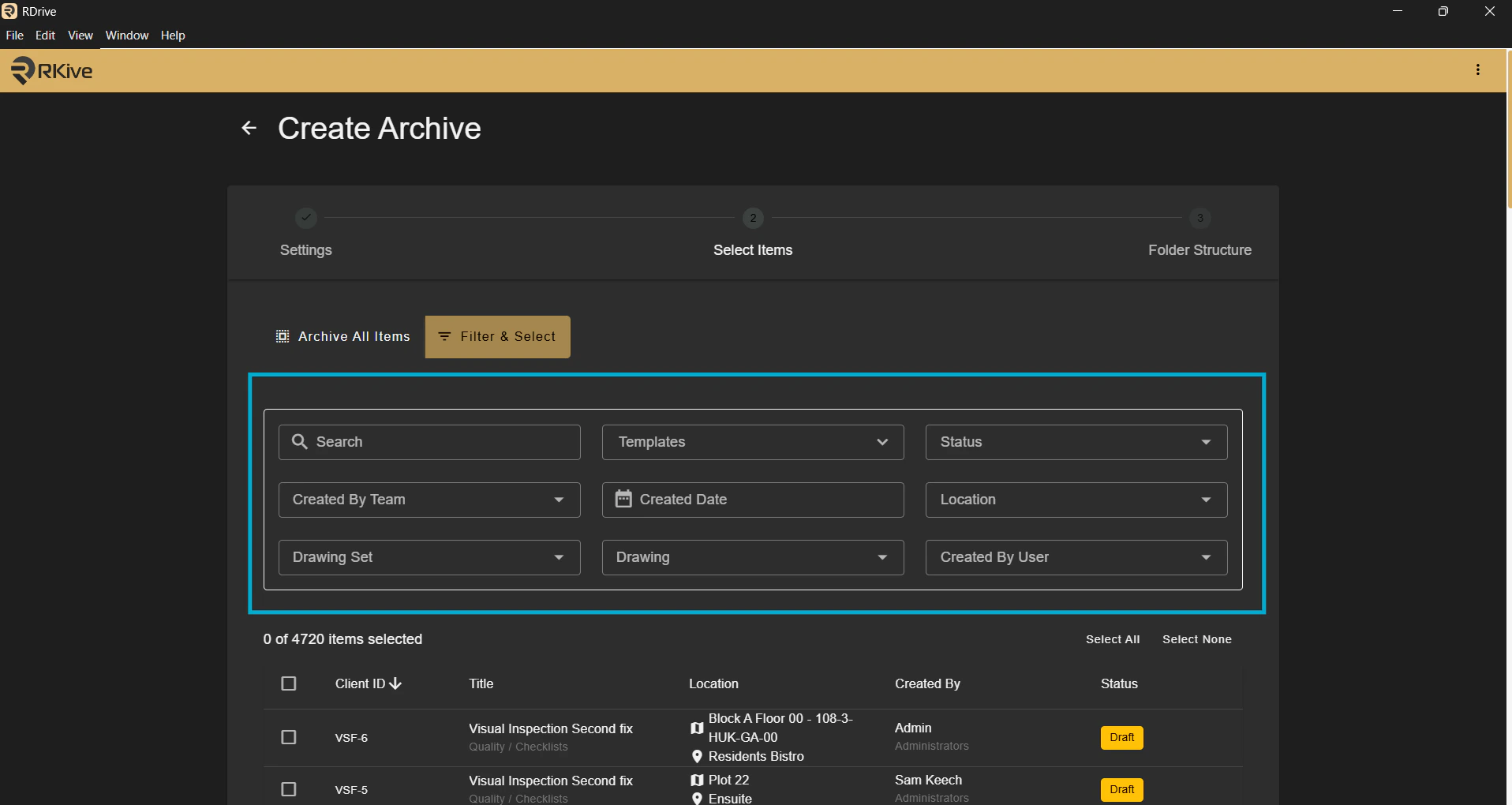 Click **Next**
### ✅ **Step 5: Define Folder Structure**
Choose how your archive will be organised, for example:
* Drawing
* Location
* Category
* Profile
This determines how files are grouped in folders
Click **Start
Click **Next**
### ✅ **Step 5: Define Folder Structure**
Choose how your archive will be organised, for example:
* Drawing
* Location
* Category
* Profile
This determines how files are grouped in folders
Click **Start **
### ✅ **Step 6: Run the Archive**
RKive will now:
* Generate PDFs
* Download files
* Build the folder structure
You can:
* Monitor progress
* Pause the archive
* Resume if needed
You should see continuous progress as items are processed
### ✅ **Step 7: Access Your Archive**
Once complete, you can:
* Open the archive folder
* Browse structured folders
* View PDFs and attachments
* Use RKive to search and filter data
### ✅ **Step 8: Resume if Needed**
If the archive is paused or interrupted:
1. Re-open RKive
2. Select your archive
3. Click **Resume
**
### ✅ **Step 6: Run the Archive**
RKive will now:
* Generate PDFs
* Download files
* Build the folder structure
You can:
* Monitor progress
* Pause the archive
* Resume if needed
You should see continuous progress as items are processed
### ✅ **Step 7: Access Your Archive**
Once complete, you can:
* Open the archive folder
* Browse structured folders
* View PDFs and attachments
* Use RKive to search and filter data
### ✅ **Step 8: Resume if Needed**
If the archive is paused or interrupted:
1. Re-open RKive
2. Select your archive
3. Click **Resume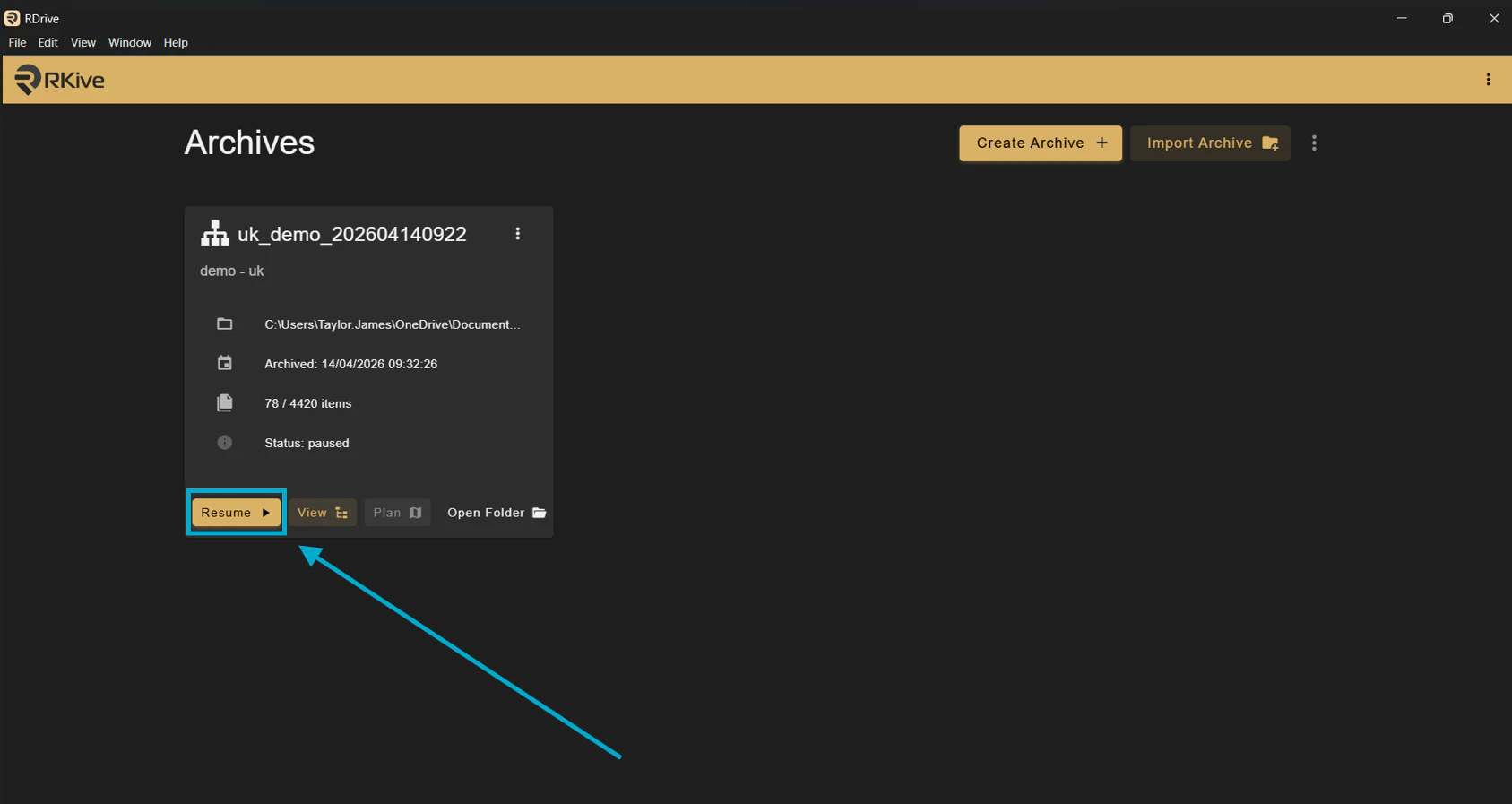 **
RKive will continue from where it left off
**Notes:**
* RKive processes data in the background and downloads files as they are ready. You should see steady progress throughout.
* Archives are generated on the server, not your device
* RKive requires an active session to continue processing
* Large archives may take time but should always show progress
* If progress stops completely, this should be investigated
***
## **FAQs & Troubleshooting**
**Q: The archive looks like it has stopped or stalled — is this normal?** \
**A:** No — you should normally see a steady stream of progress as items are downloaded.
If the archive appears stuck for a long period:
* Wait a few minutes to confirm no progress is happening
* Try pausing and resuming the archive
* If the issue continues, contact Support with logs (see below)
**Q: How long should an archive take?** \
**A:** This depends on the number of items and overall data size. Large archives can take a significant amount of time, but progress should be continuous throughout.
**Q: Does my computer affect performance?** \
**A:** Very little. RKive no longer relies on your device to generate PDFs.
You only need:
* Enough memory to run the application (2GB free)
* Enough storage space for the archive
**Q: Why is my archive slower at certain times?** \
**A:** This depends on the number of items and overall data size. Large archives can take a significant amount of time, but progress should be continuous throughout.
**Q: What happens if my computer goes to sleep?** \
**A:** If your device goes to sleep:
* The archive process will pause
* It will not continue in the background
You can resume the archive when you return.
**Q: Some items failed — what should I do?** \
**A:**
* Resume the archive
* Failed items will be retried automatically
If failures continue, contact Support with logs.
**Q: How do I share logs with Support?** \
**A:** To help investigate issues, please send:
From your archive folder:
* The logs folder
* The database (duckdb) folder
Zip these folders and send them to Support.
**
RKive will continue from where it left off
**Notes:**
* RKive processes data in the background and downloads files as they are ready. You should see steady progress throughout.
* Archives are generated on the server, not your device
* RKive requires an active session to continue processing
* Large archives may take time but should always show progress
* If progress stops completely, this should be investigated
***
## **FAQs & Troubleshooting**
**Q: The archive looks like it has stopped or stalled — is this normal?** \
**A:** No — you should normally see a steady stream of progress as items are downloaded.
If the archive appears stuck for a long period:
* Wait a few minutes to confirm no progress is happening
* Try pausing and resuming the archive
* If the issue continues, contact Support with logs (see below)
**Q: How long should an archive take?** \
**A:** This depends on the number of items and overall data size. Large archives can take a significant amount of time, but progress should be continuous throughout.
**Q: Does my computer affect performance?** \
**A:** Very little. RKive no longer relies on your device to generate PDFs.
You only need:
* Enough memory to run the application (2GB free)
* Enough storage space for the archive
**Q: Why is my archive slower at certain times?** \
**A:** This depends on the number of items and overall data size. Large archives can take a significant amount of time, but progress should be continuous throughout.
**Q: What happens if my computer goes to sleep?** \
**A:** If your device goes to sleep:
* The archive process will pause
* It will not continue in the background
You can resume the archive when you return.
**Q: Some items failed — what should I do?** \
**A:**
* Resume the archive
* Failed items will be retried automatically
If failures continue, contact Support with logs.
**Q: How do I share logs with Support?** \
**A:** To help investigate issues, please send:
From your archive folder:
* The logs folder
* The database (duckdb) folder
Zip these folders and send them to Support.