
Overview
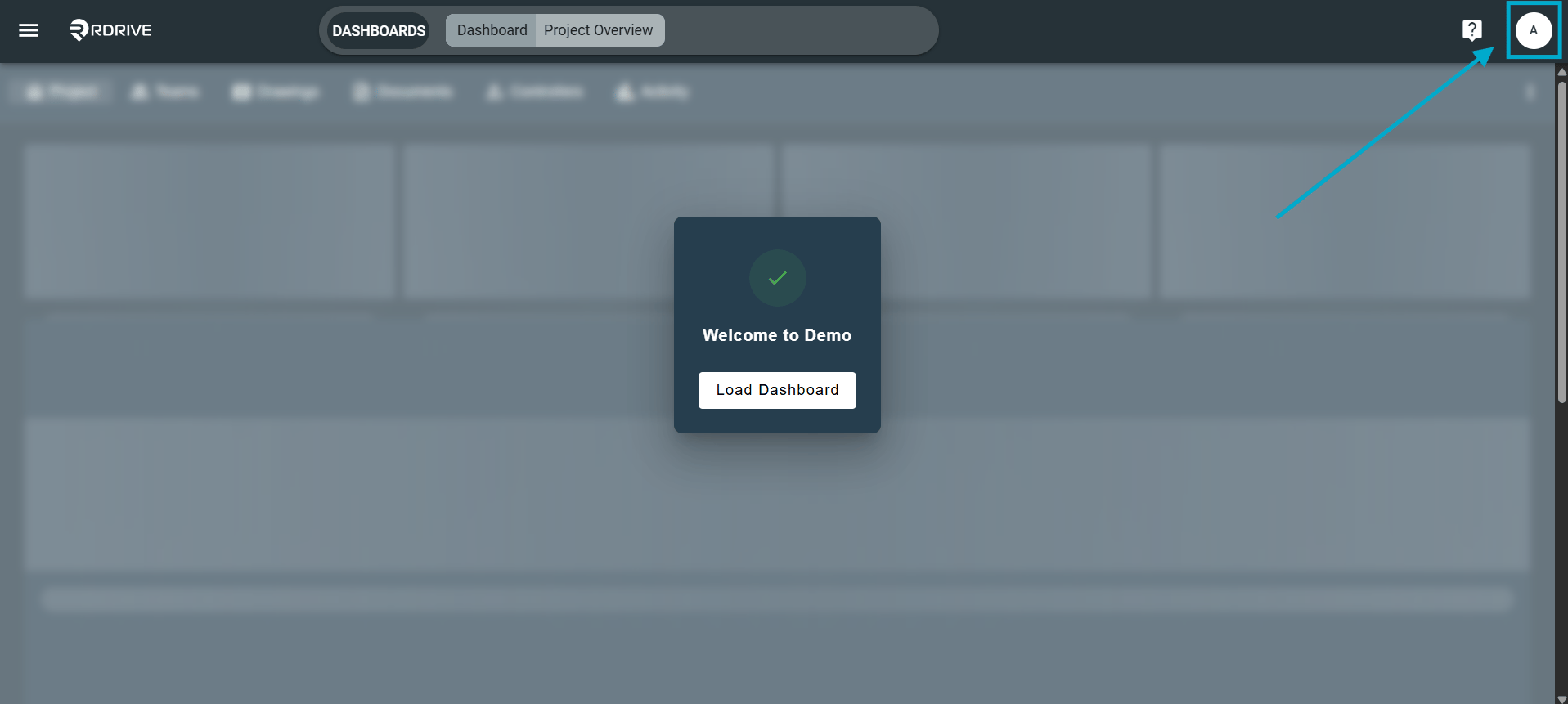
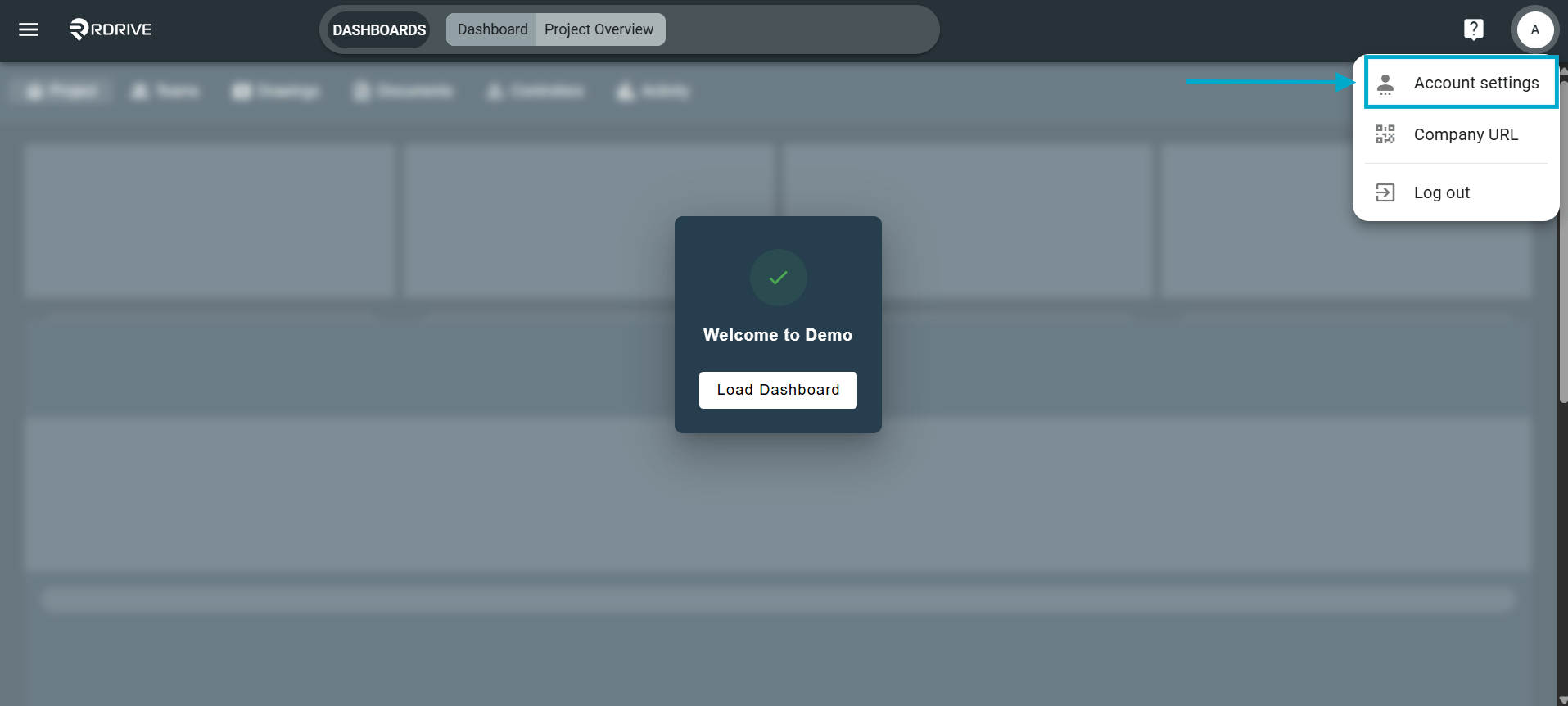
How to access and edit your account settings from the website/desktop- Purpose: How to navigate to account settings and add preference
- Who It’s For: General users
Prerequisites: RDrive Access
Profile
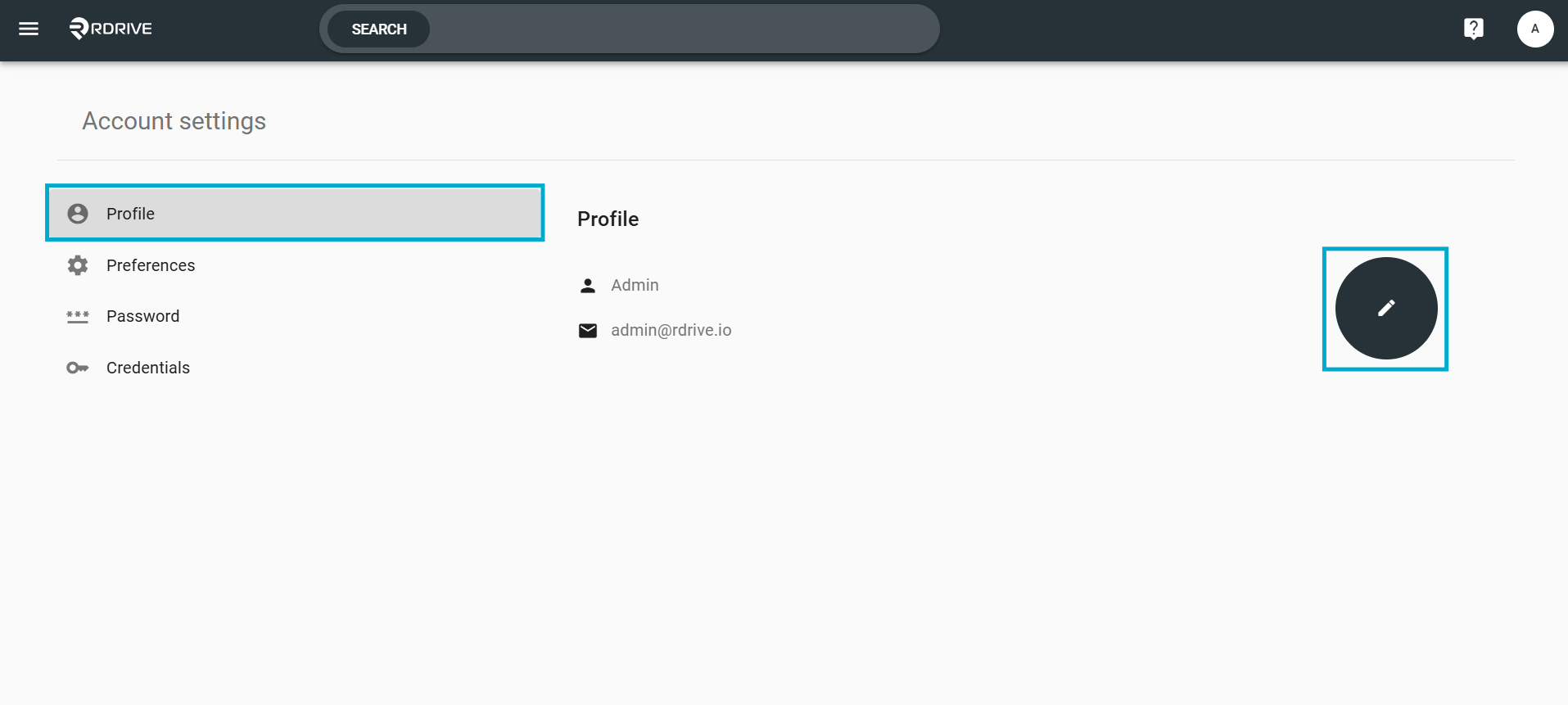
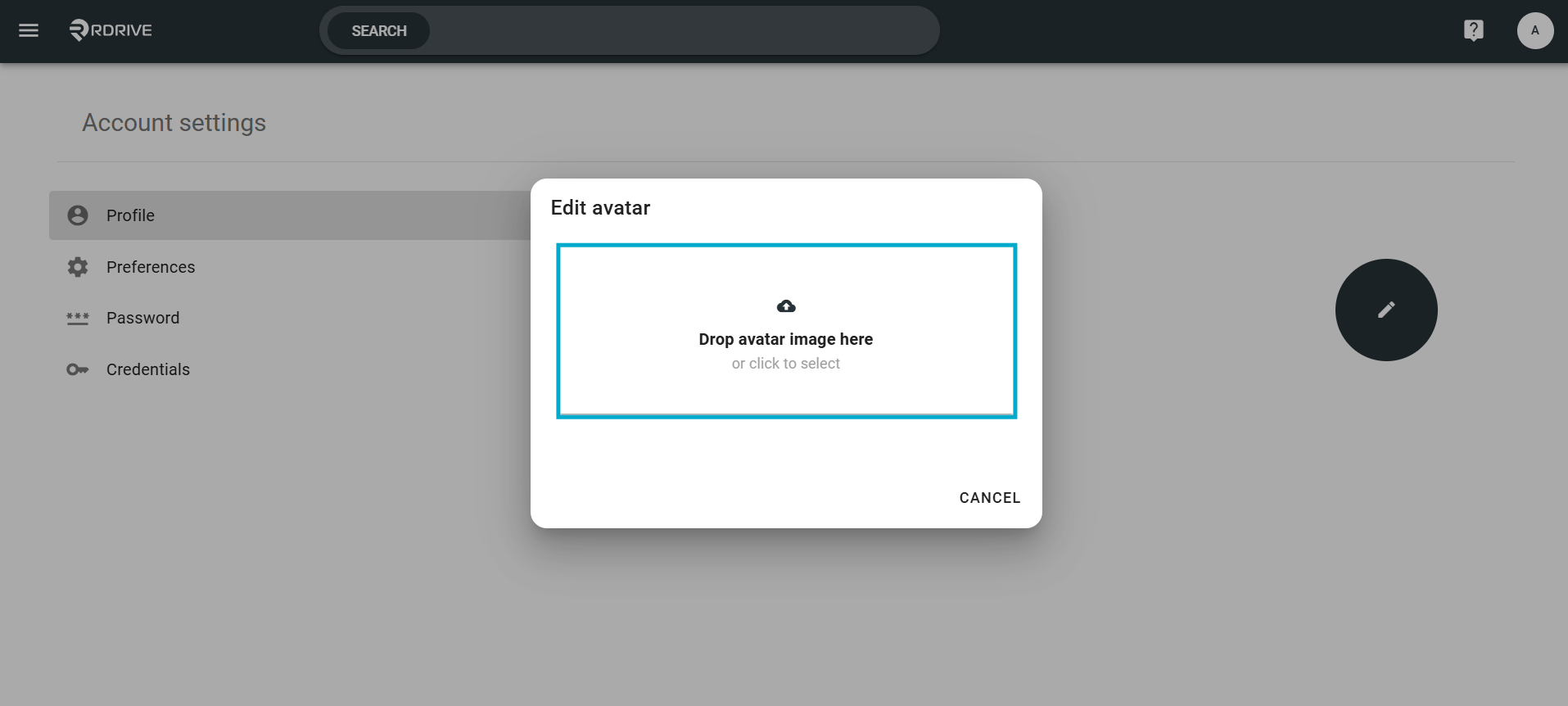
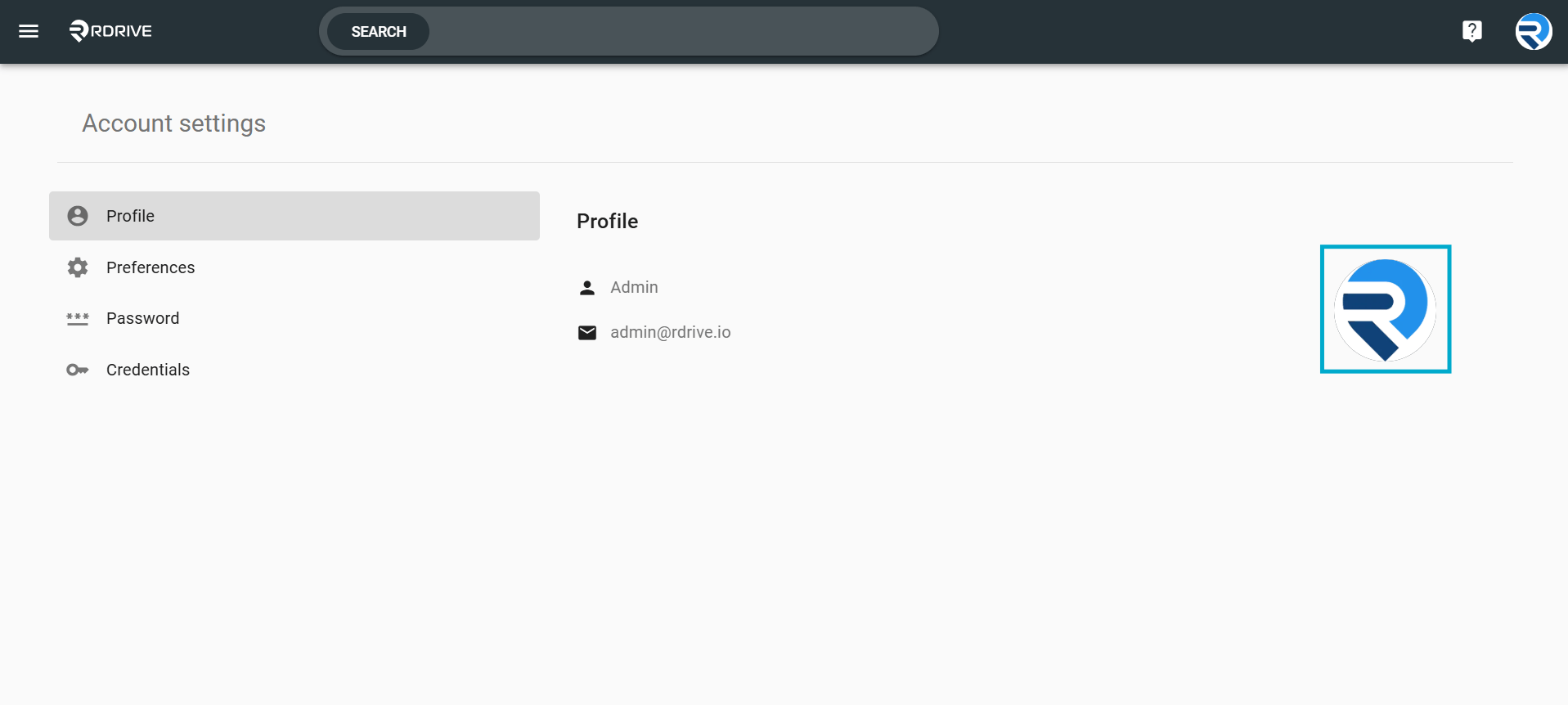
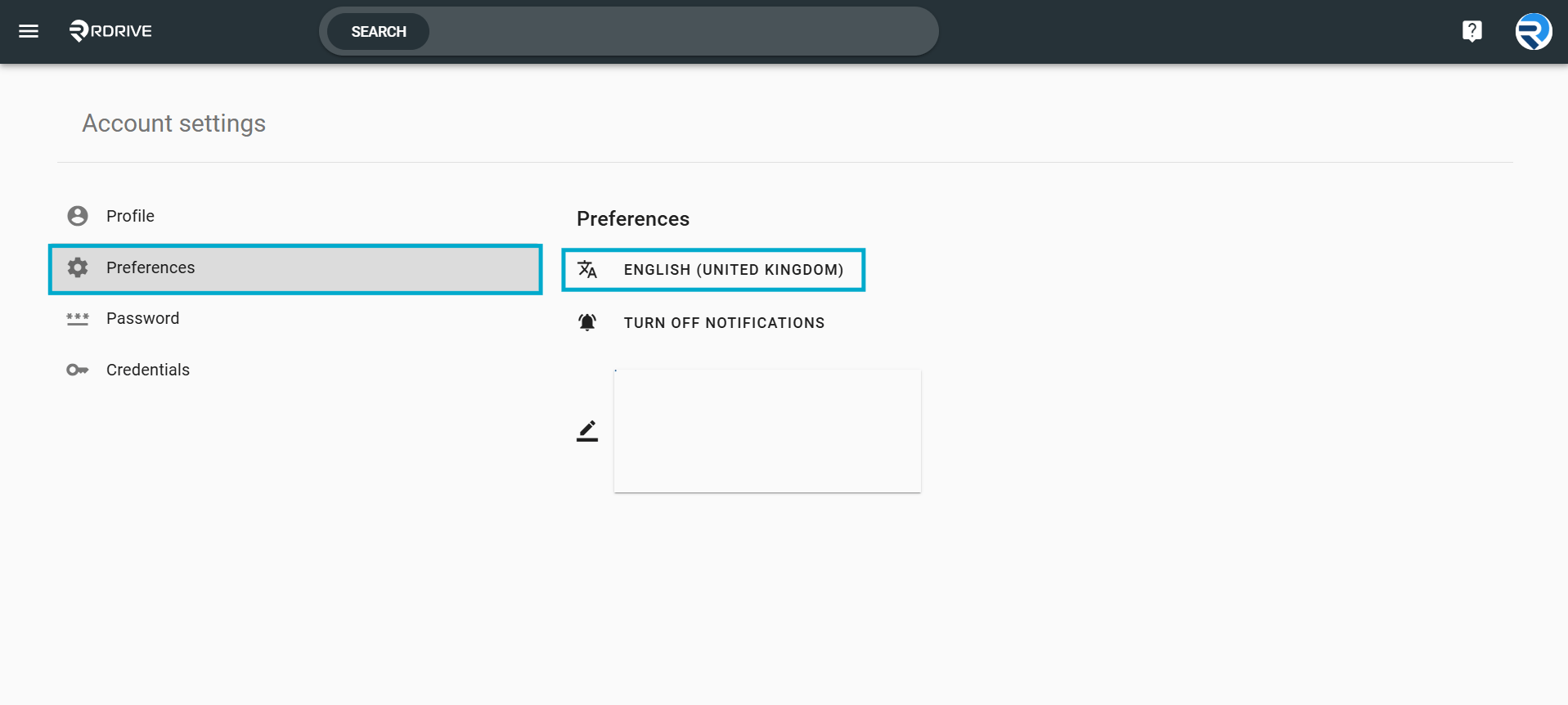
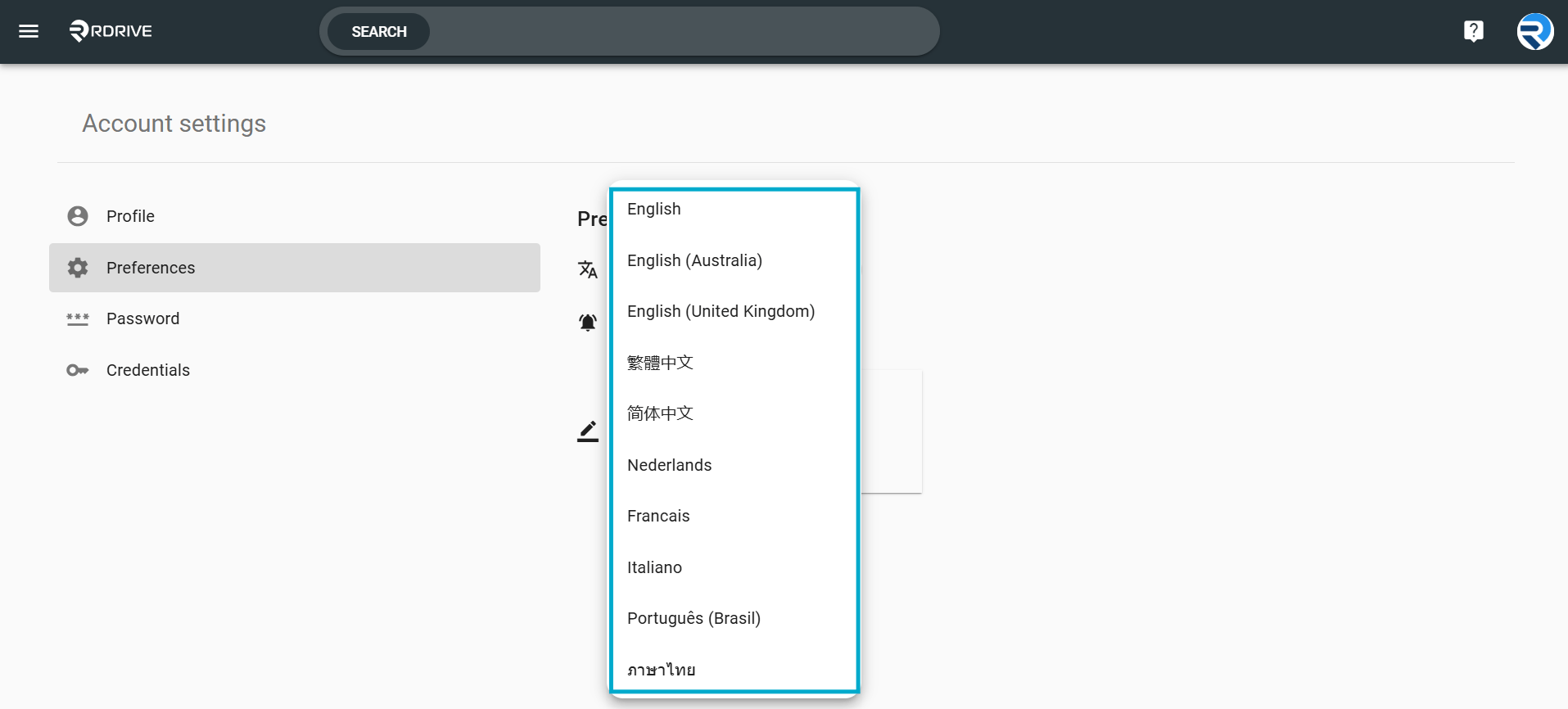
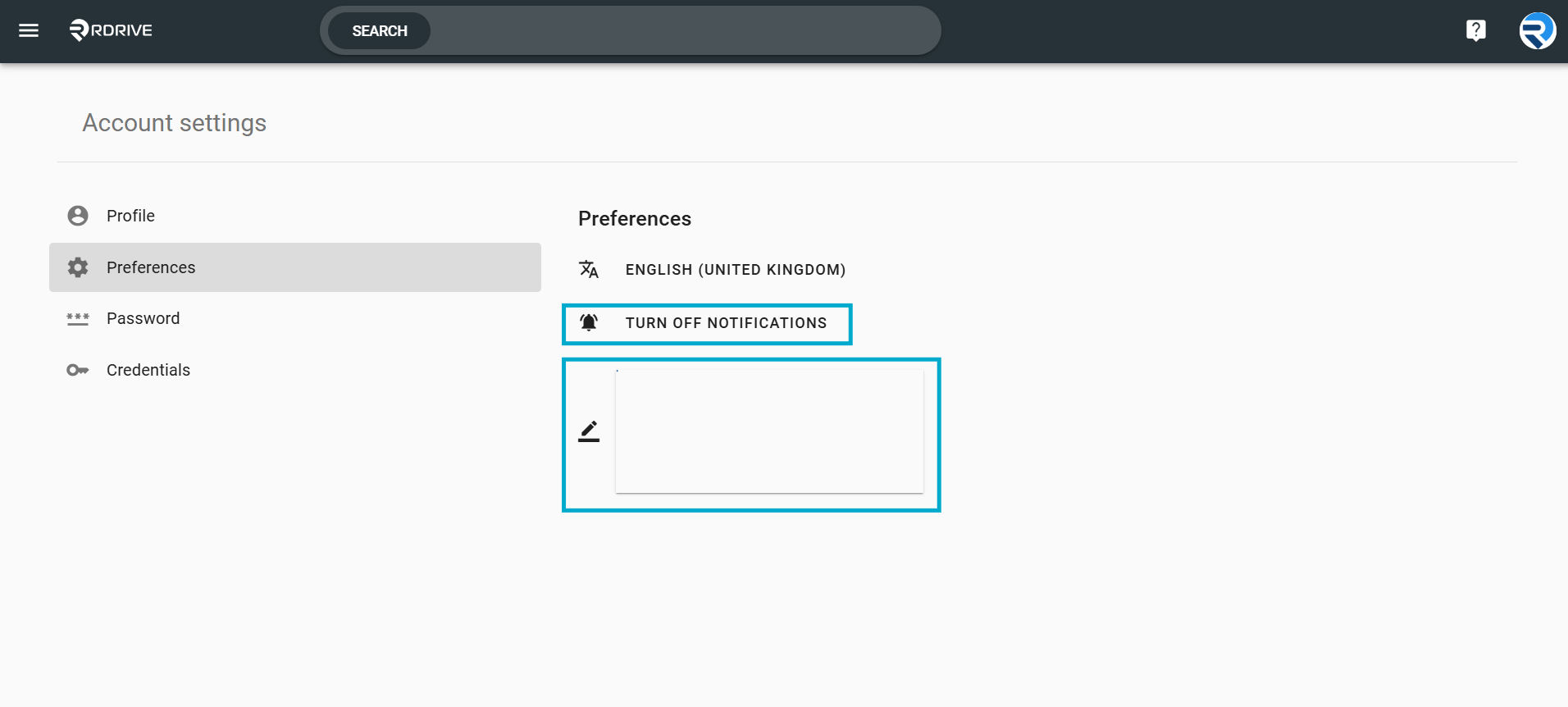
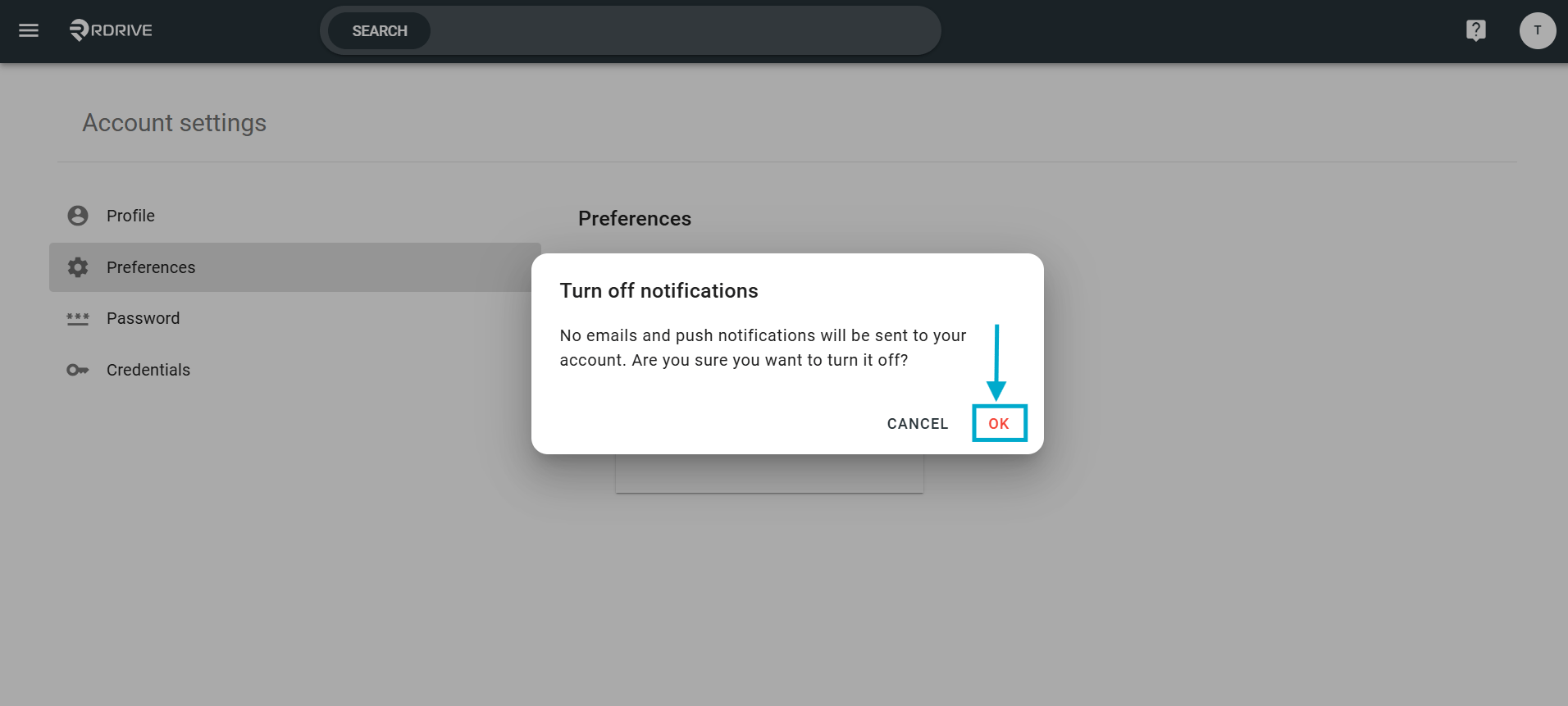
You can view your display name, registered email address and add your profile avatar.Please note that only the system language is editable. If changes are needed for the display name and email address, kindly contact the project administrator for assistance. Click the button highlighted to add your avatar image.
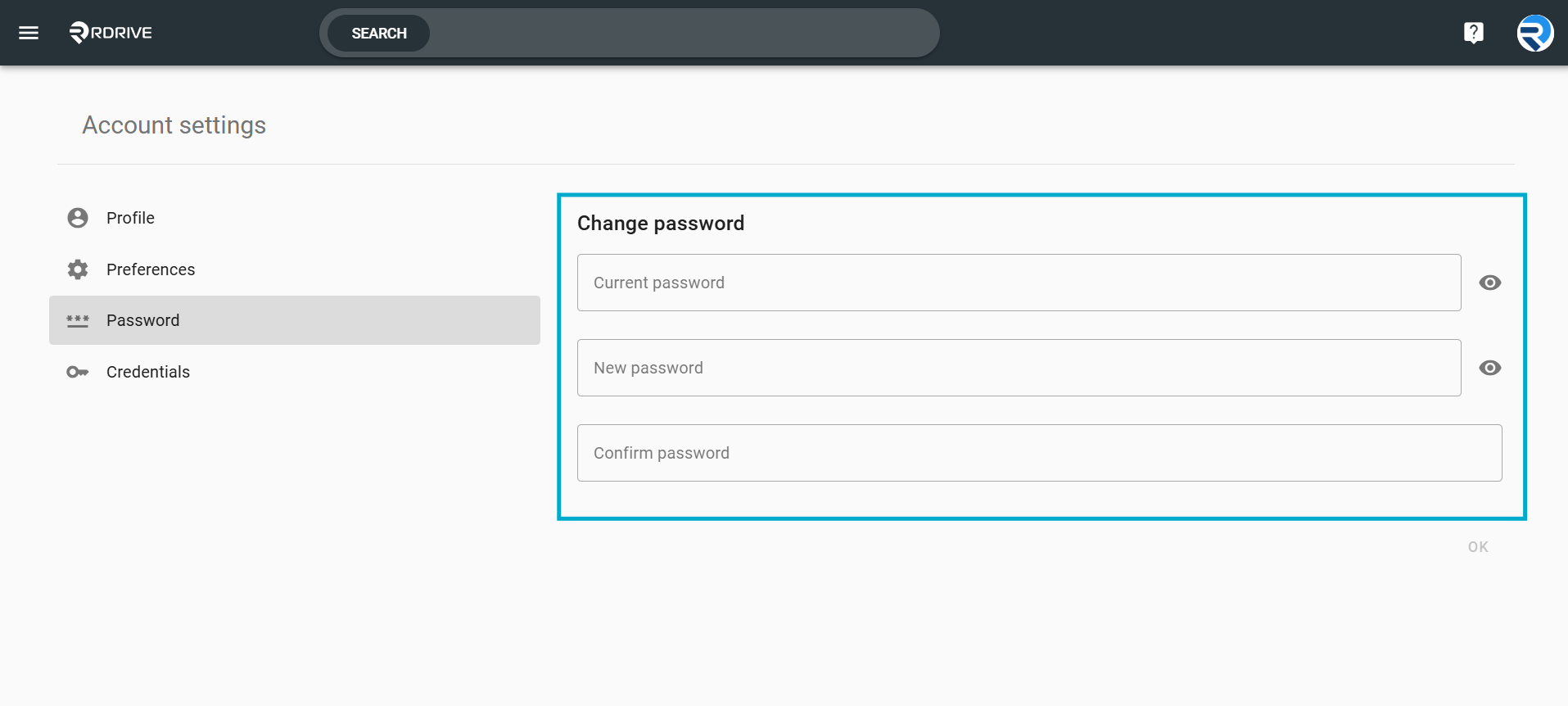
To reset your password, input the current password, then provide the new password twice. Confirm the changes by selecting “OK”.
Credentials
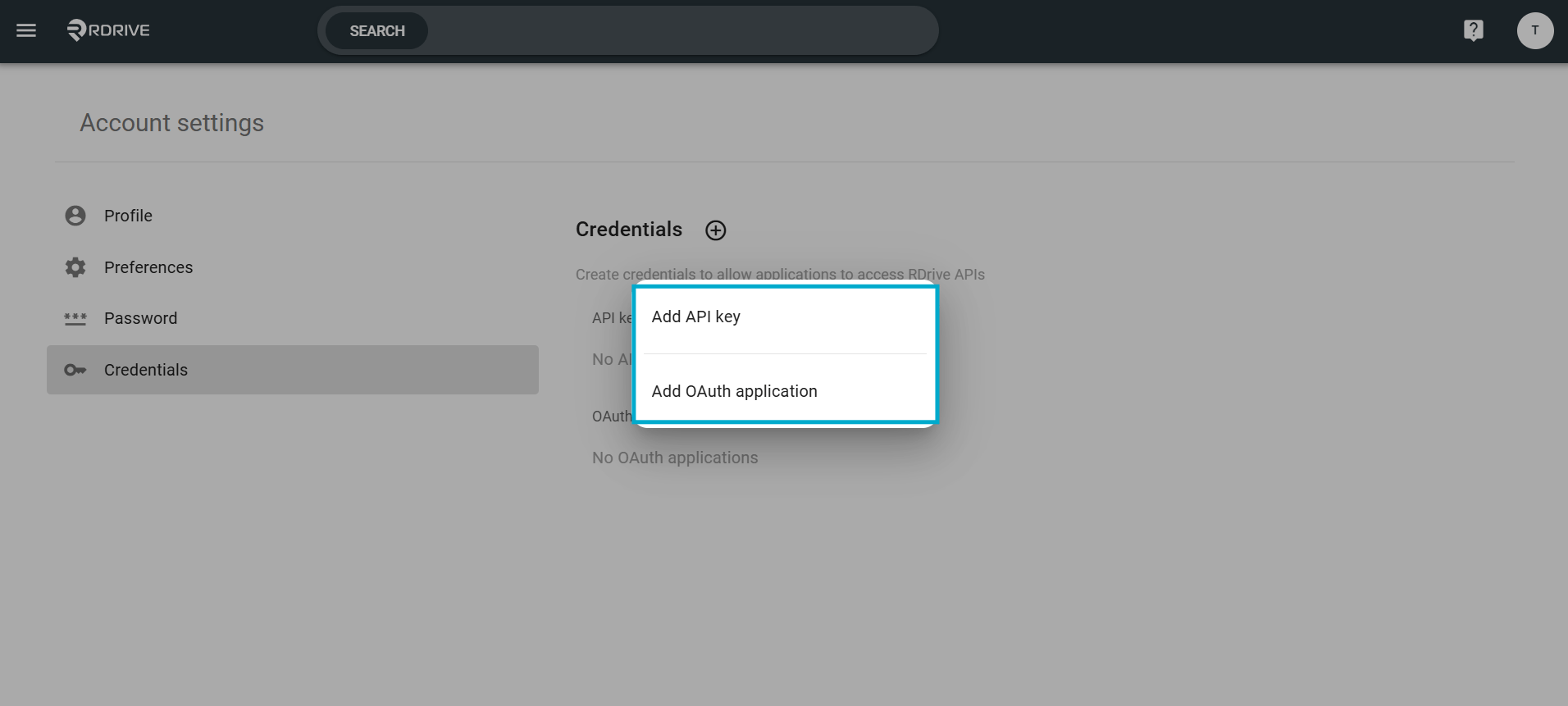
In this section, you have the option to add or modify your OpenID identity providers associated with your account, click the ”+” highlighted below to add your key.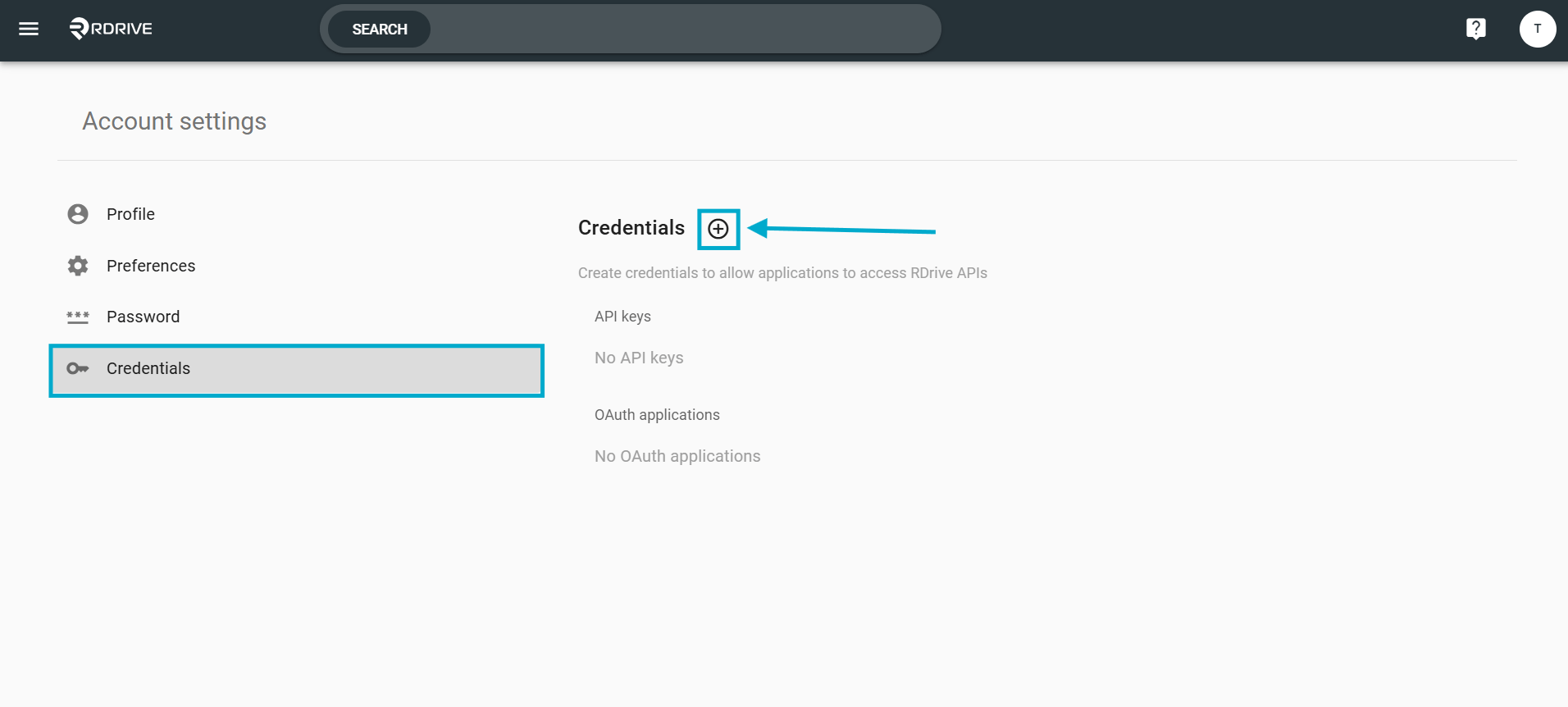
- API
- OAuth application
- You may add or change your account openID identity providers here.
FAQs & Troubleshooting
Q: Who can edit account details within RDrive?A: All users can update their own account details, such as name, contact information, and password. Some profile settings may require administrator permissions depending on your organisation setup. Q: Why can’t I save my updated account details?
A: Ensure all required fields have been completed correctly and that your internet connection is stable. If the issue continues, refresh the page and try again. Q: I updated my account details, but the changes are not showing—what should I do?
A: Log out of RDrive and log back in to refresh your profile data. If the changes still do not appear, clear your browser cache or contact support.