- Login to Website
- Login to Device
- Hints and Tips
- Do I need to remember the 6-digit verification code?
- How can I reset the authenticated device?
Login to Website
You need below 2 detail to log in RDrive:1. User credential (Email address)
2. 1️⃣ Approved by the authenticated device.
or
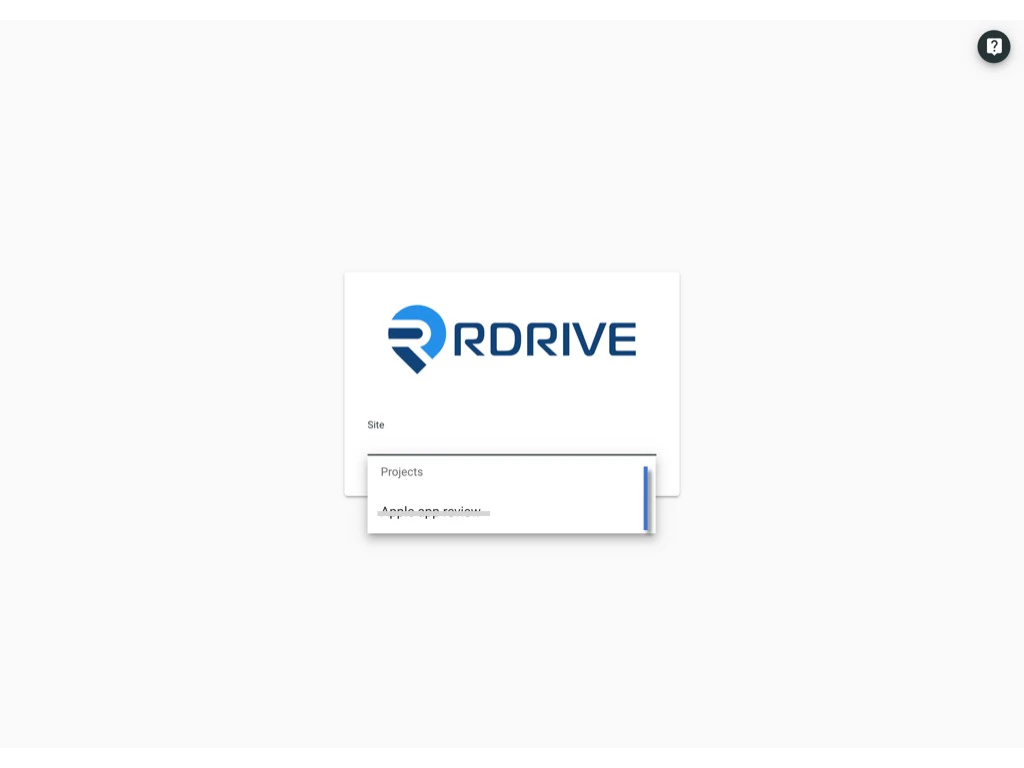
Passcode generated by RDrive. (2️⃣ Send by email or 3️⃣ get from RDrive APP) Enter the Email address and click log in.
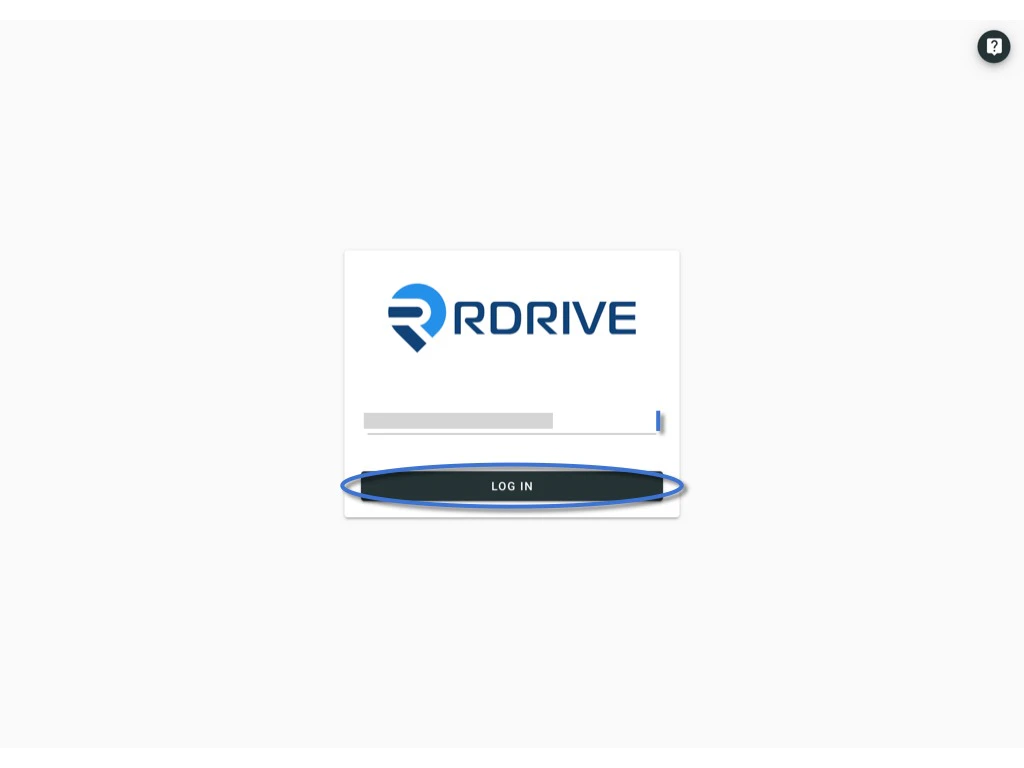
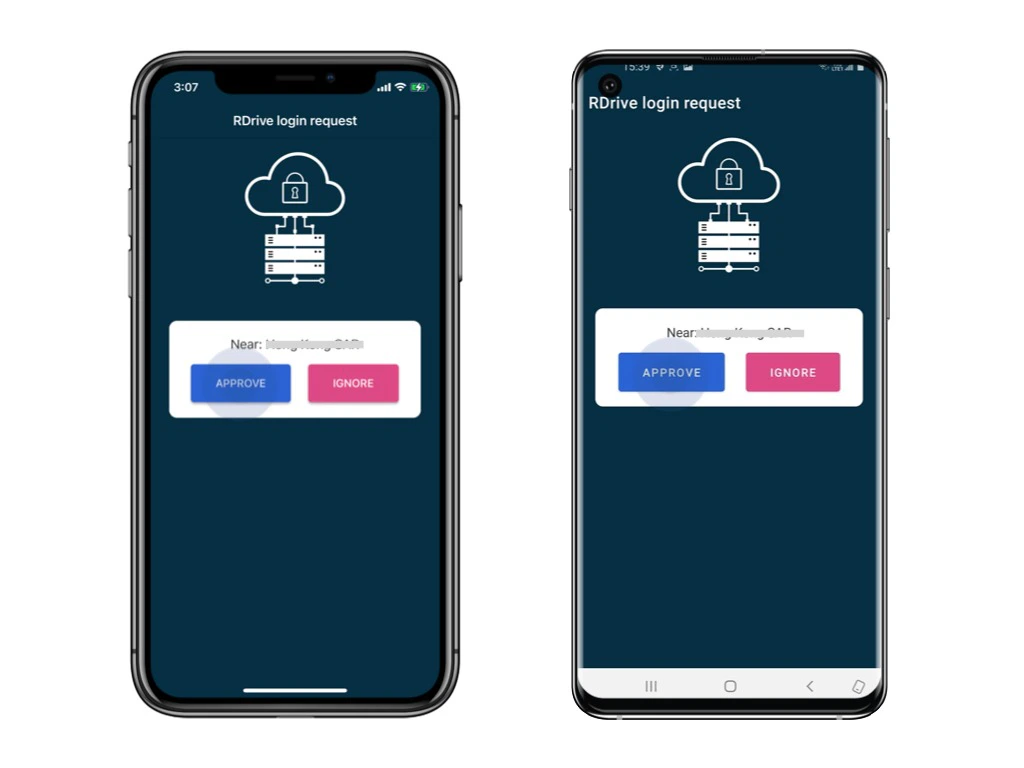
1️⃣ Approved by the authenticated device.
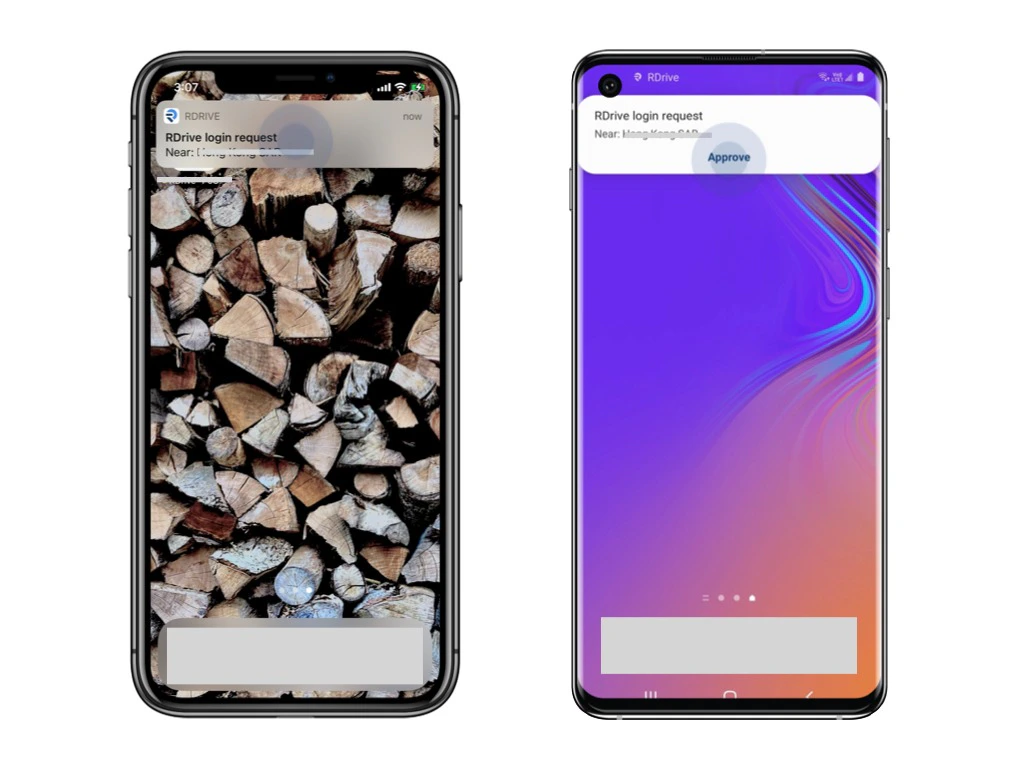
Login request will send to the authenticated device as a push-up notification.Please unlock the device and click Approve. Authenticated device is means a device already logged in with 2FA. For the first log in, you have to authenticate by the PASSCODE from email.
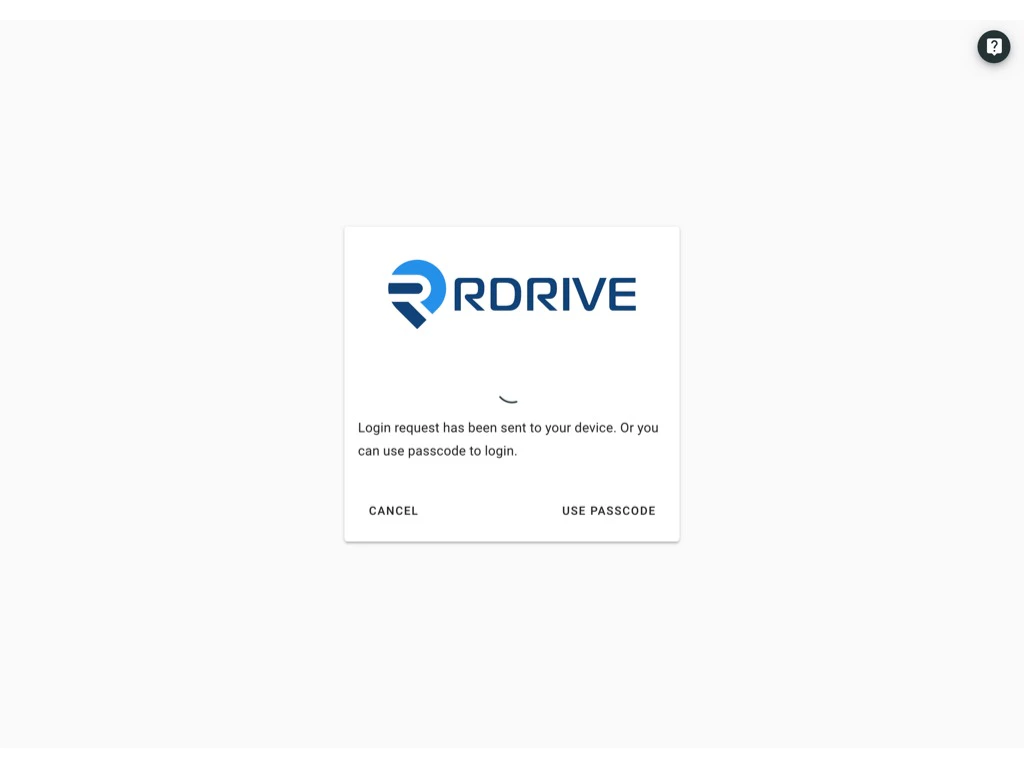
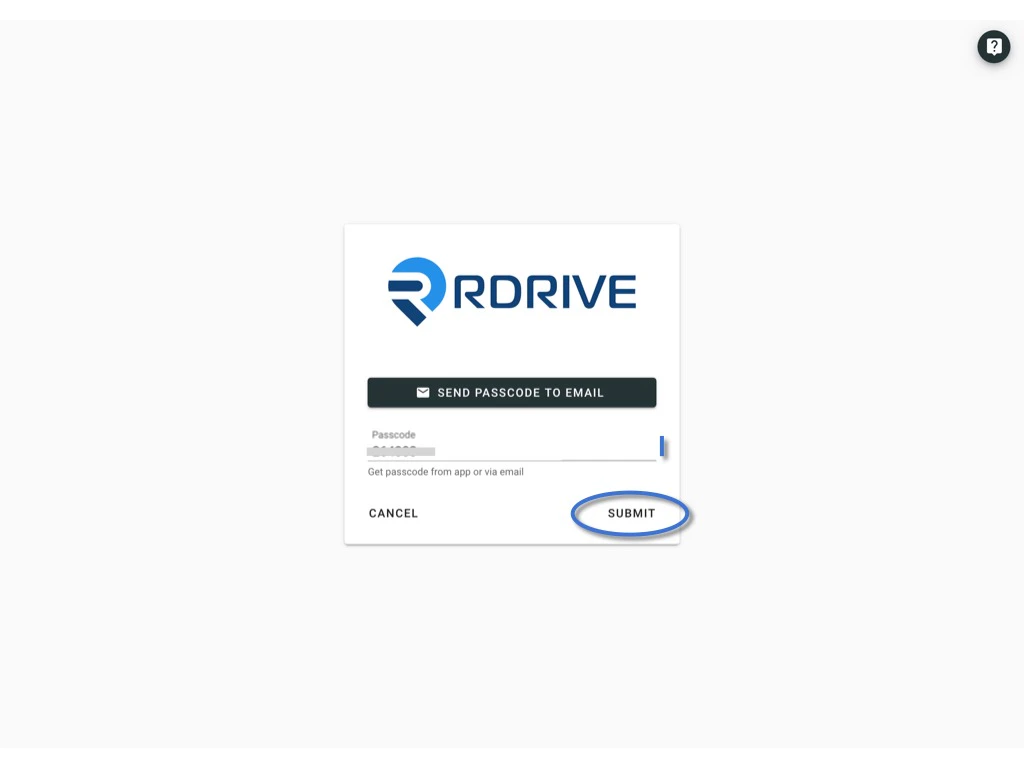
2️⃣ Use Passcode - send passcode to email
Click Use Passcode and Send Passcode to Email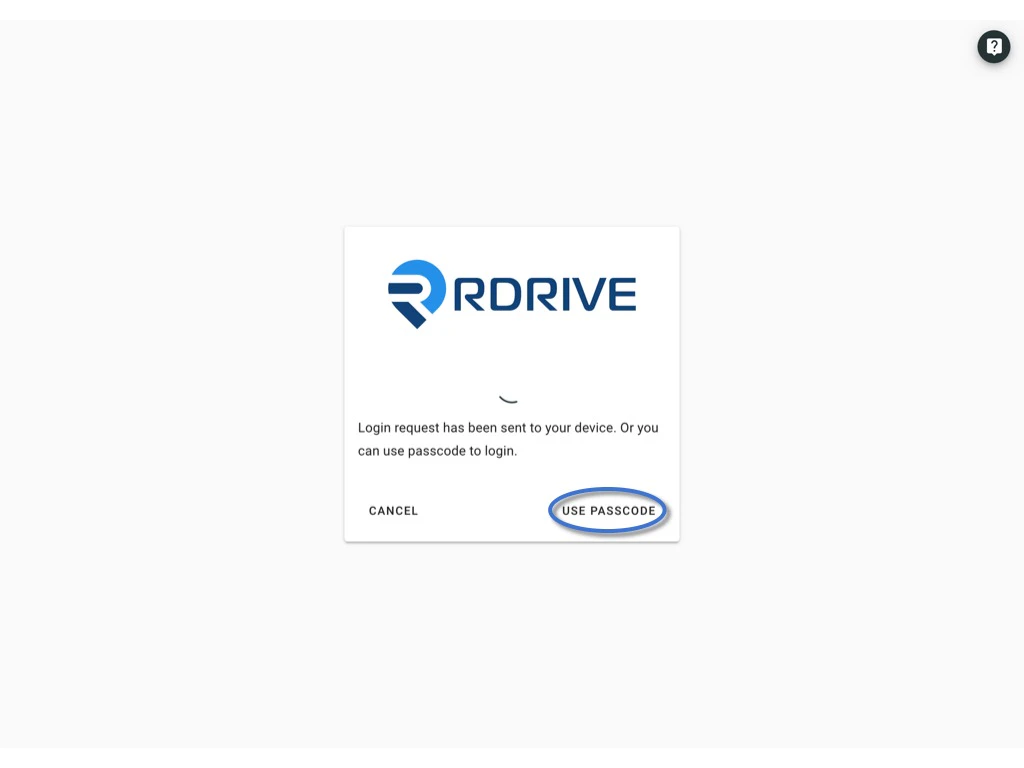
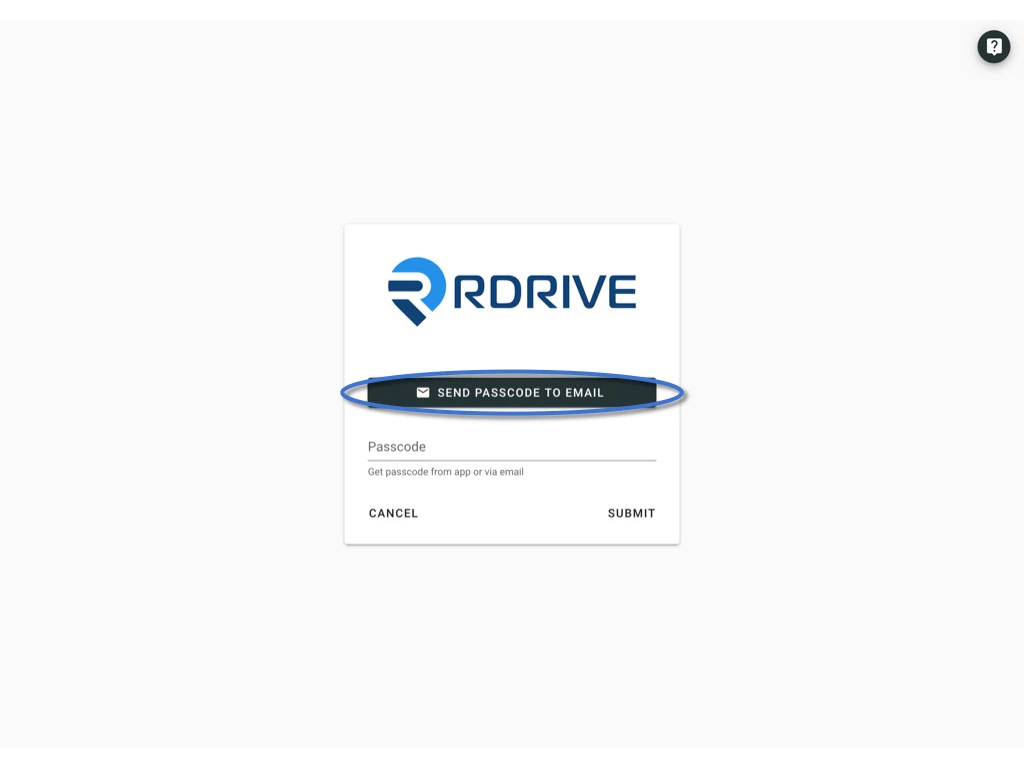
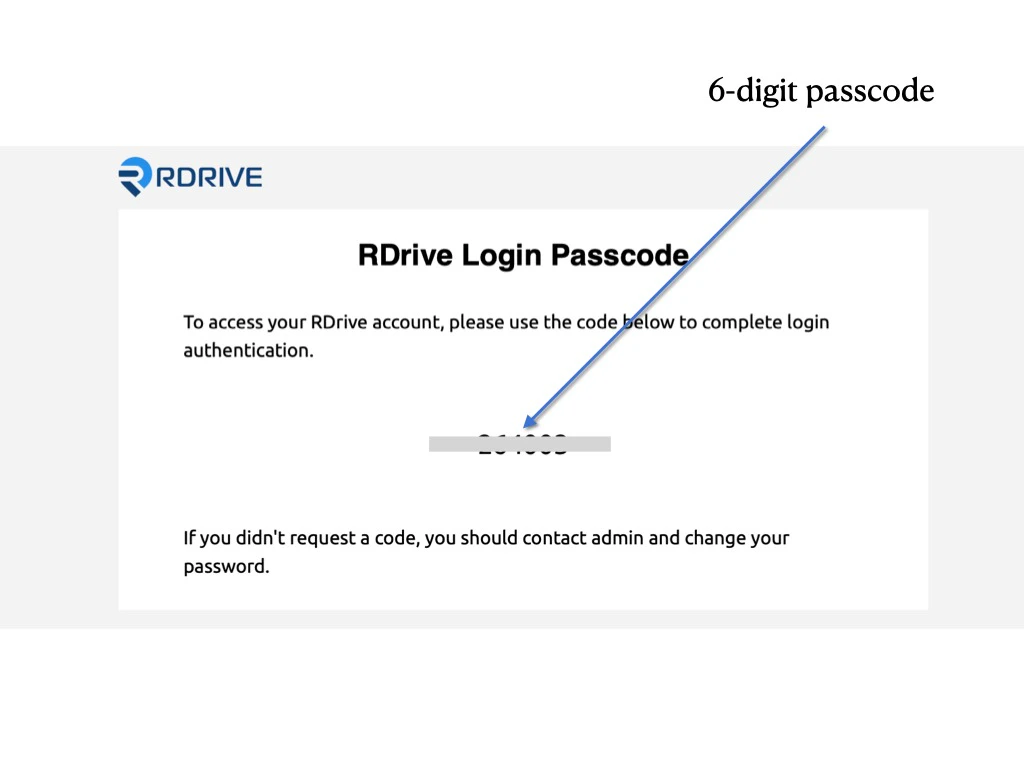
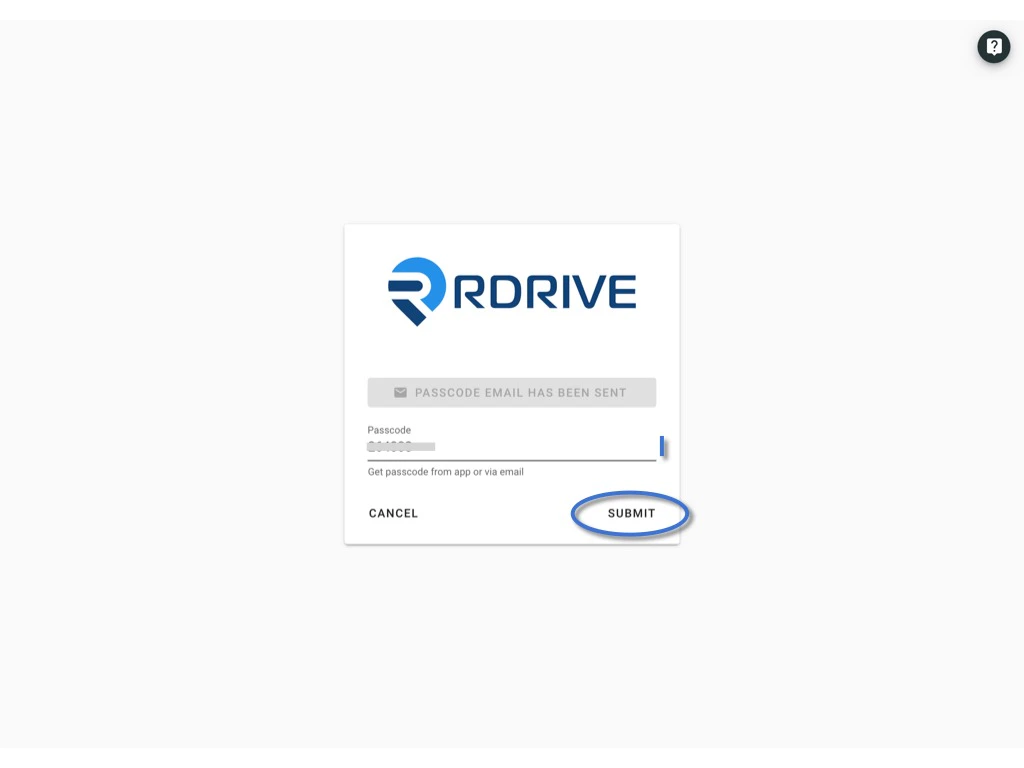
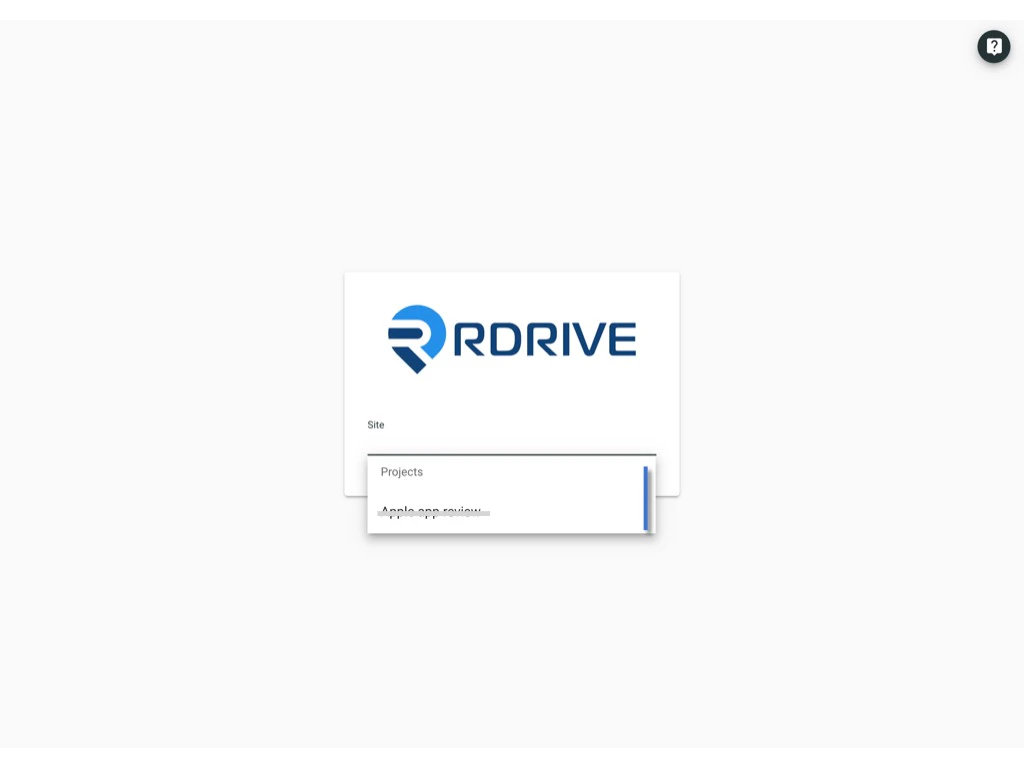
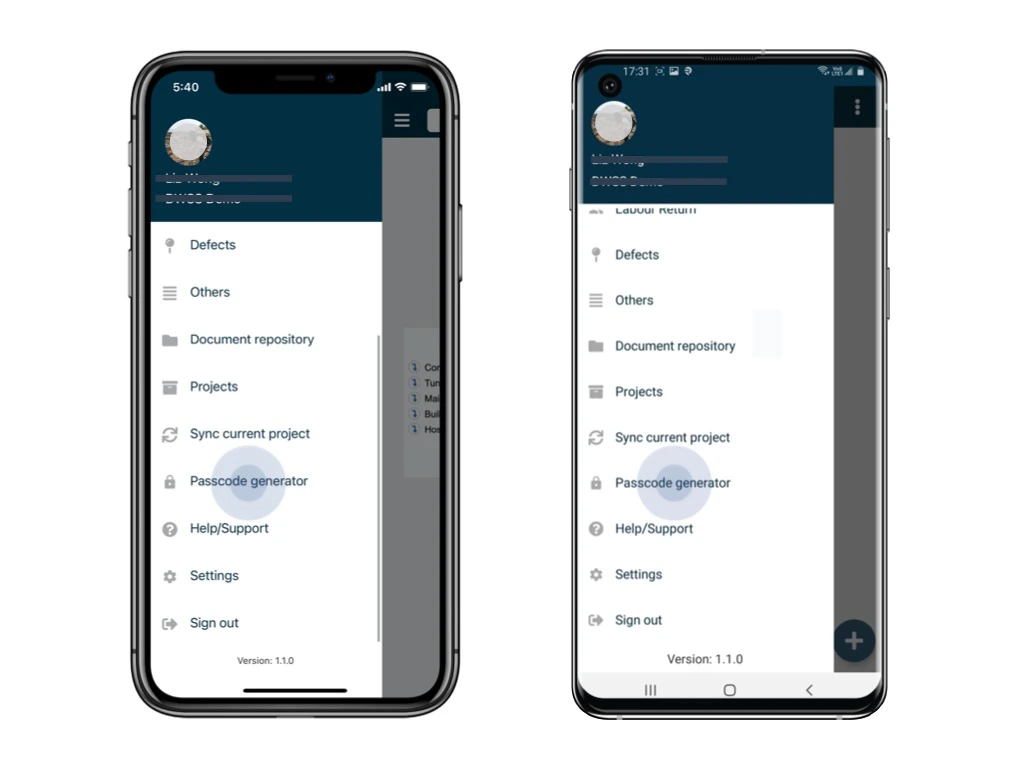
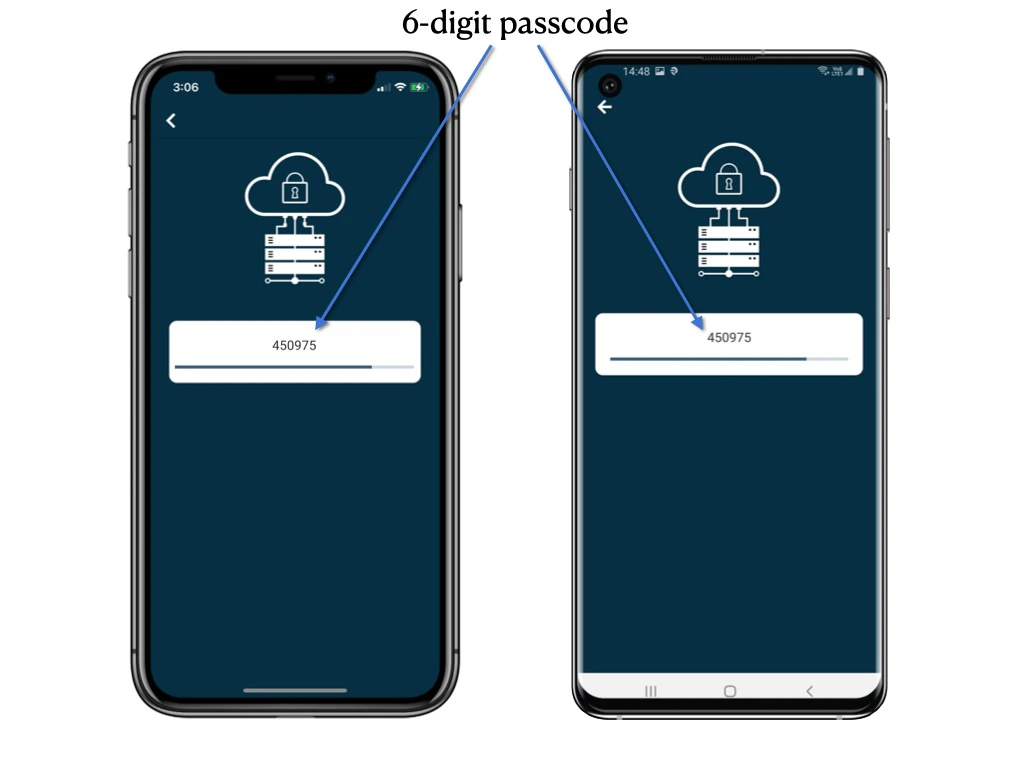
3️⃣ Use Passcode - from RDrive APP
Click Use Passcode to enter the passcode.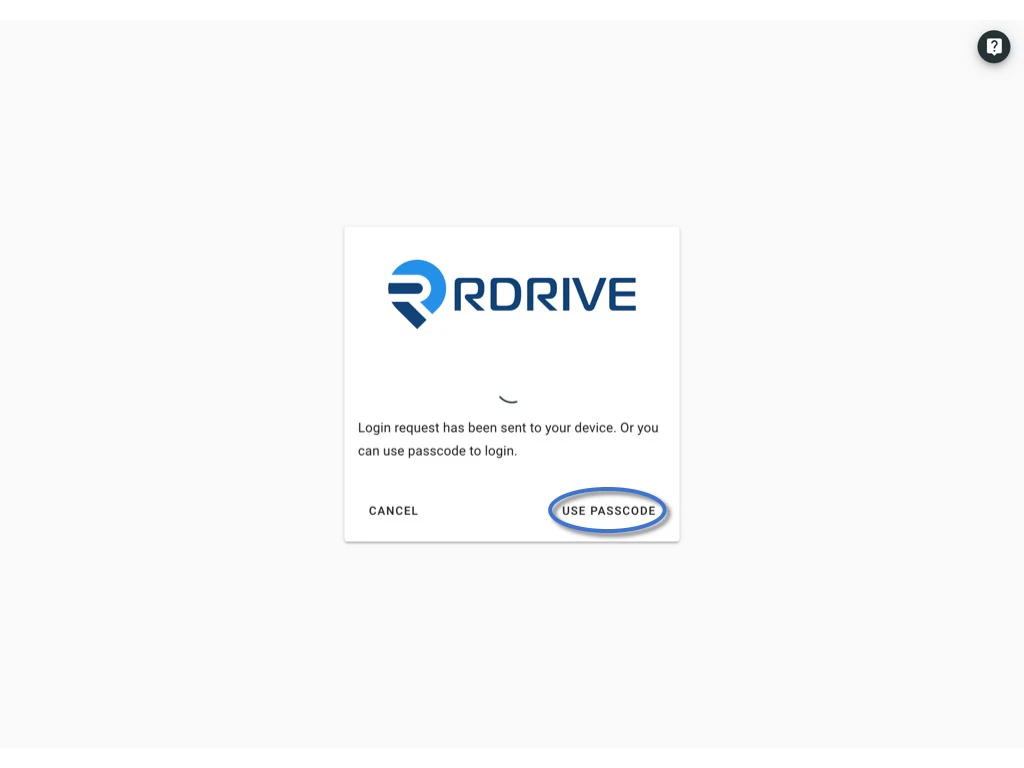
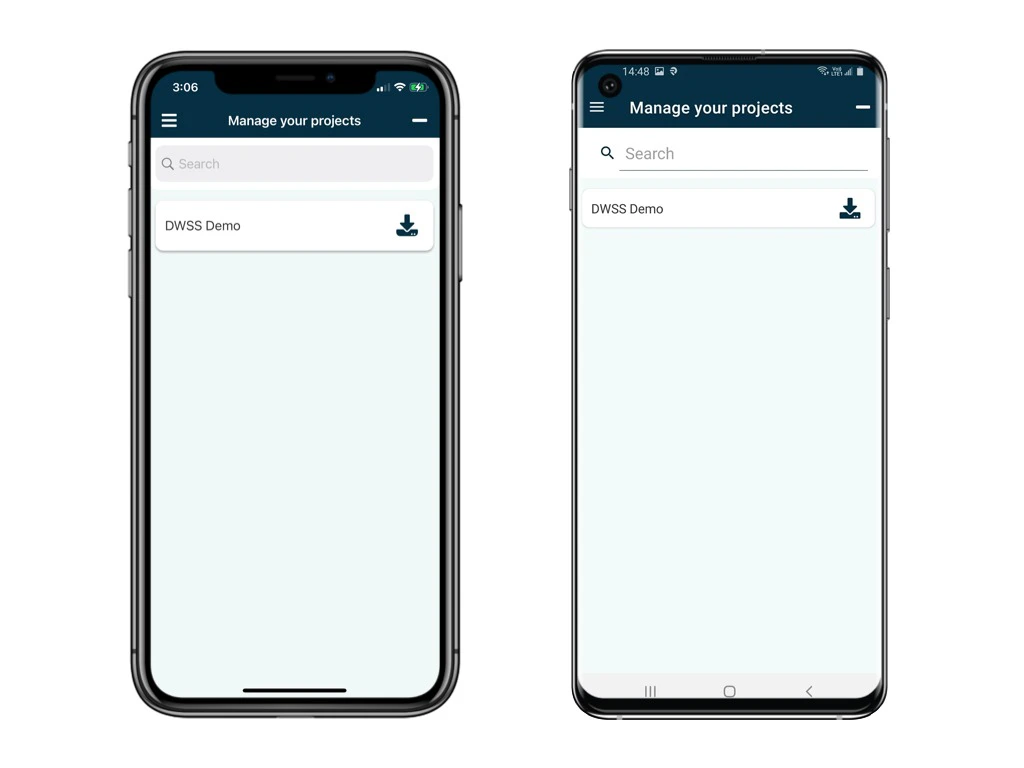
Click the menu icon ≡ on the top left corner, Unfold Menu > Passcode generator.
Login to Device
You need below 2 detail to log in RDrive:1. User credential (Email address)
2. 1️⃣ Approved by the authenticated device.
or
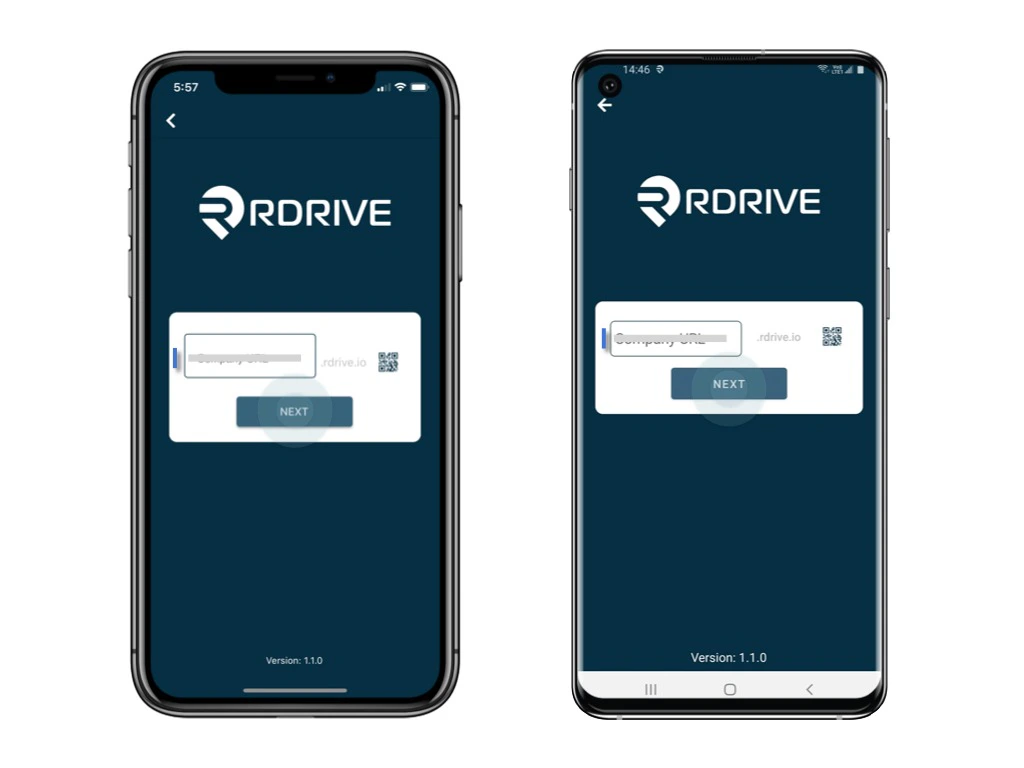
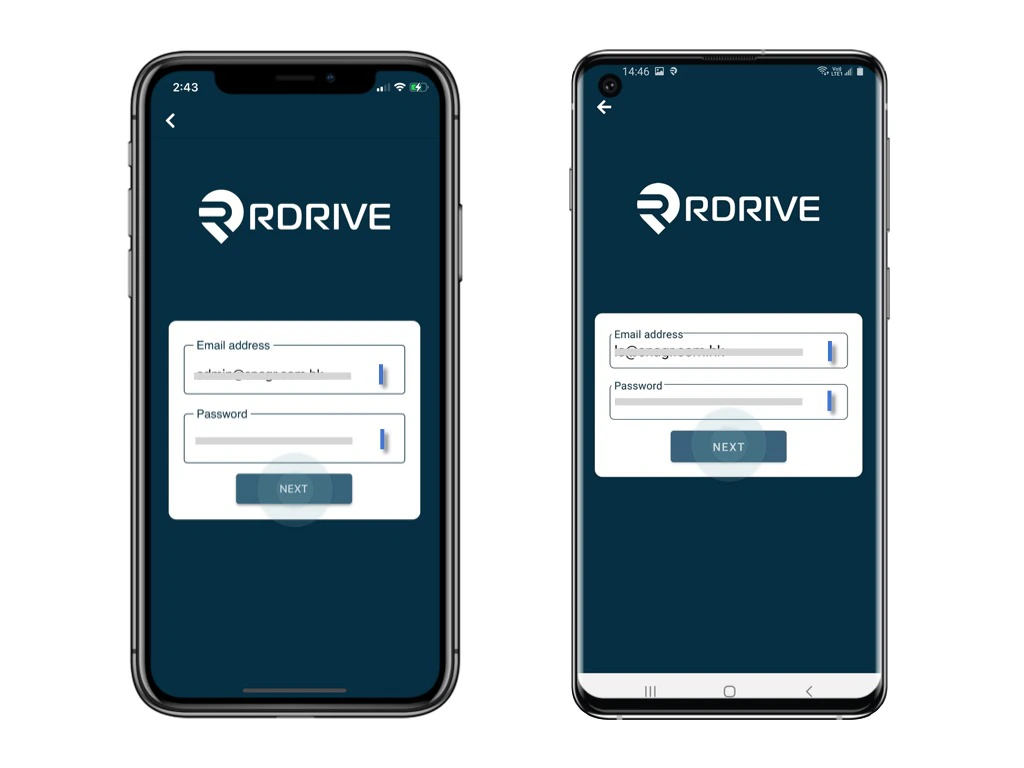
Passcode generated by RDrive. (2️⃣ Send by email or 3️⃣ get from RDrive APP) Enter the Company code, Next, enter the email address and Next.
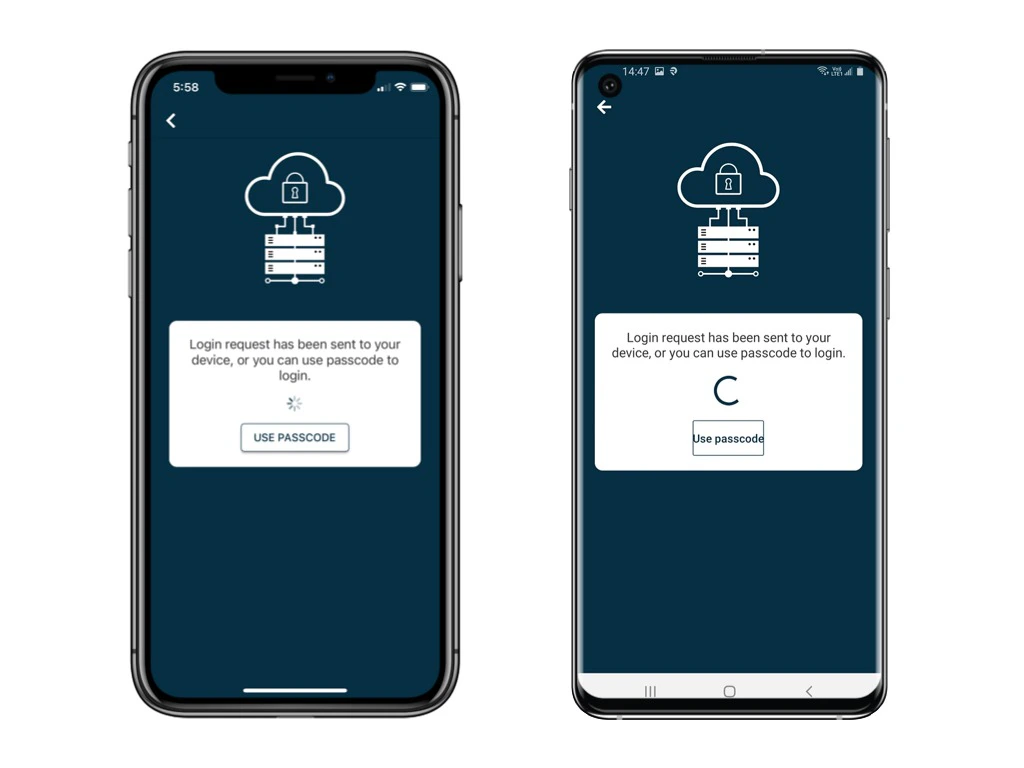
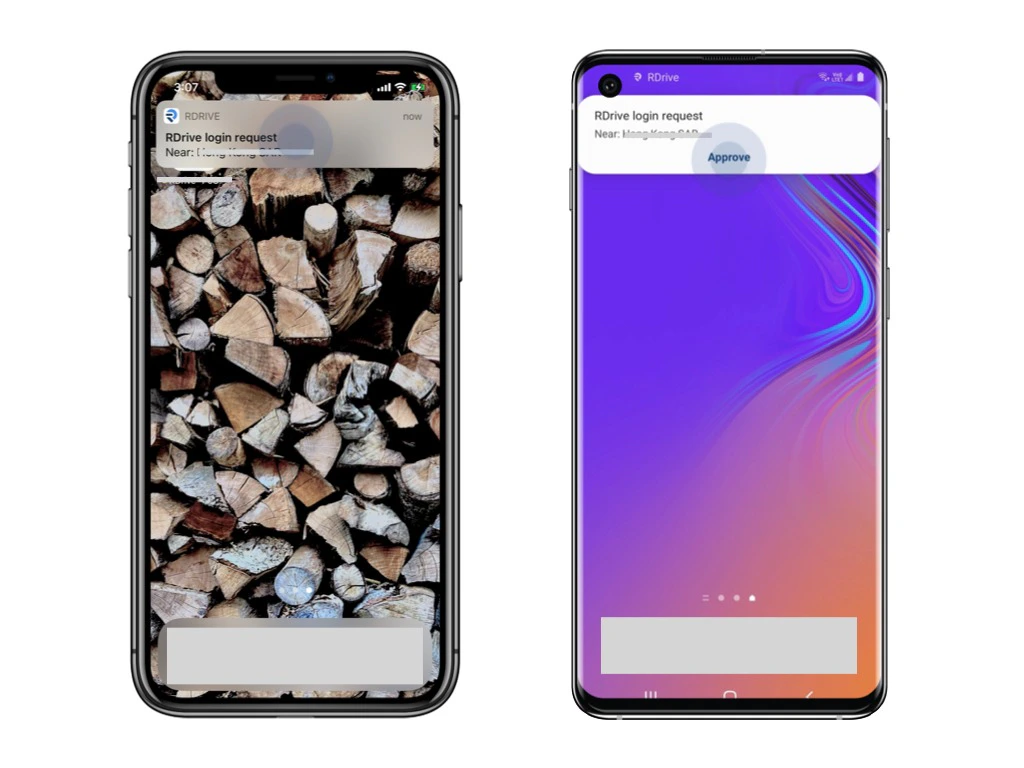
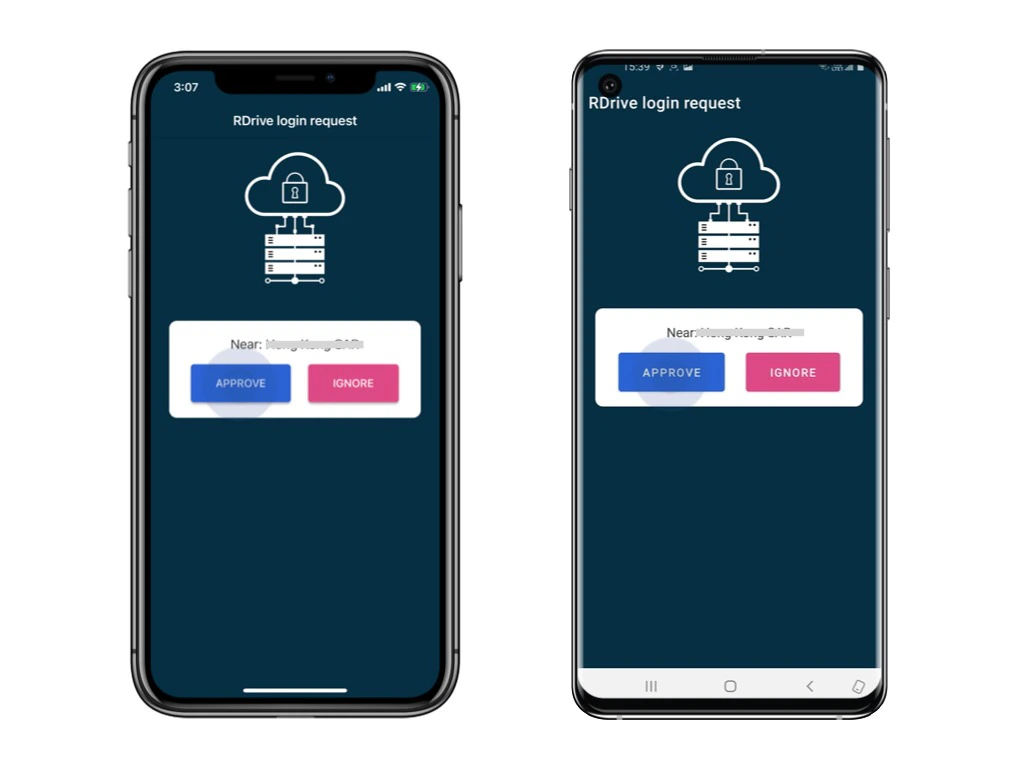
1️⃣ Approved by the authenticated device.
Login requests will send to the (another) authenticated device as a push-up notification.Please unlock that device and click Approve. Authenticated device is means a device already logged in with 2FA. For the first log in, you have to authenticate by the PASSCODE from email.
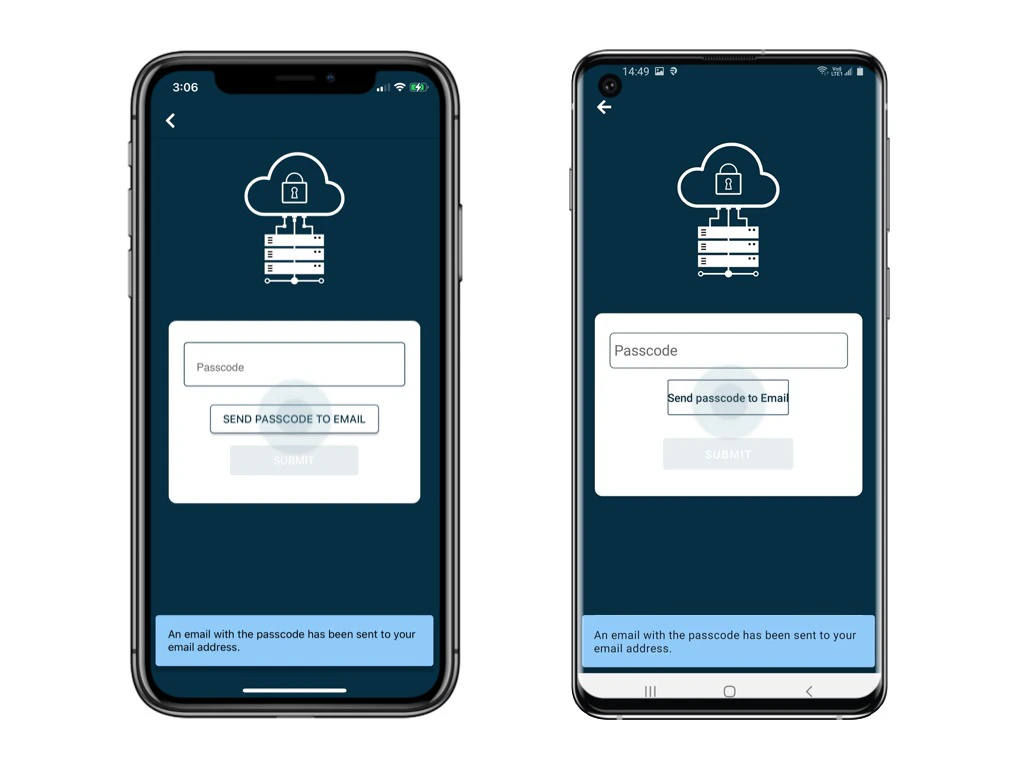
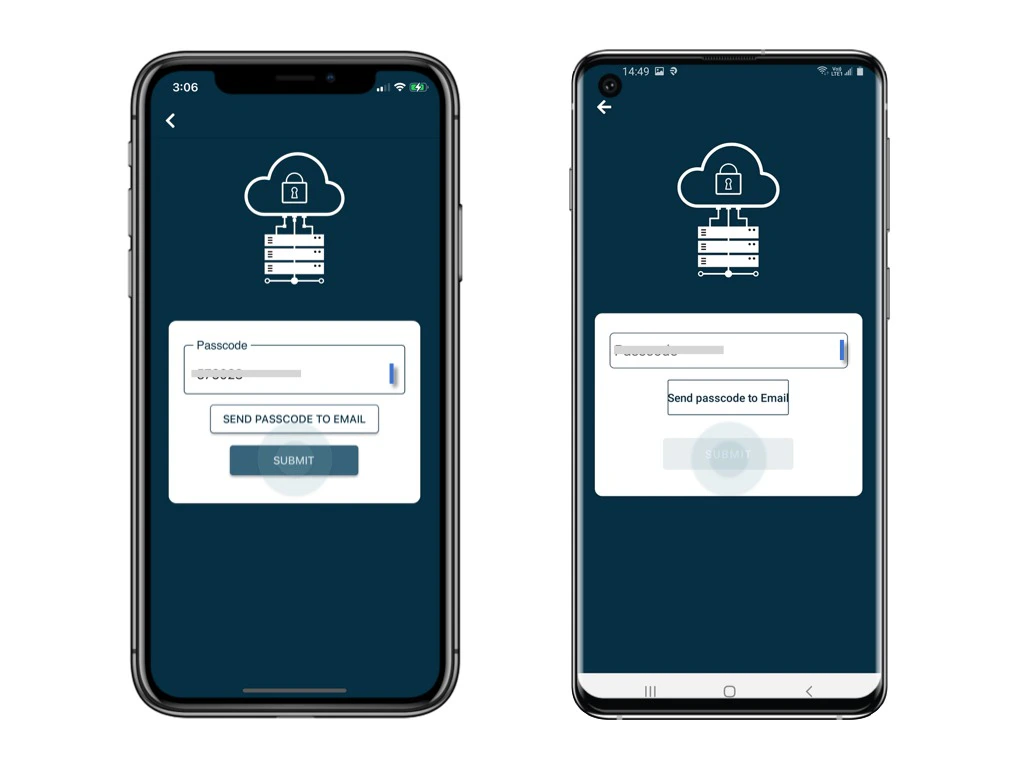
2️⃣ Use Passcode - send passcode to email
Click Use Passcode and Send Passcode to Email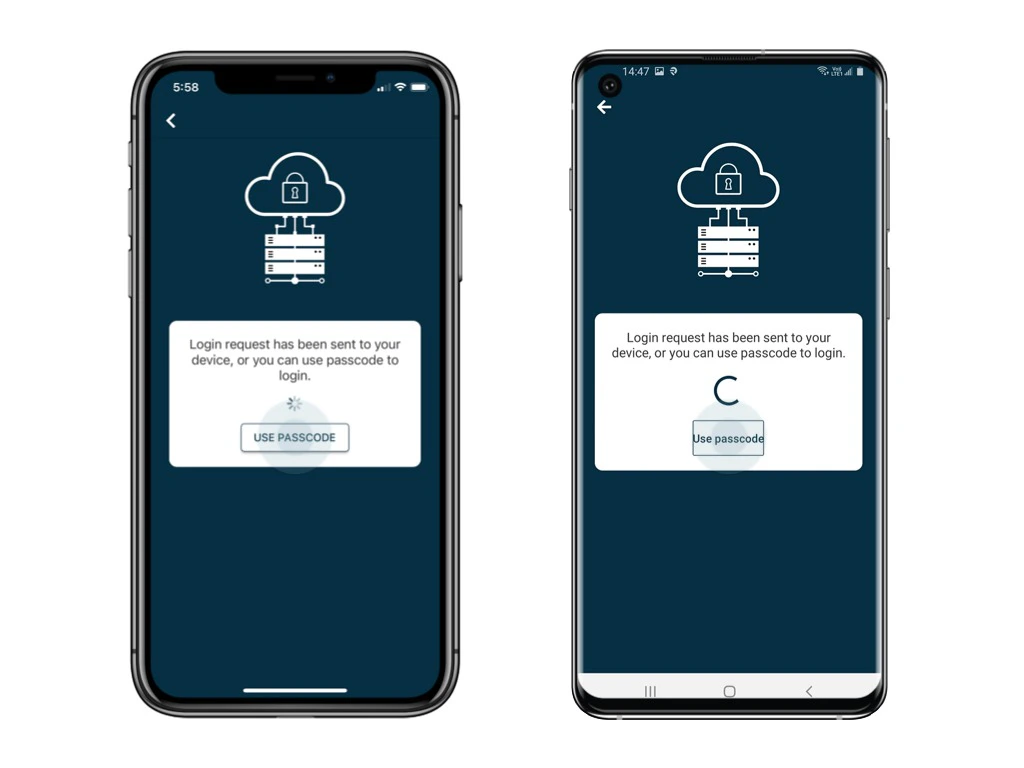
3️⃣ Use Passcode - from RDrive APP
Click Use Passcode to enter the passcode.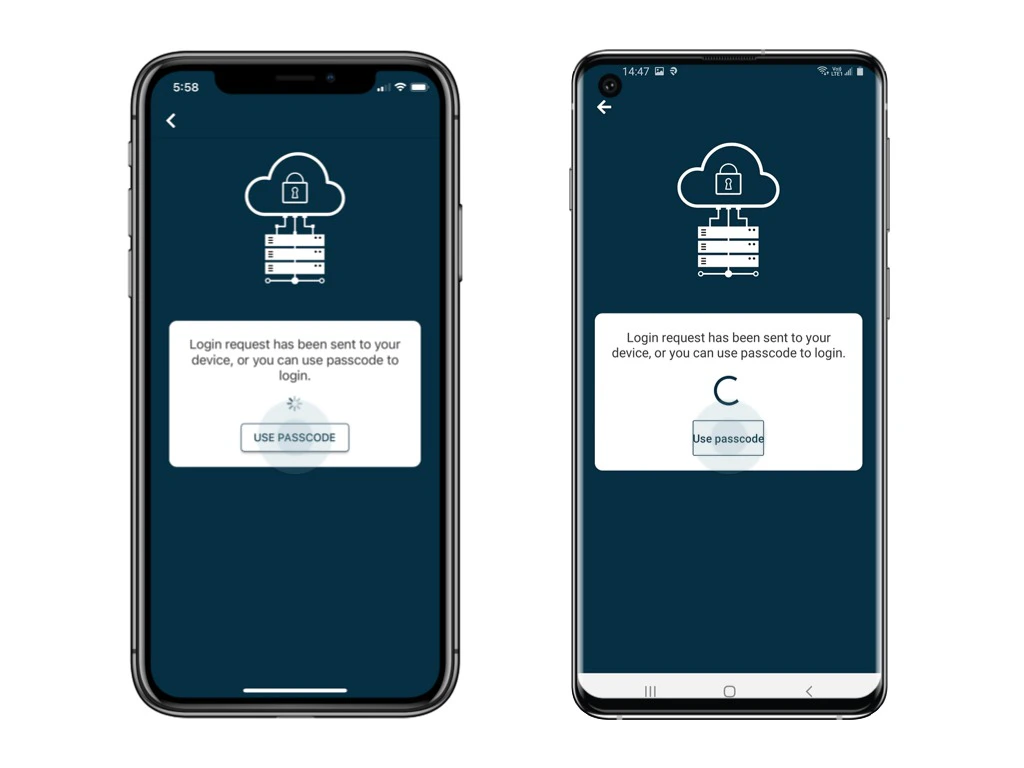
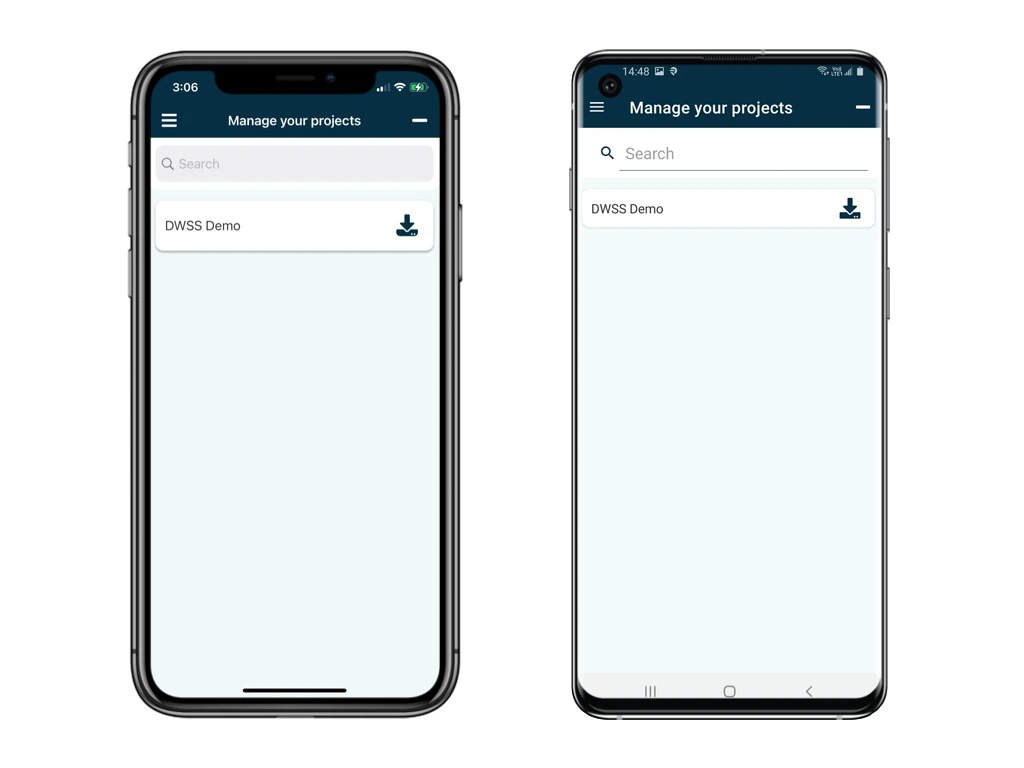
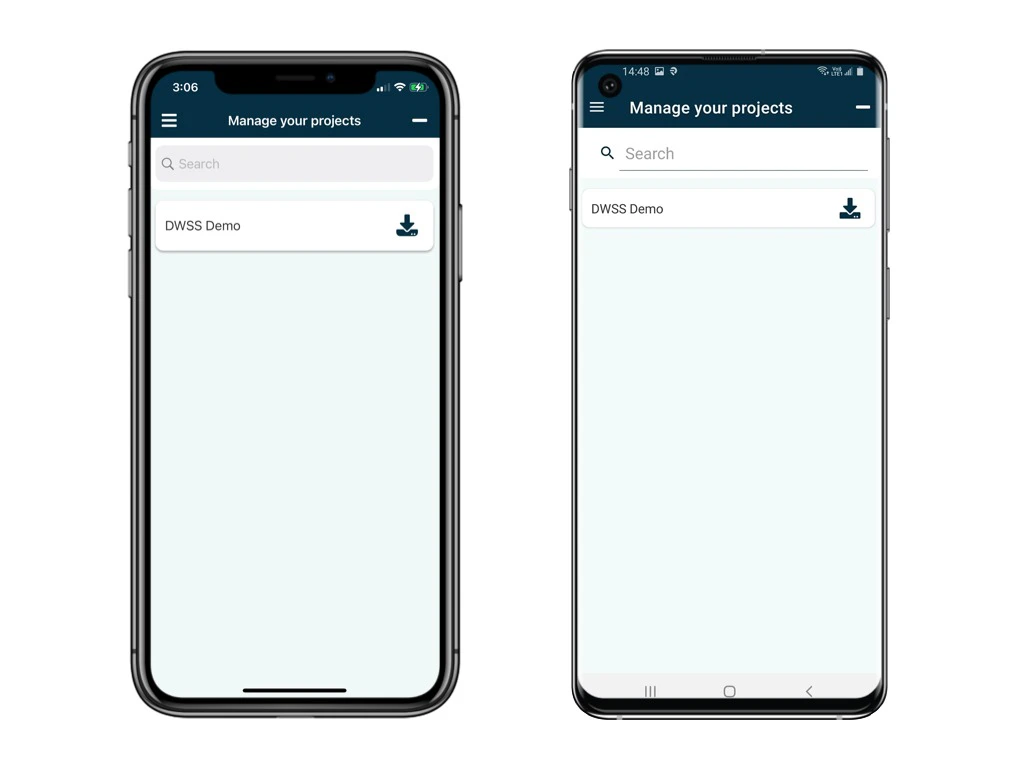
Click the menu icon ≡ on the top left corner, Unfold Menu > Passcode generator.