


Overview
This guide explains how RKive works when generating project archives, what to expect during the process, and how to handle common scenarios.- Purpose: To help you understand how RKive creates archives, what normal behaviour looks like, and how to manage or troubleshoot the process if needed.
- Who It’s For: Users responsible for exporting or archiving project data
Prerequisites: Active RKive License
- Downloading RKive and checking your current app version
- Step-by-Step Instructions
- FAQs & Troubleshooting
Downloading RKive and checking your current app version
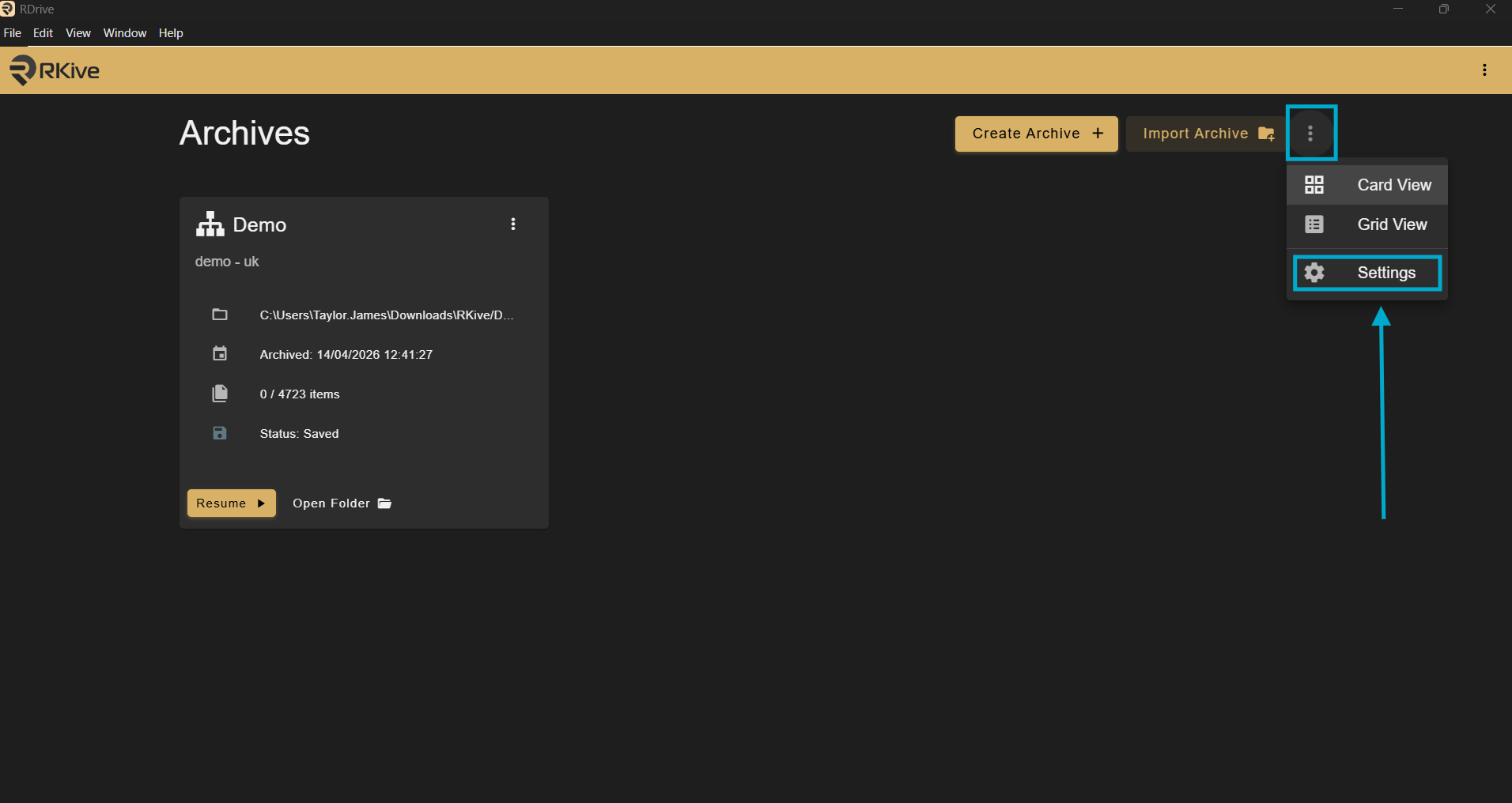
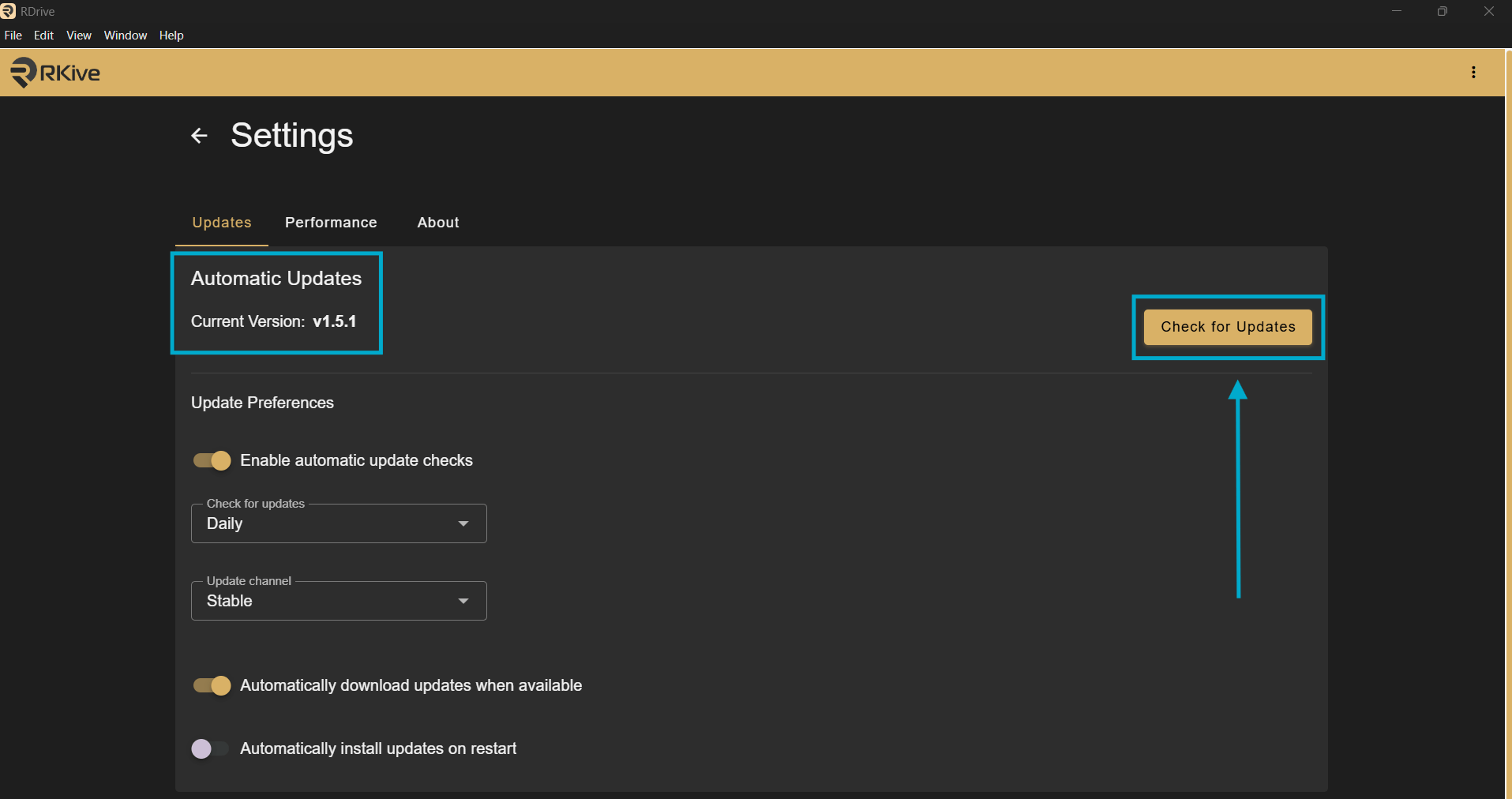
To download RKive to your machine and to see the latest app release notes, please follow this link: RKive by RDrive To see what version of RKive you are running, click the three dot menu here, and select “Settings”.
Step-by-Step Instructions
✅ Step 1: Open RKive and Connect- Open the RKive application
- Enter your RDrive URL (e.g. yourcompany.rdrive.io)
- Enter your API Key
- Open Account Settings
Select your profile icon in the top-right corner and choose Account Setting - Create an API key
On the Credentials page, select +, enter a name for the API key, and select OK. - Copy your API key
Copy the generated API key and store it somewhere secure.
- Open Account Settings
Important: Copy the API key before selecting OK. Once it has been hidden, you cannot retrieve the key value again. Do not share your API key publicly.
See full guide here How to get my API key?

- Click Create Archive
- Select the project you want to archive
- Enter an Archive Name
- Choose a save location (local drive or external drive)
- Select your options:
- Include drawings (optional)
- Select a report template
- (Optional) Open Advanced Configuration to:
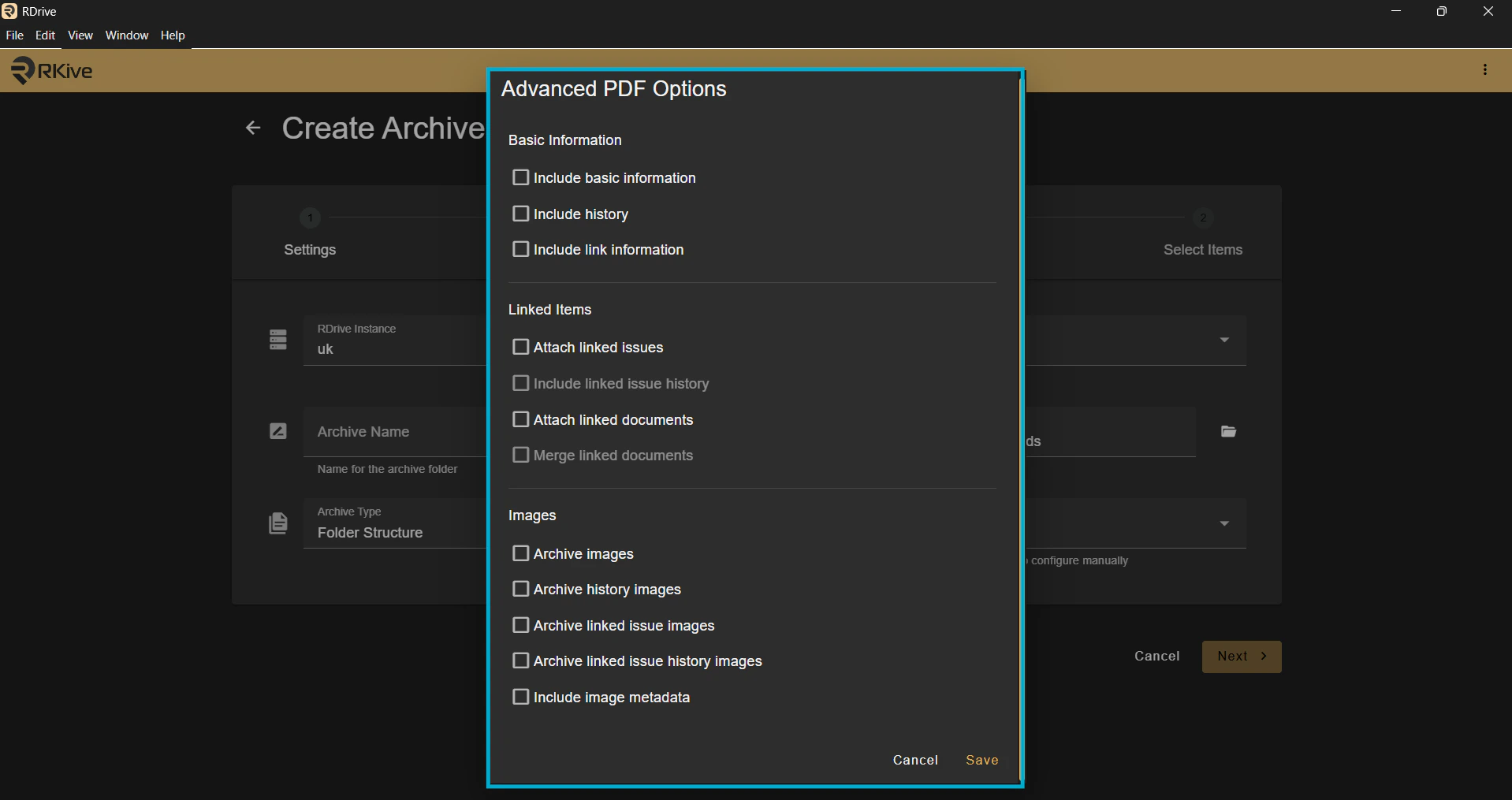
- Include linked issues
- Include linked documents
- Merge attachments into PDFs
- Archive All → full project archiveor
- Apply filters (e.g. Closed items only, date range, category)
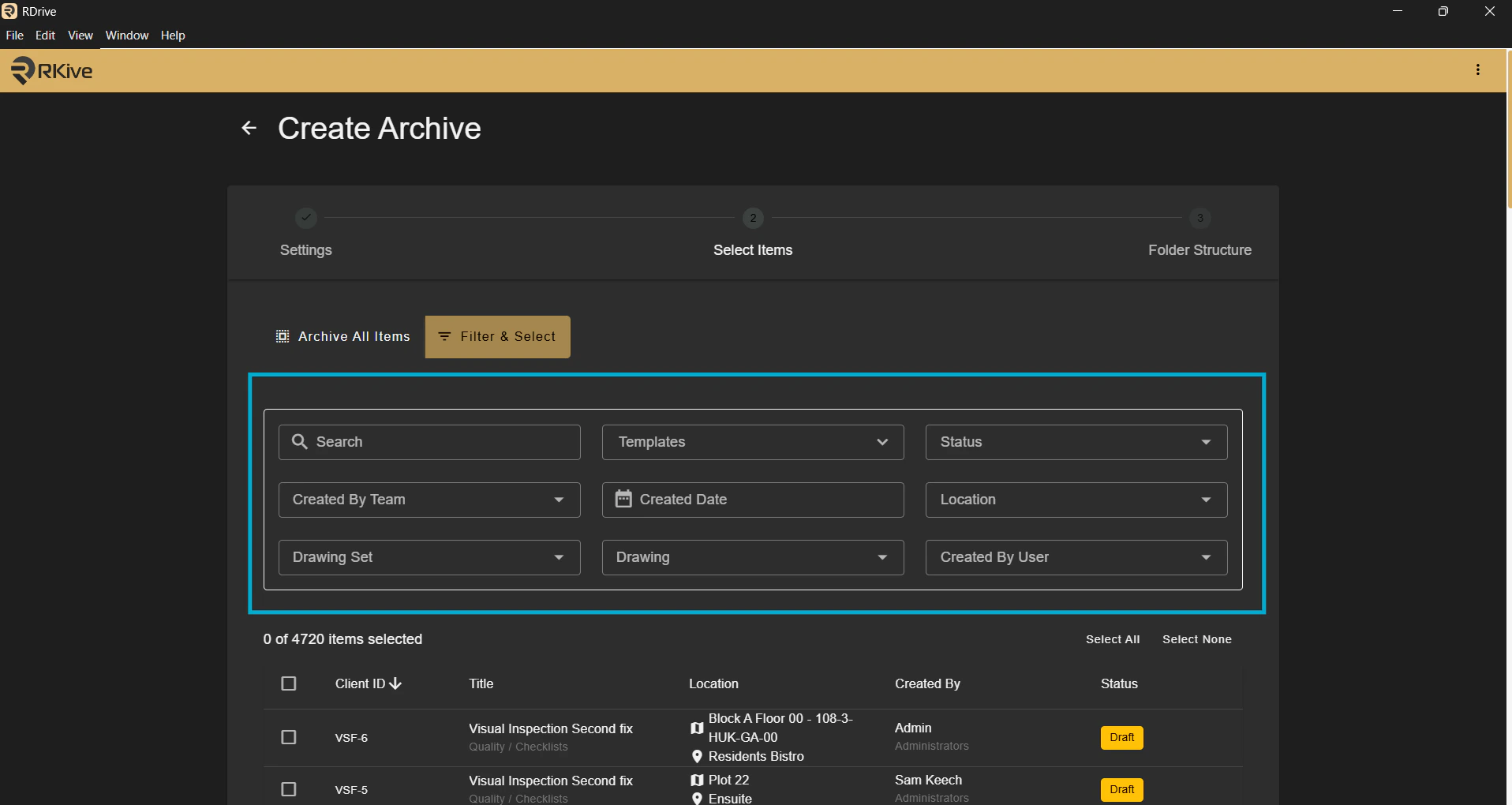
- Drawing
- Location
- Category
- Profile
 ✅ Step 6: Run the Archive
RKive will now:
✅ Step 6: Run the Archive
RKive will now:
- Generate PDFs
- Download files
- Build the folder structure
- Monitor progress
- Pause the archive
- Resume if needed
- Open the archive folder
- Browse structured folders
- View PDFs and attachments
- Use RKive to search and filter data
- Re-open RKive
- Select your archive
- Click Resume
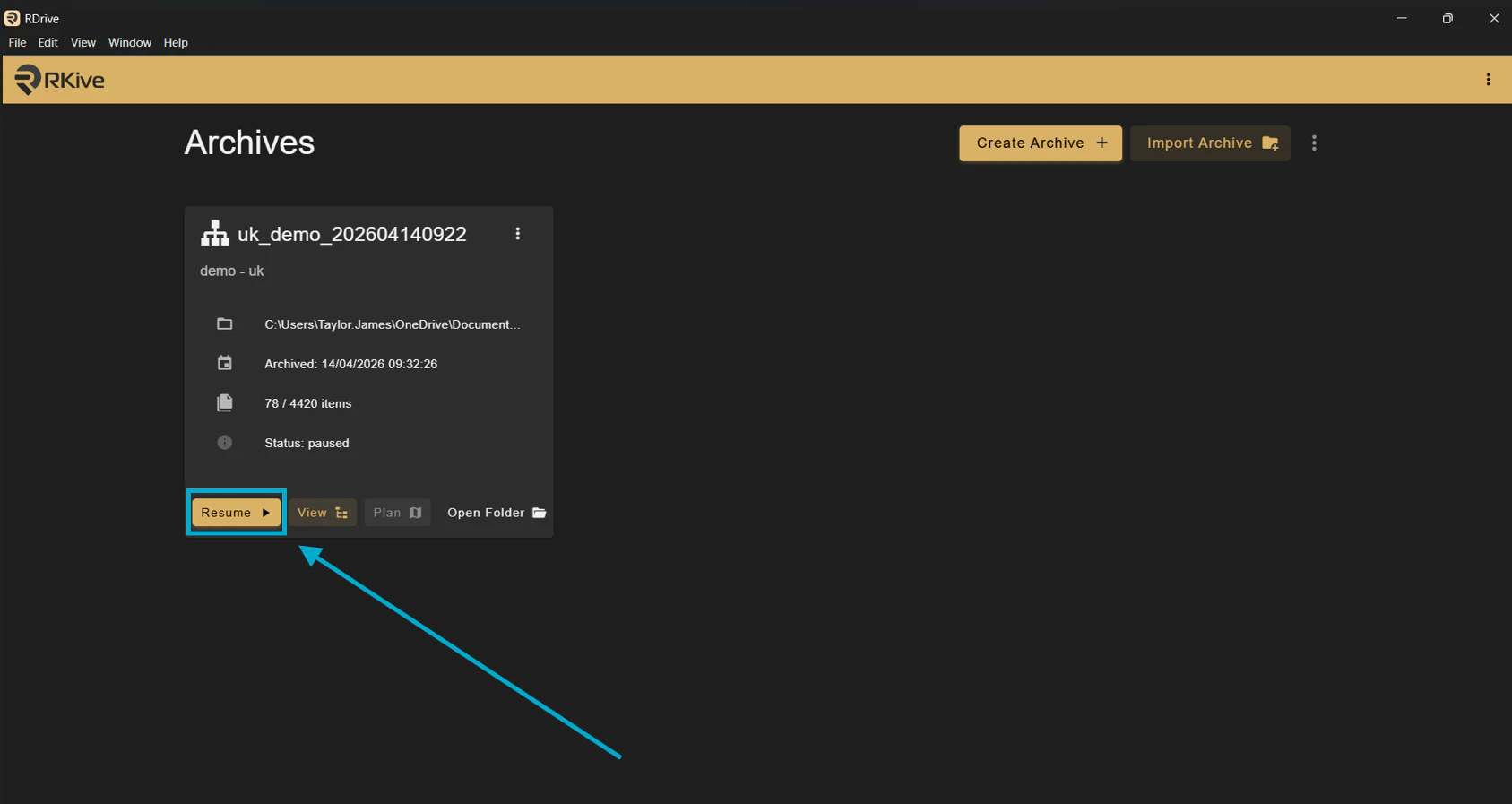
- RKive processes data in the background and downloads files as they are ready. You should see steady progress throughout.
- Archives are generated on the server, not your device
- RKive requires an active session to continue processing
- Large archives may take time but should always show progress
- If progress stops completely, this should be investigated
FAQs & Troubleshooting
Q: The archive looks like it has stopped or stalled — is this normal?A: No — you should normally see a steady stream of progress as items are downloaded. If the archive appears stuck for a long period:
- Wait a few minutes to confirm no progress is happening
- Try pausing and resuming the archive
- If the issue continues, contact Support with logs (see below)
A: This depends on the number of items and overall data size. Large archives can take a significant amount of time, but progress should be continuous throughout. Q: Does my computer affect performance?
A: Very little. RKive no longer relies on your device to generate PDFs. You only need:
- Enough memory to run the application (2GB free)
- Enough storage space for the archive
A: This depends on the number of items and overall data size. Large archives can take a significant amount of time, but progress should be continuous throughout. Q: What happens if my computer goes to sleep?
A: If your device goes to sleep:
- The archive process will pause
- It will not continue in the background
A: Resume the archive
- Failed items will be retried automatically
A: To help investigate issues, please send: From your archive folder:
- The logs folder
- The database (duckdb) folder