Overview
Understand safety performance, compare audit results and monitor linked actions The Safety Audit Dashboard brings together completed audit results and the issues raised from those audits. It gives project and safety teams a consistent view of audit activity, scoring, compliance and follow-up actions across projects and reporting periods. Use the summary pages to identify changes in performance, then select a project, audit, section or chart value to narrow the other visuals and investigate the detail behind the result.- Purpose: [What is this guide about?]
- Who It’s For: [General users, admins, project teams, etc.]
Prerequisites: Use this guide to understand what each dashboard page shows, apply the available time and project filters, interpret audit scoring, and move from summary results into individual audits and their linked issues.
- What can I use the dashboard for?
- Dashboard pages
- Using the dashboard
- Understanding audit scoring
- Audit Summary
- Audits Comparison
- Issues Overview
- FAQs & Troubleshooting
What can I use the dashboard for?
• Review the number of projects audited and audits completed during a selected reporting period. • Compare average scores and compliance rates with the previous period and with all-time performance. • Identify the best- and worst-performing projects within the current filter context. • See which audit sections are performing well and which require further attention. • Open an audit from the dashboard and review the user, team, date and status recorded against it. • Review linked issues, responsible parties, priorities, due dates and close-out progress. • Compare audit results by month and analyse issue patterns across projects.Availability: The pages, fields and filters you can see may vary according to your organisation’s dashboard configuration and your access permissions.
Dashboard pages
Page What it is used for Audit Summary A high-level view of audit activity, average score, compliance, trends and detailed audit records for the selected reporting period. Audits Comparison A period-comparison view that allows a specific month or date range to be selected and compared across projects and sections. Issues Overview An overview of issues linked to safety audits, including status, priority, project, responsible party and assigned team.Using the dashboard
Select a page Use the page navigation controls on the left of the dashboard to move between the Audit Summary, Audits Comparison and Issues Overview pages. The active page is shown in the page title at the top of the report. Apply filters and interact with visuals- Choose a reporting period or use the available date controls to define the data you want to review.
- Select a project, section, status or chart value to filter related visuals on the page.
- Select the same value again, select a blank area of the visual, or use the clear-filter control to remove the selection.
- Use the expand and collapse controls in hierarchical tables to move between project and audit-section detail.
- Use horizontal and vertical scroll bars where a table contains more rows or columns than can be displayed at once.
- Use a visual’s sort or focus controls where available to change the order or enlarge the visual.
Tip: Selections normally cross-filter the other visuals on the same page. Before drawing a conclusion, check whether a project, date or chart selection is still active.
Understanding audit scoring
The dashboard records an audit answer on a 0-4 scale and presents the result as a percentage. The percentage provides a familiar way to discuss performance while retaining the underlying score for detailed analysis. Score Score % Compliance classification 0 0% Non-compliant 1 25% Non-compliant 2 50% Non-compliant 3 75% Compliant 4 100% CompliantCalculation: Score % = score / 4 x 100. For example, a score of 3 is shown as 75%, and a score of 2.5 is shown as 62.5%.
How is the compliance rate calculated?
Compliance rate measures the proportion of scored sections classified as compliant. Scores of 3 and 4 are compliant; scores of 0, 1 and 2 are non-compliant. The calculation counts compliant sections rather than weighting non-compliance by severity.Example: If three sections score 0, 1 and 4, one of the three sections is compliant. The compliance rate is therefore 33%. The average score shows the degree of the scoring difference, while the compliance rate shows the proportion meeting the compliance threshold.
Selected, previous and all-time results
Measure Meaning Selected Period The reporting period currently selected on the dashboard. Previous Period The immediately preceding equivalent period used for comparison. All Time The overall historic result available within the current project and dashboard filter context. Difference Selected-period result minus the previous-period result. Trend The direction and scale of movement between the selected and comparison period. A downward arrow identifies a reduction; an upward arrow identifies an increase.Audit Summary
The Audit Summary is the main performance page. It combines headline measures with project, section, time-series and record-level detail.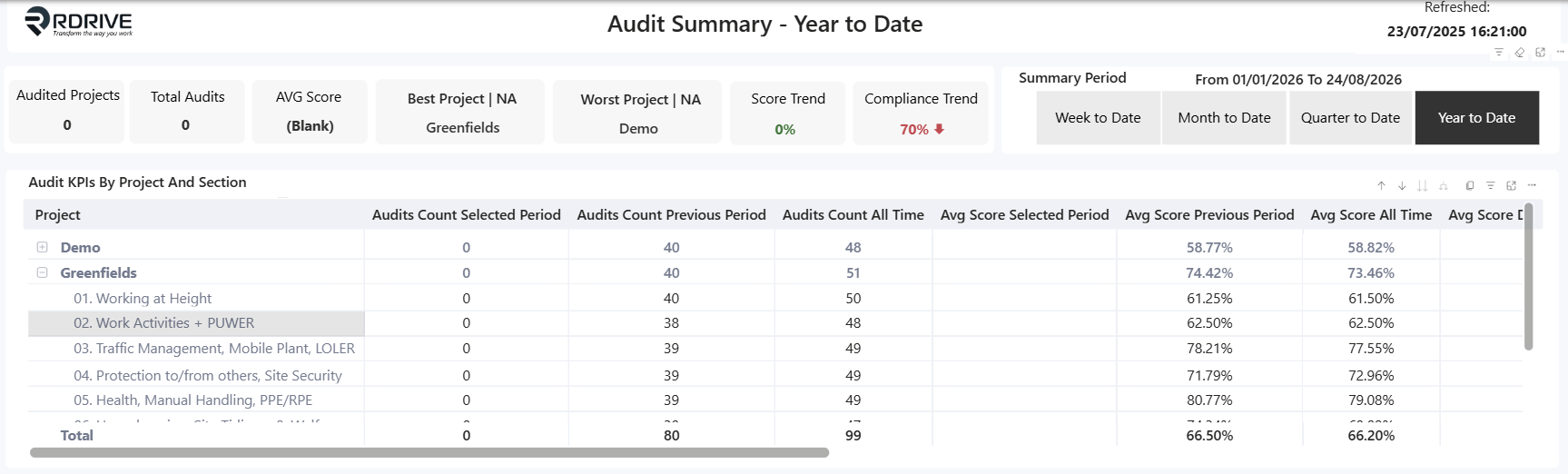
Choose the summary period Use Week to Date, Month to Date, Quarter to Date or Year to Date to change the reporting window. The From and To dates above the controls confirm the exact period being used. Period Typical use Week to Date Review the latest audit activity and immediate changes. Month to Date Monitor current-month performance and compare it with the preceding month. Quarter to Date Review broader performance across the current quarter. Year to Date Assess cumulative performance from the start of the year. Headline cards Card What it shows Audited Projects The number of projects with audit activity in the selected period. Total Audits The number of audits included in the selected period and current filter context. AVG Score The average audit result, displayed as a percentage in the current dashboard. Best Project The highest-performing project in the current filter context, together with its score. Worst Project The lowest-performing project in the current filter context, together with its score. Score Trend The change in average score compared with the previous period. Compliance Trend The change in compliance rate compared with the previous period. Audit KPIs by Project and Section This table compares audit volume, average score and compliance for each project. Expand a project to review its audit sections. Scroll horizontally to view the complete set of score, difference, compliance and trend columns.
- Audit counts for the selected period, previous period and all time.
- Average score for the selected period, previous period and all time.
- Average score difference and score trend.
- Compliance rate for the selected period, previous period and all time.
- Compliance rate trend.
Average Score by Project and Section These charts compare the selected-period result with the previous-period and all-time result. Use the project chart to identify performance differences between projects and the section chart to identify common strengths or weaker audit topics.

Reading the chart: The reference line shows the overall company average. Bars below the line are performing below the company norm within the current filter context; bars above it are performing above the norm.
Drilling into audit detail
Use the detailed tables at the bottom of the Audit Summary to move from overall performance into the audits, sections and actions that produced the result. Audit Details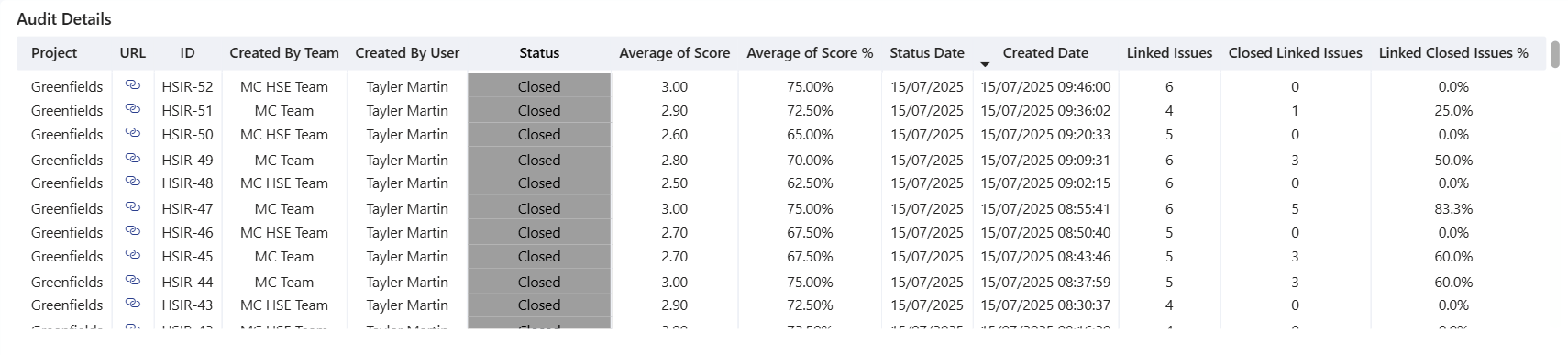
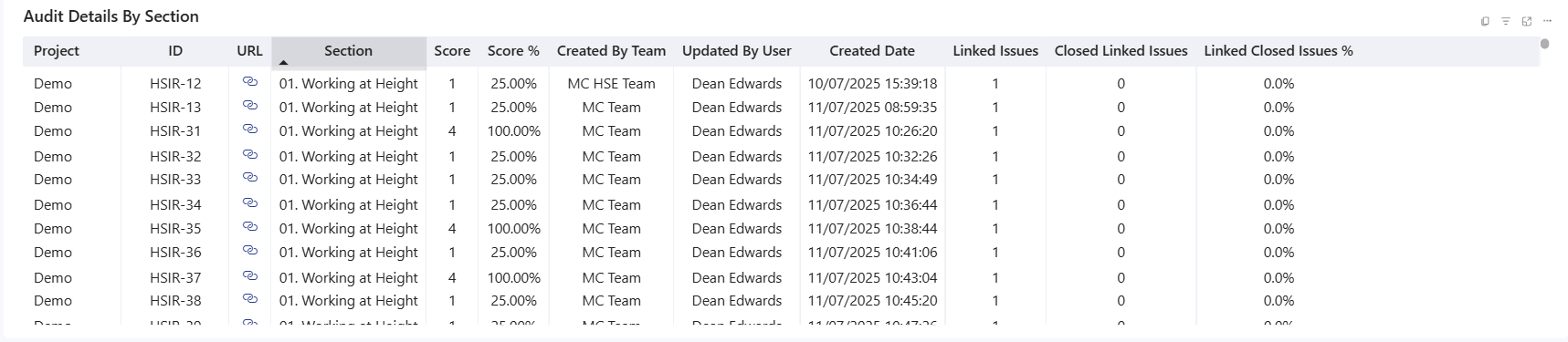
Linked Issues
Select an audit or section to filter the Linked Issues table to the actions raised from that record. Depending on the available data, the table can include the issue ID, link, photo, category, sub-category, created date, responsible party, priority, due date and inspection question or type.Recommended workflow: Sort the audit or section table by score, select a low result, then review its linked-issue count and close-out percentage. Open the audit or issue using the URL link when you need the full record and supporting evidence.
Audits Comparison
Use Audits Comparison when you need to review a specific month or compare audit performance between periods. This is particularly useful when the standard week-, month-, quarter- and year-to-date selections are too broad for the question you are investigating. How to compare audit performance Step Action 1. Select the period Choose the required month or use the available date control to define the period. 2. Review the headline result Check the audit count, average score and compliance measures for the selected period. 3. Compare projects and sections Select a project or section to filter the remaining visuals and compare performance. 4. Investigate the detail Use the audit-detail tables and links to open the records behind an unexpected result. 5. Clear the selection Remove active selections before starting a new comparison.Important: Always confirm the displayed From and To dates. A chart label such as Month to Date and a manually selected month may represent different date windows.
Issues Overview
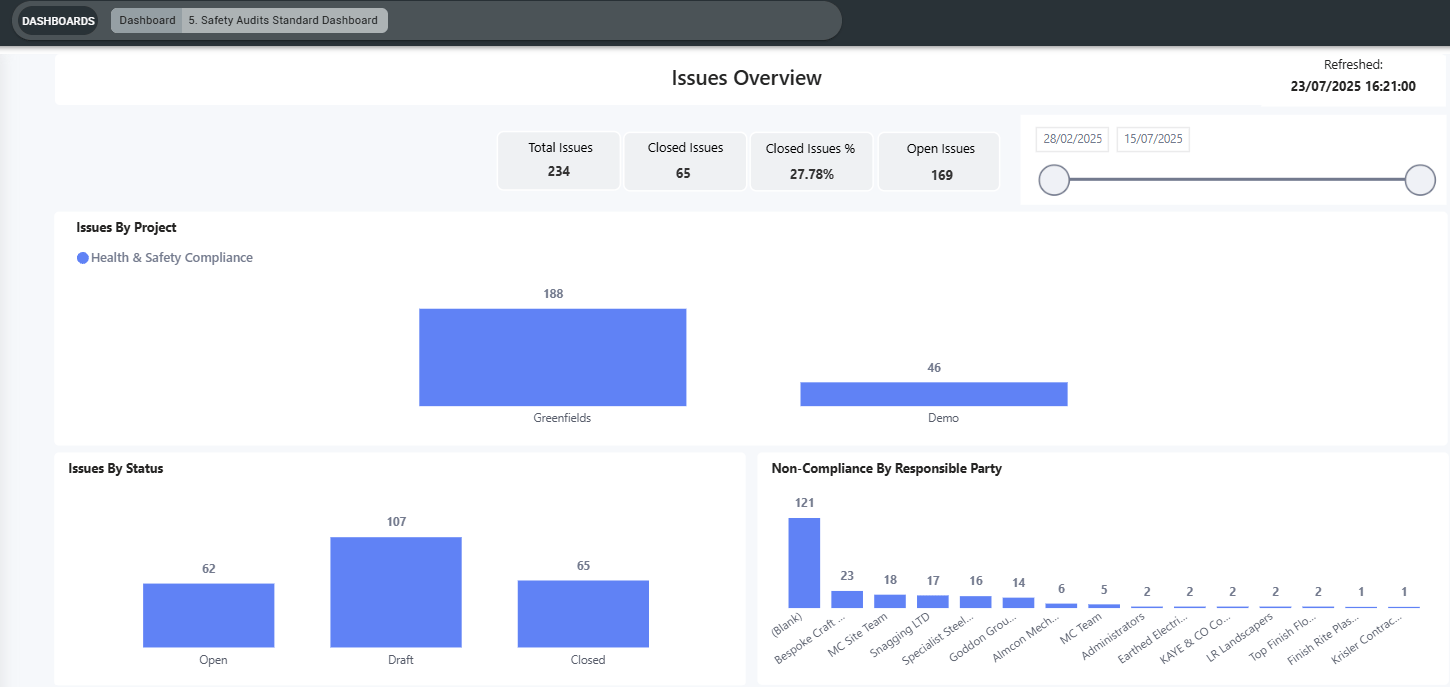
Issues Overview focuses on the findings and actions raised from safety audits. Use it to monitor close-out, identify repeated themes and see where responsibility sits.