
Overview

A brief introduction explaining the purpose of this guide.
  • Purpose: This guide explains how to update the status of an issue, defect, or record in RDrive. It includes methods for making edits, changing status only, and using Review mode for quick updates. 
  • Who It’s For: General users, project team members, inspectors, and coordinators involved in managing issues and                          defects.
Prerequisites: Access to RDrive (app or desktop) Appropriate permissions to edit or update statuses Knowledge of the category/subcategory where the record exists Understanding of your team’s status flow process

Updating via Plan Viewer

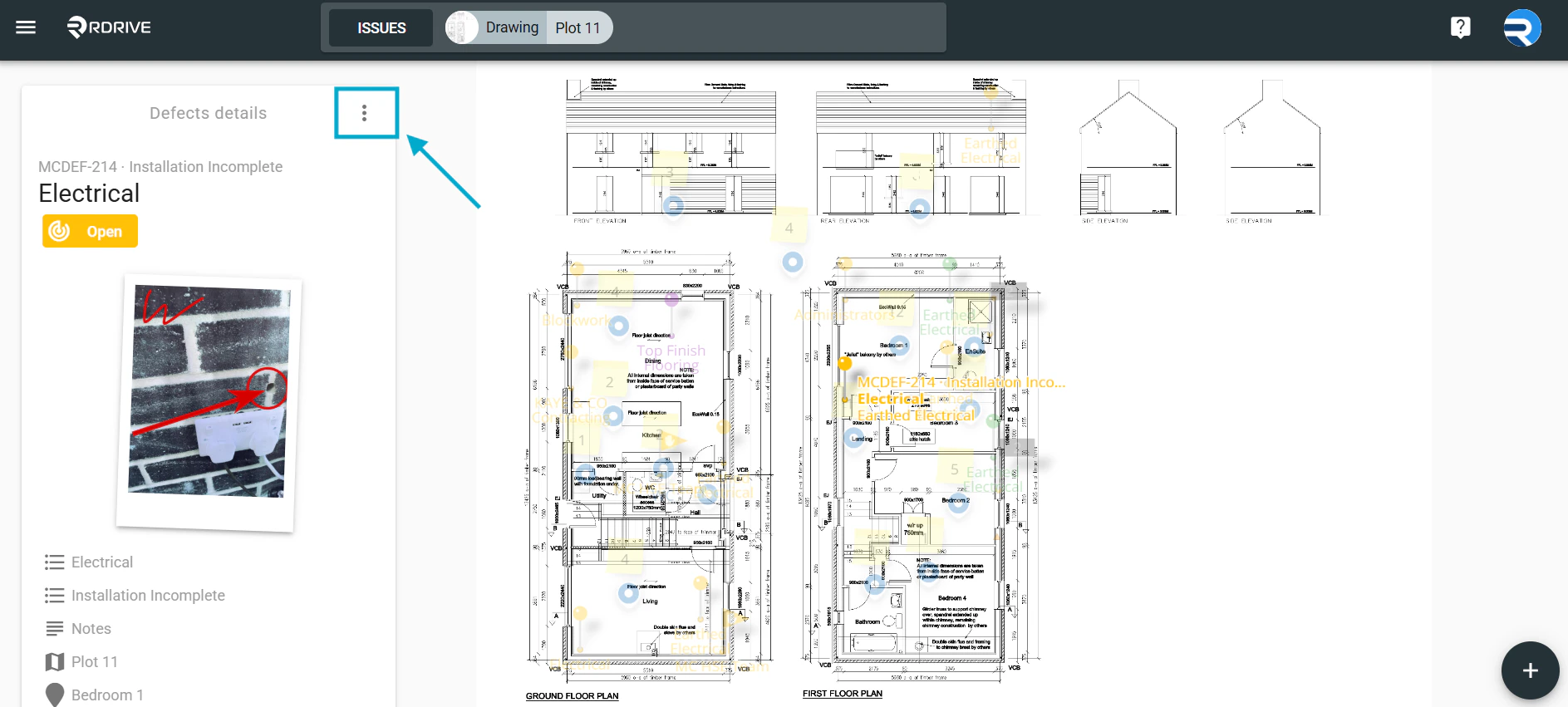
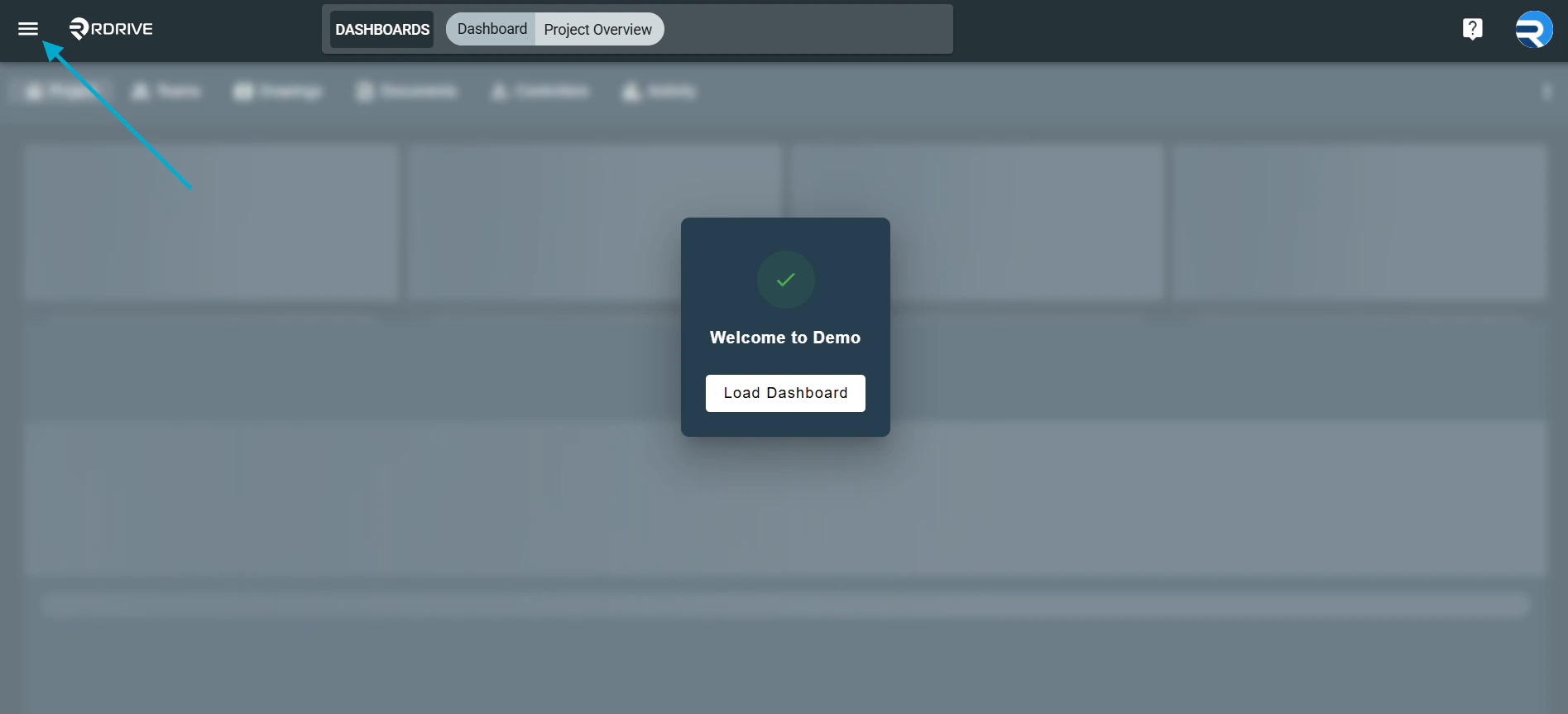
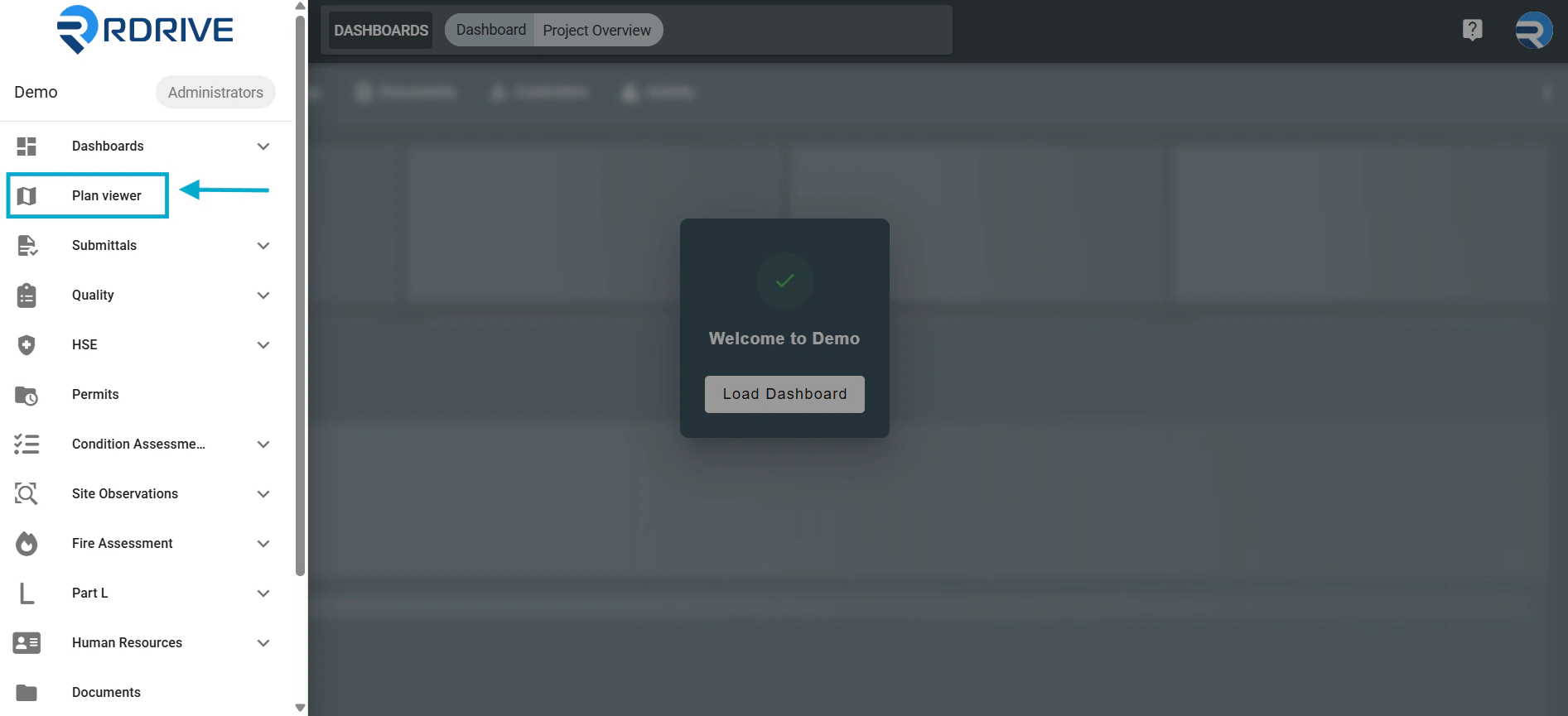
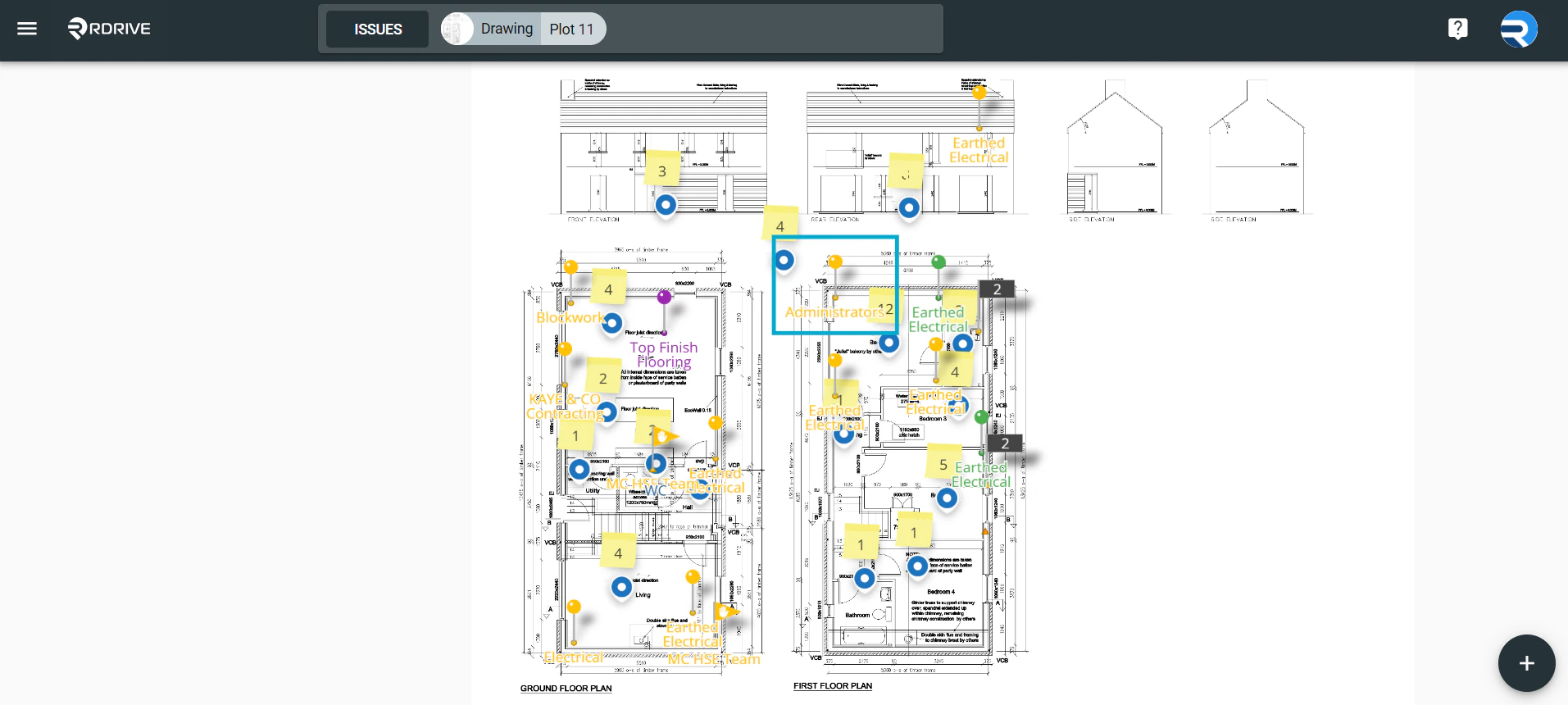
Press the Menu icon ≡ in the top left corner of your screen to unfold the Menu. How to Update the Status of an Issue/Defect/Record From here select the Plan viewer and navigate to the required drawing. How to Update the Status of an Issue/Defect/Record Click on the issue/defect/record pin as highlighted below.  How to Update the Status of an Issue/Defect/Record The details will populate on the left-hand side of your screen, then select the button at the top right corner to access the item menu. How to Update the Status of an Issue/Defect/Record
From the menu, select Edit.How to Update the Status of an Issue/Defect/Record Make any required changes, click OK to save and close.How to Update the Status of an Issue/Defect/Record

**

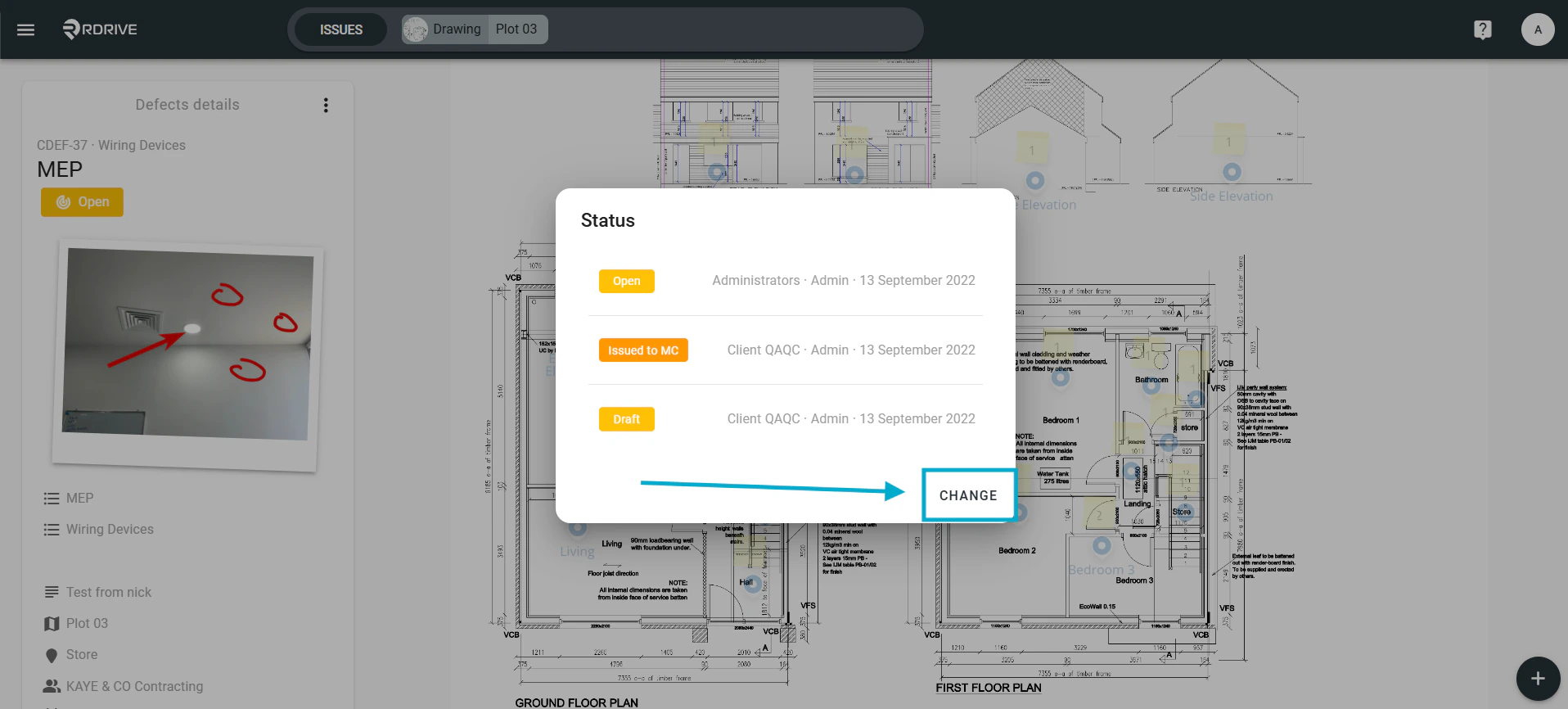
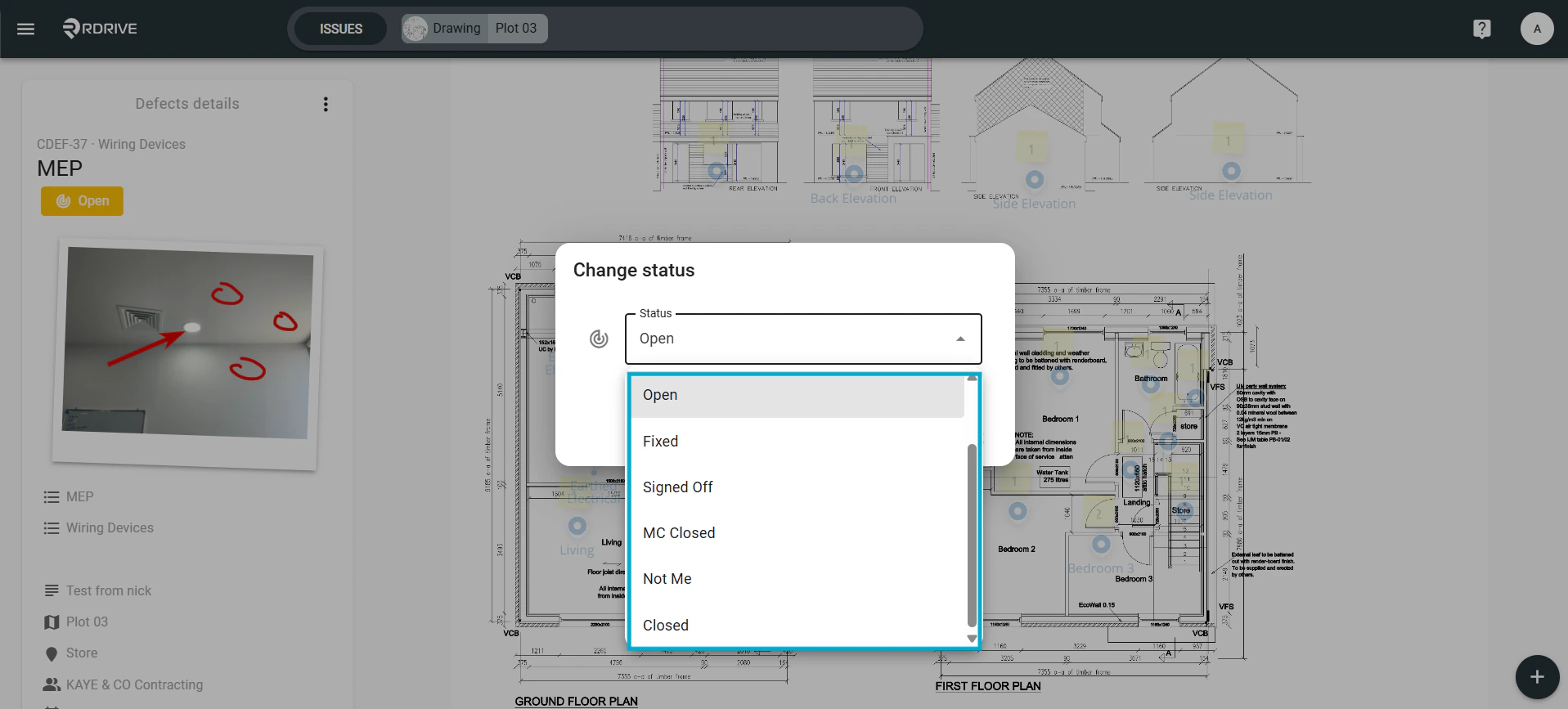
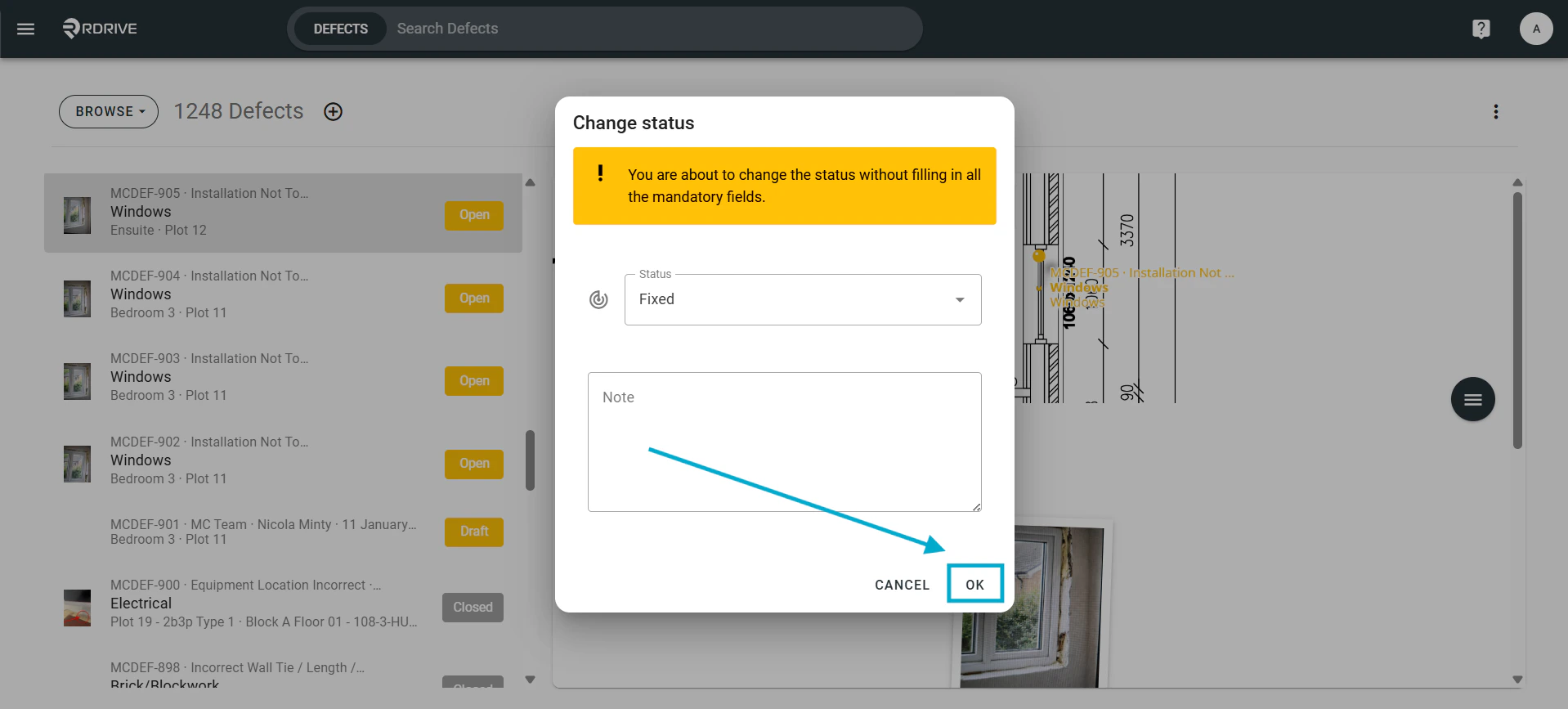
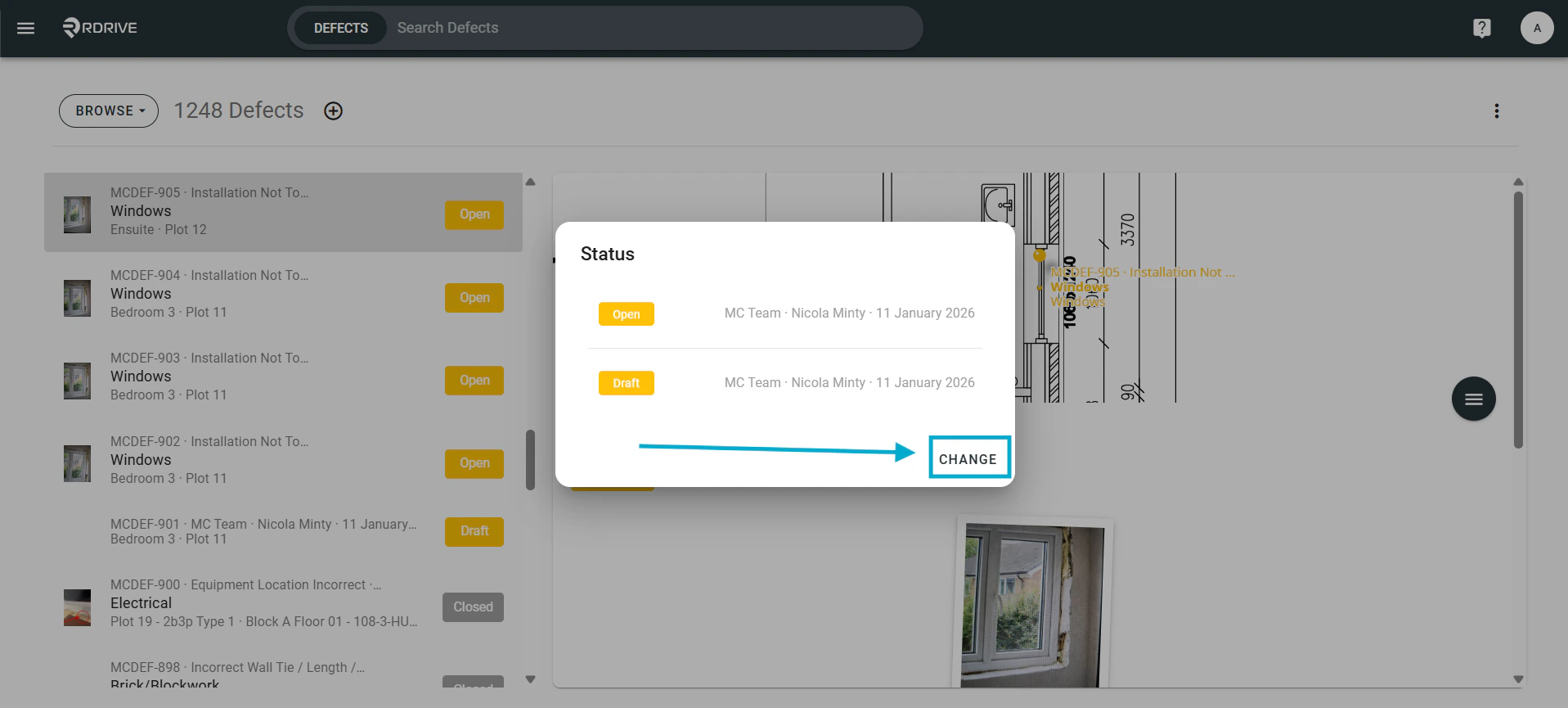
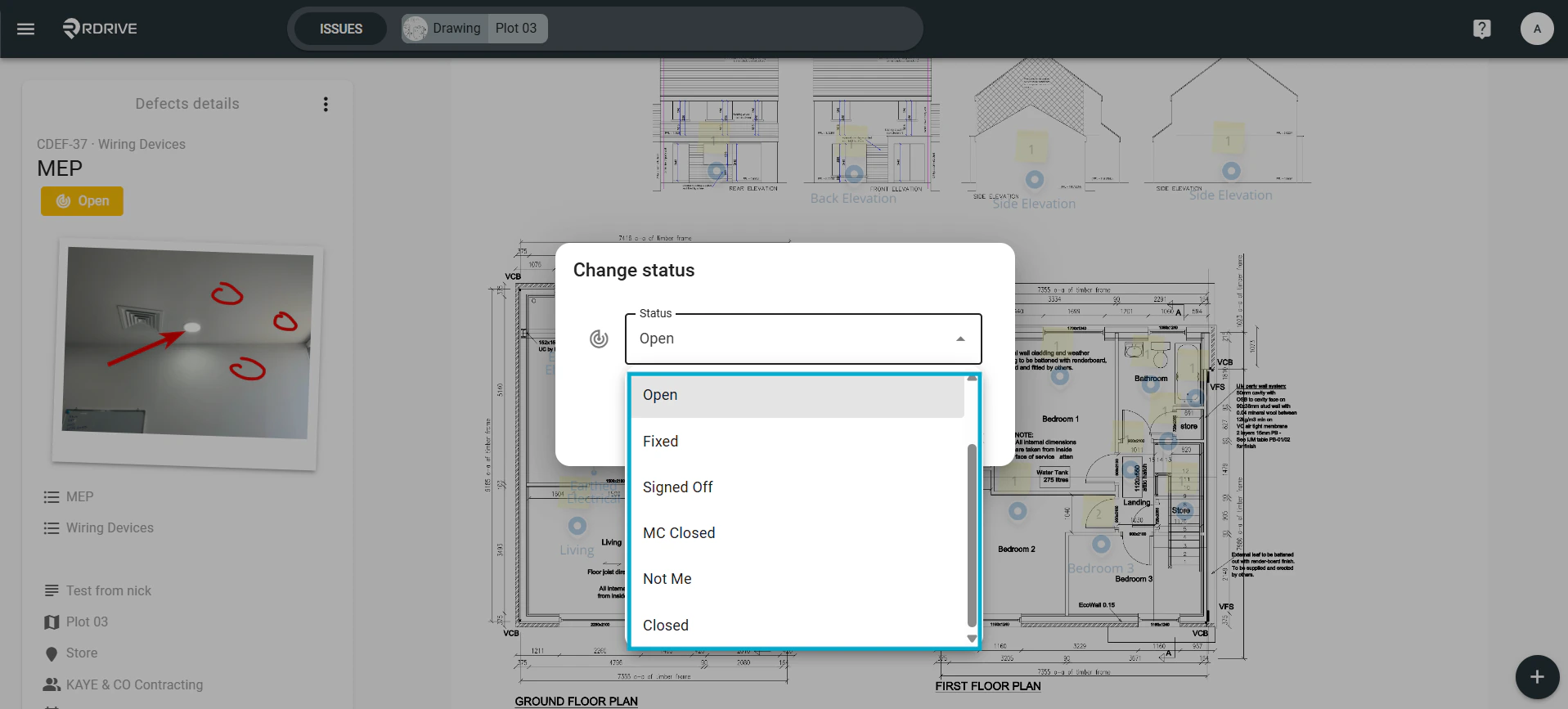
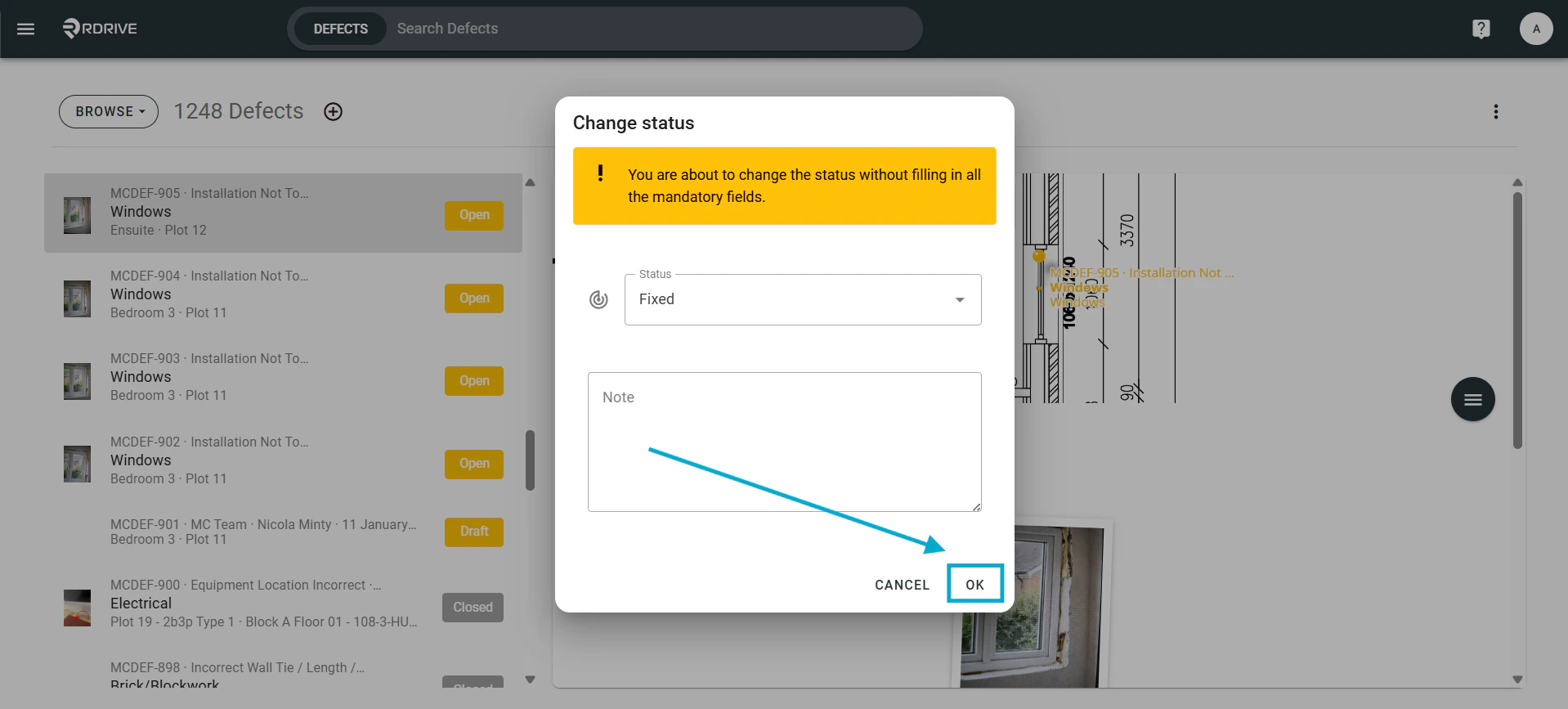
Updating the status only** From the three-dot menu (⋮), select Status.How to Update the Status of an Issue/Defect/Record Click the CHANGE button. How to Update the Status of an Issue/Defect/Record Select the required status from the dropdown menu. How to Update the Status of an Issue/Defect/Record Add any notes (optional), then click OK to confirm and save the new status. How to Update the Status of an Issue/Defect/Record

Via the Issue Finder

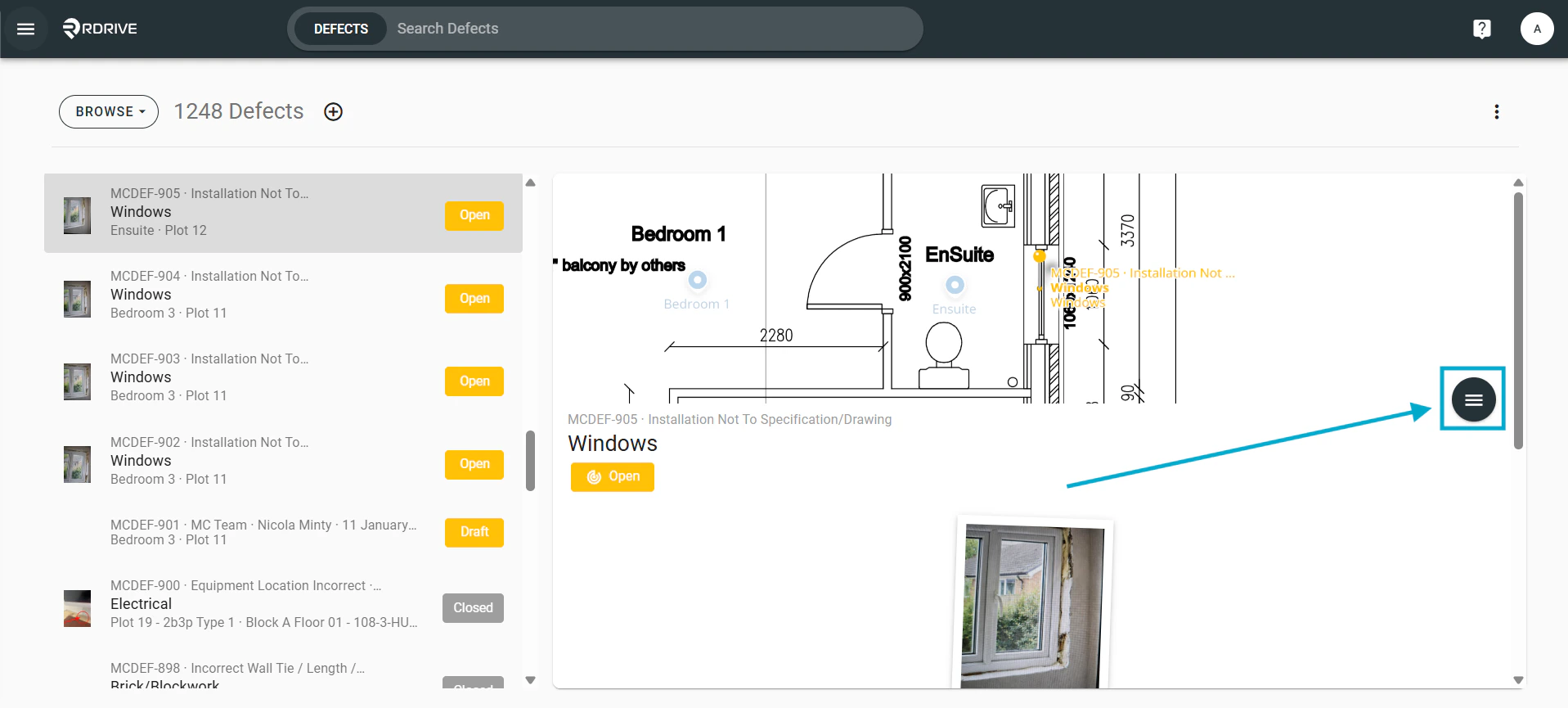
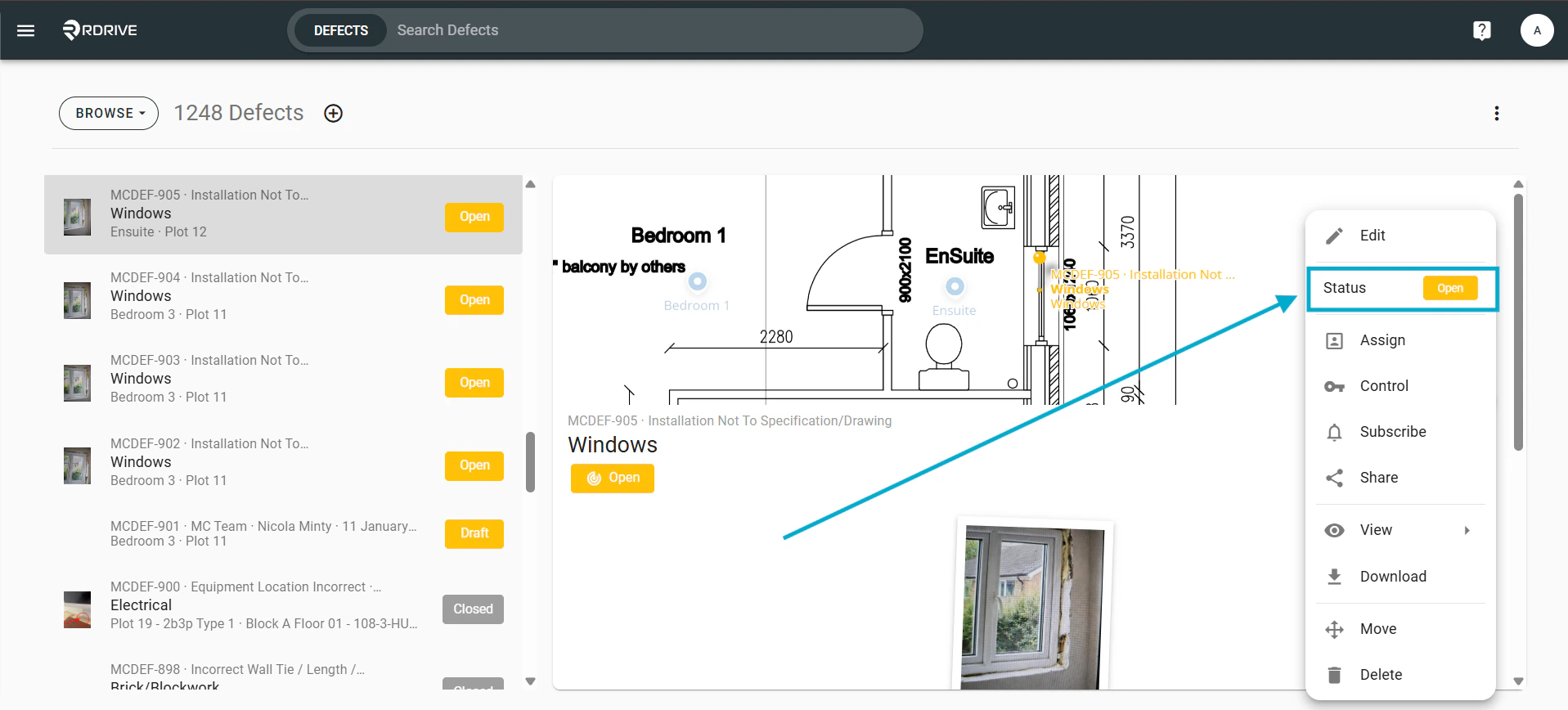
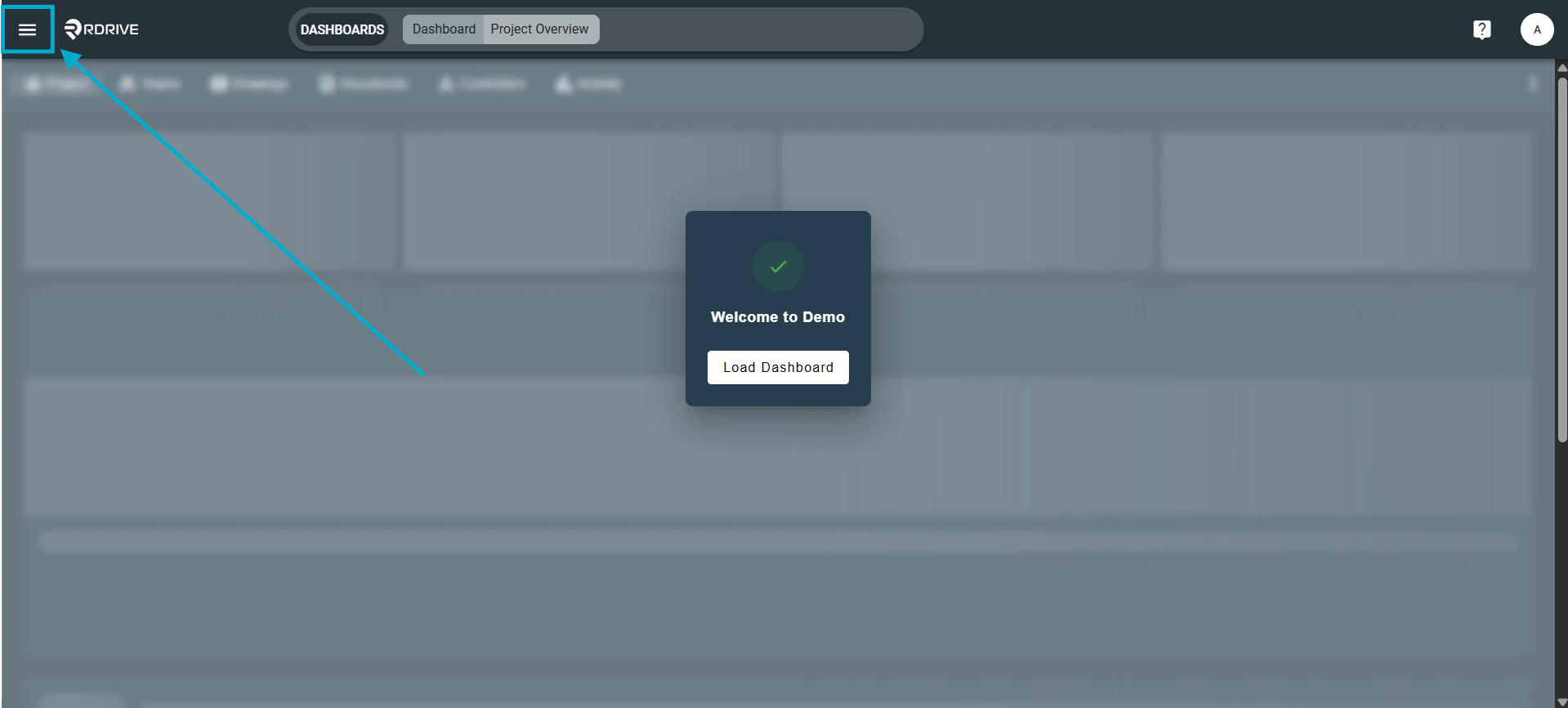
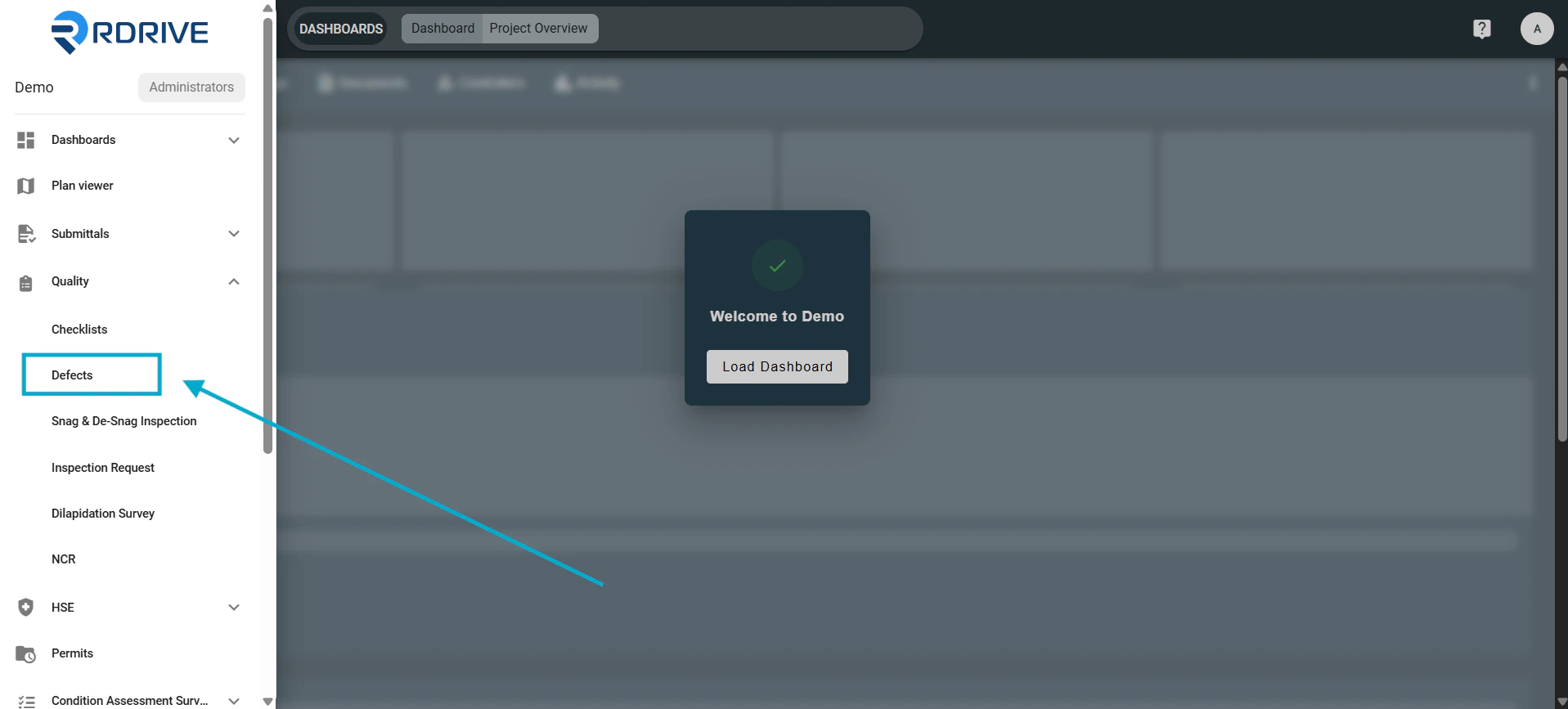
Press the Menu icon ≡ in the top left corner of your screen to unfold the Menu. How to Update the Status of an Issue/Defect/Record Navigate to the category and subcategory where the issue is listed. For this example we will go to Quality then Defects How to Update the Status of an Issue/Defect/Record Select the issue from the list, use the Menu icon (≡) on the right. How to Update the Status of an Issue/Defect/Record Select Status from the menu. How to Update the Status of an Issue/Defect/Record Click CHANGE from the window. How to Update the Status of an Issue/Defect/Record Select the required status from the dropdown and select “OK”. How to Update the Status of an Issue/Defect/Record Add any notes required and select “OK”, this will then change the status for this item. How to Update the Status of an Issue/Defect/Record
Quickly Change Status (Using Display Mode)

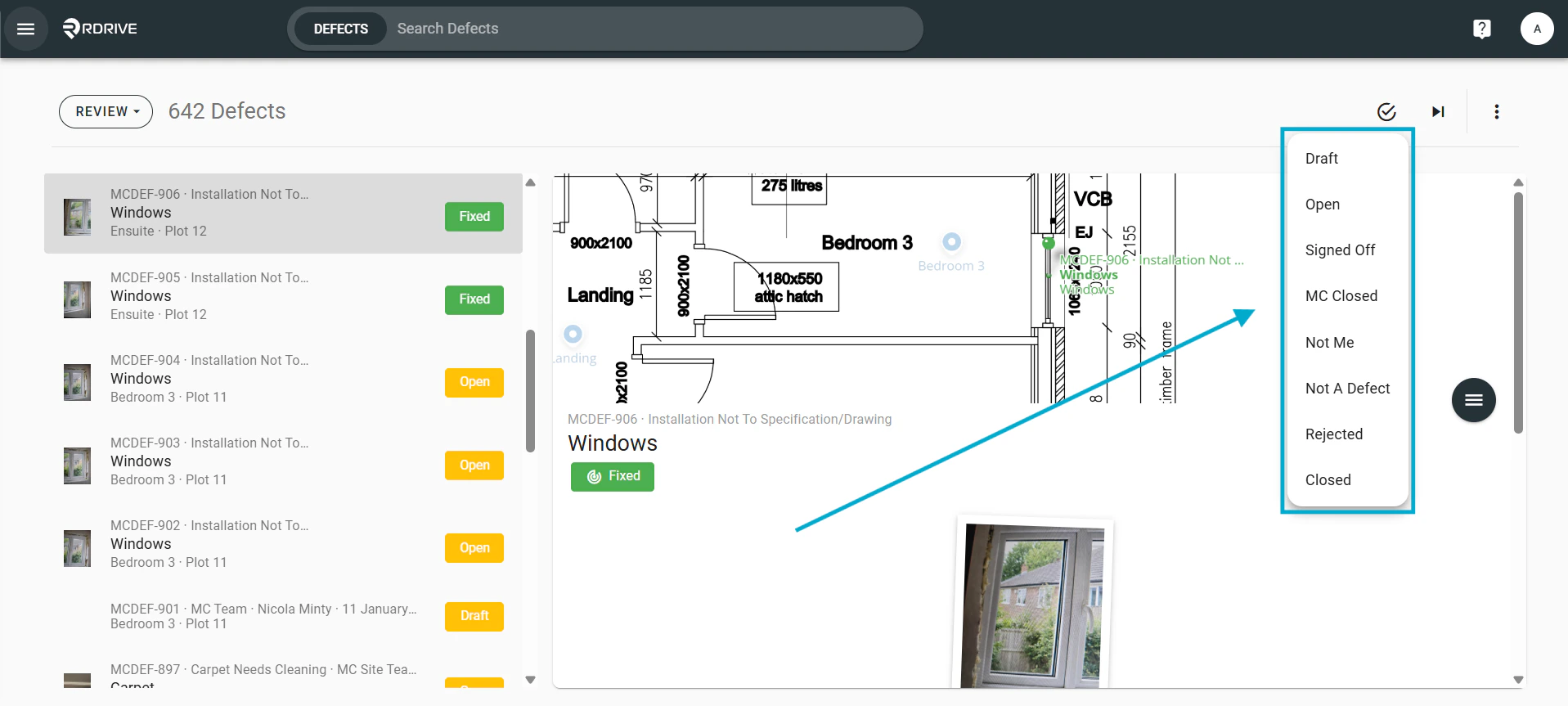
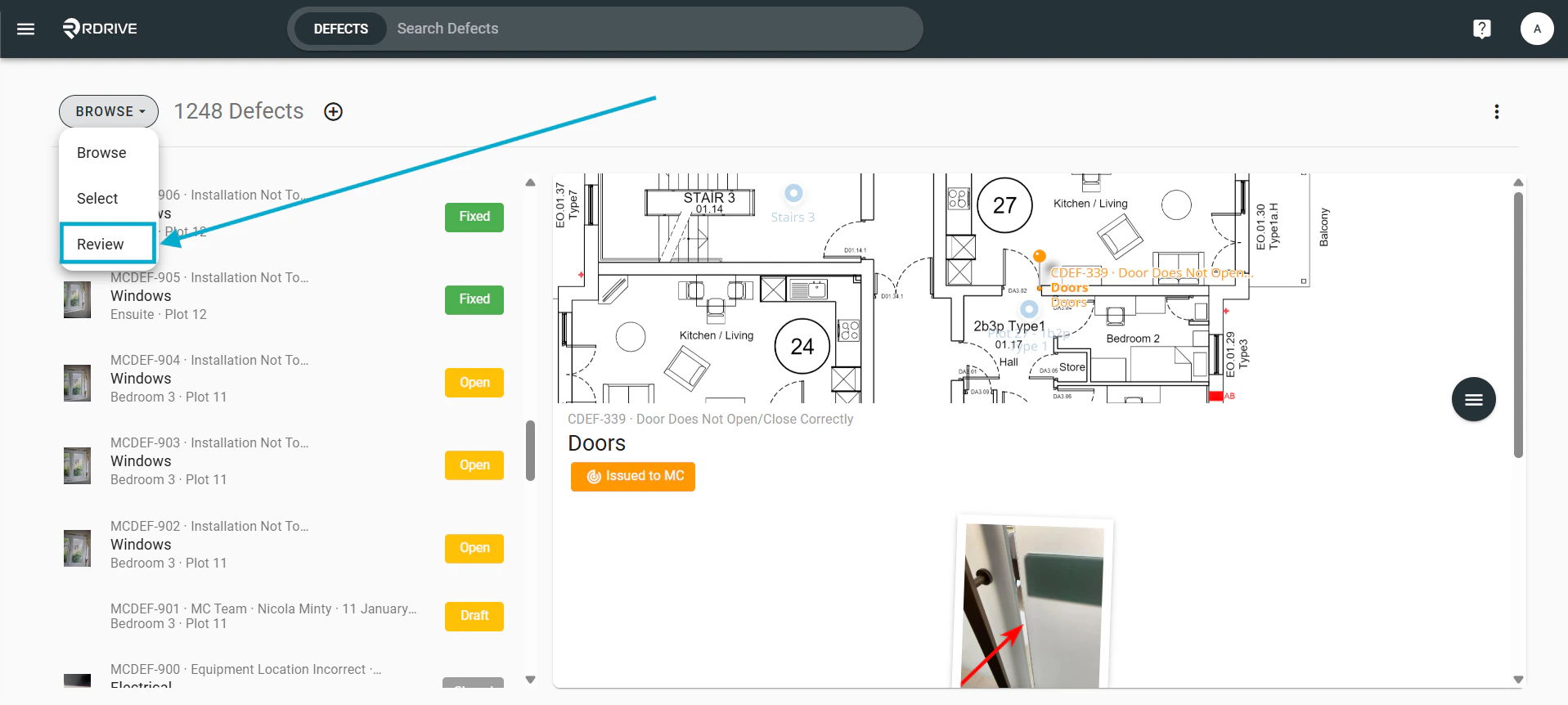
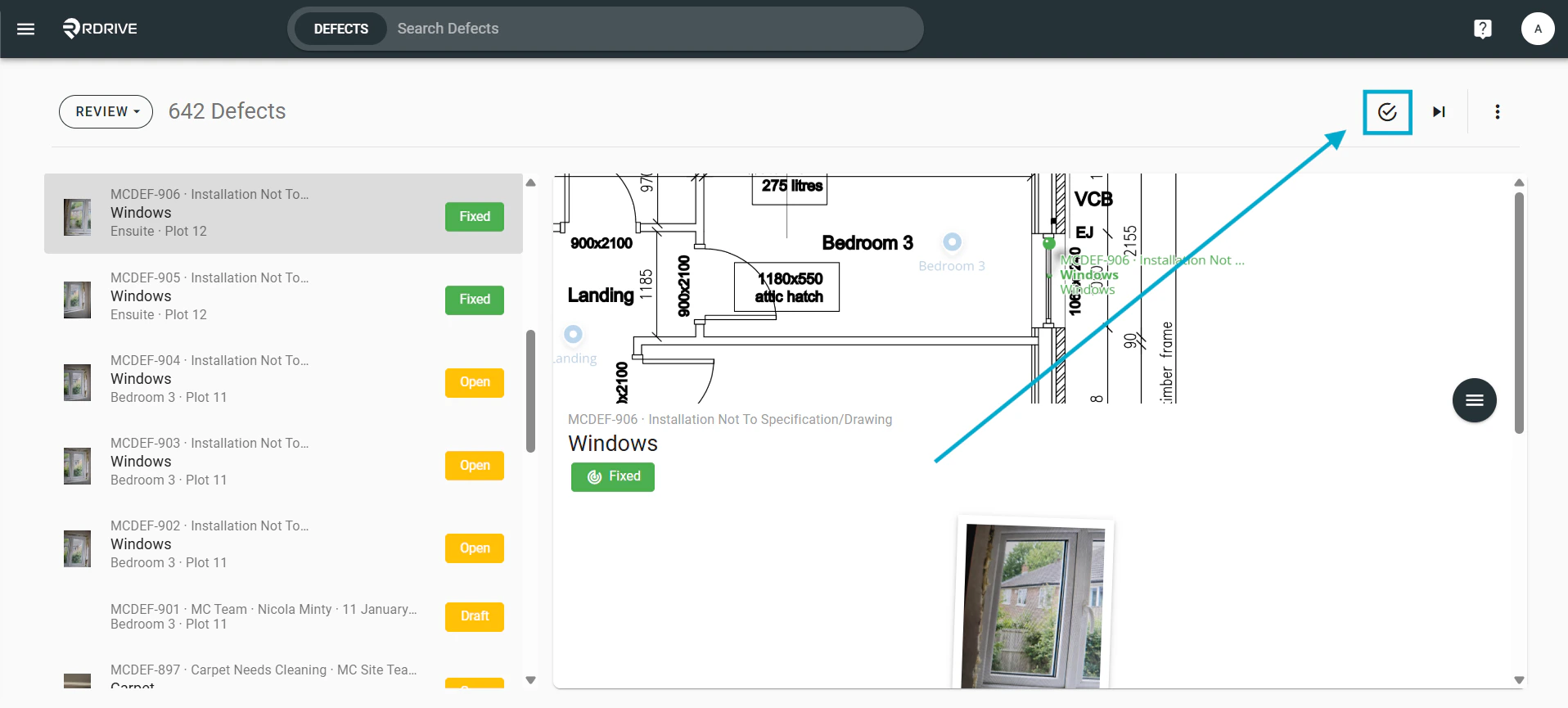
From the browse control panel, switch from Browse to Review mode.\ How to Update the Status of an Issue/Defect/Record Once in Review mode, status update options appear. How to Update the Status of an Issue/Defect/Record Choose the new status — the change will auto-save. How to Update the Status of an Issue/Defect/Record
FAQs & Troubleshooting

Q: Why can’t I change the status of a record?
A: Check that you have the appropriate permissions. If not, contact your Project Admin.
Q: What happens if I forget to change the status?
A: The issue/defect won’t move forward in the workflow. This can delay the process. Always update the status when editing.
Q: Can I change the status without editing the issue?
A: Yes — use the Status option directly from the three-dot menu (⋮).