How to Use RDrive’s Dashboard to Generate the GF527 Report for DWSS Compliance
RDrive has introduced a dedicated dashboard to generate the GF527 report, which is essential for complying with the Digital Works Supervision System (DWSS) requirements. This guide will walk you through the steps to effectively use this feature, ensuring your project data aligns with the standards expected for DWSS reporting.- Step 1: Access the Dashboard
- Step 2: Select Report Options
- Step 3: Trigger Report Generation
- Step 4: Wait for the Email
- Step 5: Download the GF527 Report
What is GF527?
The GF527 is a form used in the construction industry in Hong Kong to report work supervision data. Compliance with this form is a requirement for projects using DWSS, as it ensures accurate and consistent recording of on-site activities. RDrive simplifies this process by providing a built-in dashboard to generate the GF527 report directly.Step-by-Step Guide to Generate the GF527 Report
Step 1: Access the Dashboard
- Log in to your RDrive account.
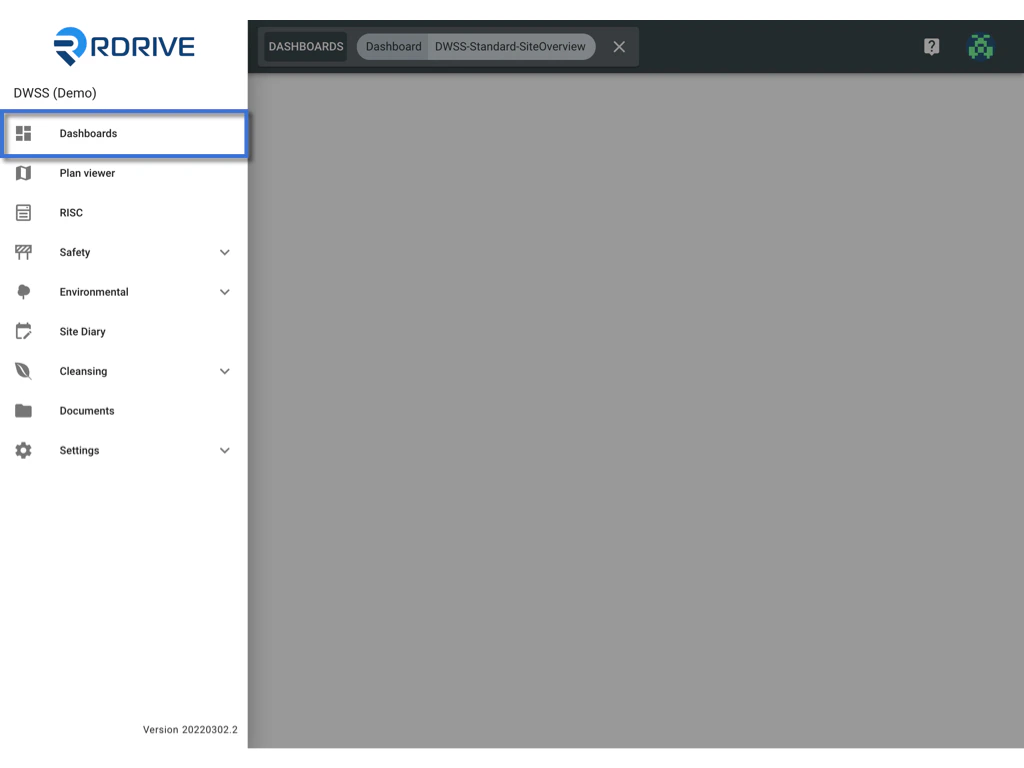
- Navigate to the Dashboard, select our GF527 / Labour Return Dashboard. This is where you can manage and generate your reports.
Step 2: Select Report Options
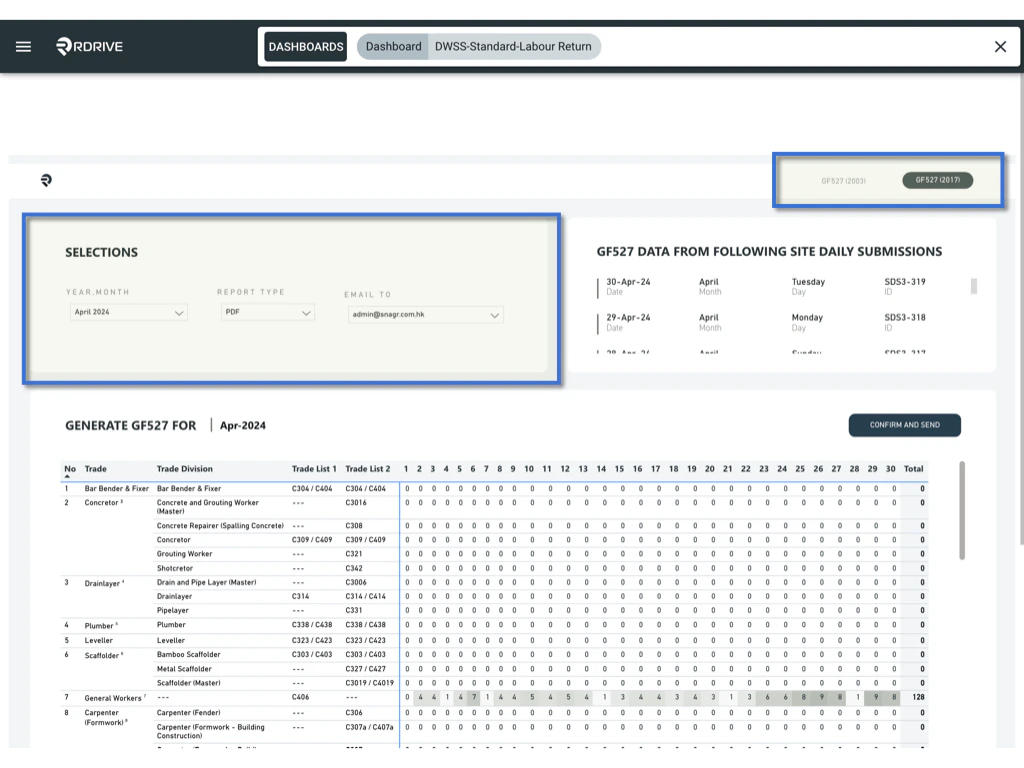
- Choose the GF527 type: Select between 2017 or 2003 depending on your project’s requirement.
- Select the month and year for which you want to generate the report. Note that you can only select one month and one year at a time.
- Choose the report type:
- PDF for easy viewing and printing.
- Excel for data analysis and further modifications.
- Enter the email address of the user who should receive the generated report.
Step 3: Trigger Report Generation
-
After making your selections, click the CONFIRM AND SEND button.

-
The report generation process will start in the background, allowing you to close this page and continue other tasks on RDrive.

Step 4: Wait for the Email
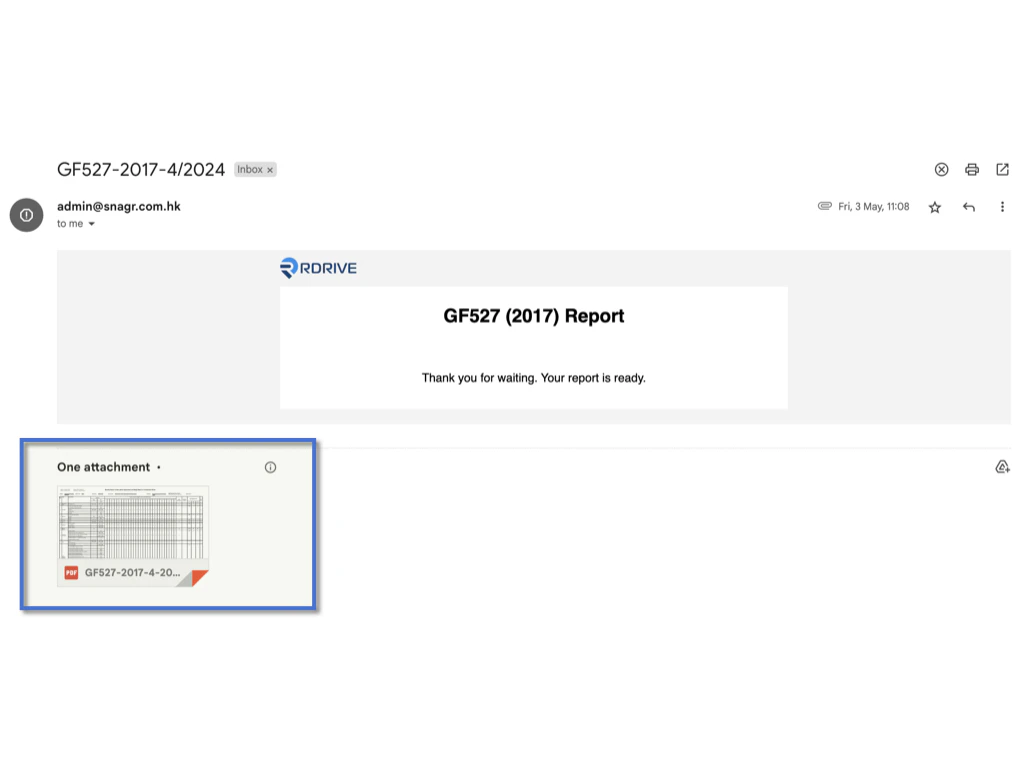
- Once the report is ready, RDrive will automatically send a notification email to the provided recipient.
- The generation time may vary depending on the data size, so please be patient while the system processes the request.
Step 5: Download the GF527 Report
- The GF527 report will be attached as a file in the email, either in PDF or Excel format as you selected.
- Open the email and download the attached report—you now have everything you need to fulfill the DWSS requirements.