
Overview
This guide explains how to customize the display settings of the Finder, allowing users to choose which information to display.- Purpose: This guide provides instructions for setting up the Finder card view to suit personal preferences.
- Who It’s For: General users
Prerequisites: Ensure that you have an active account and proper access rights.
TABLE OF CONTENTS
Step-by-Step Instructions
✅ Step 1: Access Finder
Navigate to the Finder interface.- Click on the Finder icon to open the view.
✅ Step 2: Open Display Settings
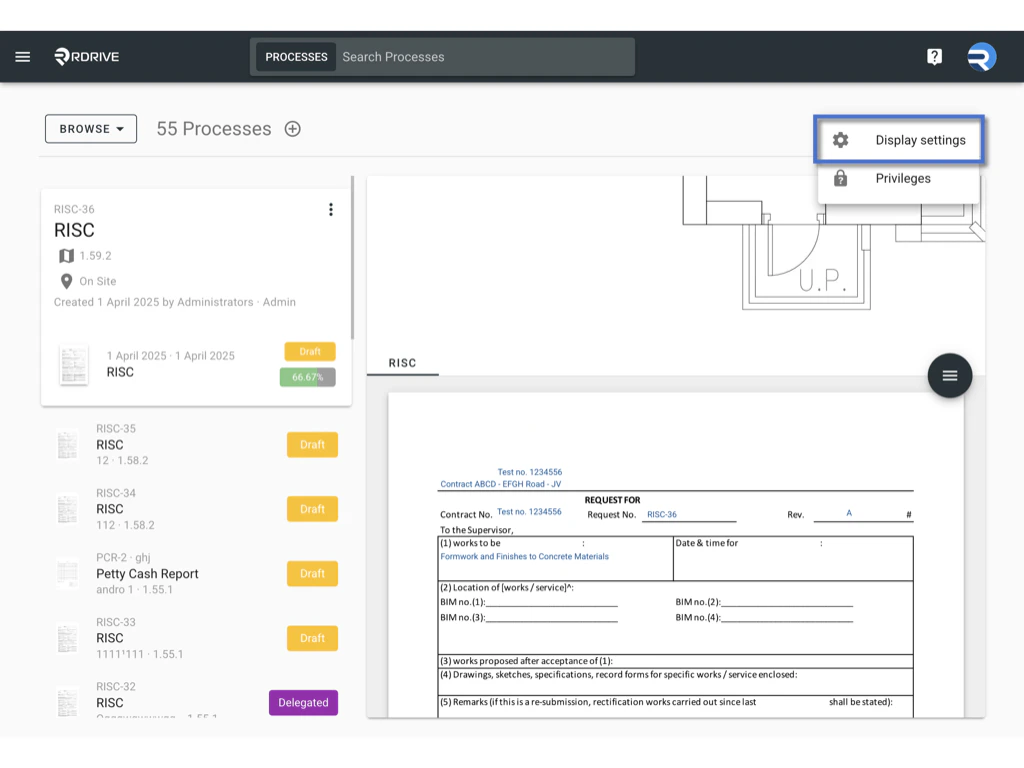
Click the three dots (︙) located at the top right corner.- From the dropdown menu, select Display Setting.
This will open the Display Setting options. \
\
✅ Step 3: Customize Process Finder Settings
For the Process Finder, you can edit the display settings for the process and form.
- Check the box next to the options you would like to view on the Finder of process. If you do not wish to display an option, simply uncheck the box.\
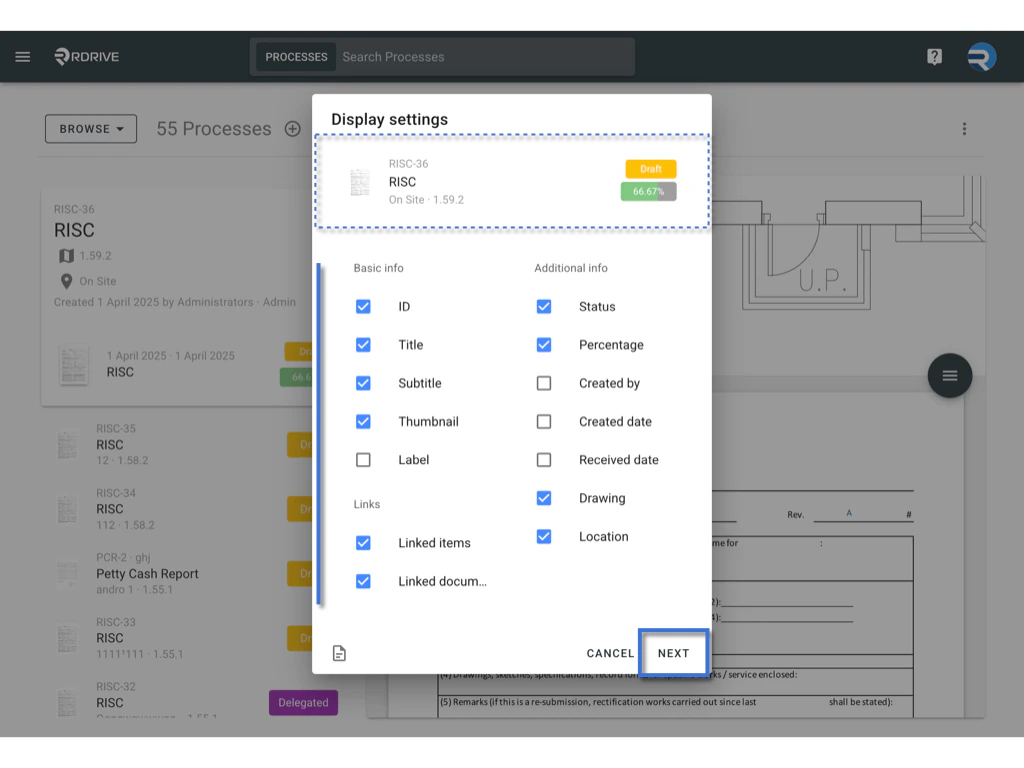
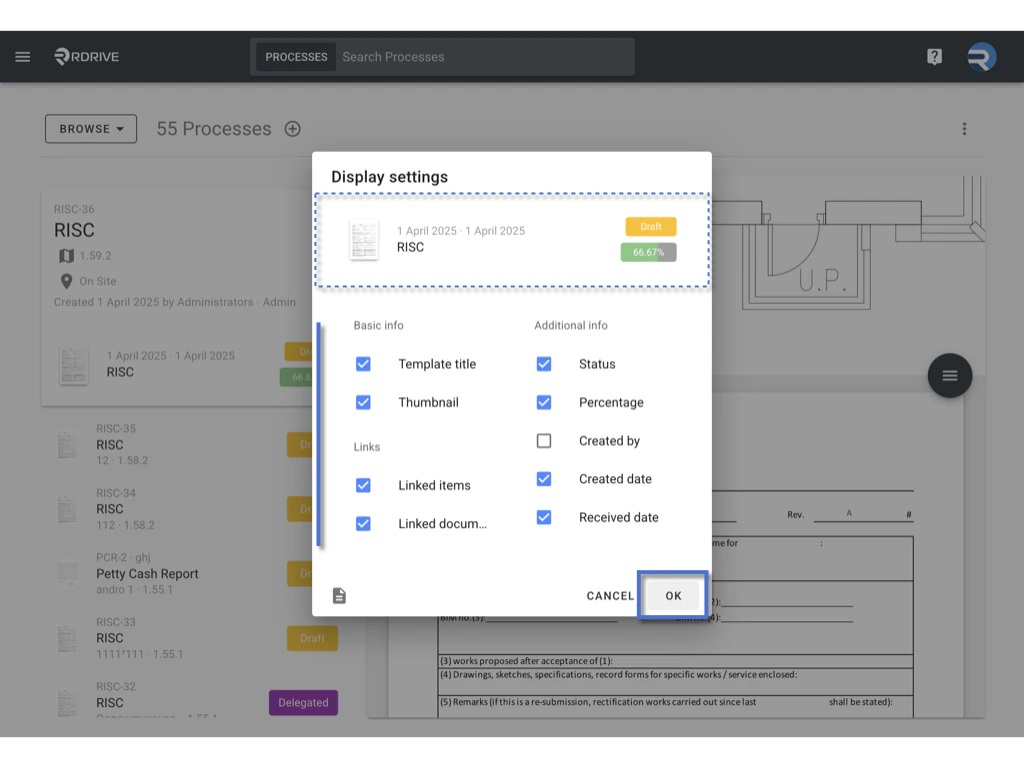
- Click Next to proceed to the form options.
- The dialog box will show a preview of your settings.
- Once you’ve made your selection, click OK to confirm.\
✅ Step 4: Customize Issue Finder Settings
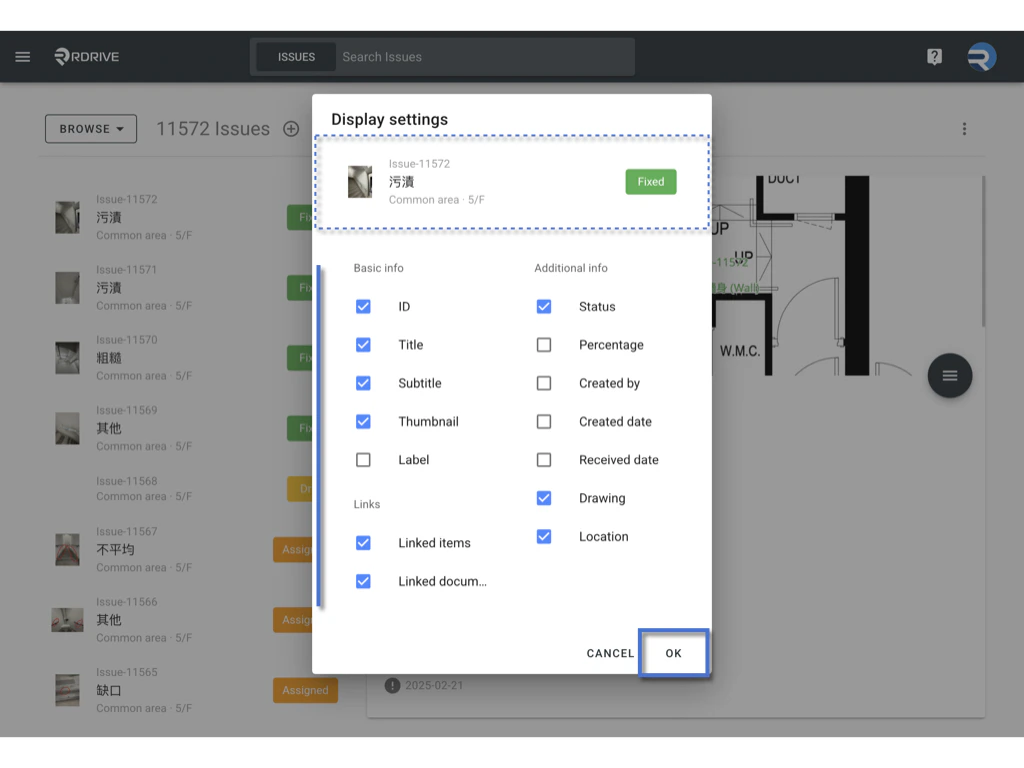
For the Issue Finder, you can edit the display settings for the issue.
- Similarly, check the boxes for the options you would like to display and uncheck for those you wish to hide.
- A preview of the selected settings will appear in the dialog box.
- Click OK to confirm your settings.\
FAQs & Troubleshooting
Q: I updated the display settings, but nothing seems to have changed. Why?
A: Make sure you clicked OK after selecting your options. If the issue persists, try refreshing the page or logging out and back in.