

Email Log
This guide explains how to access and review the email log in the system.- Purpose: This guide helps users track sent emails, including their details and statuses.
- **Who It’s For: General users, admins, or anyone needing to check email logs. **
Prerequisites: Proper access permissions to view the email log.
Step-by-Step Instructions
✅ Step 1: Access the Email LogNavigate to the side menu and go to Logs > Email logs.
 ✅ Step 2: View Filtered Emails
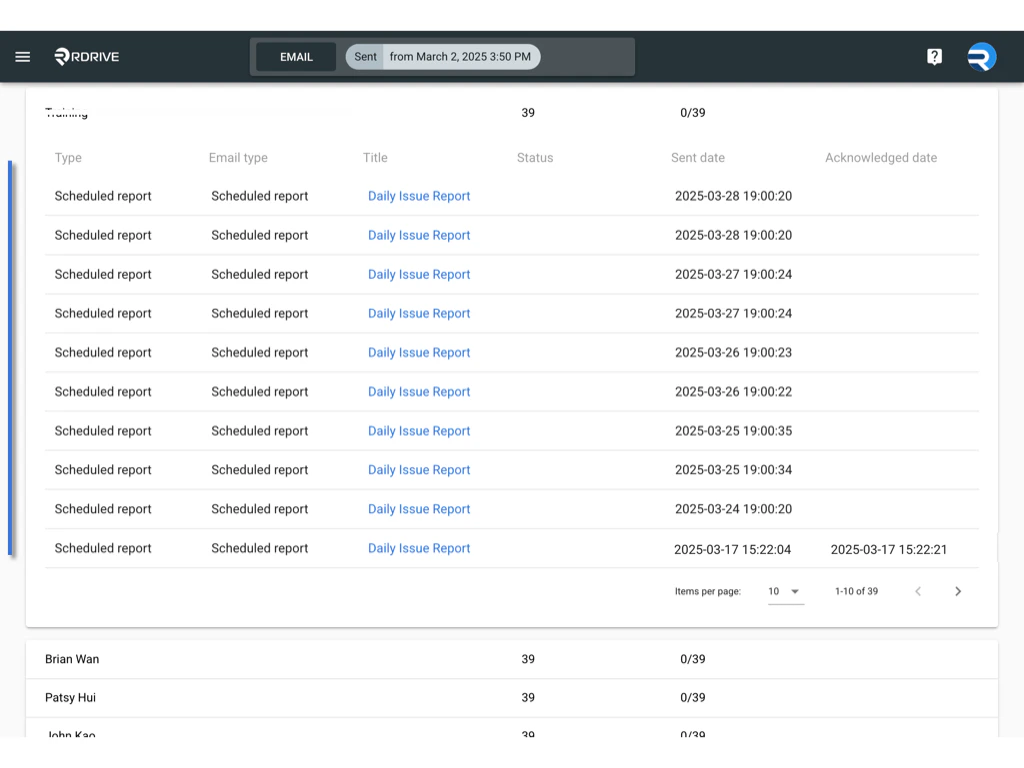
The system will automatically filter emails sent from the previous day. You will see yesterday’s date set in the unified search bar. ✅ Step 3: Review the Displayed Emails
The email log page will display emails sorted by the receiver (user).
 ✅ Step 4: Check Email Details
Click on an email entry to expand its details. The following information will be available:
- Type: Notification type
- Email Type: Specifies the category of email
- Email Title: Same as the email subject
- Status: Indicates the item status (for status notification emails)
- Sent Date: The date the email was sent
- Acknowledged Date: The date the receiver clicked the link in the email
 ✅ Step 5: Use Additional Search Criteria
The unified search bar allows filtering emails based on different criteria. Here are the available search options:

FAQs & Troubleshooting
Q: Why don’t I see any emails?A: Ensure the correct date filter is applied in the search bar. Q: Why can’t I see the acknowledgment date?
A: The acknowledgment date only appears if the receiver has clicked the link in the email. Q: How do I filter emails by a specific user?
A: Use the unified search bar to enter the user’s details and refine the results.