
Subscription Policy Levels
Policy Level:- Accessing Subscription Policy Settings via the Website
- Editing a Subscriptions Policy Title
- Downloading a Subscription Policy
-
Deleting a Subscription Policy
Accessing Subscription Policy Settings via the Website
- Click on the ≡ menu icon at the top left corner to open the Menu.
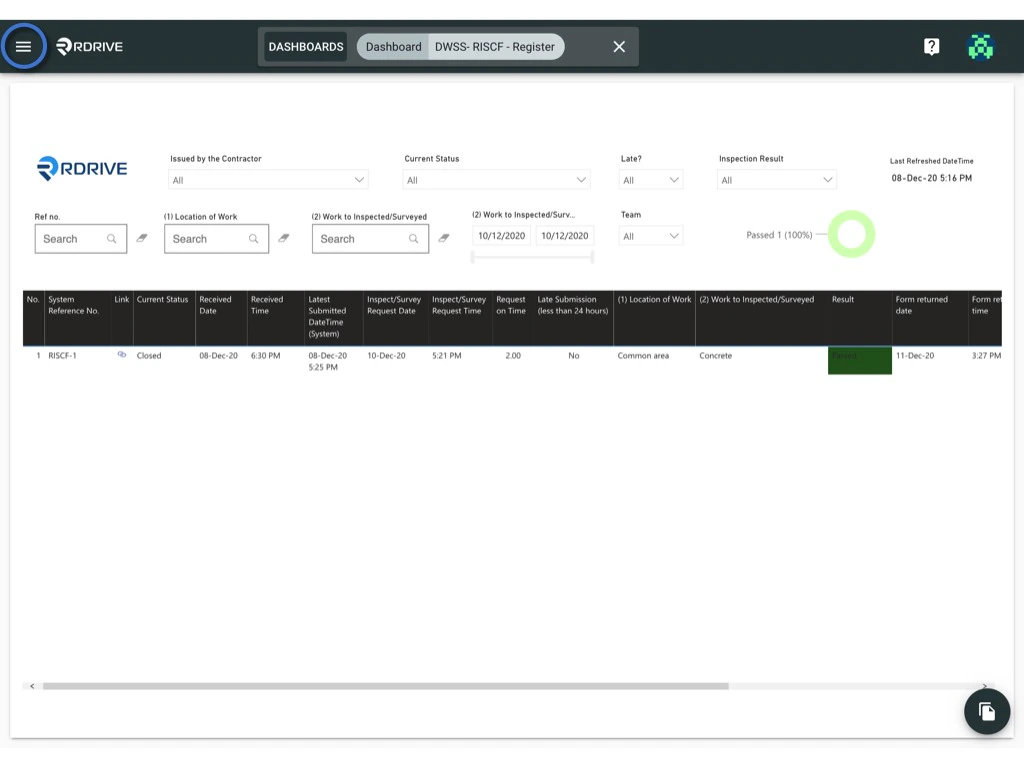
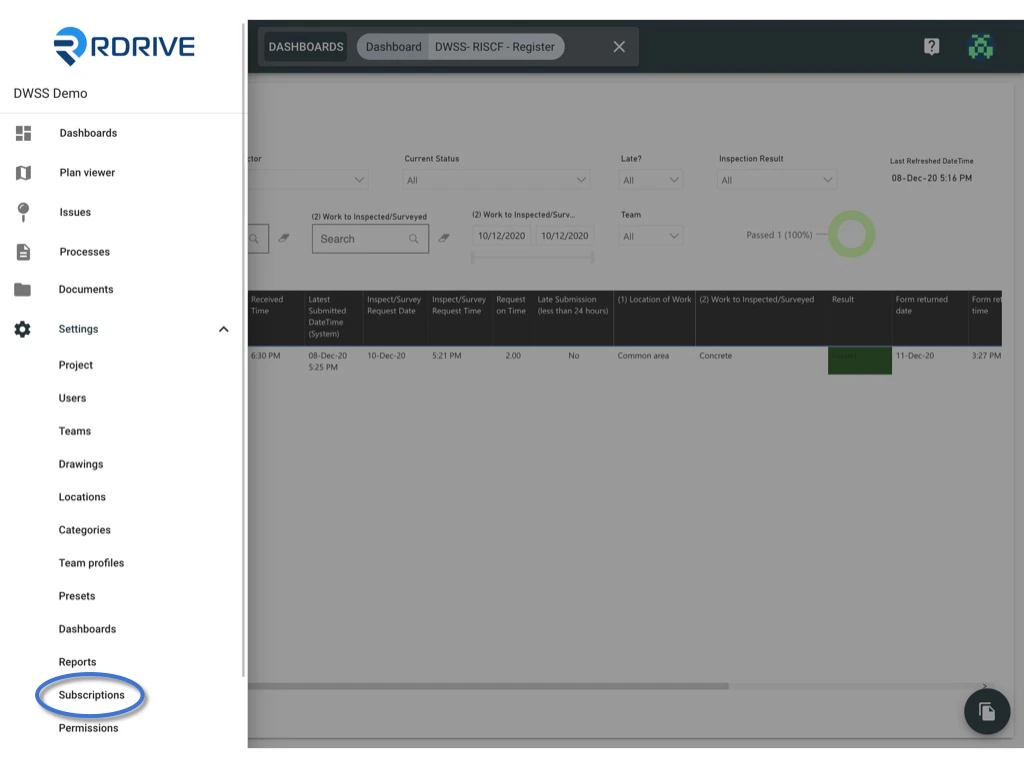
- Navigate to Settings > Subscriptions to access the Subscriptions page.
Editing a Subscriptions Policy Title
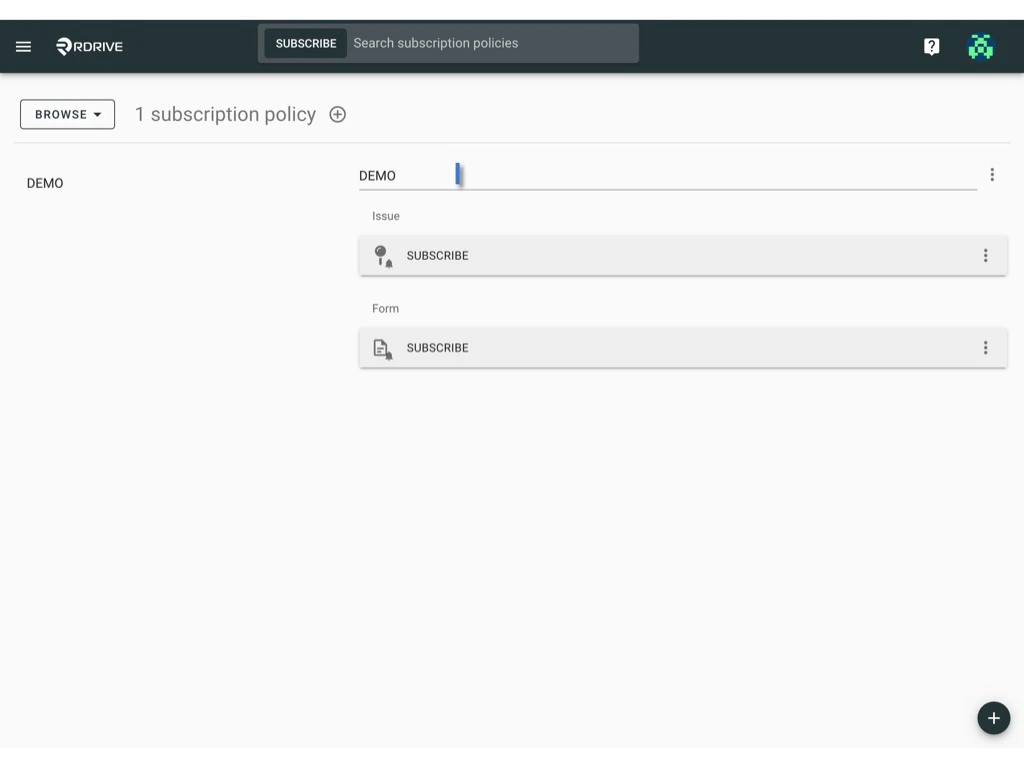
- Select the desired Subscription policy.
- Click on the policy title to edit it.
Downloading a Subscription Policy
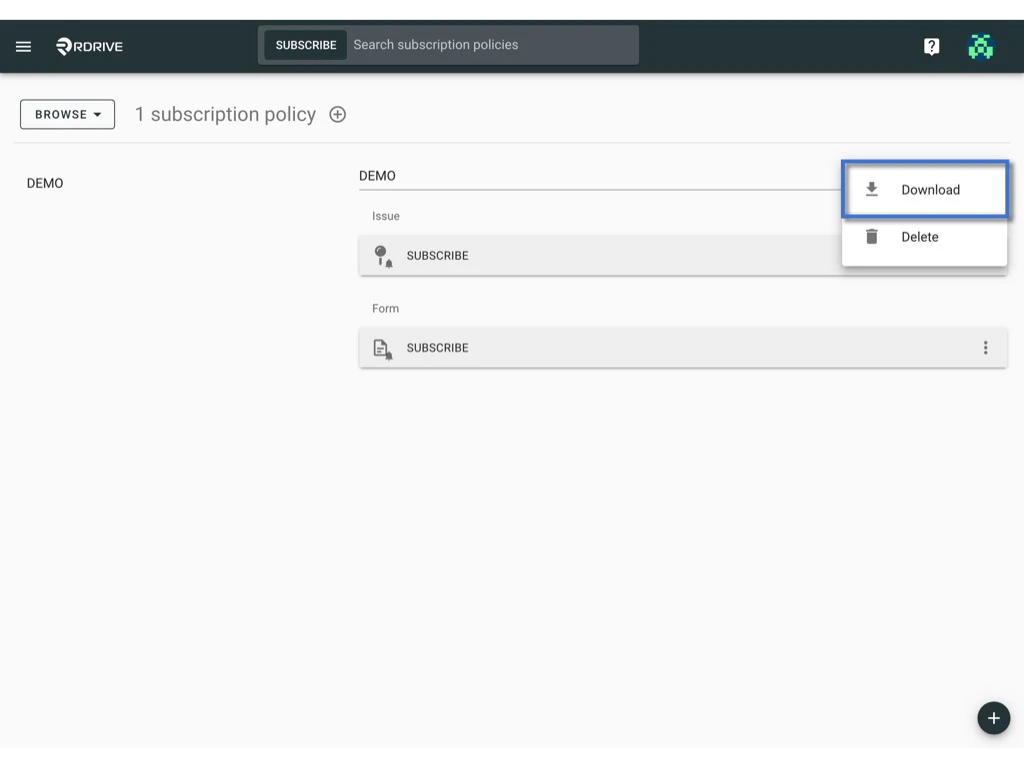
- Click the ⋮ button on the right-hand side of the policy title.
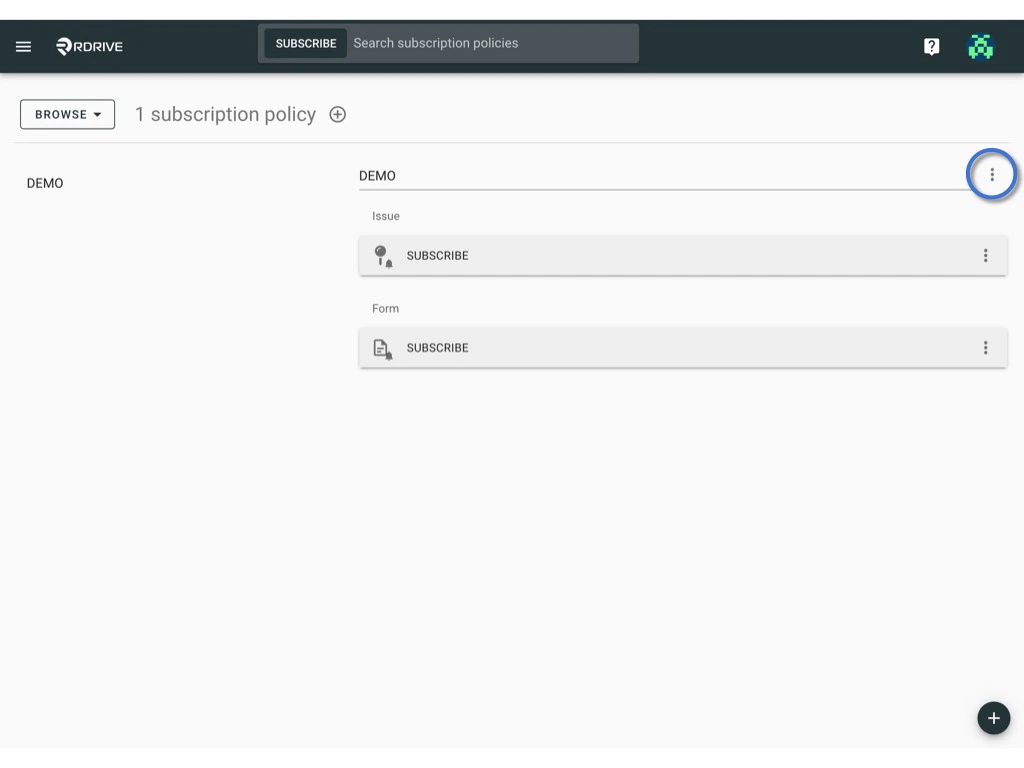
- Select Download.
To Batch Download:
-
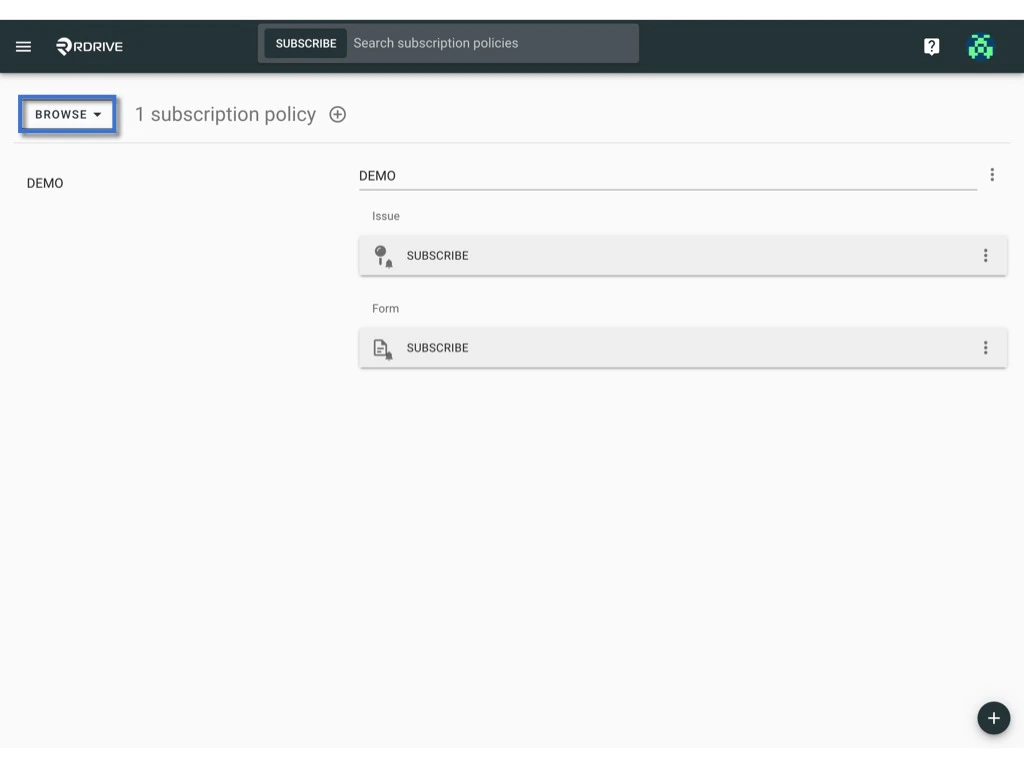
Switch the mode from “BROWER” to “SELECT”.

-
Click on individual items or use the Select All / Deselect All button to choose multiple items. The selected items will be highlighted in grey.**
 **
**
-
Press the Download icon to batch download the selected items.

Deleting a Subscription Policy
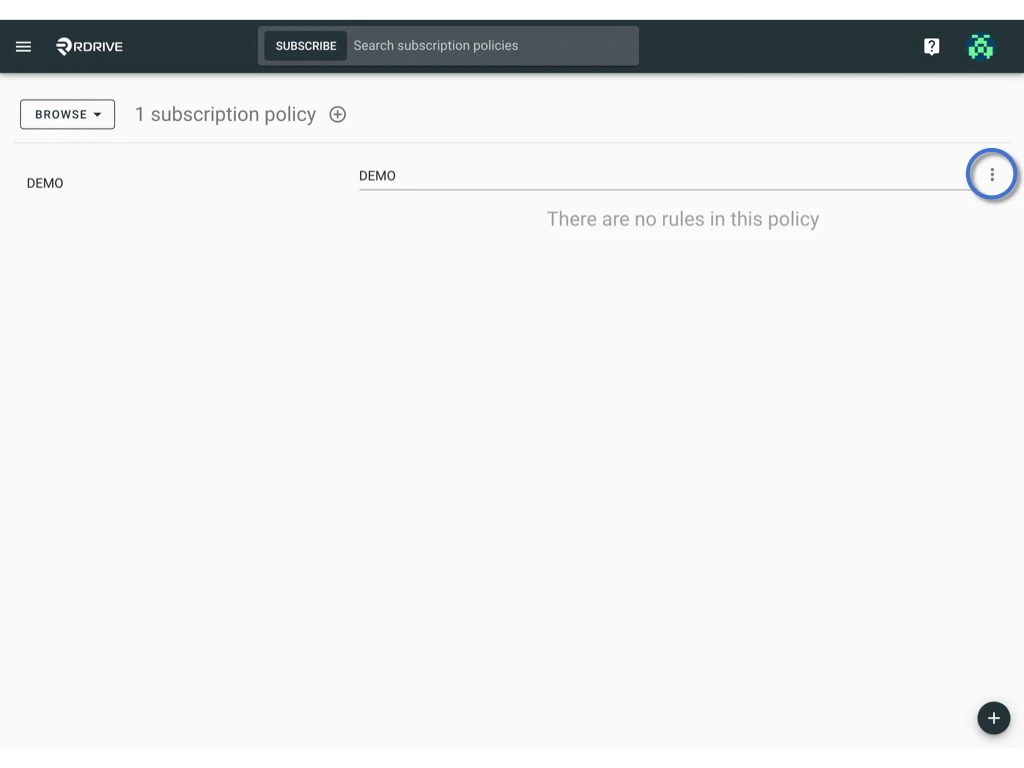
- Click the ⋮ button on the right-hand side of the policy title.
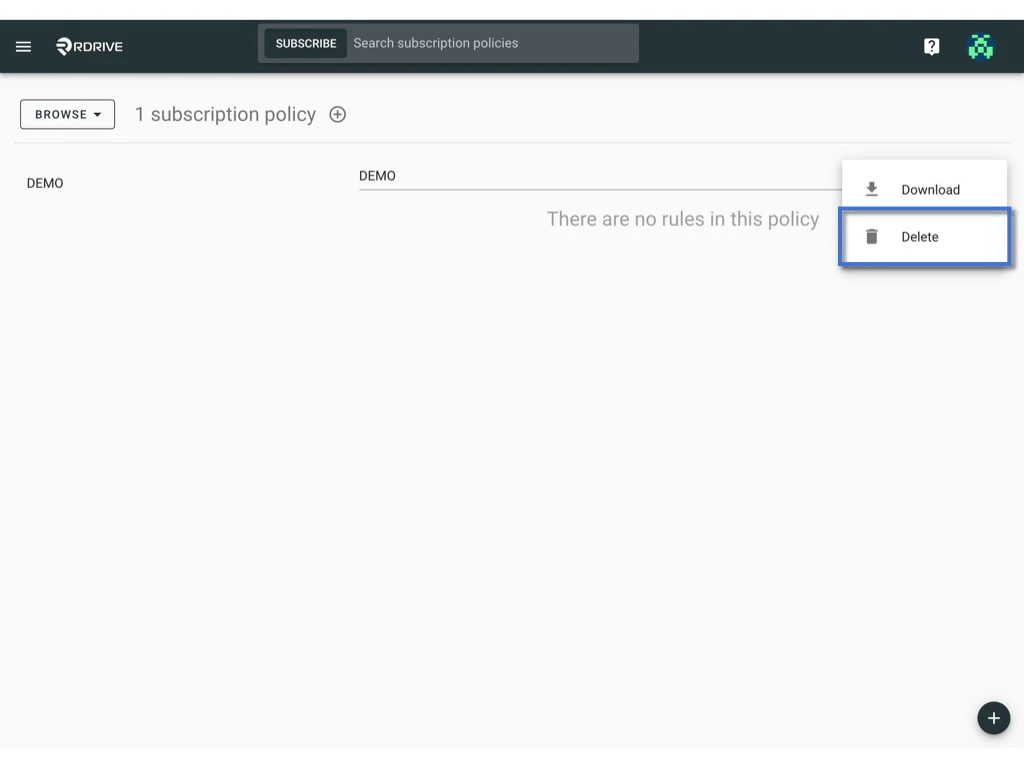
- Select Delete.
- Confirm the DELETE
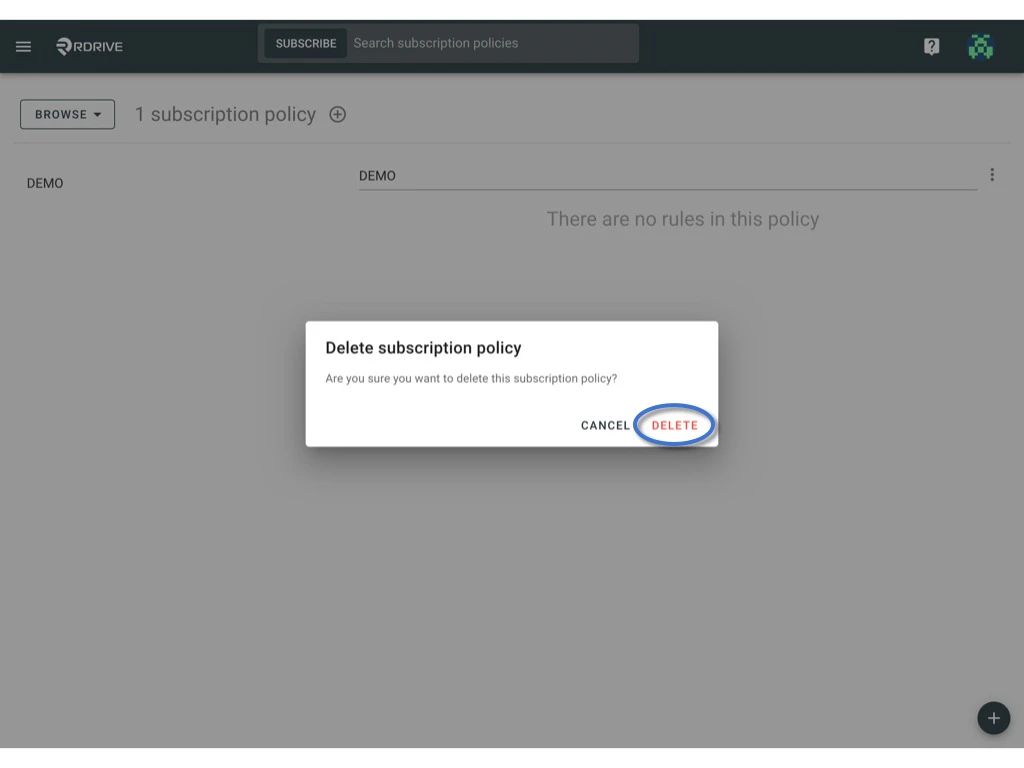
Warning: Once deleted, the Subscription policy cannot be recovered.
Editing Conditions and Options for a Rule
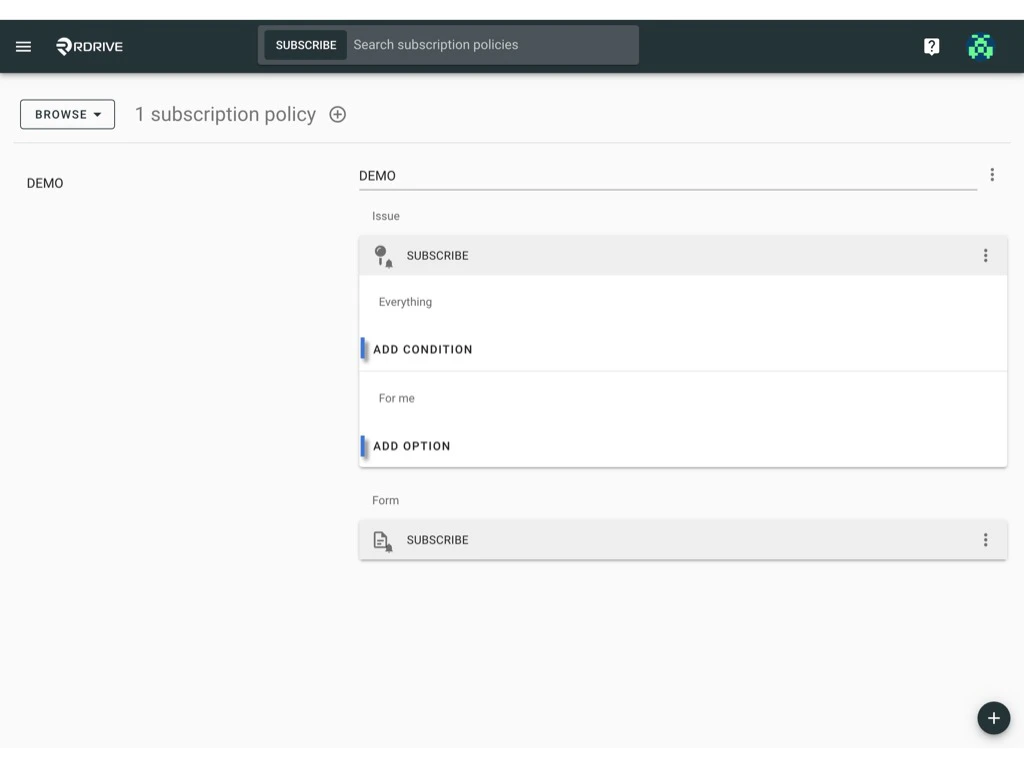
- Click on a rule to expand it.
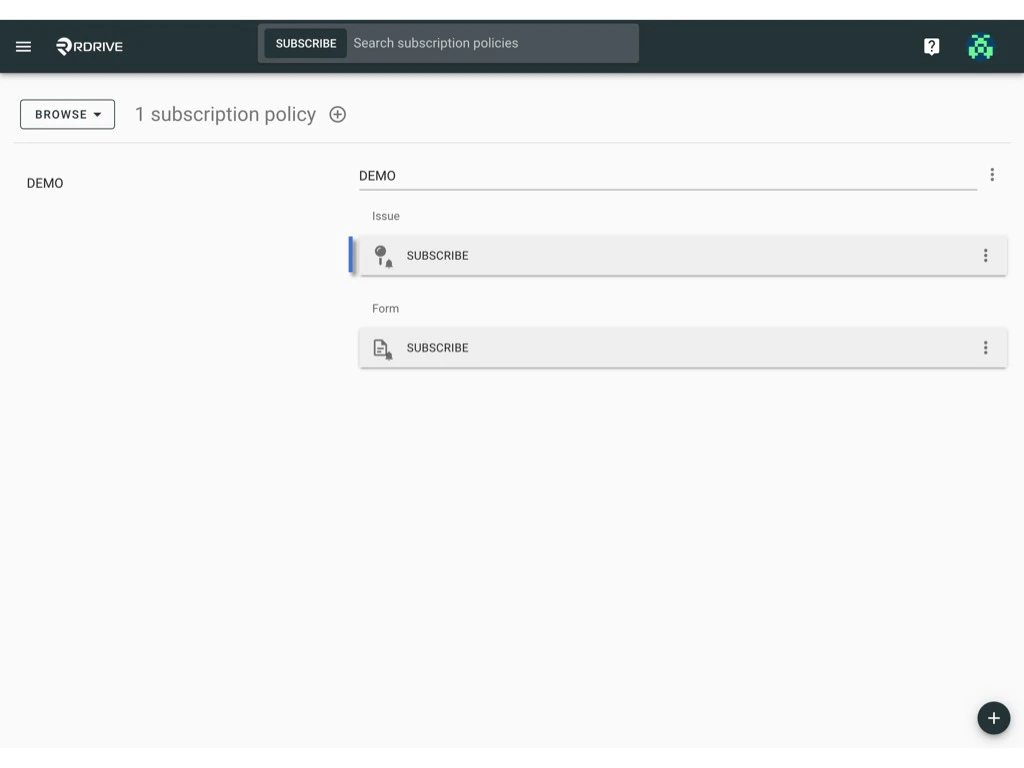
- Press the Add Condition or Add Option button to modify the rule as needed.
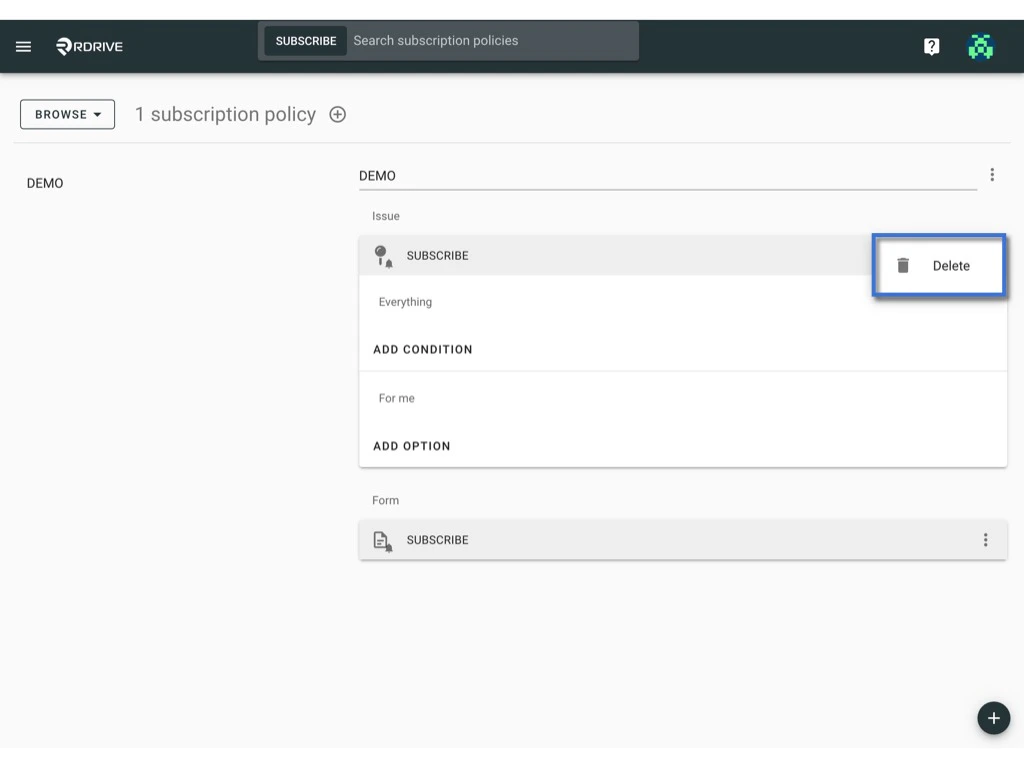
Deleting a Rule
- Click the ⋮ button on the right-hand side of the rule.
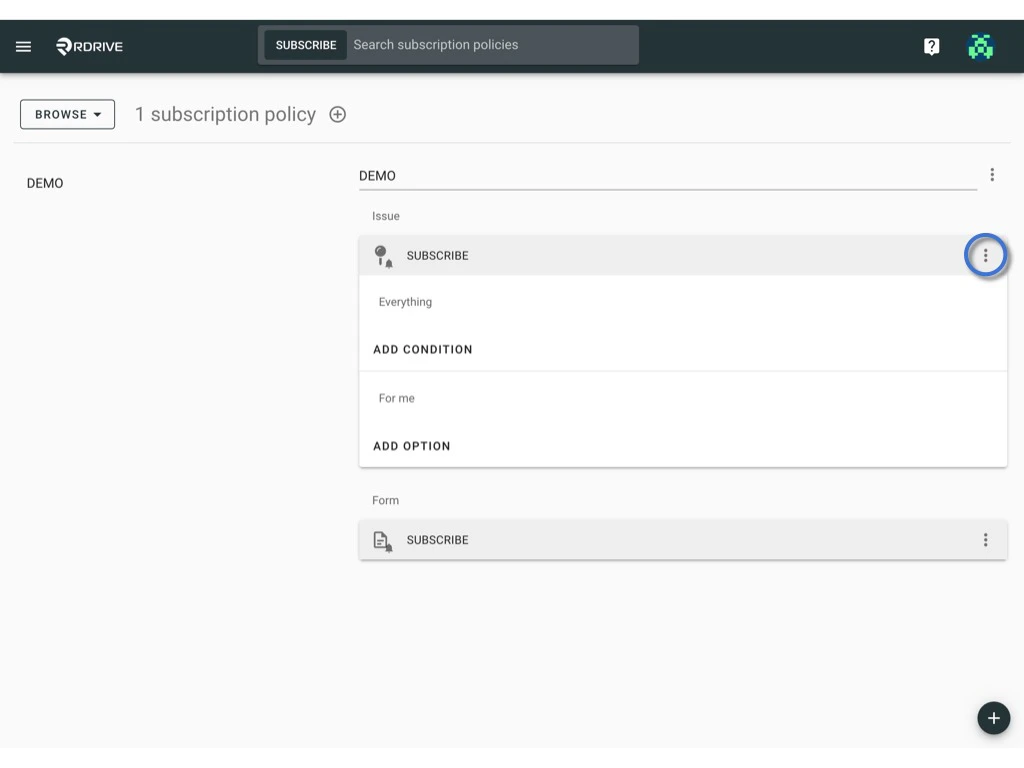
- Select Delete.
By following these steps, you can effectively manage your subscription policies and rules to suit your specific needs.