
Overview
A brief introduction explaining the purpose of this guide.- Purpose: Exporting an entire process in RDrive as a report
- Who It’s For: General users
Prerequisites: Able to read the item
Do you need to export the completed process into PDF? Here is a guide to help you.
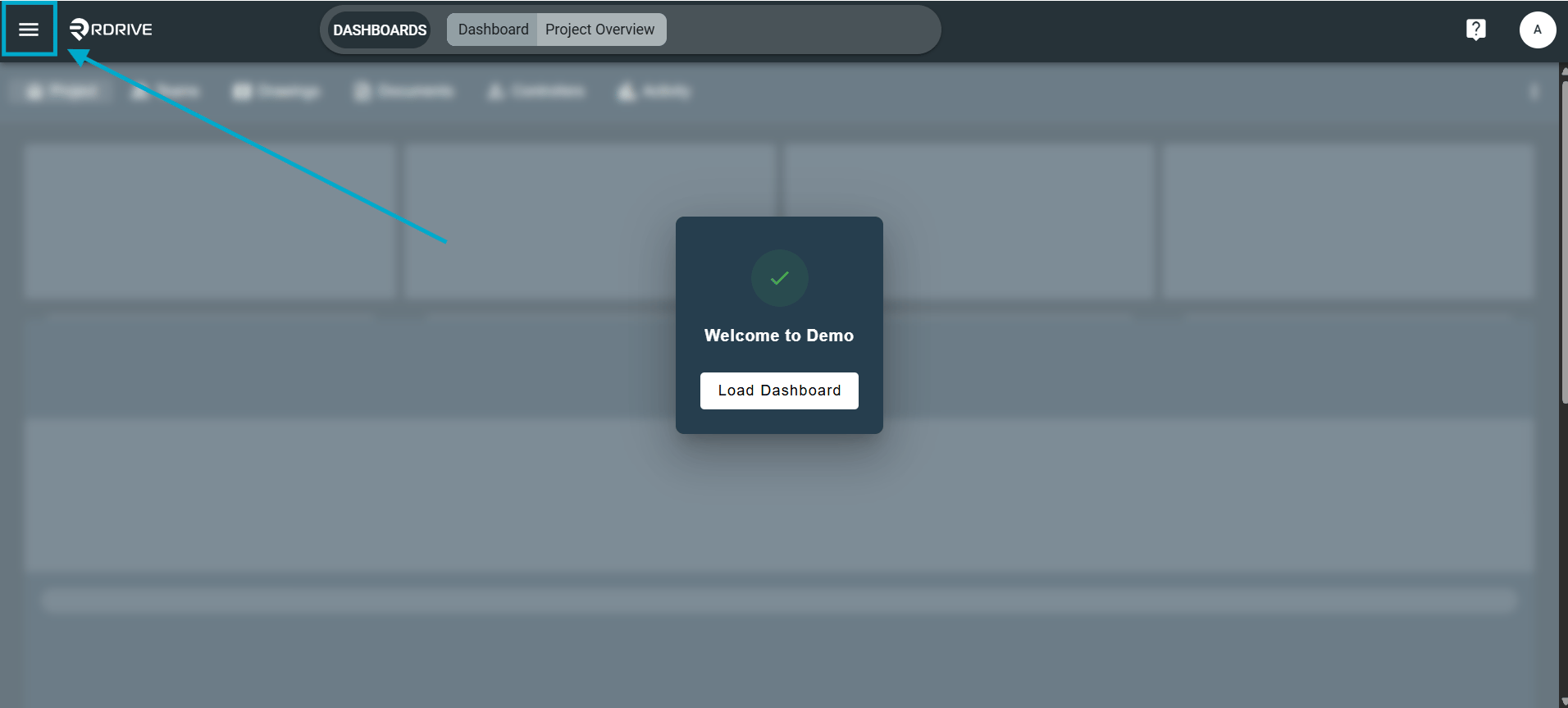
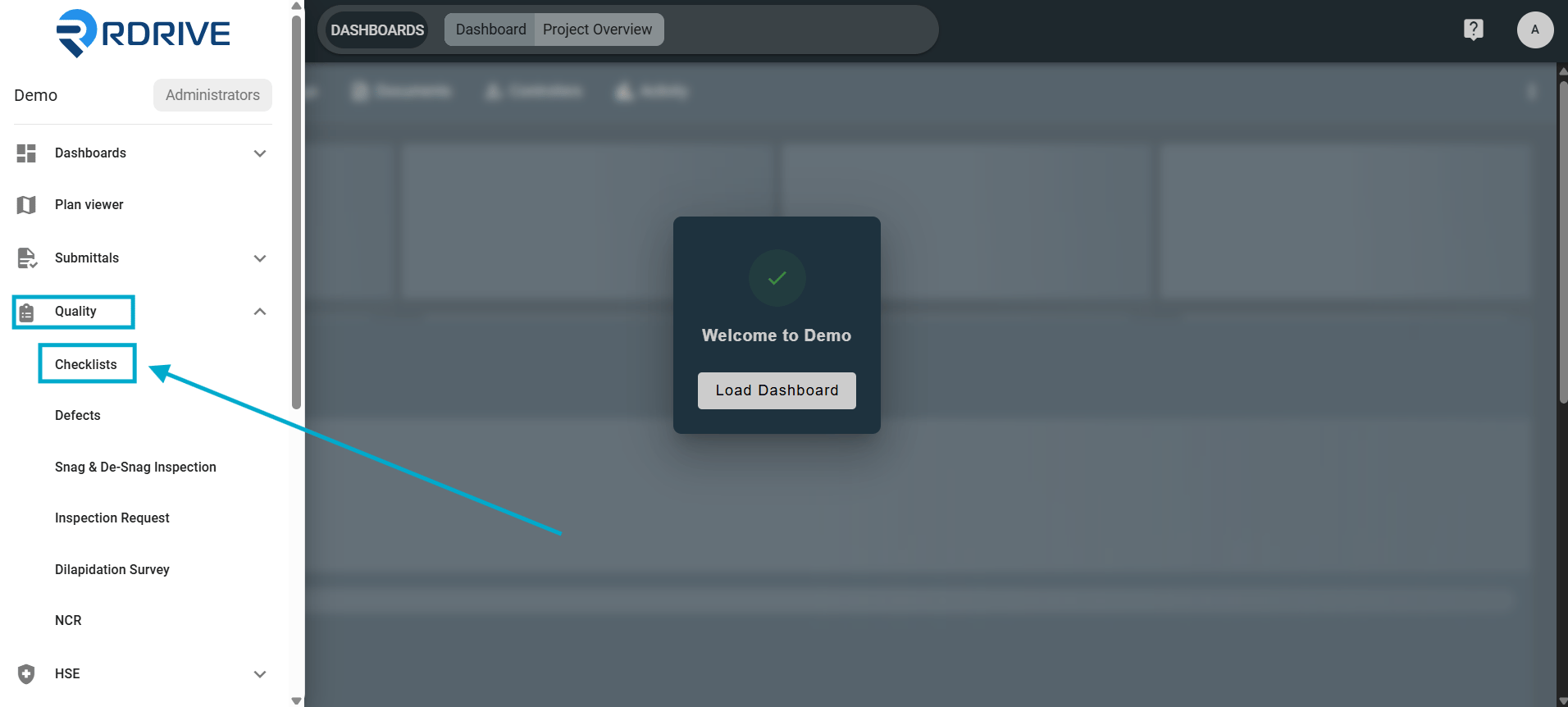
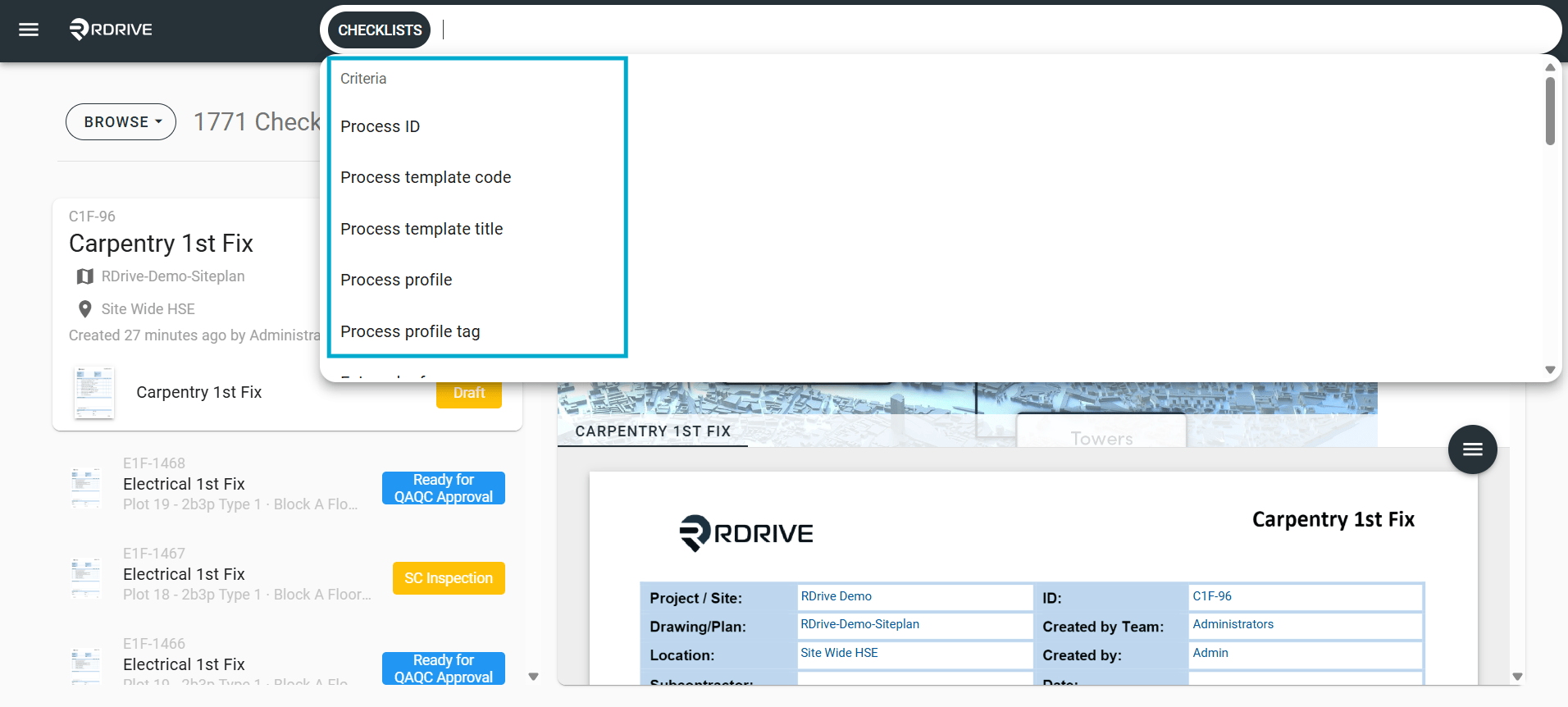
You can utilise the unified search bar at the top of your screen to filter the required process to be exported as shown below. TABLE OF CONTENTSClick the 3 line (hamburger menu) highlighted to open the side menu.
Single download
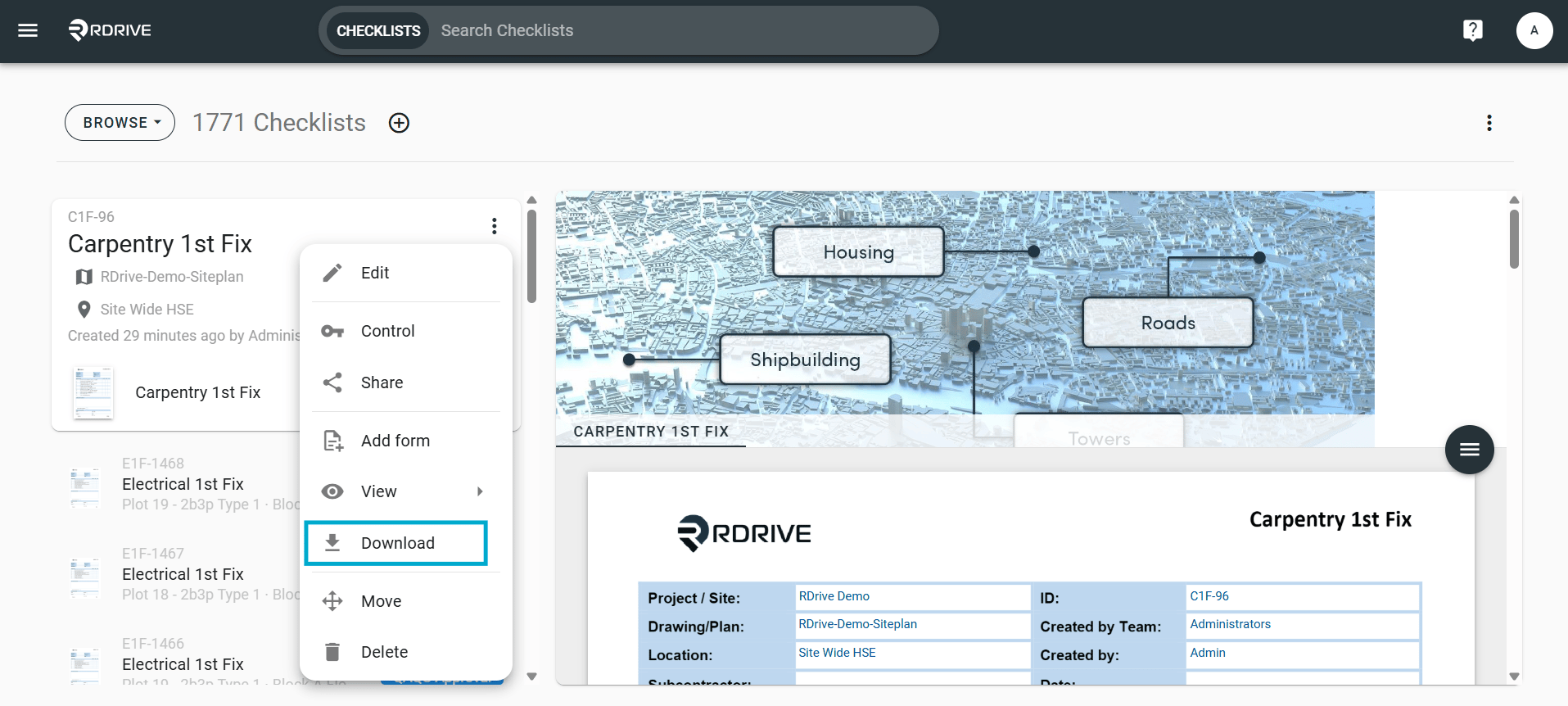
Click the 3 dots ⋮ icon on the upper-left hand side of your screen as circled below and select “Download” from the Menu options as shown below.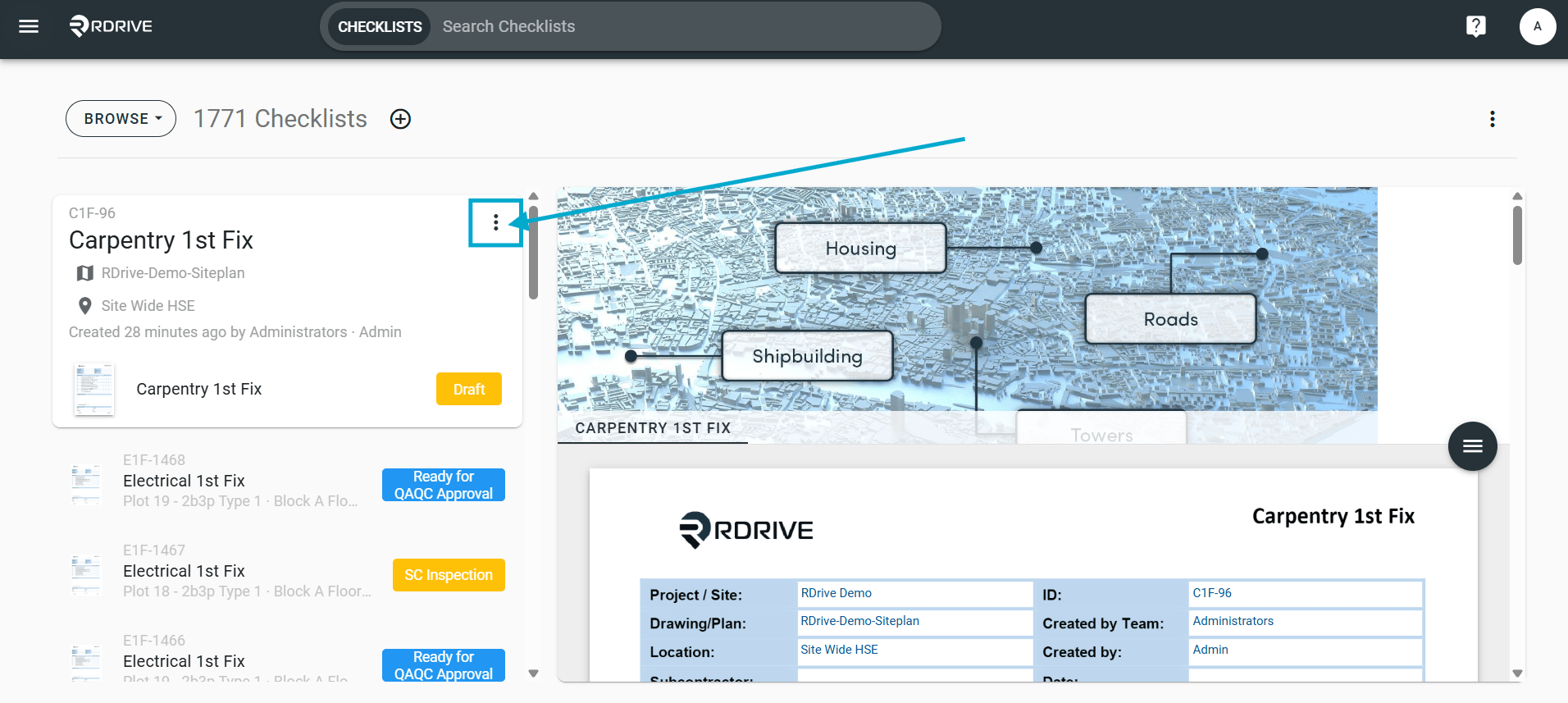
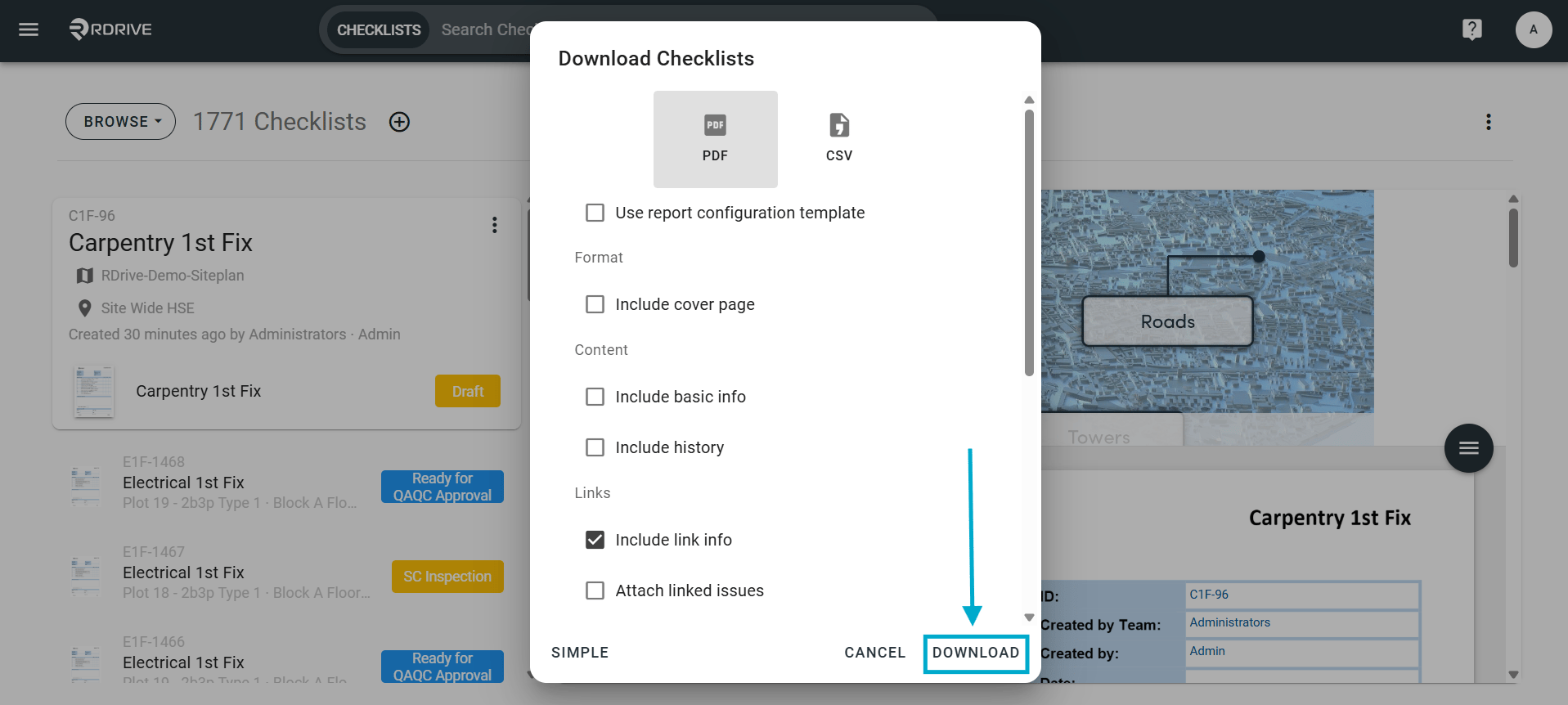
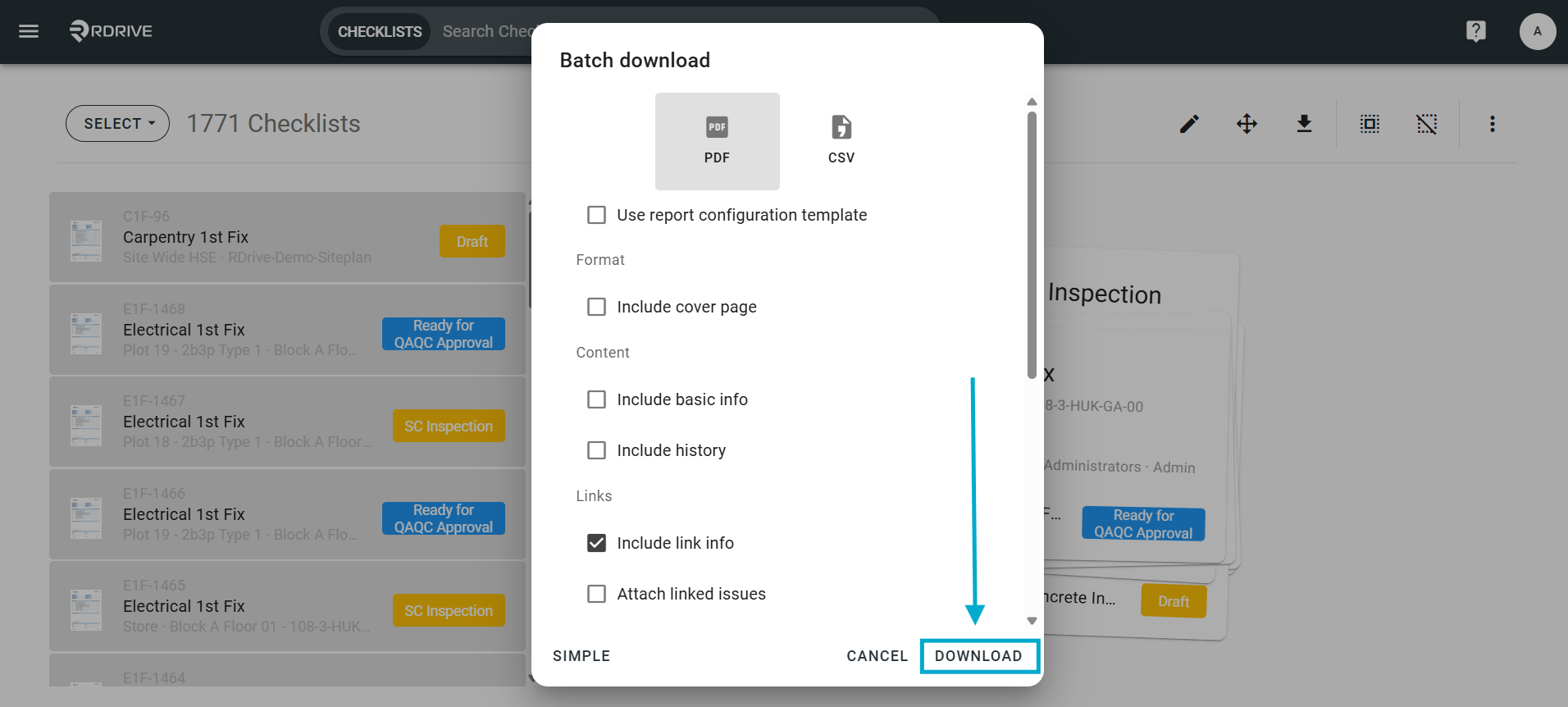
What if there are numerous processes that have to be downloaded? Not to worry, in RDrive you can download processes by batch. Let’s go through how to do this below.
Batch Download
After filtering the required process you need to export as PDF, choose “SELECT” by pressing the circled drop-down shown below.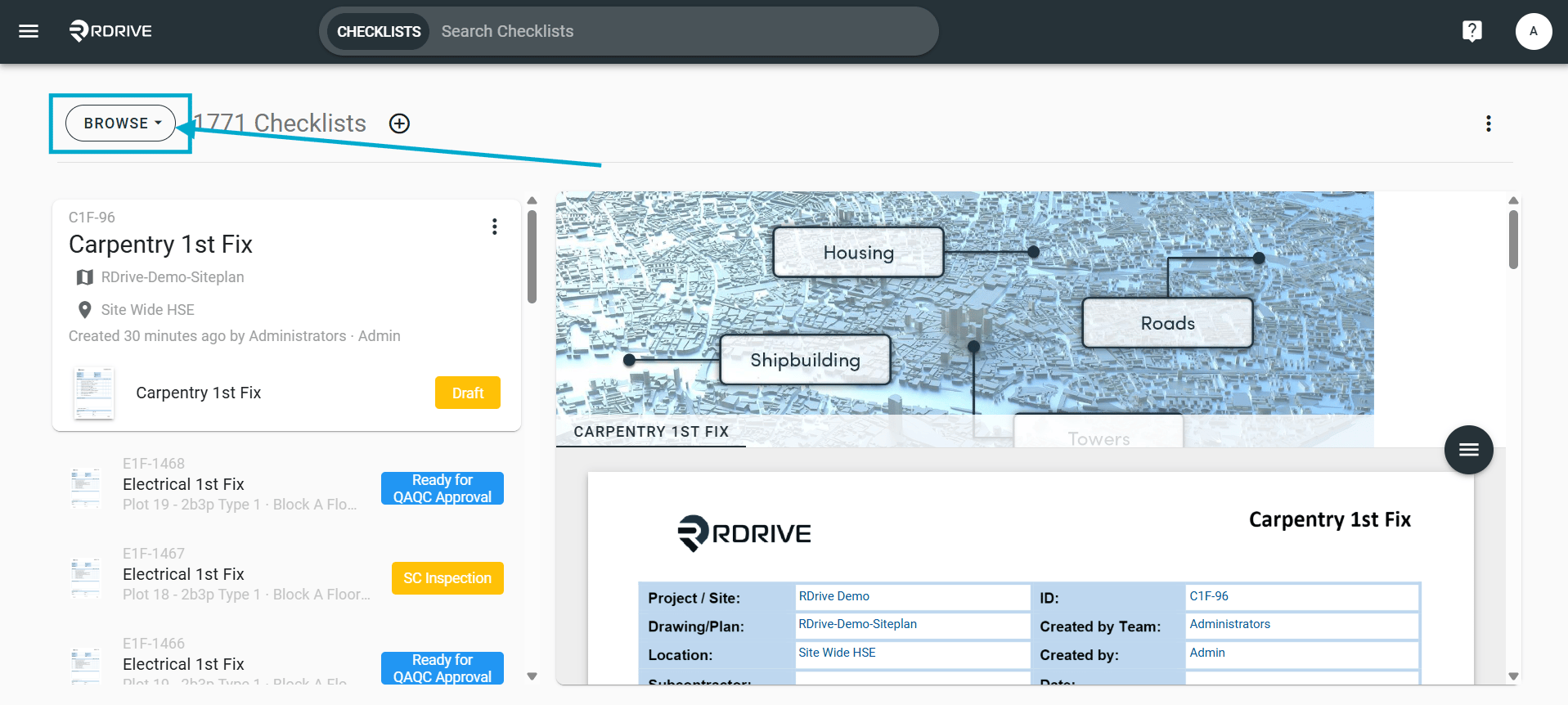
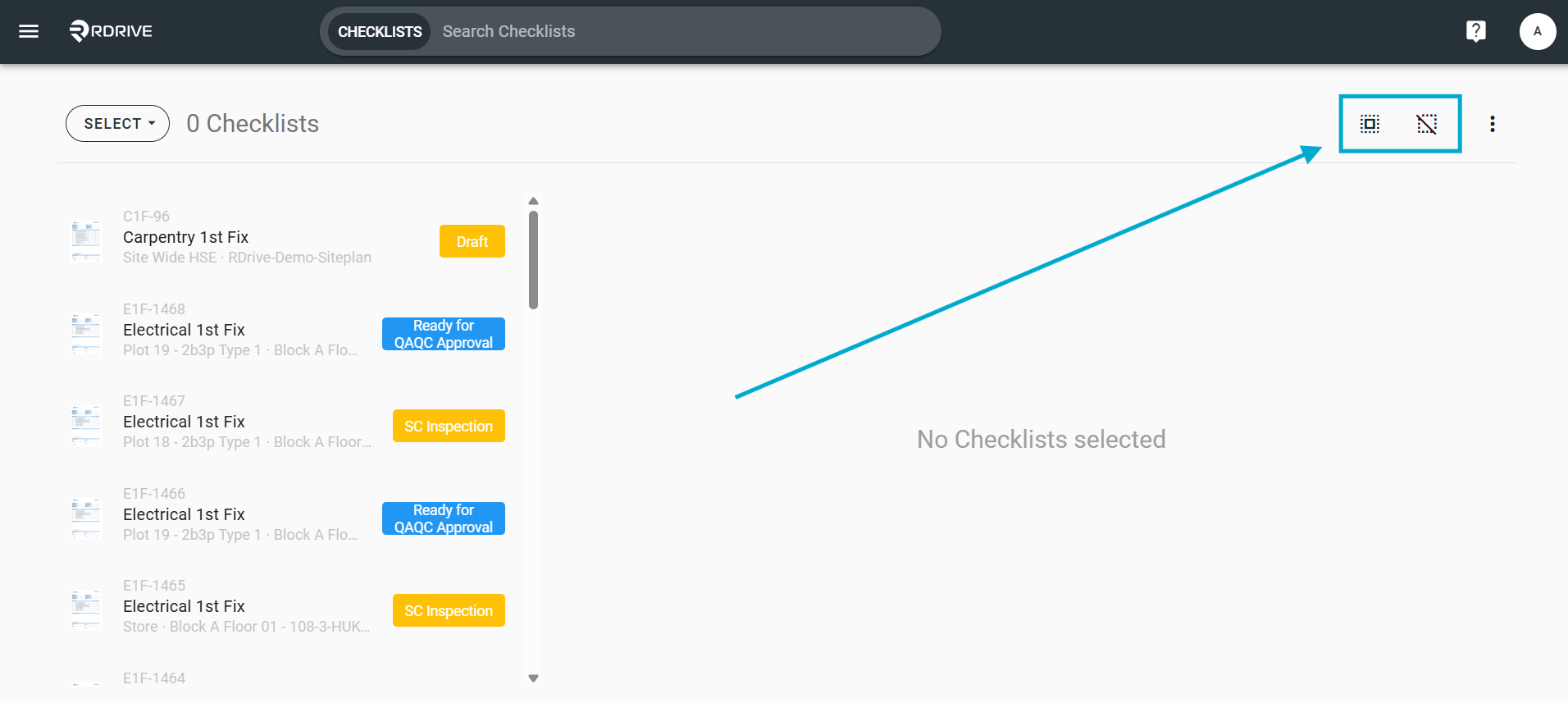
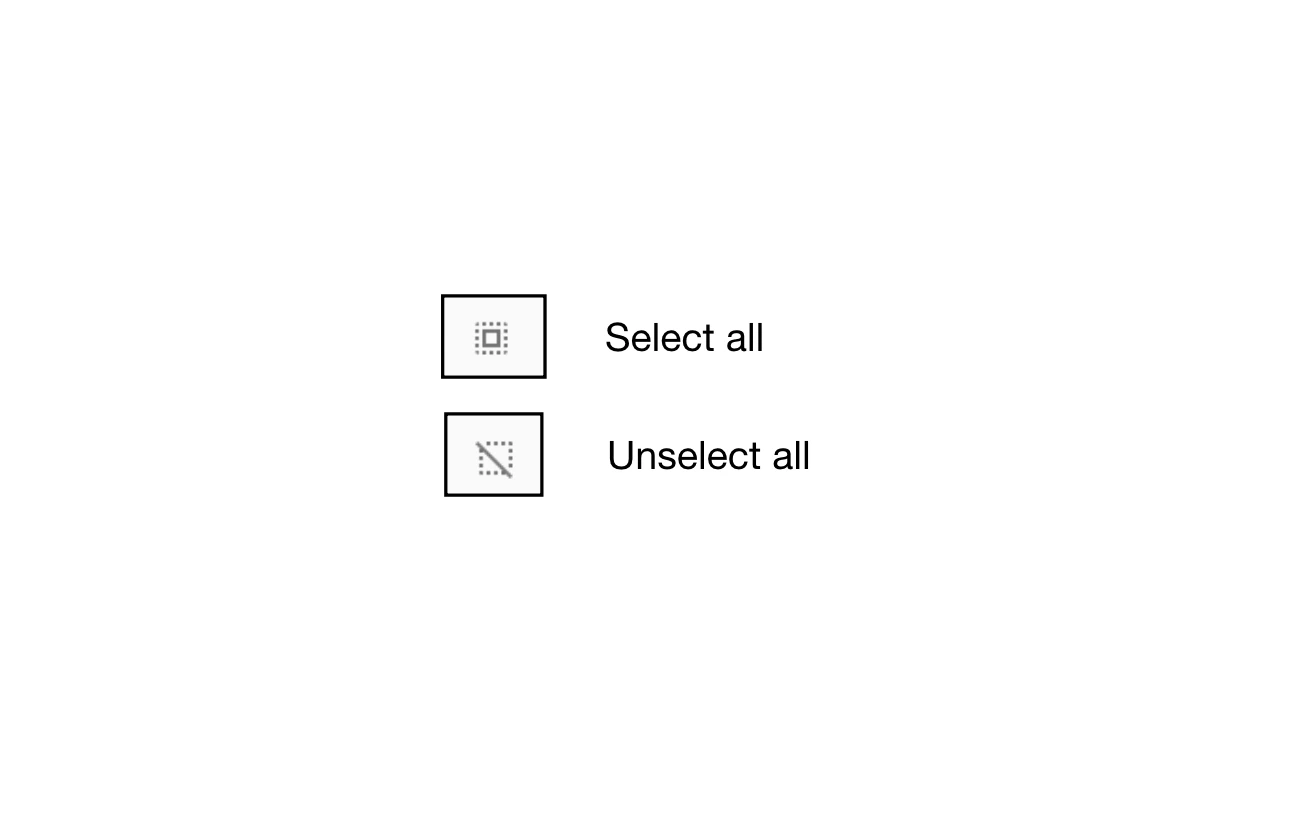
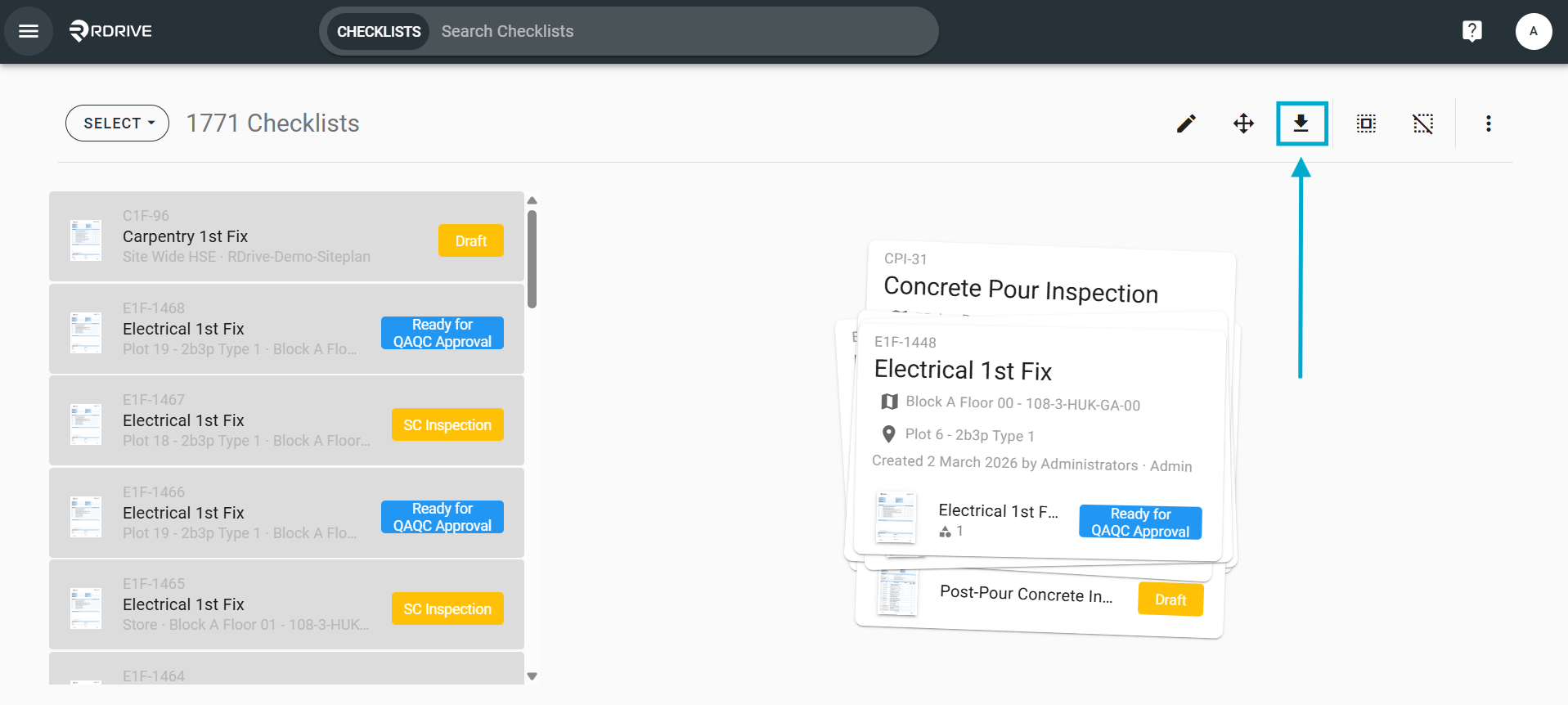
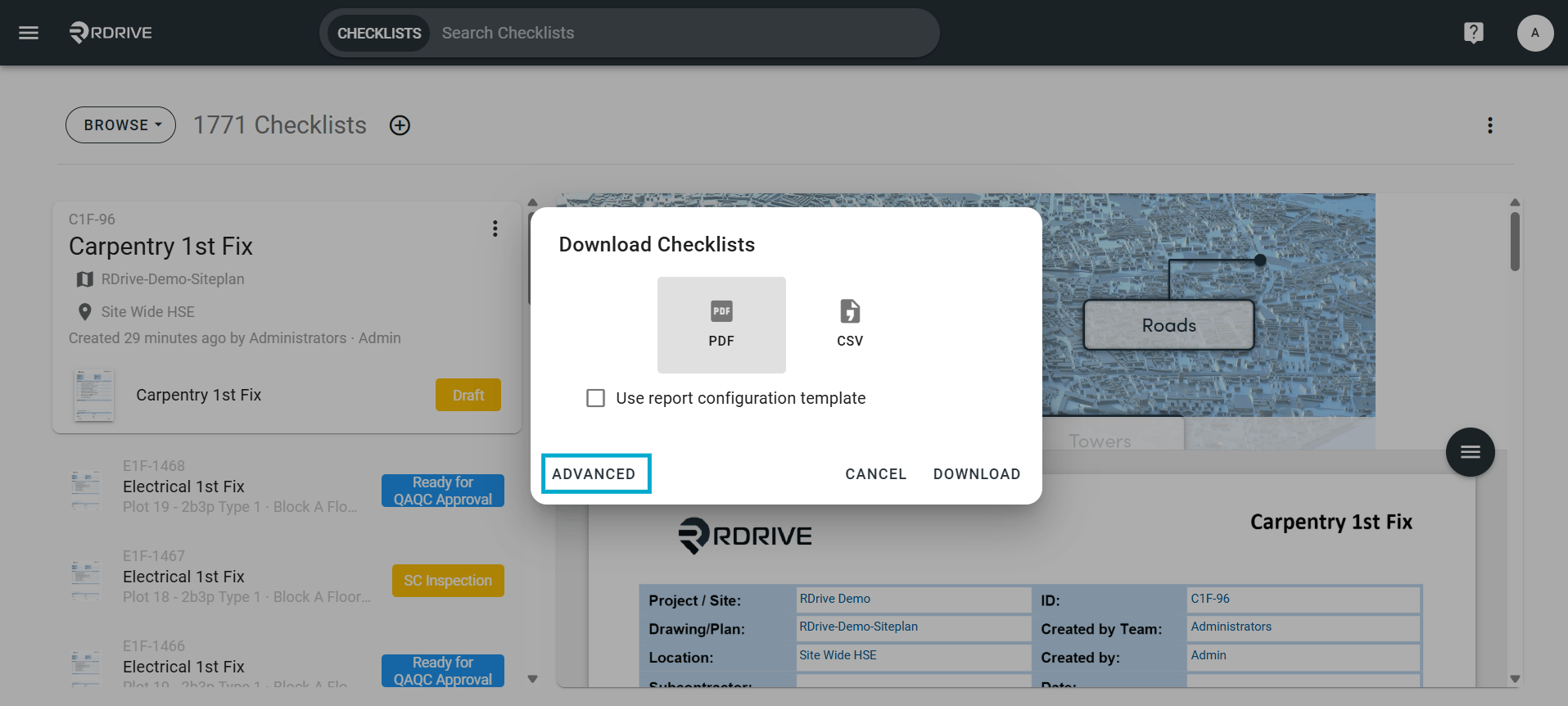
You can select additional options and information by clicking “Advanced” to open this.