
Overview
How to add and download projects to your mobile application- Purpose: How to download and install a project using the RDrive mobile app.
- Who It’s For: All users with access to RDrive mobile projects.
Prerequisites: Activate RDrive account, Internet access, project access
Step-by-Step Instructions
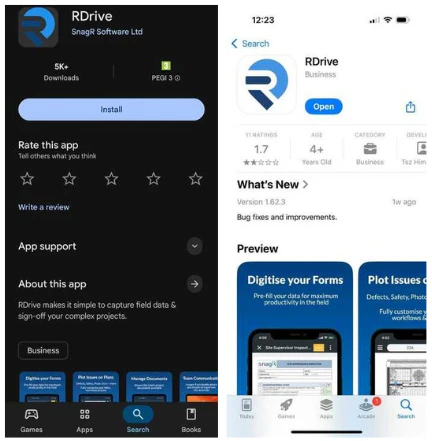
✅ Step 1: Install the RDrive App
- Go to the App Store (iOS) or Play Store (Android)
- Search for and install the “RDrive” app
✅ Step 2: Logging Into the App
-
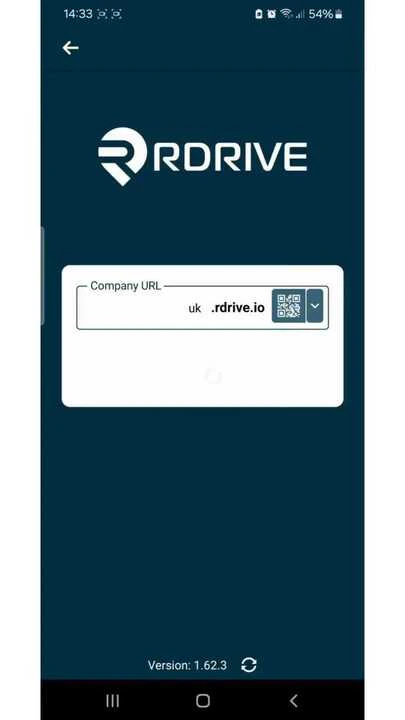
Open the app and enter your Company URL
- This is the first part of your web URL
- Example: If your full URL is https://snagr.rdrive.io/123, your Company URL is “snagr”
- Tap NEXT
- Enter your registered email address and password and select NEXT again
✅ Step 3: Downloading Your Project
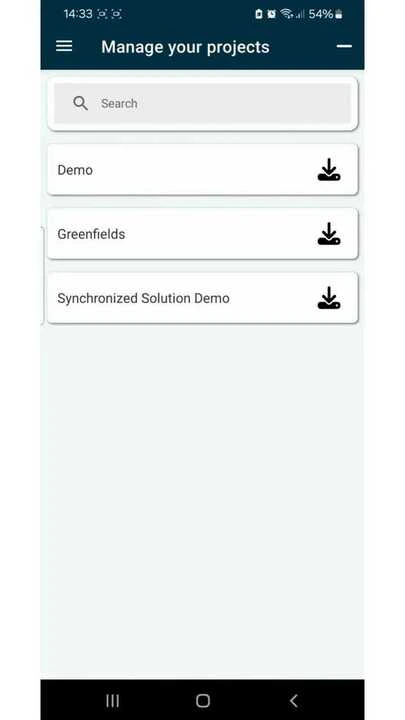
- After logging in, you will see a list of all available projects
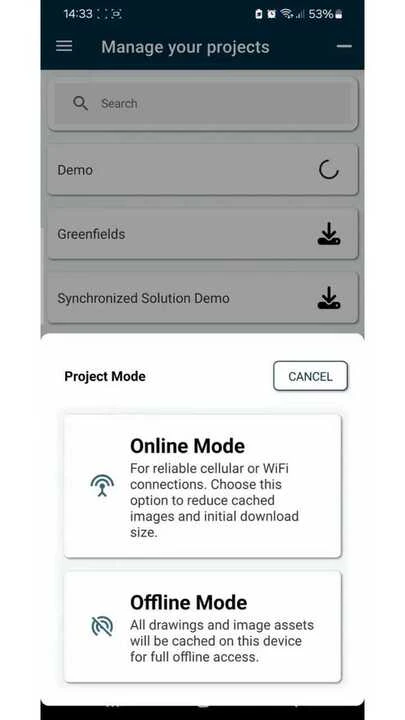
- Tap the Download button next to the project you wish to download
✅ Step 4: Using the QR Code (Optional)
Scan the QR code from your welcome email This will auto-fill your project’s URL Enter your username and password to log inFAQs & Troubleshooting
Q: What if I don’t know my Company URL?A: It’s the prefix of the full project URL. Ask your administrator if unsure.
Q: What if the QR code doesn’t work?
A: Double-check your camera permissions and try again. You can also manually enter the URL.
Q: What’s the difference between download modes?
A: See the detailed guide here: Difference Between Download Modes