


Overview
How to add photos from the camera and gallery using the app in RDrive.- Purpose: How to add photos to RDrive using the app.
- Who It’s For: General users
Prerequisites: Able to reach and edit issue
Taking photos on-site by tapping the photo field.
Click the camera icon to open the camera and take and add a photo directly from the RDrive app.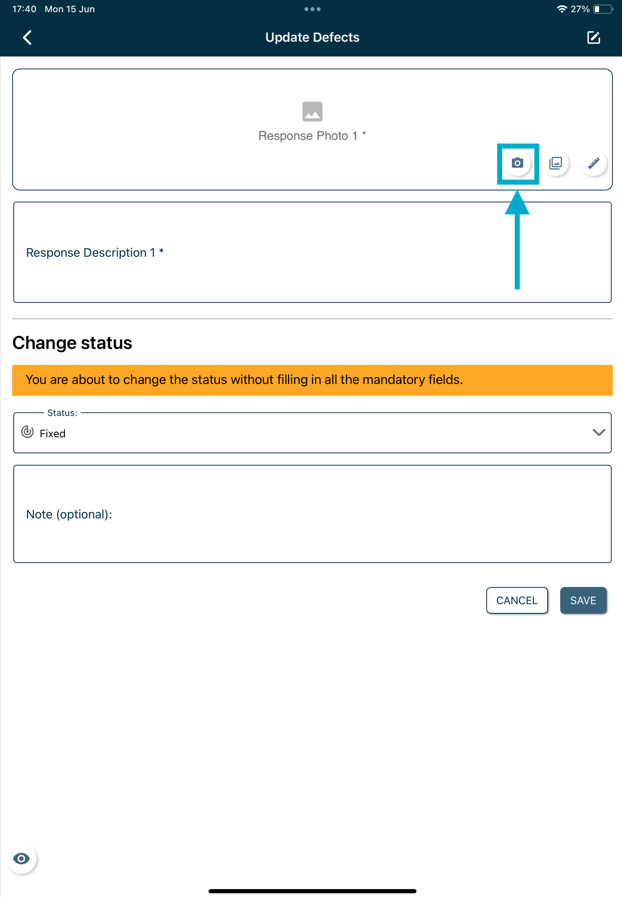
Select from the photo gallery
Click the Gallery icon to open the photo library to select a photo from your device storage.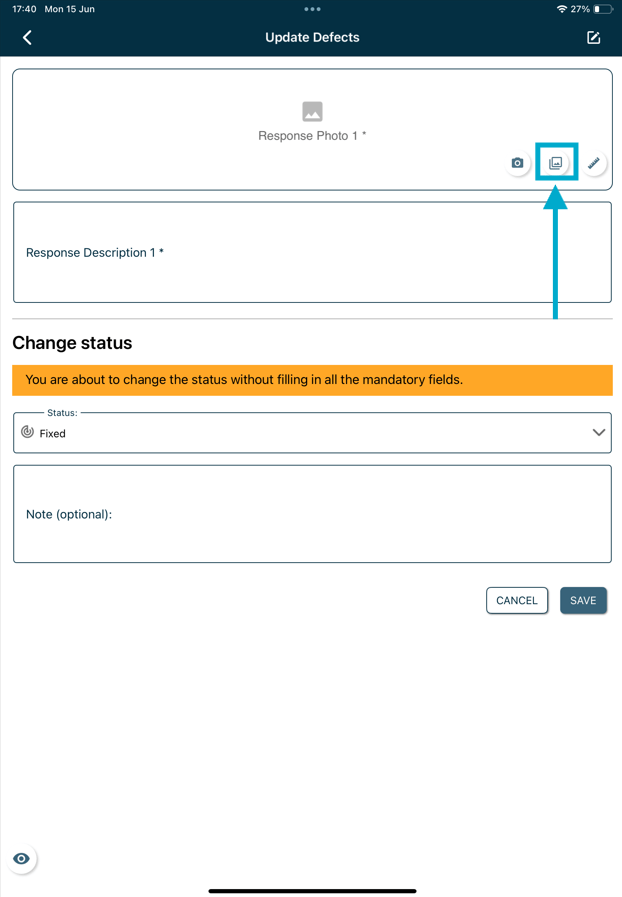
FAQs & Troubleshooting
Q: Can I take a photo directly from the app?A: Yes. When adding a photo, you can choose to take a new photo using your device’s camera or select an existing image from your photo gallery. Q: Why can’t I add a photo to an issue or record?
A: Ensure the app has permission to access your device’s camera and photo library. You should also verify that you have the required permissions to edit the issue or record. Q: What image formats are supported?
A: Most standard image formats, such as JPG and PNG, are supported. The exact formats available may depend on your device and app version.