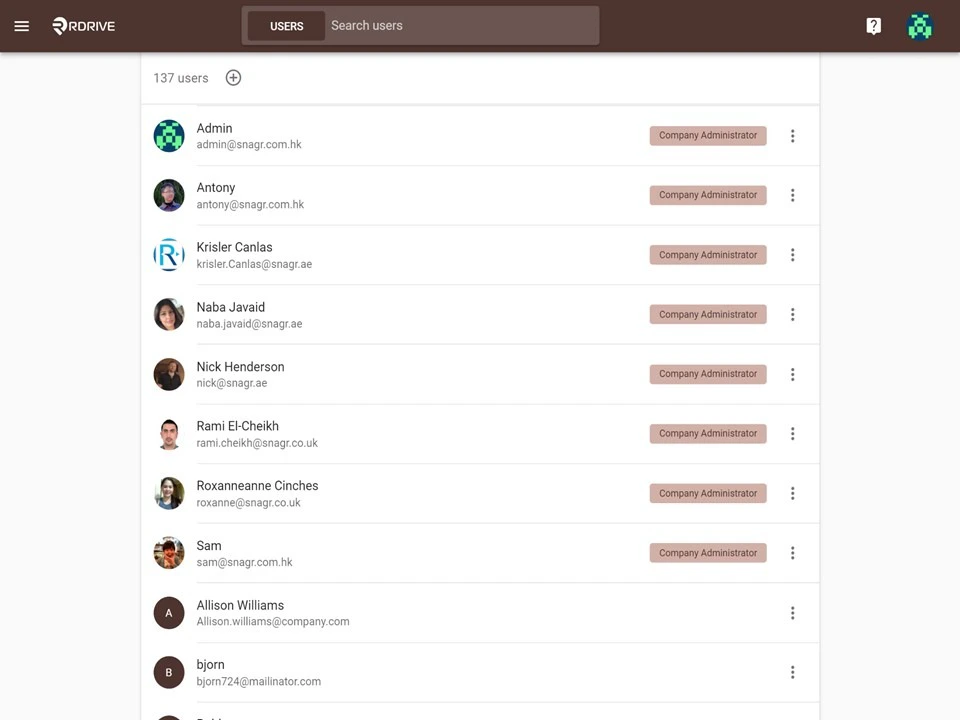
User list is the list of people who will be able to access RDrive.

What is required to set up a user? - Display name and email address

The email address of a user will be used for account login and notifications. If the email address is invalid, the user will fail to receive email notifications from RDrive. Once everything is ready, click the  Menu icon at the top left corner to unfold the Menu, go to the Settings > Users page. How to add user(s) to the Company Level How to add user(s) to the Company Level How to add user(s) to the Company Level Basically, there are two ways to add a user to the Company Level- creating manually or importing a user Excel template. Next you can choose to

1️⃣ Adding users manually

Click the + button. How to add user(s) to the Company Level Enter the Email address, Display name, Password and Language of the new user.
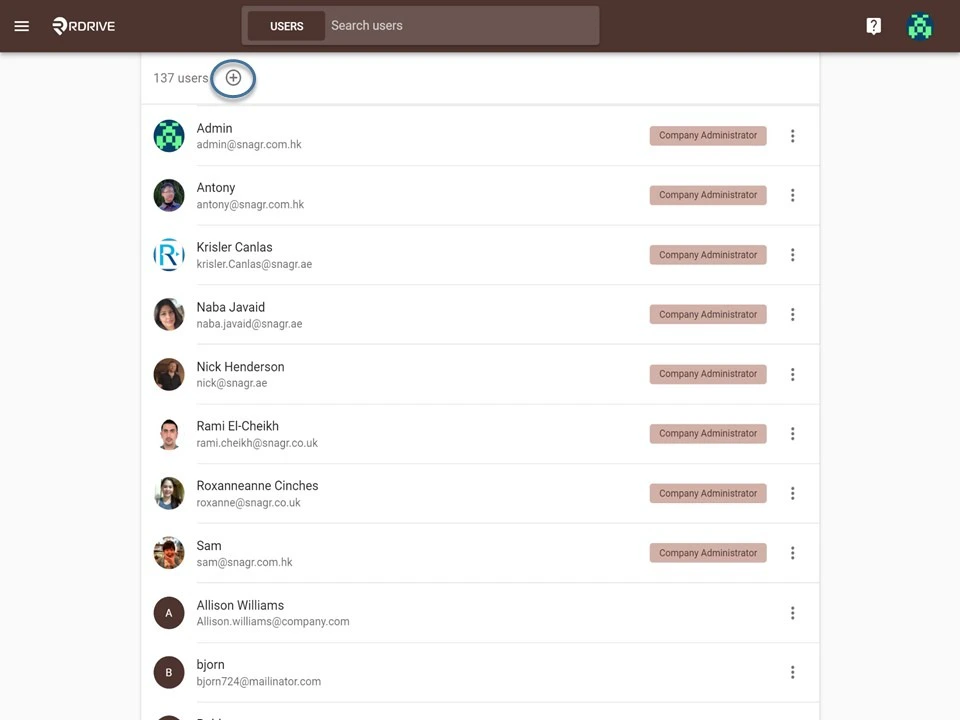
You may click the + button to add more user if needed, and click OK once done.
How to add user(s) to the Company Level

2️⃣ Importing a user excel template

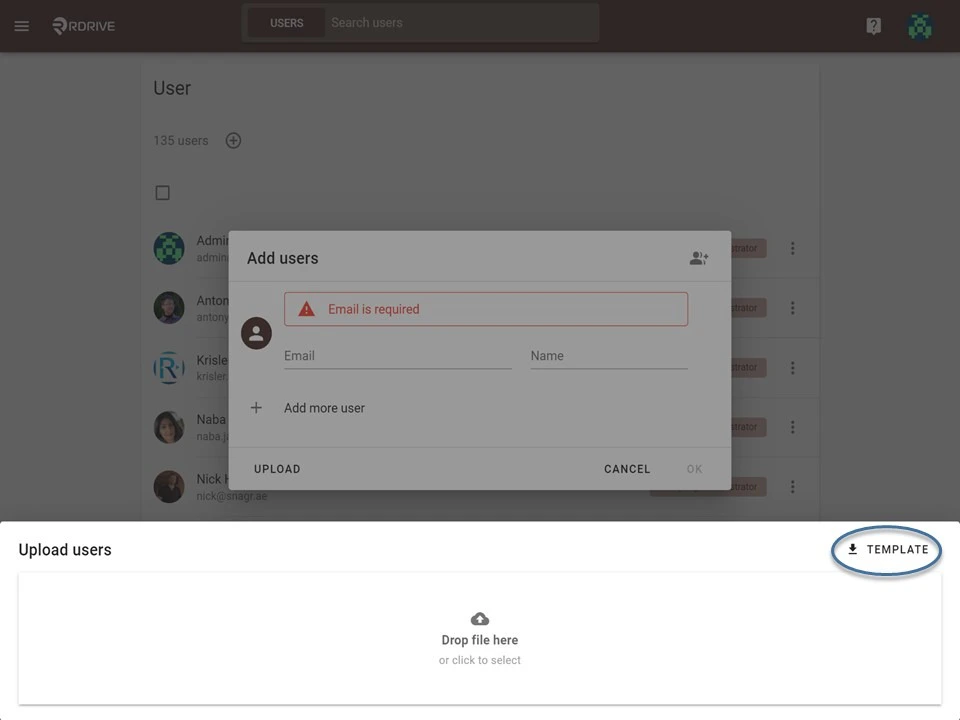
This is a quicker way to add multiple users. Click the + button. How to add user(s) to the Company Level Click the Upload button at the bottom of the dialogue. How to add user(s) to the Company Level Download the Excel template. How to add user(s) to the Company Level Enter the Email address, Display name, Password and Language (locale) then save. How to add user(s) to the Company Level Upload the completed template. How to add user(s) to the Company Level Click OK to confirm. How to add user(s) to the Company Level