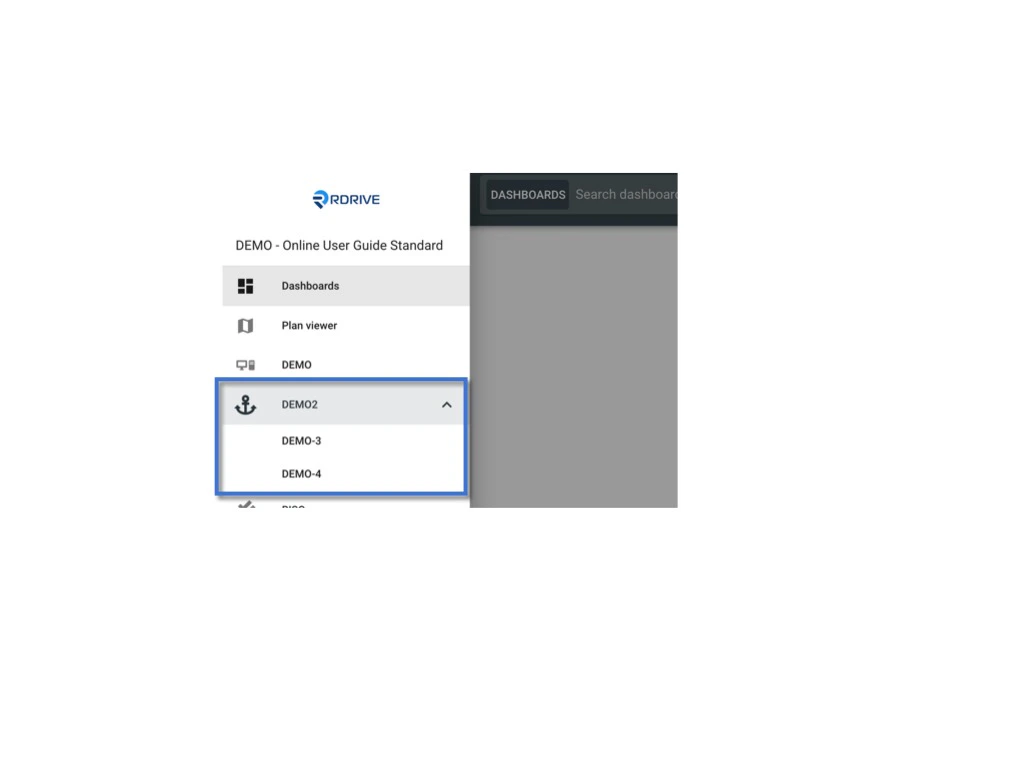
Category is a classification tool for you to manage all the templates.
Category is a classification tool for you to manage all the templates.It is one of the customization features on this system for the company admin to design how would the menu look like and how would it display.You can group templates by type, by area, by participants or by use case etc, all as you needed.Templates have to belong to one subcategory.First, log in to Company Area.
Only the company admin can access this page.
Click Settings and select Categories.From here, you can add a category and subcategory.You can create a new category by clicking the ⊕ button.Choose an icon, enter the category title, click OK.UPLOAD if you have a downloaded file.Category added!Next, you can add a subcategory to this category. Click the ✚ button at the bottom right corner.Enter the subcategory code and title, select the template type (Issue/record or process).
Click OK to save.Subcategory added.From now, you may access the subcategory to add template(s) or recategorize the template(s) to there.
Tips: If the Category and Subcategory have the same title, they will be displayed as 1 tier on the project menu. (only available to the category with one subcategory)
If the Category and Subcategory have a different title or the Category have multiple Subcategories, they will be displayed as drill-down items on the project menu.