This article shows you how to manage the created cover templates. You may Edit, Download, and Delete from this page. First, log in to Company Area.
Only the company admin can access this page.
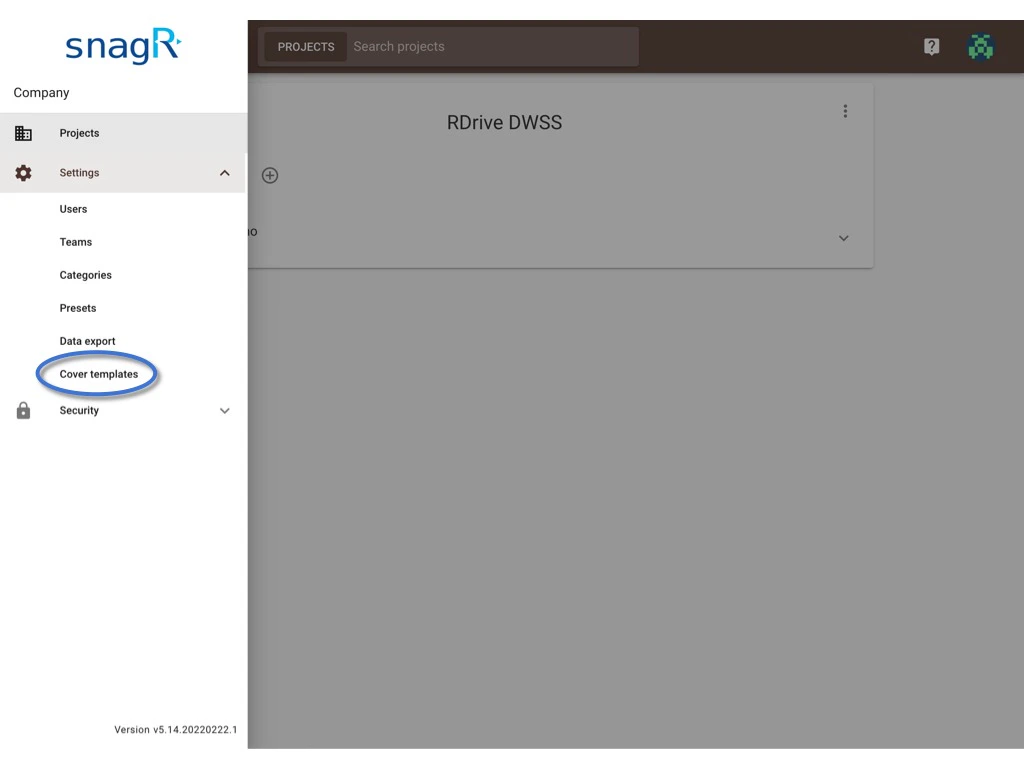
Click Settings and select Cover templates. Manage the cover templates Manage the cover templates

Edit

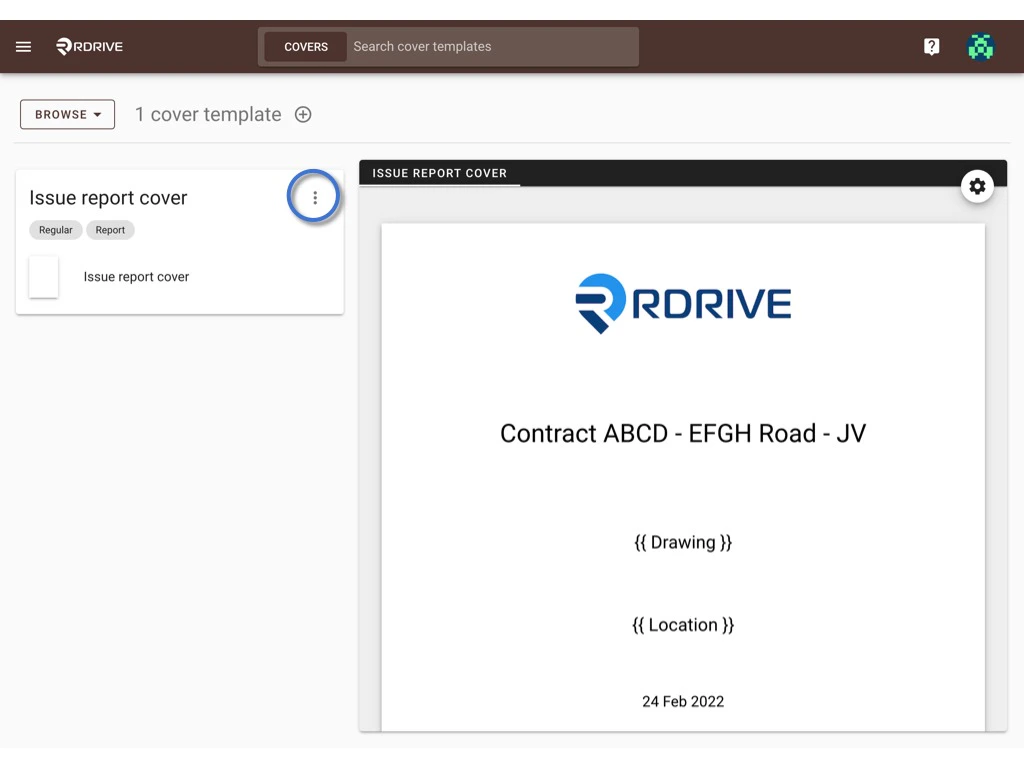
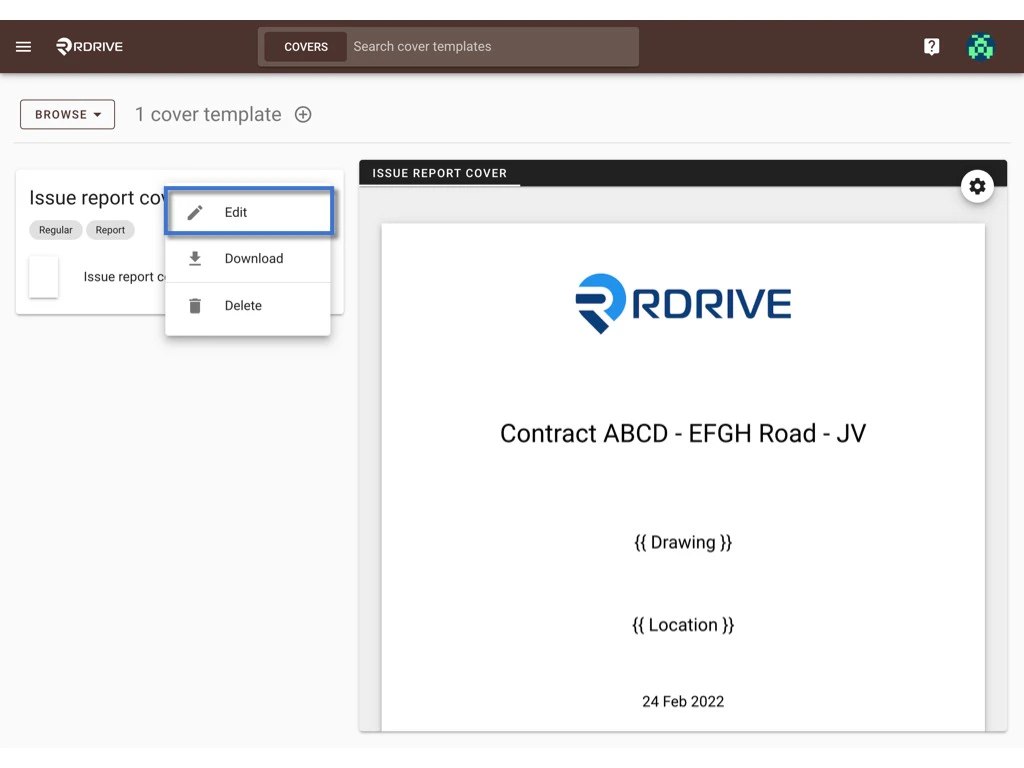
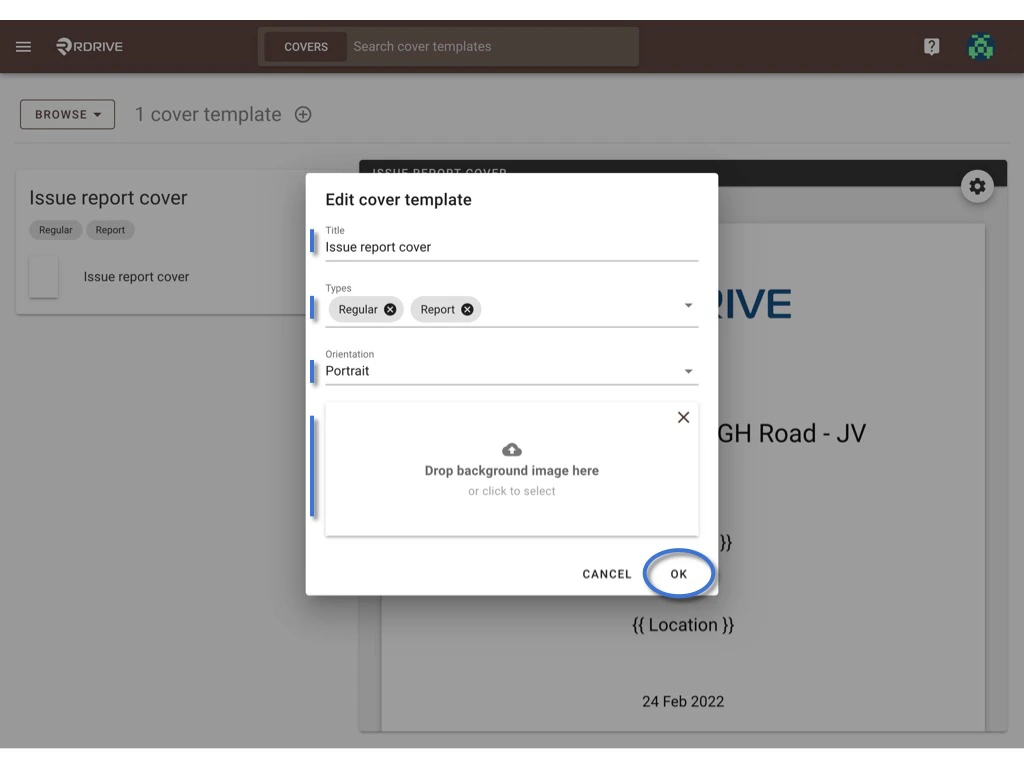
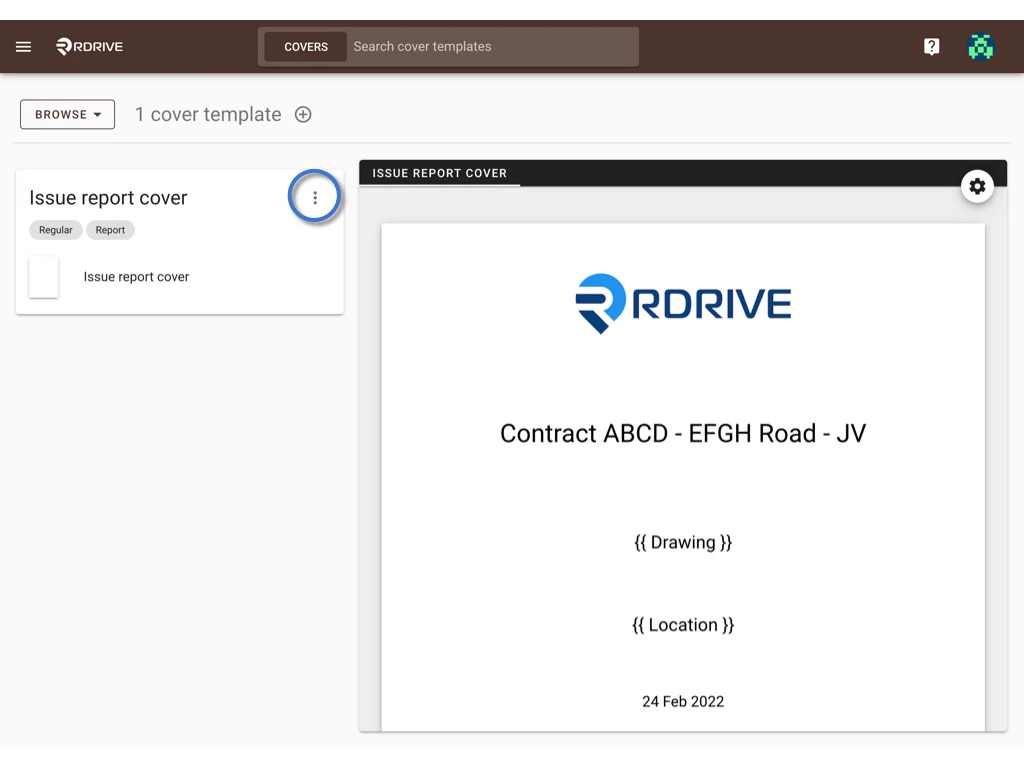
Click the button and select Edit. Manage the cover templates Manage the cover templates In this dialog, you may edit the title, type, orientation, and background image of this template.
Press OK to confirm the change.
Manage the cover templates

Download - single & batch

  • Single download
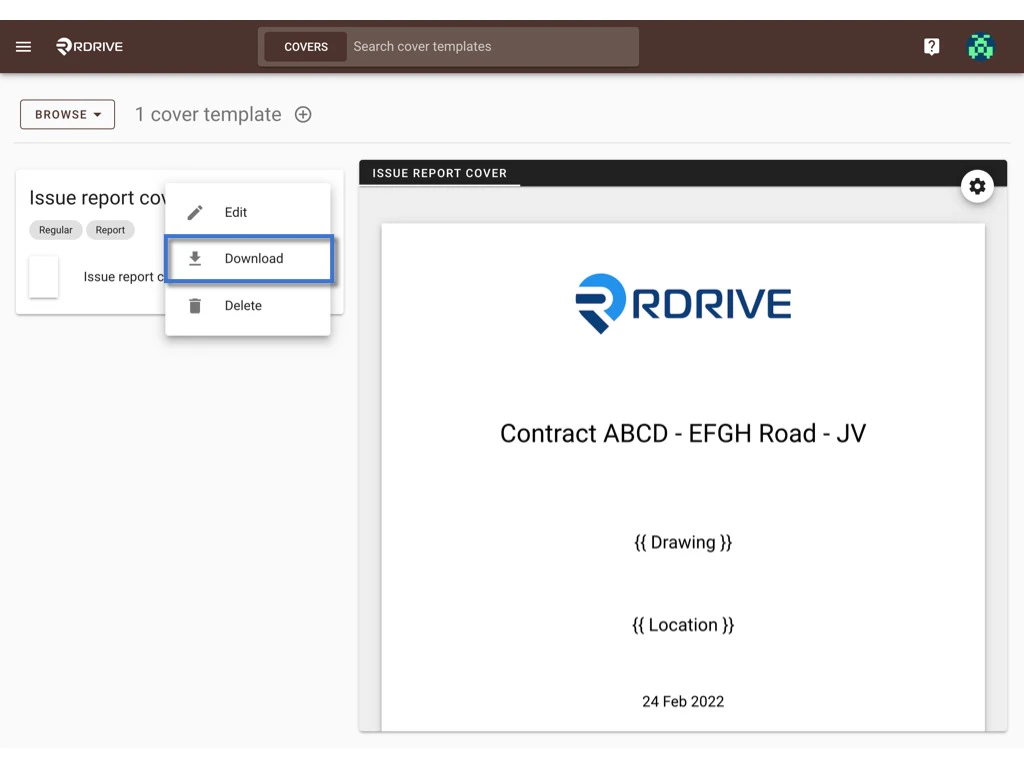
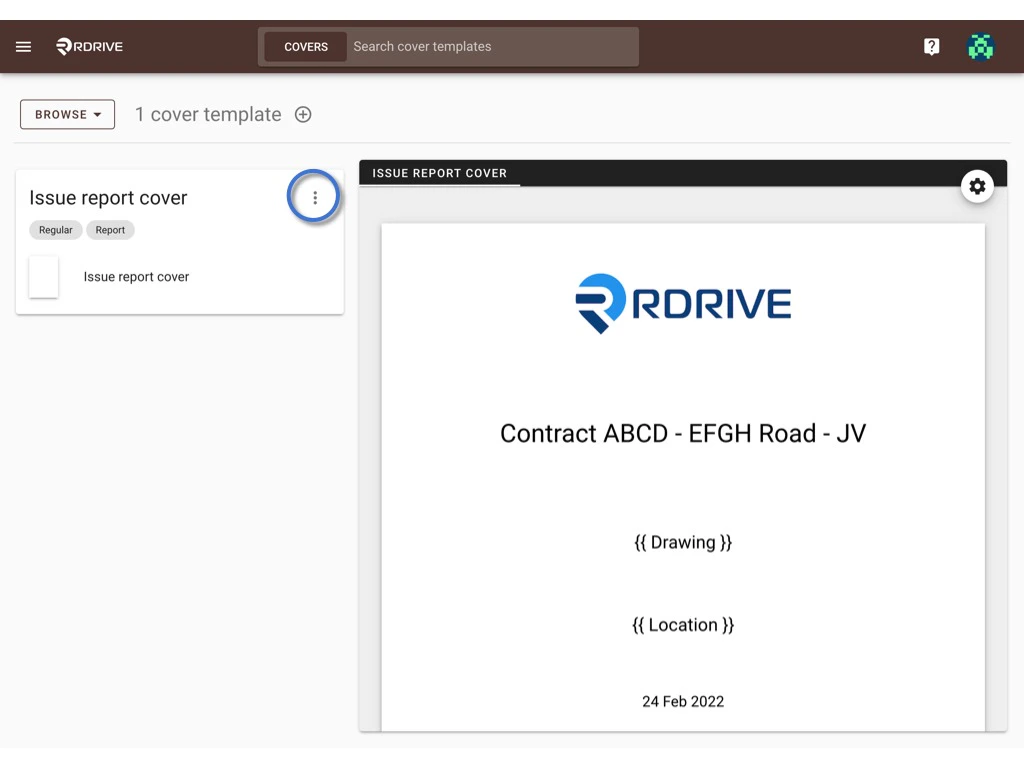
Click the button and select Download. Manage the cover templates Manage the cover templates
  • Batch download
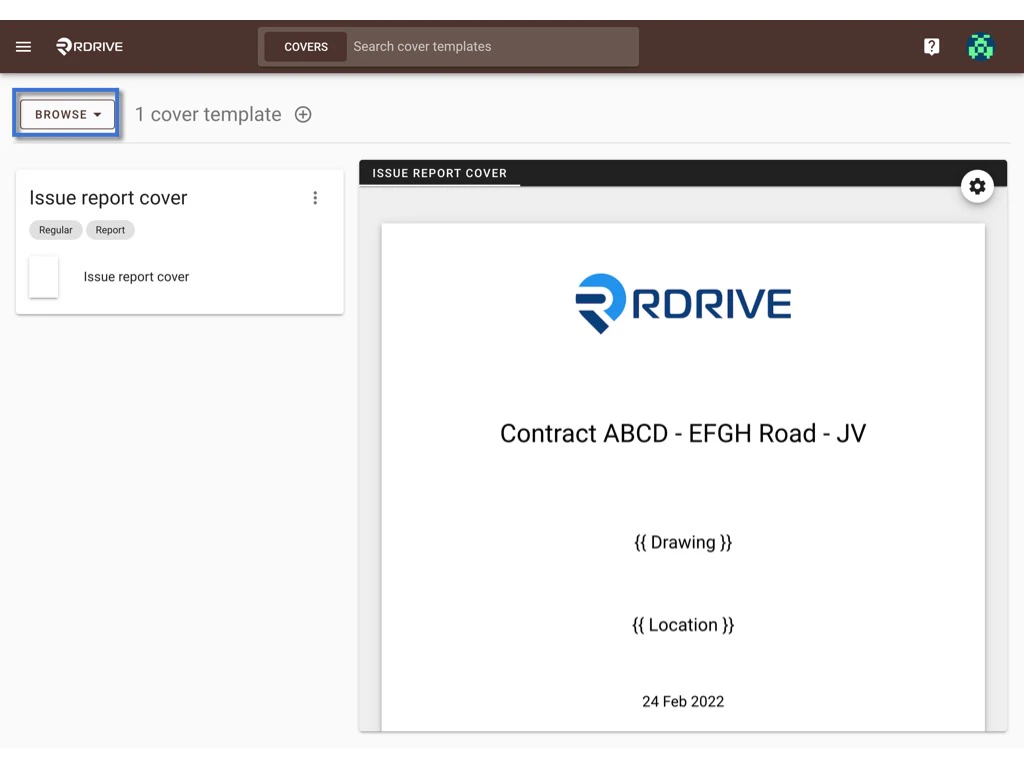
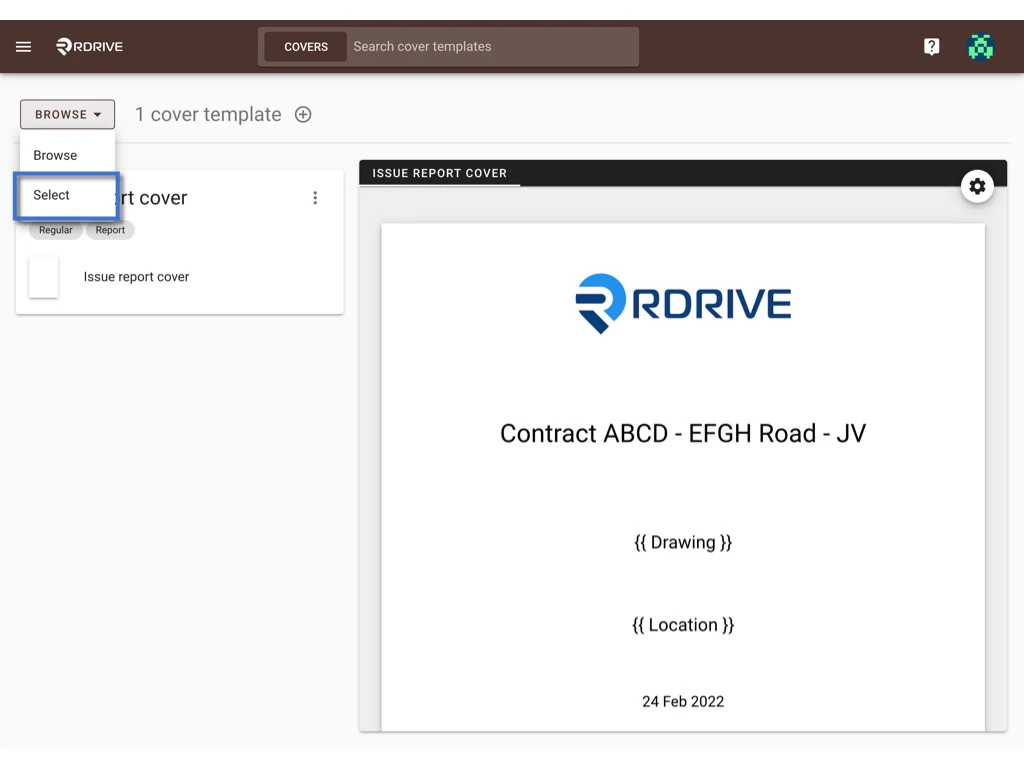
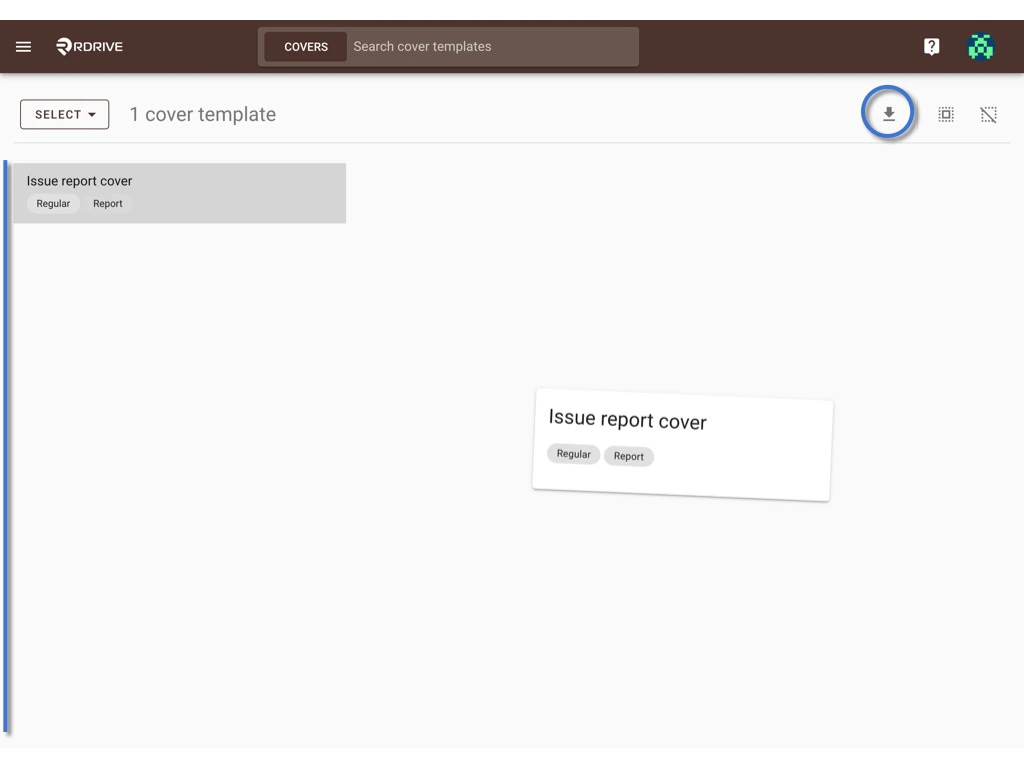
Switch the mode from BROWSE to SELECT. Manage the cover templates Manage the cover templates On the SELECT, you can click on the template or press the select all / deselect all button to select item(s).
The selected item will be highlighted in grey.
Manage the cover templates Press the Download icon to start batch download. Manage the cover templates

Delete

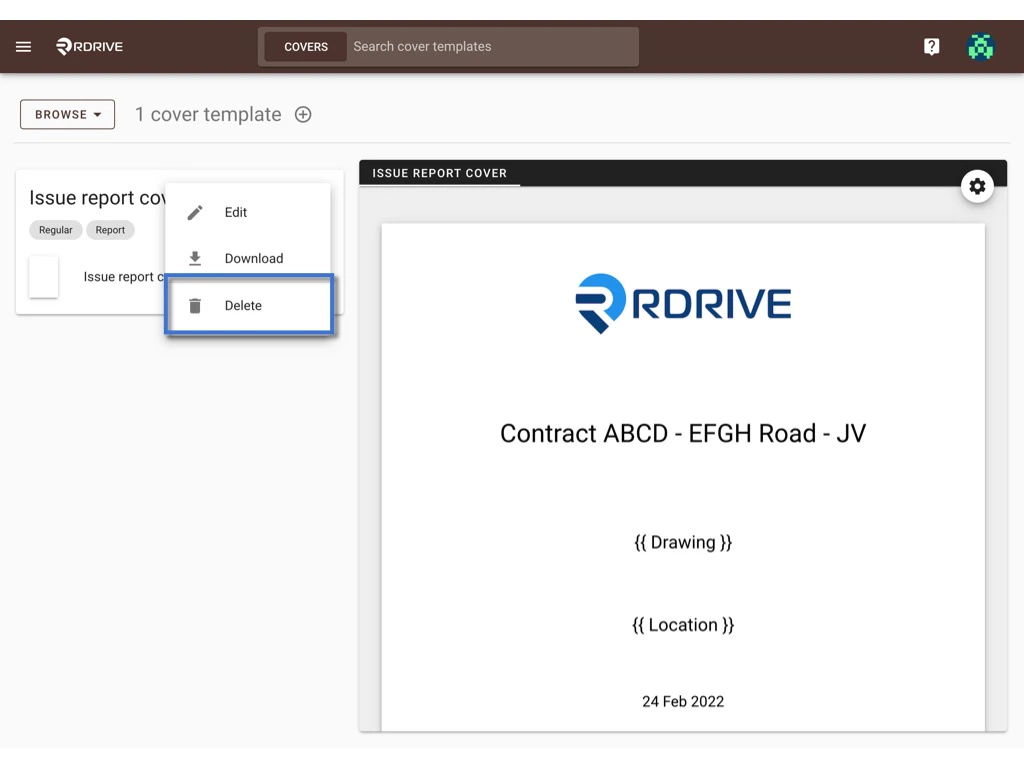
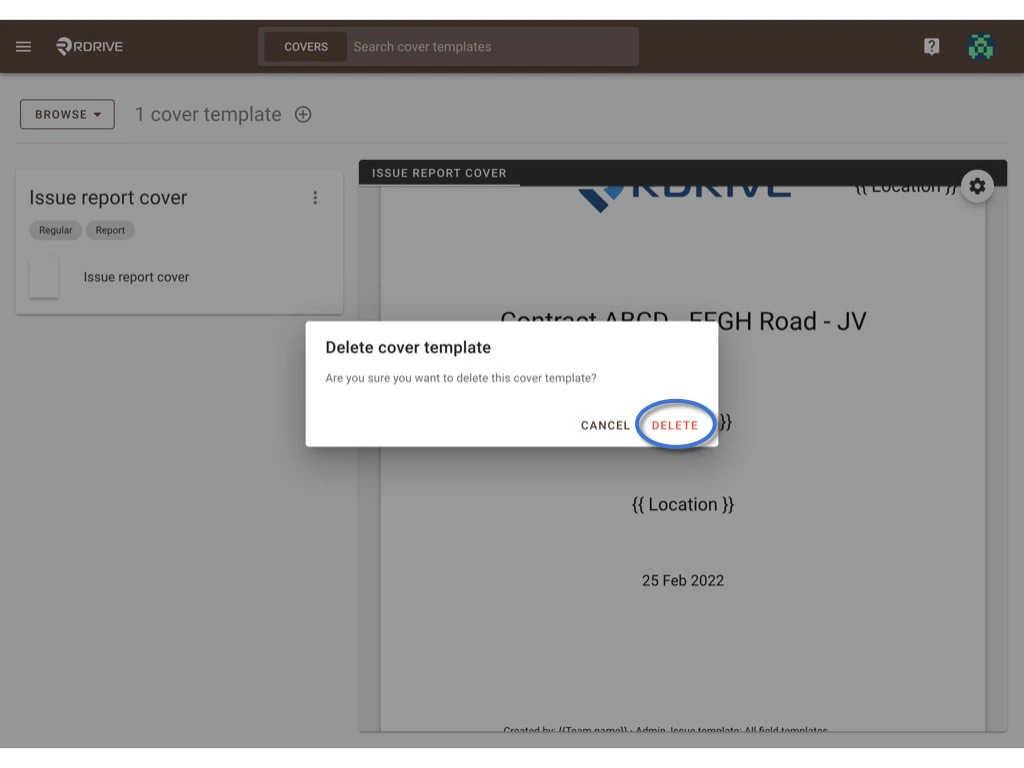
Click the button, click Delete to request delete template. Manage the cover templates Manage the cover templates DELETE again to confirm the delete. Manage the cover templates