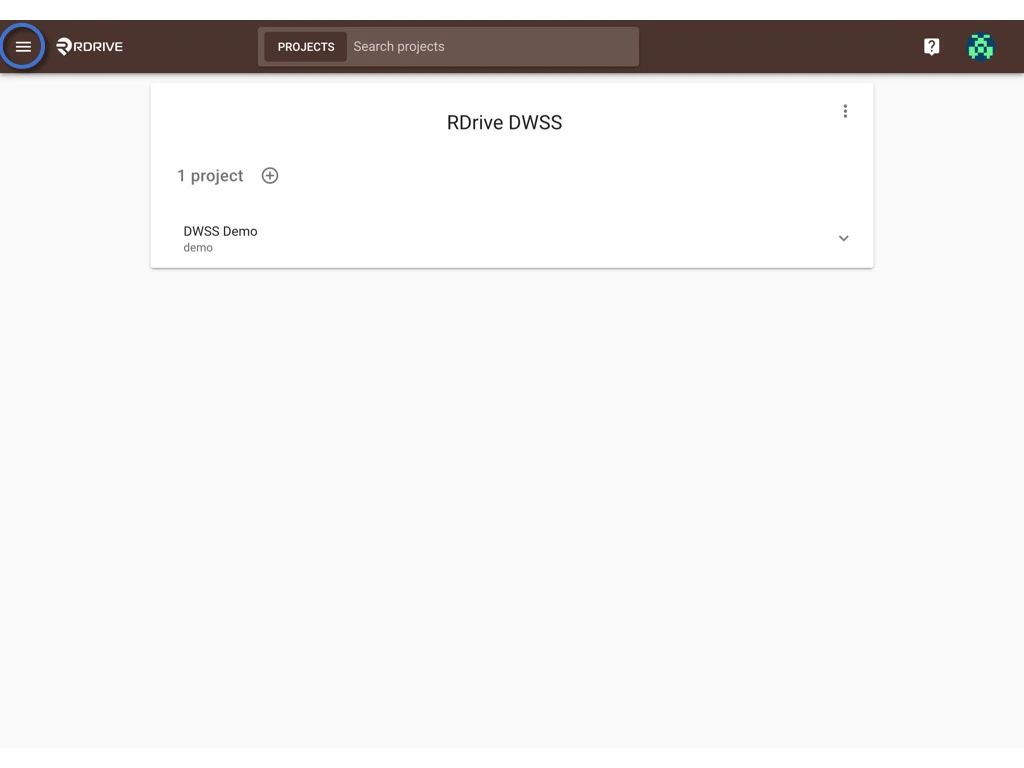
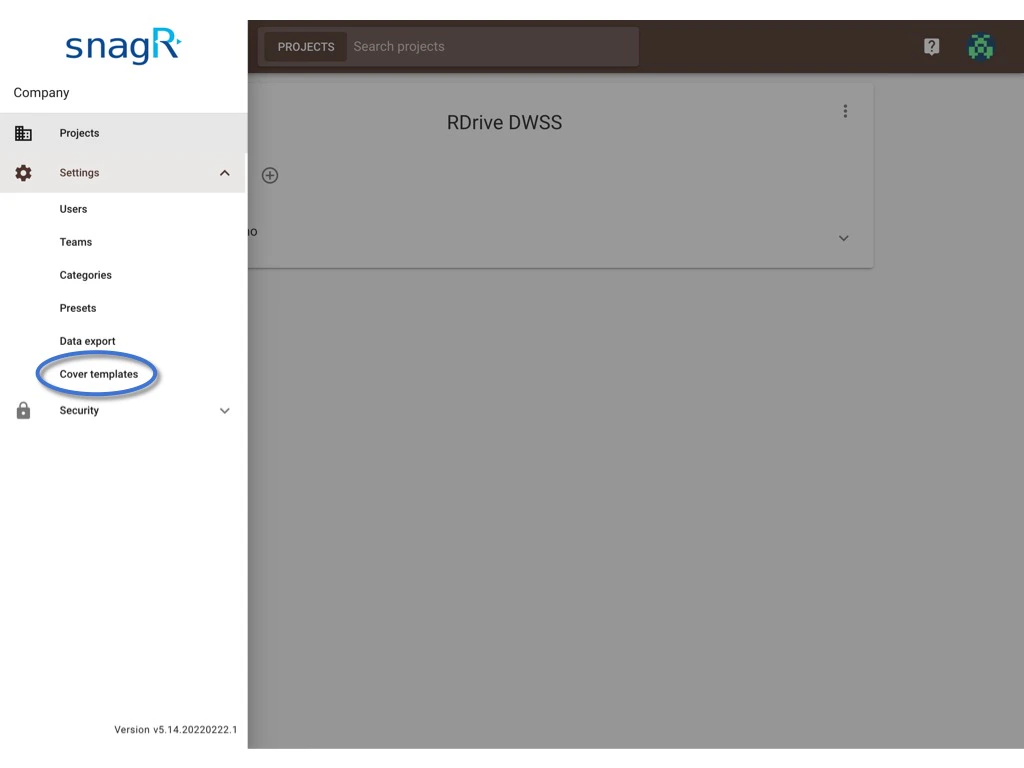
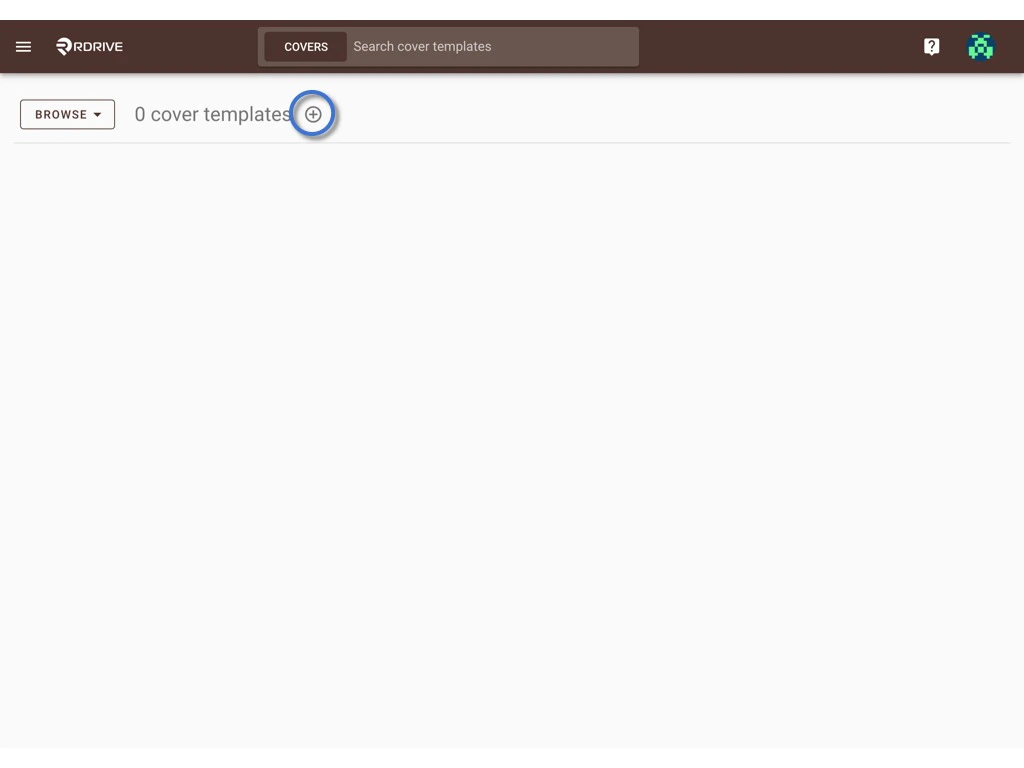
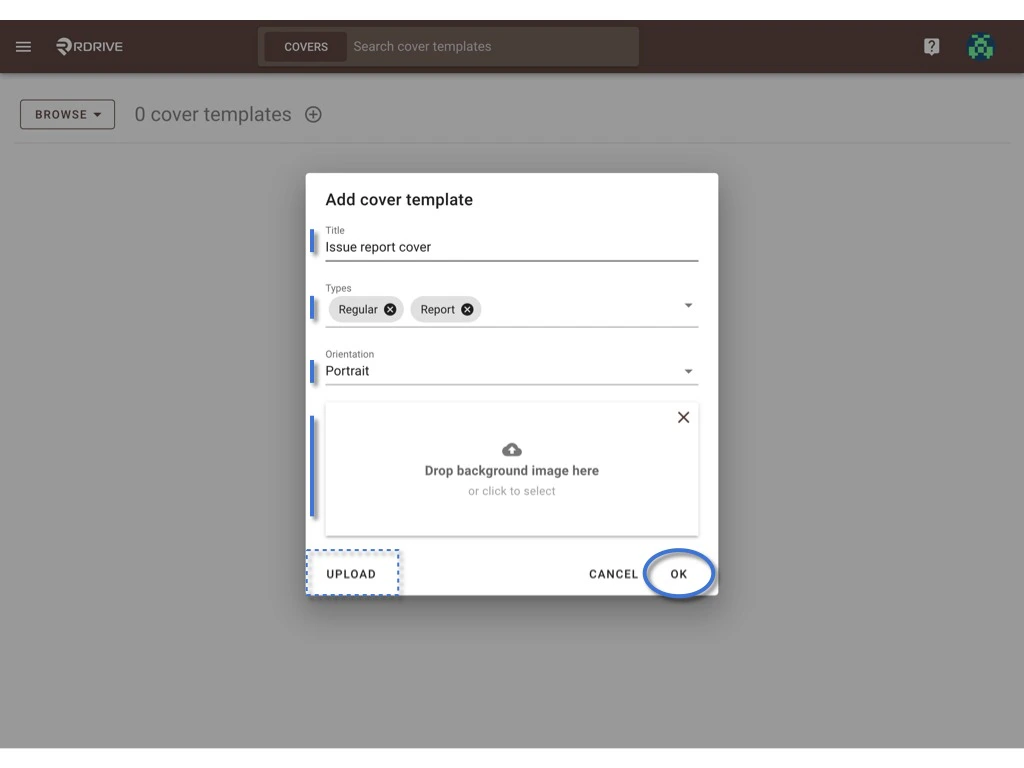
A cover page is an optional item for the users to select when generating the reports. Could use for the daily, weekly and monthly report, download process, and download issue/record from the finder. First, log in to Company Area. Only the company admin can access this page. Click Settings and select Cover templates. Create a report cover template Create a report cover template You can create a new template by clicking the button. Create a report cover template Enter the template title, select type, and orientation, upload the background image (it will be a blank page for the background if no image is added). Click OK to confirm. UPLOAD if you have a downloaded file. Create a report cover template Template created.
Click the template title or the wizard icon to access the cover wizard page.
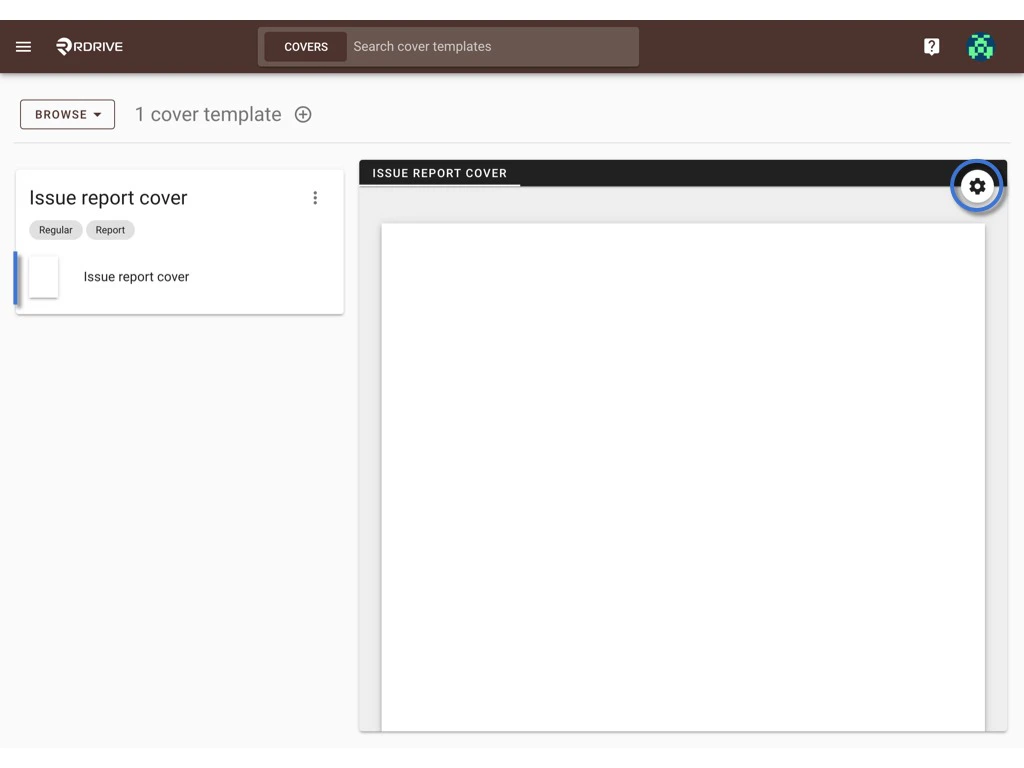
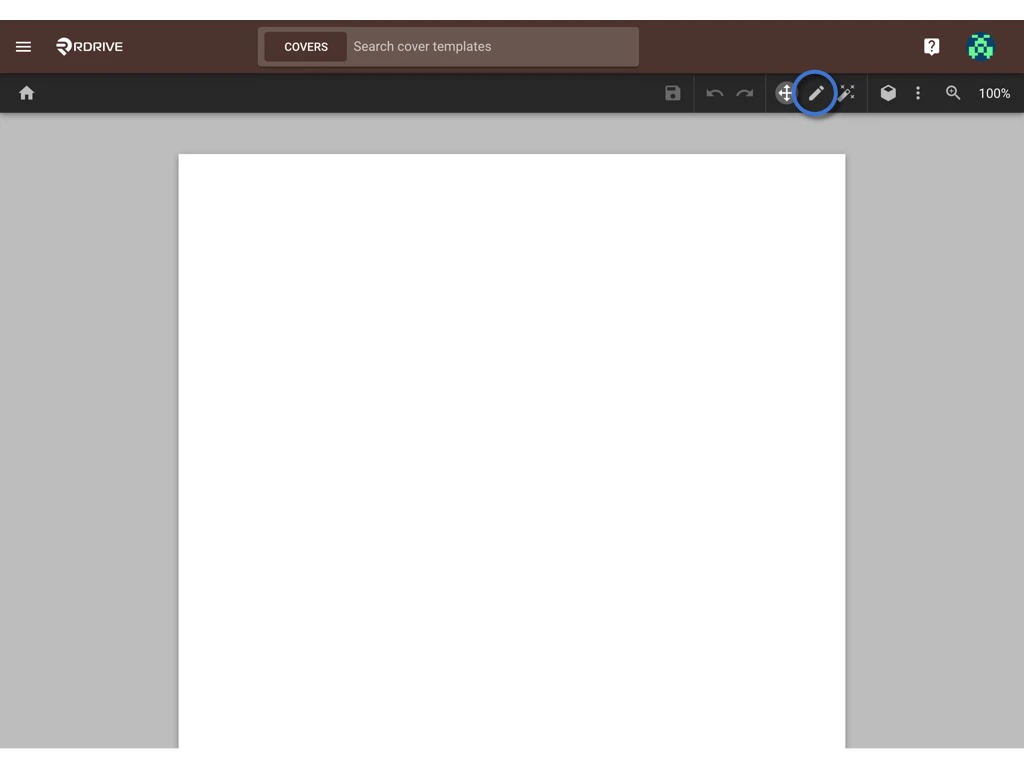
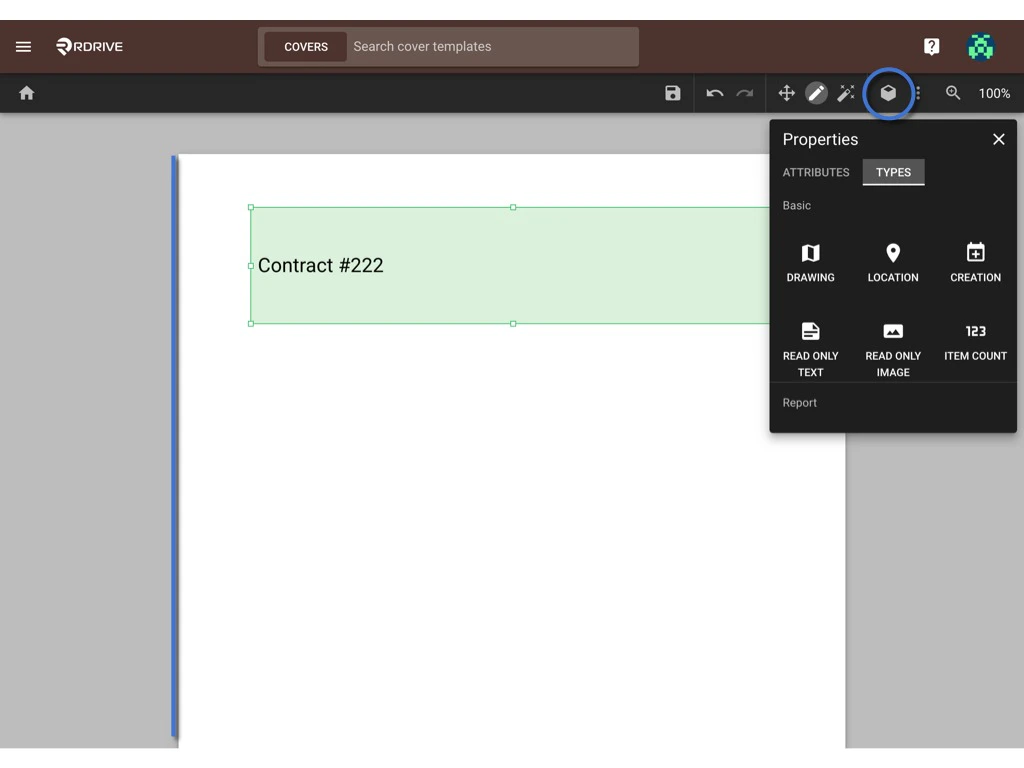
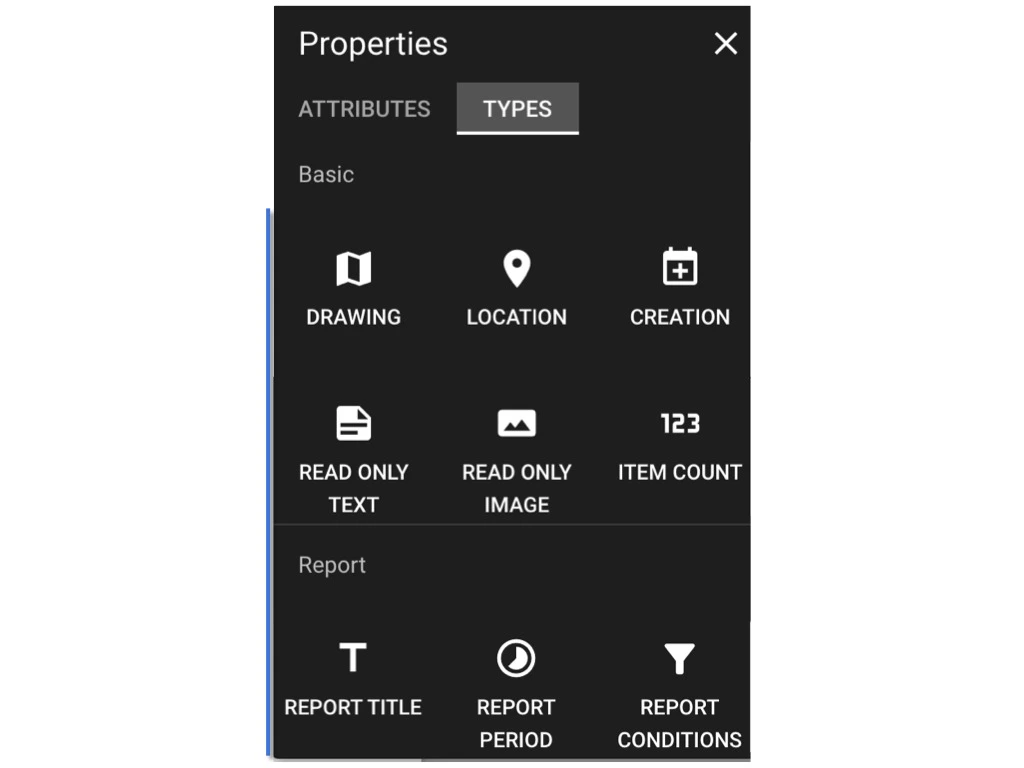
Create a report cover template ? Click on the pencil tool (or ⌘/Ctrl 2) to create fields as data boxes by drawing a box on the page. Create a report cover template Create a report cover template Click this icon (or ⌘/Ctrl 4) to bring up Properties. Create a report cover template In Properties, you may edit the data box attributes and select data types. Here are the data types available:
  1. Drawing (of where the form is created)
  2. Location (of where the form is created)
  3. Creation (of whom generate this report)
  4. Read only Text (Preset Text)
  5. Read only Image (Preset Image)
  6. Item Count
  7. Report Title (Title of the report rule, such as Form weekly report, Issue daily report, etc)
  8. Report Period (Date of the period of the report)
  9. Report Conditions (Condition of the report)
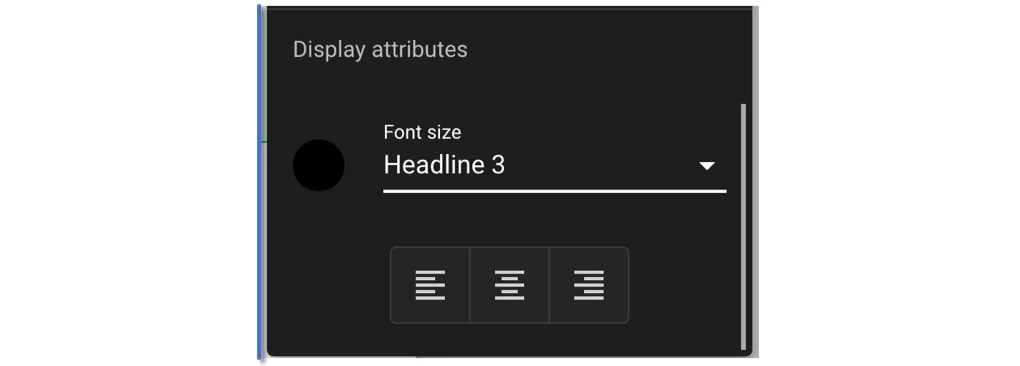
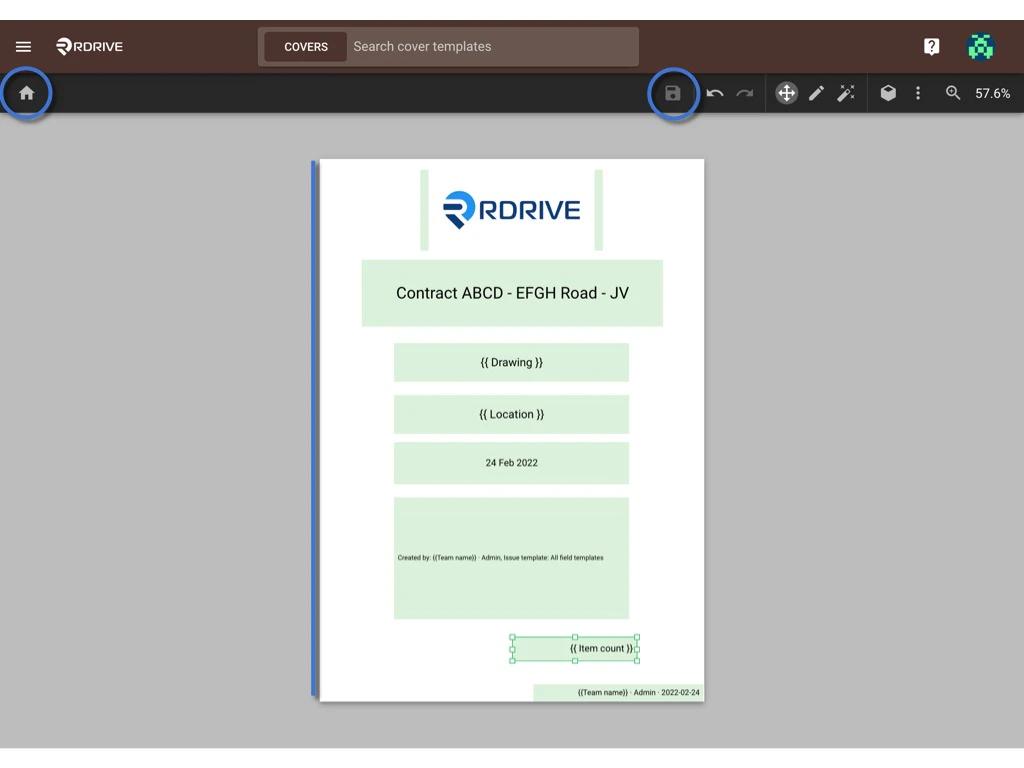
Create a report cover template On the attributes, you set up the data format and display attributes, such as font size and alignment. Create a report cover template SAVE when completed. ?? You may return to the template list by the home button. Create a report cover template DONE!! ?