
Report configuration template
A template that can set a set of prefilled download options
Admin can pair an issue report template with a report configuration template, for the users able to pick a report configuration template from the download process/form/issue dialog. The issue report template will be selected based on the paired report configuration template accordingly. TABLE OF CONTENTS- Report configuration template
- Report configuration.
- You can create a new template by clicking the ⊕ button.
- The template will be created, and you can now check the download options for this template as pre-fill settings. Any updates made will be saved automatically.
- Please access the Report layer by Company level ➡ Settings ➡ Categories ➡ Subcategories ➡ Issue template ➡ Issue wizard ➡ Report layer to set up.
- Select the report layout, click ⋮ the button, and Pair.
- Remember to click the SAVE button to save changes
- Report configuration.
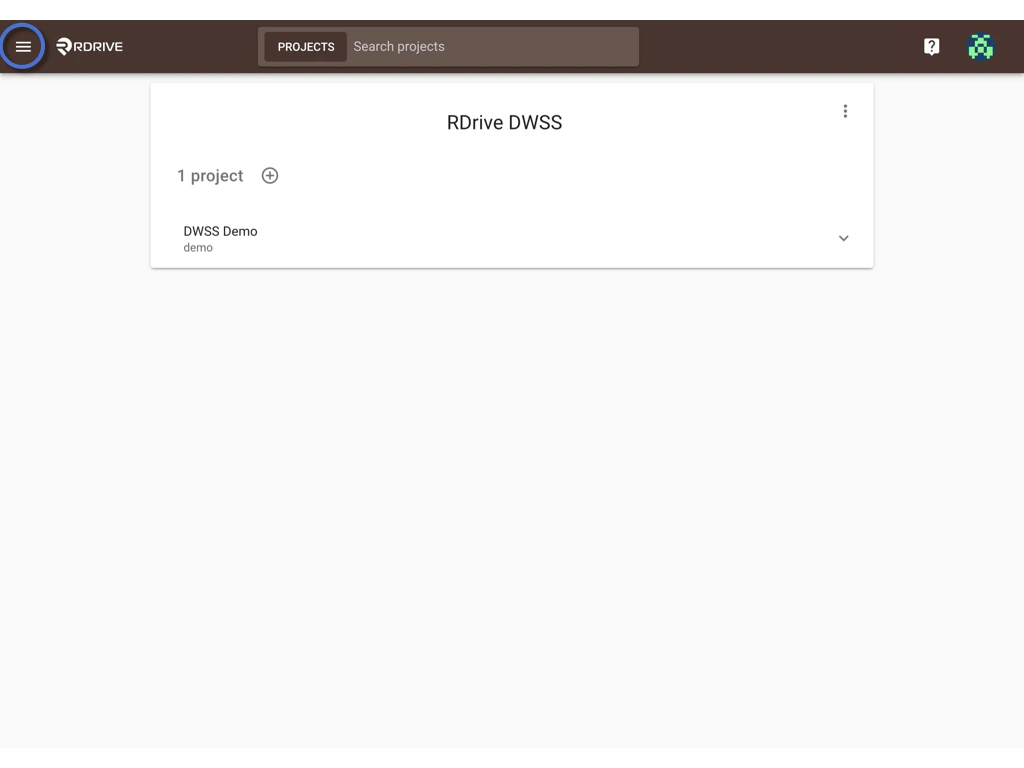
First, log in to Company Area. Only the company admin can access this page.
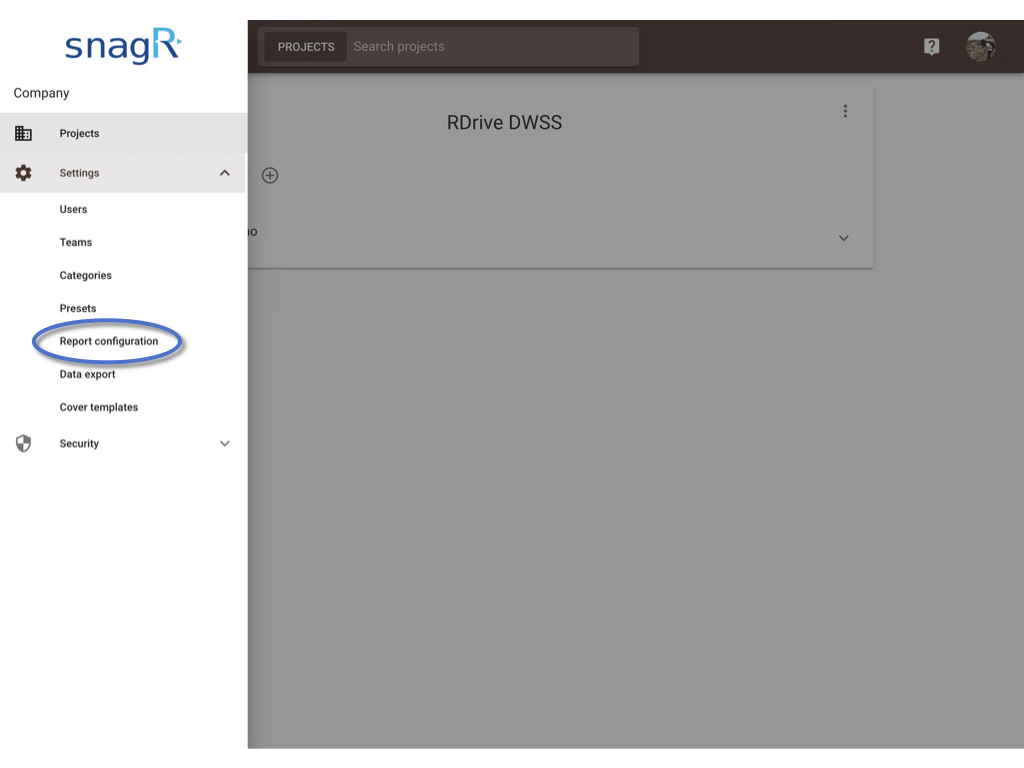
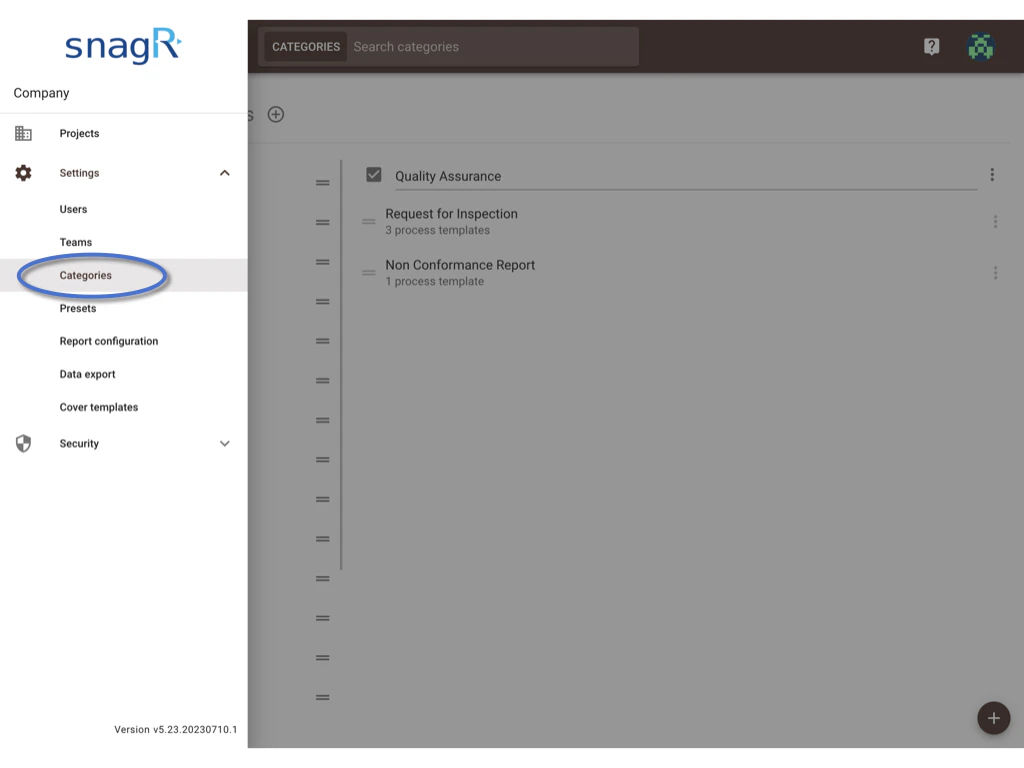
Click Settings and select Report configuration.
You can create a new template by clicking the ⊕ button.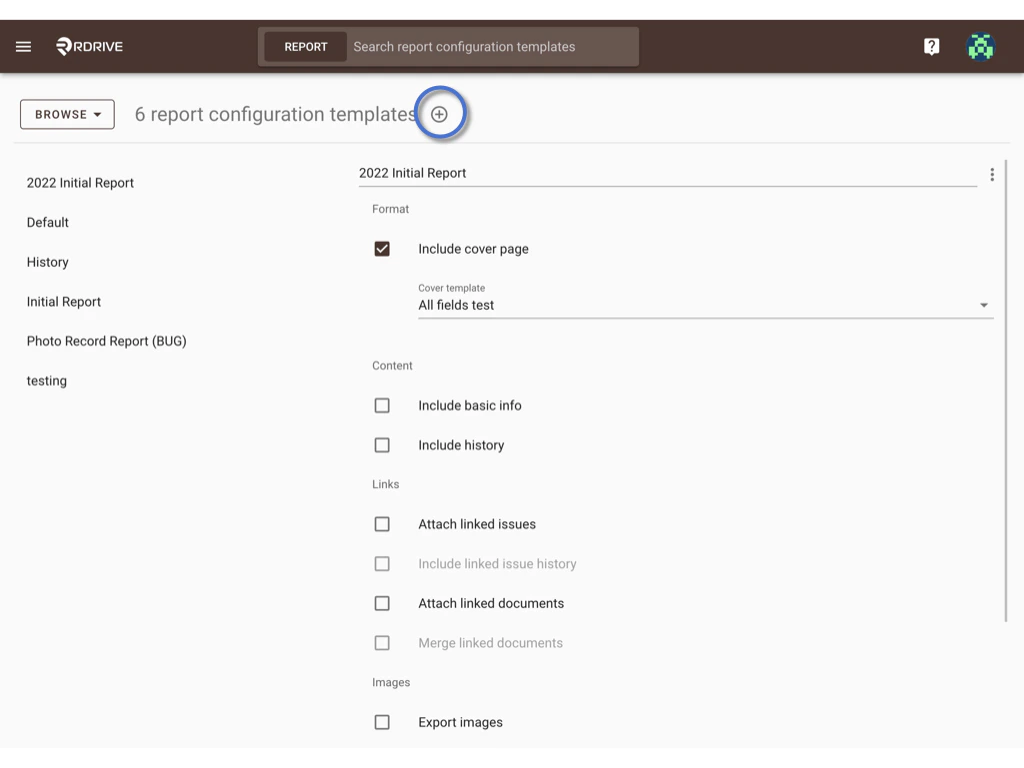
Enter the template title, and click OK to confirm.
If you have a downloaded file, you can also click on UPLOAD.
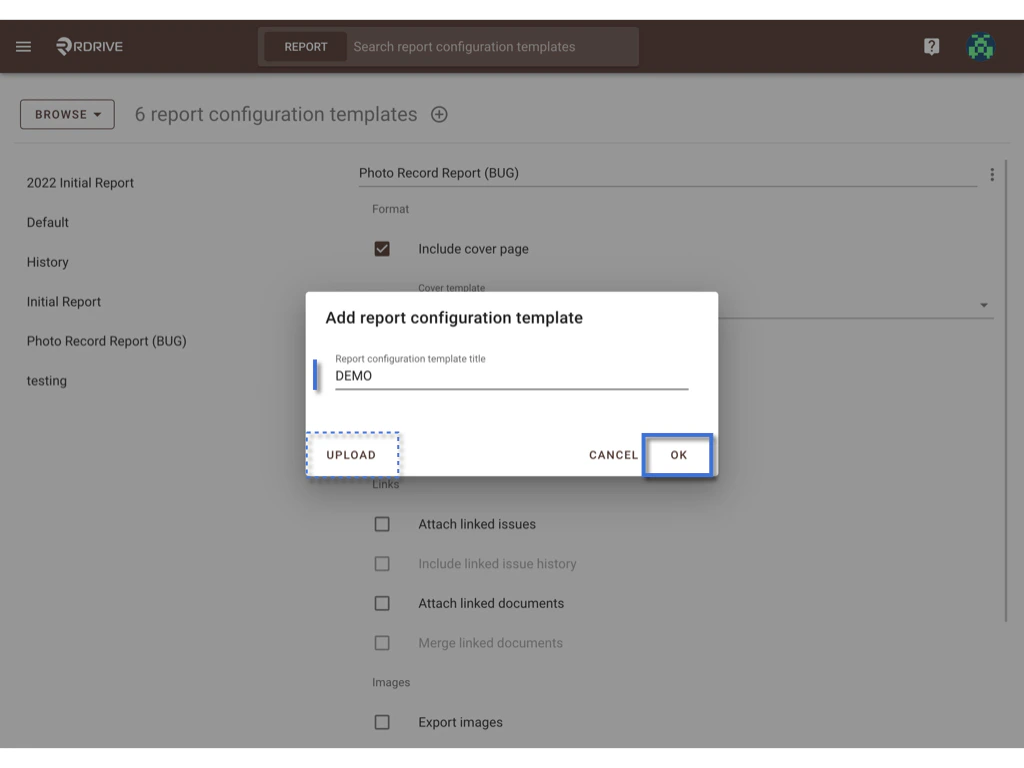
The template will be created, and you can now check the download options for this template as pre-fill settings. Any updates made will be saved automatically.
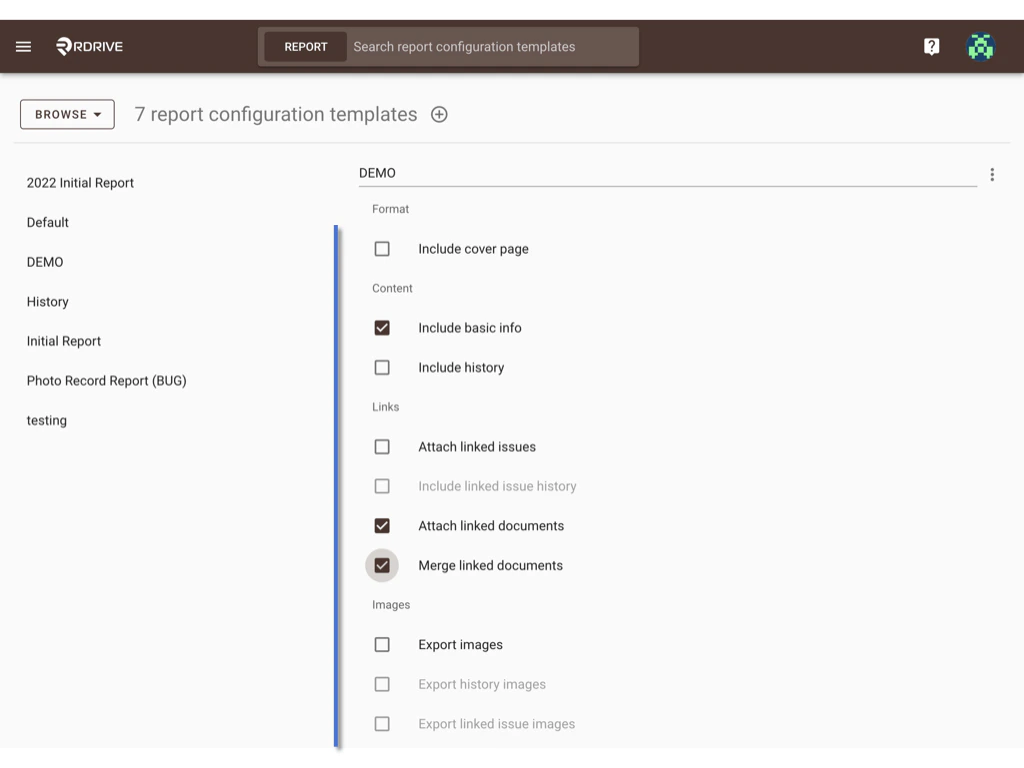
Please access the Report layer by Company level ➡ Settings ➡ Categories ➡ Subcategories ➡ Issue template ➡ Issue wizard ➡ Report layer to set up.
Here are the screenshots to guide you to access.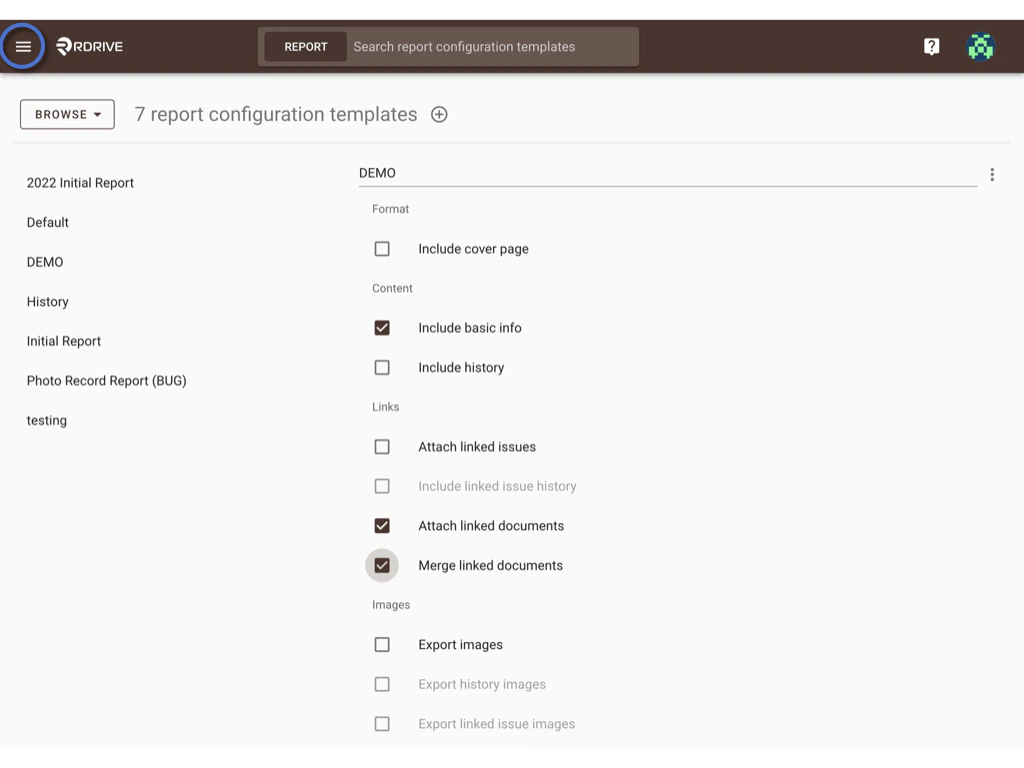
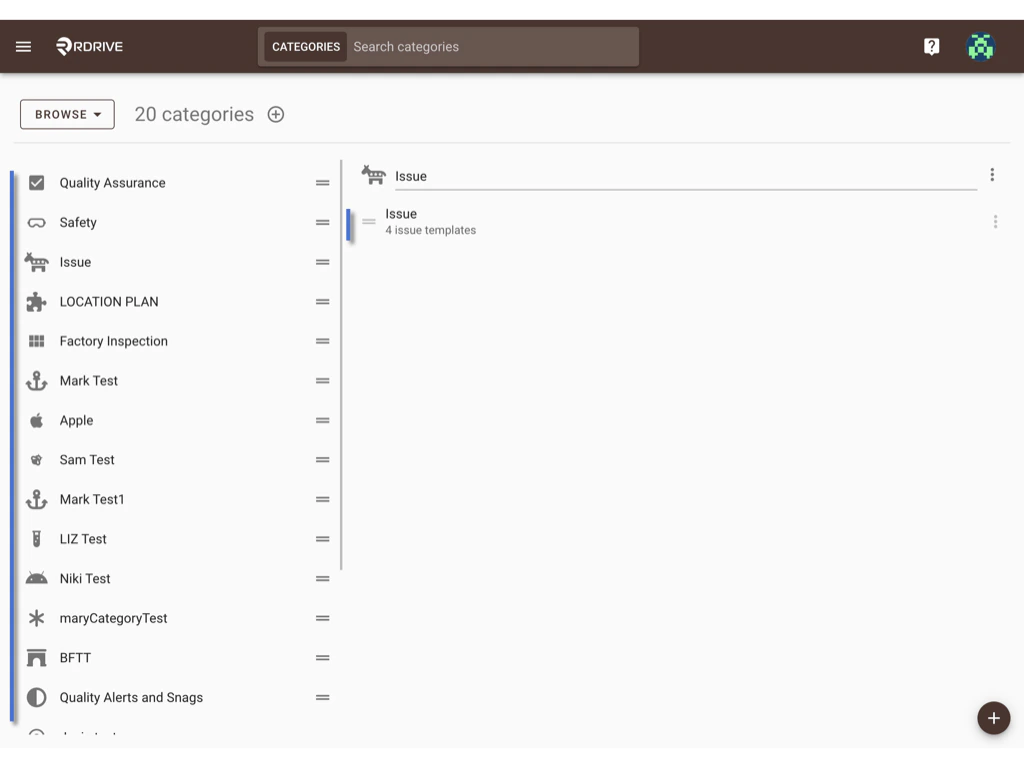
 Click Edit. And select the latest template version which is currently in use, instead of creating a new version.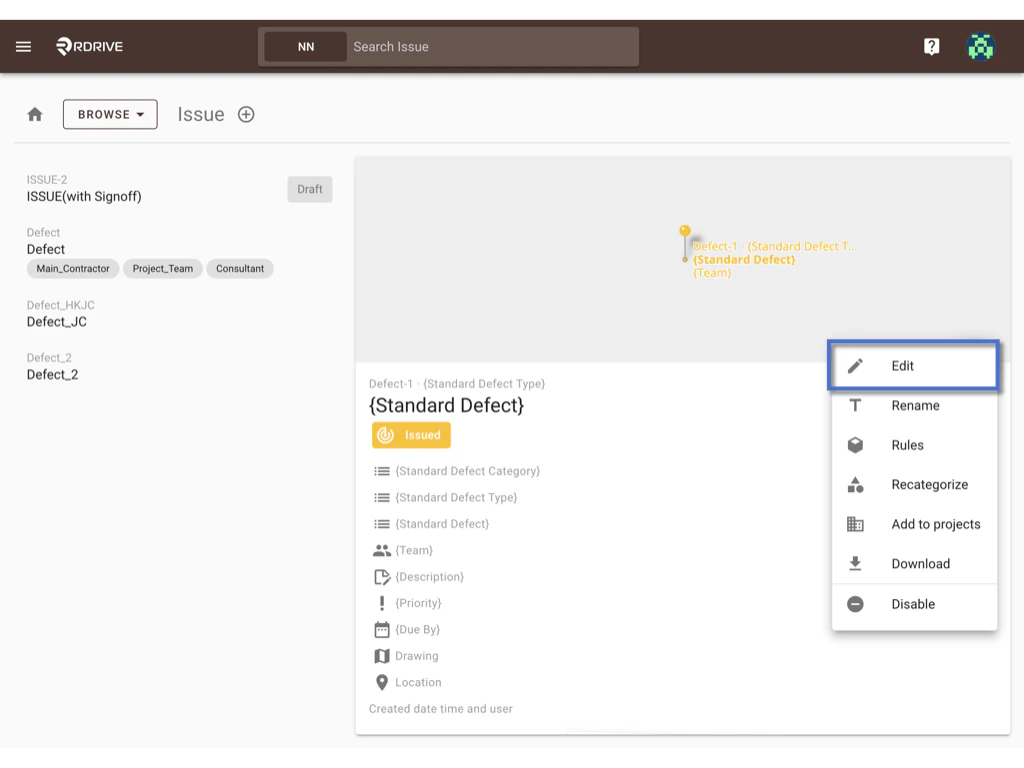
 Click EDIT to access the Issue wizard ➡ Report layer.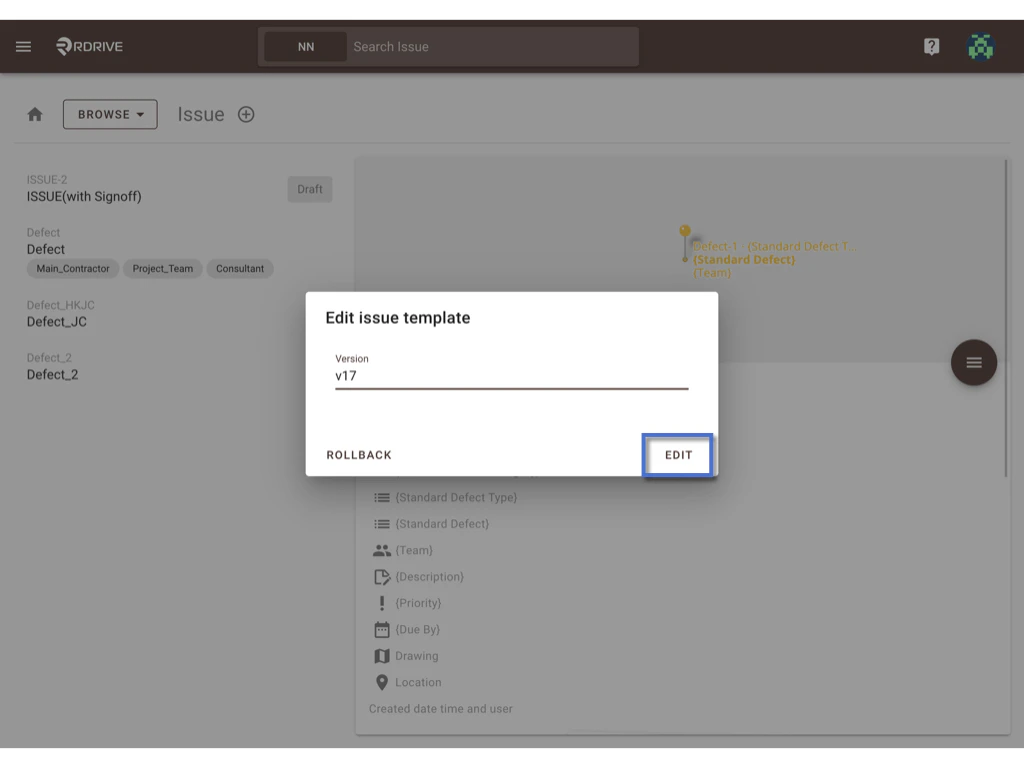

Select the report layout, click ⋮ the button, and Pair.
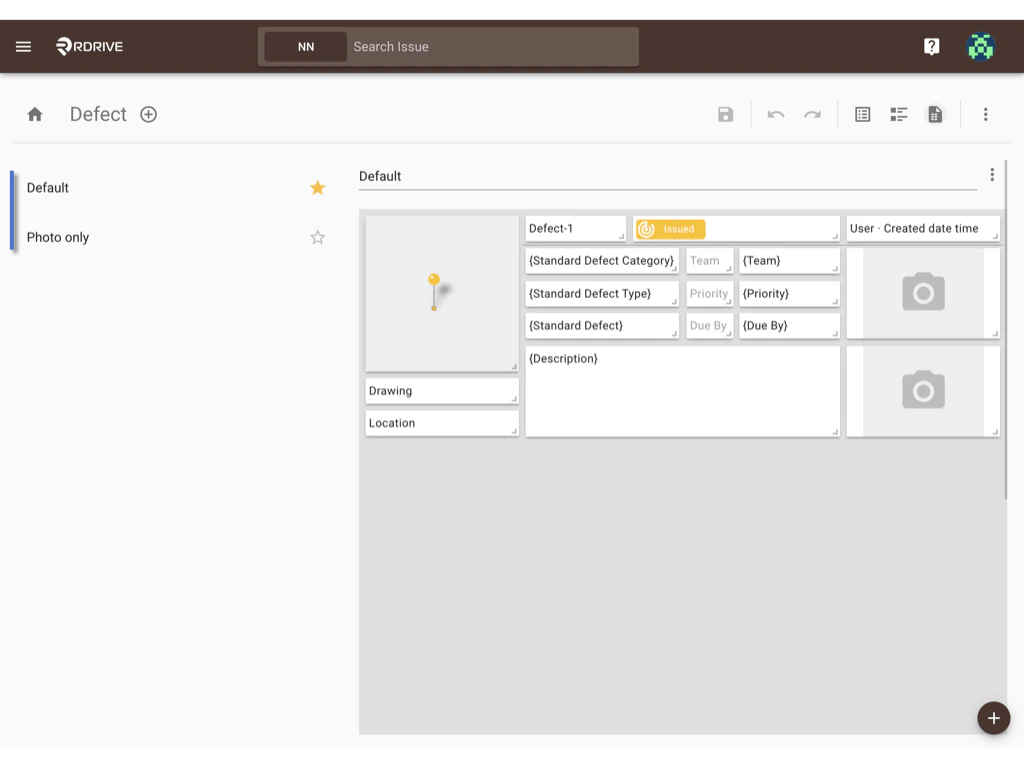
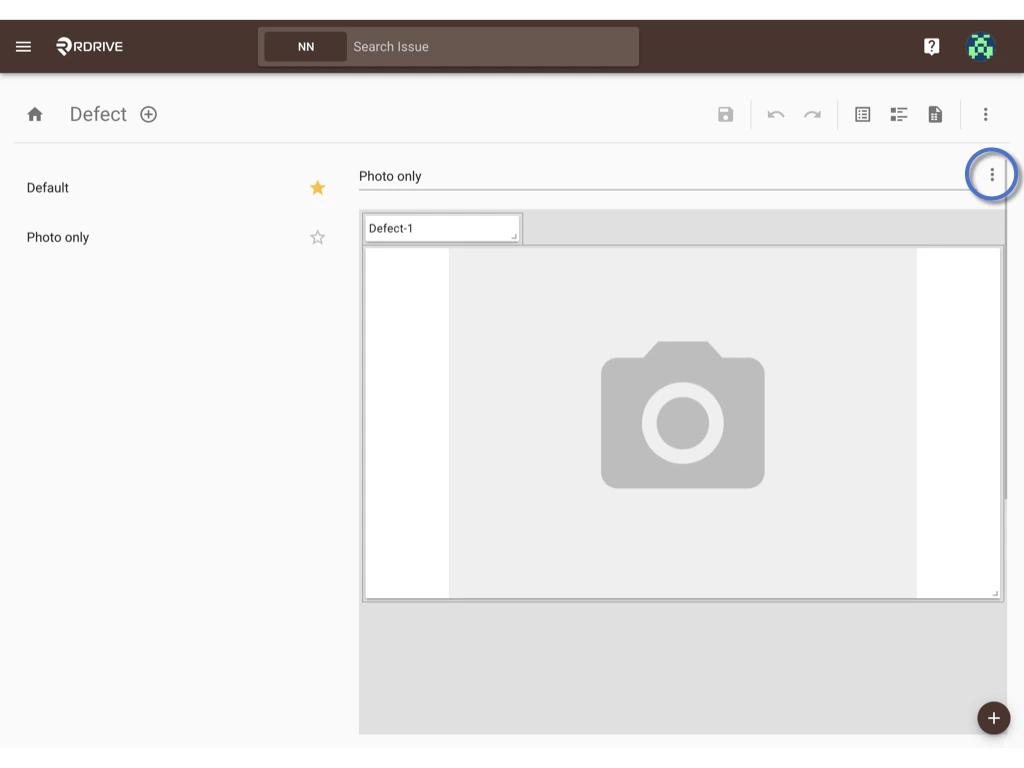
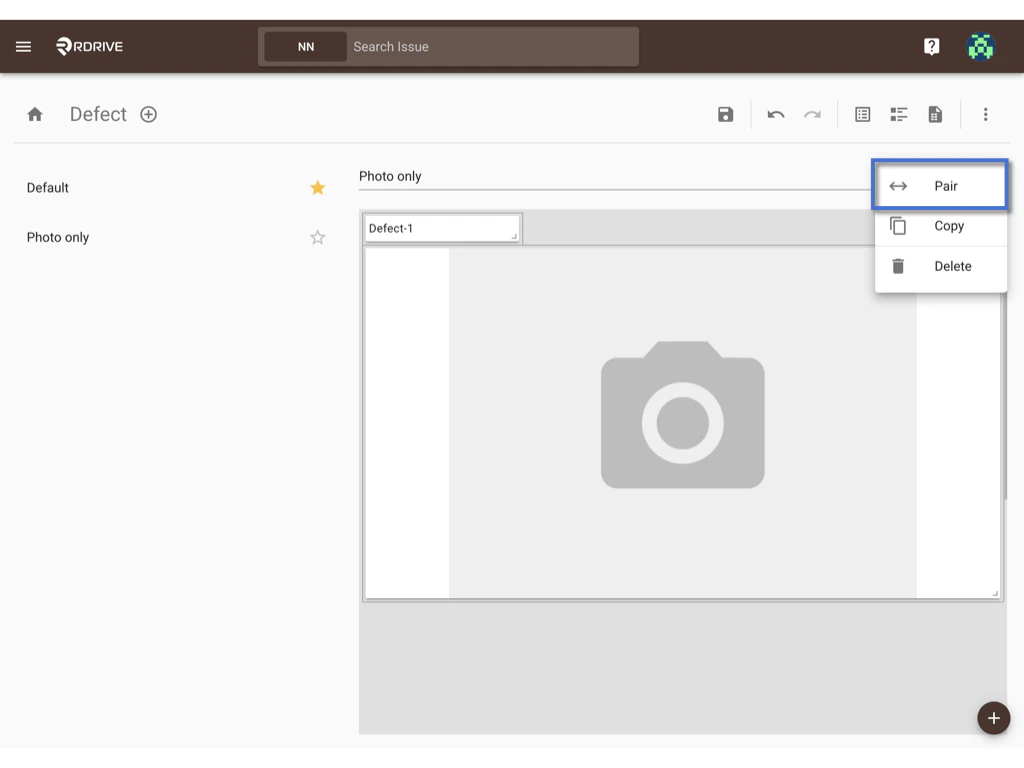
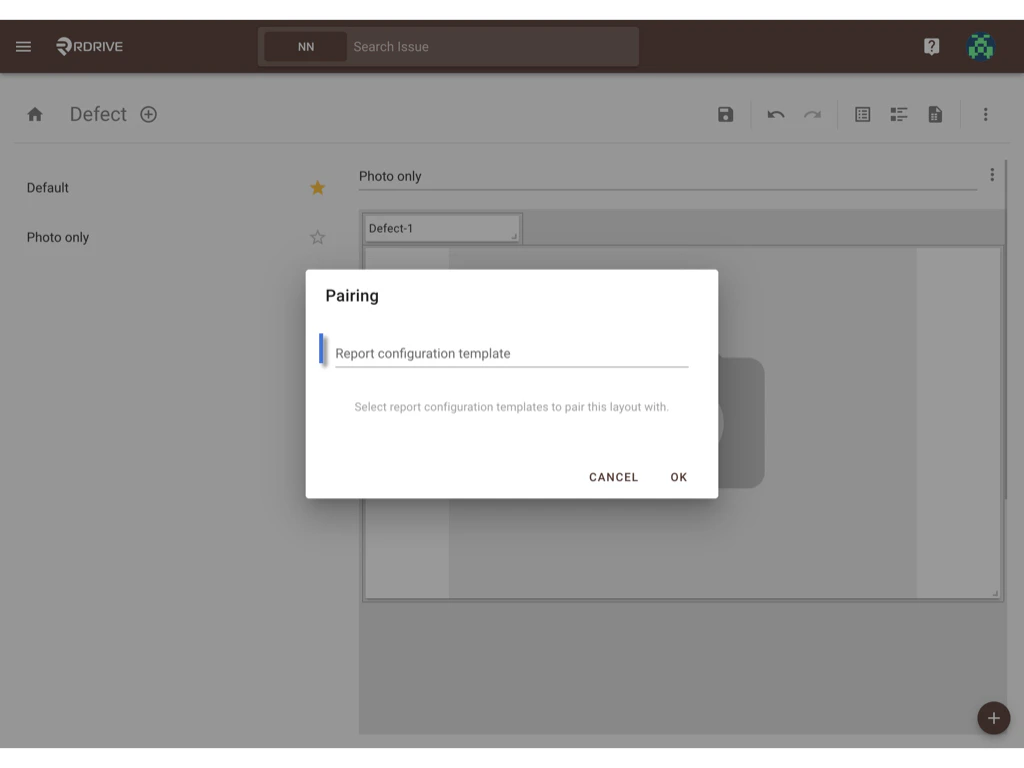
 Remember to click the SAVE button to save changes.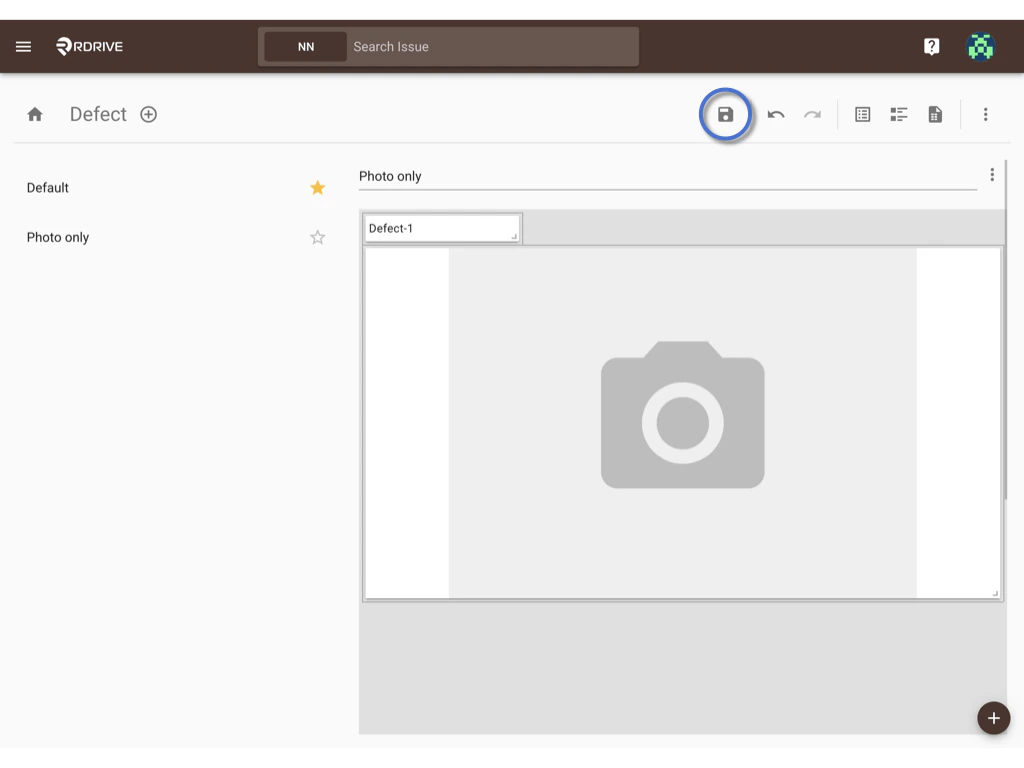
Set up completed.
Let’s check how it works at the Project level.
Click Download to open a download dialog.
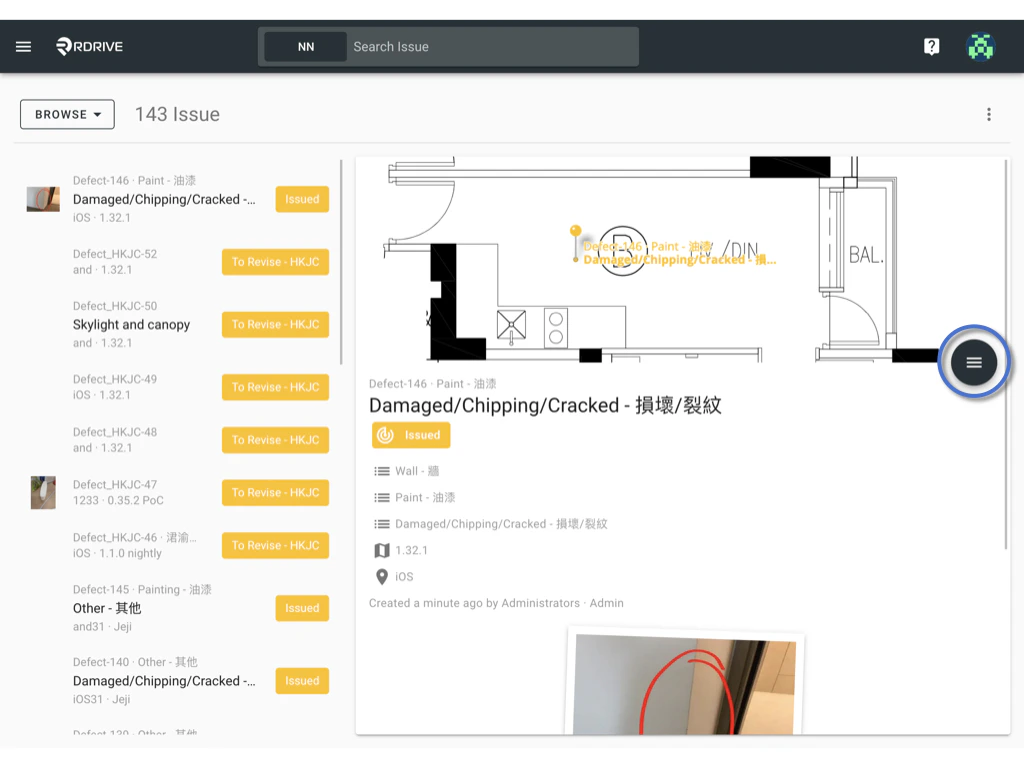
 Check the “Use report configuration template” option.
If not checked, it will automatically select the default template.
The paired report configuration template has been selected. To download the template, please click on the DOWNLOAD button.
Once the download is finished, you will have a report with a layout that matches the example provided above, featuring “Photo only”. Alternatively, you can manually select a different template from the available options.
 or you can click on the ADVANCED button to review and modify the download options.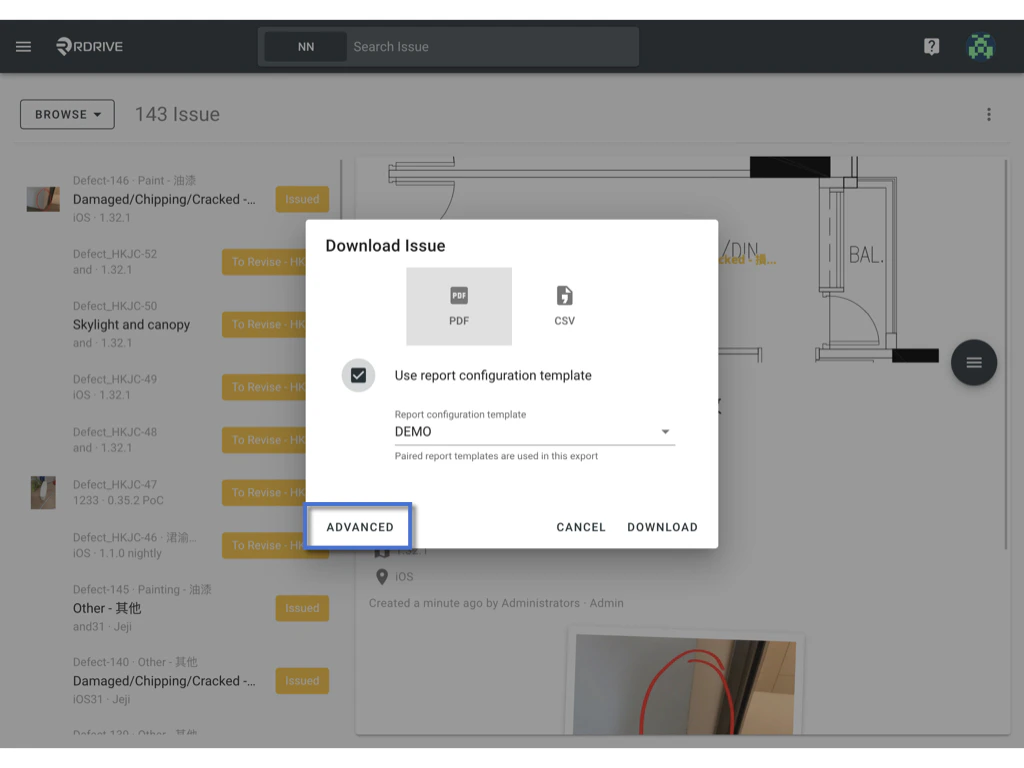
 Done.
Additionally, it is possible to work with the Report cover. Let’s check it out to learn more about its functionality. :)
Done.
Additionally, it is possible to work with the Report cover. Let’s check it out to learn more about its functionality. :)