Assignment rule can help to enter data before adding a new record, the entered data would be editable. TABLE OF CONTENTS

via Website

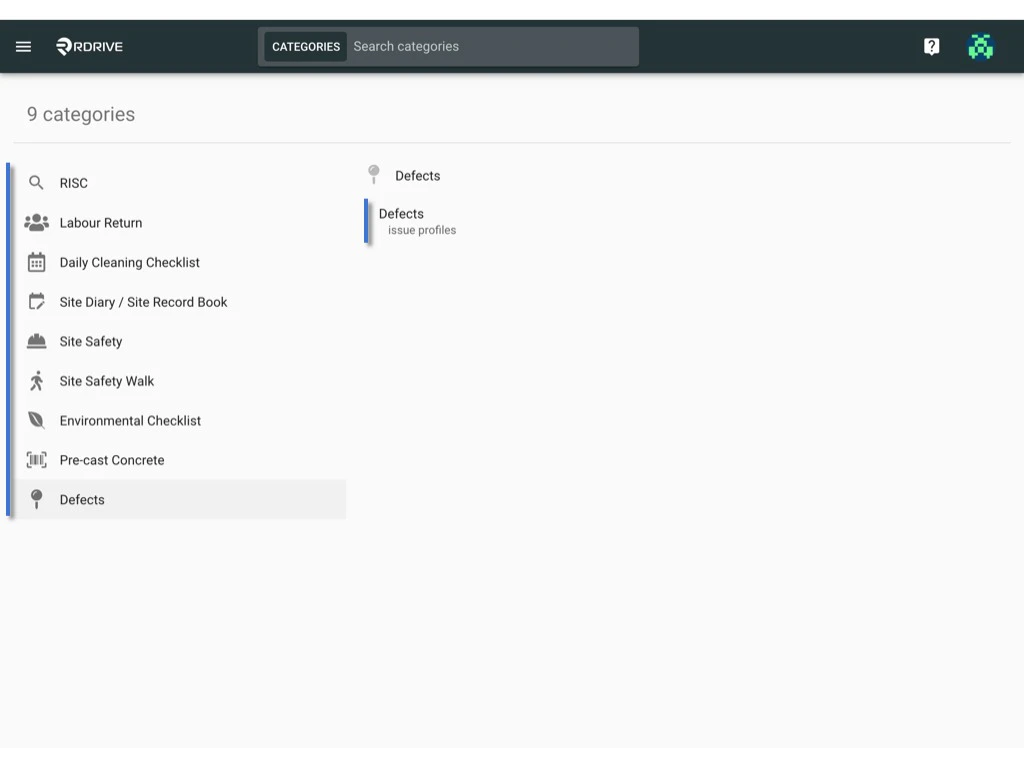
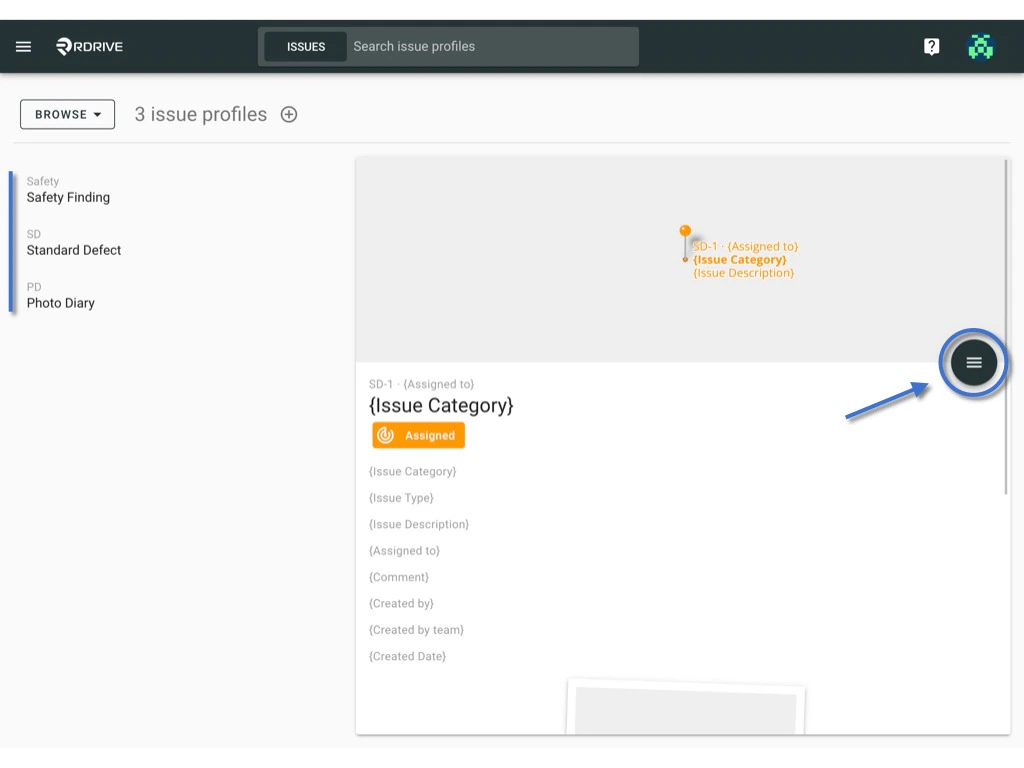
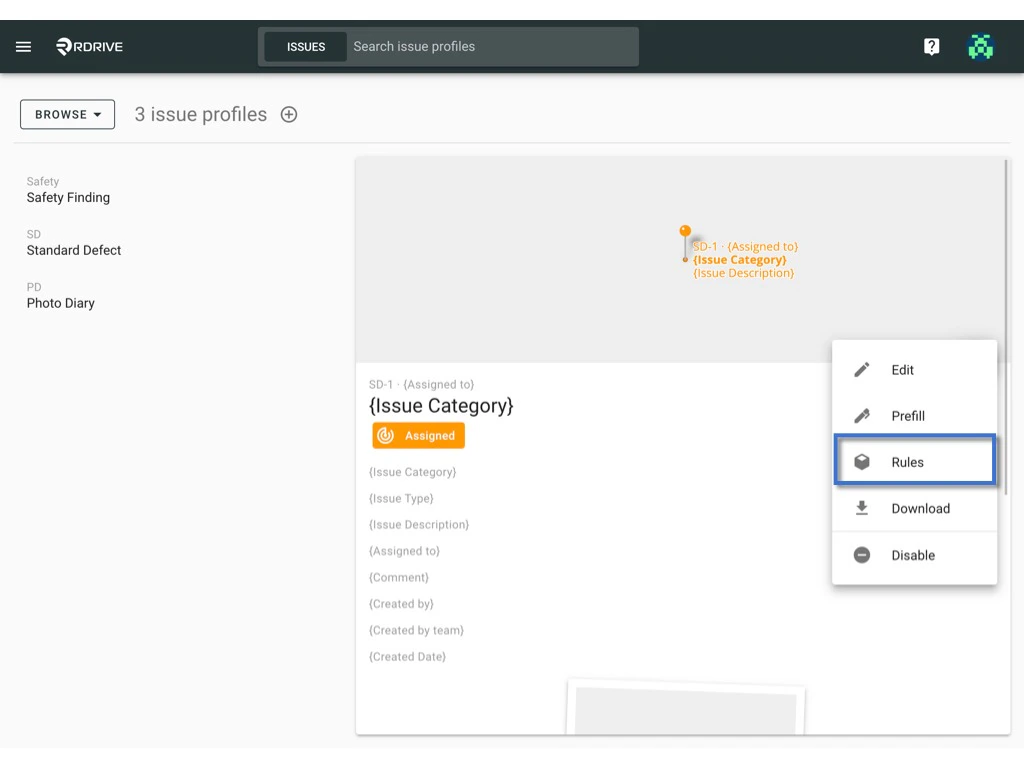
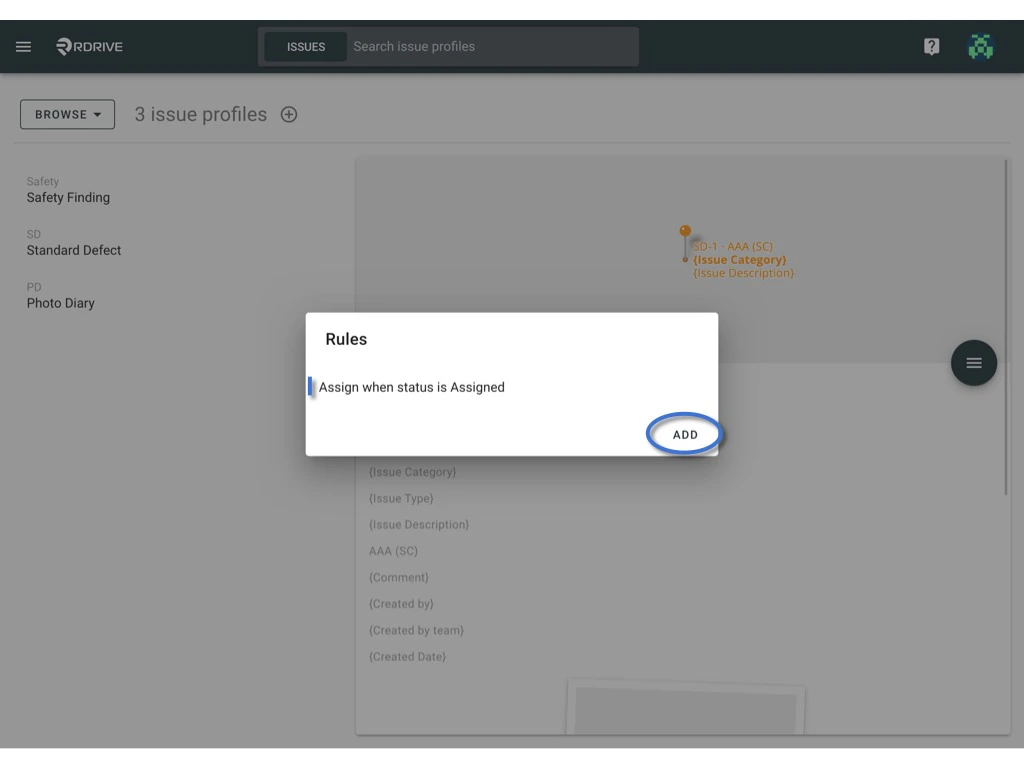
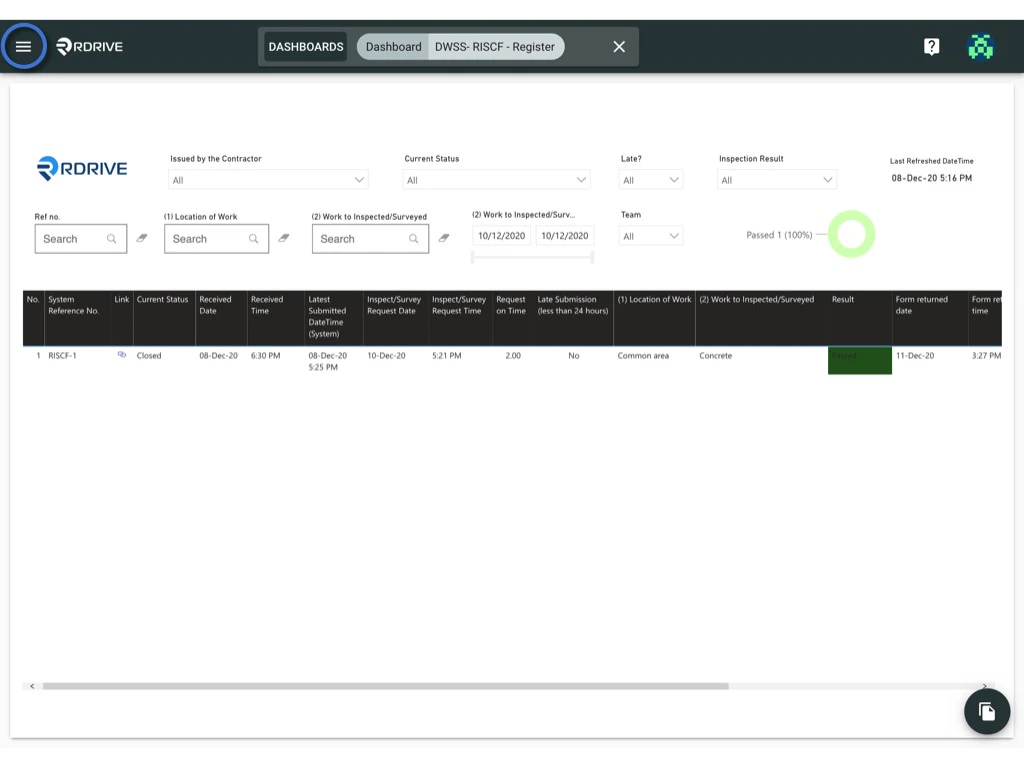
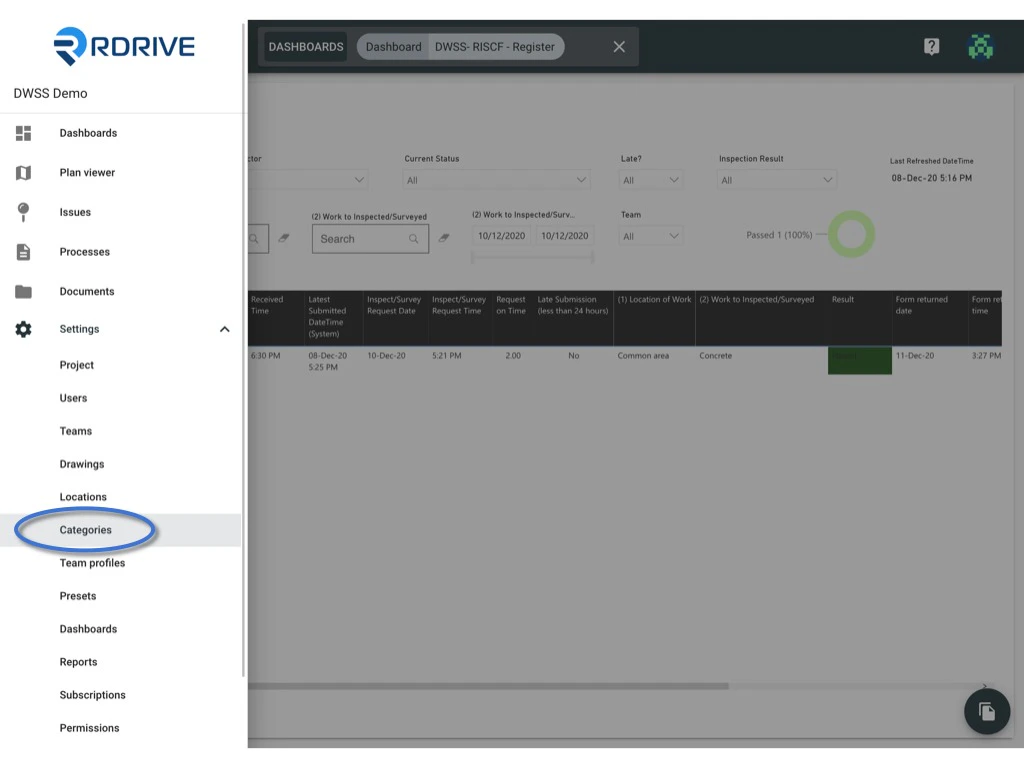
You will able to see the menu icon on the top left corner, please click it to unfold the menu, access the SettingsCategories, select the category and subcategory. Assignment rule - Issue profile Assignment rule - Issue profile Assignment rule - Issue profile Select RulesSelect profile, click the button to expand the menu. Assignment rule - Issue profile Assignment rule - Issue profile Click Add to add a new rule to configure this issue profile or click on the existing rule to edit. Assignment rule - Issue profile Select issue status, assign attributes and issue data if need.
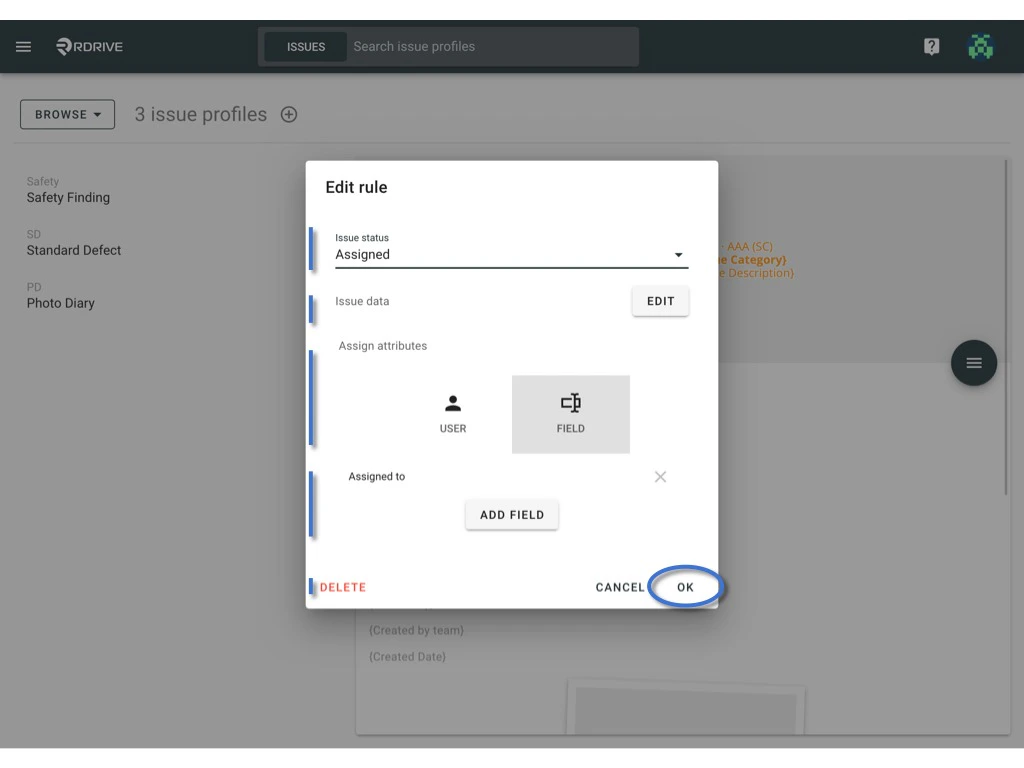
OK to confirm.
Delete to remove/cancel.
Assignment rule - Issue profile
Issue status and Assign attributes are required for each rule.
Issue data is a conditional option for the rule.

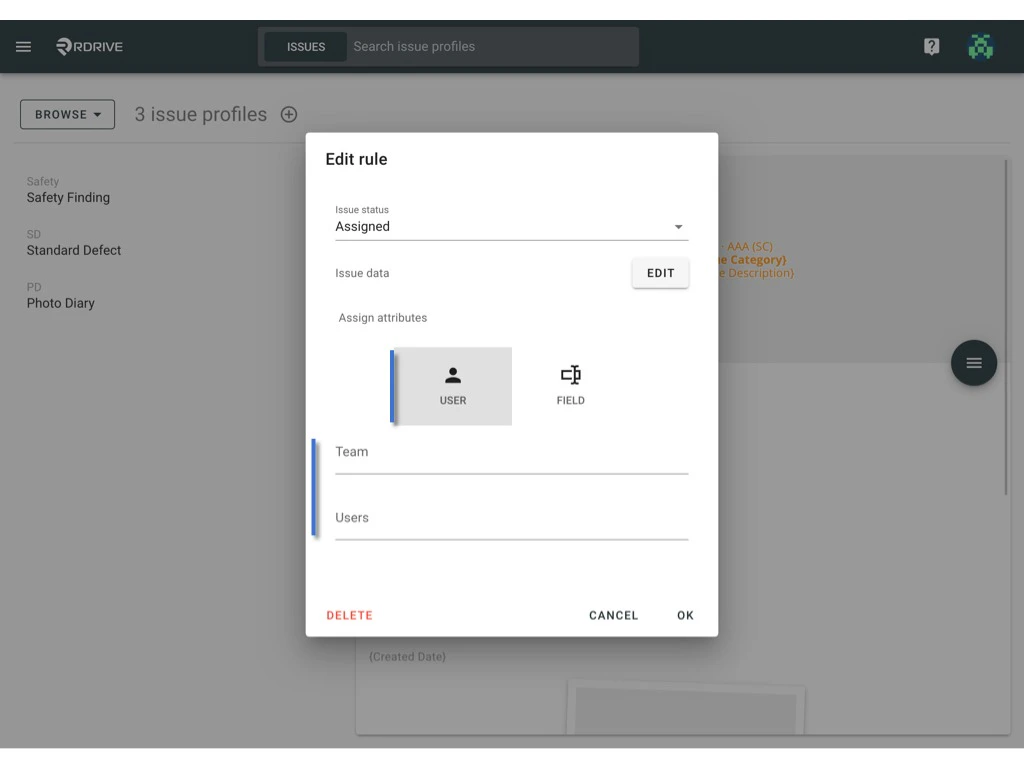
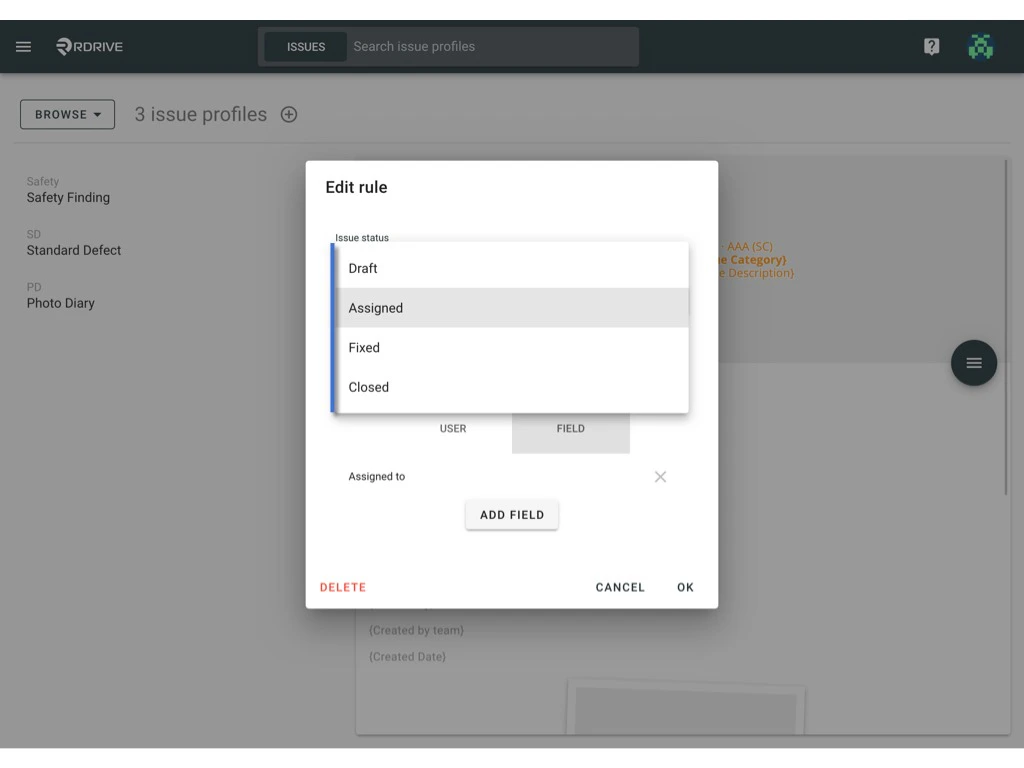
Issue status

Select an issue status for the assignment rule.
The issue will be assigned when the record updates to the selected status.
Assignment rule - Issue profile

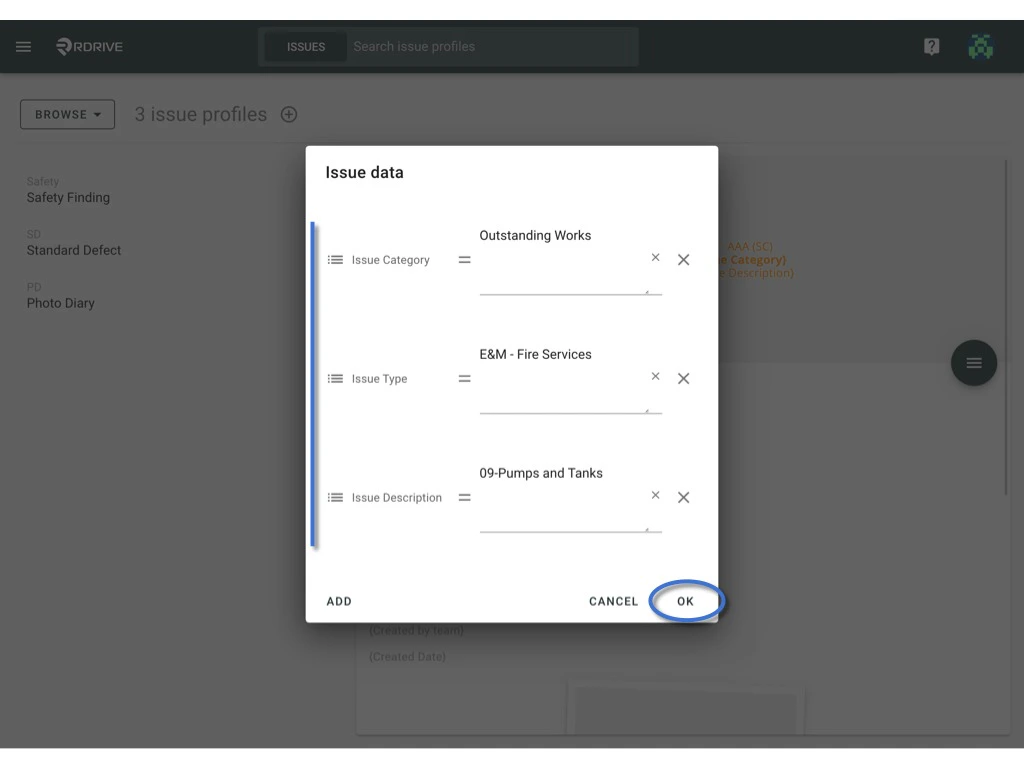
Issue data

Based on the field data to condition the assignment rule.

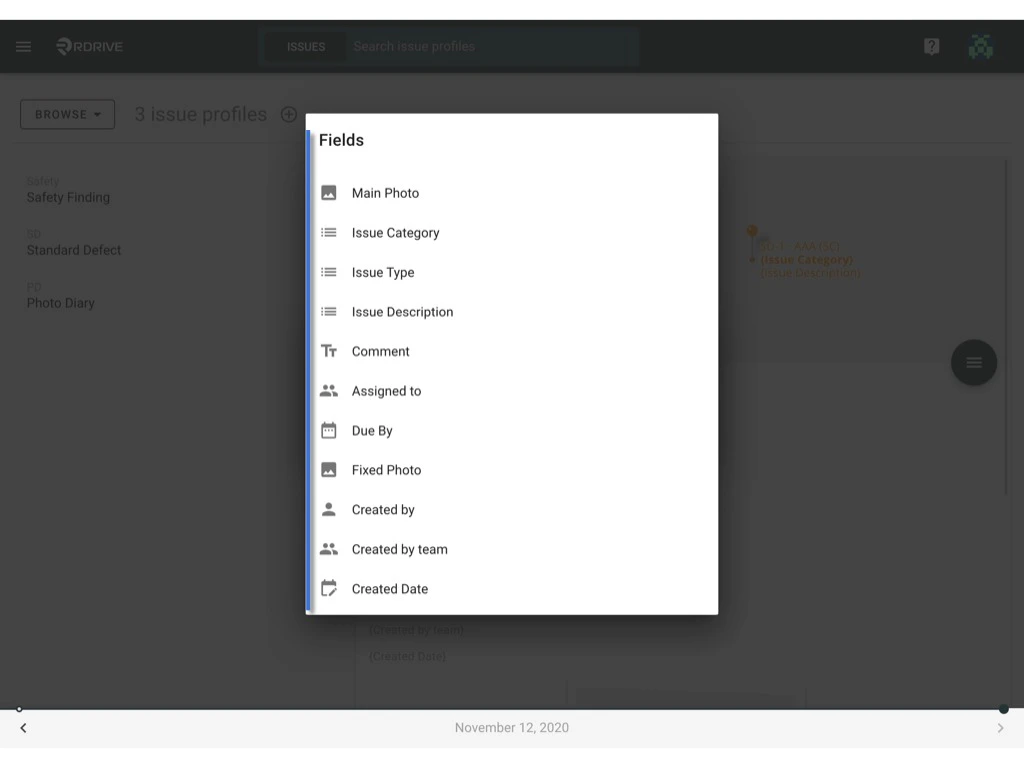
Click Edit. Assignment rule - Issue profile Click Add to add a new condition so that you can select issue field(s) and indicate the issue field value that you would like to add to the assignment rule Assignment rule - Issue profile Select field(s), enter the value.
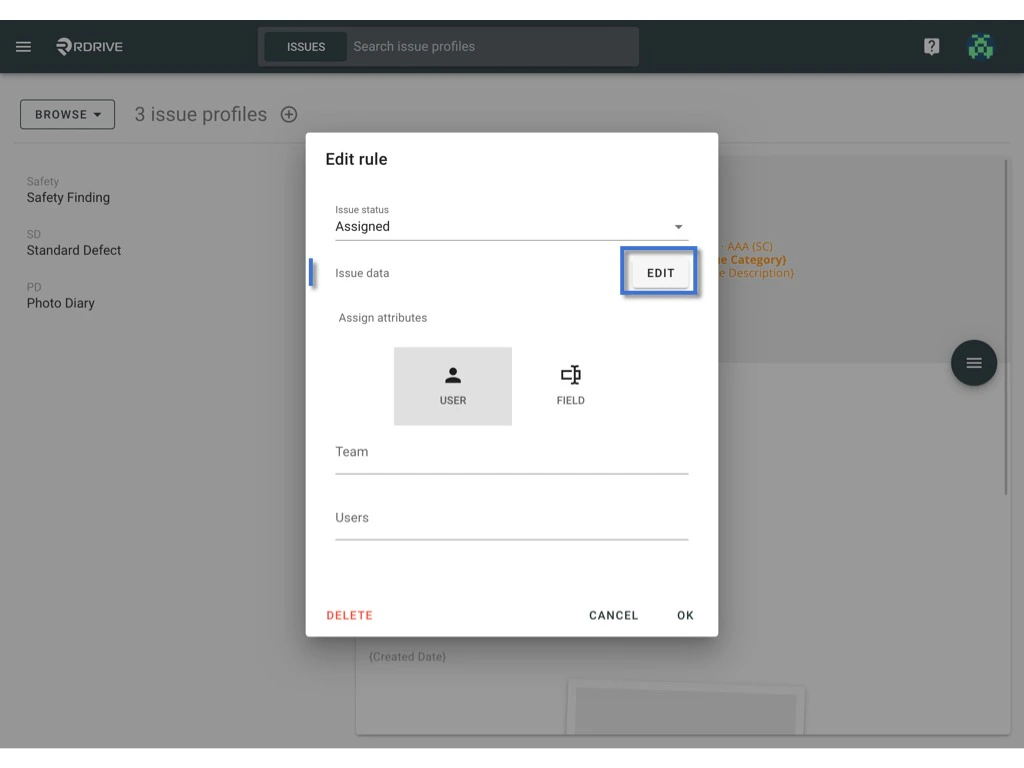
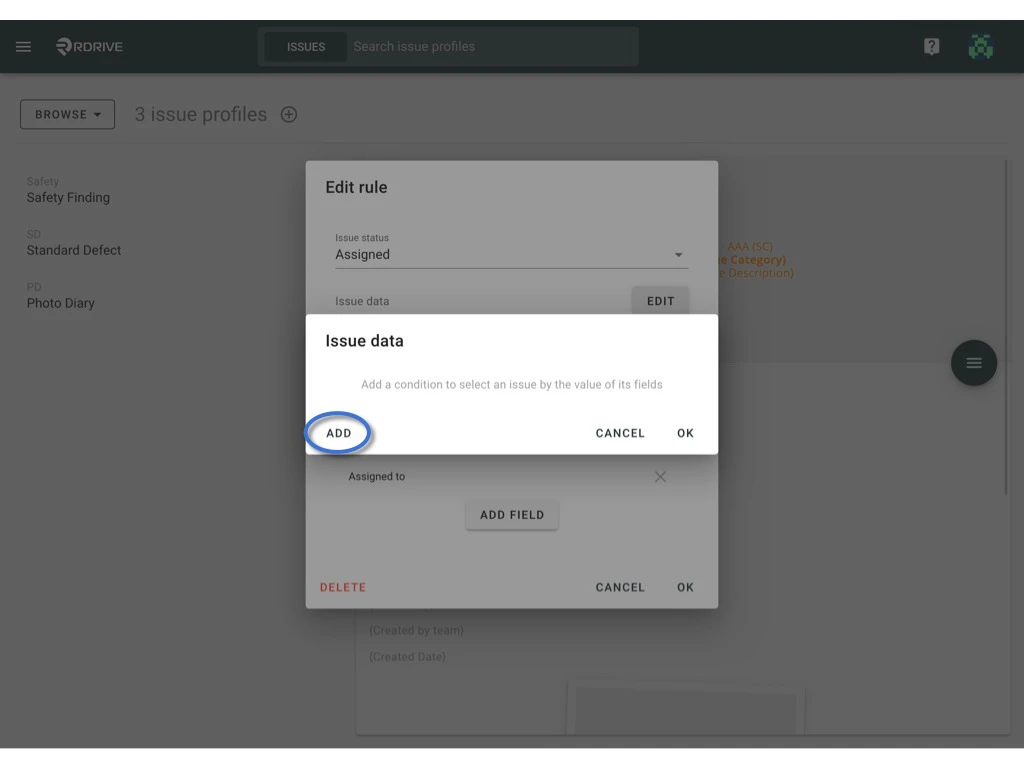
OK to confirm.
Assignment rule - Issue profile Assignment rule - Issue profile

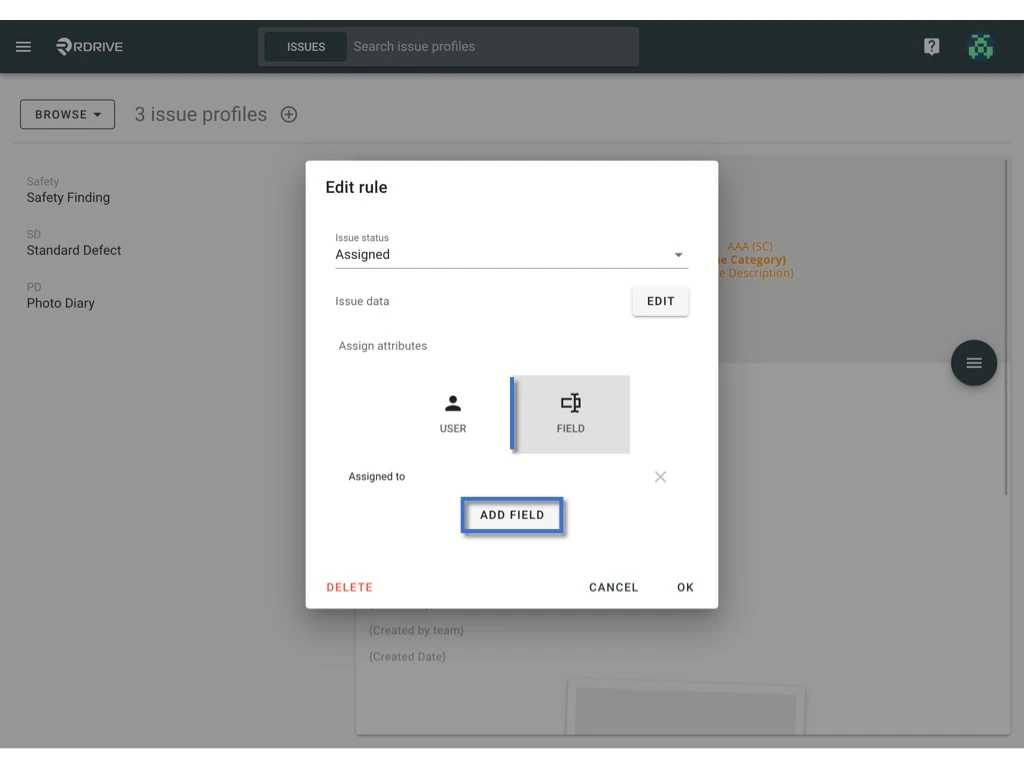
Assign attributes

You may assign to the specified team/team’s user or base on the team field and user field on the template to decide the assignee. 1️⃣ User - Select team and team’s user to edit a rule for specifying assignee. Assignment rule - Issue profile 2️⃣ Field - click Add Field to pick a field on the template to decide the assignee for this rule. Assignment rule - Issue profile