Sharing gives ad-hoc read access to other users. You can choose individual users to share with. Let’s say if there are users who have edit rights only. If you share a form with them, these users who have edit rights but not read access will be able to edit after you have shared with them. Those who are shared are called “participants”. To put it simply, you can share a form with other users to permit them to see the form(s). You will need “Share” permission to perform the “Share” action.
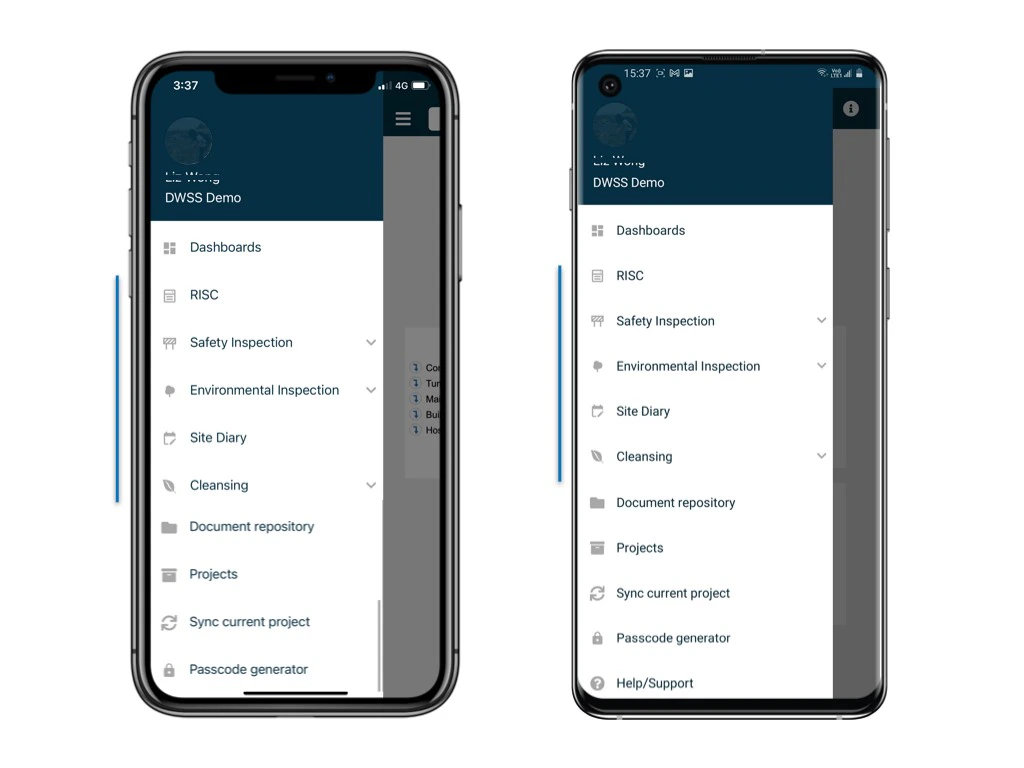
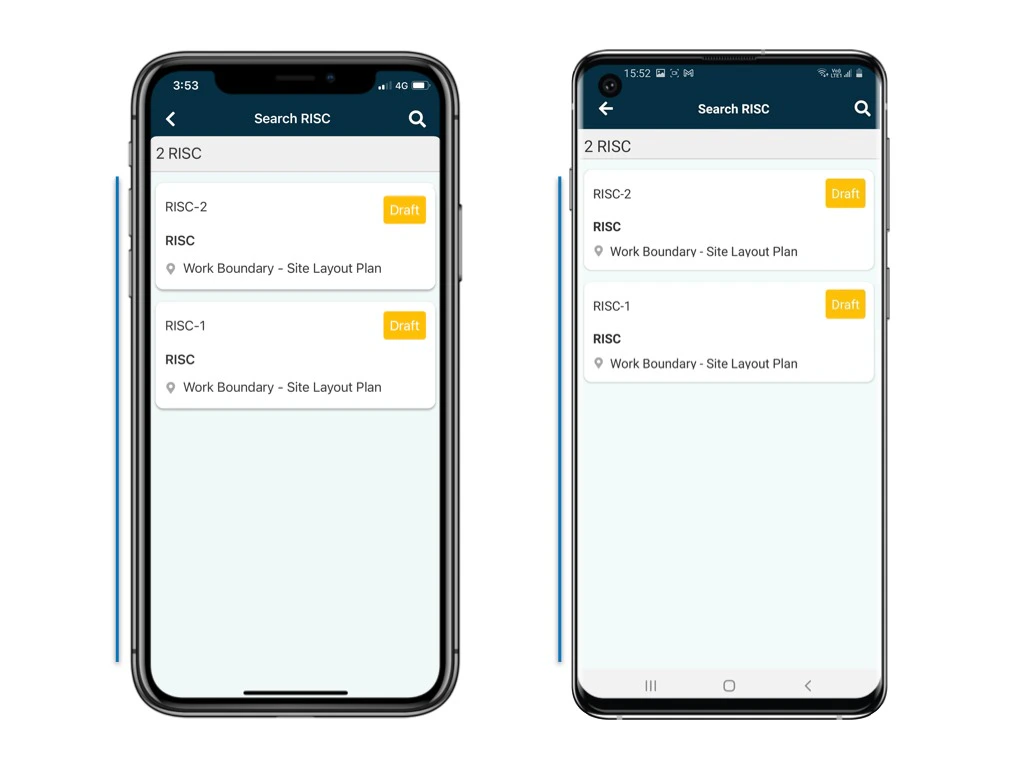
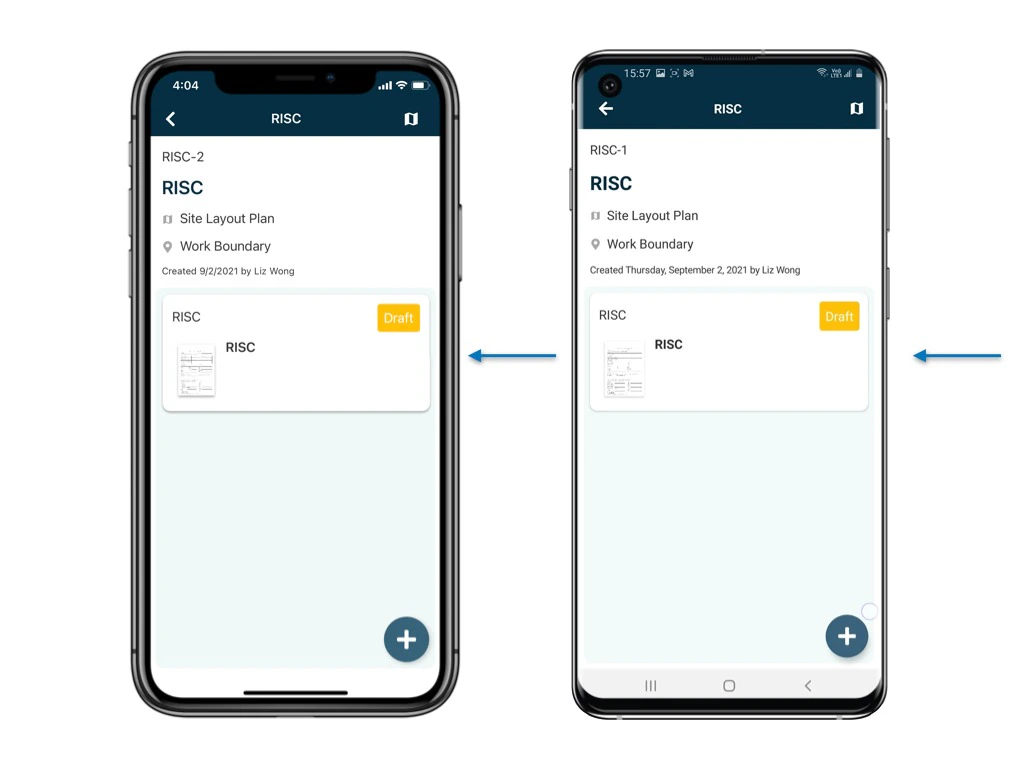
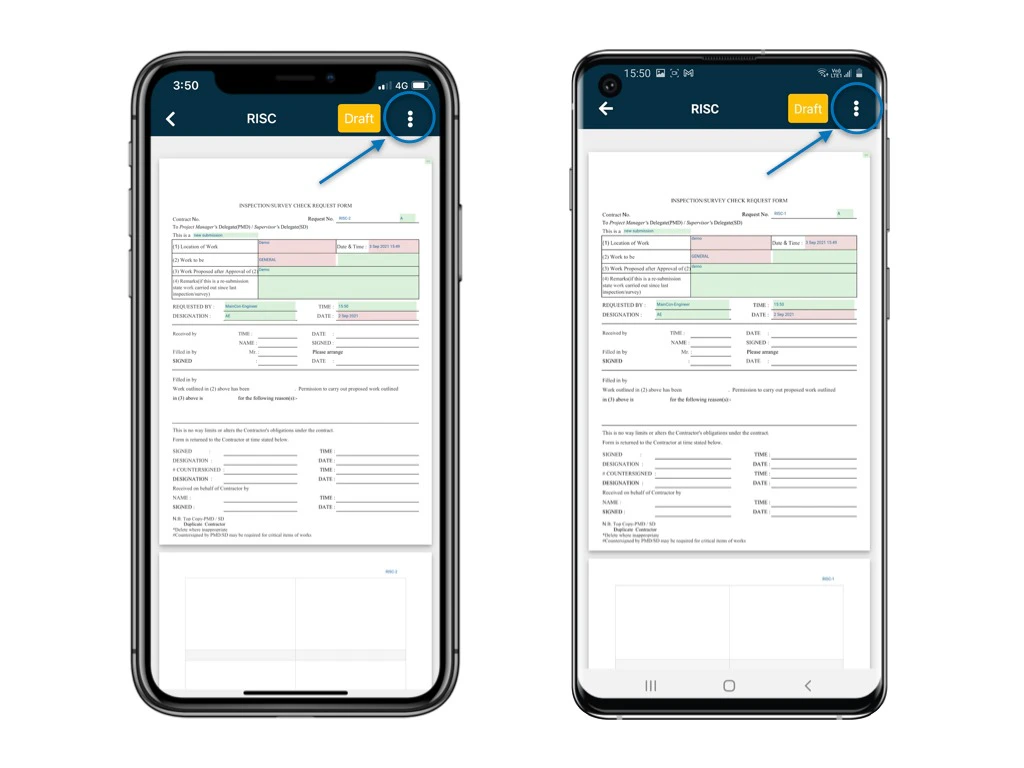
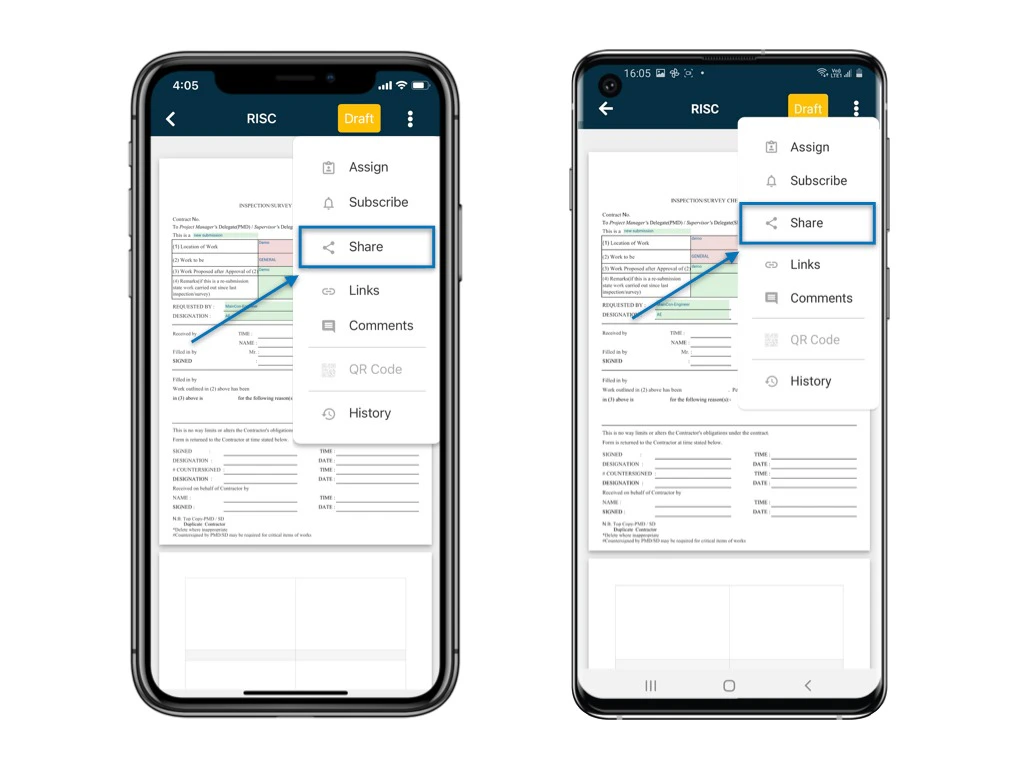
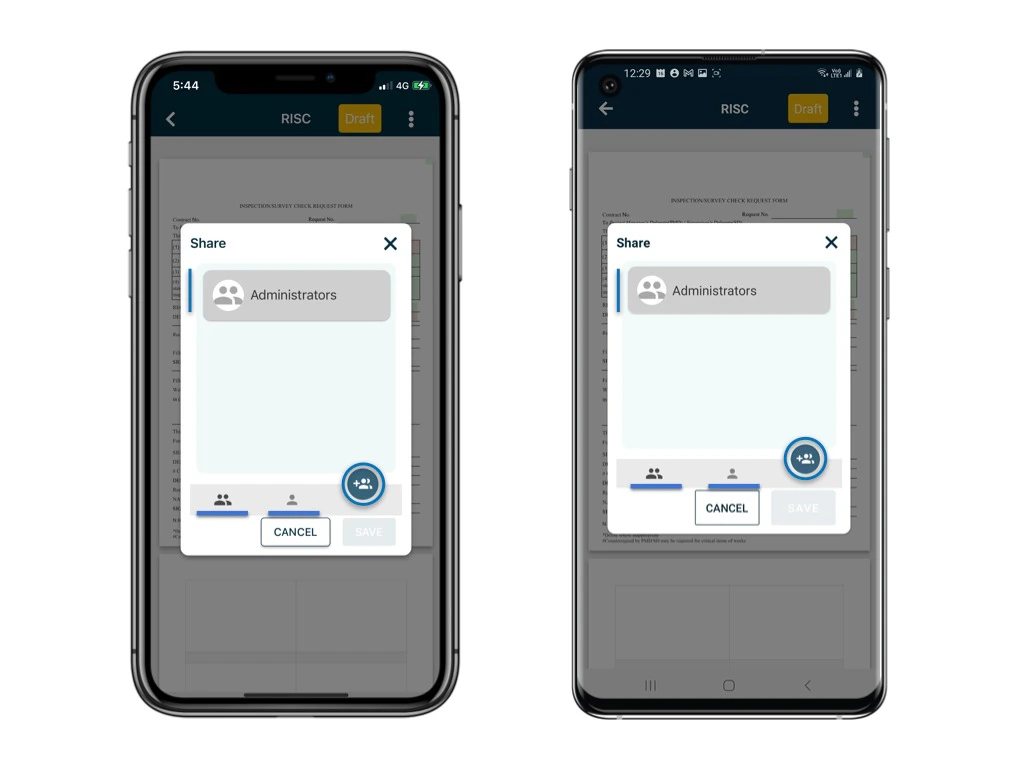
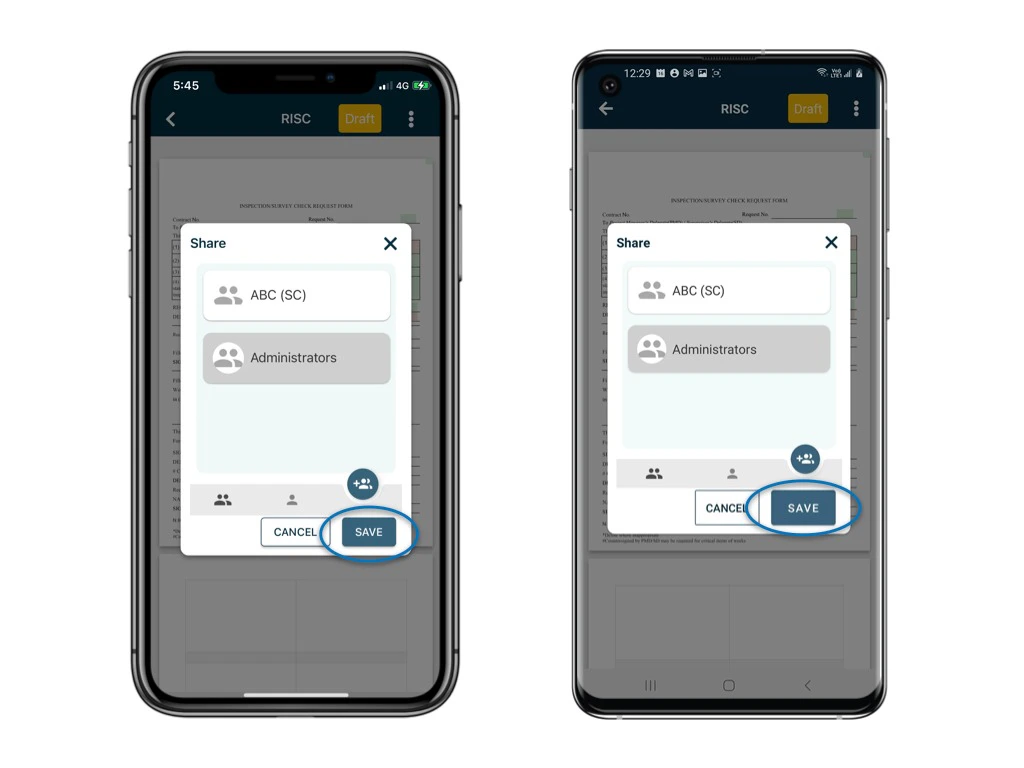
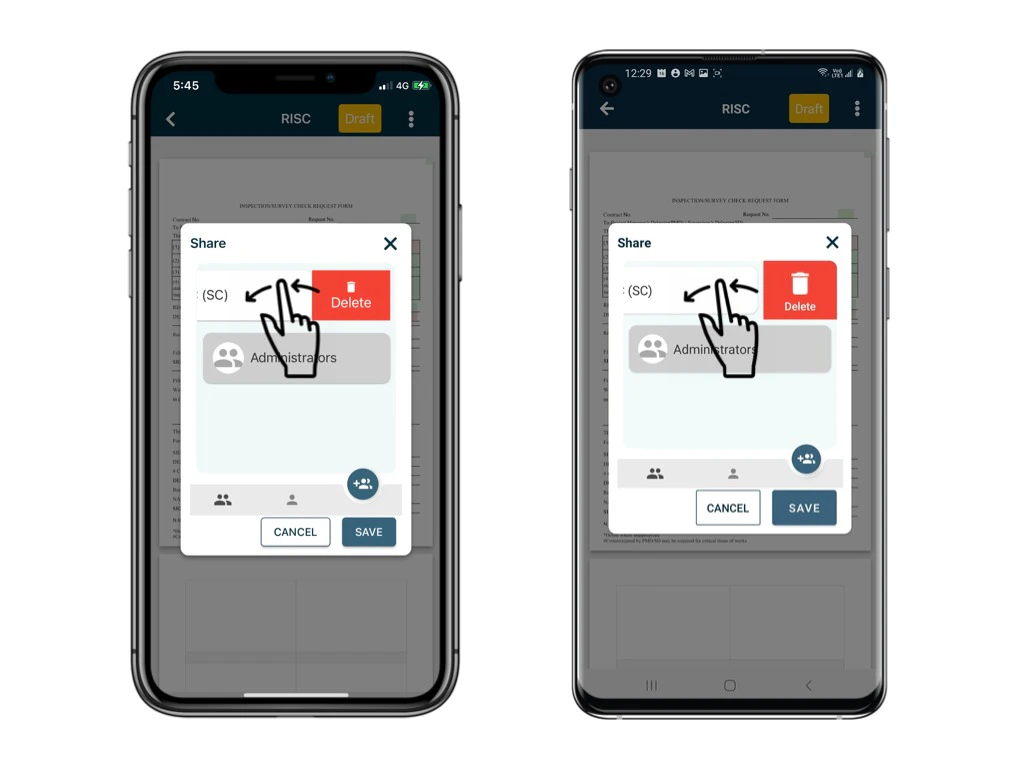
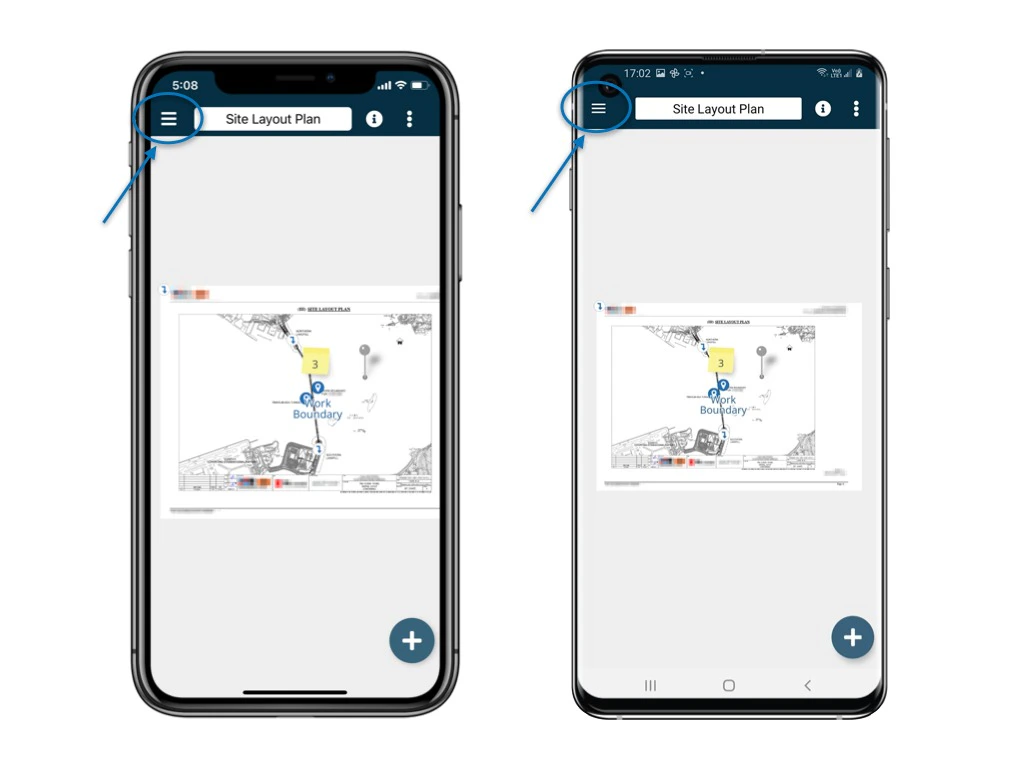
Here are the steps showing how to share a form to other users using RDrive app: Go to Finder/Plan viewer, and search for a process How to share a form with other users? How to share a form with other users? How to share a form with other users? How to share a form with other users? A form is now opened in the form viewer, click ⋮ to select “Share How to share a form with other users? How to share a form with other users? The participants will be listed on the page. Click the + user button to add per team or per-user as a participant. SAVE to confirm. How to share a form with other users? How to share a form with other users? What if you pick the wrong user? You can remove the user by swiping the user to the left Remember to hit the SAVE button to save! How to share a form with other users?
⚠️ After completing your onsite work, don’t forget to synchronize. This action ensures data backup and updates for your project team.