- 1. Introduction
- 2. Understanding Subscriptions
- 3. Viewing and Editing Subscriber Lists
- 4. Data Backup and Synchronization
- 5. Conclusion
1. Introduction
Welcome to the User Guide on Managing Subscriptions and Sharing Forms. This guide will walk you through the process of managing subscriptions, understanding the role of subscribers, viewing and editing subscriber lists, sharing forms using the RDrive app, and ensuring data backup through synchronization.2. Understanding Subscriptions
Subscriptions provide a way to receive notifications about updates and changes. When you subscribe to something, you become a participant and receive notifications about status changes. Let’s dive into how this works.a. Subscribing and Notifications
Subscribing allows you to receive notifications whenever there’s a status change. This keeps you informed about the latest developments in the process.b. Subscriber’s Role
When you subscribe, you become a participant, ensuring you can always read and receive notifications about the subscribed item’s status changes.3. Viewing and Editing Subscriber Lists
a. Accessing Subscriber List
To view or edit the list of subscribers for a form, you need “Share” permission. This permission enables you to see who is watching the form.b. Adding Subscribers
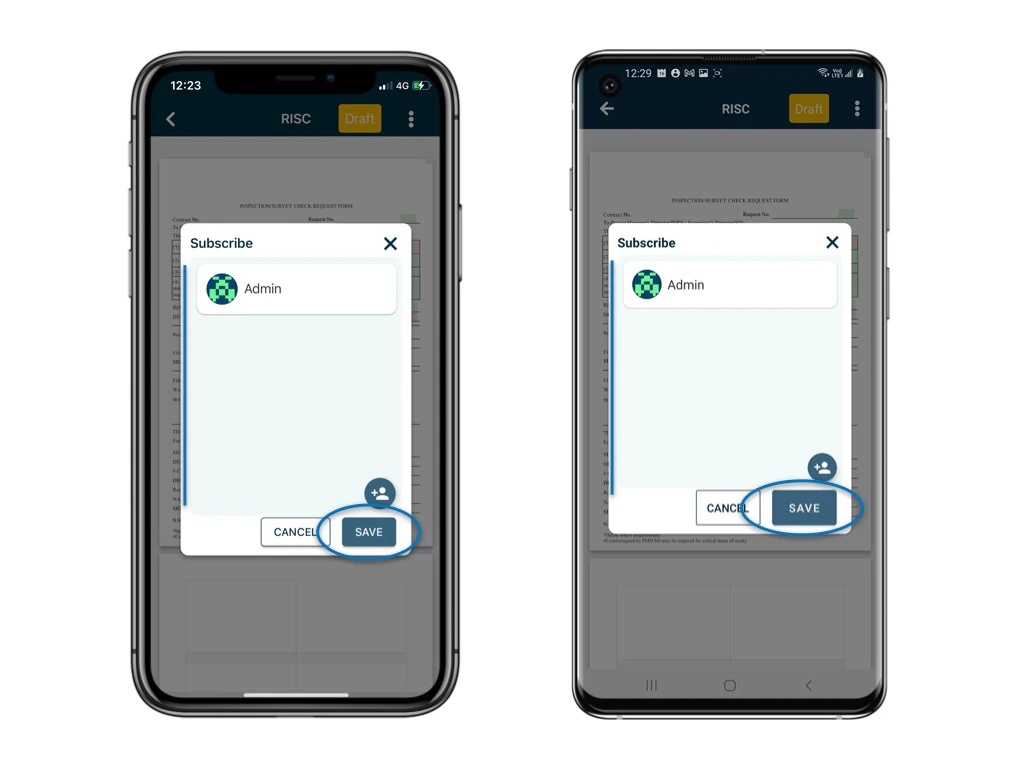
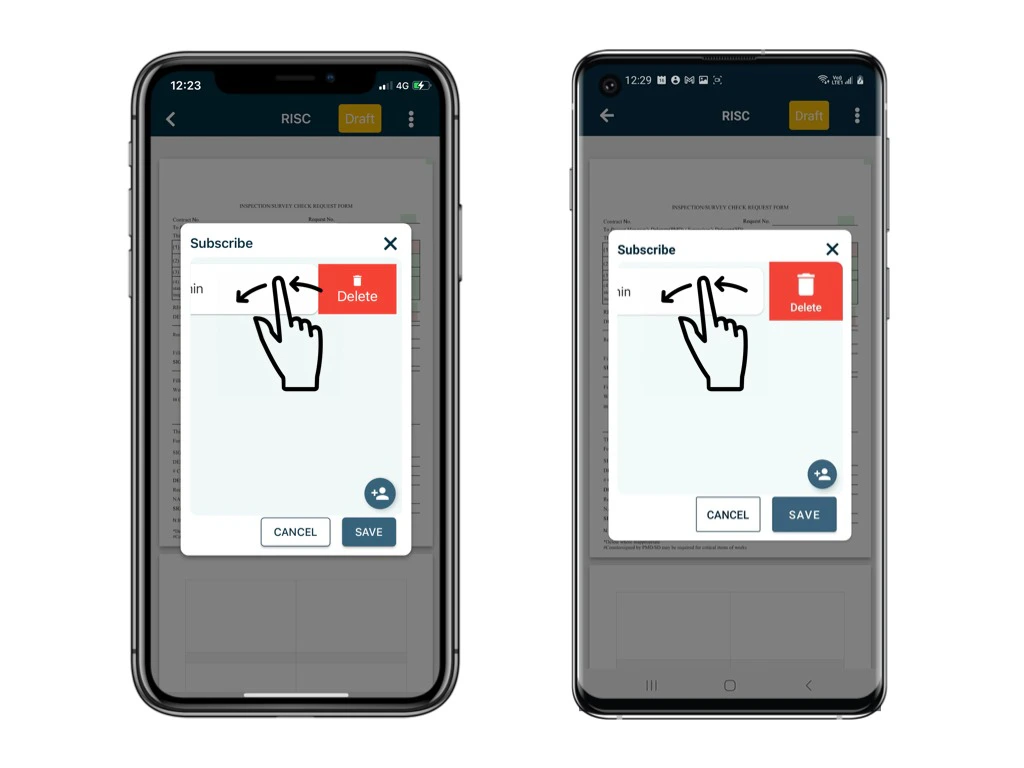
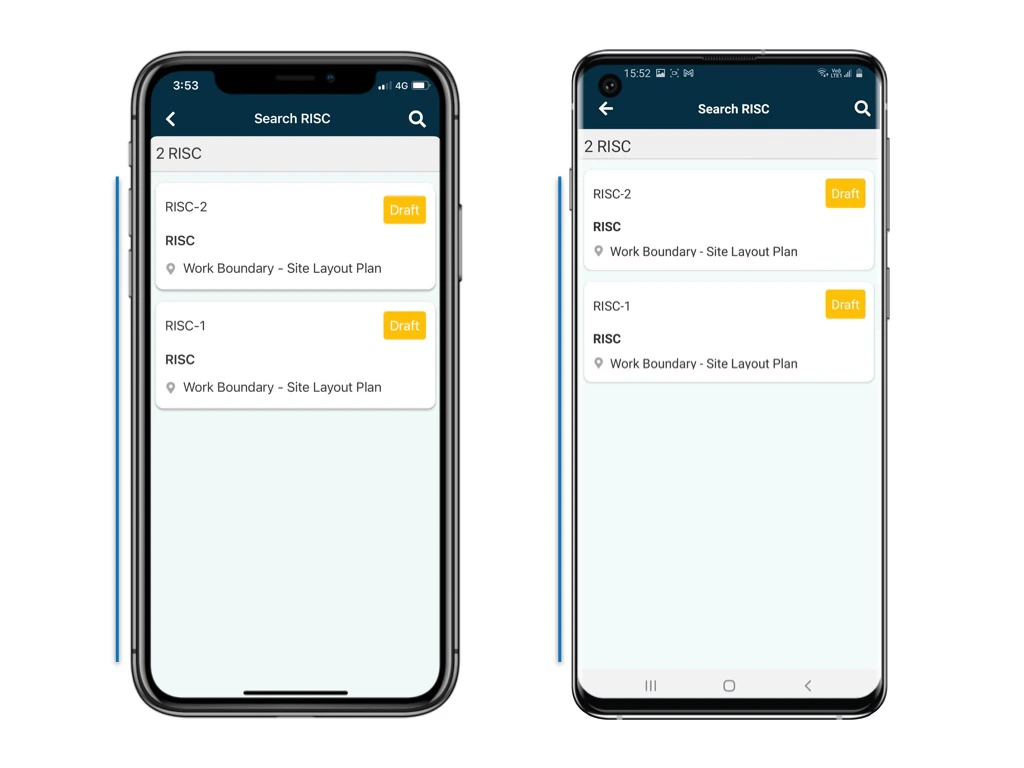
You can check the subscriber list to see who is watching a form. To add a new watcher and subscriber, follow these steps:- Open a form in the form viewer.
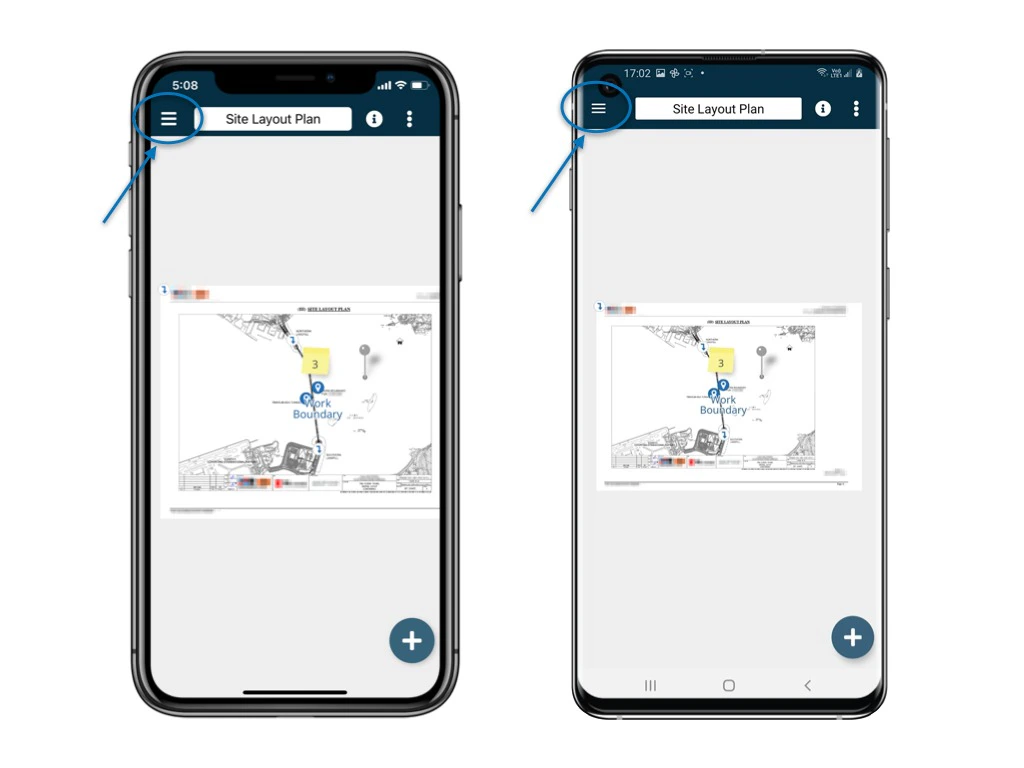
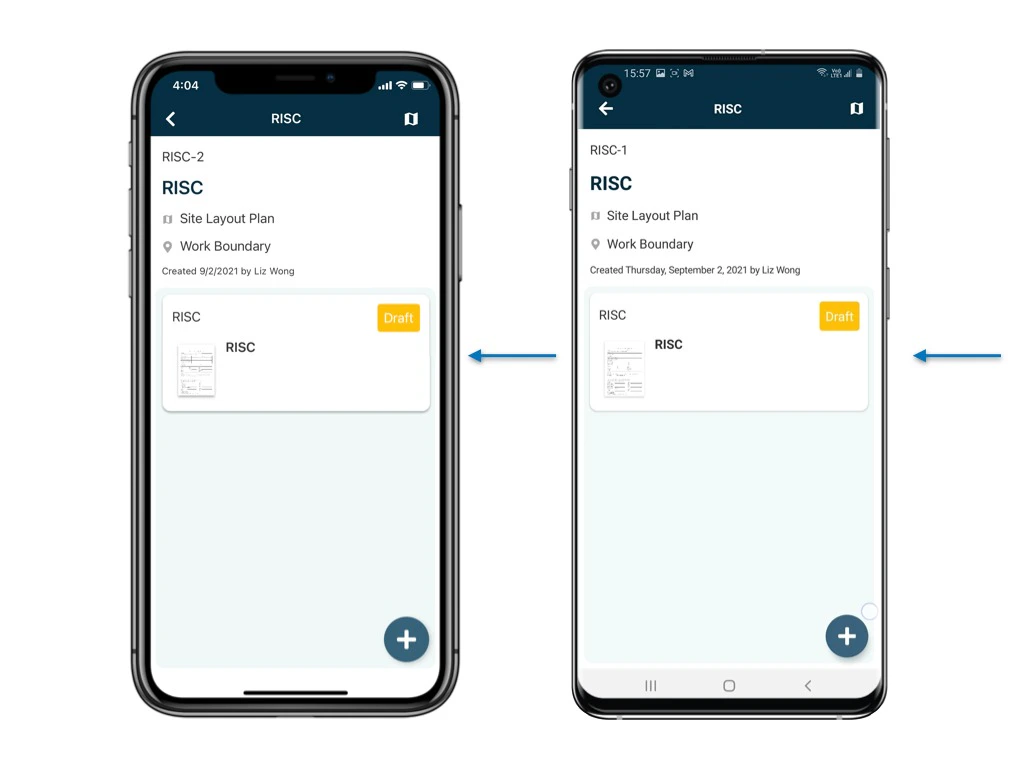
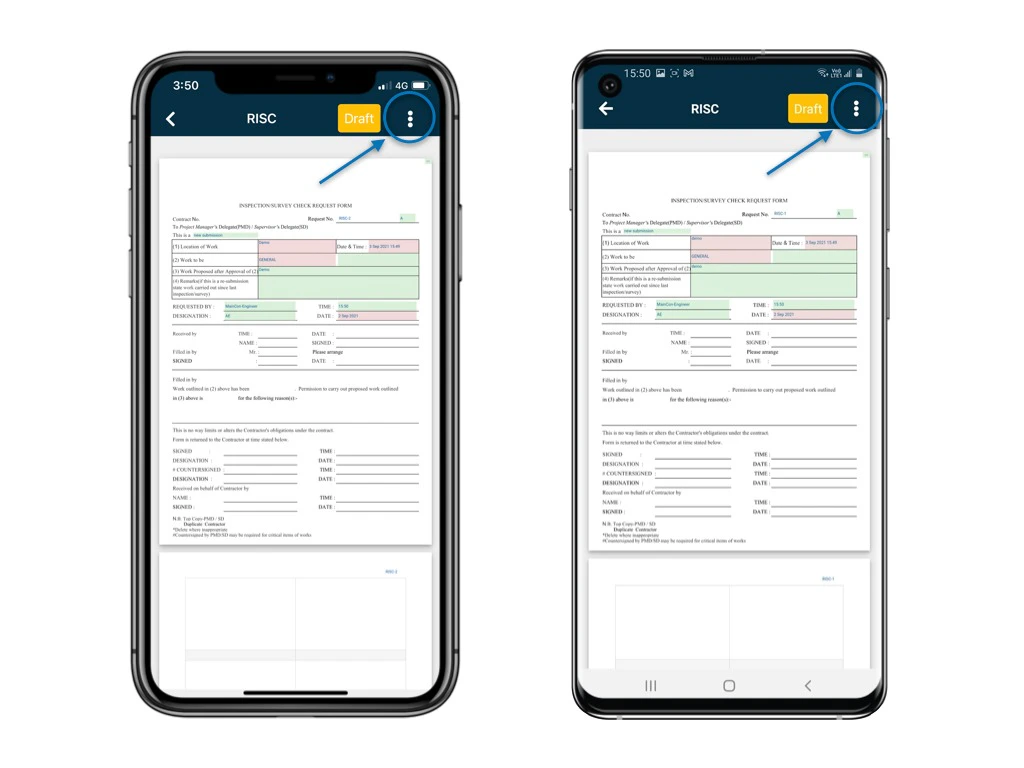
- Click the three dots (⋮) to access options.
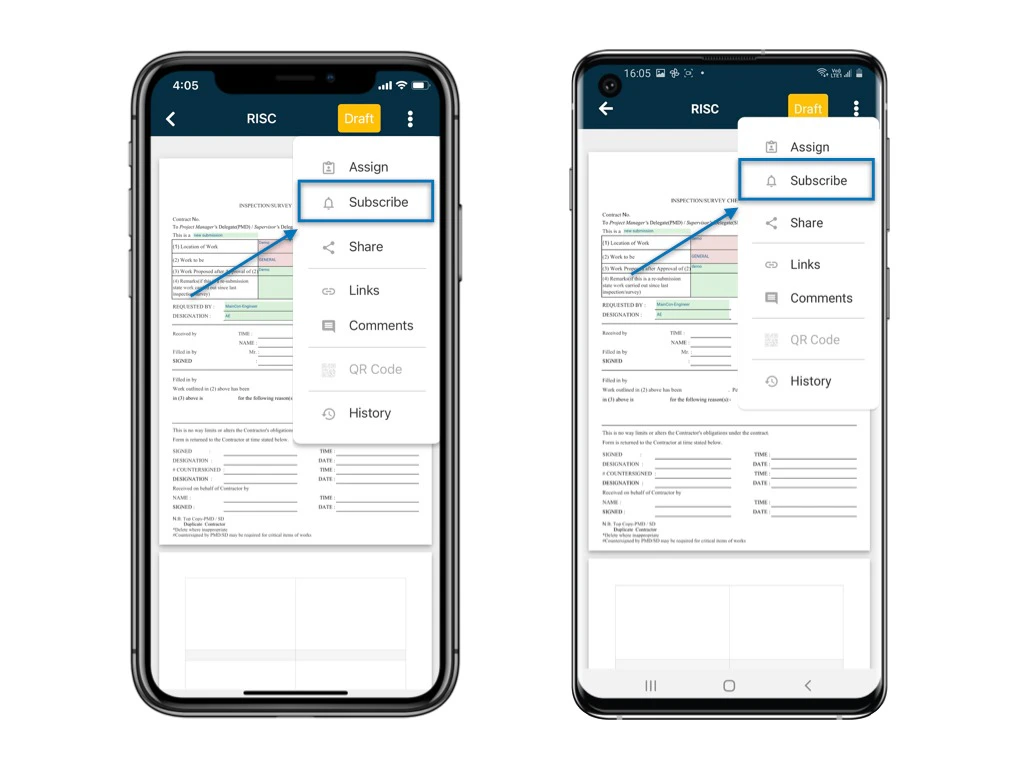
- Select “Subscribe”.
- The subscriber list will be displayed.
- Click the ”+” button to add a user as a subscriber.
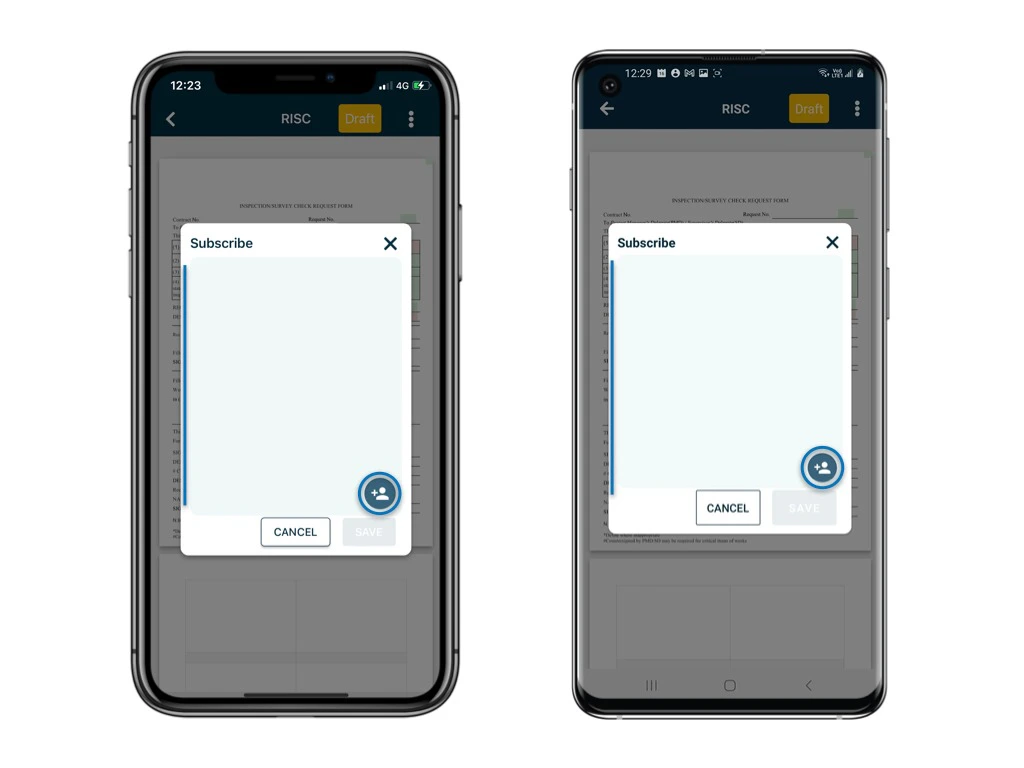
- Enter the user’s name in the search bar and select their name.
- Click “SAVE” to confirm.