
What is Computation?
Computation - is a field module to assist you in designing your template with “computed fields”. It can bring the ability to define fields on an object whose value is computed from the values of other fields. Most of the formulas in Excel apply to Computation in RDrive. E.g.: SUM, VLOOKUP, AVERAGE, LEN, IF, etc.How to set up the computation to an issue template?
First, you have to edit /create fields and assign field types to design the template layout in the issue wizard. ✨ Edit an issue/record template Tips: If you want the Output field uneditable manually, you may set the field type as “Read Only”.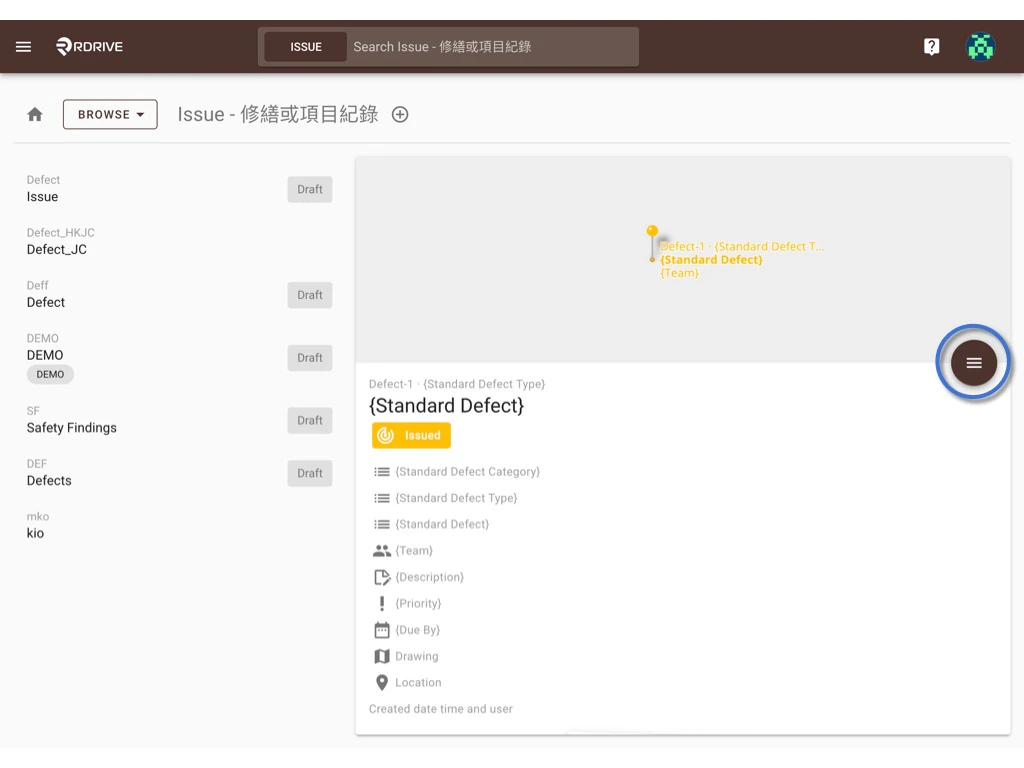
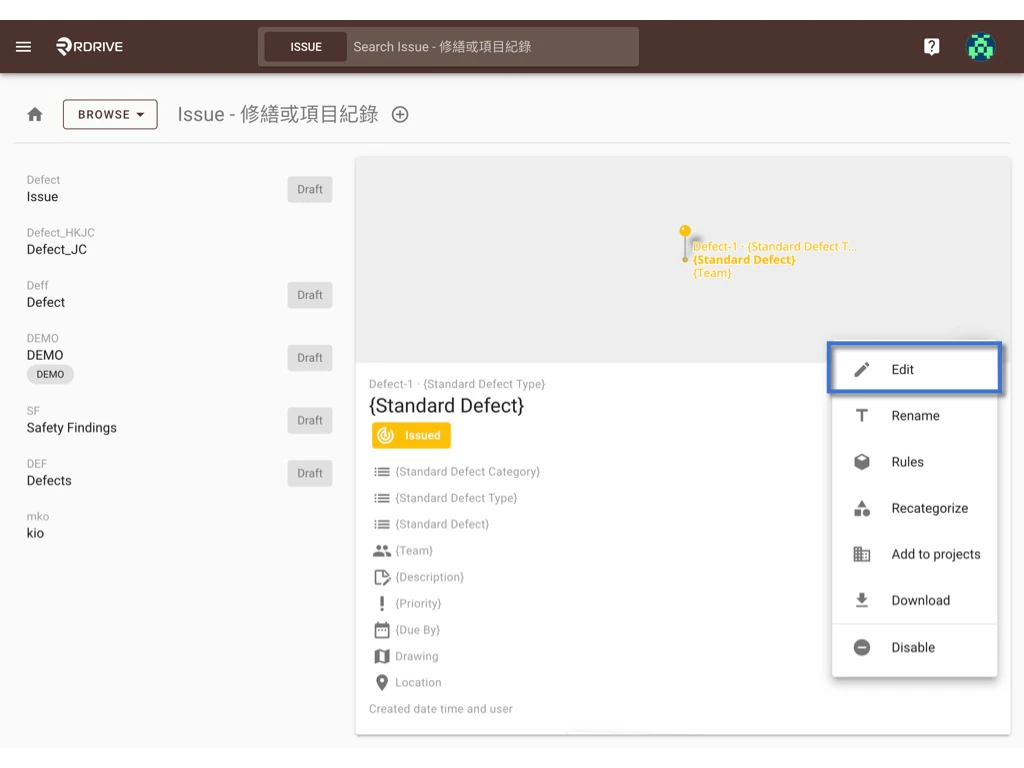
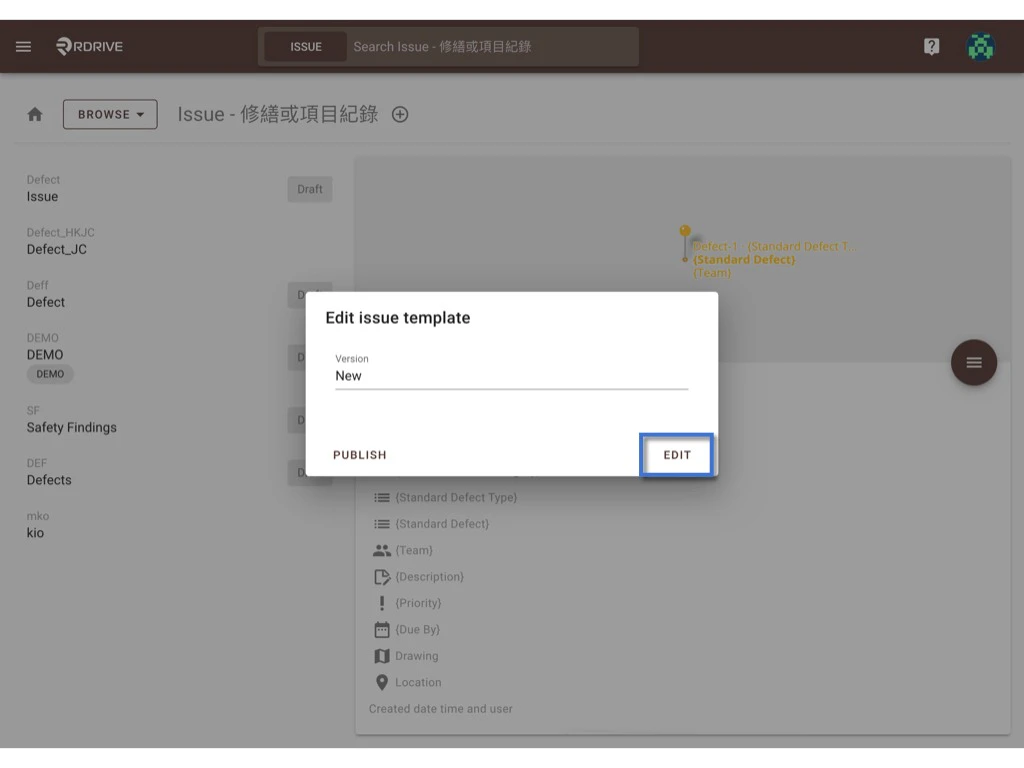
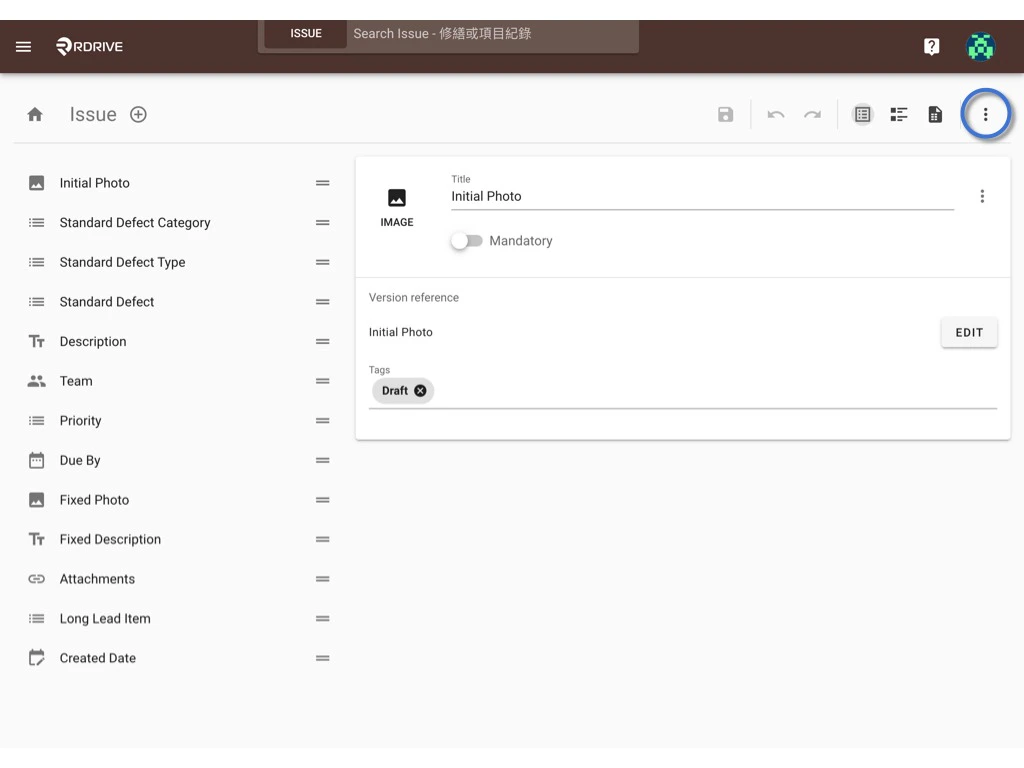
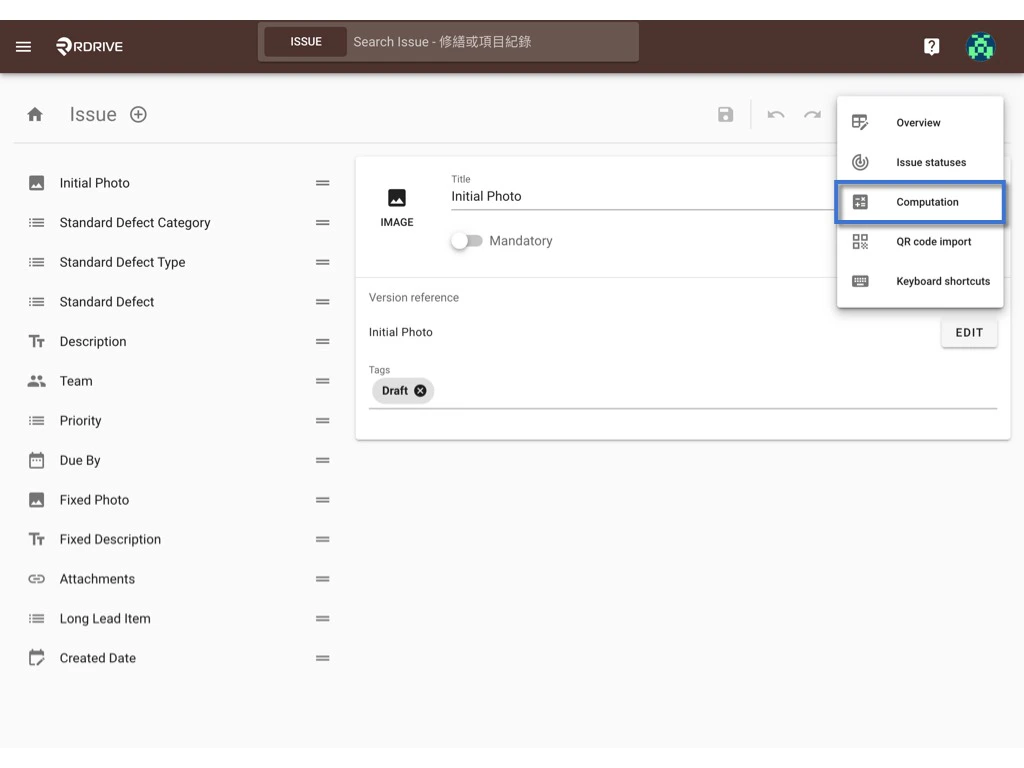
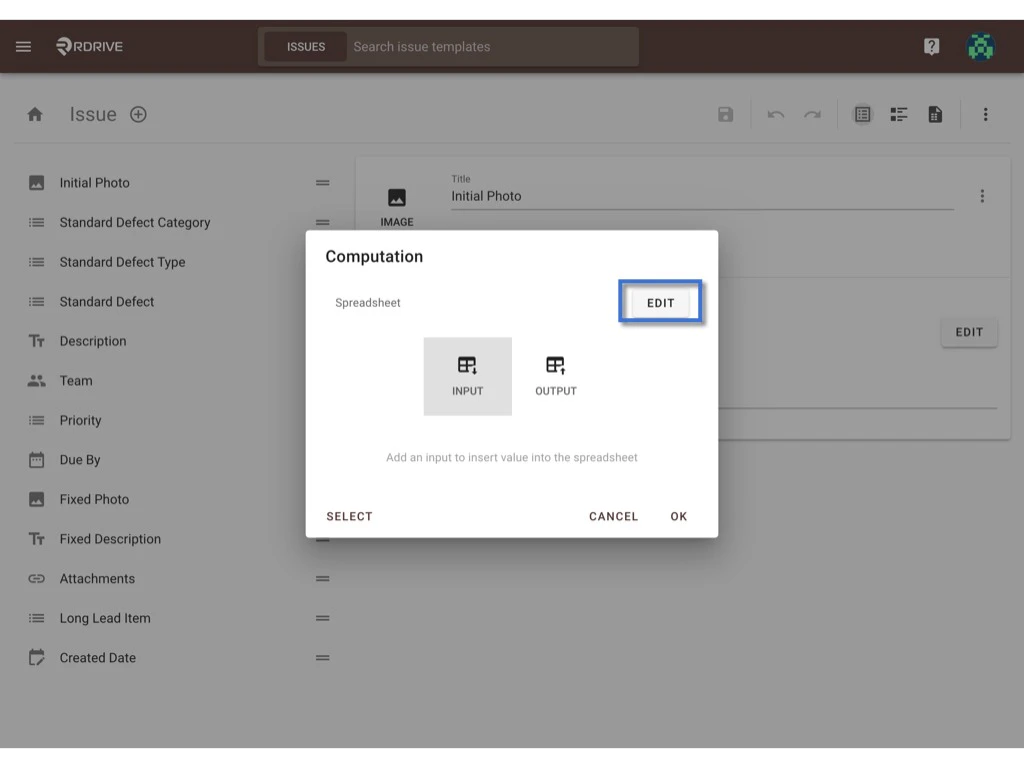
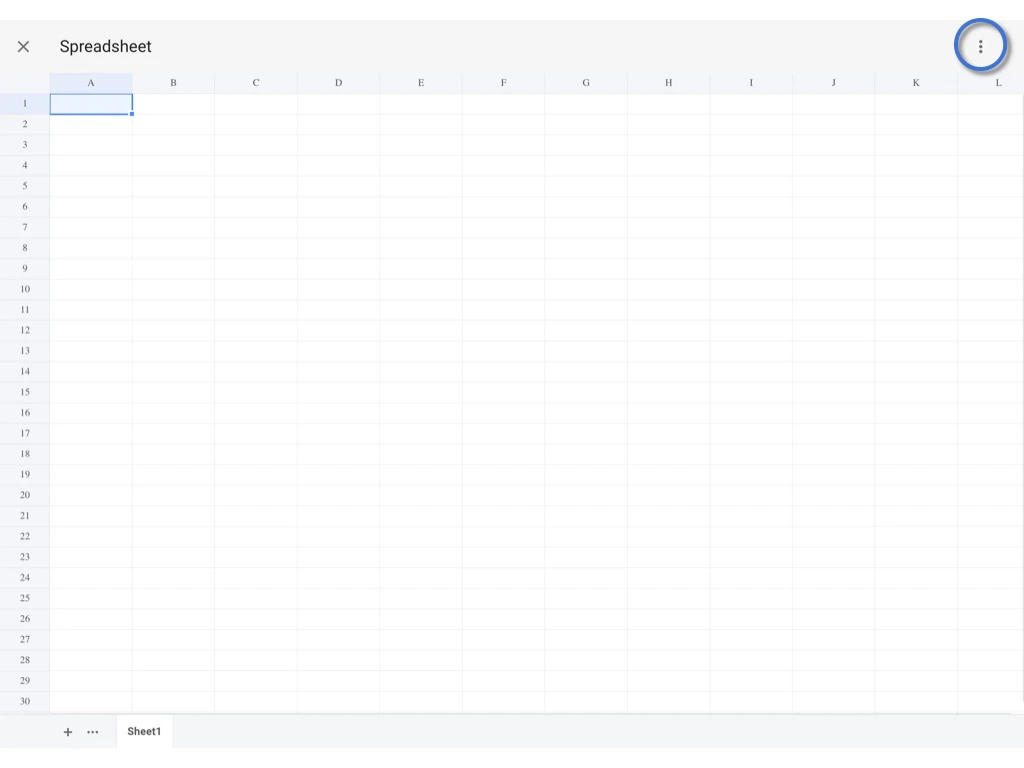
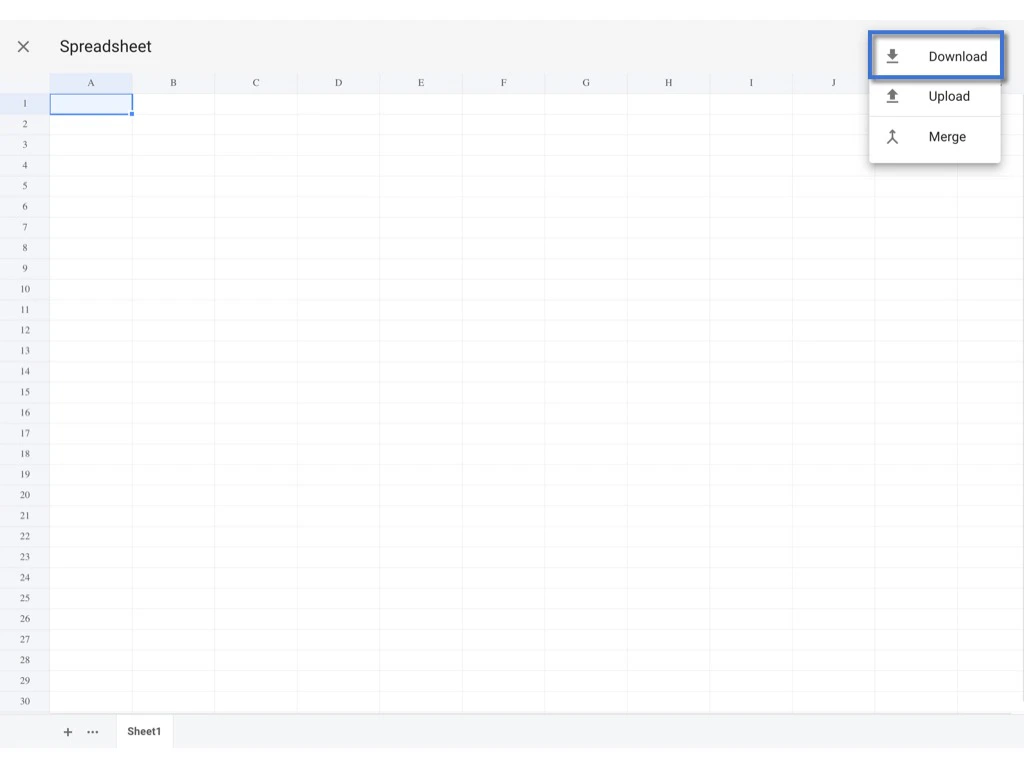
-
Open excel, design the input and output cell and enter the formula. Click here ? to download the excel for reference. Spreadsheets Size Limit: 100KB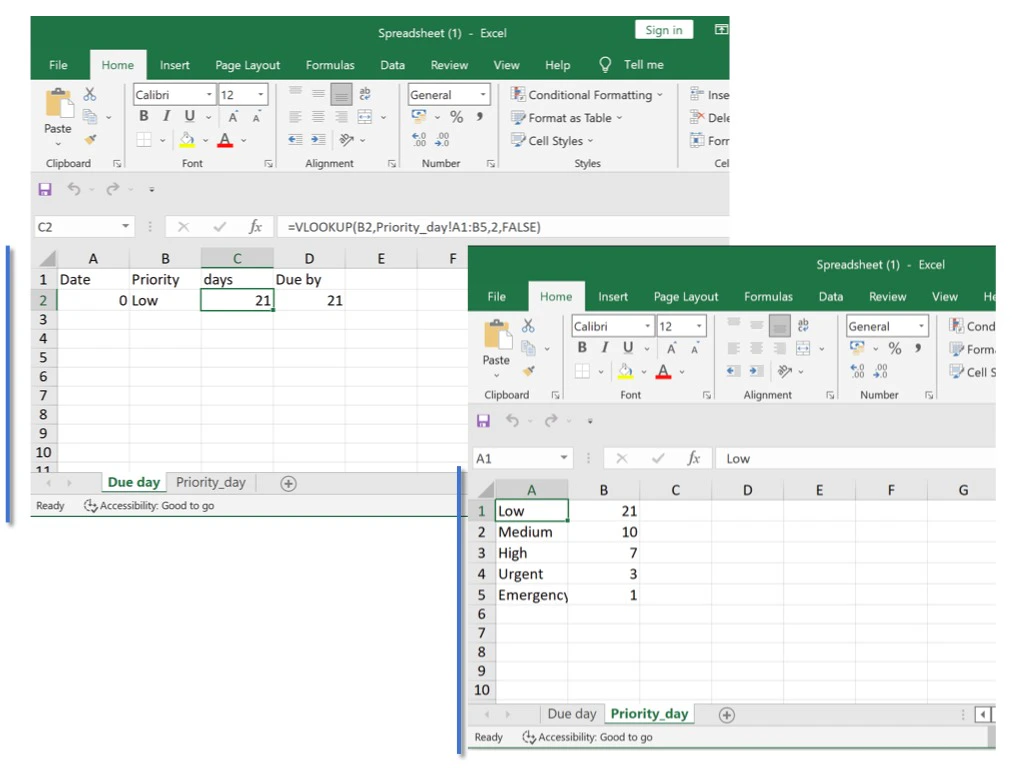
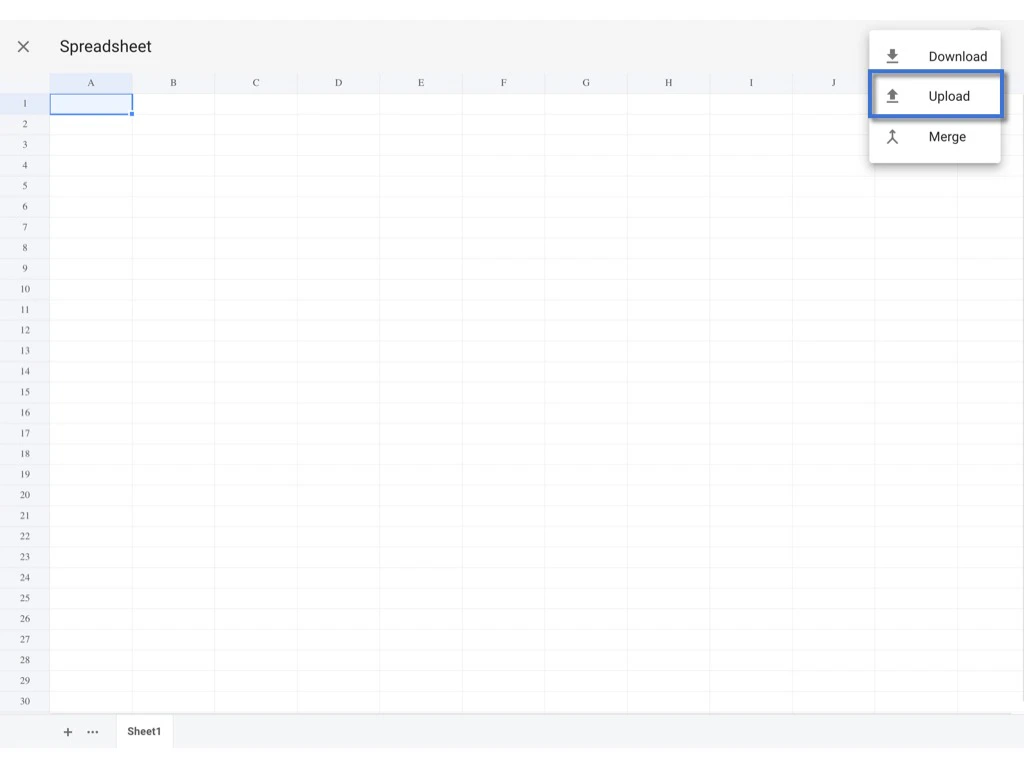
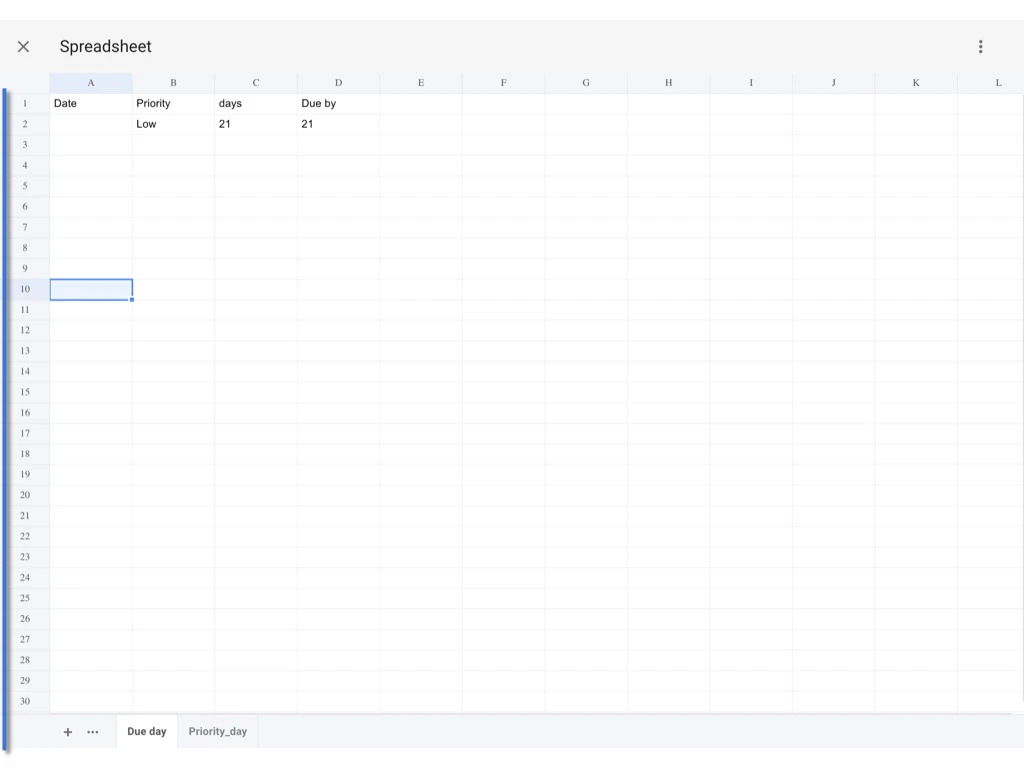
Assign value
INPUT & OUTPUT An input field can be any field type.An output field can be any field type except image, signature, team list, user list and dropdown list. Click SELECT to select fields from the form to assign the spreadsheet cells for the input value.
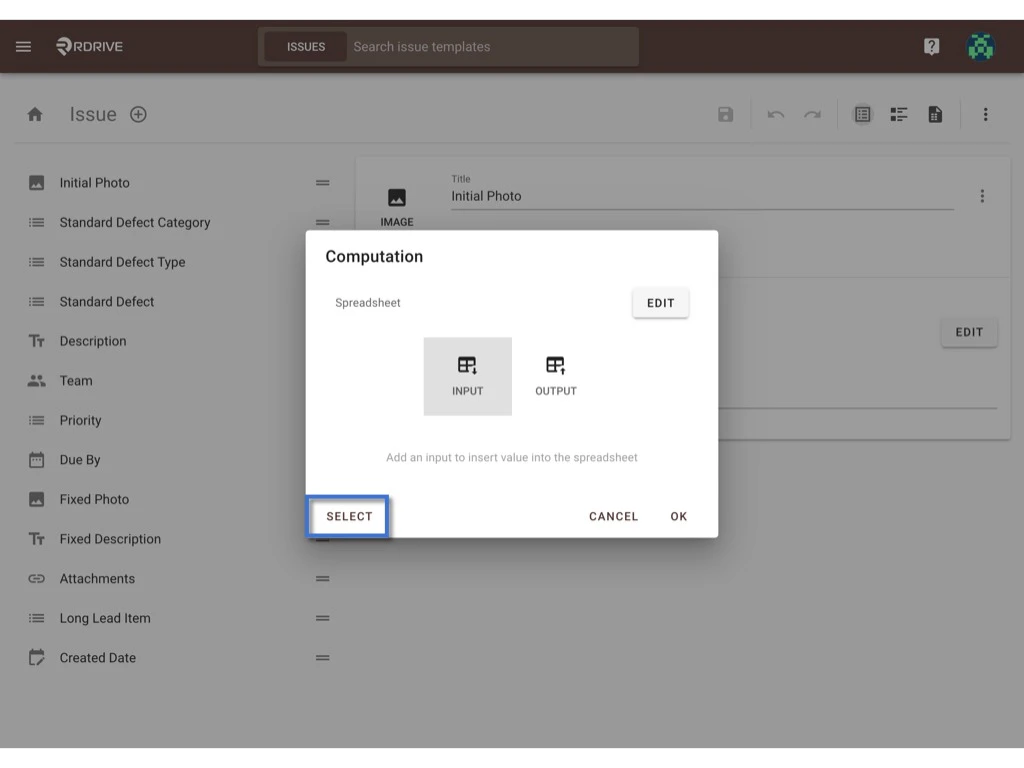
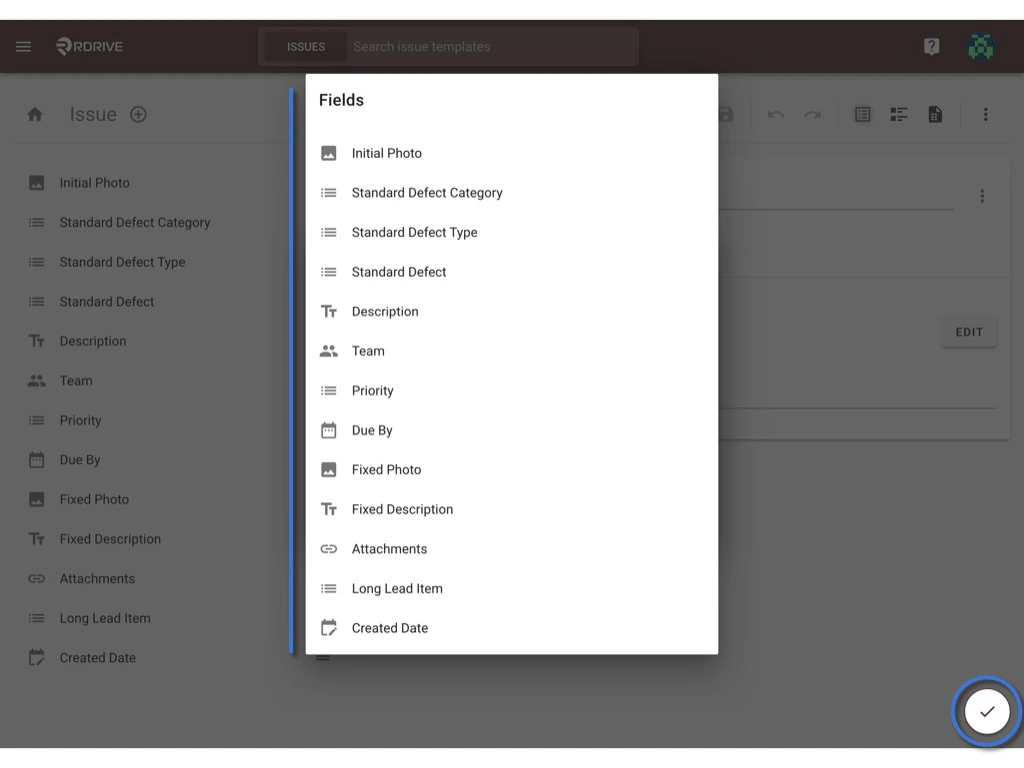
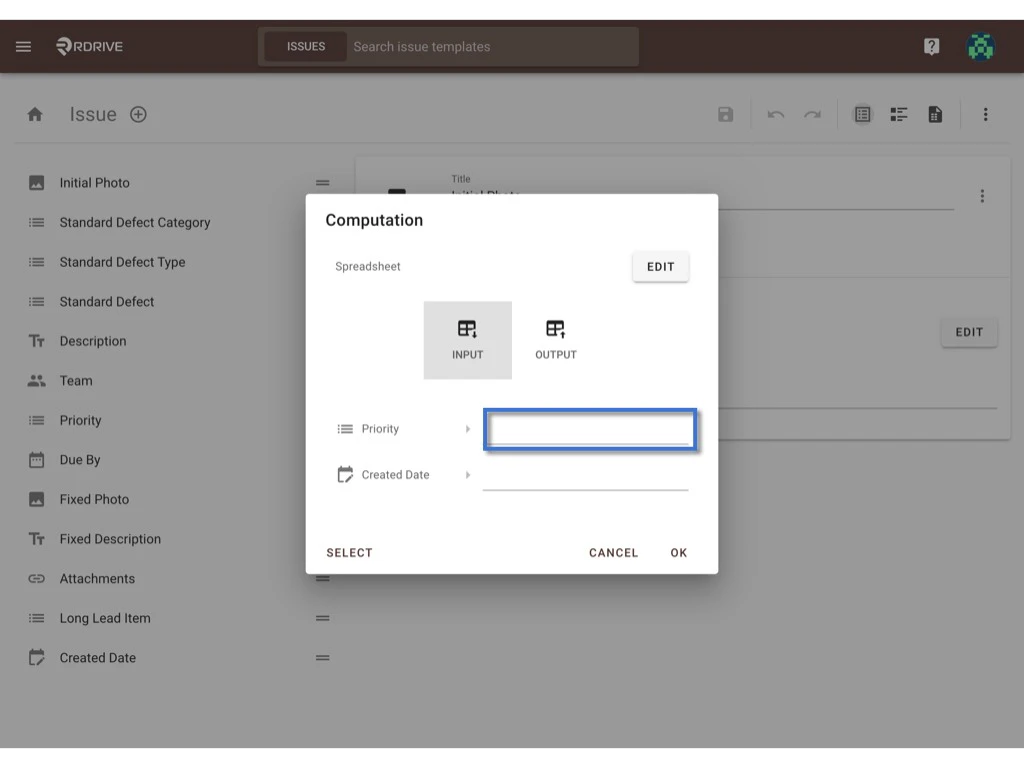
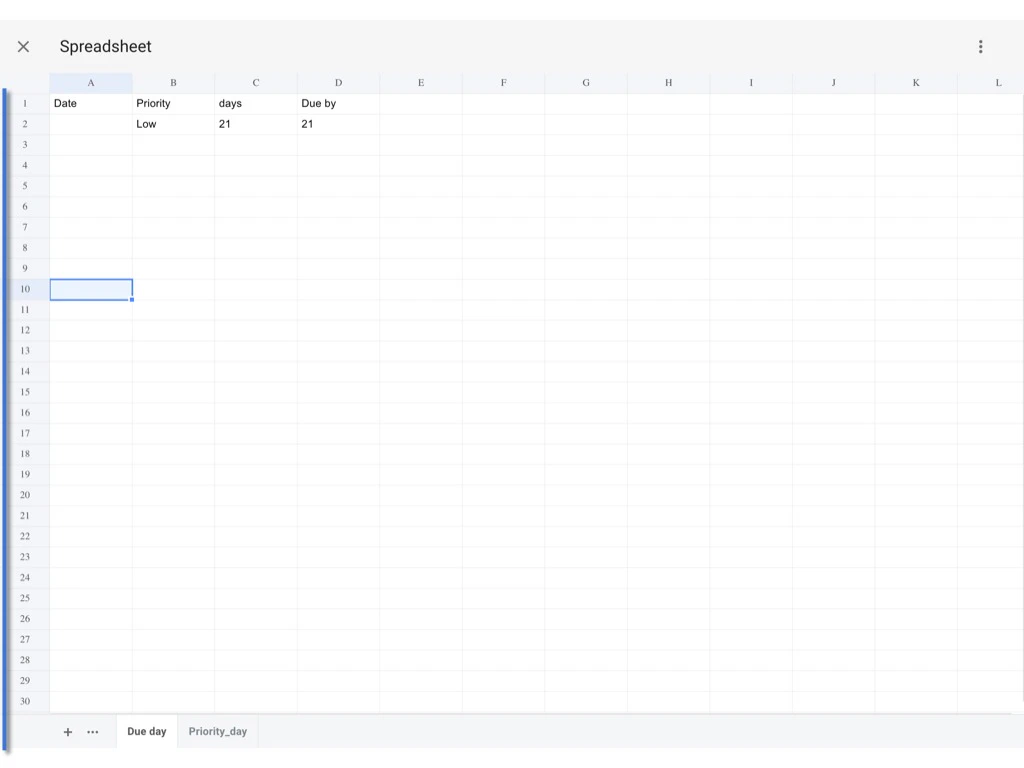
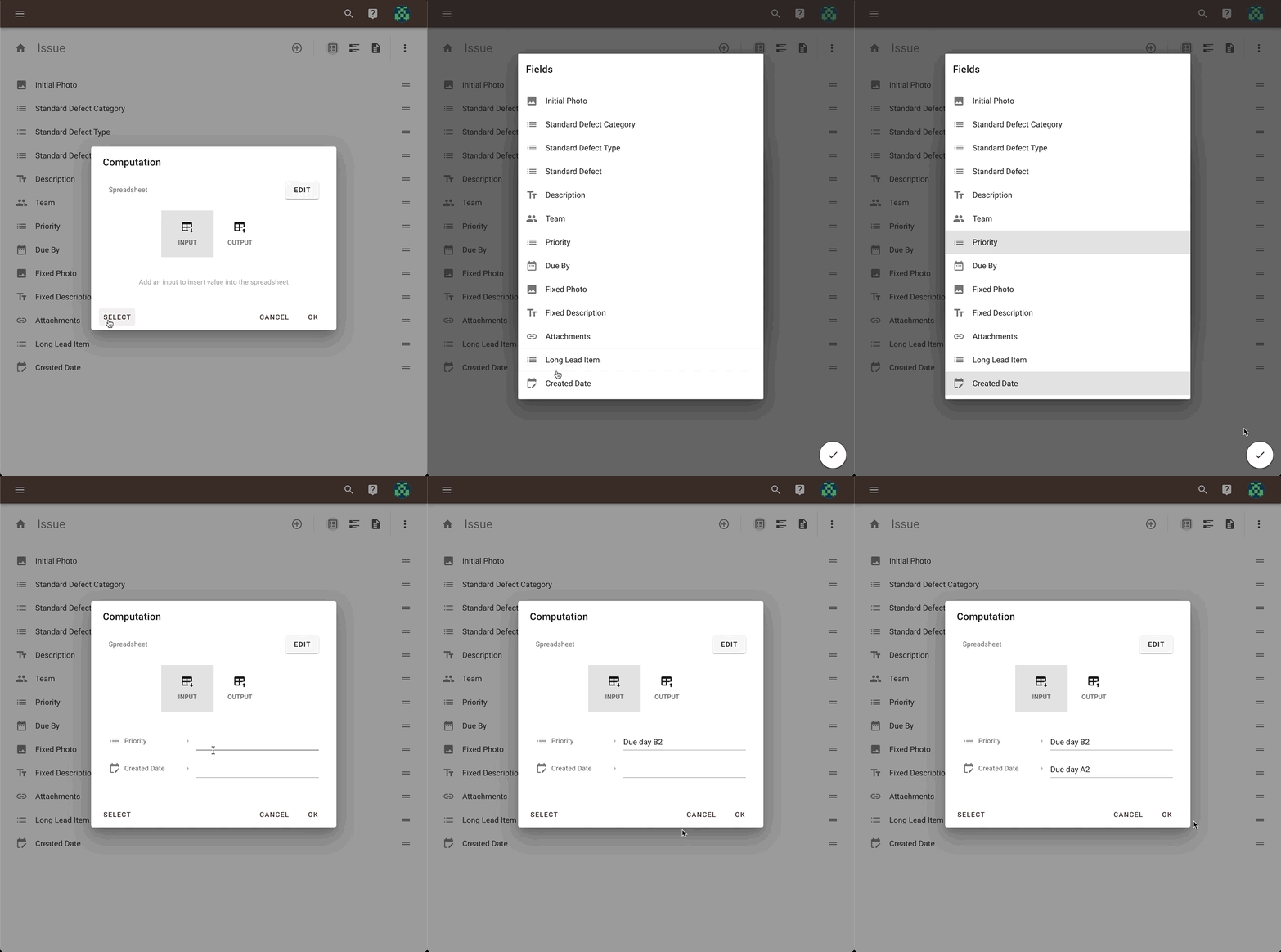
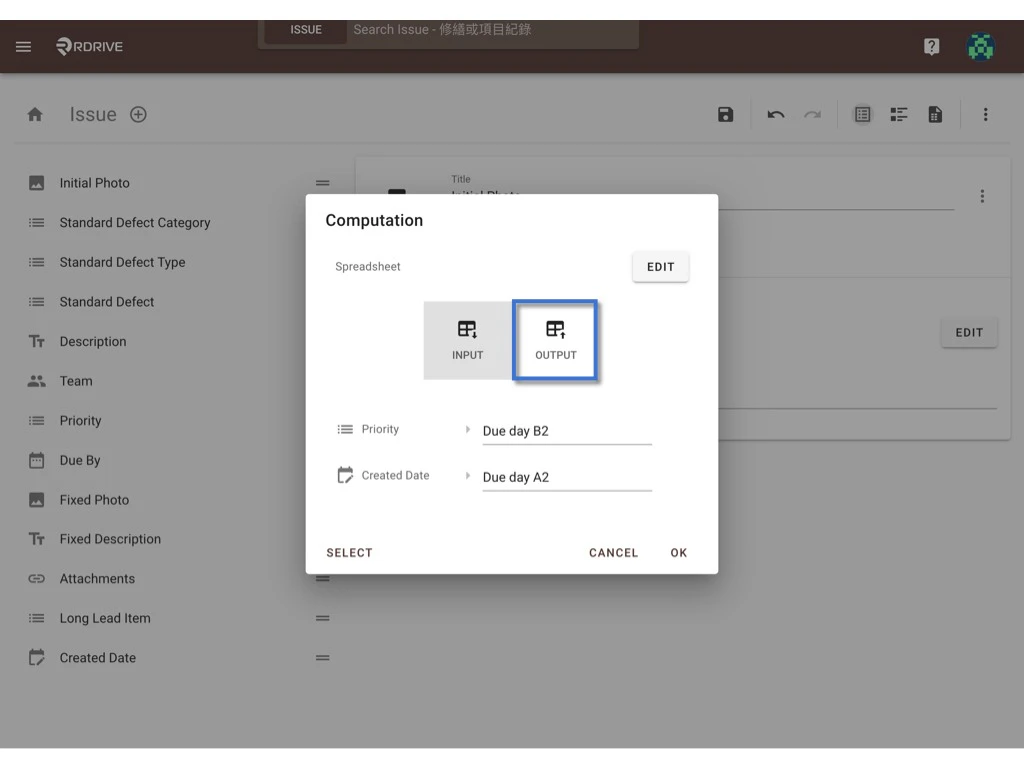
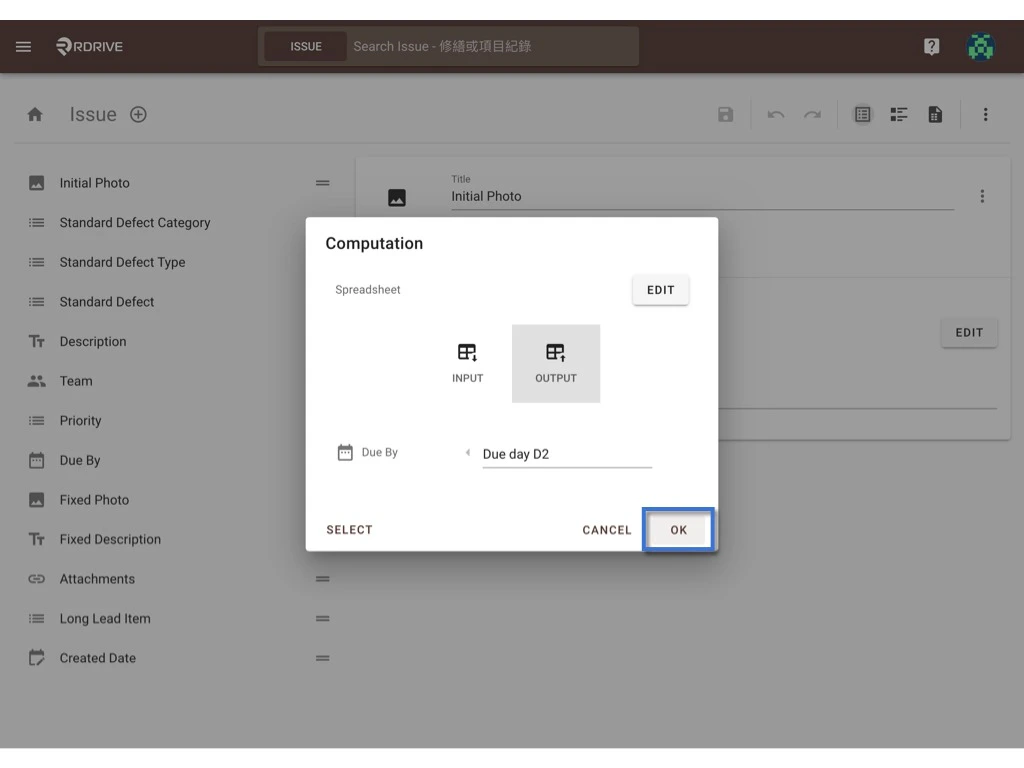
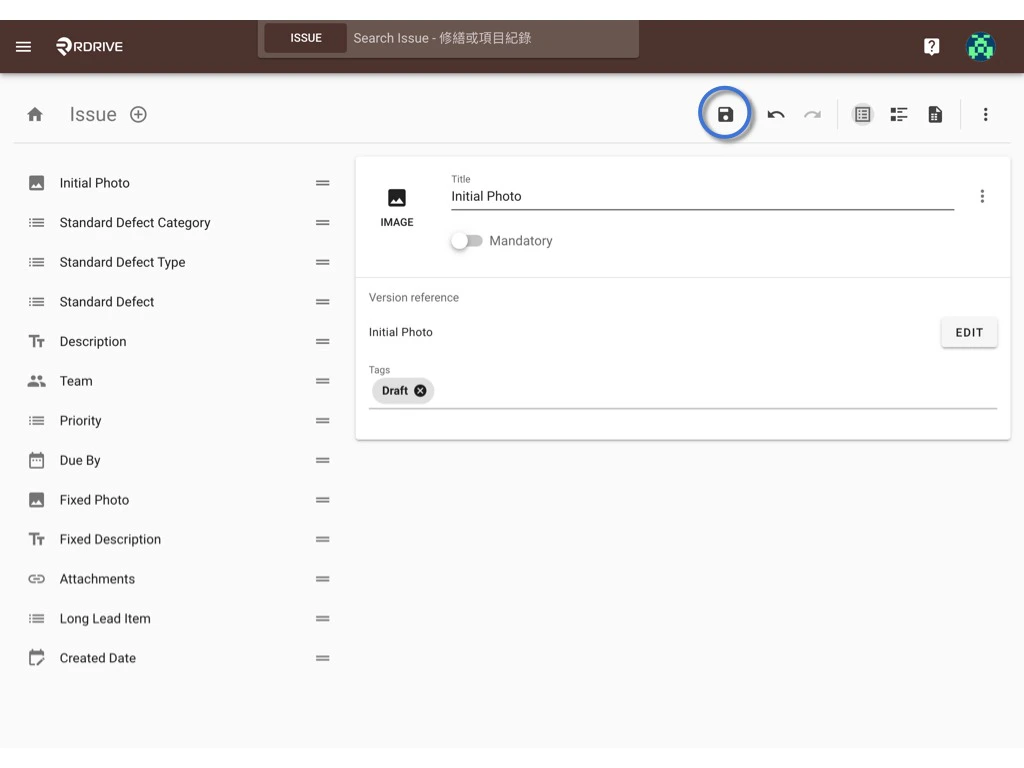
⭐️ Remember to PUBLISH the template after changed!!
Below is an example of the computed field behaviour for your information. The value of the “Due By” date is updated by the selection of “Priority”.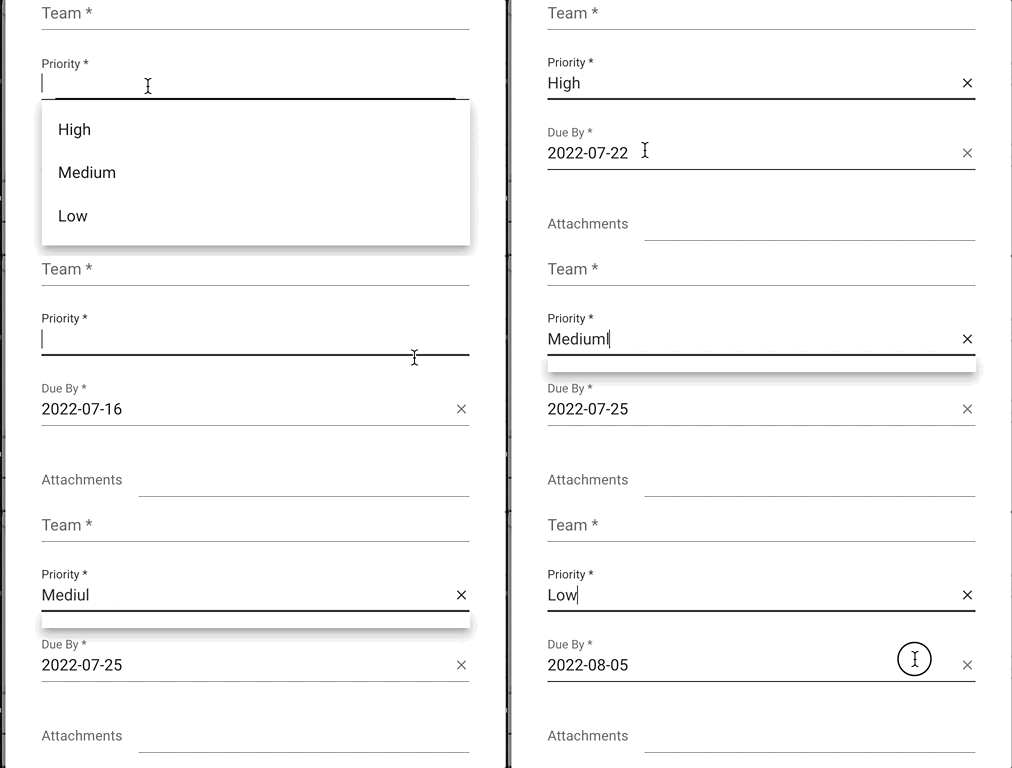
? What if the priority day needs to be project specific?
The spreadsheet is able to edit on the project level!! Click here to continue to see how.If you are interested in how to setup up computation on the process template, click here.