- Create fields (i.e., an area to fill in data) Form template Issue template
- Name field and assign the data type✨✨
Field title
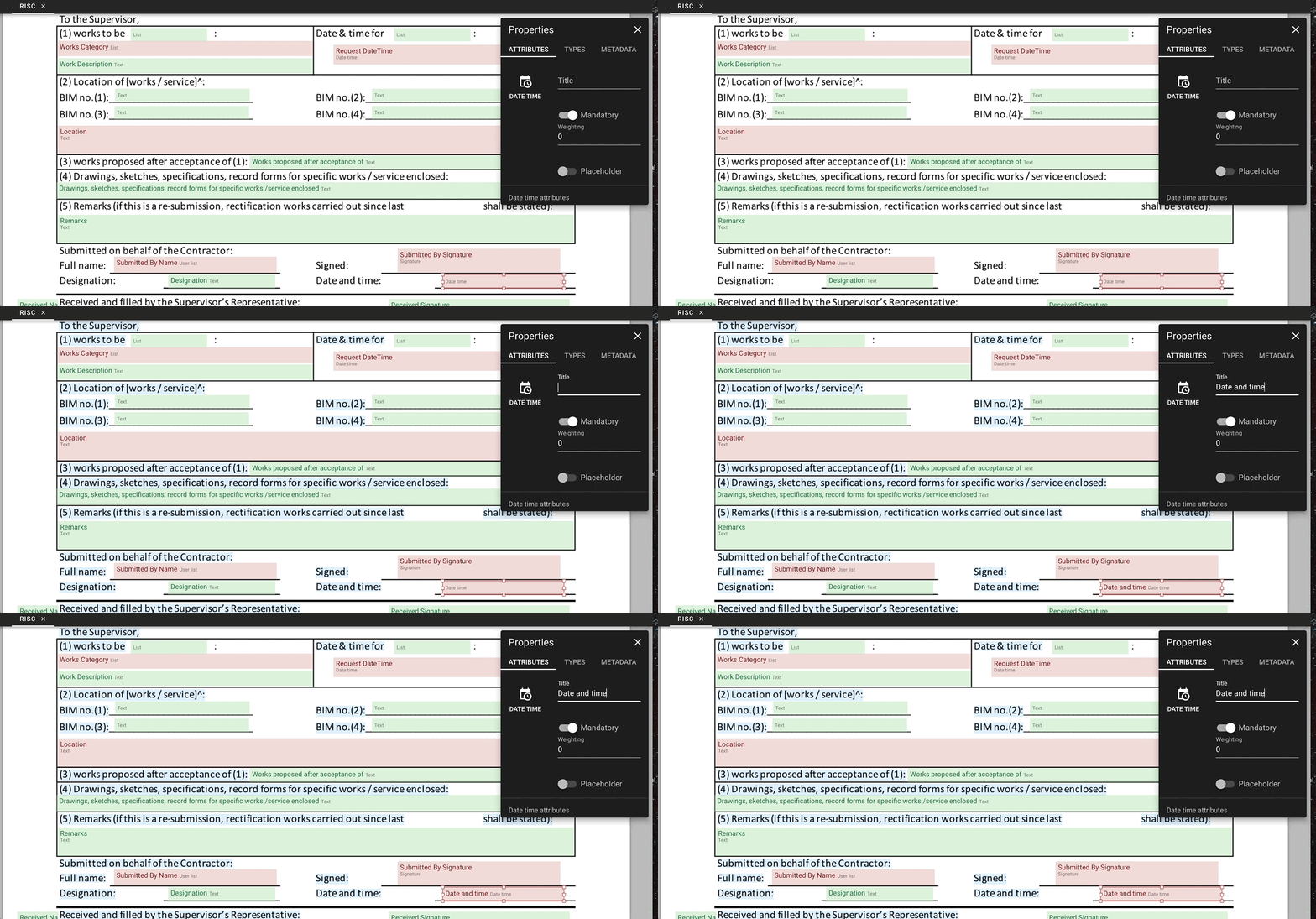
Naming the field can help to identify it when we search, input and extract data. It is useful for the dashboard, the criteria “DATA” on the searching engine and on the list view mode etc.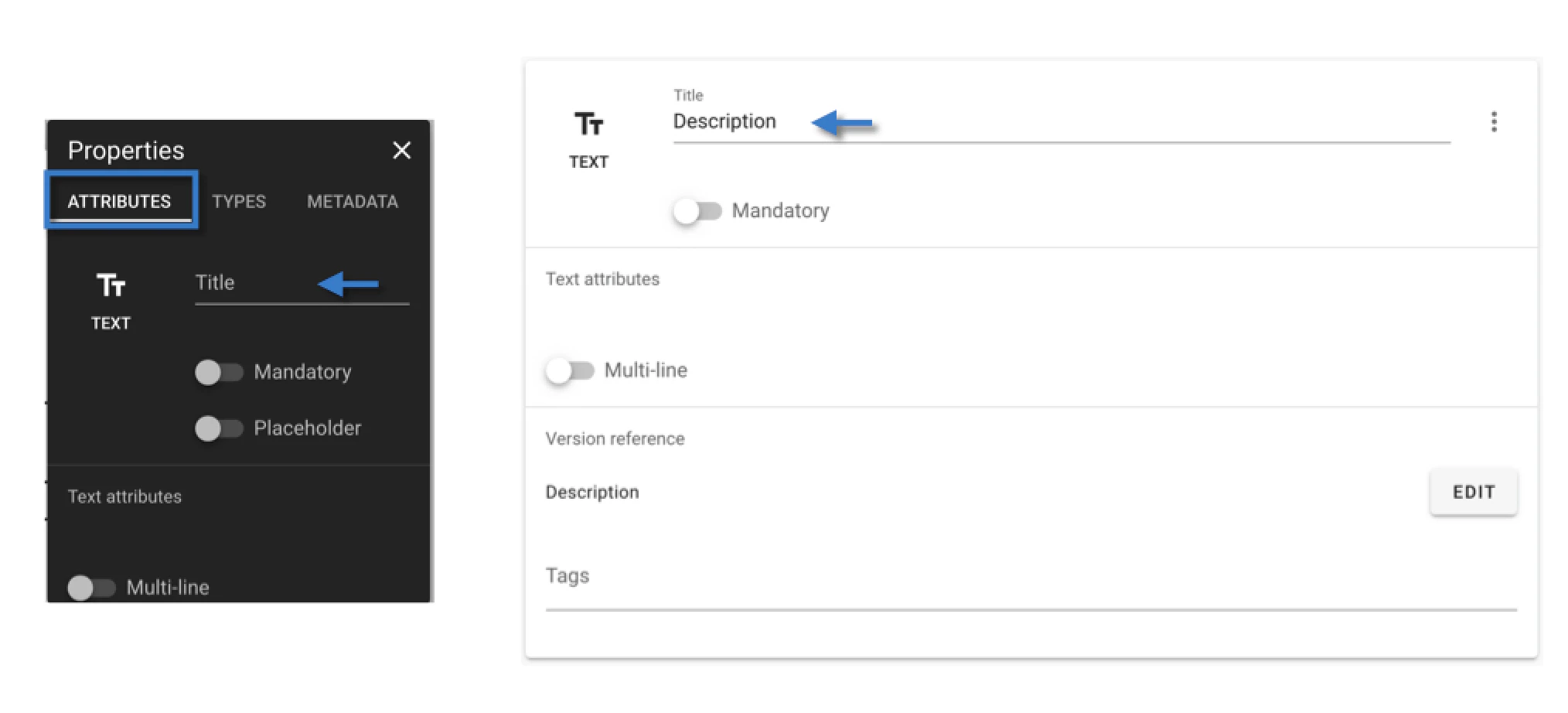
The OCR is work by the form language.
Data type & Data attributes
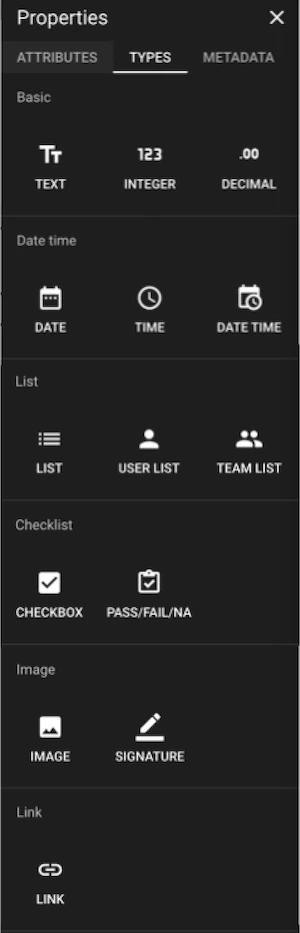
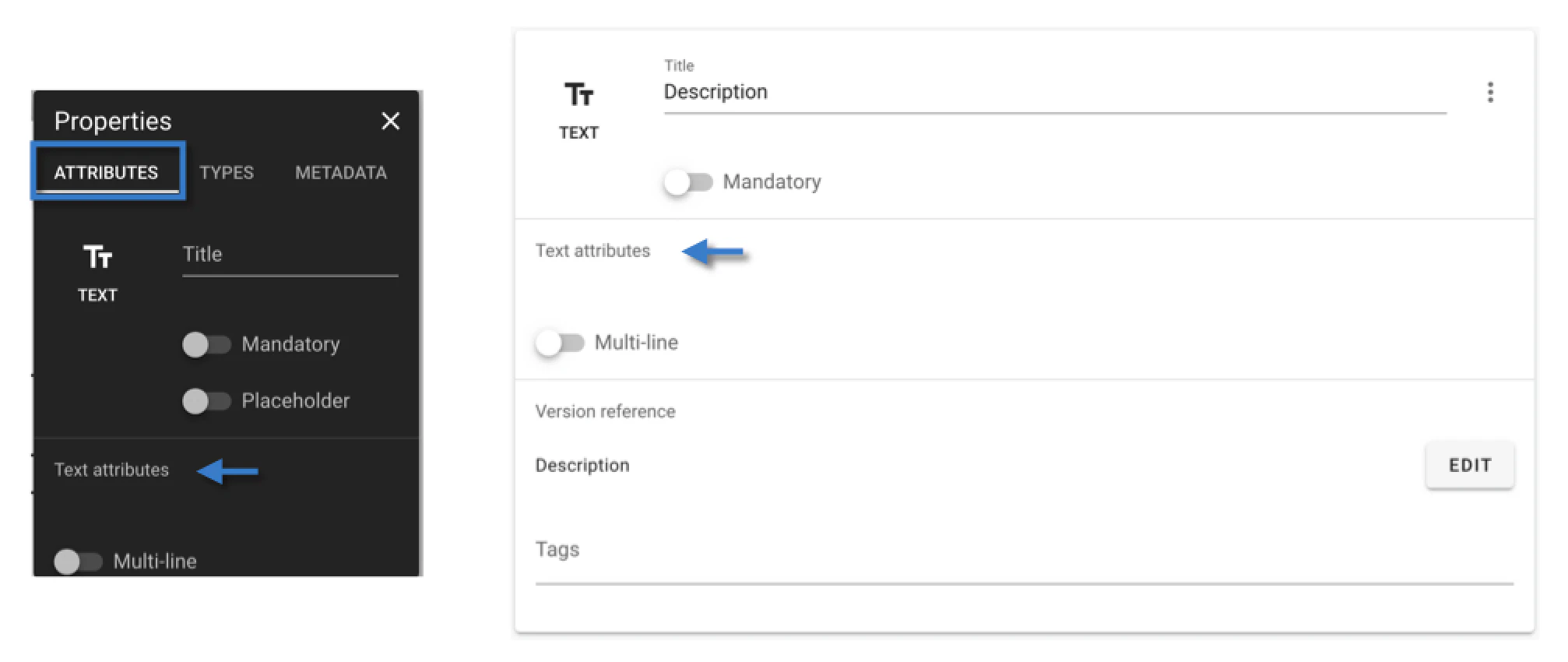
Based on the data type to set up the field can help you to collect the data in the correct format. Here are the data types available:-
Basic -
- Text
- Integer
- Decimal
-
Date time% -
- Date
- Time
- DateTime
-
List -
- List
- Users List#
- Team List#
-
Checklist -
- Checkbox*
- Pass/Fail/NA
-
Image -
- Image
- Signature
- Link@
%
DateTime - The date and time format selection will be different depending on your account language.User/Team list - The users/team who have the permission of access to the project will be listed for selection. The selected would be able to have functioned by the assignment rule to trigger notifications.
*
Checkbox - If you want to restrict the user to select one option among n number of options, you can set this up: select the fields, change the datatype to checkbox, right-click and select Link. To unlink, select the fields, right-click and select Unlink. If the fields do not have checkbox as datatype, you will not see link or unlink when you right-click at the field.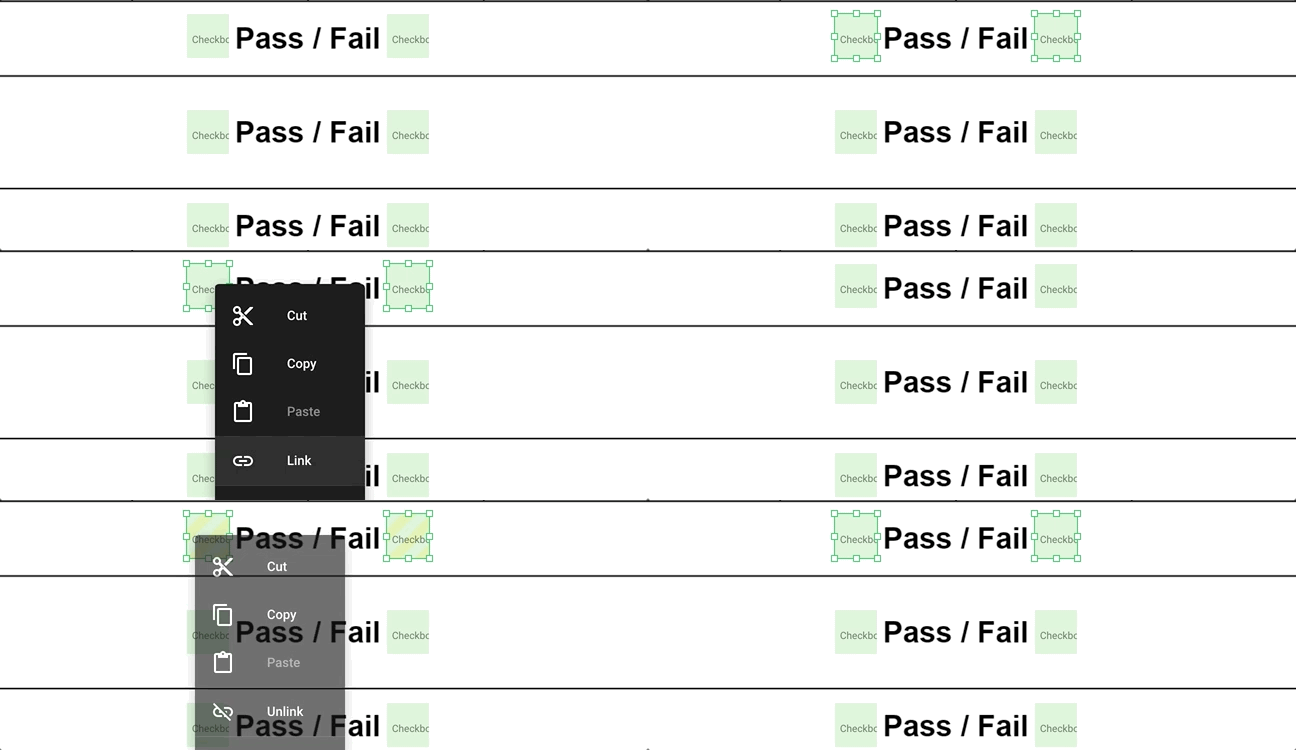
@
Link - At the link attributes, you decide what do you want to link with by this field, link items(issue&process) or link documents or both. And you may select the link format, which can display as a quantity of the items in a combined or separate format, or Blank, not showing any data on the form/issue.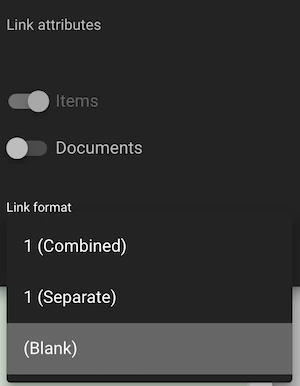
Can some data be automatically filled in?
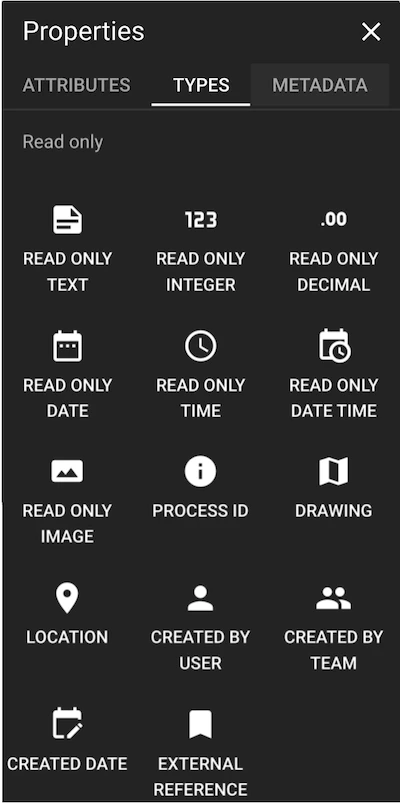
Yes, you can set up read only fields. Once the form is created, the data will be automatically generated and displayed on the form. User cannot edit the read only fields:
- Read only Text (Preset Text)*
- Read only Integer*
- Read only Decimal*
- Read only Date*
- Read only Time*
- Read only DateTime*
- Read only Image (Preset Image)
- Process ID
- Drawing title (of where the form is created)
- Location title (of where the form is created)
- Created by User# (of whom created the form)
- Created by Team# (of whom created the form)
- Created Date (of when the form is created)
- External reference
Make field mandatory (Optional)
At Properties, if you enable a field to be mandatory: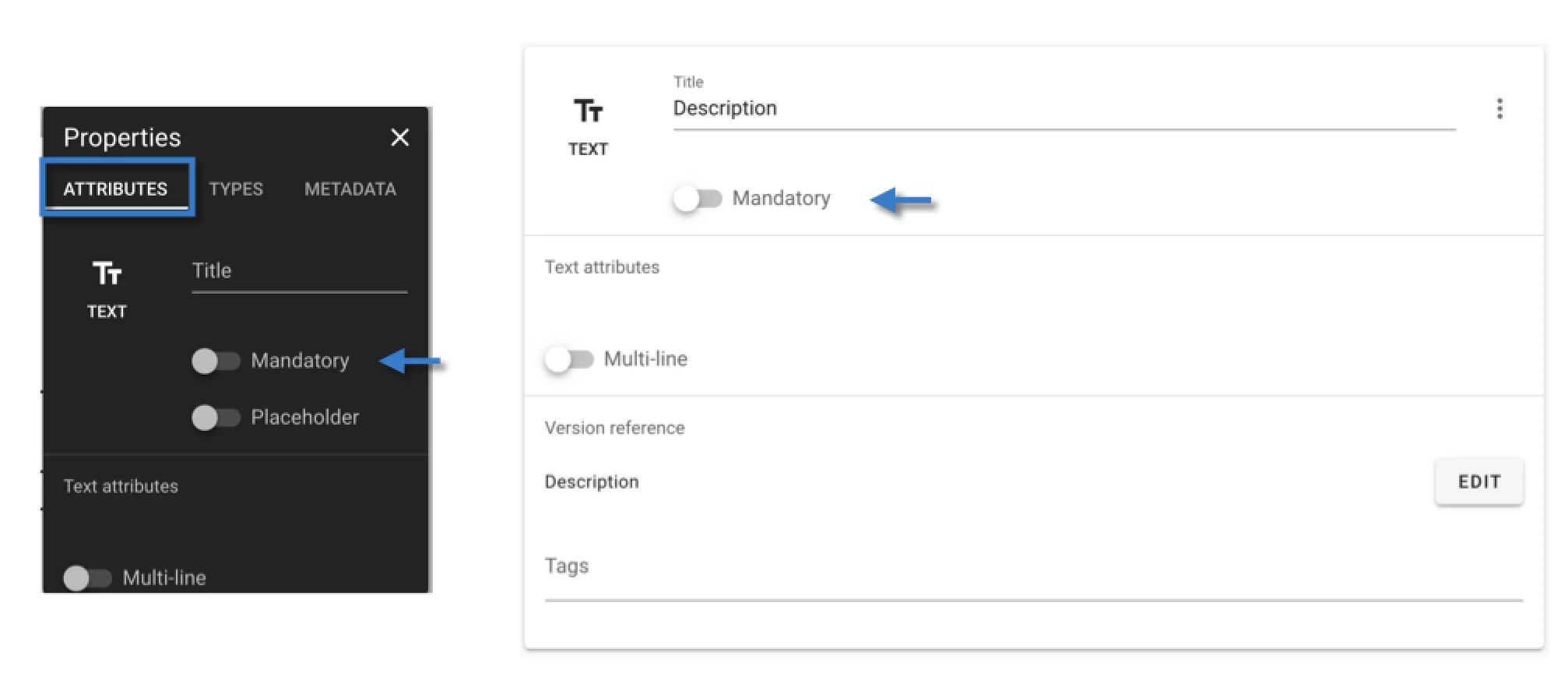
pink; on the list view, will have a * at the title of the mandatory field;
- RDrive alert users if they change the status of the form without filling out mandatory fields
- RDrive calculates the percentage complete of the form based on the weighting given to each mandatory field
If you have two mandatory fields, and the weighting is 1 for each field, the total value will be 2. If one field is completed and another is not, the completion percentage will be 50% (1/2).
Tag(s)
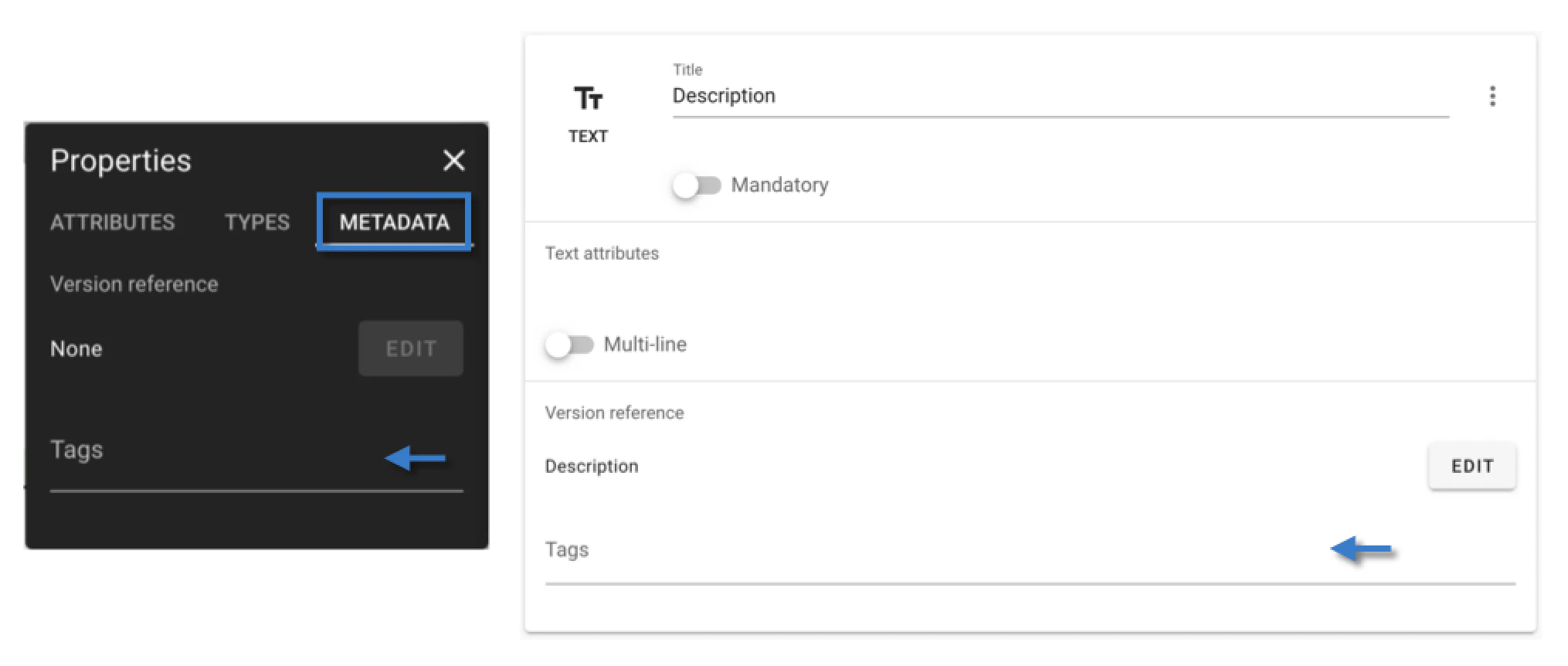
You may add/remove the field tag from the metadata area as below.Check here to know more about tag.