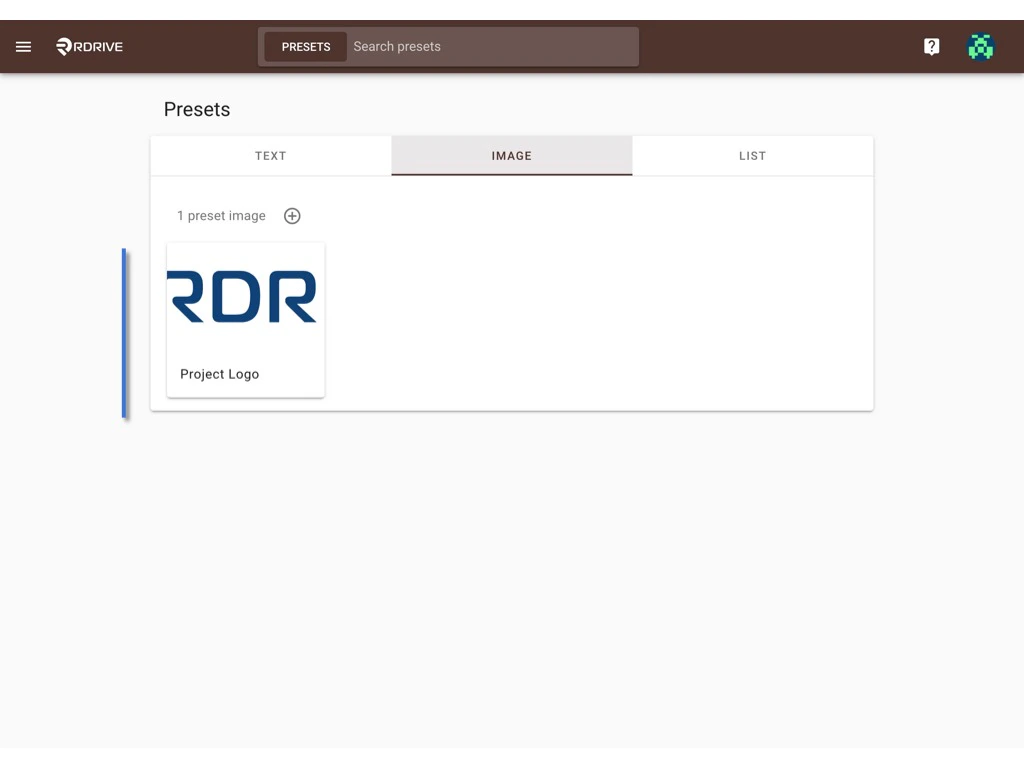
Changing the preset value at the company level
This will affects the preset value which is in default and the new projects that will be created in the future.
New projects will adopt these values for their presets.
This does not affect any preset values in any existing projects if have a project-specify value.
If, the preset value has been changed as the project specified - Project specify values will retain;
If, the preset value wasn’t edited by the project specify - Values will change with the company level.
How
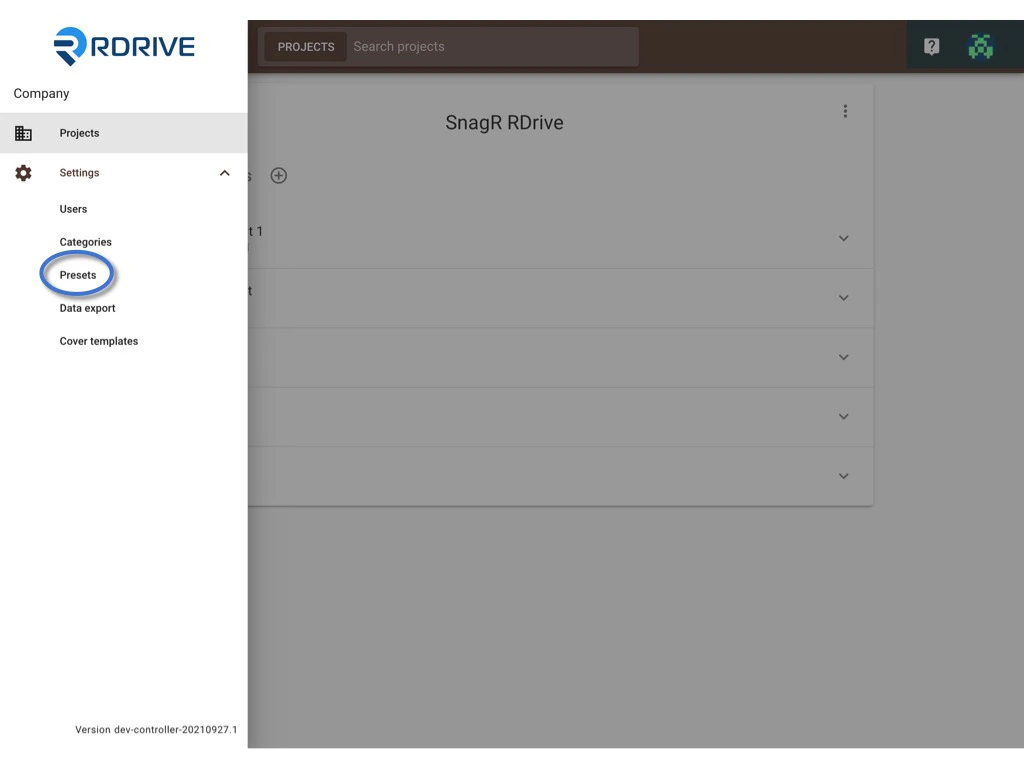
First, log in to the Company Area. Only the company admin can access this page. Click Settings and select Presets. From here, you can ✚ add new or ✏️ edit preset image.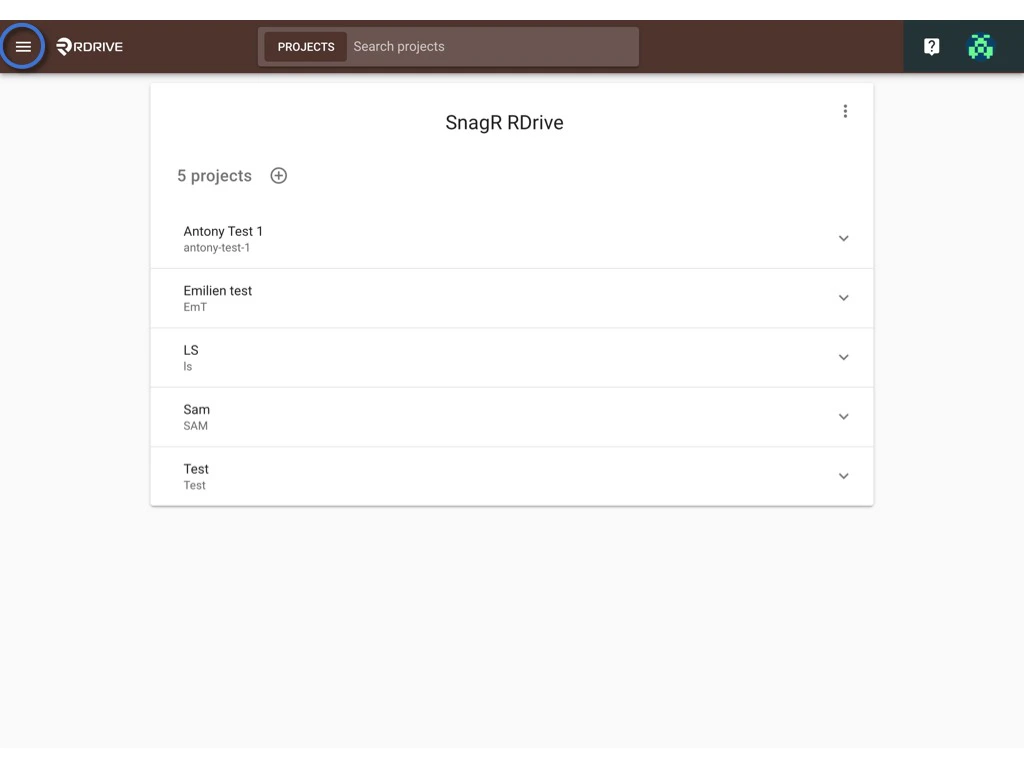
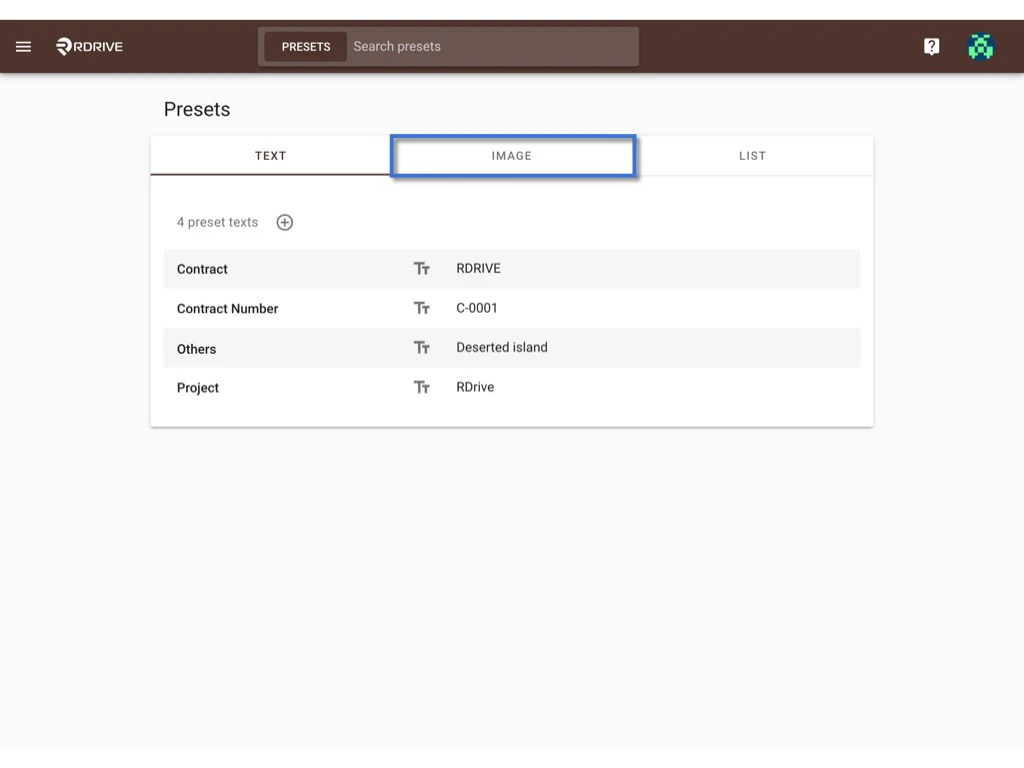
ADD
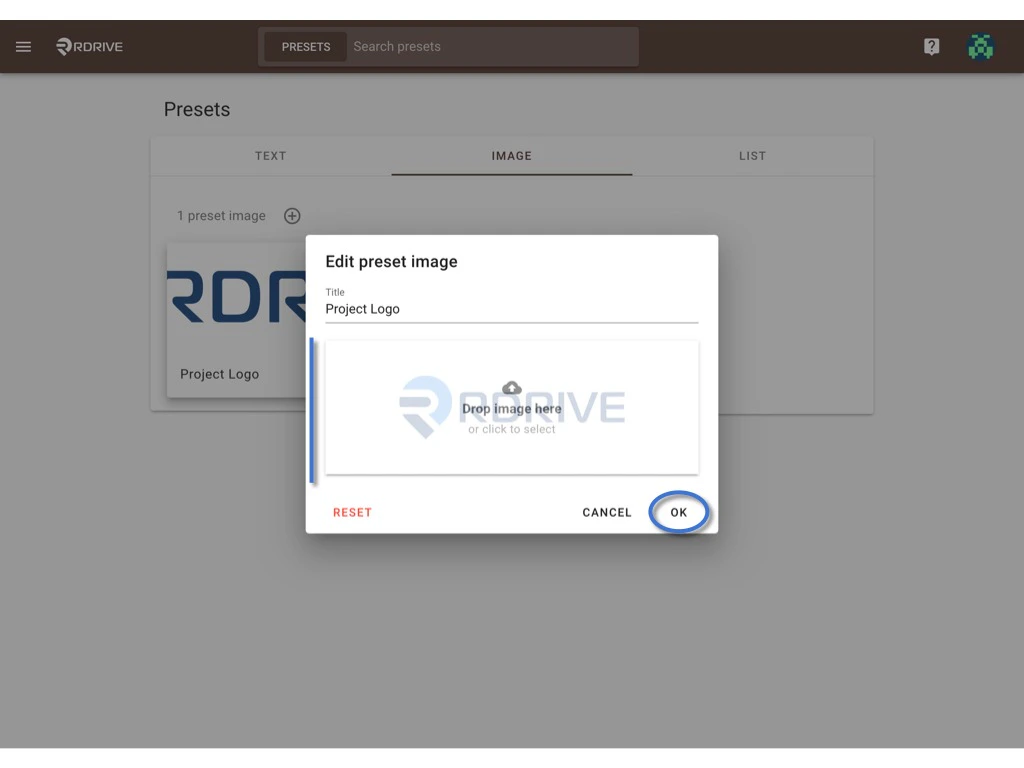
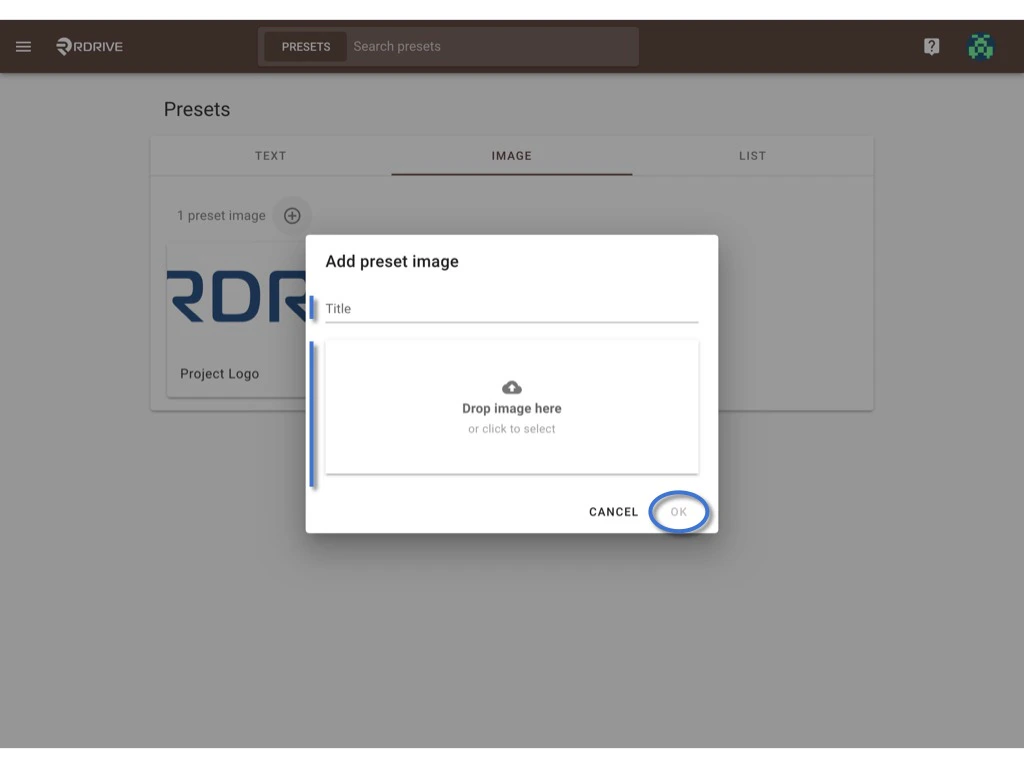
You can create a new preset image box by clicking + button.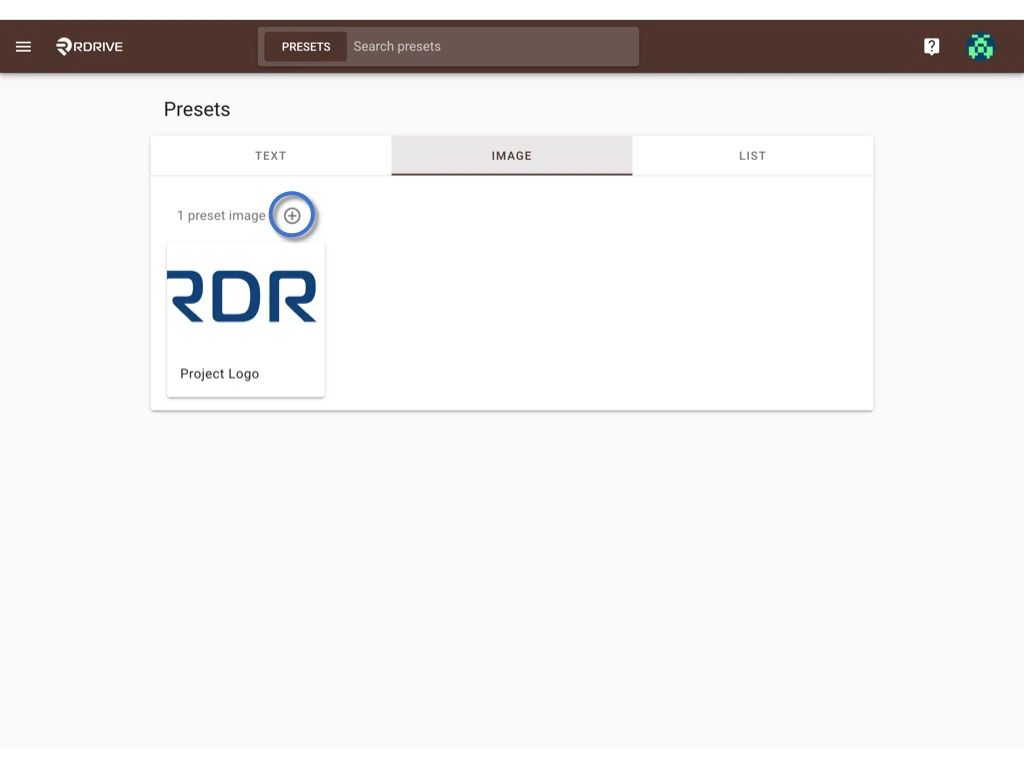
Click OK to save.
Select Read Only Image field and you will see the preset image box you just set up will be available for selection. The preset images become default values to all projects of the company. However, the preset images are available on the project level for editing according to the project needs.
EDIT
If you are a company admin, you can edit the preset images at the company level to place the changes to all the projects in one go. If you are a project admin/a user who is given the edit permission to edit preset items, on the project level, you can edit the preset image which is set on the company level according to your project needs. Editing the preset image on company level⚠️ Be careful that if you edit the list items at a company level, the changes will automatically apply to the same custom list on the project level. However, if the preset image is already changed to a project-specific image on the project level, any change made at the company level will not affect the current preset image on the project level. Select the image that you would like to edit.