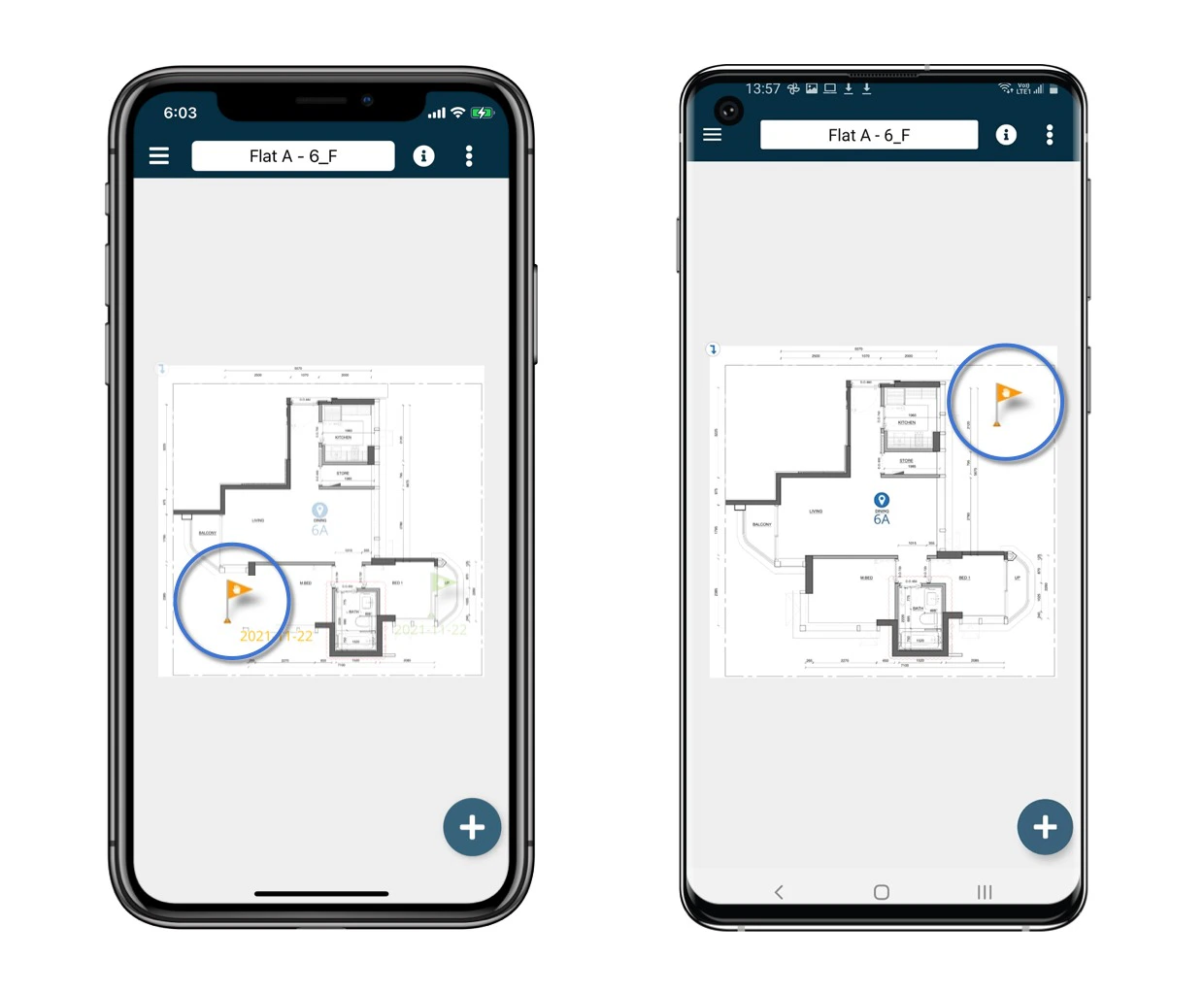
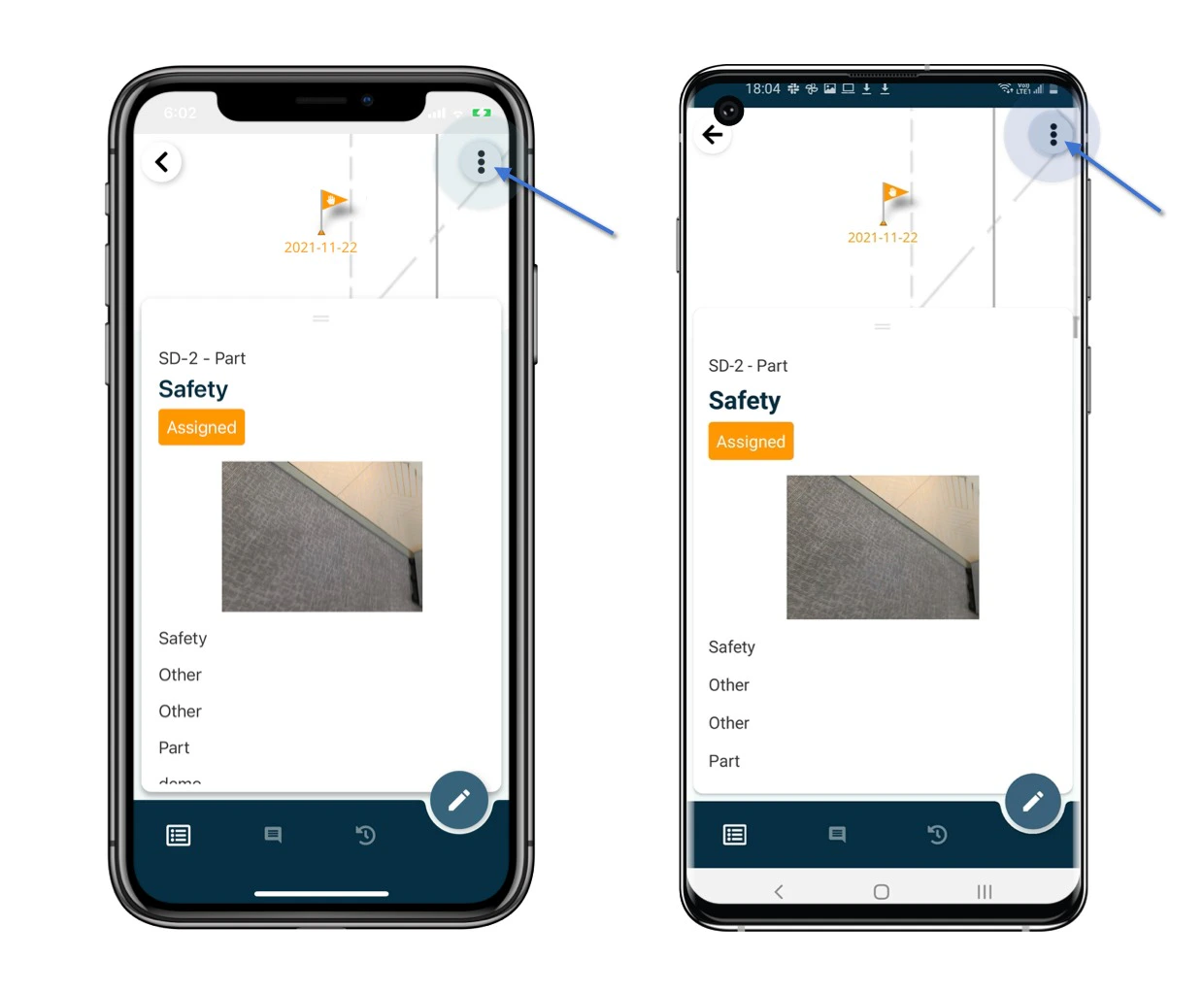
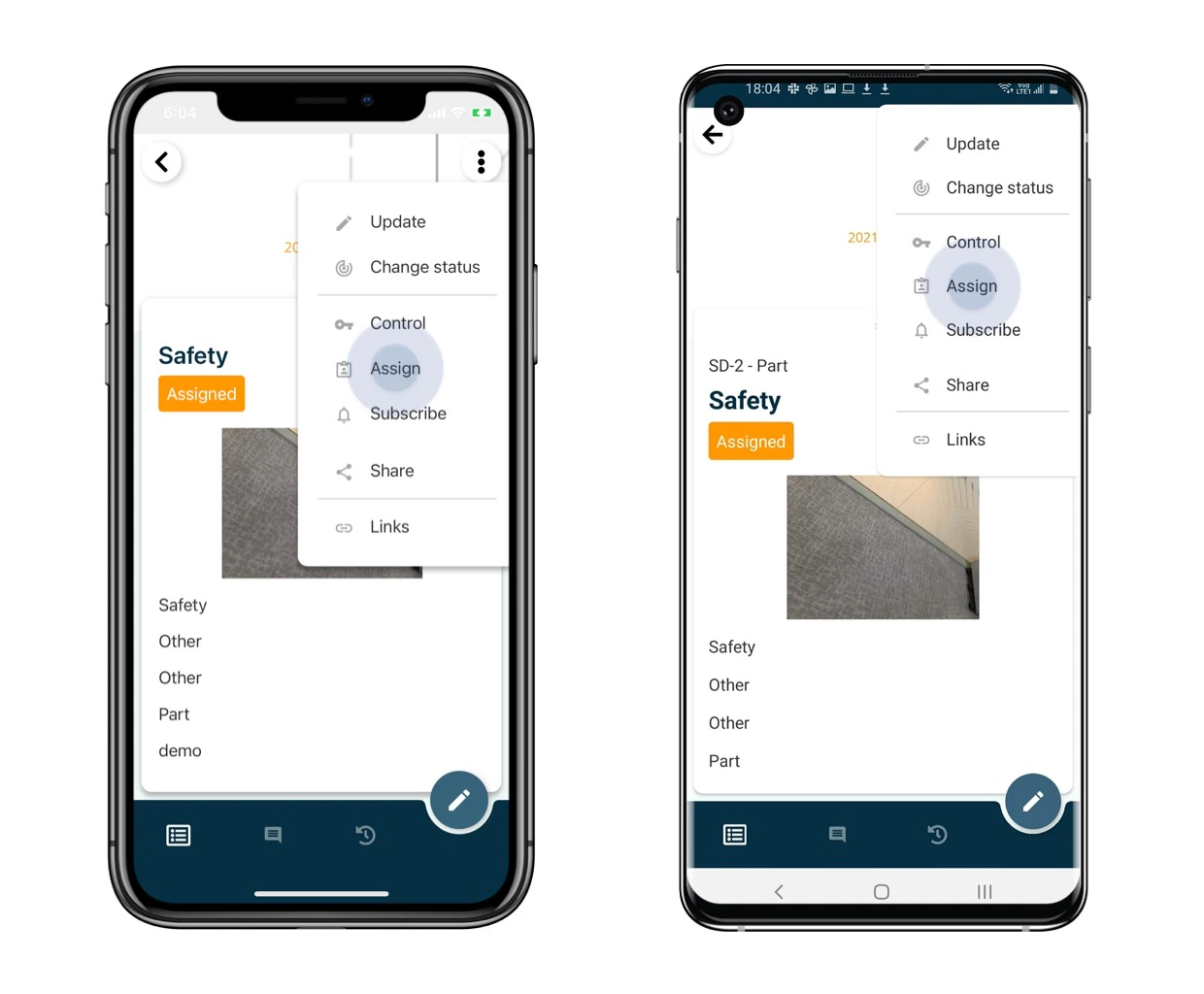
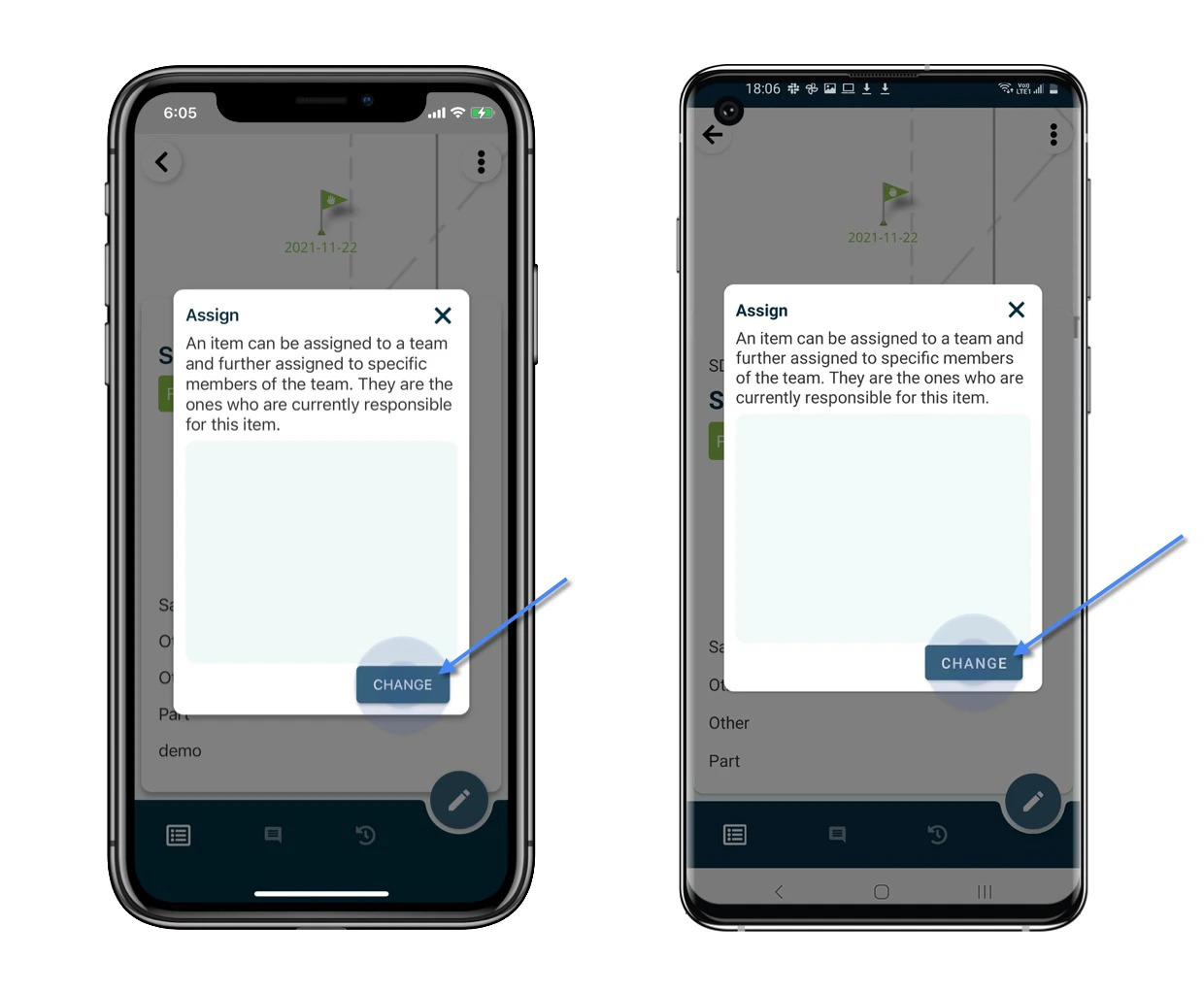
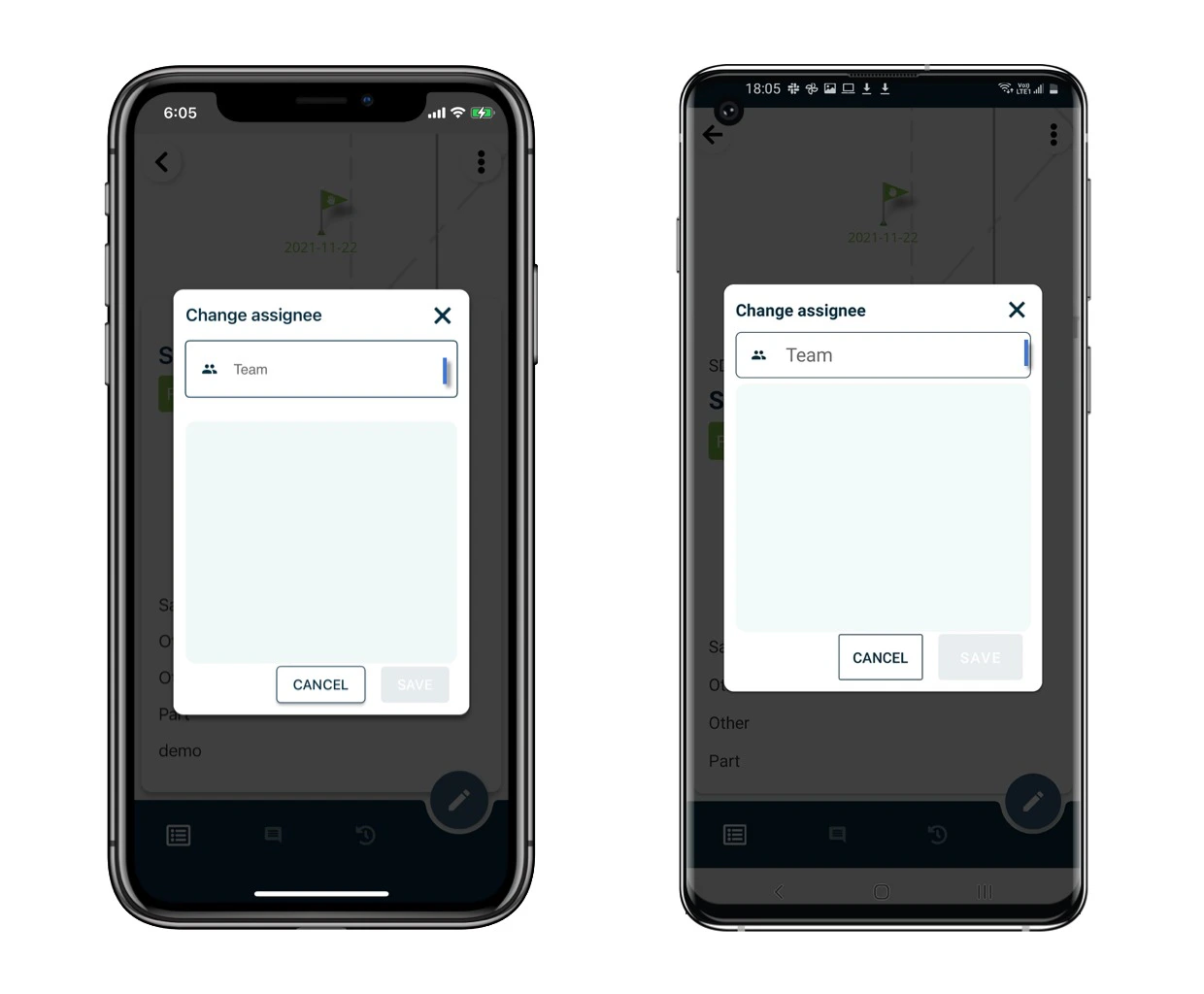
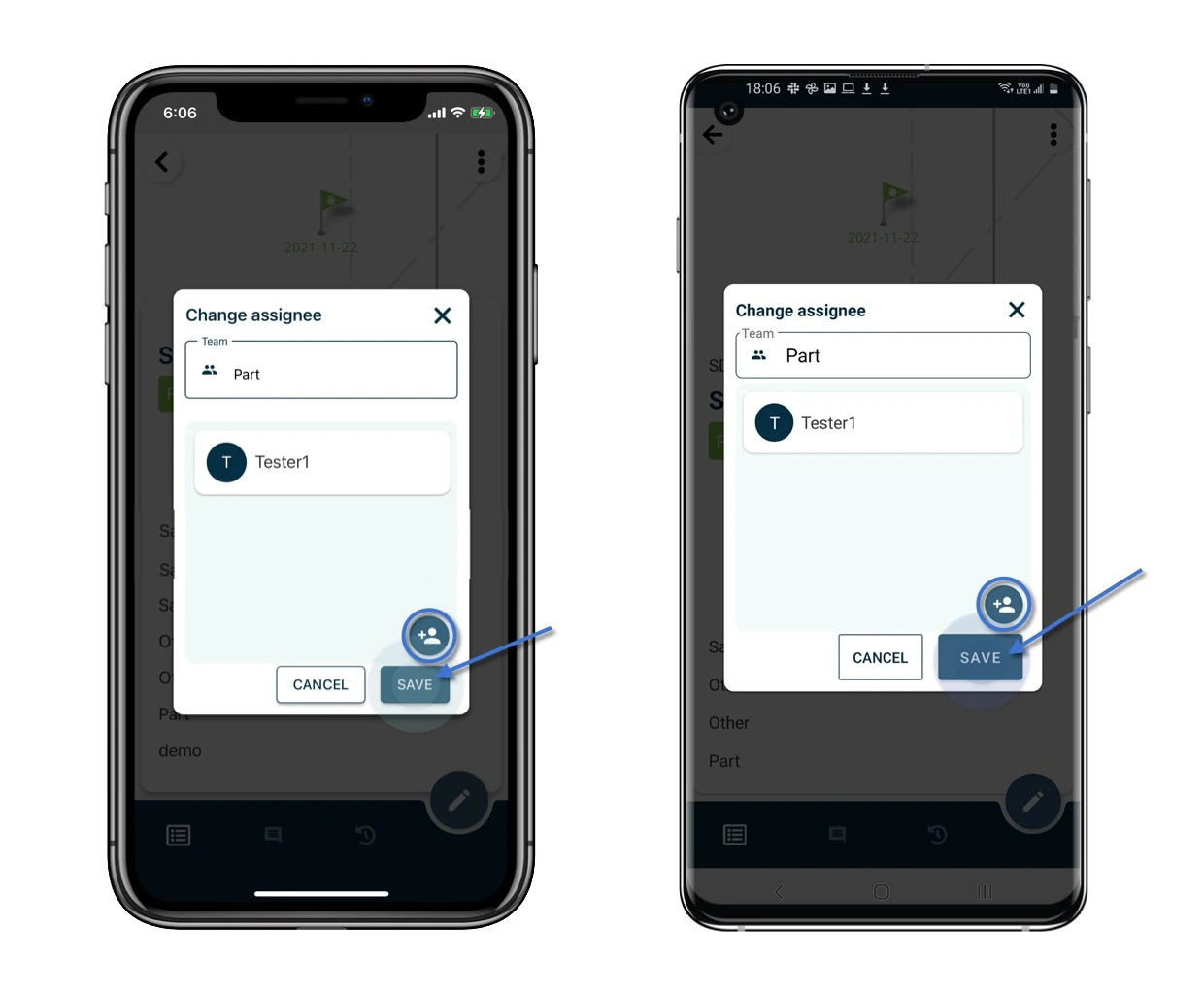
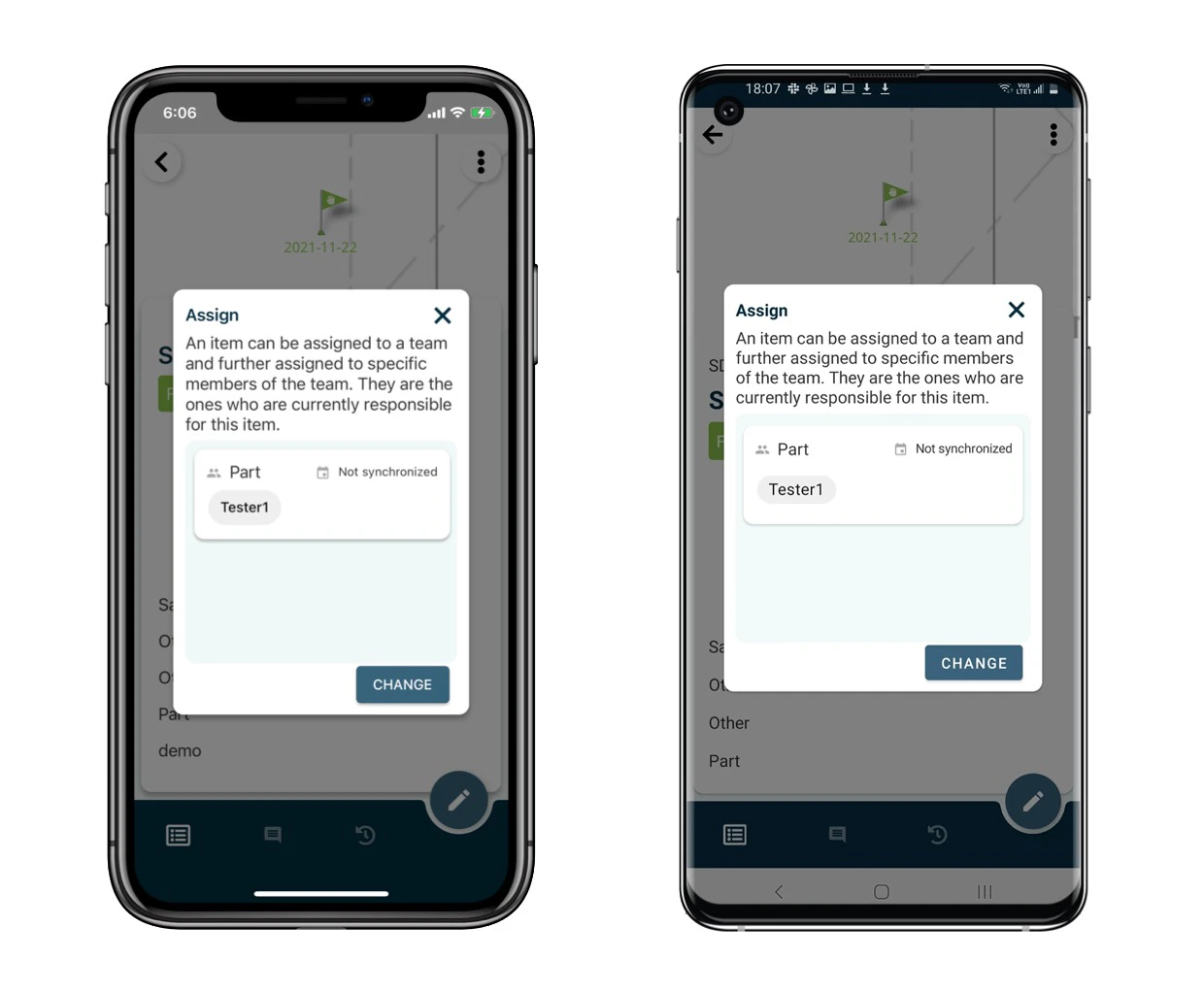
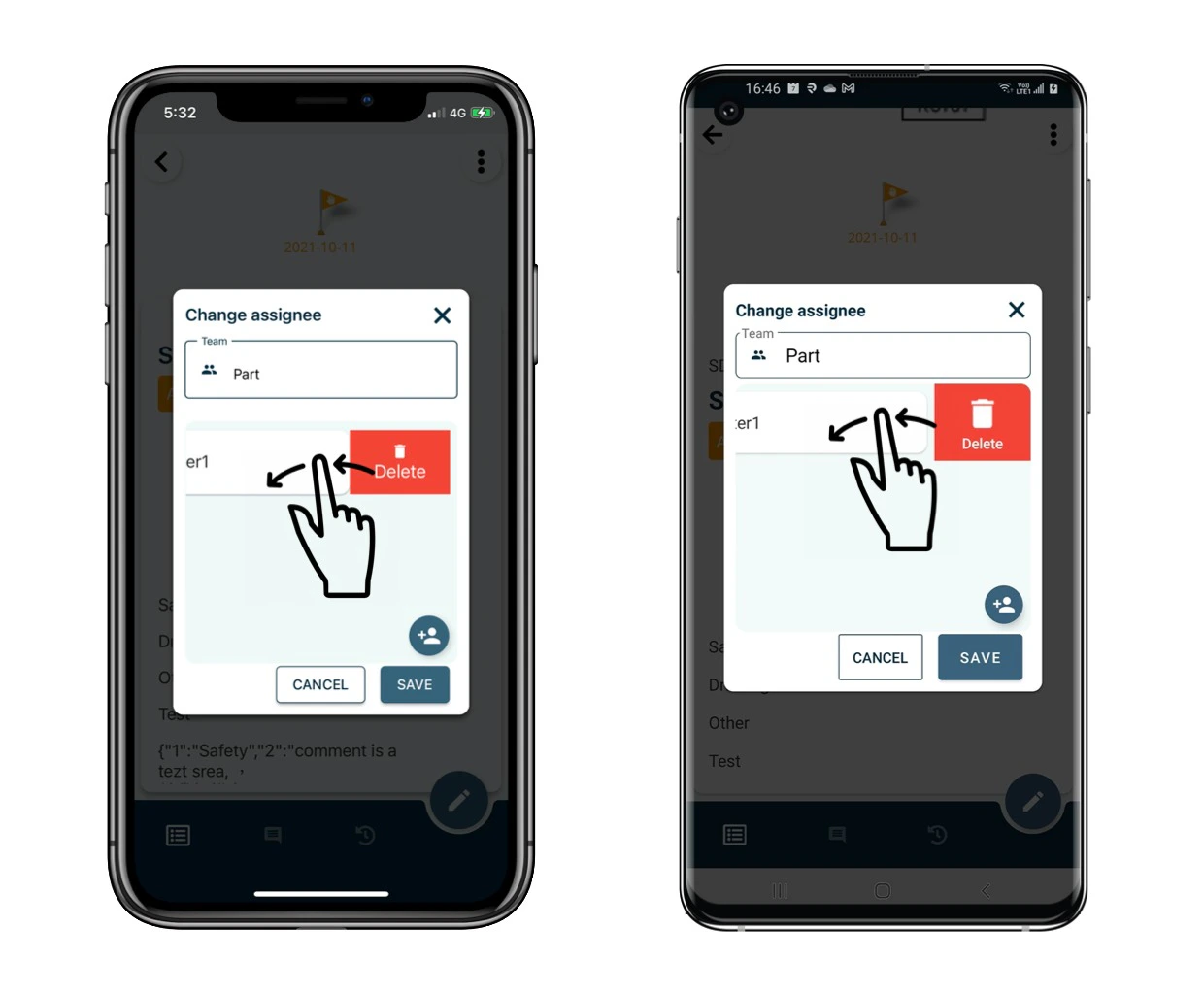
An issue can be initially assigned to a team and further delegated to specific team members who are currently responsible for the issue/record. All team members have permission to view the issue/record, and specific members will be notified of updates. To change the current assignee, you must have the ASSIGN permission. Navigate to the issue assign dialogue to specify the current assignee. You can find the initial assignee in the issue itself and the current assignee in the ASSIGN dialogue. Once the assignee is changed, the new assignee will be notified. The current assignee is the individual currently handling the issue. To change the assignee: How to assign the issue/record to others? 1. Click the ⋮ on the top right corner of the detail page and select Assign. How to assign the issue/record to others? How to assign the issue/record to others? 2. If a current assignee is present, it will be displayed. 3. Click CHANGE to modify the assignee. How to assign the issue/record to others? 4. To assign to others or change the current assignee, select the team and add the user(s).      Click SAVE to confirm. How to assign the issue/record to others? How to assign the issue/record to others? The assignee is now updated.  How to assign the issue/record to others? To remove a user as an assignee, swipe left to delete. How to assign the issue/record to others?
⚠️ After completing onsite work, remember to synchronize. This ensures data backup and updates for your project team.