

Overview
This guide explains the available options for adjusting the visual appearance of font size in form pages on RDrive. While font size, color, and style cannot be directly edited, this guide outlines how page size settings affect font appearance on printouts.- Purpose: To clarify font behavior in forms and provide steps for adjusting the form page size to indirectly affect printed font scaling.
- Who It’s For: Company Admins
Prerequisites: Access to company-level settings
TABLE OF CONTENTS
Key Notes
- Font size, color, and style are fixed and cannot be modified.
-
However, the page size of a form can be adjusted. Because the font size remains constant, changing the page size will scale the text visually when printed.
- A smaller page size results in text appearing larger on paper.
- A larger page size makes the text appear smaller.
- Changes are applied per page and will affect all content on that page.
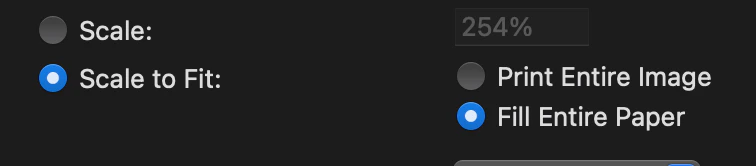
⚠️ Please note: When printing, always check that your print settings are set to “Scale to Fit” and “Fill Entire Paper” to align the layout properly.
Step-by-Step Instructions
-
Access Company-Level Settings
- Go to the sidebar menu > Settings > Categories
-
Select a Process Template
- Locate and click on the desired process template
- Open the template in Draft mode
-
Adjust Page Size
-
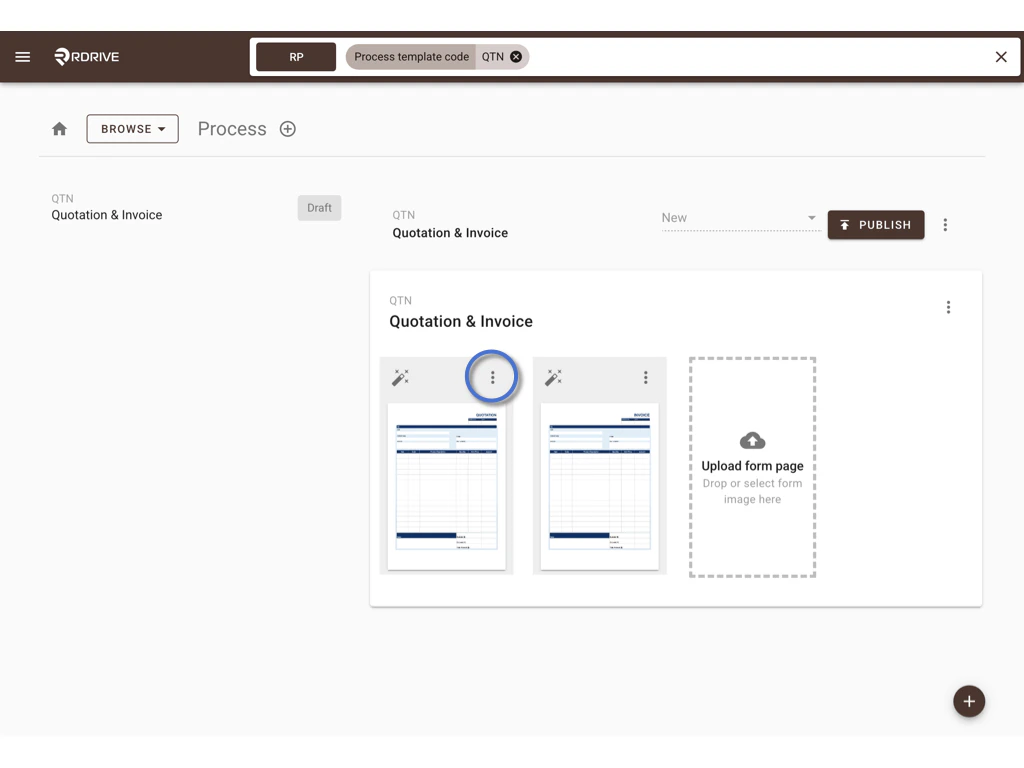
Click the three-dot menu (︙) of the form page\
-
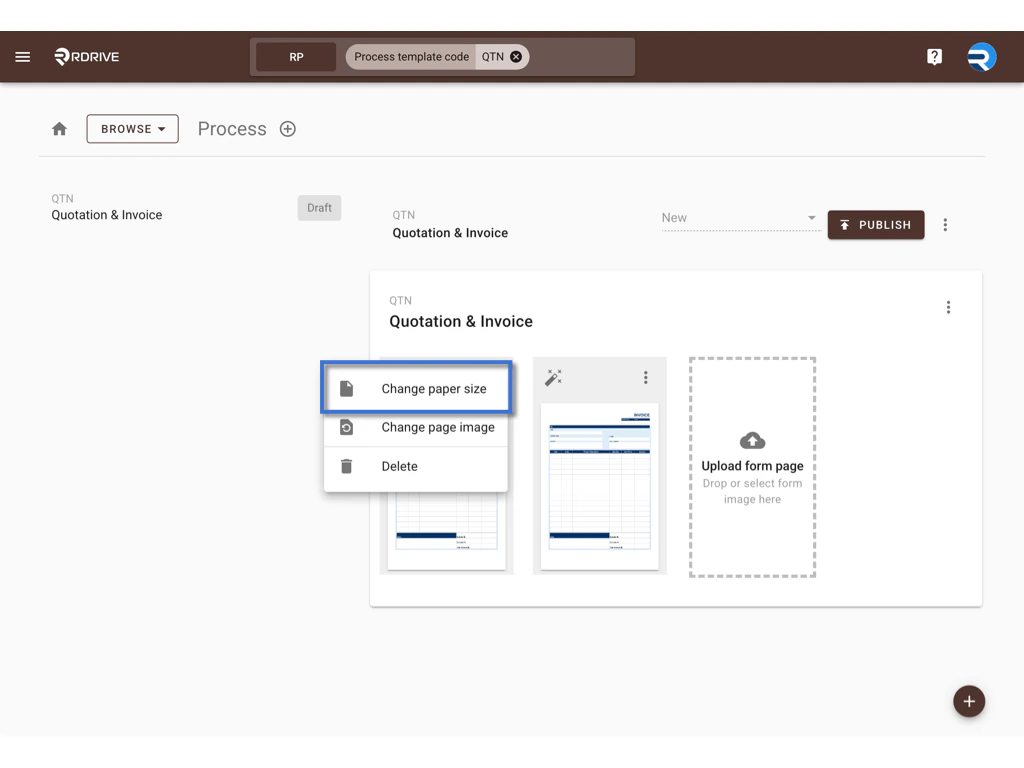
Select Change Paper Size\
-
Click the three-dot menu (︙) of the form page\
-
Choose Page Mode
- You will have two options:
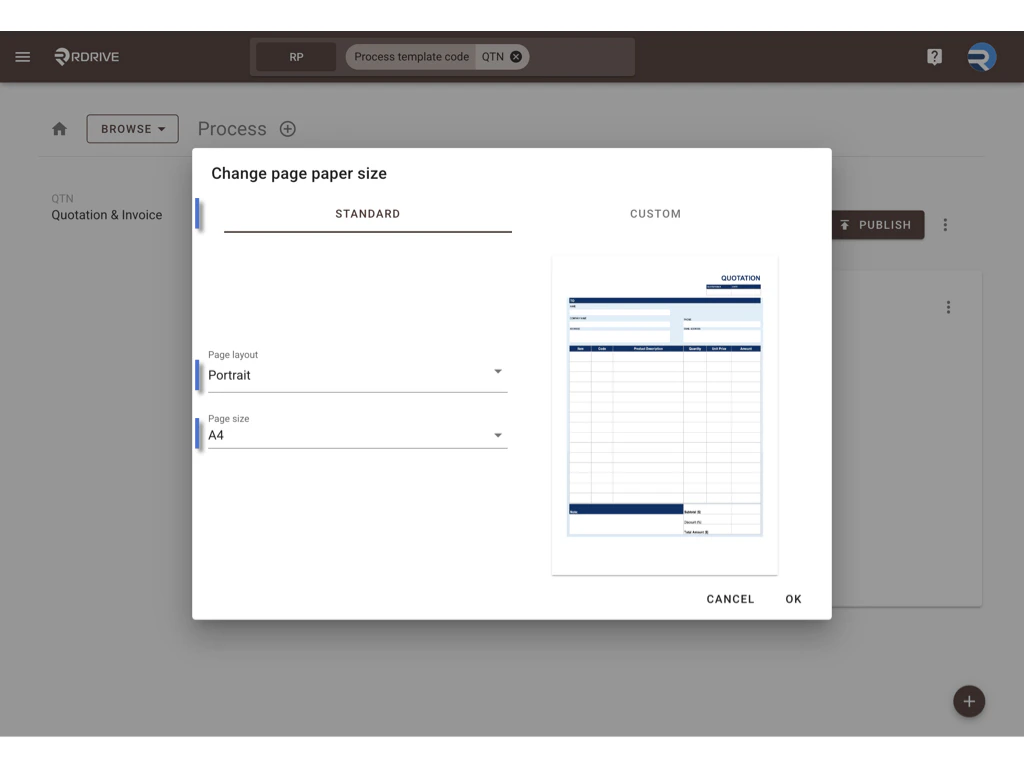
- Standard Mode:
- Select a standard page layout: Portrait or Landscape
- Choose a page size: A5, A4, A3, etc.\
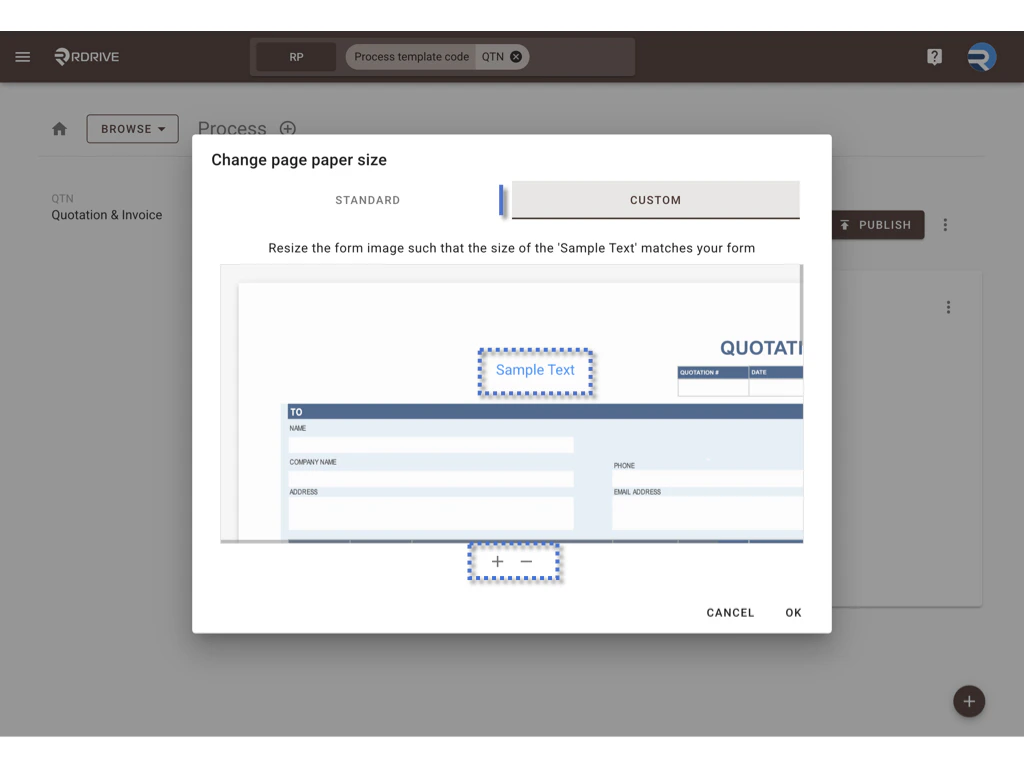
- Custom Mode:
- Zoom in/out to resize the form image manually
- Align the form scale with the “Sample Text” preview
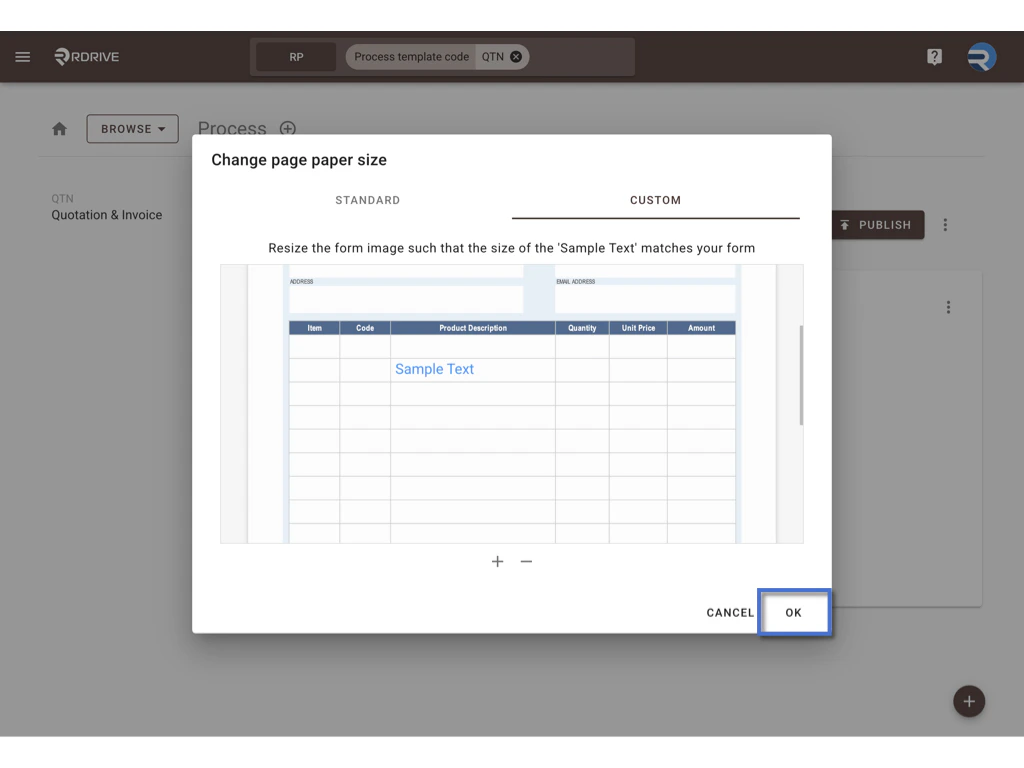
- Drag the Sample Text to position it and preview the font scaling\
- Standard Mode:
- You will have two options:
-
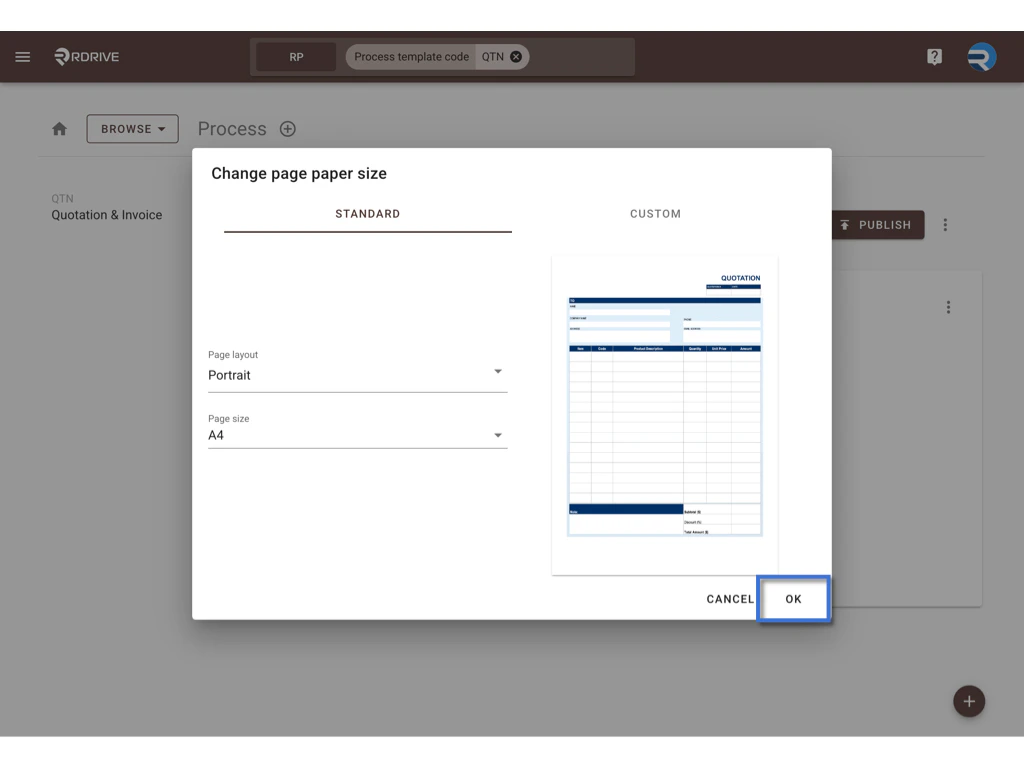
Click OK to Confirm
- The change will be applied to the current form page only
Example
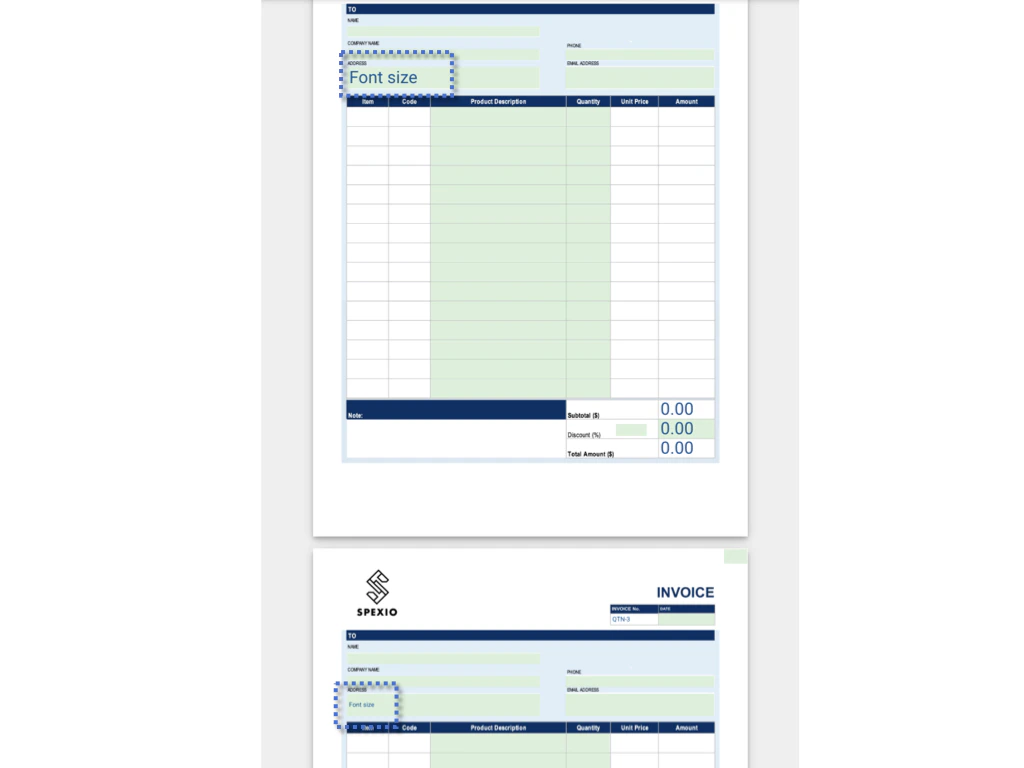
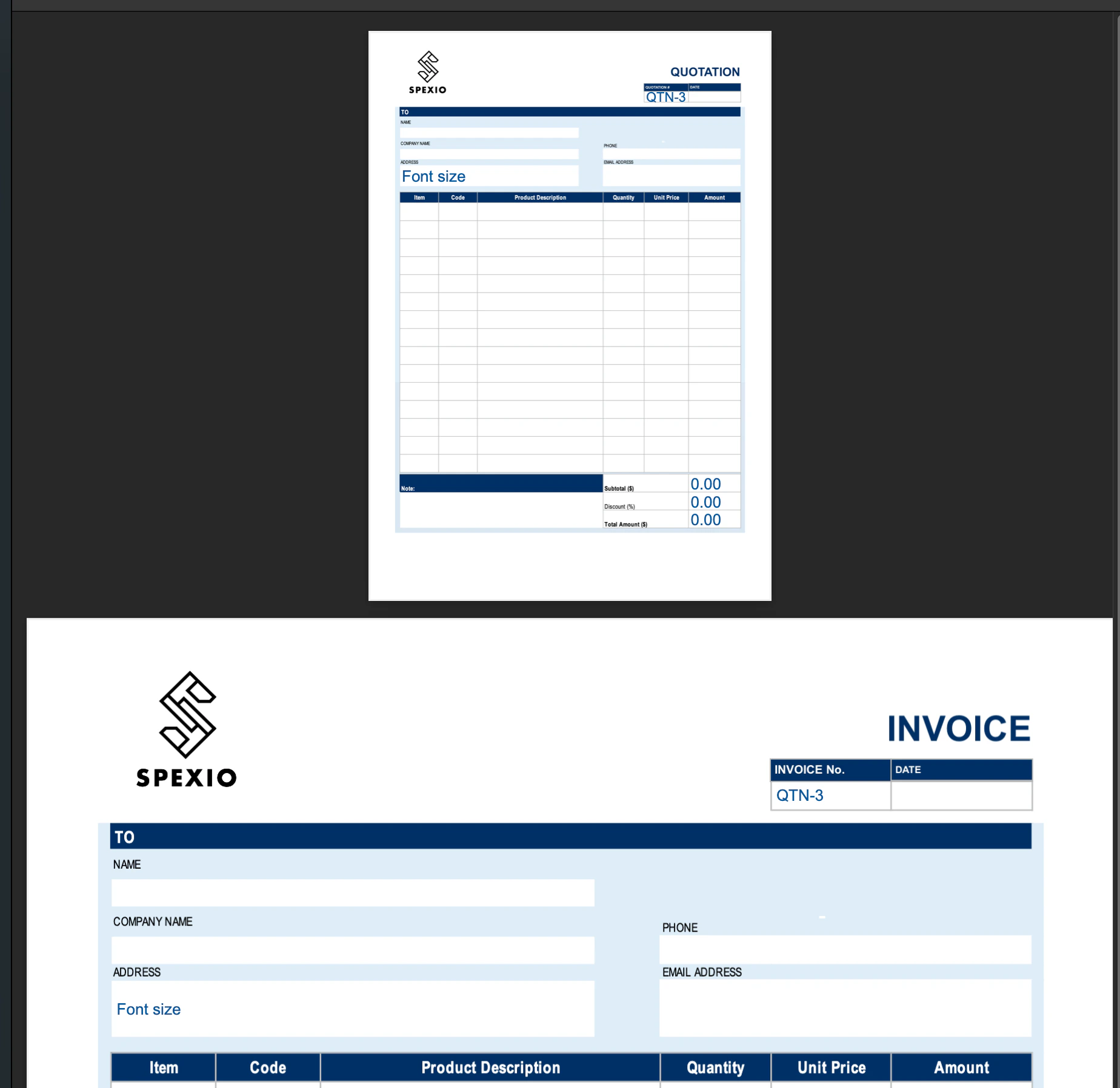
Below is a sample comparison of different page size settings.
Note that the same font appears larger on smaller pages due to scaling.
Reminders
- Only Company Admins can perform this action
- Adjustments apply to each page individually
- Ensure consistent paper size settings when printing to avoid layout misalignment