Introduction:
Setting up effective permission policies is crucial for managing access control within your system. This article provides a comprehensive overview of actions you can perform when configuring permission policies, highlighting both policy and rule levels.- Introduction:
- Permission policy leve****l
- Rule level -
- Conclusion
via Website
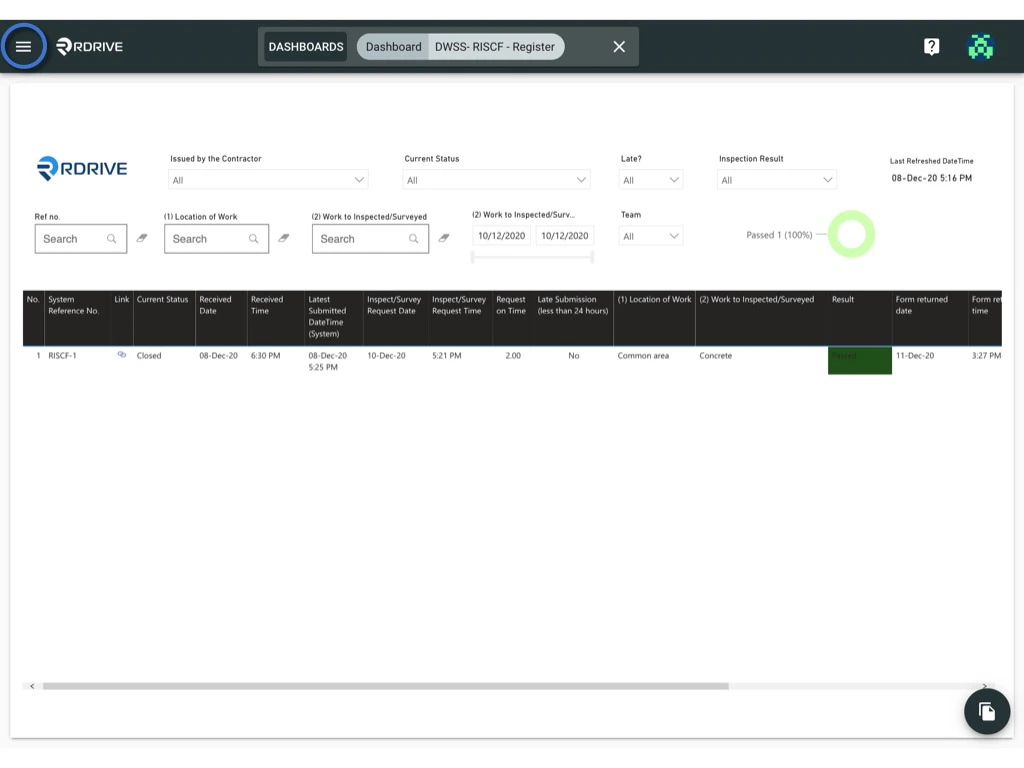
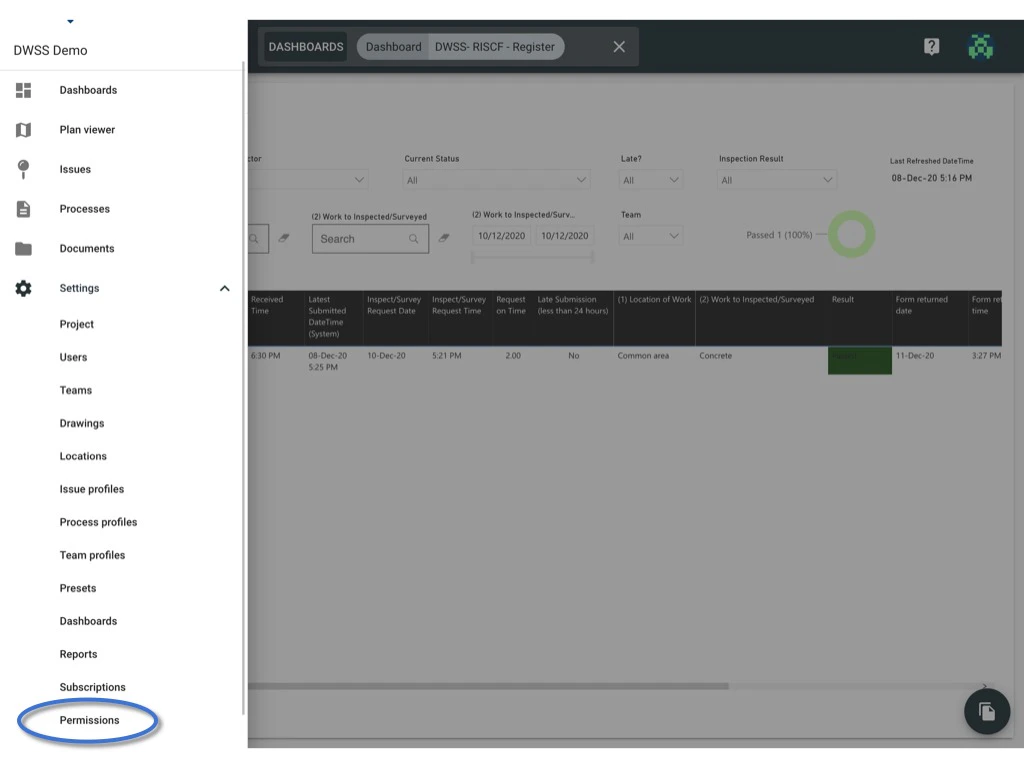
- Click the ≡ menu icon in the top left corner to access the Menu.
- Navigate to Settings > Permissions page.
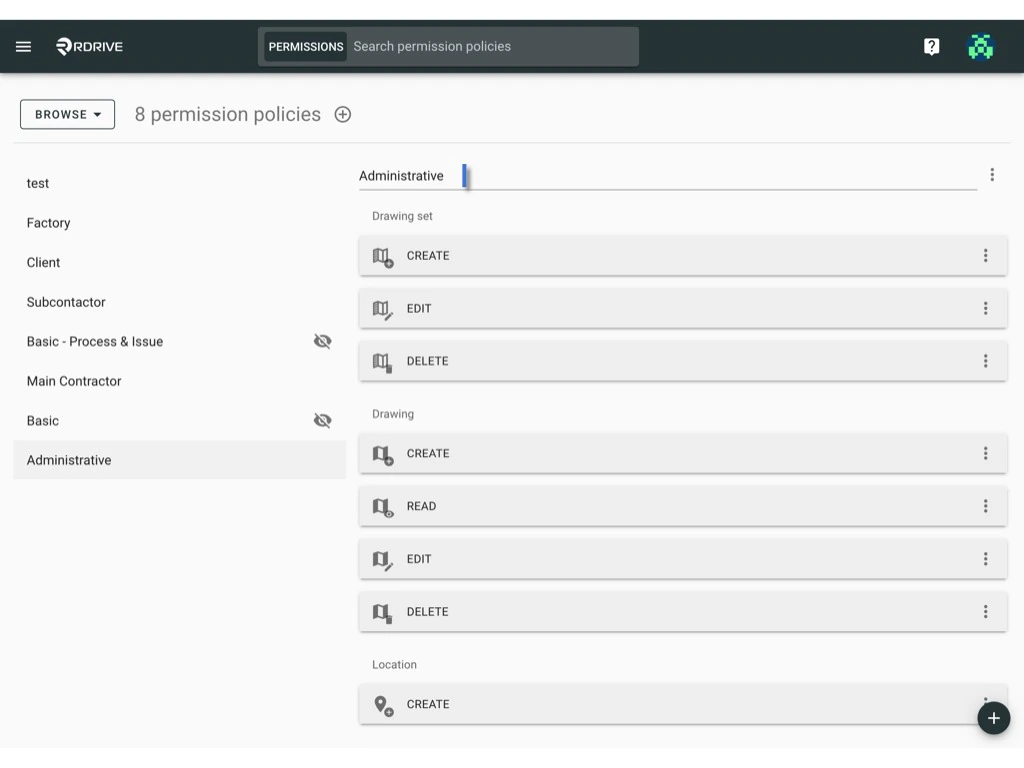
At the permission policy level, you have several key actions:
Edit policy title
- Select the permission policy, and click on the title to edit.
Edit usage -
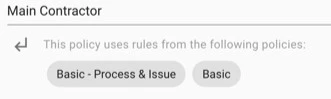
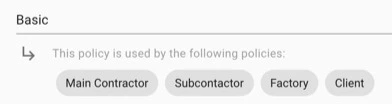
Usage: select another policy to include their rules in this policy.
See here to learn more about usage functions.- Click the ⋮ button next to the title.
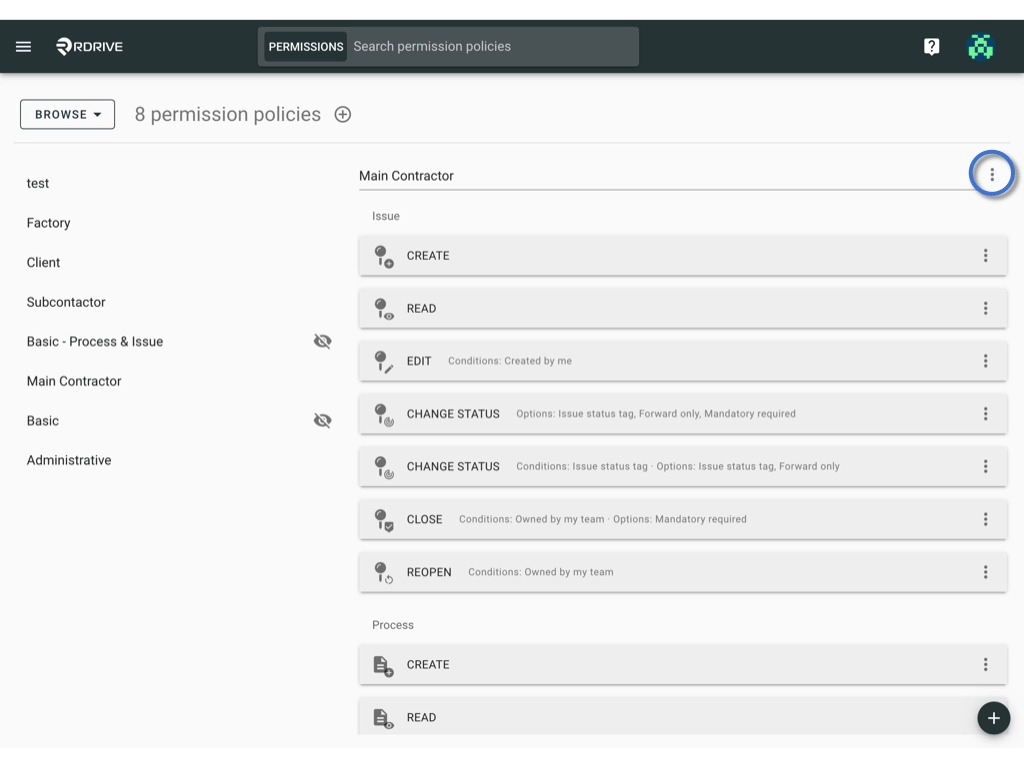
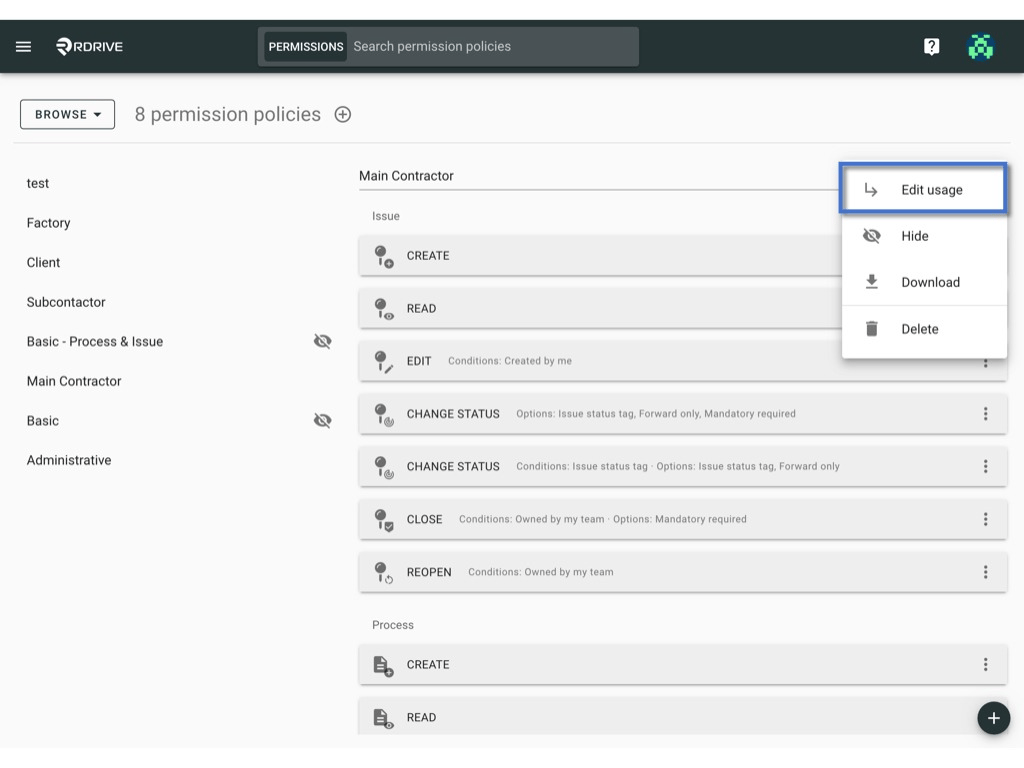
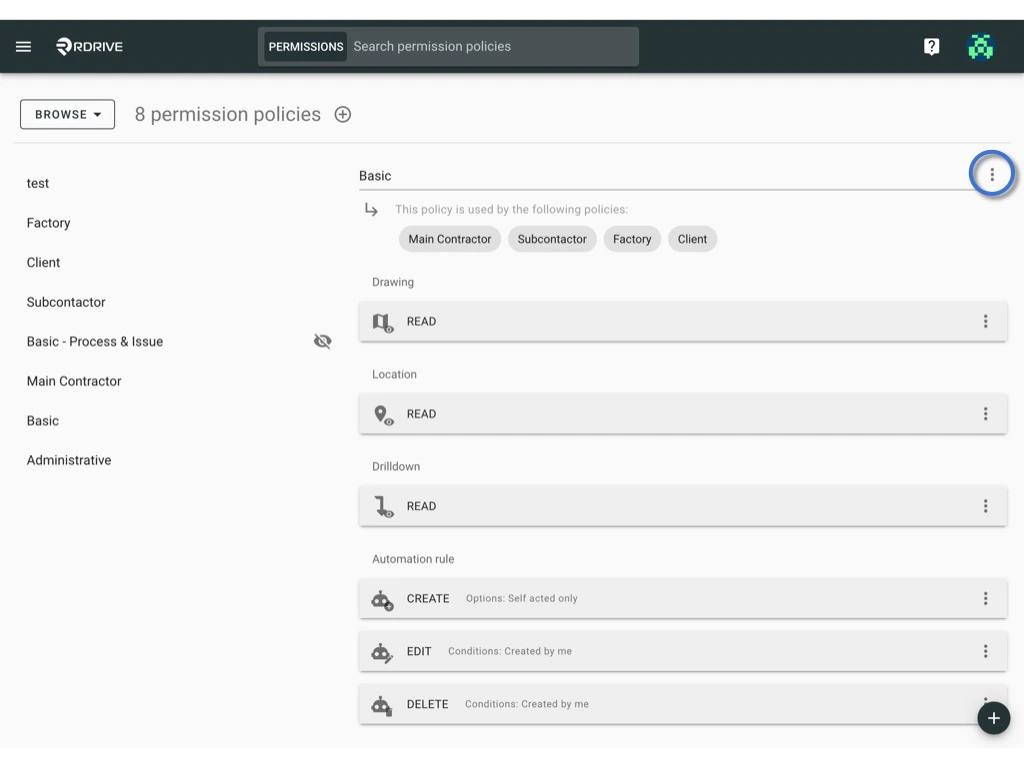
- Choose “Edit usage.”
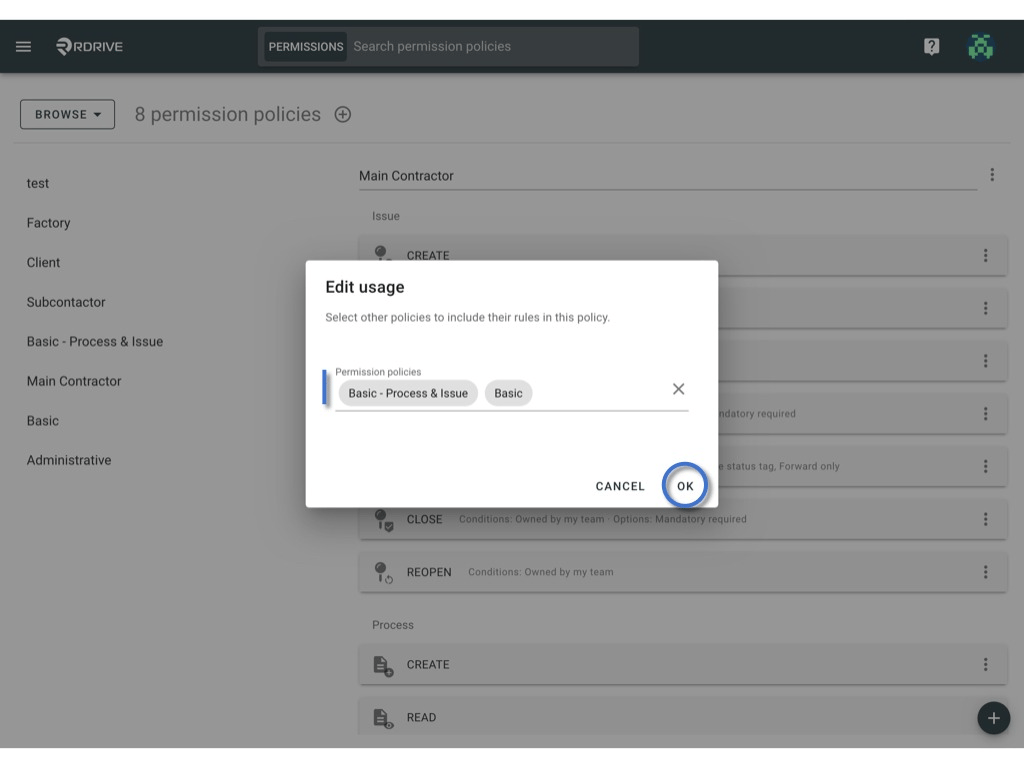
- Select other policies to include their rules in this policy.
- Confirm with “OK.”
Hide & Unhide policy
- The hidden policy cannot apply to a role directly.It can only serve as a building block for other policies.
-
To hide, click the ⋮ button next to the title and select “Hide.”
 The icon indicates which policy has been hidden. If it is concealed, it cannot be applied to team roles and serves solely as a foundational element for other policies.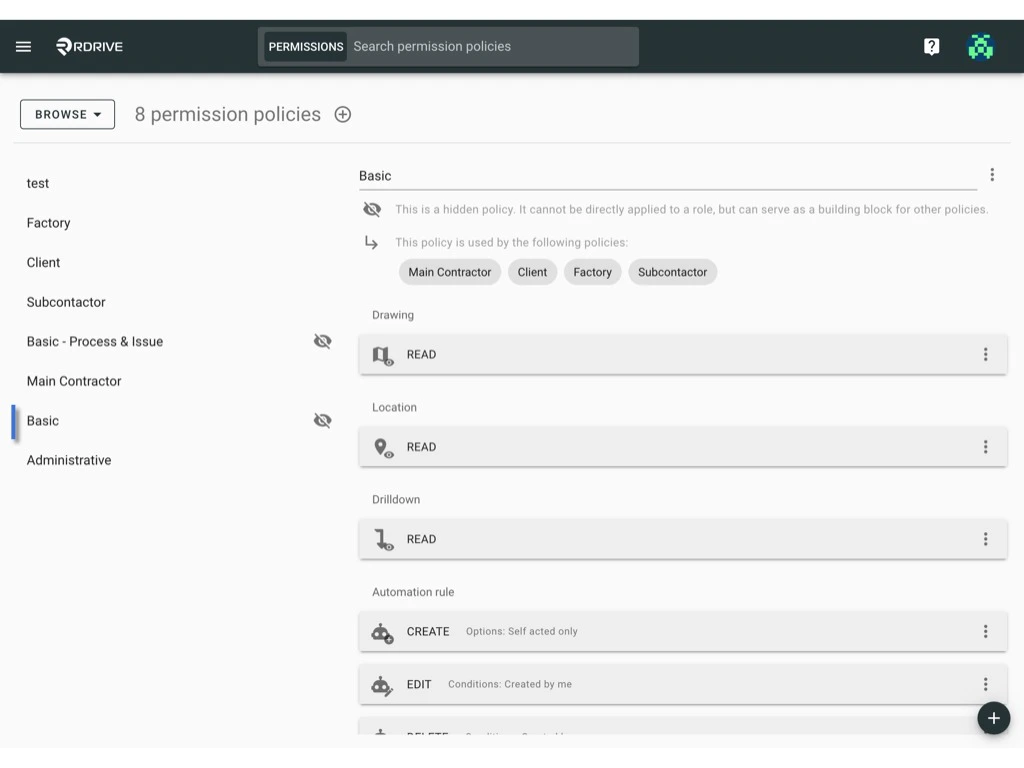
-
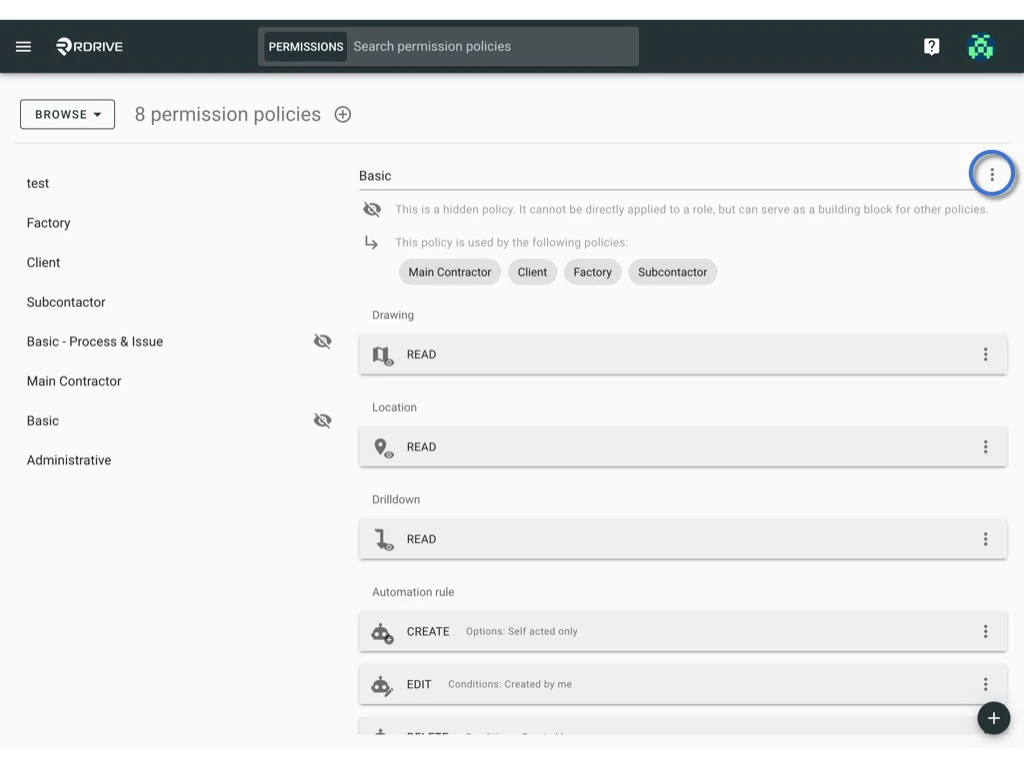
To unhide, click the ⋮ button and choose “Unhide.”

Delete
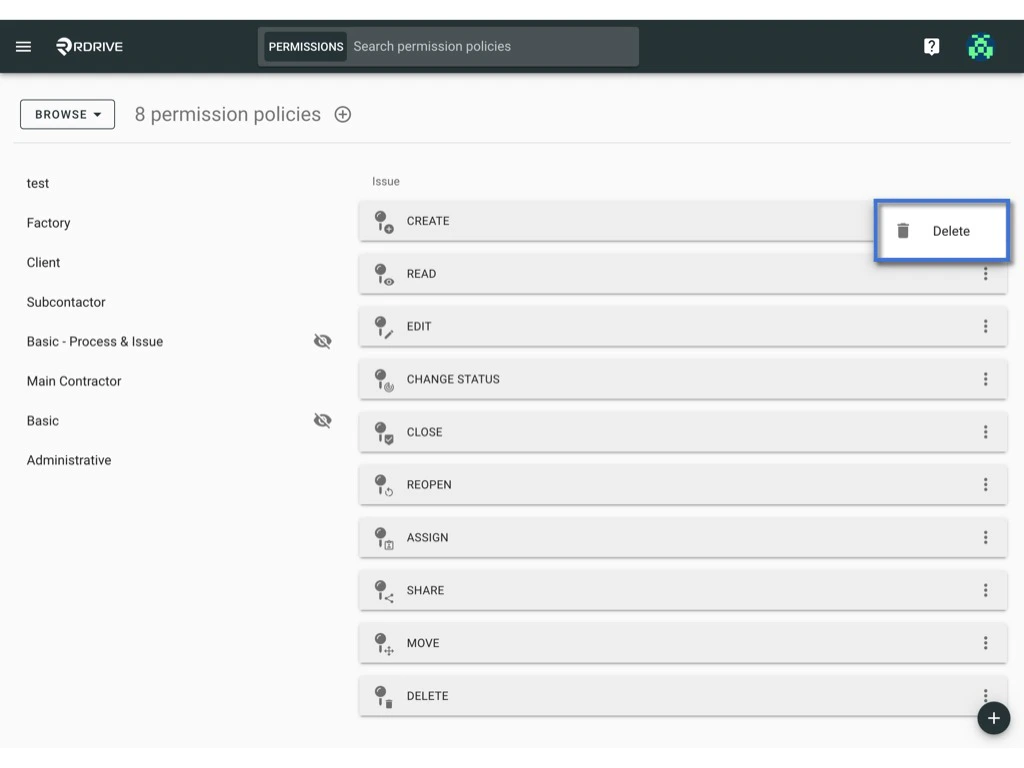
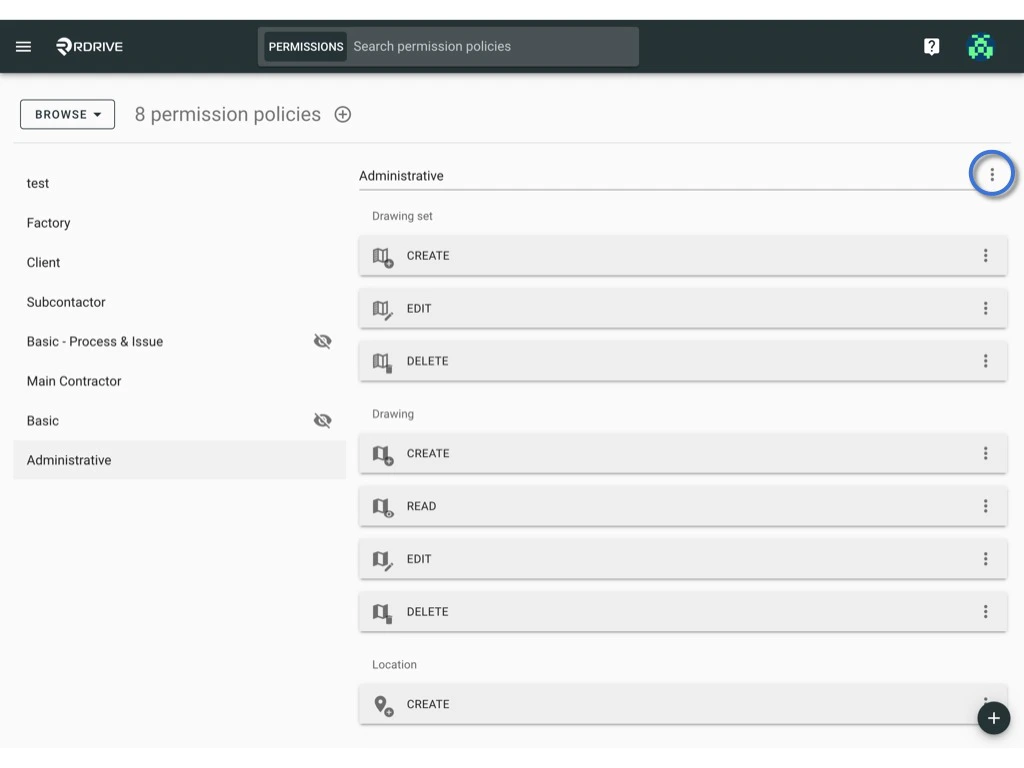
- Click the ⋮ button next to the title.
- Choose “Delete.”
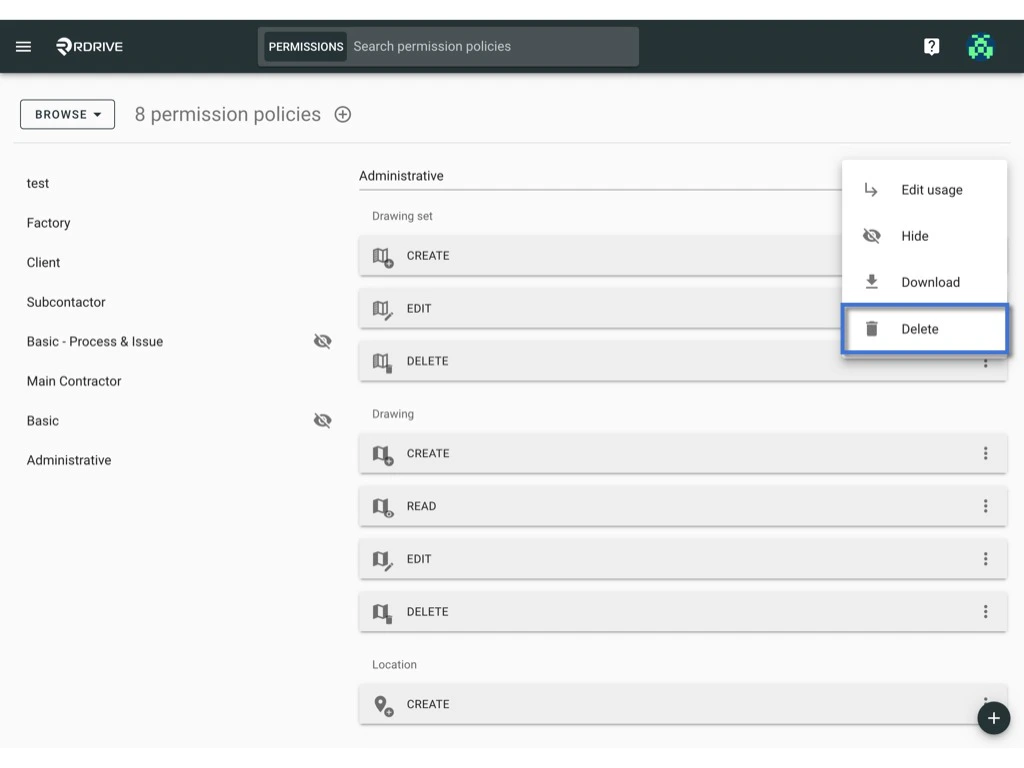
Note: Policies in use cannot be deleted.
Beware: Once deleted, it is no way to bring it back :)
Download
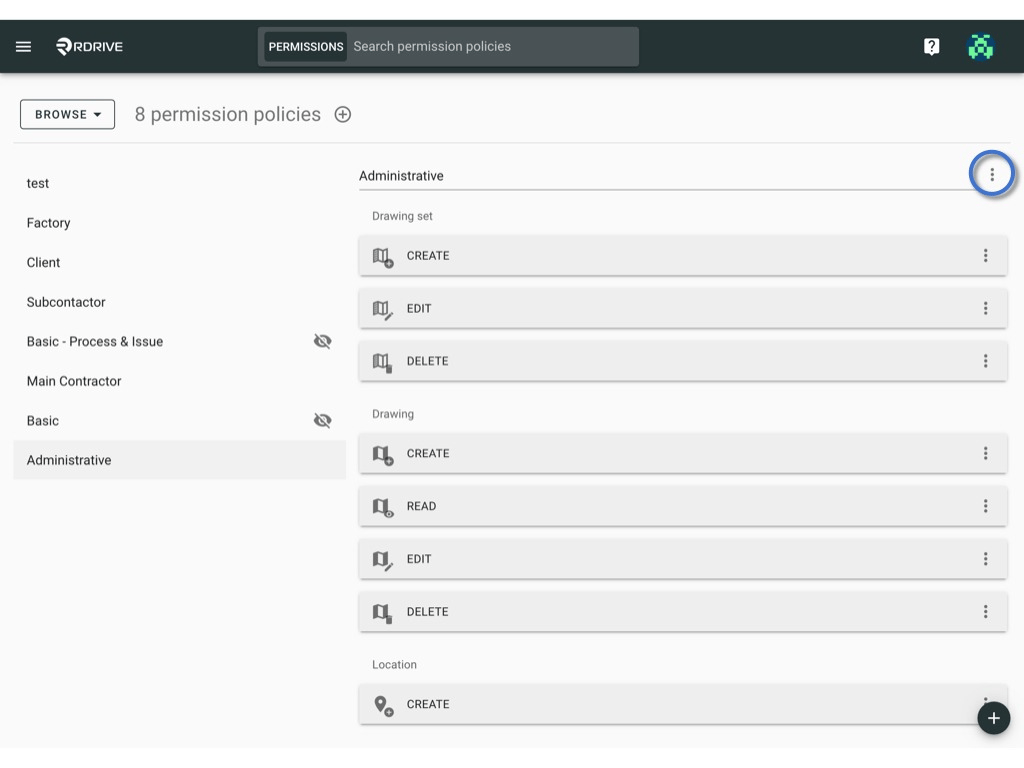
When confronted with the task of implementing the same permission policy in another project, you don’t need to start from scratch. Instead, streamline the process by exporting and importing permission policies. This approach not only saves time but also ensures consistency across projects. Click here to see a few points that you need to be aware of when downloading permission policies.- Click the ⋮ button next to the title.
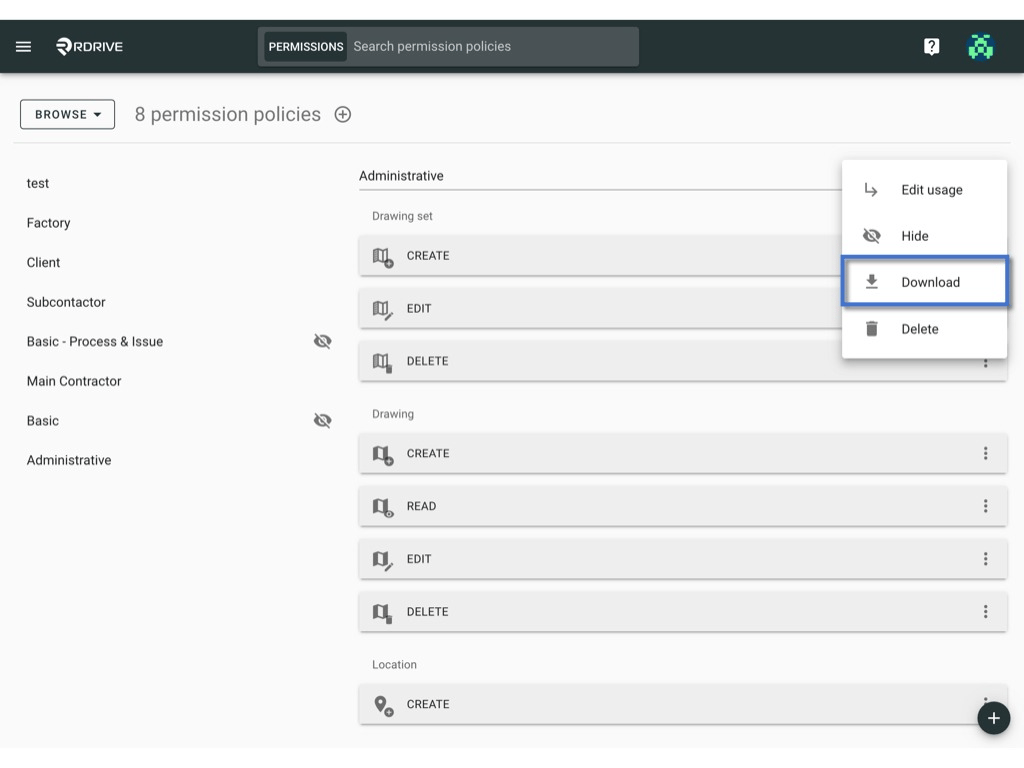
- Choose “Download.”
- Switch mode from “Browse” to “Select.”
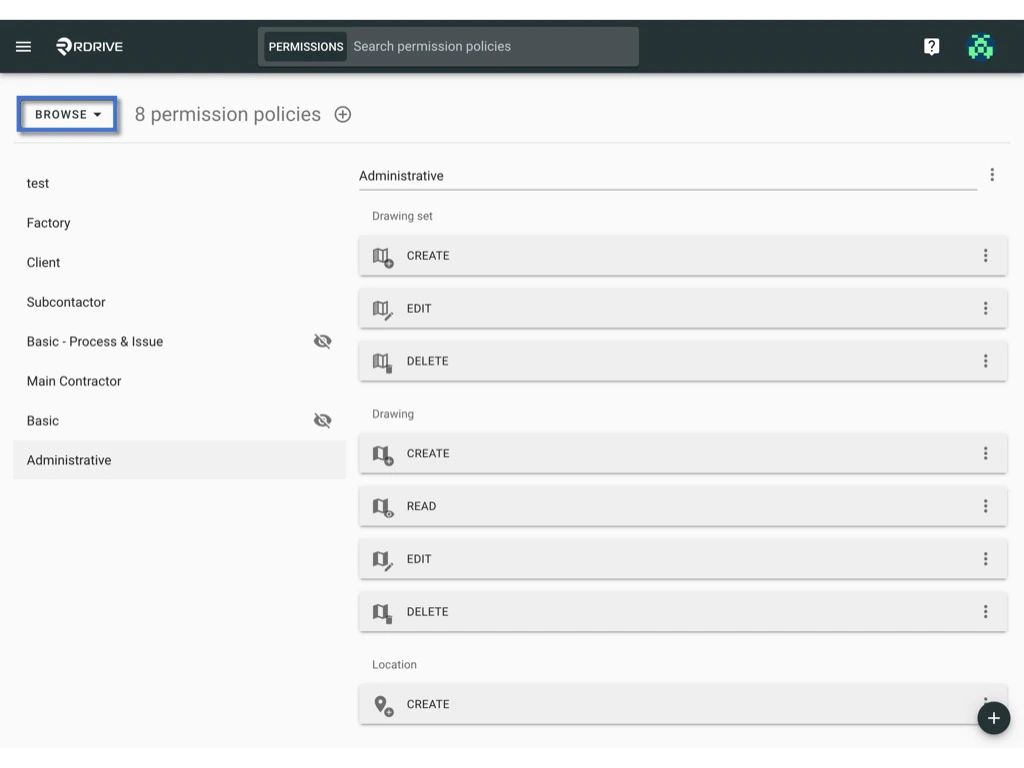
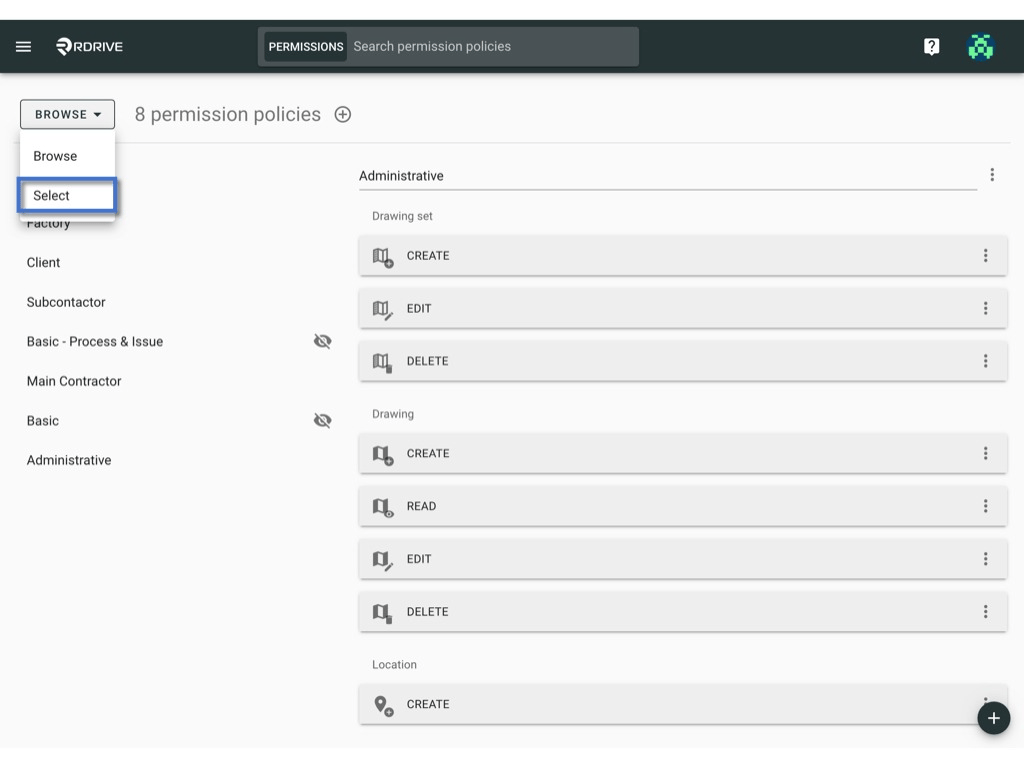
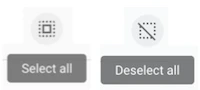
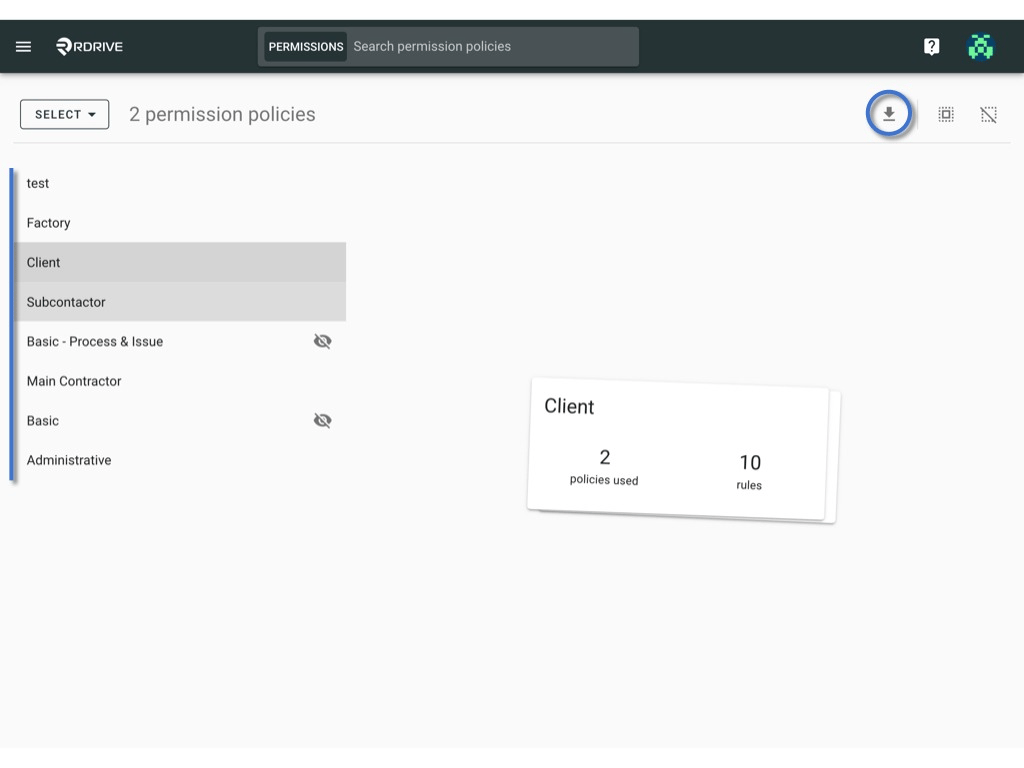
- Click on items or use select all / deselect all buttons. Selected item(s) will be highlighted in grey.\
- Press the Download icon to batch download.
Edit the conditions & options of rule
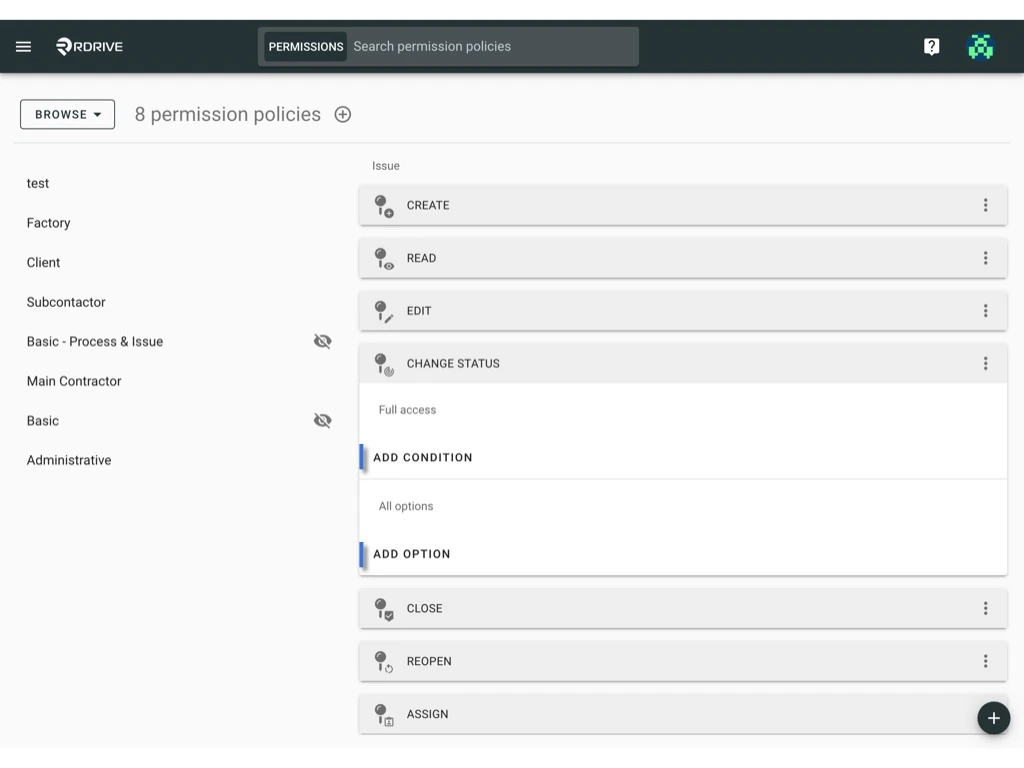
Conditions define the situation in which you are allowed to perform a certain action.Options define the details of the action you are allowed to perform on a certain object view Understanding Permission Policies and Rules to learn more.
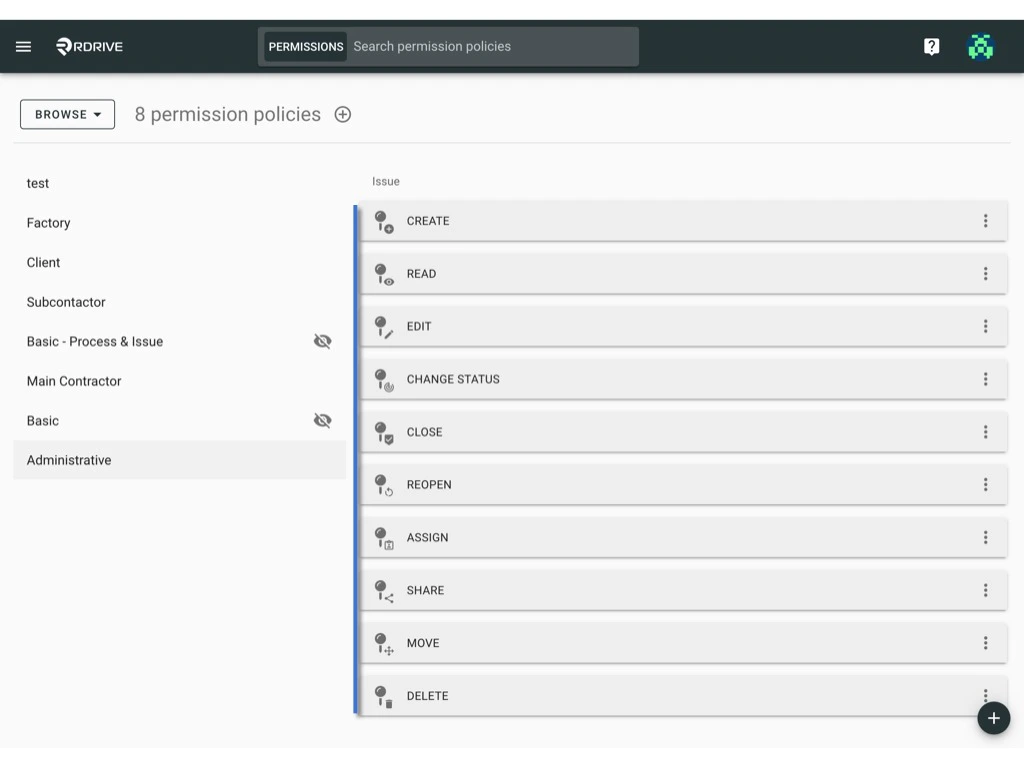
- Click to extend the rule and use the “Add Condition” & “Add Option” buttons to edit.
Delete rule
- Click the ⋮ button on the right-hand side of the rule.
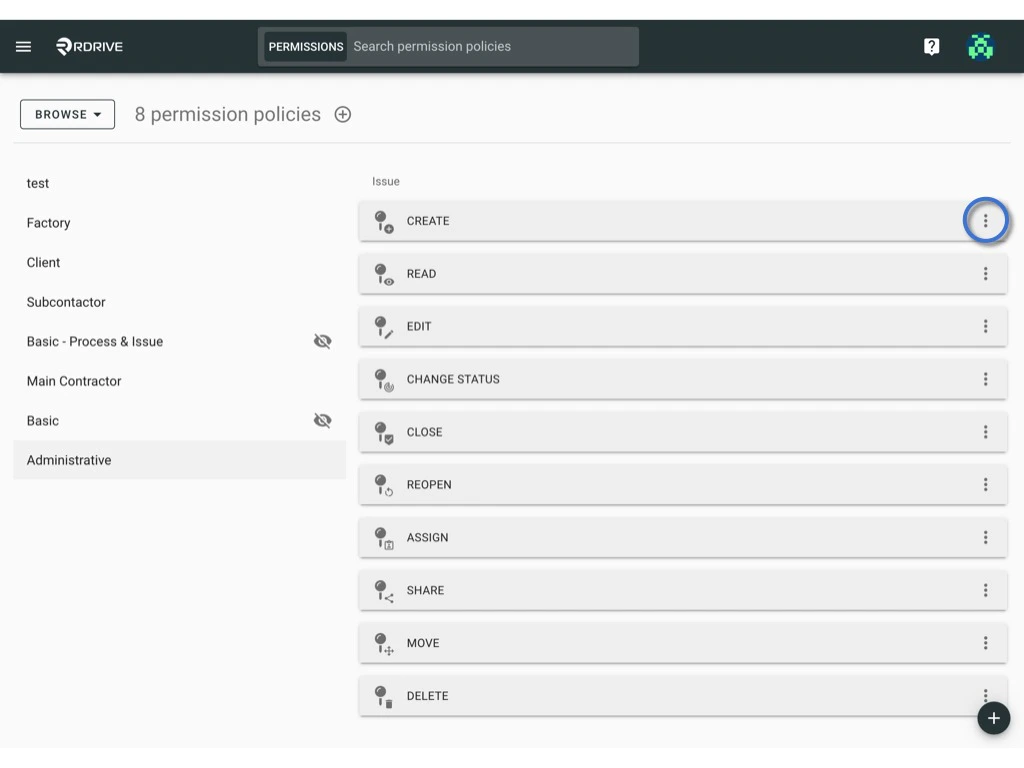
- Choose “Delete.”